How to Supercharge Gemini App Usage on Foldables and Tablets
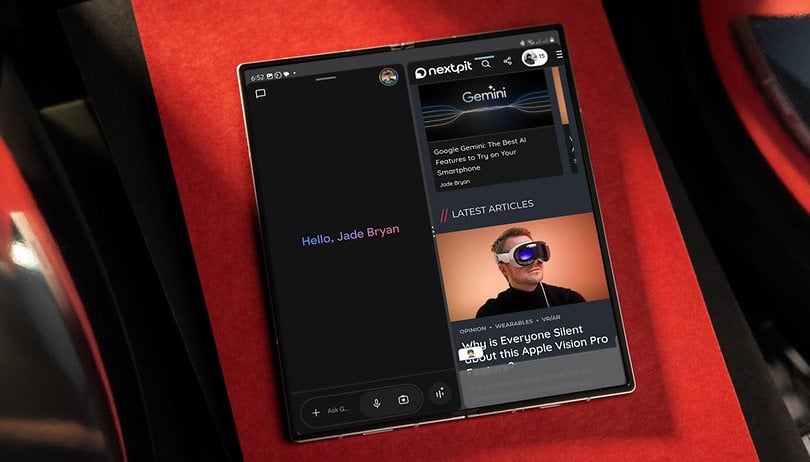

Since its introduction on Android, the Gemini app has steadily gained enhancements, such as integration with more apps and lock screen support. Recently, the overlay app version received another update, enabling foldable phone and tablet users to multitask more effectively with Gemini. If you have a large-screen Android device, here’s a guide on how to use the Gemini app in multi-window or split-screen modes.
Currently, you can launch Gemini in various ways, including voice commands, gestures, and shortcuts. These will open an on-screen overlay rather than the full-screen app, placing Gemini in a fixed window mode on your display.
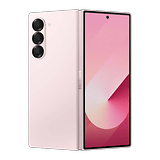
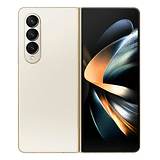
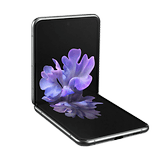
Google has improved this on-screen overlay experience by adding support for window or pop-up views, split screens, and resizing options. This feature first appeared on the Samsung Galaxy Z Fold 6 (review) with the One UI 6.1 update and has since expanded to more foldable phones and large-screen devices like tablets.
- Related: Best Android tablets compared
How to Use Gemini on Android Foldables and Tablets
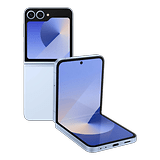
For foldable devices, Gemini’s on-screen overlay functions on both the cover screen and the main folding screen. Both screens support switching between view modes or minimizing the app, though customizations like transparency may vary depending on the device and Android OS version.
Using Gemini on the Main Foldable Display
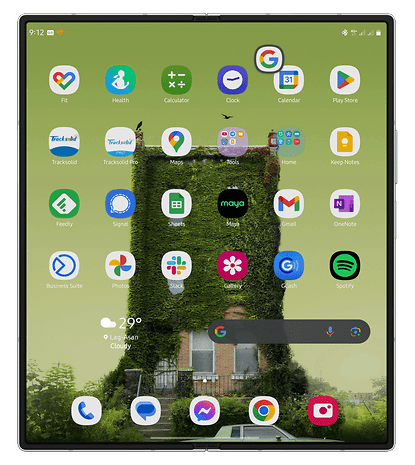
You can maximize Gemini’s functionality on the main screen just like a regular app. Follow these steps:
- Open the main screen and unlock your device.
- Launch Gemini via voice command or gesture.
- To enable a pop-up view, hold the top bar and drag it to reposition on the screen.
- For split-screen use, select the side where you’d like to place Gemini.
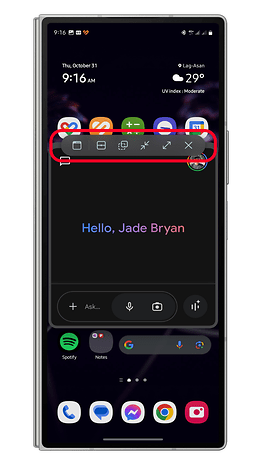
- In the pop-up view, tap the top bar to access view modes and tools. Options include shortcuts to make tools sticky, split-screen, transparency, minimize/maximize, and exit.
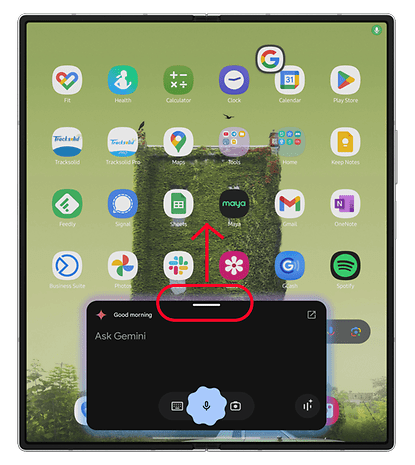
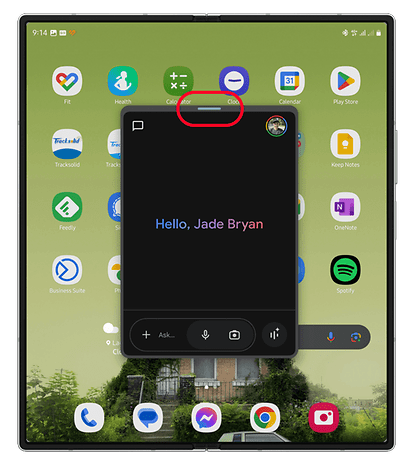
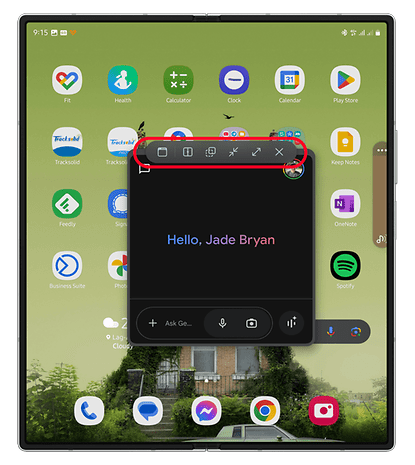
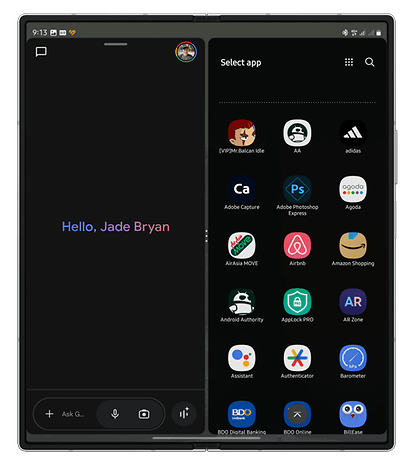
If you minimize Gemini, it will appear as a floating bubble that can be repositioned anywhere on the screen. Tapping the bubble reopens Gemini in the window view.
Gemini on the Cover Screen
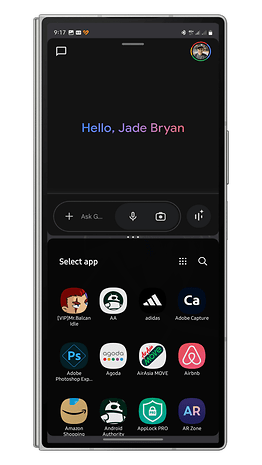
Gemini on the cover screen works similarly on the main screen. The only difference is that the split screen support is only available with the apps in the top and bottom view.
- Unlocked your device.
- launch Gemini through voice or gesture.
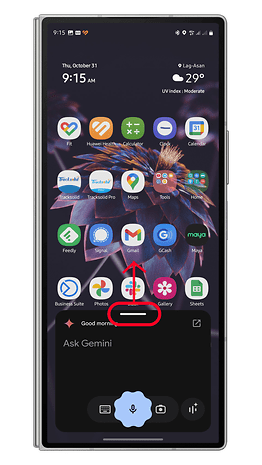
- Touch and hold the top bar and drag it to the screen to convert it into a pop-up view.
- Tap on the top bar to open more settings.
- You can manually move Gemini to a specific screen area by holding the top bar and dragging.
Compatibility and Future Support
The Gemini on-screen overlay is available on most Android foldable smartphones and tablets. Google may expand support to standard slab phones as well, given that Gemini’s cover screen functionality works effectively on foldable devices.
Have you tried Gemini or Gemini Live on your phone? What’s your favorite AI feature? Share your thoughts in the comments!