


Contents
“Why has my smartphone suddenly stopped charging?” This question is difficult to answer if you are one of the majority of users who own an Android smartphone with a non-removable lithium battery. Only a few providers such as the repairable Fairphone 5 or smartphones for older people have a removable battery.
Fortunately, there is a way to determine the condition of your smartphone’s battery so that you can decide whether you want to replace it or not. Find out here which of the many options is right for you, some of which are also offered directly by the manufacturer.
Table of contents
- How can you check the battery status of your Samsung smartphone?
- How can you check the battery status of your Xiaomi smartphone?
- These 3 apps for checking your battery status work with all manufacturers.
- What are the Android secret codes to check the battery status?
How to check the battery status of your Samsung smartphone
Let’s start with Samsung, as the Galaxy smartphones are the most widely used smartphones. To check the battery level of your Samsung phone, you have two options so far: the secret code *#0228# or the diagnostic function. The latter can be accessed both via the settings and the Samsung Members app.
However, the USSD code no longer seems to work. We have contacted Samsung and will keep you up to date on what is going on. We have therefore removed the section on the Samsung code from an earlier version of the article until further notice.
Check the battery with the Samsung OneUI diagnostic function
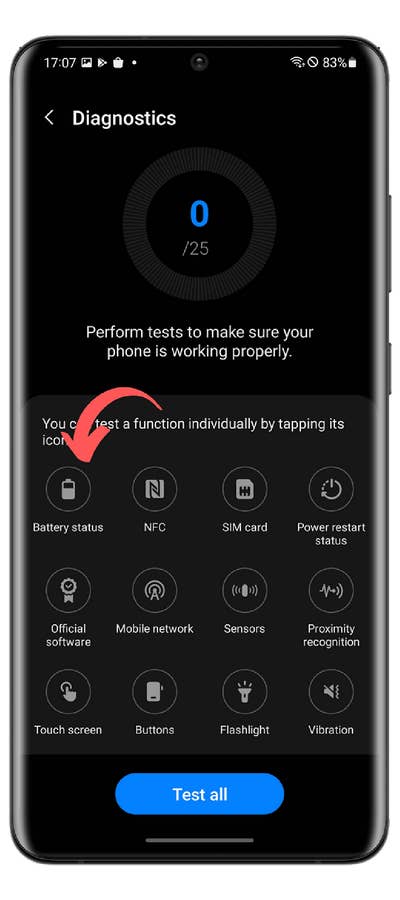
With Samsung, you can start a whole range of diagnostic functions to check whether your smartphone is working properly at the hardware level. You can test a total of 25 functions and components. From sensors and network connectivity to the battery. You can access this diagnostic function in two ways, depending on whether you have One UI 6 installed (or newer).
- We also mention this option and many others in our guide to the best-hidden features of OneUI.
- Open the Samsung Members app (or install it).
- Tap Help in the bottom navigation bar.
- Tap on Show tests in the Diagnostics section.
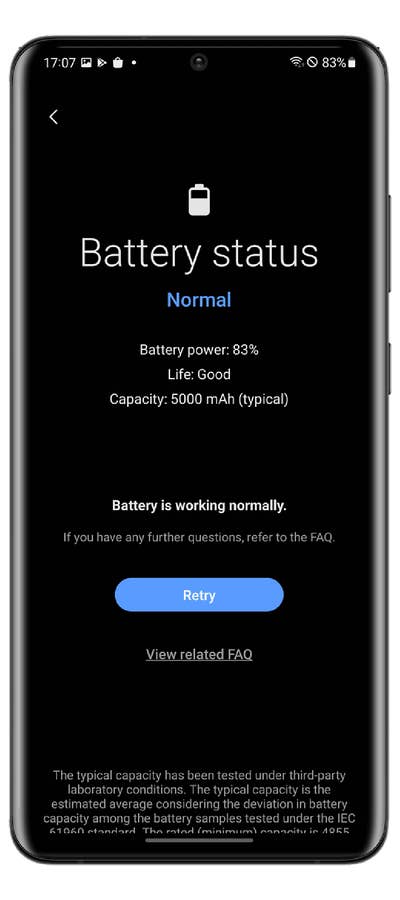
- Select Battery status and start the test.
You will now see the status of your battery, which should be “Good” in the best case. The charging capacity is also displayed, which should correspond to the information on your smartphone’s data sheet.
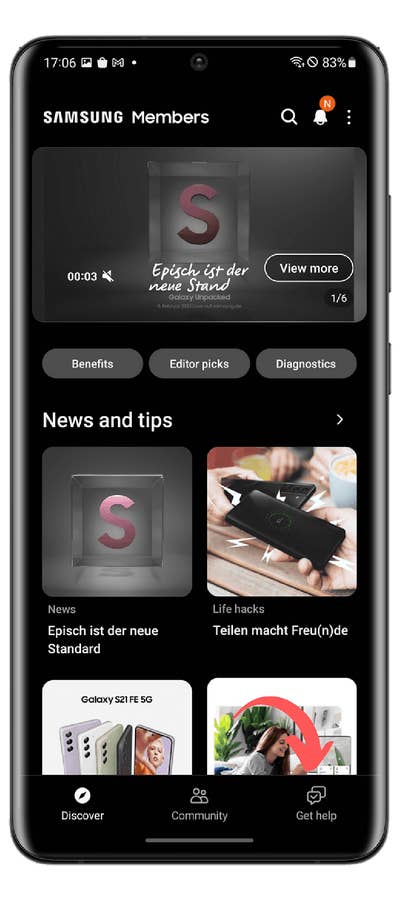
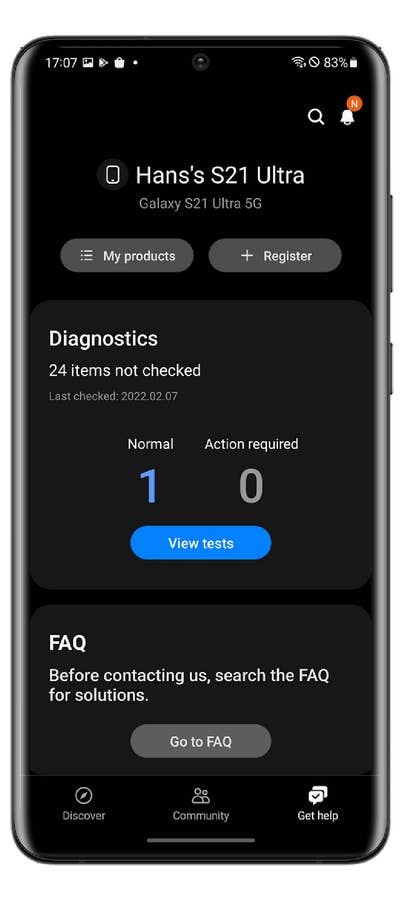
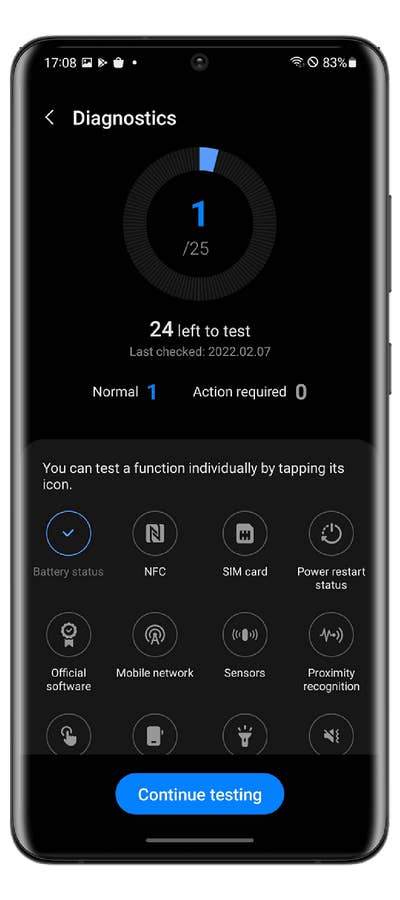
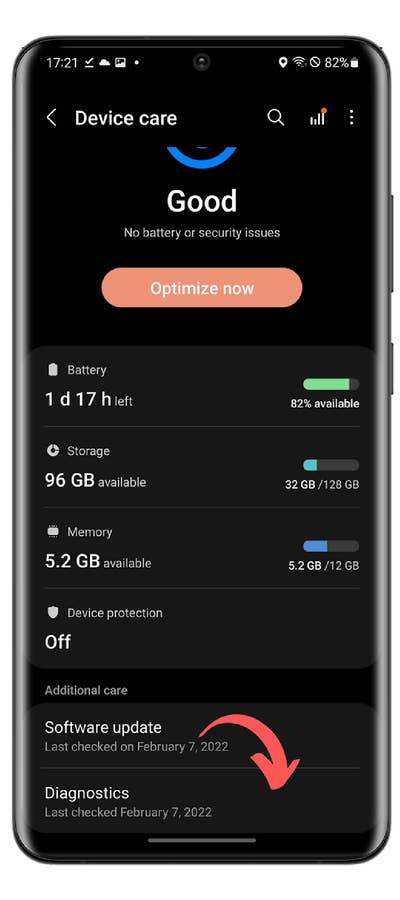
Please note that your Samsung Galaxy smartphone is running the latest in-house user interface, in this case, One UI 6, which is based on Android 14. You can use it to call up this diagnostic function directly via the battery settings without using Samsung Members.
- Click on this list if you want to know when your Samsung smartphone will receive the update to Android 14.
- Go to the Settings.
- Tap on Device maintenance.
- Scroll down to Diagnostics and follow steps 3 and 4 mentioned above.
How to check the battery status of your Xiaomi smartphone
Unfortunately, Xiaomi only offers a few options for checking the health status of your Xiaomi smartphone. These are not as varied as with Samsung. The only option you have is to enter the secret code.
- Enter the code *#*#6485#*#* on the keyboard of your phone app (native).
- Check that MB_06“Good” is displayed.
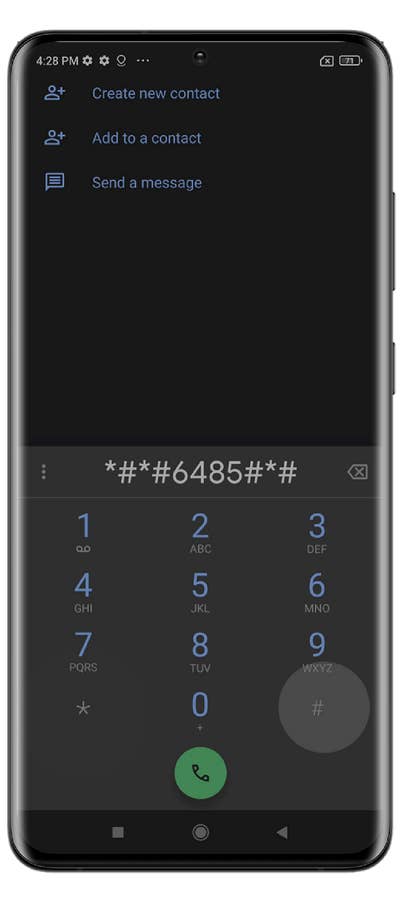
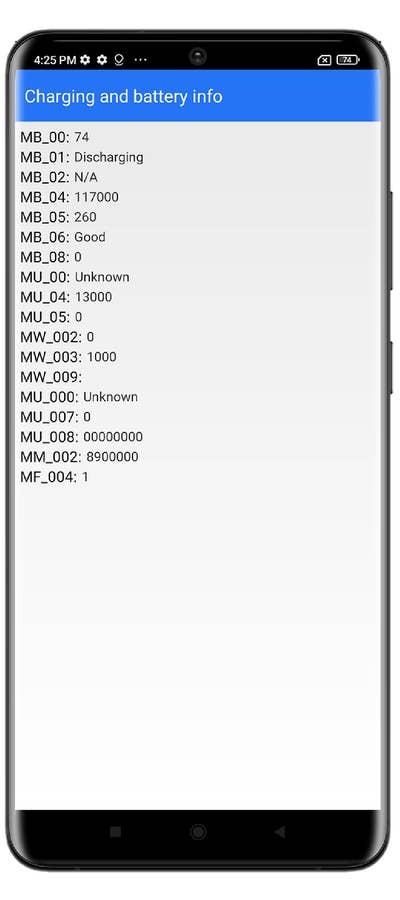
The term MB_06 stands for the health status of your battery. But there is other data in this particular menu that may be of interest. Again, the official sources are very sketchy, so I’ve put together a list for you based on what I’ve found in the various Xiaomi forums:
The “MB_” codes:
- MB_00 Percent of battery remaining
- MB_01 Battery status: charged/discharged
- MB_02 Charging protocol (fast, etc.)
- MB_03 Voltage of the charging process
- MB_04 Voltage used (volts), e.g. 117000 corresponds to 1.17 volts.
- MB_05 Temperature of the battery, here 260 corresponds to 26 °C.
- MB_06 Health of the battery
- MB_07 Temperature of the charger/adapter.
- MB_08 Temperature monitoring status
- MB_09 Maximum voltage of the battery at full charge.
The “MU_” codes:
- MU_00 Type of charger
- MU_01 Charging mode
- MU_02 Direction of charging: (0: no charging / 2: charging / 3: reverse charging)
- MU_03 Maximum input voltage via USB
- MU_04 Current input voltage via USB.
The “MF_” codes:
- MF_01: Current state of charge. If this value differs from the value under MB_00, this is an indication of a battery problem.
- MF_02: Number of charging cycles (charging from 0 to 100 % since first use).
- MF_05: Actual capacity of the battery
- MF_06: The charging capacity specified by the manufacturer.
The “MM_” codes:
- MM_00: AICL result (adaptive input current limitation)
- MM_01: USB input current
- MM_02: Maximum charging voltage of the charger
- MM_03: Current maximum charging capacity. If it differs from the values specified in MF_06 or MF_05 (or in the data sheet), your battery is damaged.
These 3 apps to check the health of your battery work with all brands
So far, we’ve looked at solutions that are very specific to certain manufacturers and, like secret codes, are not necessarily the most intuitive. The easiest way is to install an Android app that allows you to check the status of your phone’s battery.
The three most common apps are Ampere, CPU-Z, and AccuBattery.
Check the status of your smartphone battery with the Ampere app
Simple and comprehensive: Ampere displays the electrical current while you are charging your smartphone. This allows you to test different chargers and choose the best one for your smartphone. You can also use the app to check how quickly your battery is discharging.
It also shows how healthy your battery is, but does not provide any more precise data; you can only see whether the status is good or bad. Ampere is primarily intended to find out whether you are using the right charger for your smartphone or not.
- Price: Free / Advertising: Yes / In-app purchases: Yes / Account: Not required
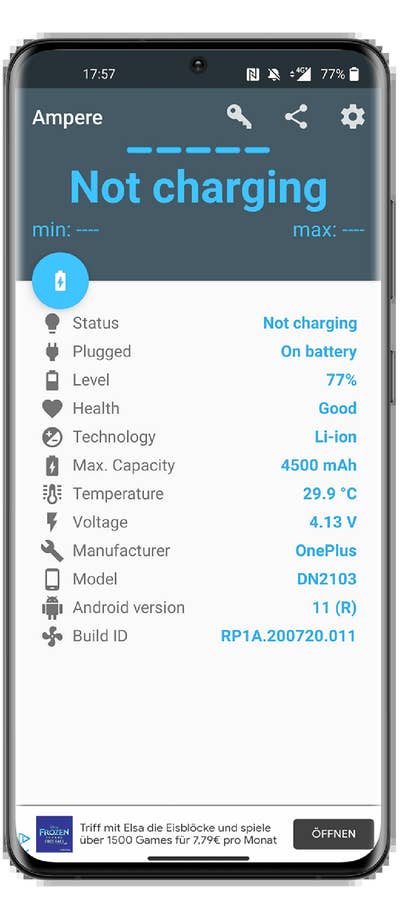
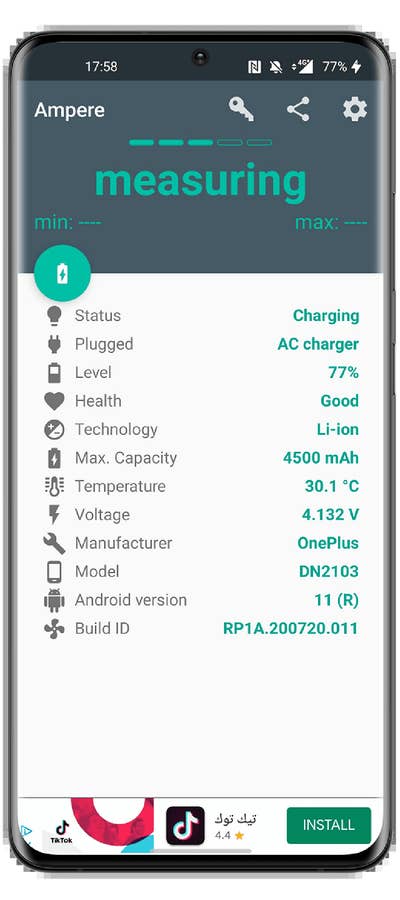
- You can download the Ampere app from the Google Play Store here.
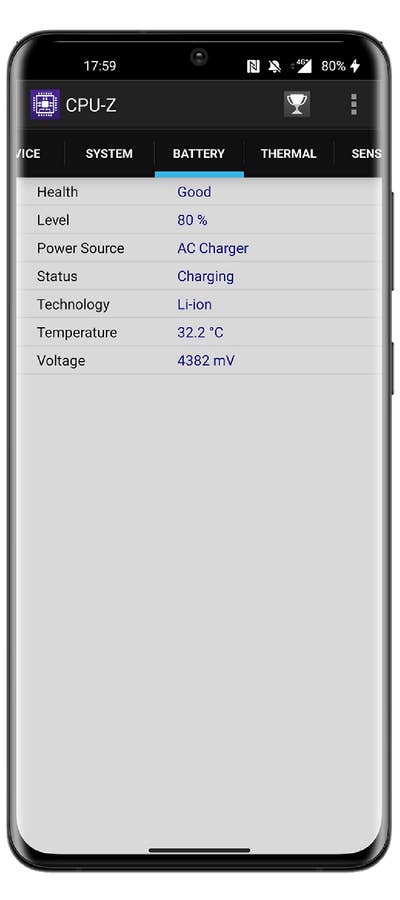
Check the condition of your smartphone battery with the CPU-Z app
You can also take a look at CPU-Z, which not only gives you information about your battery but also about many other elements of your smartphone. Things like the build number, the speed of the processor cores, temperatures, and sensors are all displayed.
- Price: Free / Advertising: Yes / In-app purchases: Yes / Account: Not required
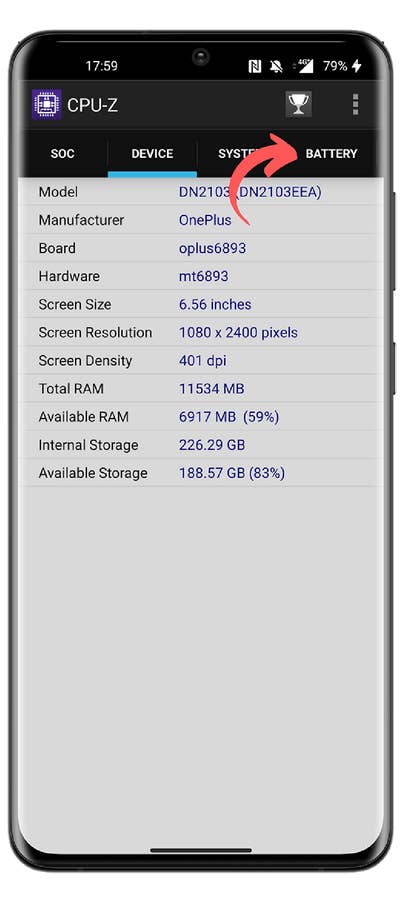
- You can download the CPU-Z app from the Google Play Store here.
Check the condition of your smartphone battery with the AccuBattery app
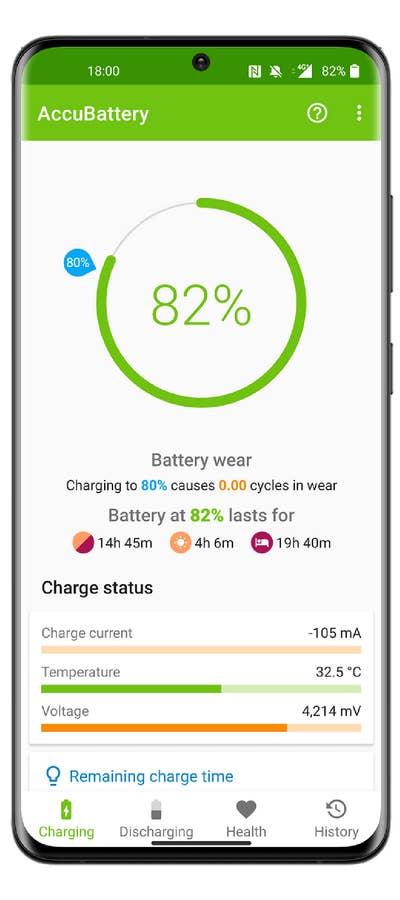
AccuBattery is an app that I would only recommend to those of you who really want to know the exact state of your battery. If you are just curious, AccuBattery is not for you as you need to give the app time to measure your usage and calculate estimates.
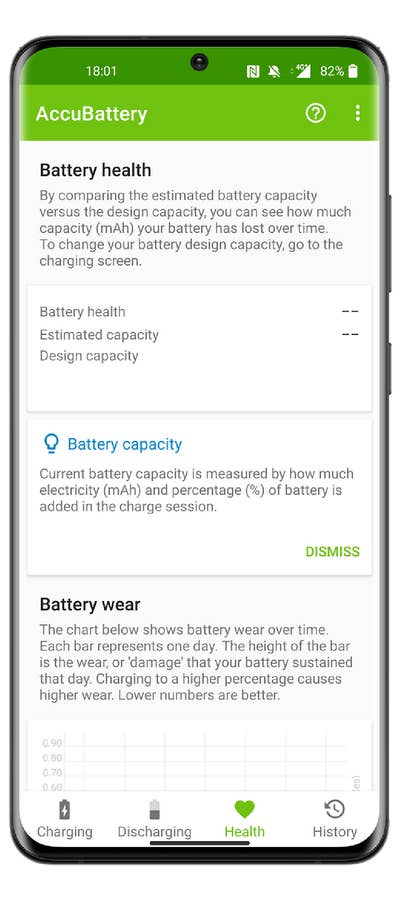
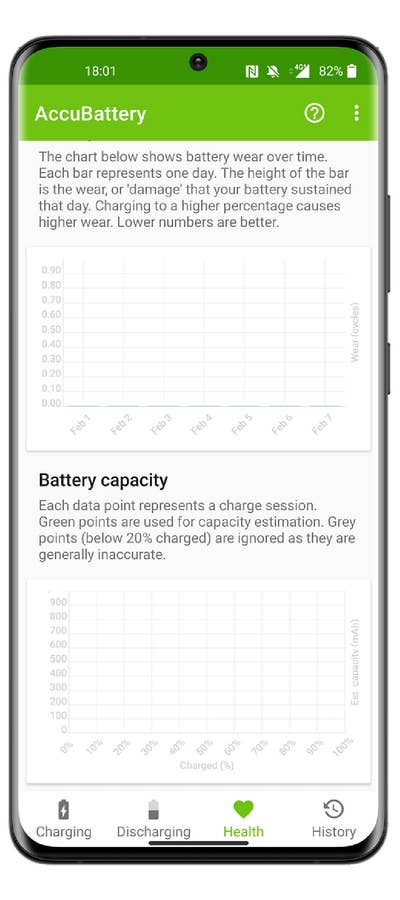
The more you use AccuBattery, the more accurate the app becomes in analyzing your battery performance. AccuBattery has four tabs: Charging, Discharging, Health, and History. When you charge your phone, AccuBattery estimates the charge capacity. By comparing it with the “official” charge capacity, which you have to enter manually, AccuBattery can determine the condition of your battery.
- Price: Free / Advertising: No / In-app purchases: Yes / Account: Not required
- You can download the AccuBattery app from the Google Play Store here.
What are the Android secret codes to check the battery status?
First of all, you should check out our detailed article about Android secret codes. I will give you the short version, and for that, we first need to differentiate between USSD codes and Android secret codes, as the two terms are often confused.
USSD codes or Unstructured Supplementary Service Data is a protocol that can be used to send information over GSM, 3G, or 4G/5G networks. The idea behind it is that you can trigger actions remotely by sending a specific code for each action. Orange’s #123#, for example, will certainly tell you something.
Android secret codes are similar to USSD codes in that they often start with an asterisk. The difference between USSD codes is that you don’t need a network to activate the secret codes. They are stored in system files and depend on the version installed on the smartphone.
- If you are on iOS, we also have a guide on how to check your iPhone’s battery.
Many codes are outdated when switching to Android 4.3 Jelly Bean and later Lollipop. In fact, with each new version, codes are removed and others are added. Not to mention the specific codes for certain Android overlays such as One UI or MIUI mentioned earlier in this article.
Just note that in addition to the Samsung and Xiaomi codes, the code *#*#4636#*#* also works with almost all Android smartphones and displays an information menu with, among other things, the status of your battery. But I personally tried it on a Samsung with OneUI 5, a OnePlus with OxygenOS 13, a Xiaomi with MIUI 13, and an Asus with Zen UI 9. And I couldn’t get any information about the battery with the famous code *#*#4636##*#*.
What do you think of this guide? Which secret codes do you use most often on your Android smartphone? Do you know any other tips or apps for checking the condition of your smartphone battery? Tell us in the comments.
This post was updated on November 2024.
We mark partner links with this symbol. If you click on one of these links or buttons–or make a purchase through them–we may receive a small commission from the retailer. This doesn’t affect the price you pay, but it helps us keep nextpit free for everyone. Thanks for your support! Prices are based on the date of publication of this article and may be subject to change.




Battery of charger to update