Supercharge Your Browsing with AI in the Samsung Browser


When Samsung introduced Galaxy AI with the Galaxy S24 series, artificial intelligence made its way into many areas of the software. Among other things, the Samsung browser benefited, which currently offers you AI support for translating and summarizing texts. In this article, we show you how to use AI well.
Artificial intelligence is currently finding its way everywhere, and the best Samsung smartphones such as the Galaxy S24 Ultra (review) are prime examples of this development. Thanks to Galaxy AI, you can now edit images even more easily on your Samsung phone, receive AI support when chatting or identify songs simply by humming. In this article, we will focus on the AI skills that flow into the Samsung browser in the form of the browsing assistant.
How AI helps you translate in the Samsung browser
Having texts translated in the browser is not a new trick. Other browsers have long been able to do this, and on compatible Samsung smartphones you can of course also use Circle to Search to translate any text. Nevertheless, it makes sense to integrate a translation function with AI support into the Samsung browser in an easily accessible way.
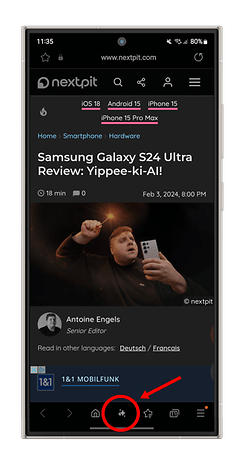
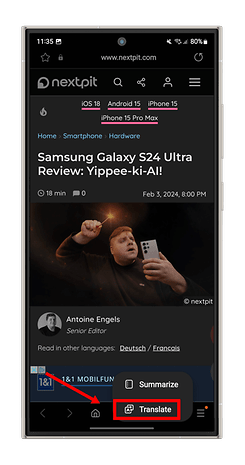
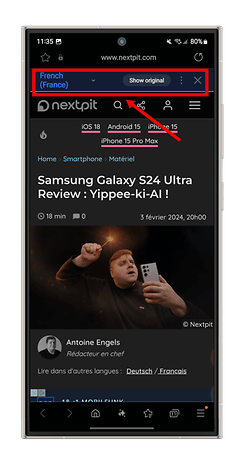
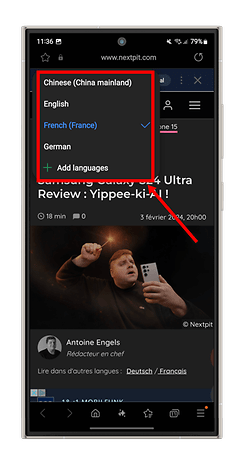
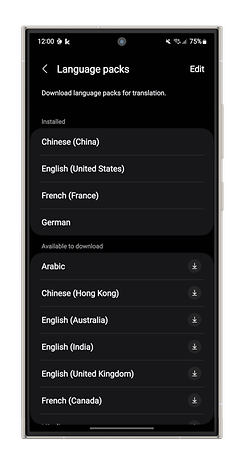
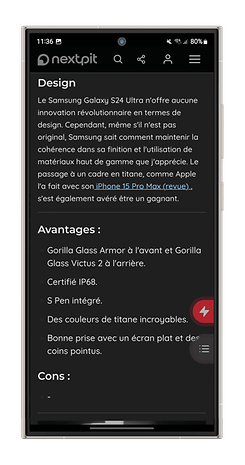
“Easily accessible” in this specific case means that you will find the star icon for the AI functions at the bottom center of the bar. This means that the translation feature can be called up at any time while browsing. This is how you proceed step by step:
- Go to the website you want to translate.
- Tap on the AI symbol with the stars at the bottom of the toolbar.
- Then tap on Translate.
- At the top, you can set the desired language or install new language packs.
- You can also call up the article in the original language again at any time in the top bar.
Supported languages (regions) are currently: English (India, United Kingdom, United States, Australia), French (France, Canada), German, Hindi, Indonesian, Italian, Japanese, Korean, Polish, Portuguese (Brazil), Russian, Spanish (Mexico, Spain, United States), Thai, Simplified Chinese, Chinese (Hong Kong), Vietnamese, Arabic.
Summarize texts in the Samsung browser with AI
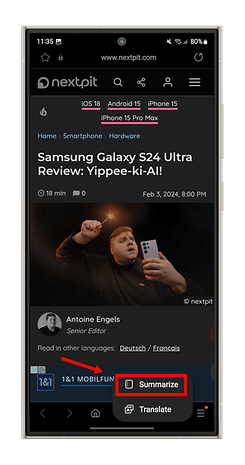
I find the option of summarizing entire web pages with a single tap more exciting. The procedure is similarly simple here too:
- Call up the desired website.
- Tap the AI icon at the bottom again.
- Select Summarize from the menu.
- At the top right of the summary window, you can select whether you want the standard summary or the detailed summary.
- You can copy the summary to the clipboard or have it translated again using the buttons below.
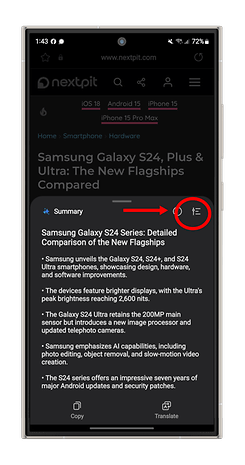
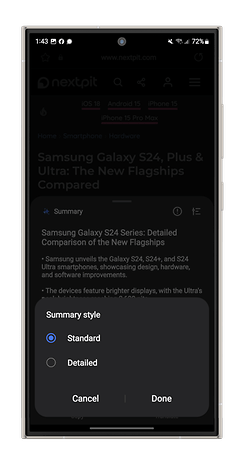
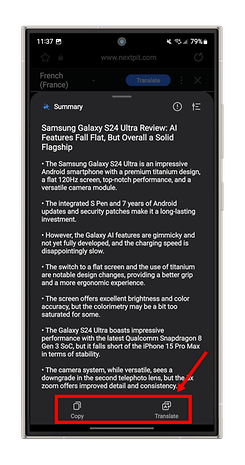
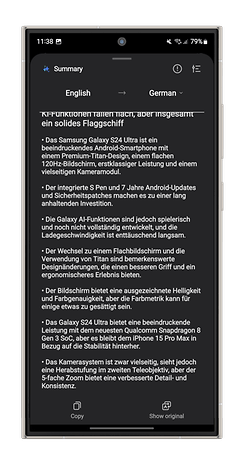
Depending on your wishes, you will receive a more concise or more detailed summary of the page and can then use it in other texts or have it translated again. If you click on the symbol with the exclamation mark, you will be informed that this summary was created with the help of artificial intelligence.
Thanks for pointing this out, Samsung—but I sincerely hope that even without this comment you are aware that machine translations may be bumpy and summaries may be incorrect.
Either way, I think the browser functions are fine, already perfectly usable tools that make our lives easier. Provided you use Samsung's own browser, of course.
So, a final question for everyone: Do you use the Samsung Internet app at all, or an alternative browser? And if you use Samsung's app: Which AI functions do you still miss on your device?