Sorry, but there's really nothing to see here right now. Our server is in maintenance mode – and our
little bot is trying to sort the error messages with its last bit of energy.
Whether it was a data leak, a power outage in the cluster, or just a grumpy bit – we don't know yet.
But what we do know is:
The data drama escalated into a server meltdown. But don't worry: We're on it.
What now?
Everything is surely running smoothly over at our colleagues from inside
digital – why not stop by!
Or you could pass the time by visiting our social media channels – for example Instagram, YouTube or TikTok. At least there are no
server problems there – promised.
Thanks for your patience. Our bot is already rebooting at full speed. 🔧
How-tosTabletCircle to Search: How to Translate Using AI on Samsung Phones
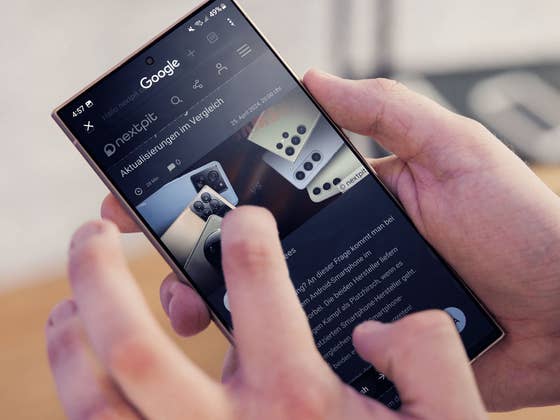
With Galaxy AI, Samsung launched an AI platform with the Galaxy S24 series that included several fantastic functions such as “Circle to Search”. This function has now learned to translate. We show you how to perform instant translations on compatible smartphones.
If you’re not familiar with the function, you can circle a section of an image shown and automatically receive more context from Google. In other words, you will get an explanation of what product it is, the building name, or whatever can be seen in the image, with additional links. The AI professionals at Google, who are introducing the feature to other Samsung phones, recently expanded upon this function. This means you can now use Circle to Search to translate any text into any language in double quick time.
How instant translations work with Circle to Search
Generally, just like Circle to Search, the translation function works everywhere on a compatible smartphone. It doesn’t matter whether you’re reading a Word document, chatting on WhatsApp, or simply reading a homepage. One tap is enough to activate Circle to Search and a second later, you can read the desired text in the language of your choice.
Allow me to explain how it works briefly. It really is child’s play:
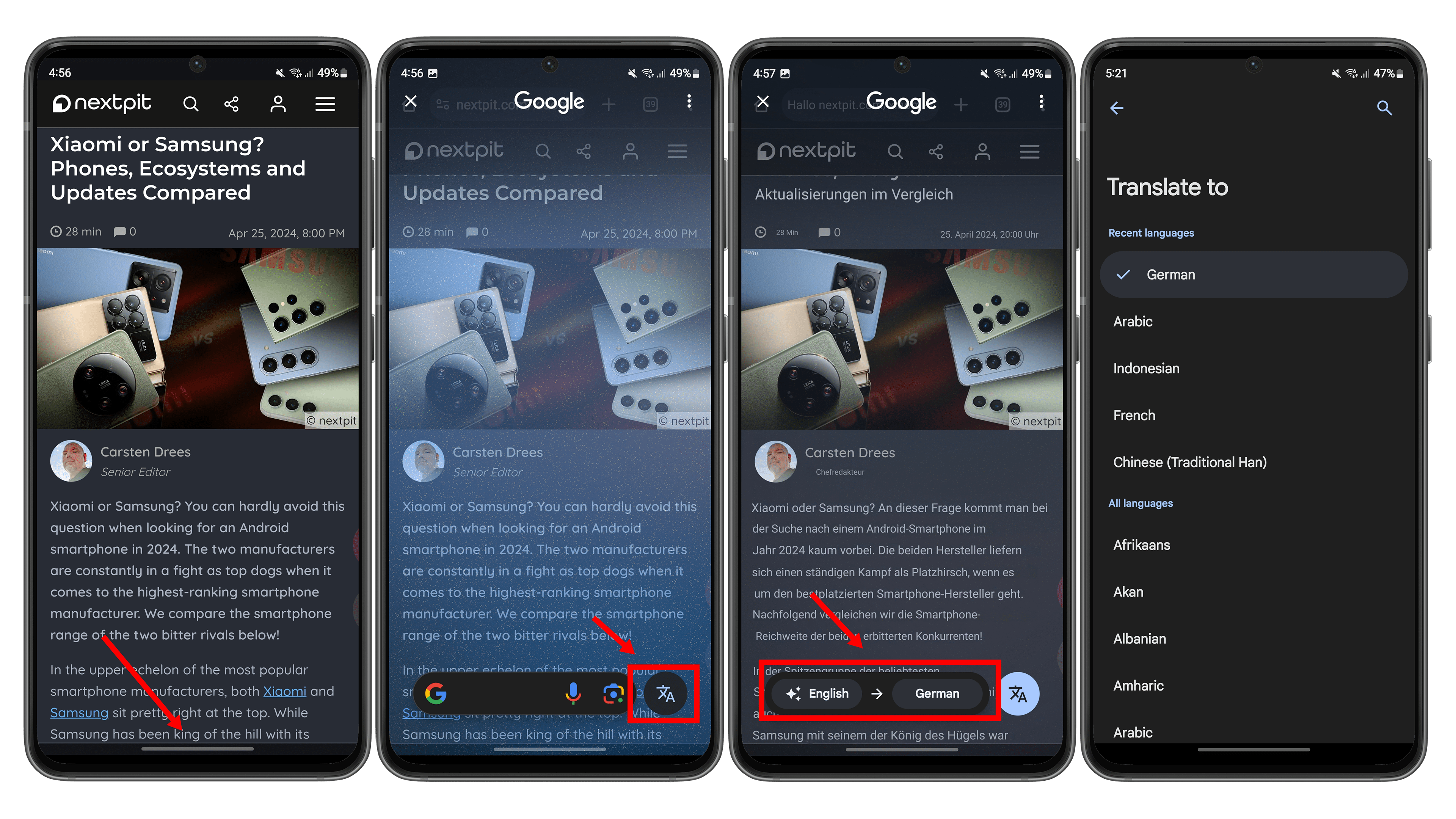
Long press the home button at the bottom of the navigation bar to activate the AI search. If you have activated gesture navigation, you can also begin the search with a long press on the bar at the bottom center of the display.
A Google search bar will appear, where you tap the translation icon located on the far right.
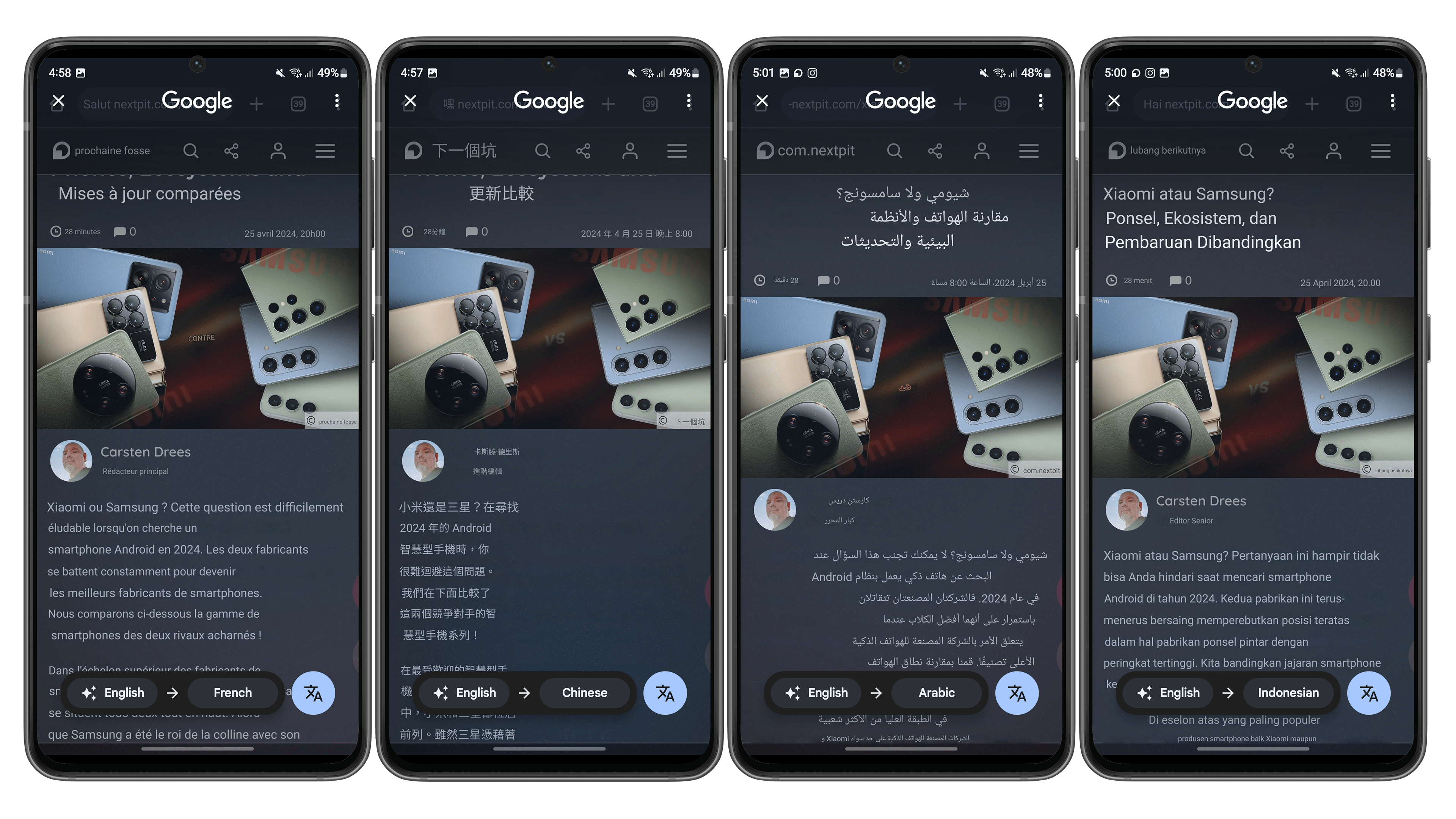
You can now select the language into which the text should be translated.
As you can see from the screenshots, there is virtually an infinite number of languages available to you, although I still find that the Google Translate used here does not translate as perfectly as other translation engines such as DeepL. However, it’s enough to translate a text quickly, without you having to leave the app or to save a screenshot first.
If you ask me, this is a practical scenario that will make me use the Circle-to-Search function more often in the future than I have done so far. If the function is still unavailable on your Samsung smartphone, take a look at this article to know whether your smartphone will also receive Circle to Search with the OneUI 6.1 update.
Logically, this is not the only way to translate text on your smartphone, but it is perhaps the one that works the easiest and fastest. Have you already experimented with Circle to Search, or do you prefer other Galaxy AI features? Please let us know in the comments.
We mark partner links with this symbol. If you click on one of these links or buttons–or make a purchase through them–we may receive a small commission from the retailer. This doesn’t affect the price you pay, but it helps us keep nextpit free for everyone. Thanks for your support!







0 comments