You can know whether your smartphone has already received or will receive the HyperOS update here. All the features and steps detailed below have been tested on a Xiaomi 14 (review) and a Xiaomi 14 Ultra (review). However, most of them are available on many Xiaomi, Redmi, and Poco smartphones as well. Some functions are even available on older versions of Xiaomi’s OS, such as MIUI 14 (review).
Pros of the Xiaomi 14
- Excellent finish and ergonomics
- Snapdragon 8 Gen 3 chipset
- The main camera is amazing under all circumstances
- Solid battery life and fast charging speed
- 4 major Android updates & 5 years of security updates
Cons of the Xiaomi 14
- No major new features in HyperOS and plenty of bloatware
- Disappointing ultra-wide angle photo lens
- Still overheats a bit (when running benchmarks)
Table of Contents:
How to sort your applications by color code to make them easier to find
HyperOS lets you sort icons by their dominant color. Personally, I found this HyperOS feature useful to locate an application in a far more intuitive manner. Almost everyone knows that WhatsApp’s icon is green, Youtube’s is red, and so on. This, in my opinion, and without any sarcasm whatsoever, is my favorite HyperOS feature.
- Go to Settings, select Home screen.
- At the top of the sub-menu, select Home Screen.
- Choose the“With application drawer” option.
- Scroll down and enable the slider named “Group icons by color“.

… und klickt Euch wie mit Pfeilen markiert durch.
Quelle: nextpit

Anschließend könnt Ihr …
Quelle: nextpit

… hier mit dem passenden Schalter die Apps nach Farben sortieren.
Quelle: nextpit
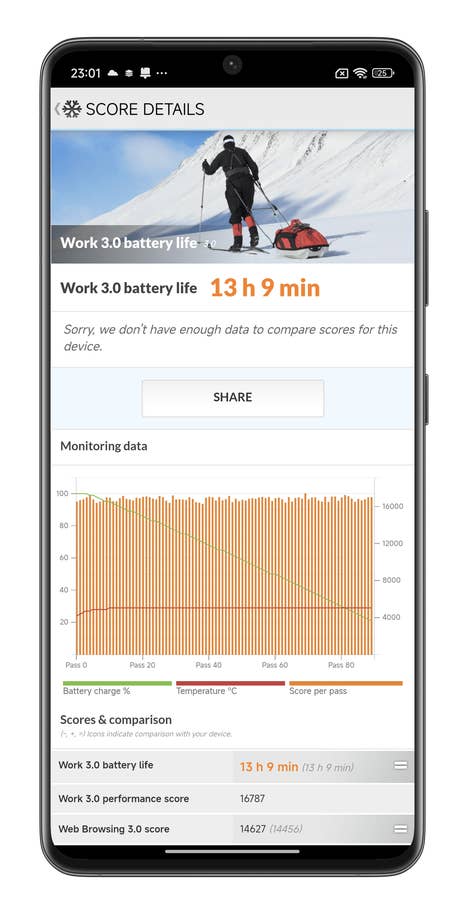
Le Xiaomi 14 Ultra a une autonomie assez solide
Quelle: nextpit
Now, whenever you open the application drawer on your Xiaomi smartphone, you can view tiny colored bubbles lined up at the bottom of the screen. Simply press the dominant color of your choice to find the applications whose icons match.
See the full tutorial for sorting your applications by color in HyperOS.
How to get an action button like on iPhone 15
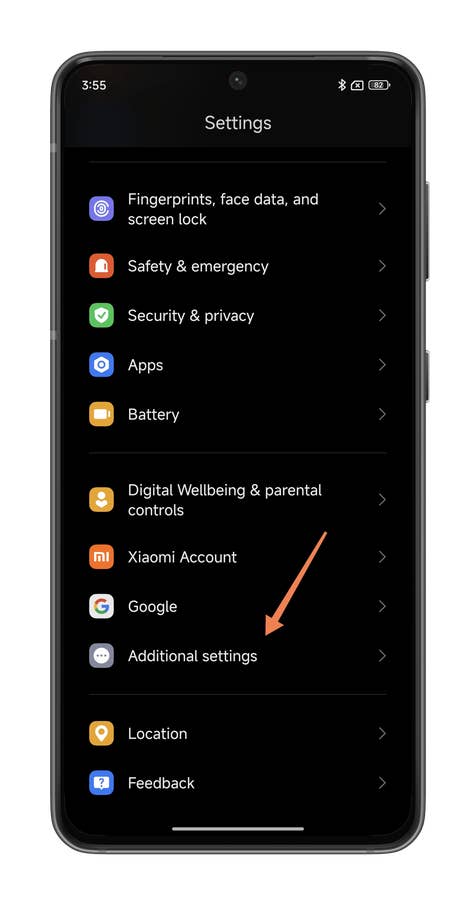
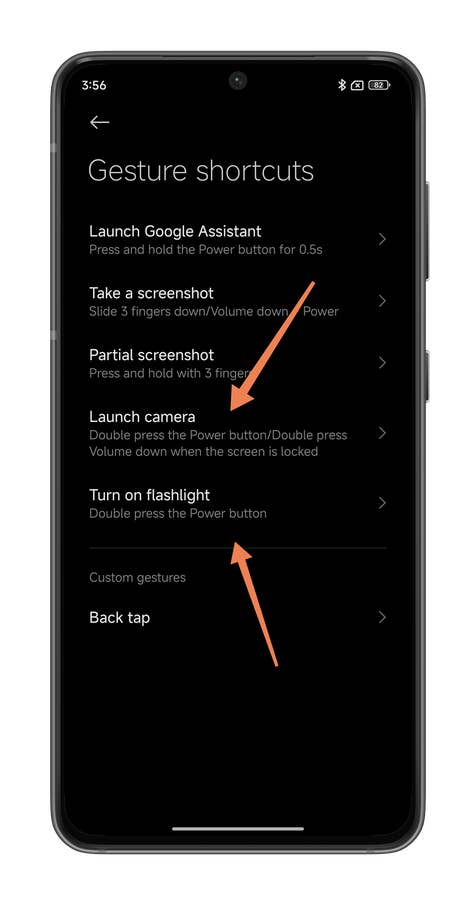
I must admit that the title is somewhat an exaggeration, as there is no dedicated action button like the one on the Apple iPhone 15 Pro (review) or the Apple iPhone 15 Pro Max (review). Nevertheless, you can assign the same capabilities to the power and standby buttons, such as turning on the flashlight or launching the Camera app directly. To do so, proceed as below:
- Go to Settings.
- Go to Additional settings.
- Go to Gesture shortcuts.
- You can now choose to Launch camera and/or Turn on flashlight.
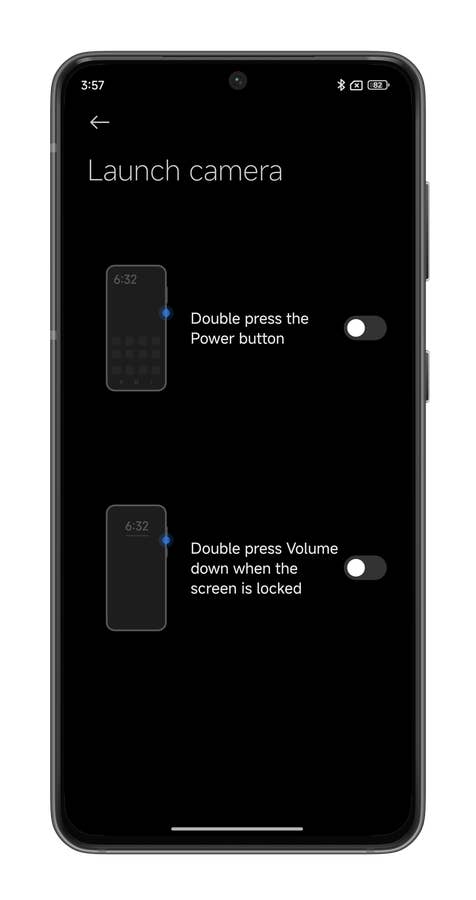
- Go to Launch camera.
- Activate the upper switch if you wish to launch the camera by pressing the power button twice in smartphone mode.
- Activate the lower switch if you wish to launch the camera by pressing the volume button twice in locked mode.
- Go to Turn on flashlight.
- Activate the switch if you wish to turn the flashlight on or off by pressing the on/off button twice.
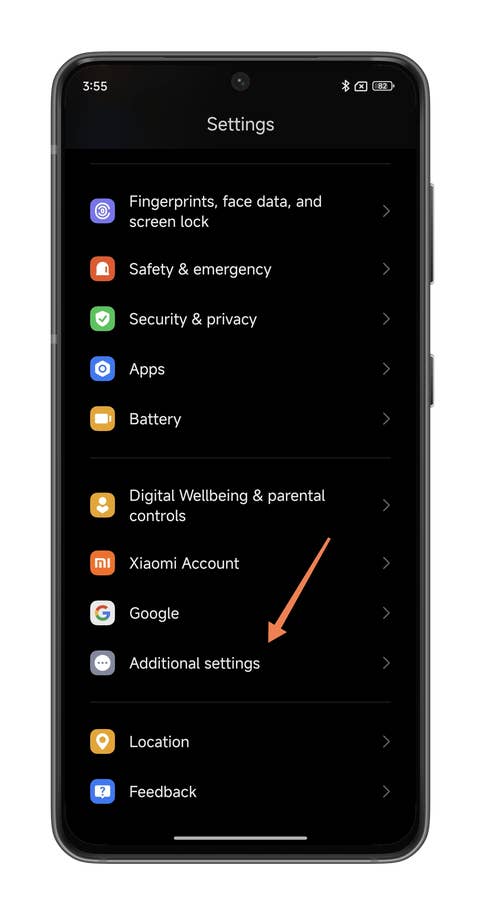
Hereu0027s how you can have an action button on your Xiaomi smartphone.
Quelle: nextpit
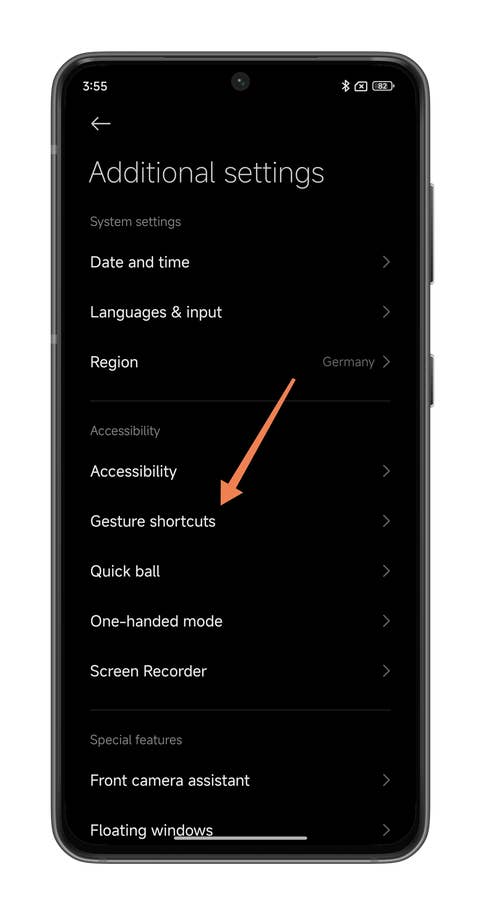
Hereu0027s how you can have an action button on your Xiaomi smartphone.
Quelle: nextpit
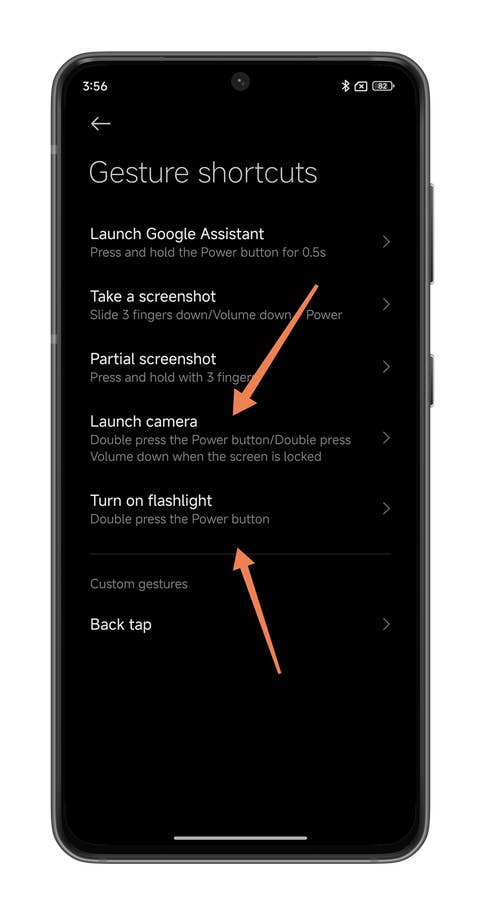
Hereu0027s how you can have an action button on your Xiaomi smartphone.
Quelle: nextpit
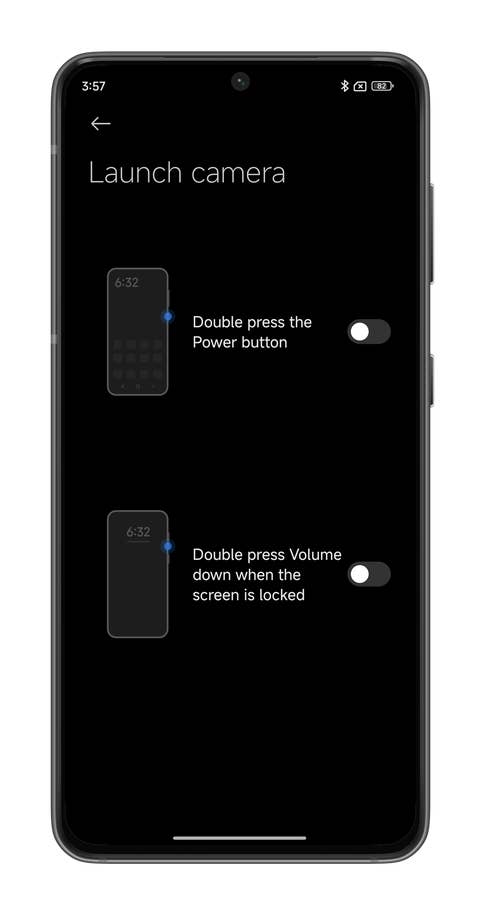
Hereu0027s how you can have an action button on your Xiaomi smartphone.
Quelle: nextpit
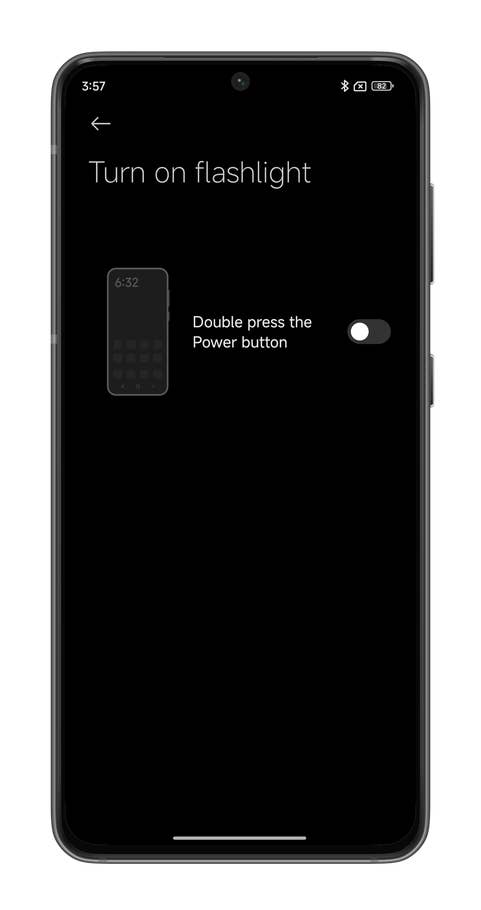
Hereu0027s how you can have an action button on your Xiaomi smartphone.
Quelle: nextpit
How to illuminate your selfies in low light conditions
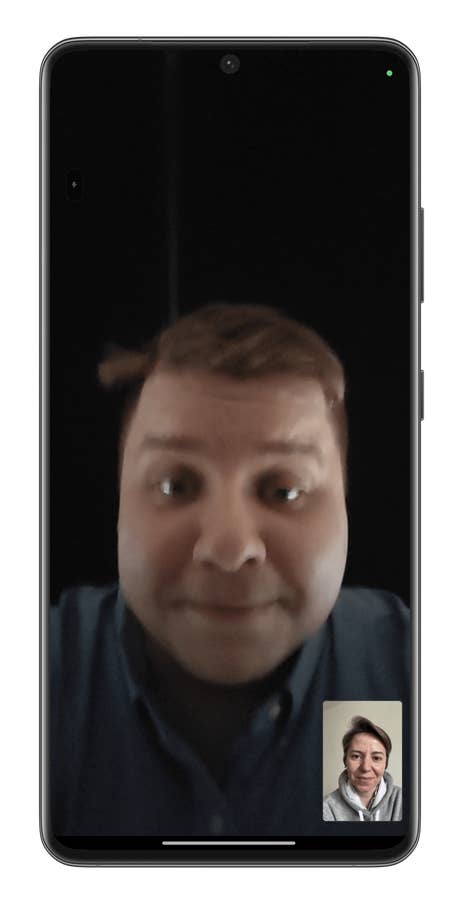
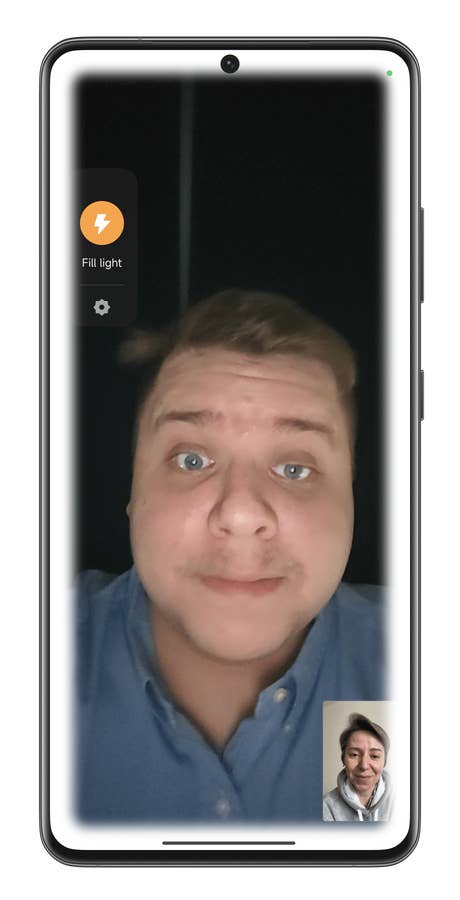
Xiaomi offers you an option in the settings to illuminate your smartphone’s screen with a circle that functions as a flashlight or torch. This makes your night selfies a little more detailed without sacrificing the natural look of the shot. You can also use this function (dubbed Fill Light) for your video calls on WhatsApp or other apps.
- Go to Settings.
- Go to Additional settings.
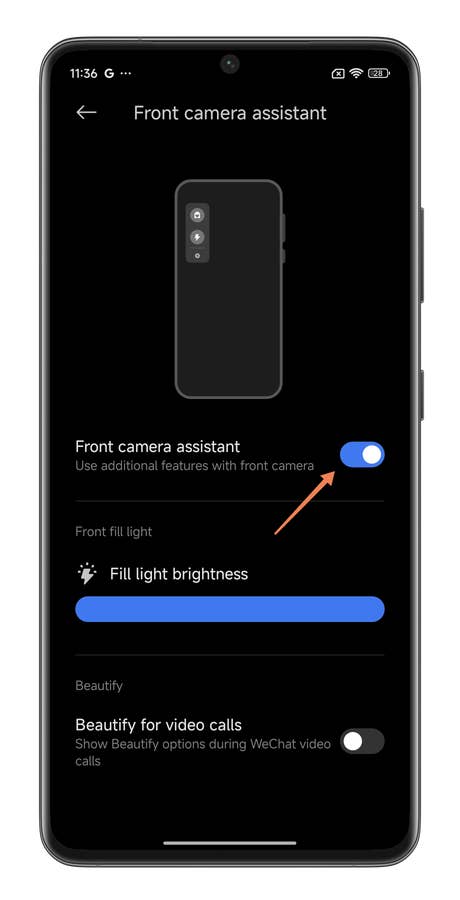
- Scroll down until you see Front camera assistant.
- Activate the Front camera assistant here.
- You can even adjust the lighting level to suit your preference.
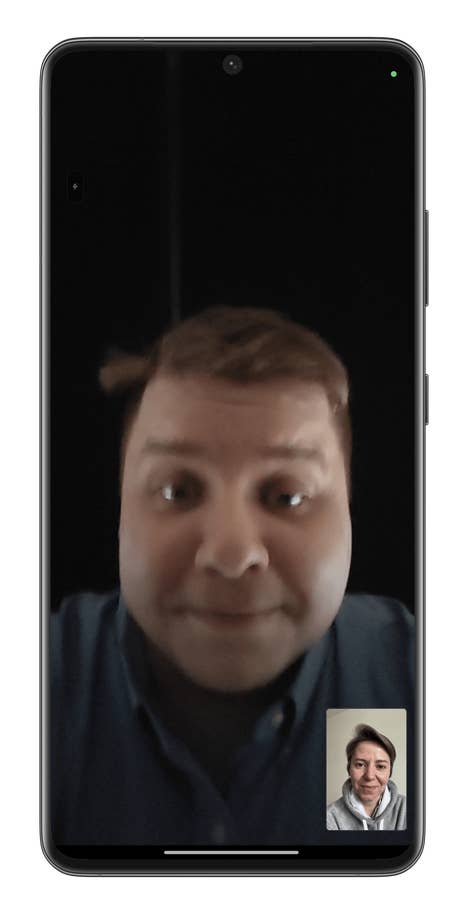
You have to press the small widget at the top left of the screen.
Quelle: nextpit
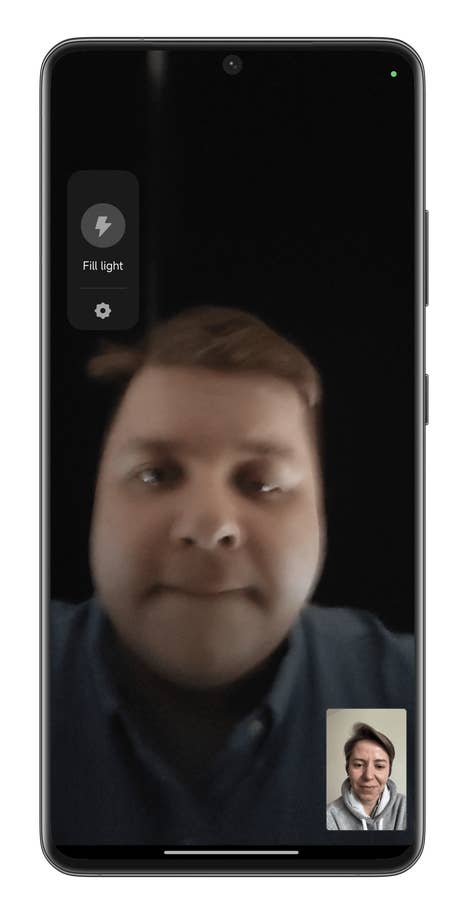
You have to press the small widget at the top left of the screen.
Quelle: nextpit
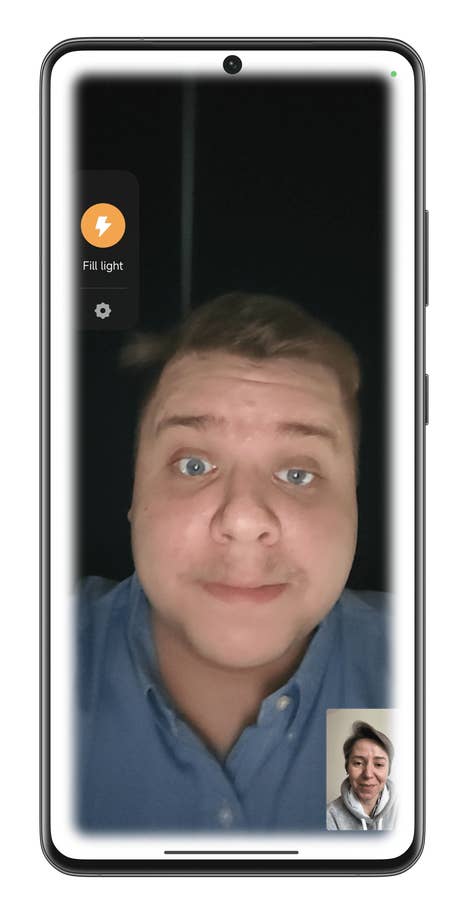
You have to press the small widget at the top left of the screen.
Quelle: nextpit
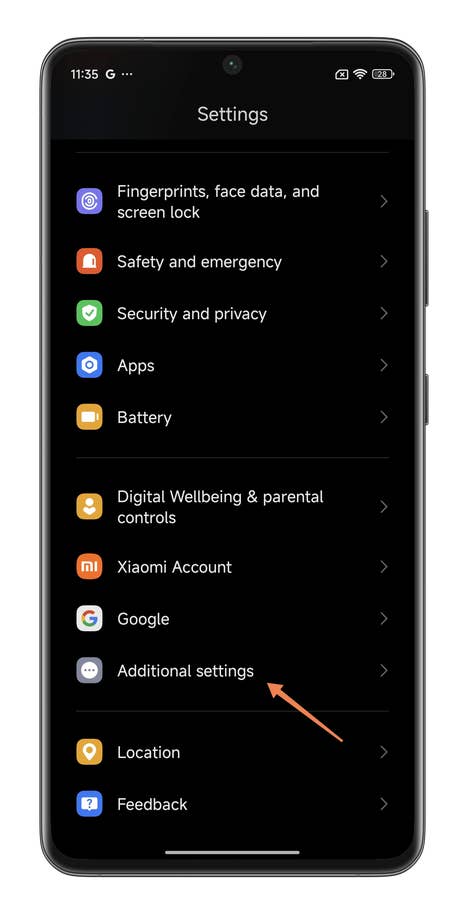
You have to press the small widget at the top left of the screen.
Quelle: nextpit
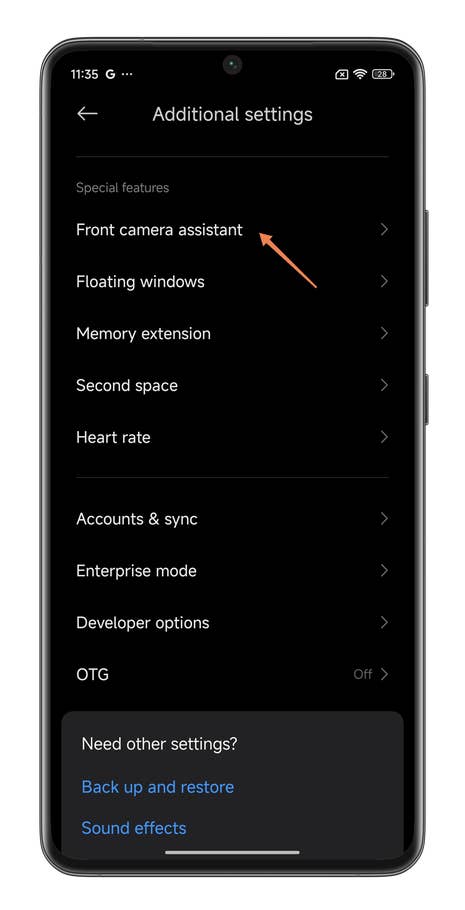
You have to press the small widget at the top left of the screen.
Quelle: nextpit
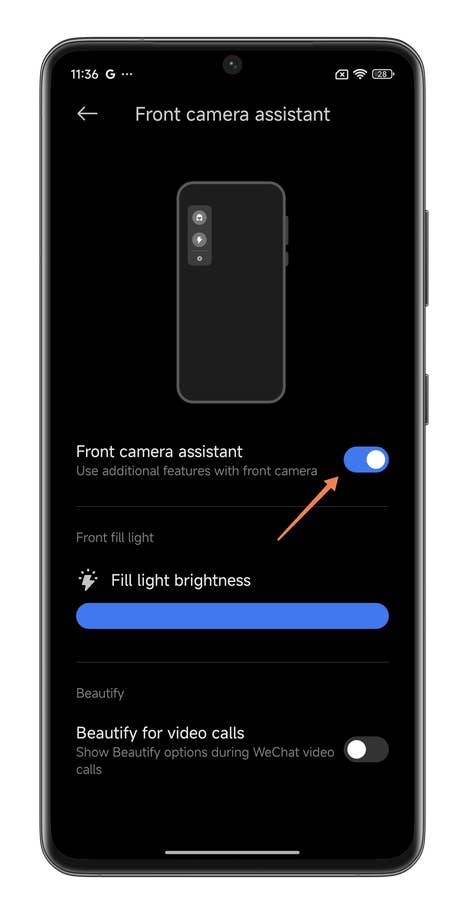
You have to press the small widget at the top left of the screen.
Quelle: nextpit
How to launch applications in a floating window as quickly as possible
Samsung isn’t the only manufacturer to invest in multitasking for its smartphones. Xiaomi offers a range of shortcuts in HyperOS to help you be more productive.
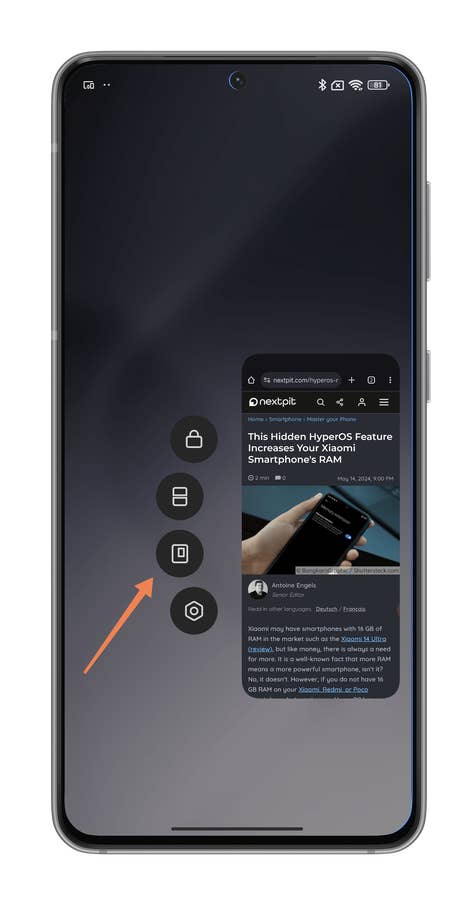
Launching an application in a floating window is a very simple thing on a Xiaomi smartphone. The classic method is as follows:
- Swipe from the bottom to the middle of the screen without releasing your finger to open the carousel of recent applications.
- Select the application of your choice, then press and hold it down.
- In the contextual menu wheel, select the 3rd icon from the top
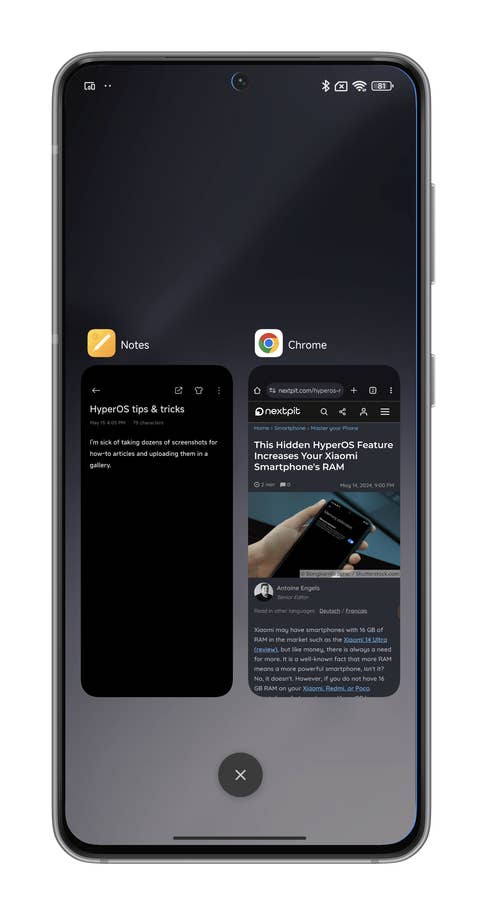
Hereu0027s how to open a floating window intuitively on your Xiaomi smartphone.
Quelle: nextpit
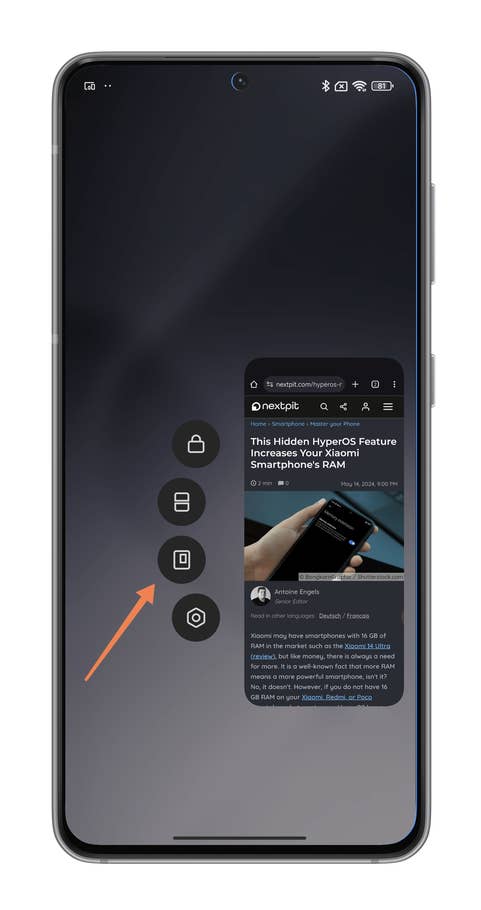
Hereu0027s how to open a floating window intuitively on your Xiaomi smartphone.
Quelle: nextpit
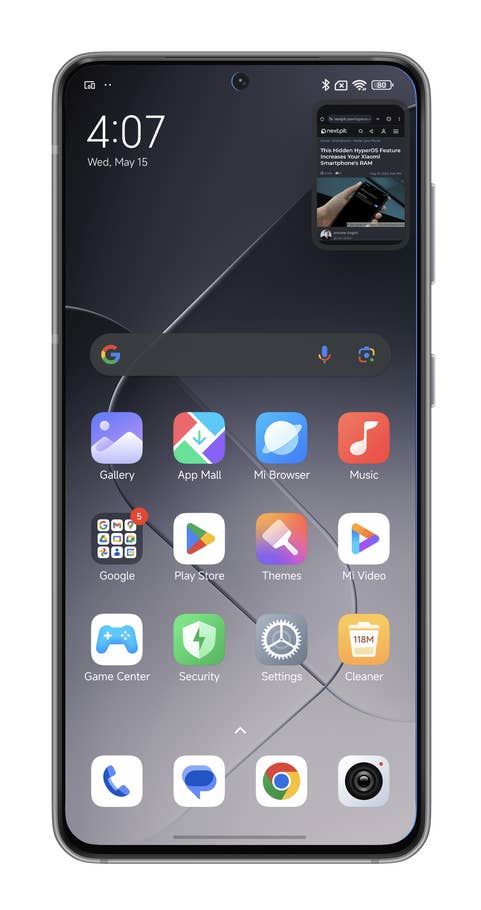
Hereu0027s how to open a floating window intuitively on your Xiaomi smartphone.
Quelle: nextpit
In the recent applications menu, you’ll also find a button at the top left known as “Floating windows”. Pressing it brings up a sidebar containing icons of the apps open on your smartphone. You can select any of them to display the corresponding app in a floating window.
A second method is a little faster and requires fewer steps:
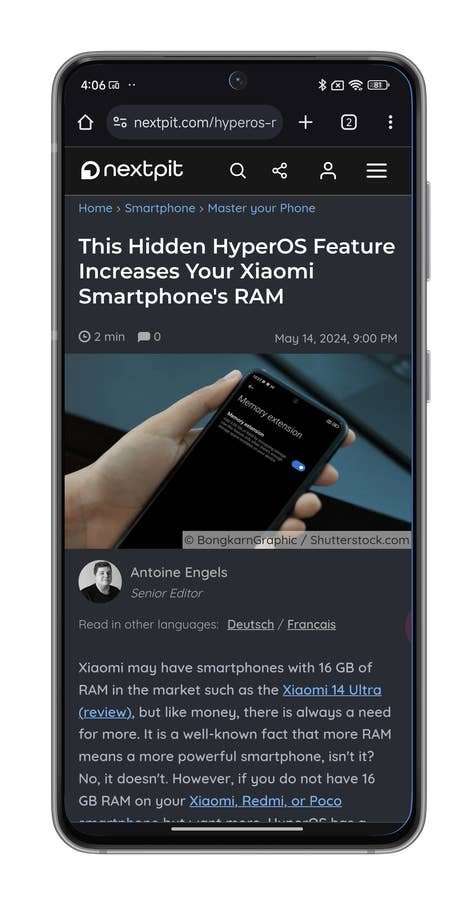
- Launch the application you wish to switch to a floating window in full screen mode.
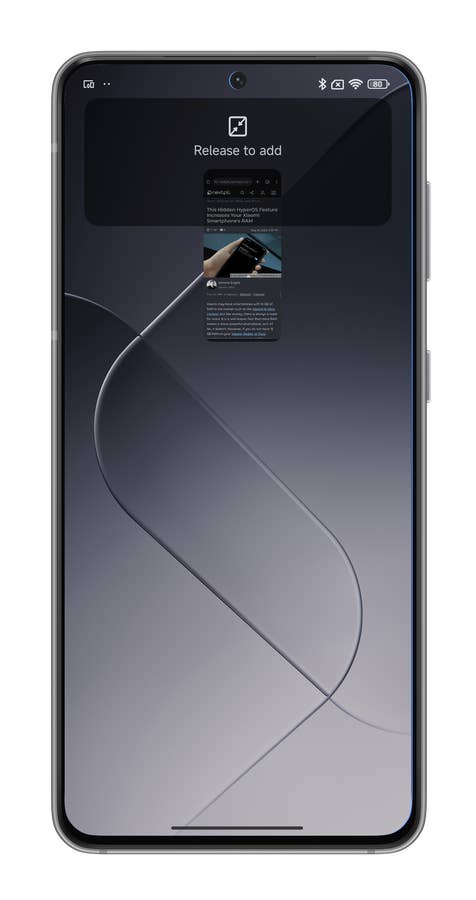
- Once the application is launched, swipe up from the bottom of the screen without releasing your finger.
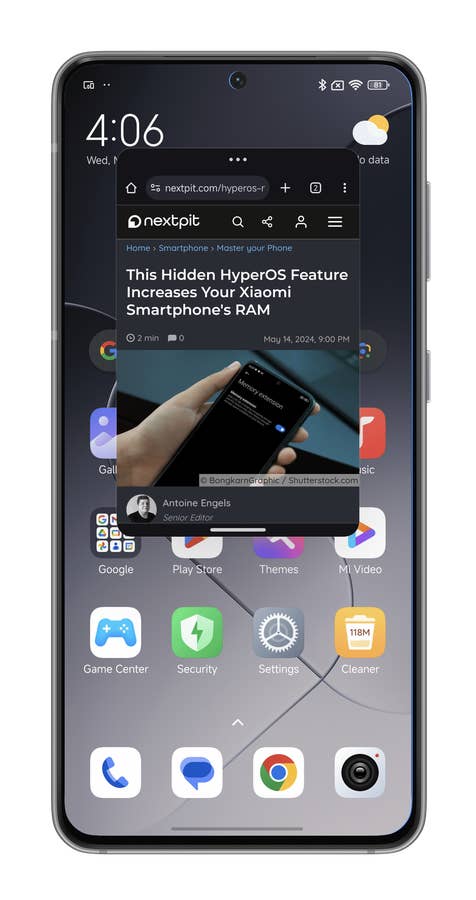
- You should be able to see a square icon at the top of the screen with two diagonal arrows pointing towards each other. Drag and drop the application to the icon and release your finger.
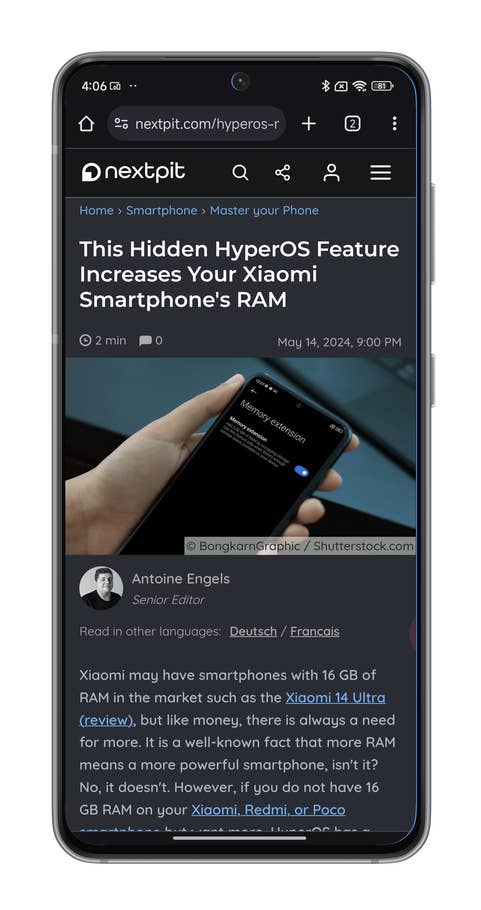
Hereu0027s how to open a floating window intuitively on your Xiaomi smartphone.
Quelle: nextpit
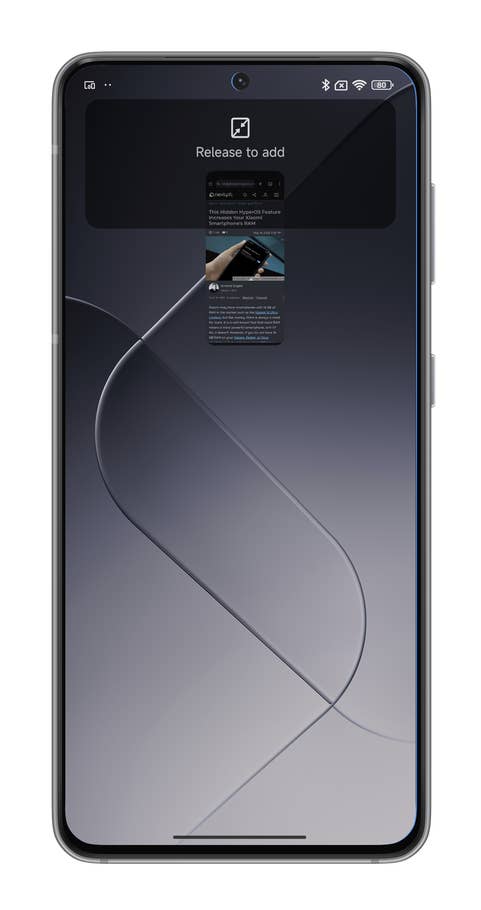
Hereu0027s how to open a floating window intuitively on your Xiaomi smartphone.
Quelle: nextpit
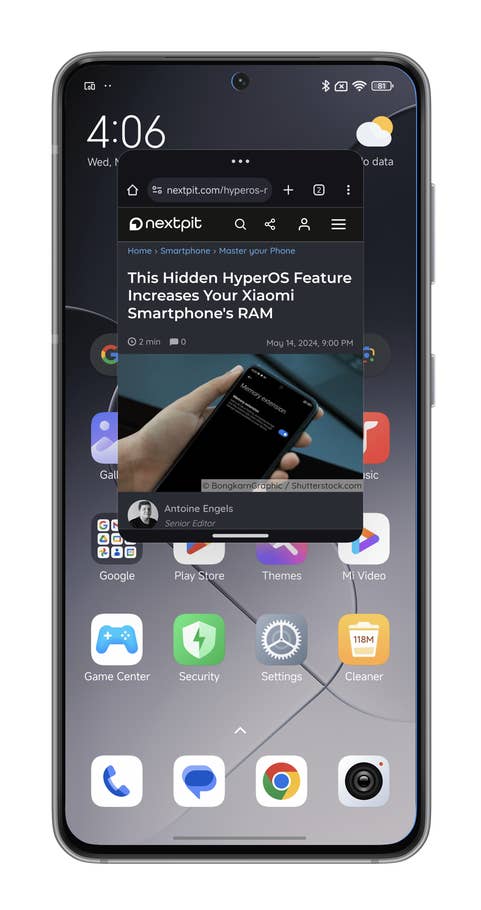
Hereu0027s how to open a floating window intuitively on your Xiaomi smartphone.
Quelle: nextpit
To return to full screen mode, simply swipe down from the sidebar at the bottom of the floating window.
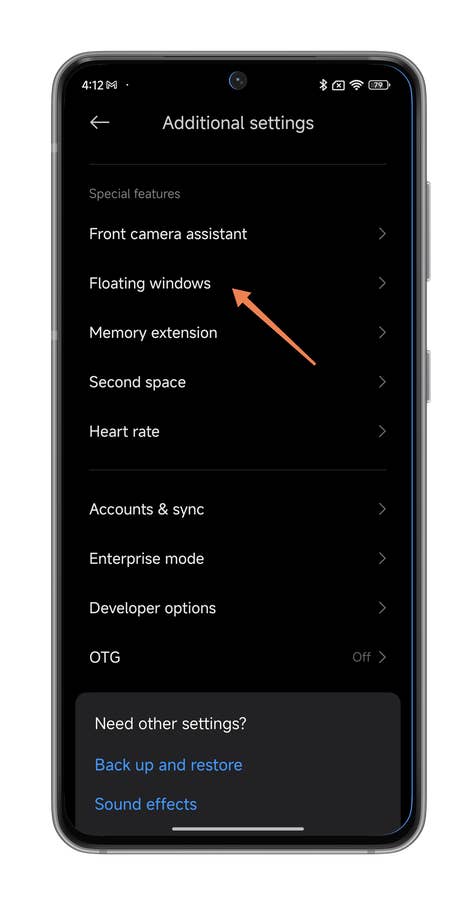
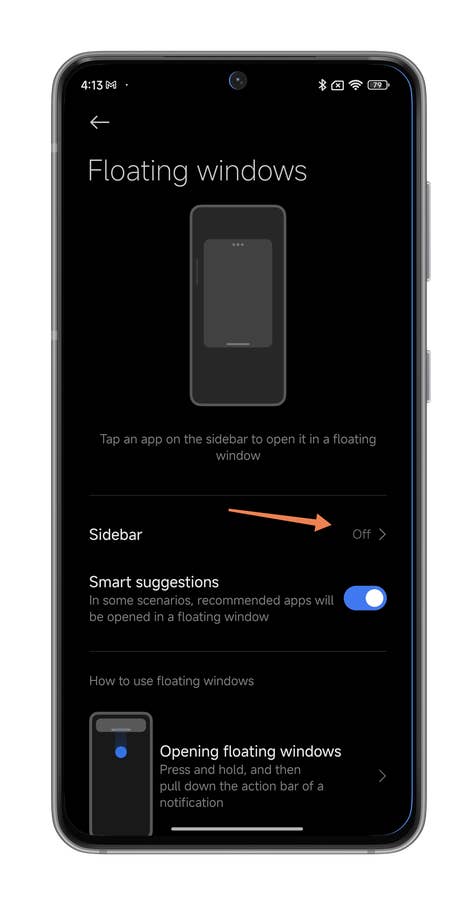
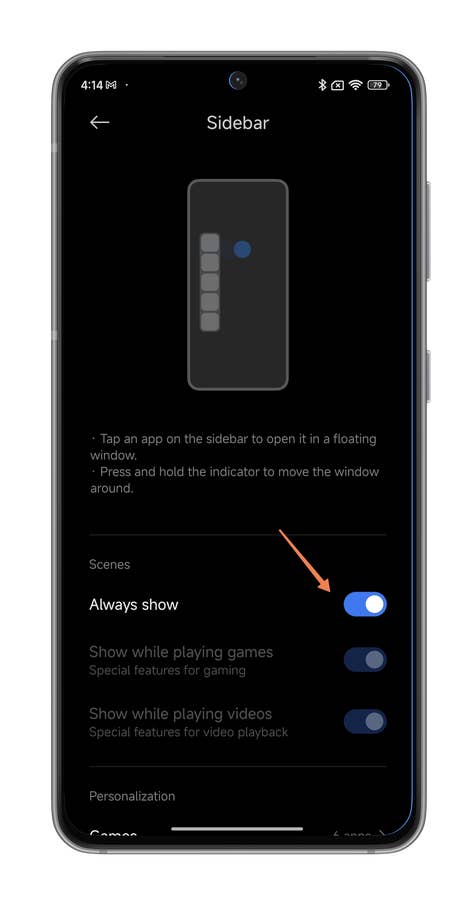
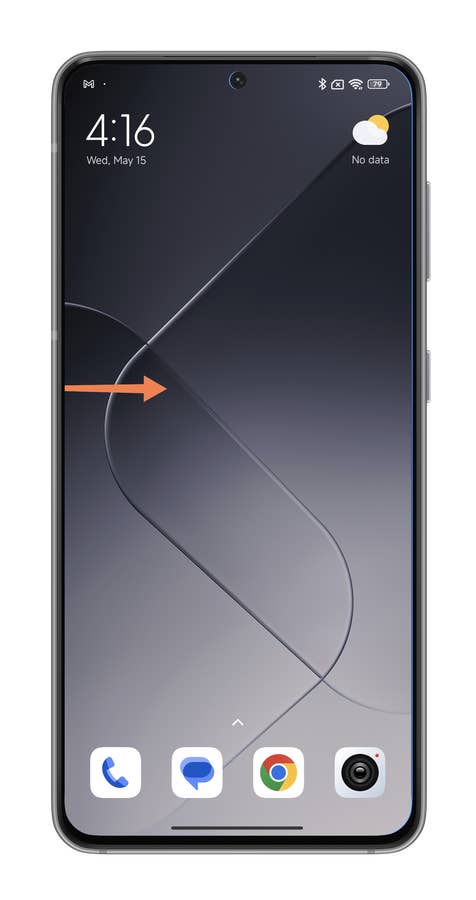
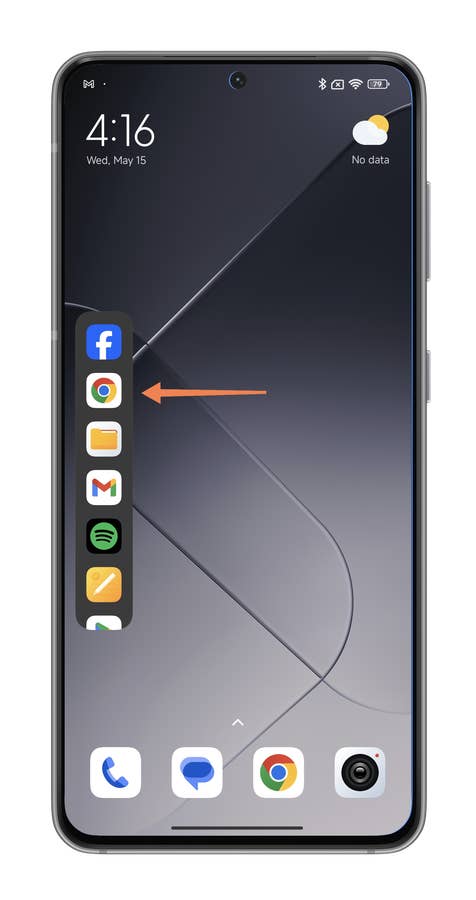
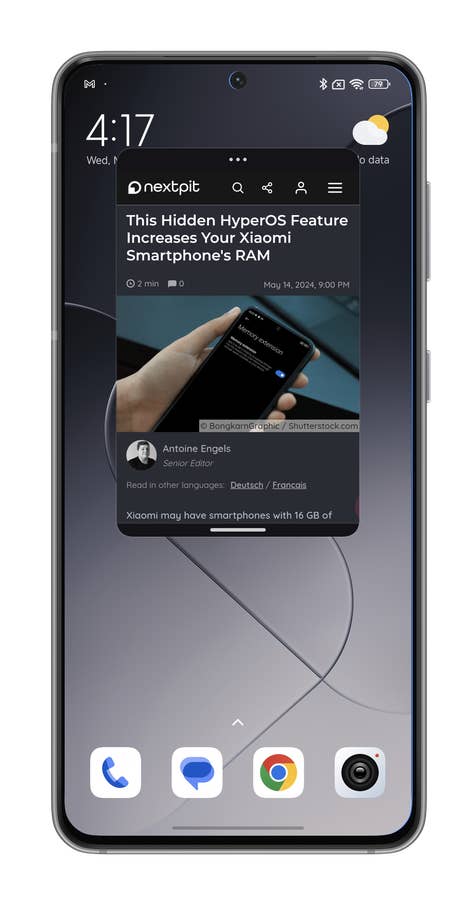
Finally, the last and fastest method to launch a floating-window application in HyperOS is via the Sidebar. The Sidebar is a taskbar that appears when you swipe from the side of your Xiaomi screen to the opposite direction. The Sidebar contains shortcuts to your favorite applications and makes it easy to open them in a window:
- Check that the SideBar is active (Additional settings > Floating windows > Sidebar)

Hereu0027s how you activate the Sidebar on your Xiaomi smartphone.
Quelle: nextpit

Hereu0027s how you activate the Sidebar on your Xiaomi smartphone.
Quelle: nextpit
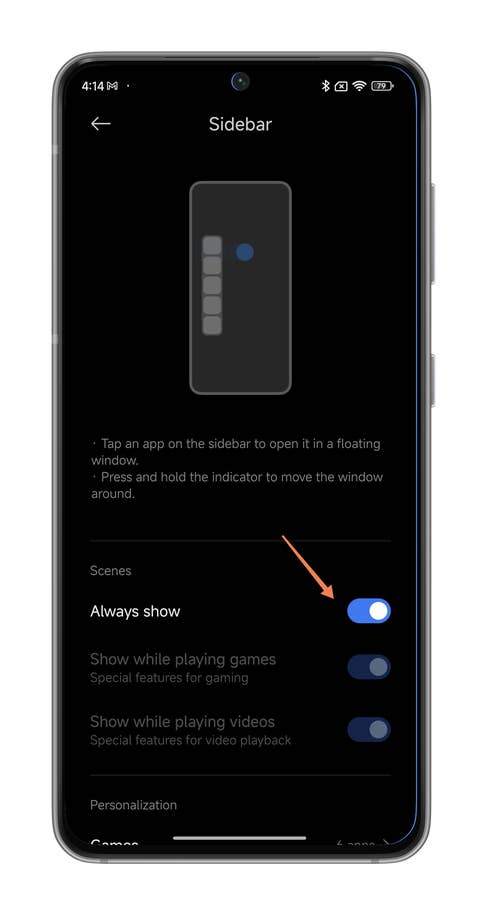
Hereu0027s how you activate the Sidebar on your Xiaomi smartphone.
Quelle: nextpit
- Display the Sidebar by swiping from the side of your screen (a small transparent crossbar indicates the swiping area).
- Once the Sidebar is displayed, simply select the icon for the application of your choice
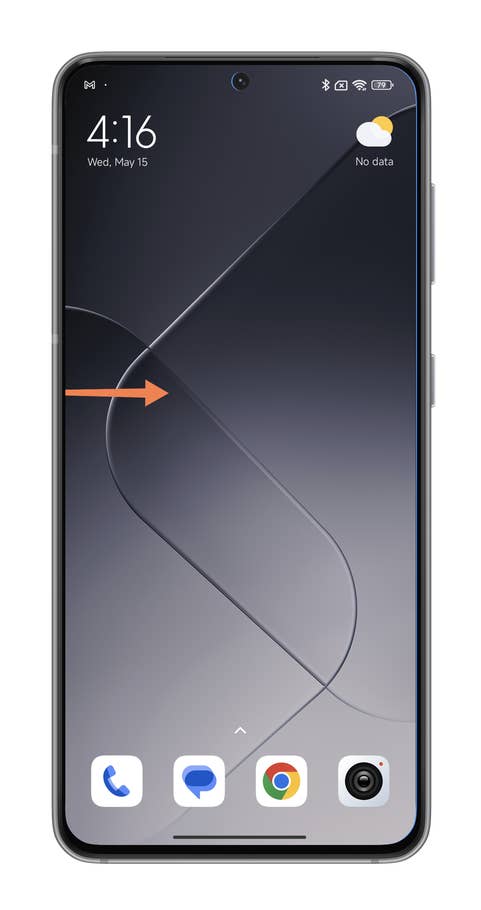
Hereu0027s how you launch an app in a floating window from the Sidebar of your Xiaomi smartphone.
Quelle: nextpit
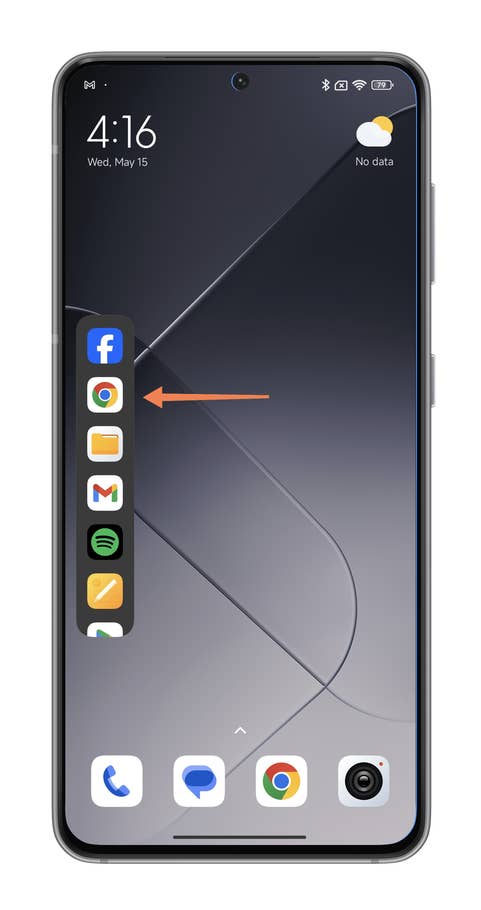
Hereu0027s how you launch an app in a floating window from the Sidebar of your Xiaomi smartphone.
Quelle: nextpit
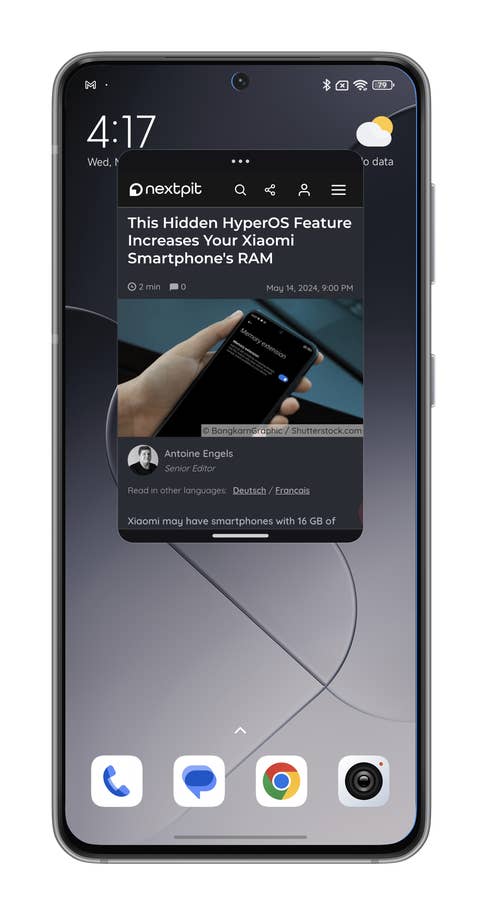
Hereu0027s how you launch an app in a floating window from the Sidebar of your Xiaomi smartphone.
Quelle: nextpit
How to reassign swipe down to display the notification pane/control center
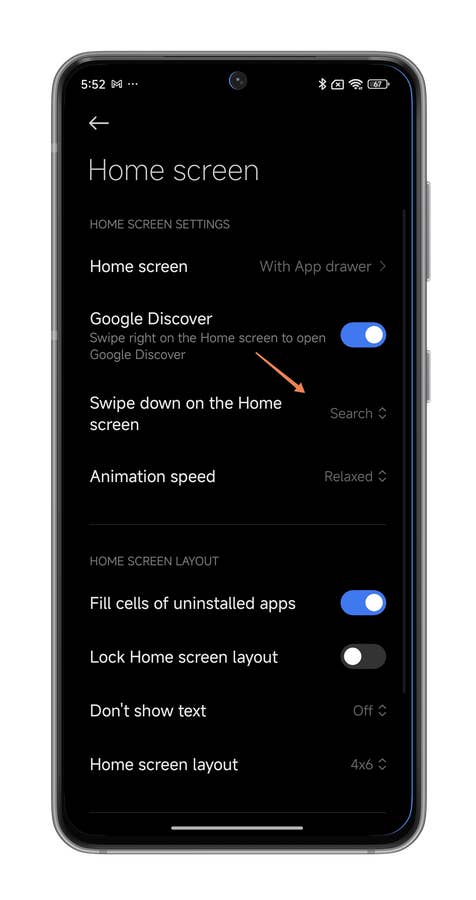
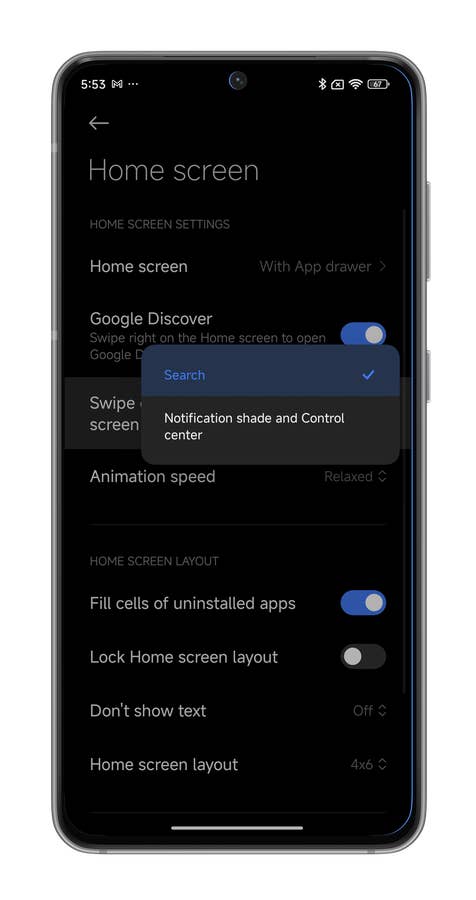
When you swipe down the home screen of your Xiaomi smartphone, it will display the Notifications shade and Control Center. Depending on your HyperOS version, it may be the Search menu that’s displayed by default.
If you’d like to revert to the old system because it’s more intuitive, it’s very simple:
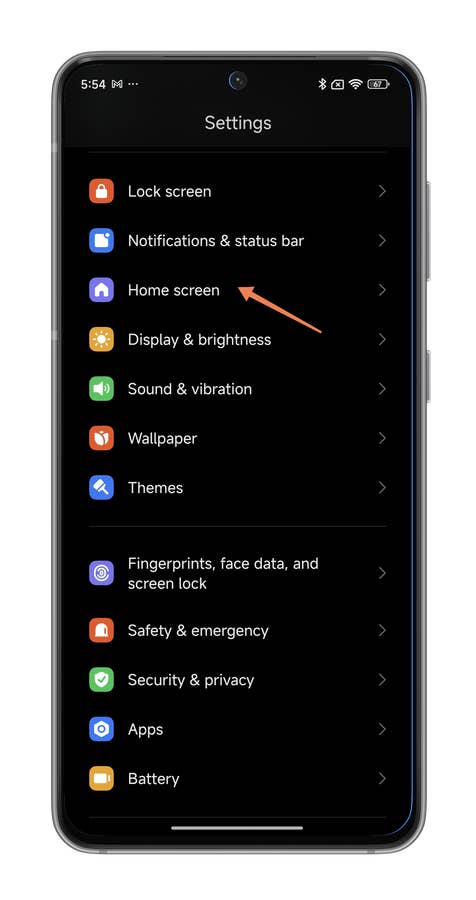
- Go to your Xiaomi smartphone’s Settings.
- Go to Home screen.
- Select Swipe down on the Home screen.
- Select Notification shade and Control Center.
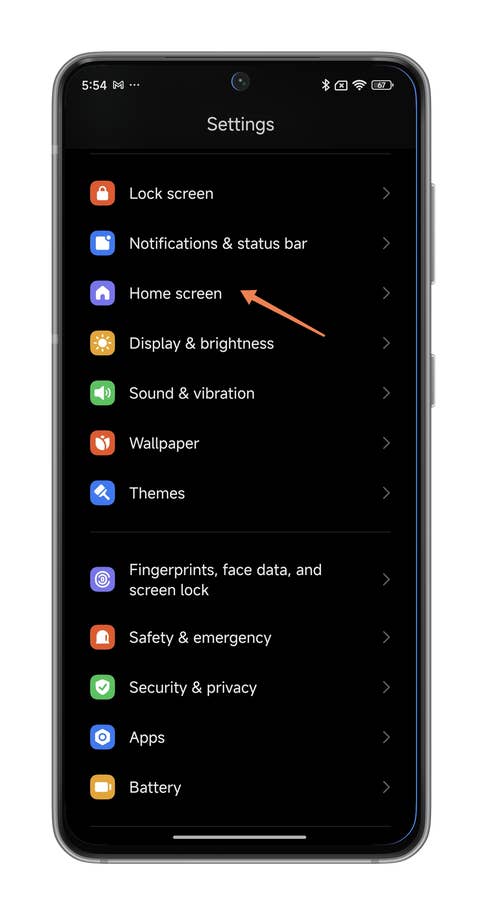
Hereu0027s how you reassign the swipe down gesture from the home screen of your Xiaomi smartphone.
Quelle: nextpit

Hereu0027s how you reassign the swipe down gesture from the home screen of your Xiaomi smartphone.
Quelle: nextpit

Hereu0027s how you reassign the swipe down gesture from the home screen of your Xiaomi smartphone.
Quelle: nextpit
You can read our full tutorial on how to change the swipe down on your Xiaomi if you’d like more details on how to do so.
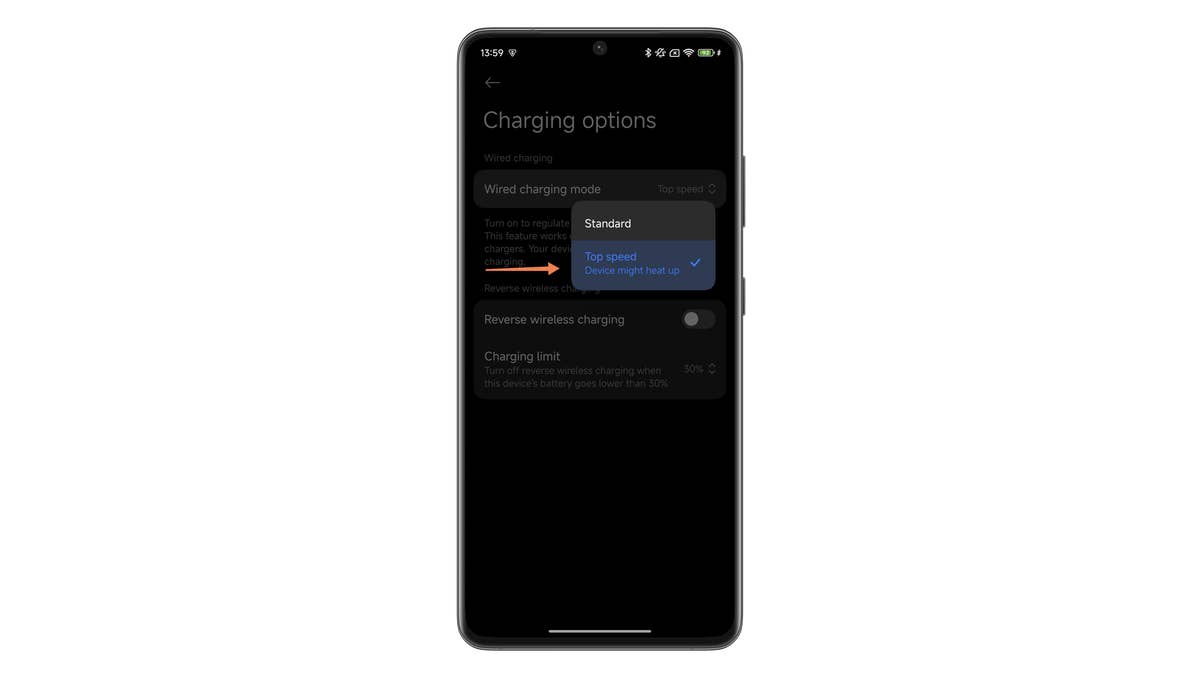
How to charge your Xiaomi smartphone faster
Xiaomi is one of the most future-forward manufacturers when it comes to charging technology. It’s one step ahead of Apple, Samsung, or Google.
However, if you would like to prolong your battery life, Xiaomi doesn’t offer maximum charging power by default. If your Xiaomi, Redmi, or Poco smartphone accepts 120 watts of wired charging, you will need to activate an option to benefit from it.
To do this:
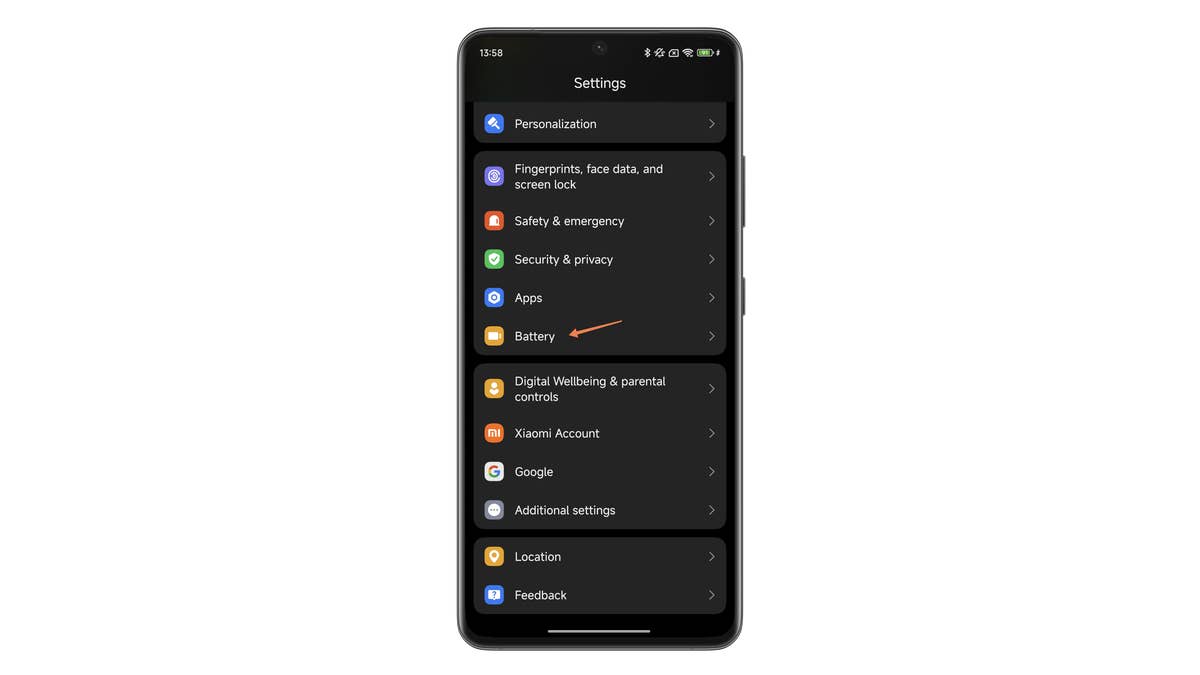
- Go to Settings, followed by Battery.
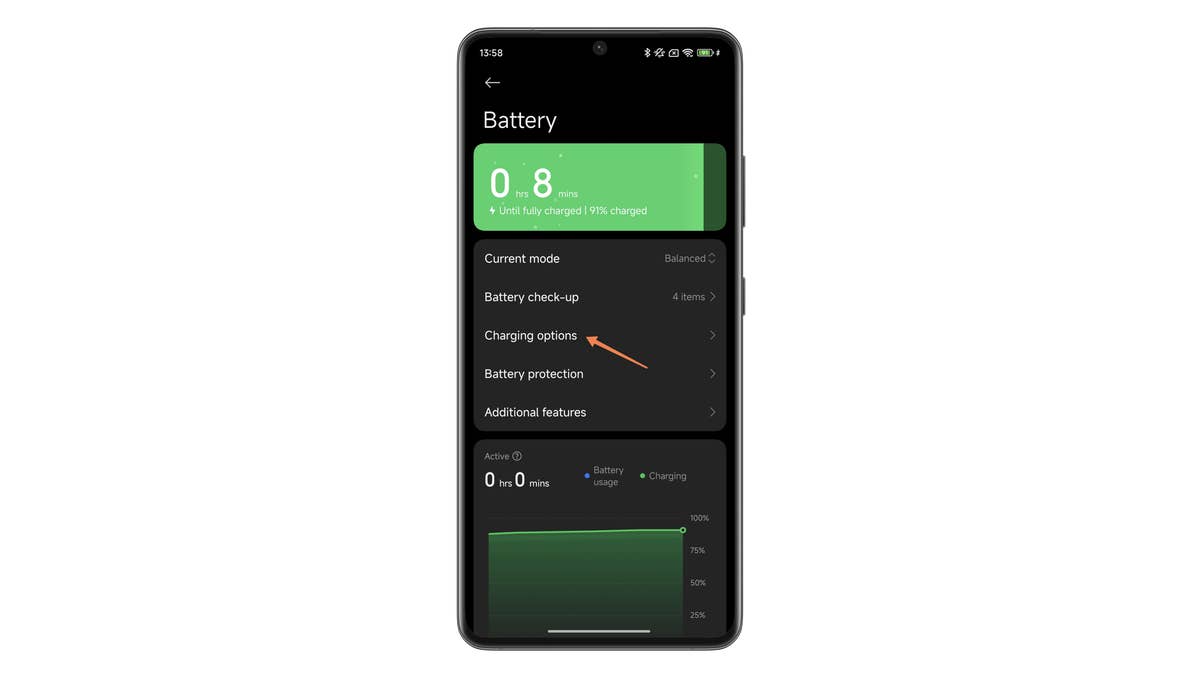
- In the Battery submenu, select Additional features.
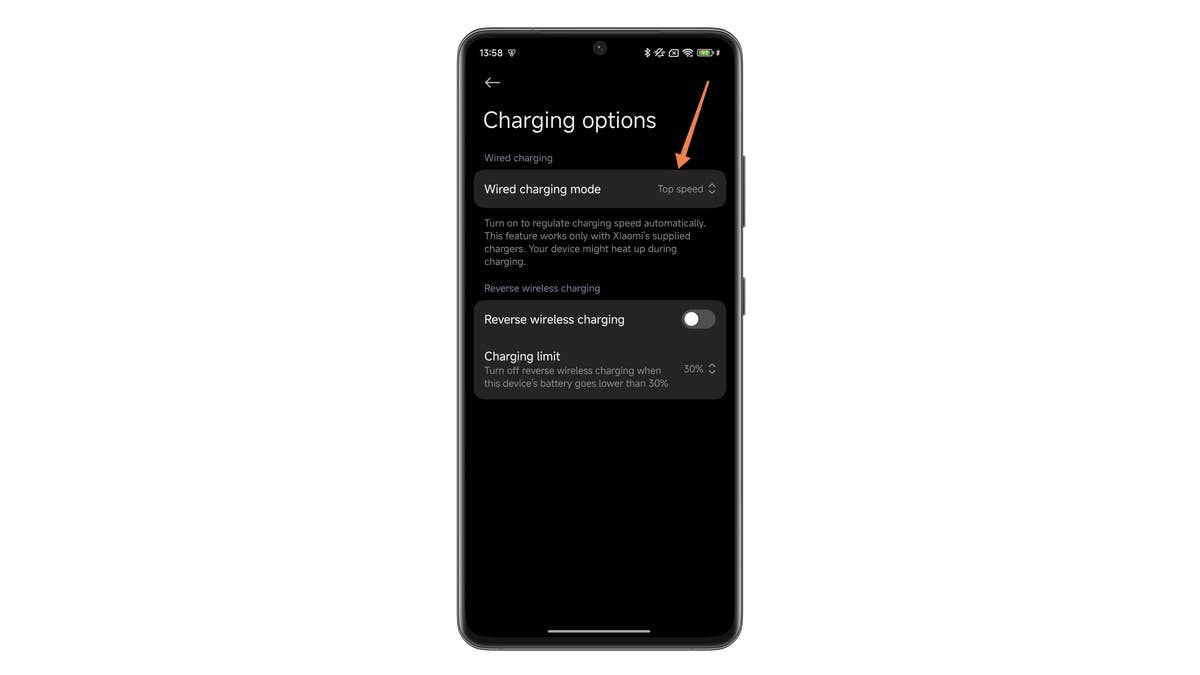
- Select Increase charging speed.
- Enable the Boost charging speed slider button.

Step 1: In the settings, go to ‘Battery’.
Quelle: Xiaomi ; Screenshots: nextpit

Step 2: In the Battery section, tap ‘Charging options’.
Quelle: Xiaomi ; Screenshots: nextpit
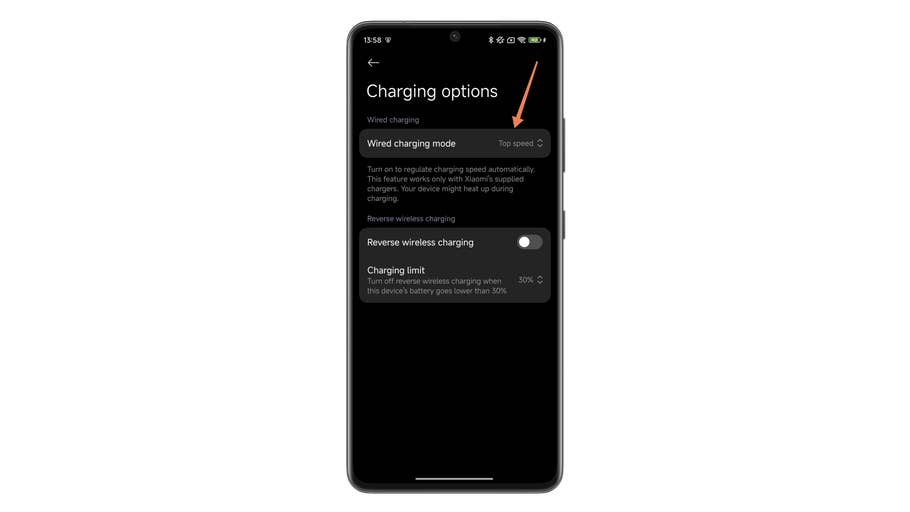
Step 3: Tap ‘Wired charging’.
Quelle: Xiaomi ; Screenshots: nextpit
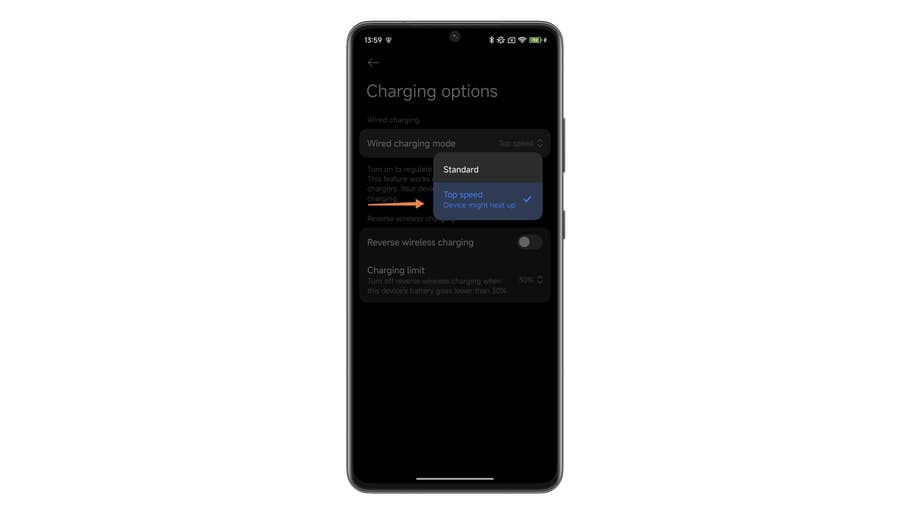
Step 4: Select ‘Maximum speed’.
Quelle: Xiaomi ; Screenshots: nextpit
How to extend the RAM of your Xiaomi smartphone
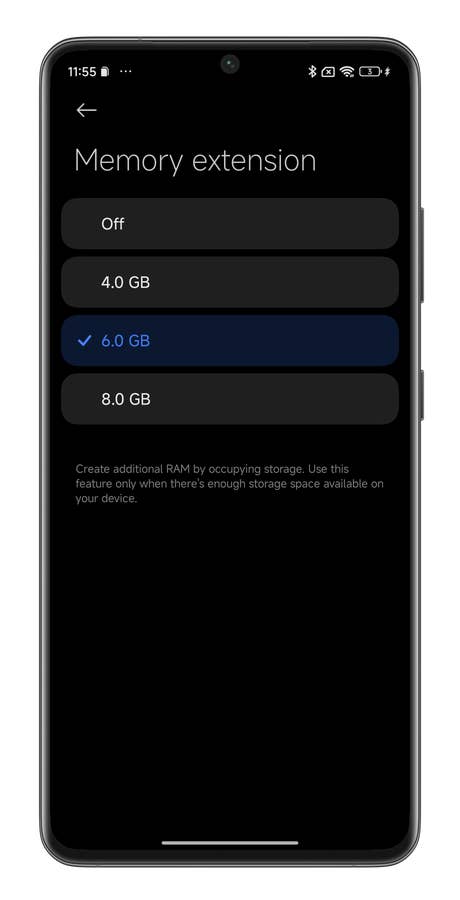
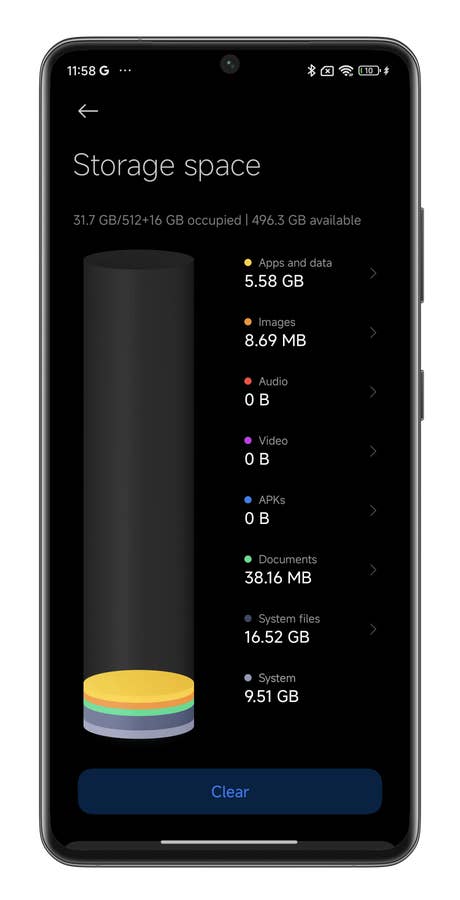
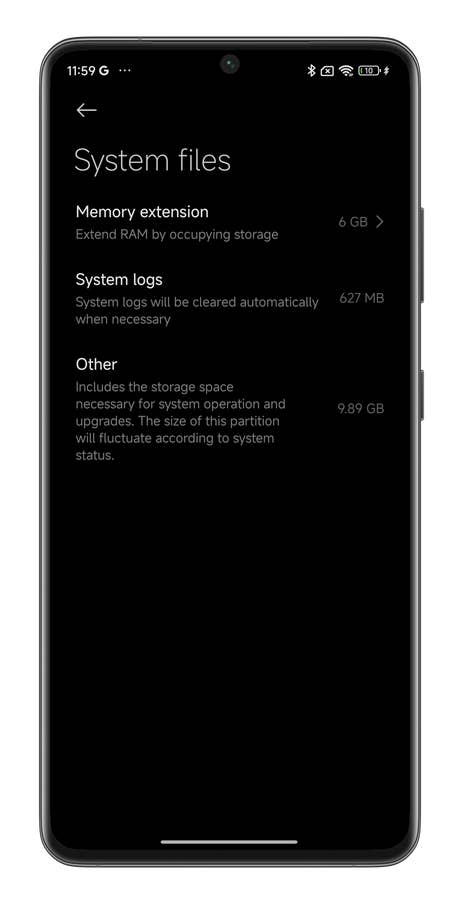
This function is very well-known and widespread on Xiaomi smartphones and all its sub-brands. You can allocate part of your storage to your RAM to “virtually” increase your smartphone’s RAM.
This can be a handy feature to enable your smartphone to run more smoothly on resource-hungry apps and mobile games.
To increase the RAM of your Xiaomi smartphone:
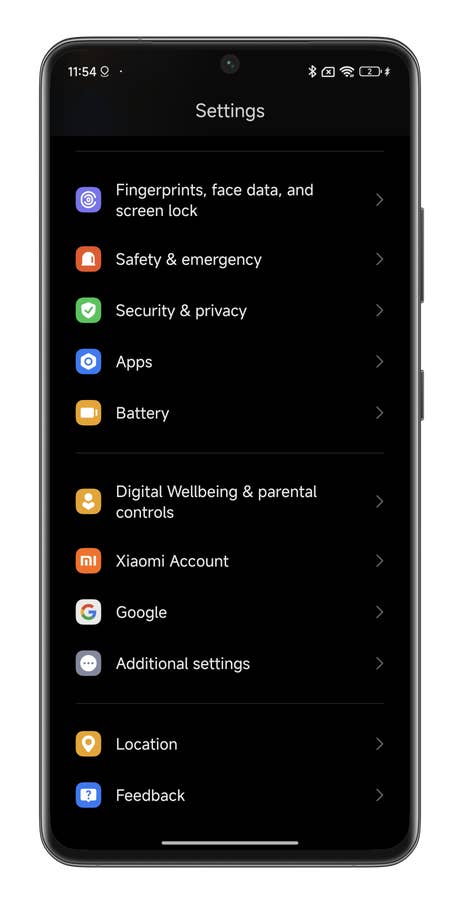
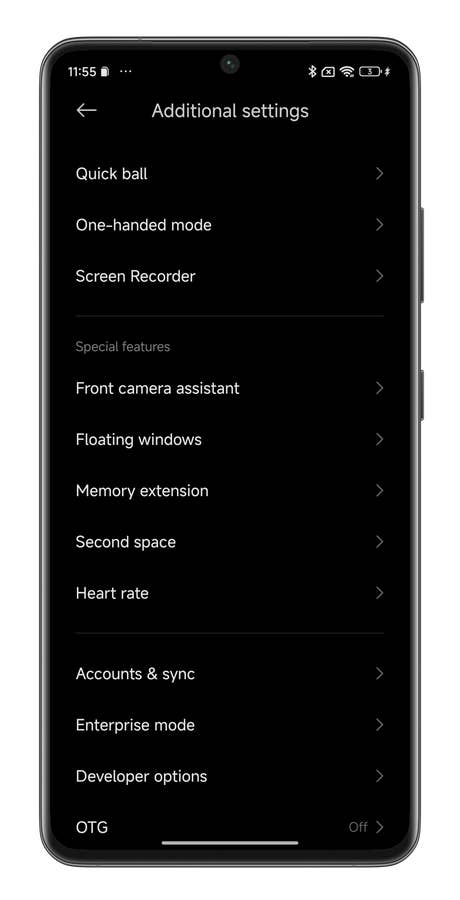
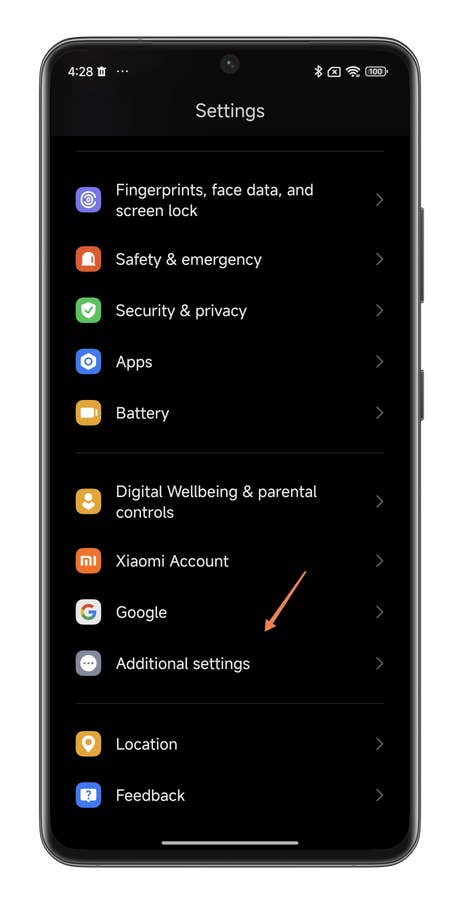
- Go to Settings, followed by Additional settings.
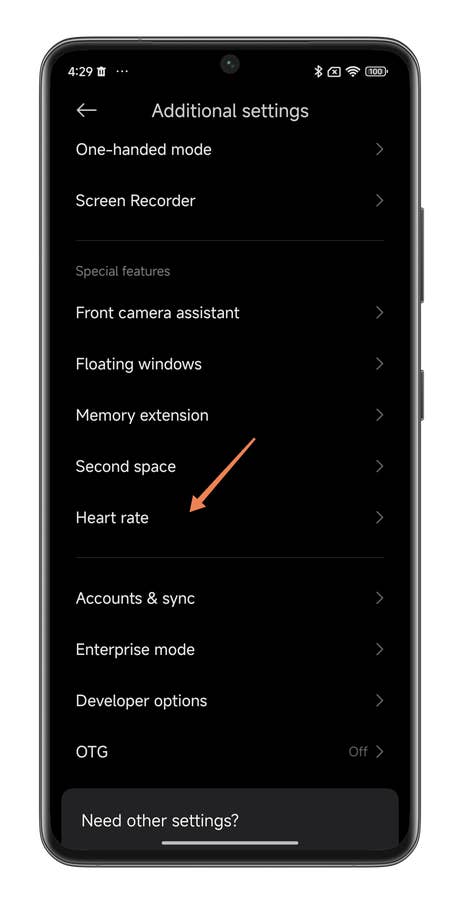
- In the Special Features section, select Memory Extension.
- Select the amount of storage you want to be used.

First, go to Additional Settings.
Quelle: nextpit
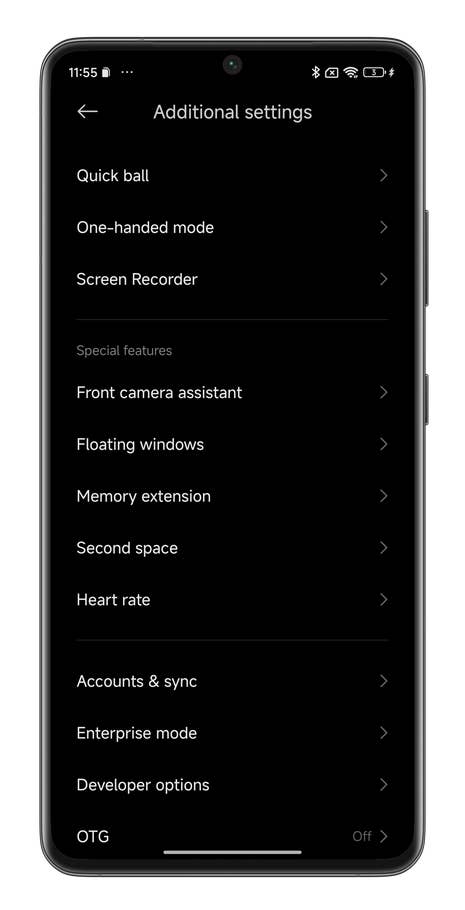
Scroll down and select “Memory Extension”.
Quelle: nextpit
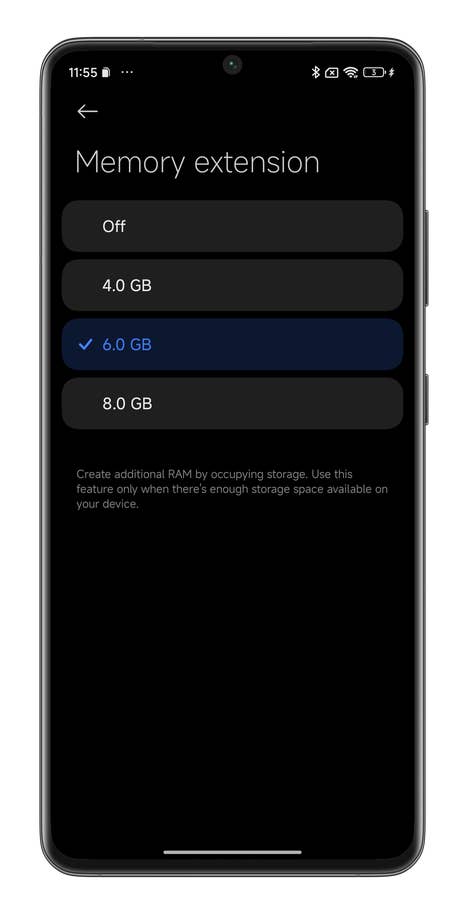
Select the amount of storage you want to allocate for the virtual RAM with the maximum set at 8 GB.
Quelle: nextpit
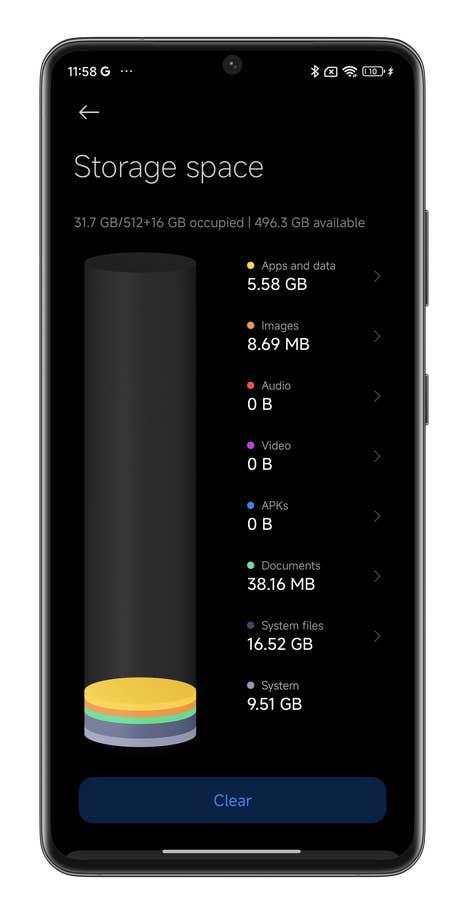
You can also find this option from the storage submenu of your smartphone (Settings u003e About device u003e Storage u003e System files).
Quelle: nextpit
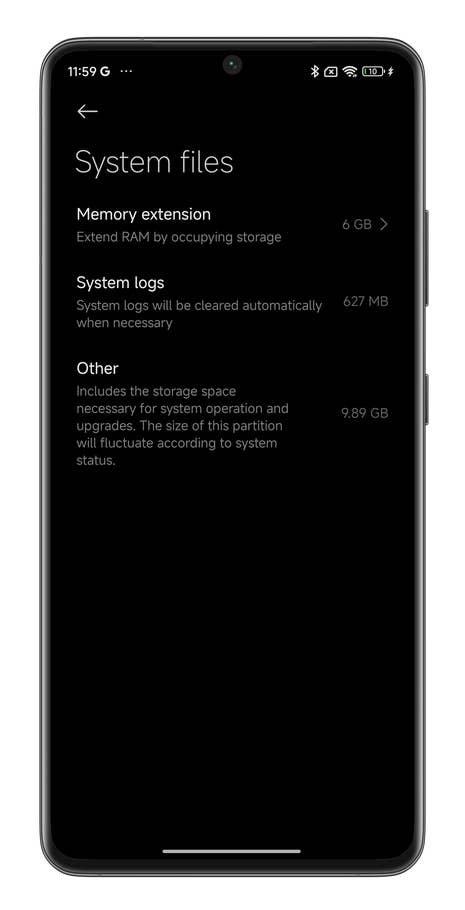
Hereu0027s how to increase the virtual RAM of your Xiaomi smartphone in the HyperOS settings.
Quelle: nextpit
You may not be able to select the amount of storage to be allocated to RAM depending on your Xiaomismartphone. On some smartphones, the amount of additional RAM is locked to one or more predefined thresholds. The minimum is 3 GB at the moment. Of course, you will need to ensure that you have enough available storage on your smartphone for this feature to work.
How to optimize the battery on your Xiaomi smartphone
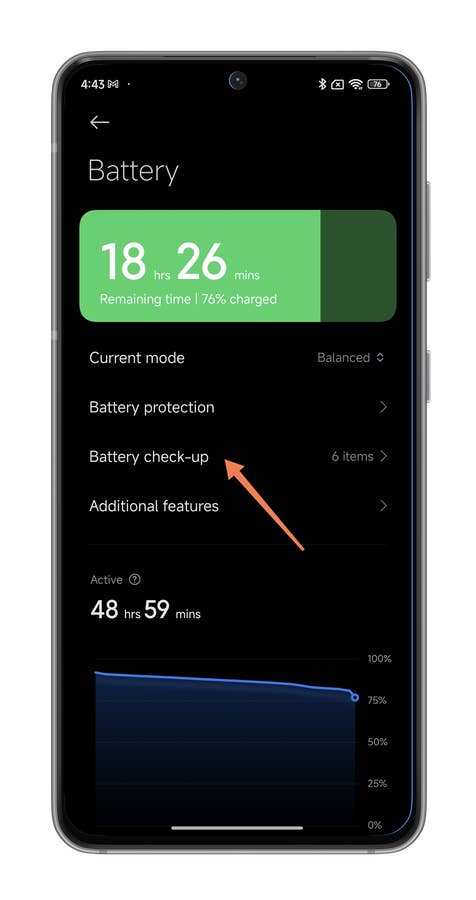
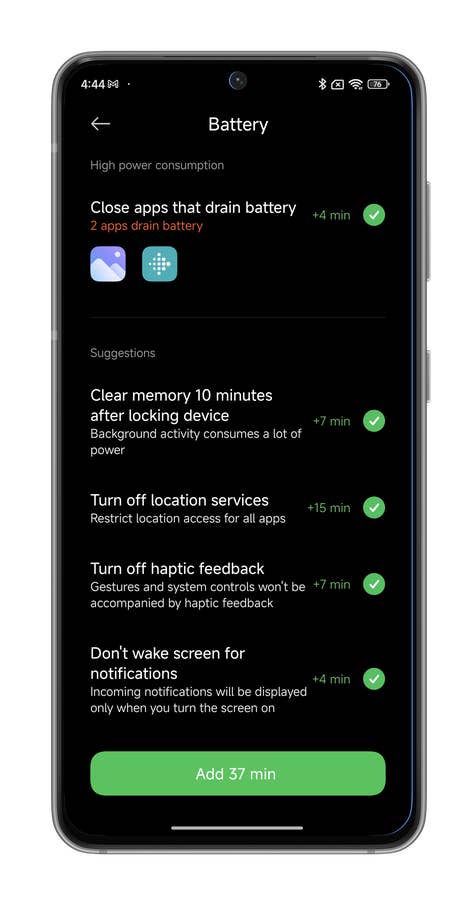
If you were to consult your Xiaomi smartphone’s battery utility, you’ll probably see a message inviting you to optimize said battery. When you press this button, you’ll access a very interesting sub-menu.
HyperOS suggests several actions you can take to preserve your battery. These are very specific tasks, and the interface even tells you how many minutes of battery life you can gain by performing a particular action.
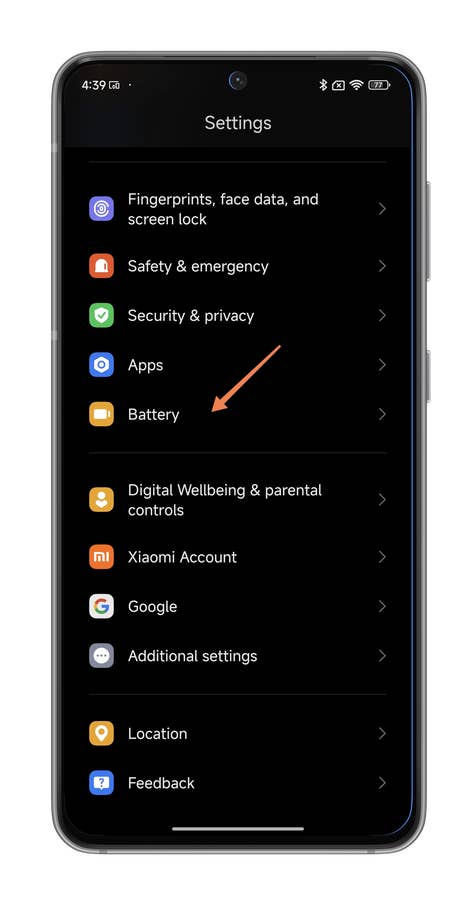
- Go to Settings, then Battery
- Select Battery check-up.
- Select one or more of the actions suggested by HyperOS.
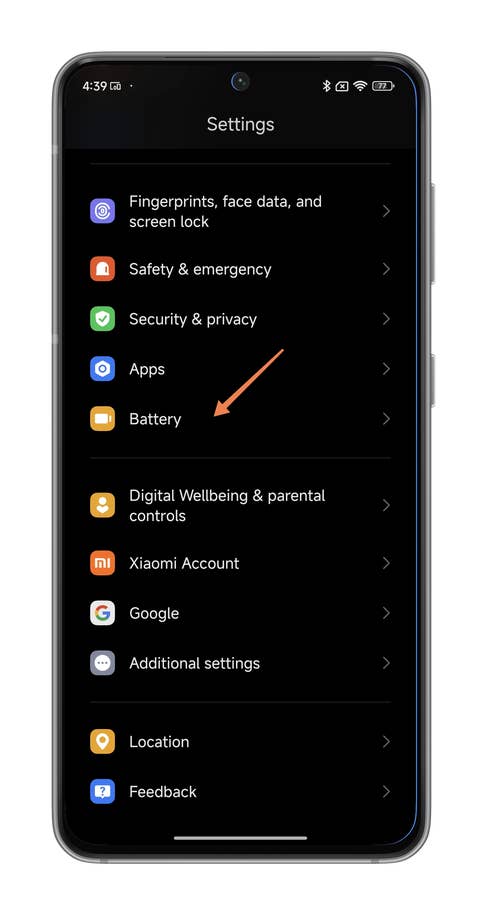
Hereu0027s how you access the battery settings of your Xiaomi smartphone.
Quelle: nextpit
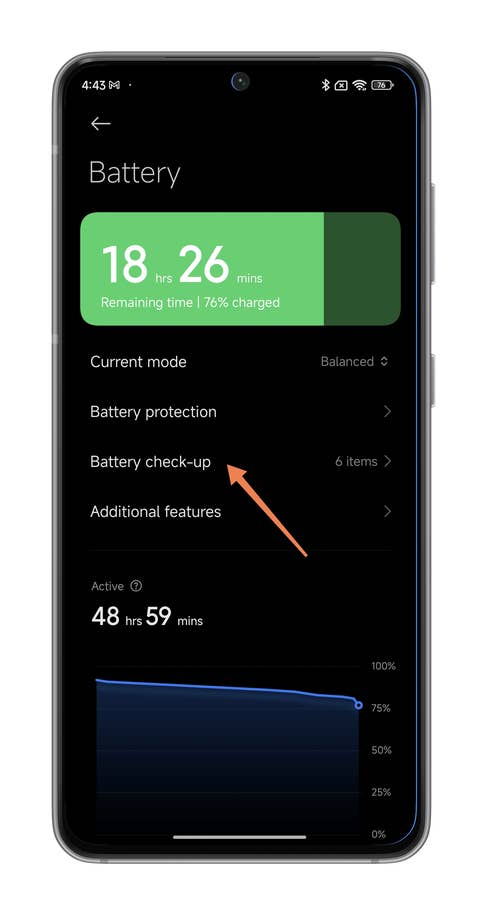
Hereu0027s how you access the battery settings of your Xiaomi smartphone.
Quelle: nextpit
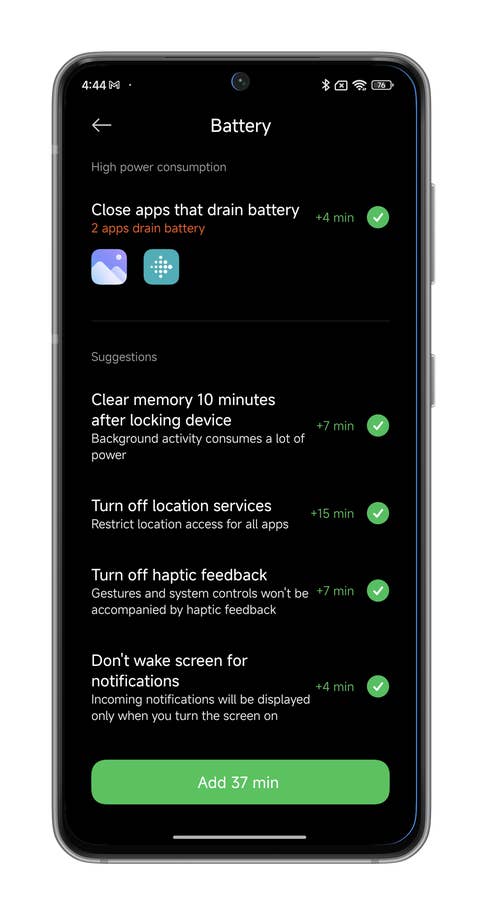
Hereu0027s how you access the battery settings of your Xiaomi smartphone.
Quelle: nextpit
How to use shortcuts on your lock screen
On your Xiaomi lock screen, you can see a small button at the bottom left of the screen. If you swipe right while pressing this button, a menu of shortcuts will appear.
You can activate/deactivate the Carousel wallpaper, open Google Wallet or Home, access your Mi remote, and activate the flashlight.
It is not yet possible to customize this menu and add other shortcuts.
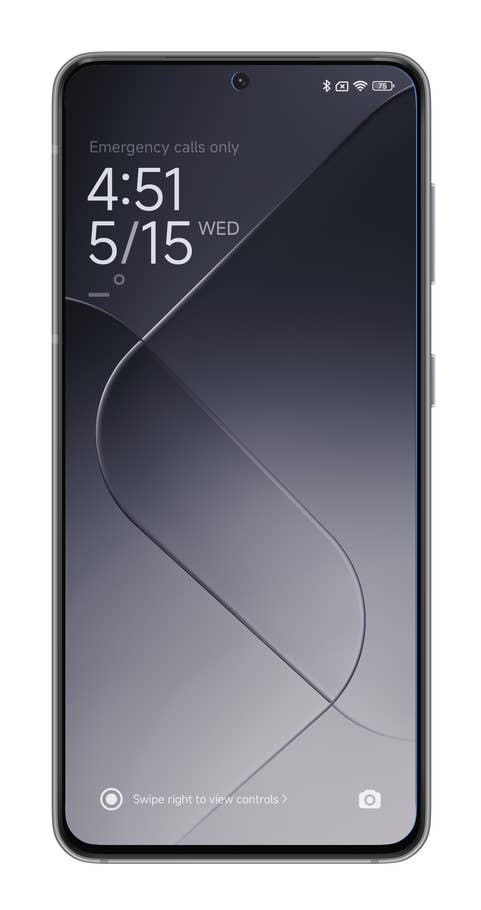
Hereu0027s how you access your Xiaomi smartphoneu0027s lock screen shortcuts.
Quelle: nextpit
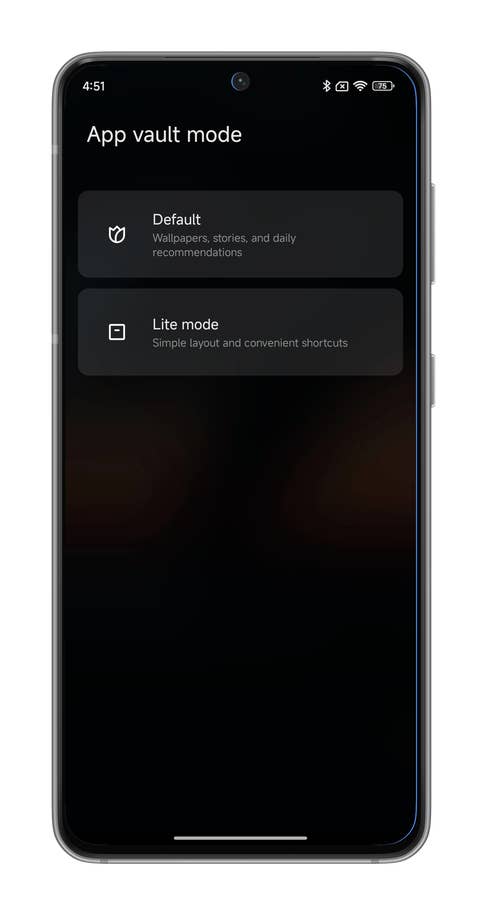
Hereu0027s how you access your Xiaomi smartphoneu0027s lock screen shortcuts.
Quelle: nextpit
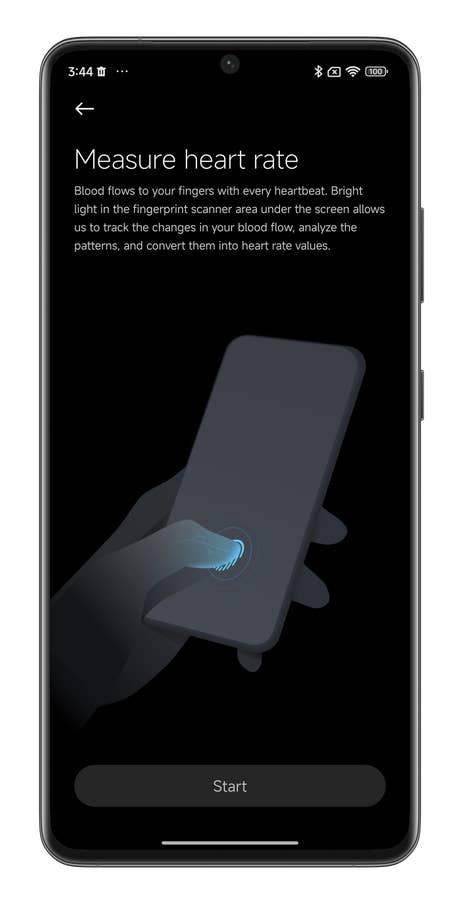
How to measure your heart rate using the fingerprint reader
This rather gimmicky function from Xiaomi that lets you measure your heart rate in BPM via the fingerprint reader. As far as I know, your smartphone must have a fingerprint reader under the screen for it to work. It won’t work if the reader is under the power button on the edge of the smartphone.
To activate this function:
- Go to HyperOS Settings.
- Go to Additional settings.
- Select Heart rate.
- Hold your finger over the fingerprint reader slot for 15 seconds without moving.
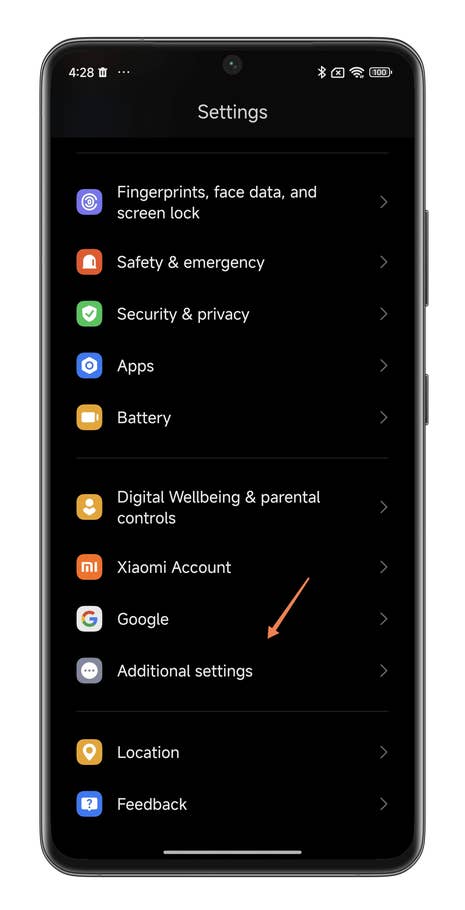
Go to HyperOS Settings and look for Additional Settings.
Quelle: nextpit
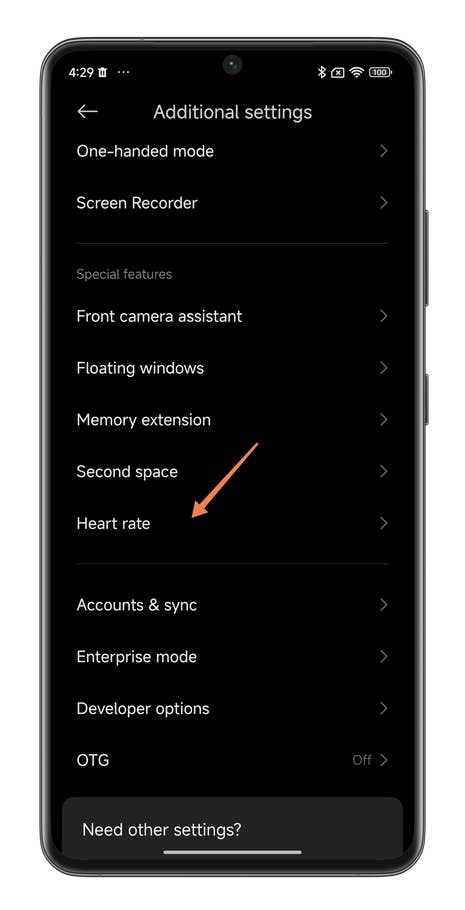
Scroll down until you see the submenu titled ‘Heart Rate’.
Quelle: nextpit
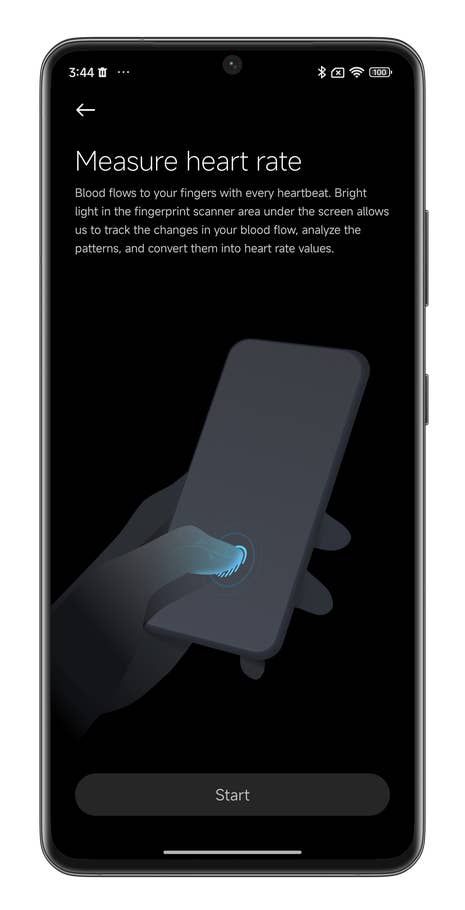
Xiaomi uses light emitted by the screenu0027s fingerprint reader to estimate the BPM based on your blood circulation rate.
Quelle: nextpit
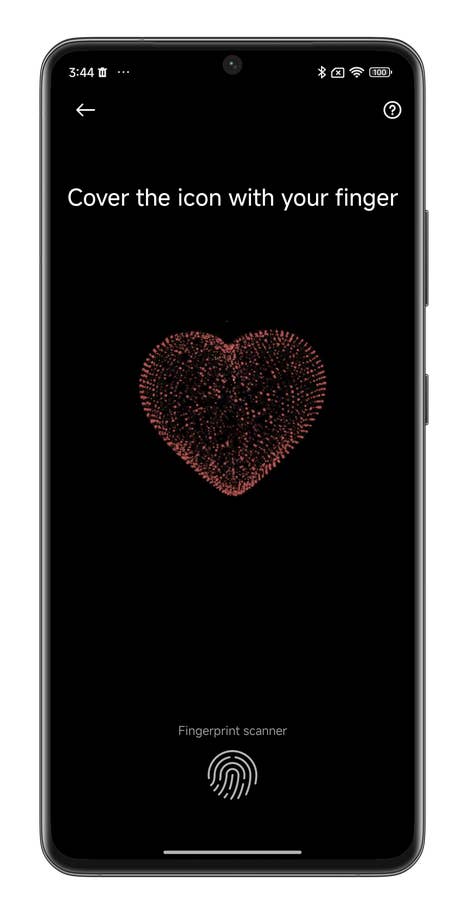
Place your finger on the fingerprint reader area of your screen for fifteen seconds.
Quelle: nextpit
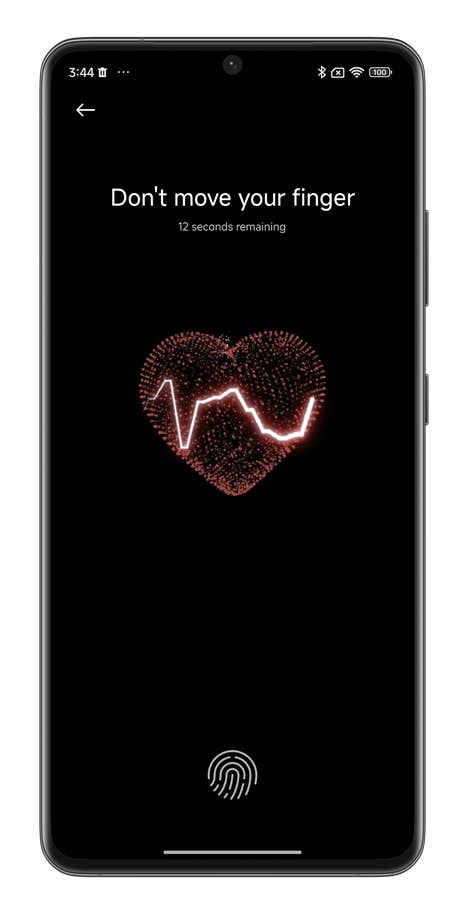
Be careful not to release your finger during these fifteen seconds. Keep it really still!
Quelle: nextpit
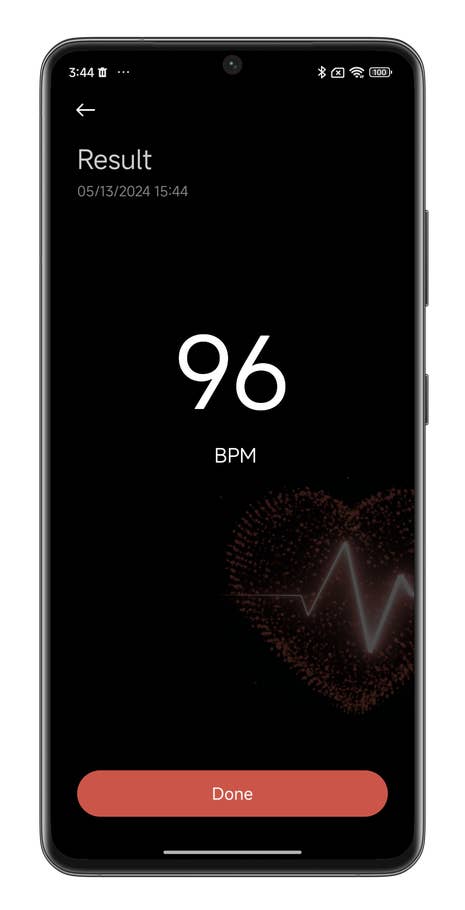
Xiaomi does not store a history of your past measurements.
Quelle: nextpit
Make the fingerprint reader under the screen more discreet
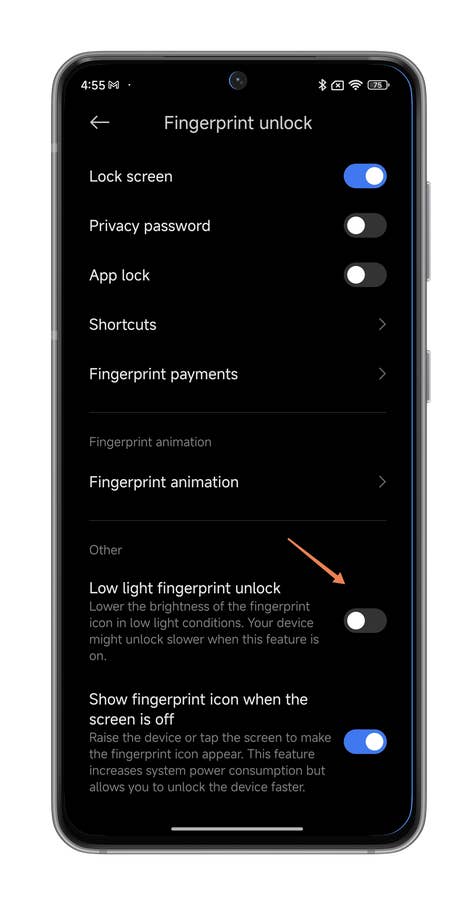
This tip addresses a very niche “need”. Basically, the idea is to lower the brightness of the fingerprint reader under the screen of your Xiaomi smartphone. To scan your fingerprints, the reader projects a light onto part of the screen so that you clearly see your dermatoglyph.
It seems some users complained that the projected light by the sensor was too intense. This function was mainly designed to make the fingerprint reader icon more discreet at night or in dark environments. To lower the brightness of the fingerprint reader:
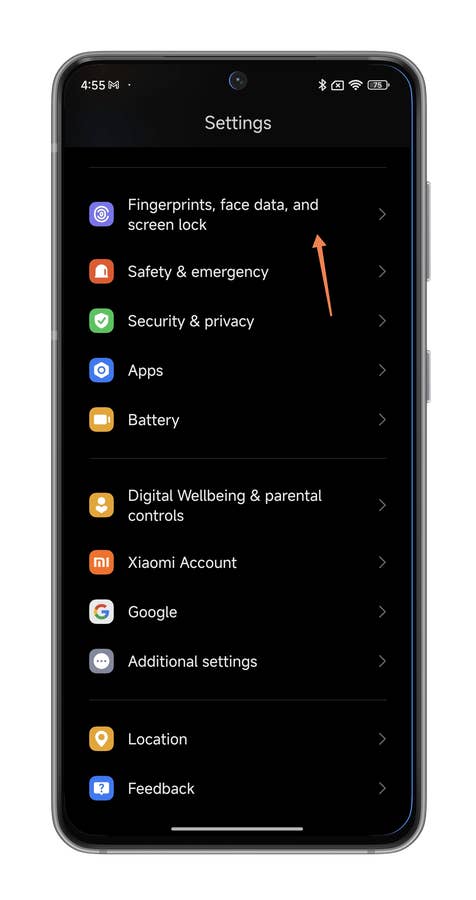
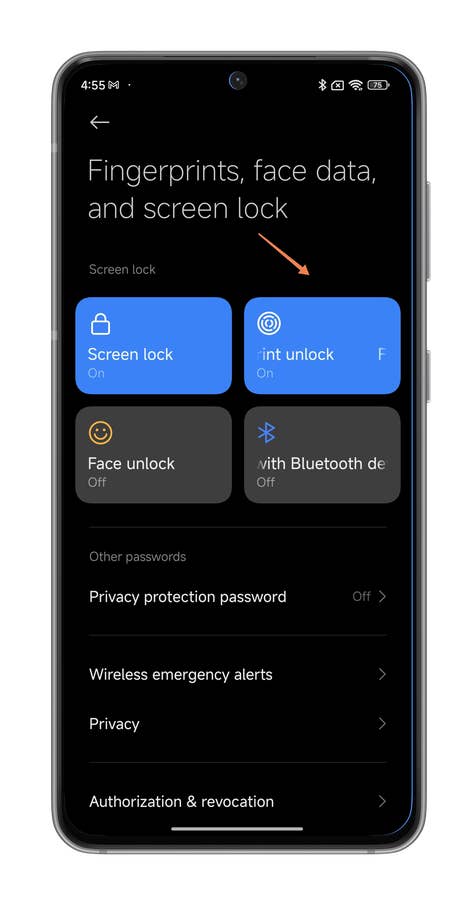
- Go to Settings, then to Fingerprints, face data, and screen lock.
- Select Fingerprint unlock.
- Scroll down to the Others section.
- Under Others, enable the Low light fingerprint unlock slider button.
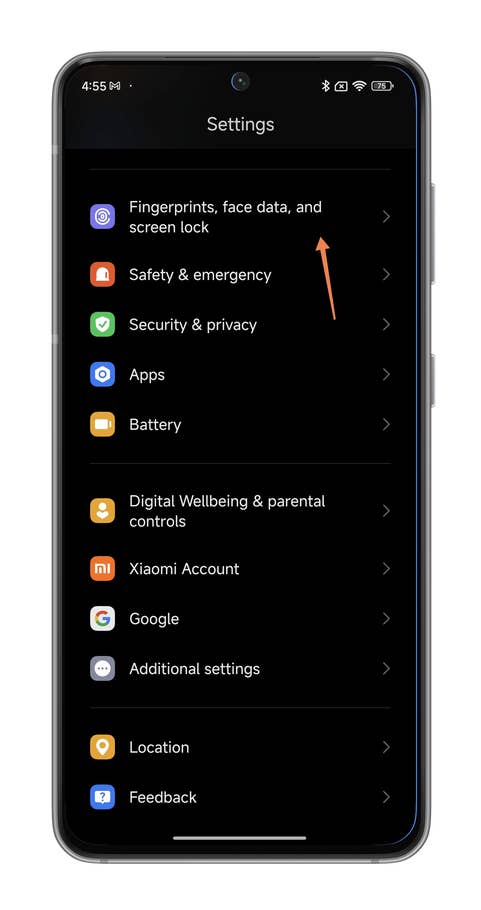
Hereu0027s how you make your Xiaomi smartphoneu0027s fingerprint reader more discreet.
Quelle: nextpit
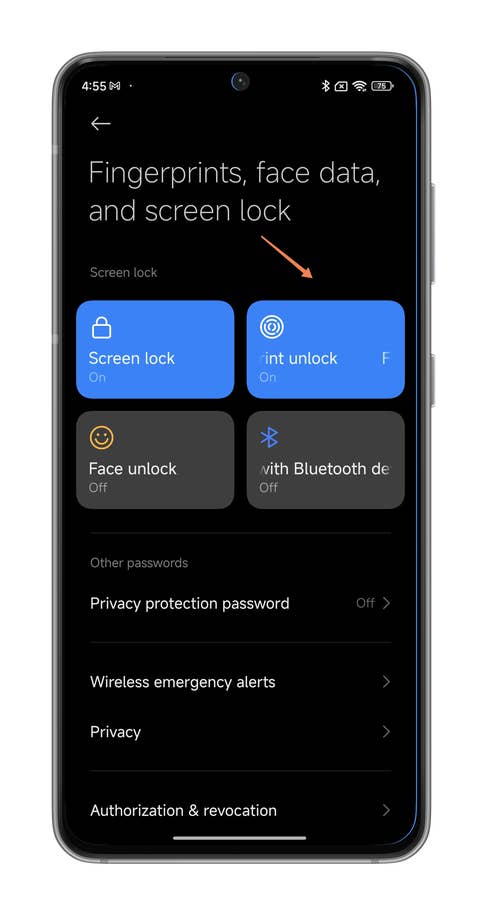
Hereu0027s how you make your Xiaomi smartphoneu0027s fingerprint reader more discreet.
Quelle: nextpit
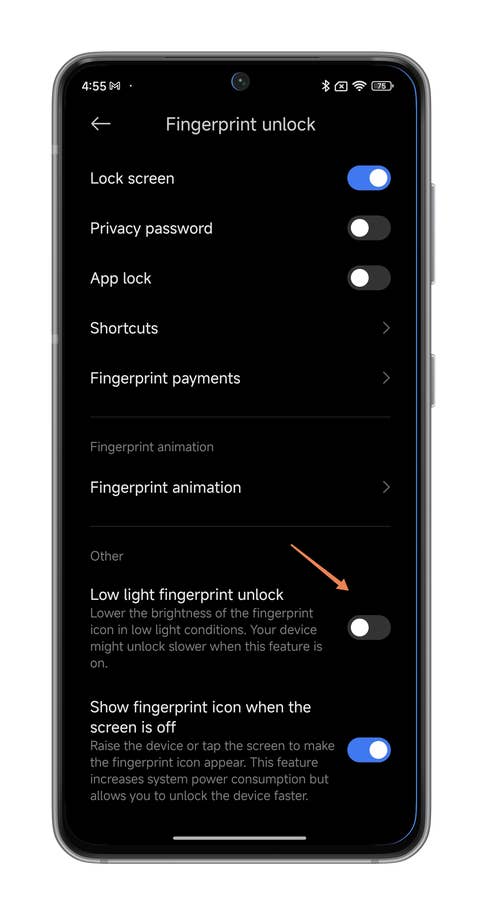
Hereu0027s how you make your Xiaomi smartphoneu0027s fingerprint reader more discreet.
Quelle: nextpit
Logically, this function only works if your smartphone has an under-screen fingerprint reader. Xiaomi specified that unlocking may take a little longer than usual when this function is activated.
Turning your under-screen fingerprint reader into a shortcut
This is a very promising feature, especially if Xiaomi were to make it more customizable in the future. You will need to have a fingerprint reader under the screen of your Xiaomi smartphone for it to work.
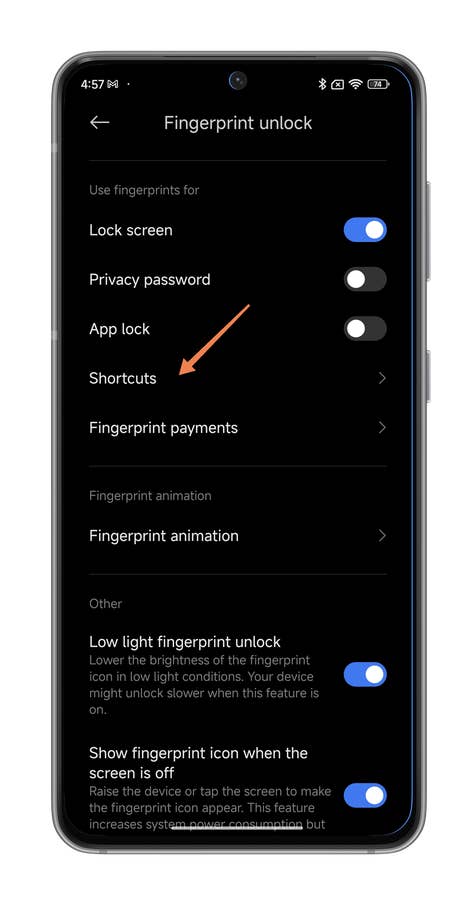
- Go to Settings, then to Fingerprints, face data, and screen lock.
- Go to Fingerprint unlock.
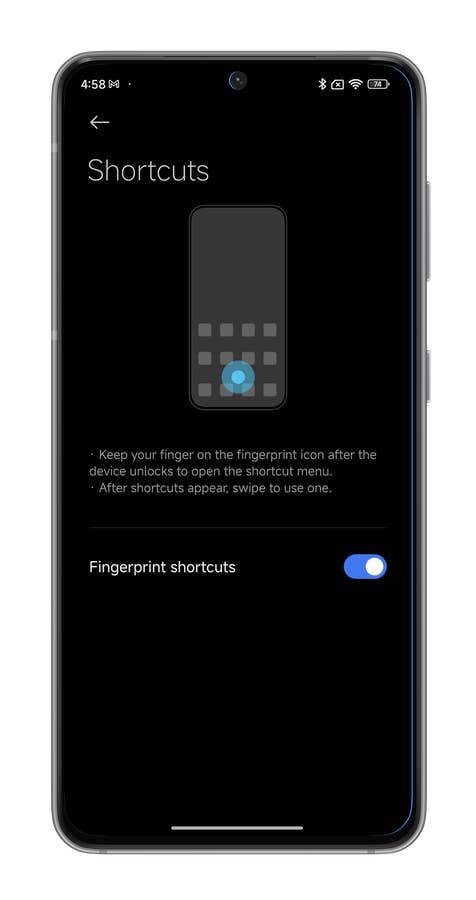
- Select Shortcuts and enable the slider button.

Hereu0027s how your Xiaomi smartphoneu0027s fingerprint reader is used as a shortcut button.
Quelle: nextpit
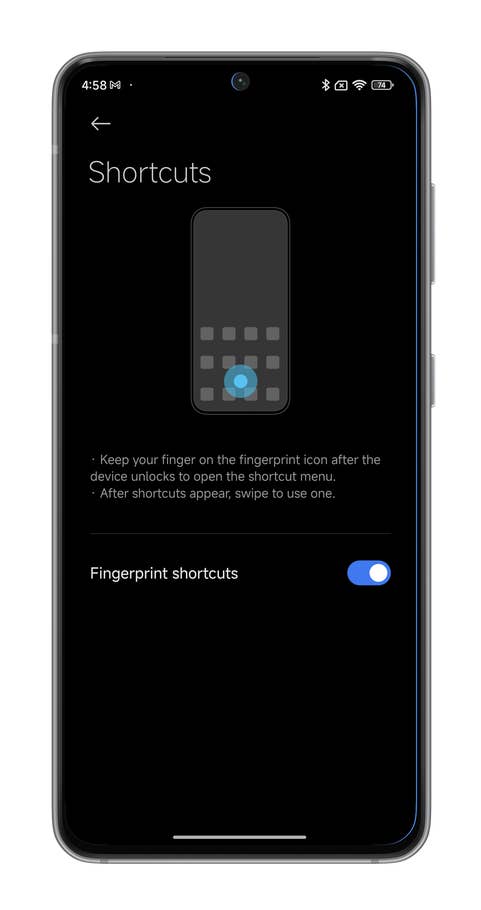
Hereu0027s how your Xiaomi smartphoneu0027s fingerprint reader is used as a shortcut button.
Quelle: nextpit
When you unlock your smartphone using the fingerprint reader, you can leave your finger pressed down to turn the fingerprint reader into a shortcut. Only two shortcuts are currently available: the QR code reader and the system search function.
- Unlock your Xiaomi smartphone with the fingerprint reader.
- Keep your finger pressed down on the screen after unlocking.
- Slide your finger to the right or left, depending on the shortcut you chose.
Externen Inhalt erlauben
Ich bin damit einverstanden, dass externer Inhalt geladen wird. Personenbezogene Daten werden womöglich an Drittplattformen übermittelt. Nähere Informationen enthält die Datenschutzerklärung.
How to disable ads in HyperOS
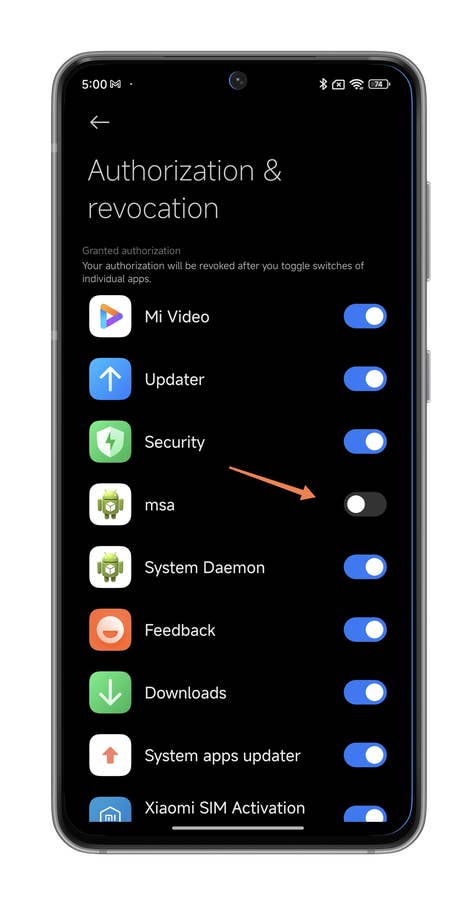
You need to go through several steps to fully disable all ads in the HyperOS interface, and it would take an entire article to detail these steps. Luckily, we’ve linked you to one below. However, you can start with the most important step: disabling the MSA or HyperOS System Ads application.
- Go to Settings.
- Go to Fingerprints, face data, and screen lock.
- Under Authorization & revocation deactivate the msa slider button.
- Wait 10 seconds and press Revoke to confirm
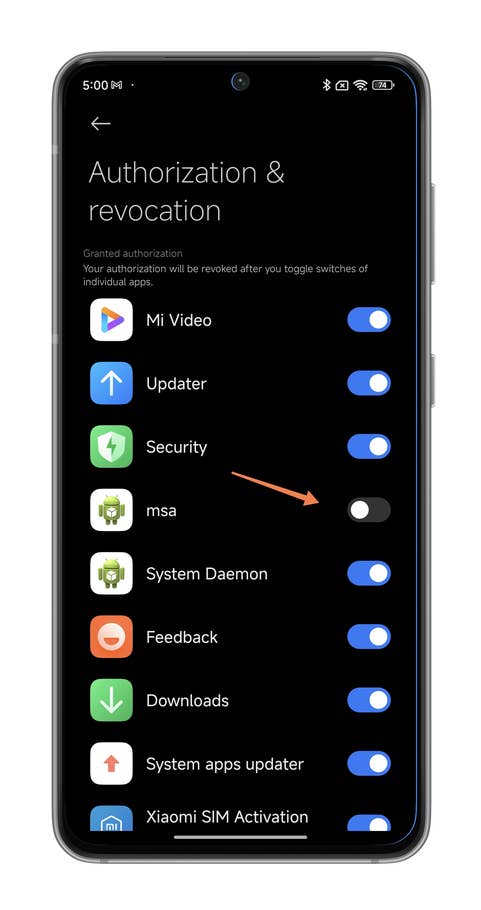
Hereu0027s how you remove ads from your Xiaomi smartphoneu0027s interface.
Quelle: nextpit
Hereu0027s how you receive HyperOS updates sooner on your Xiaomi smartphone.
Quelle: nextpit
This should remove most of the ads. Do note these are only the “system” ads in the HyperOS interface, other ads may remain in some of Xiaomi’s native applications, so you’ll have to disable them individually. Isn’t that nice?
How to receive HyperOS updates faster
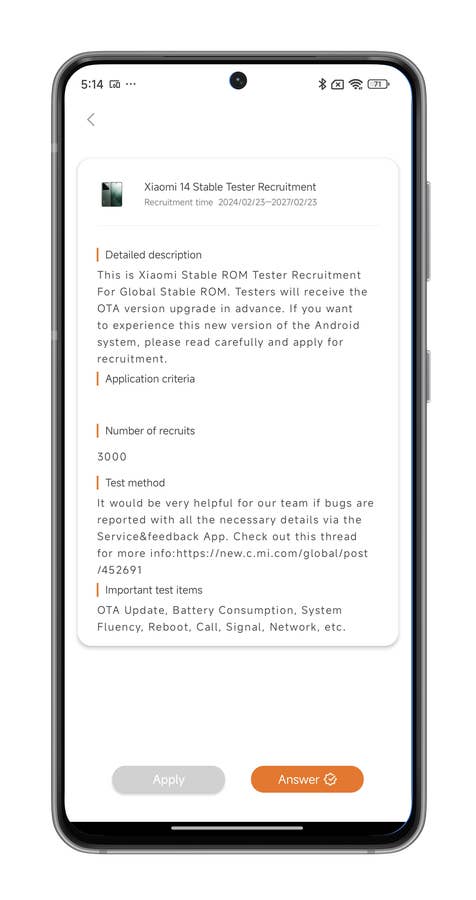
Xiaomi doesn’t follow Google to the letter when it comes to updates and new feature implementations. Often among Xiaomi fans, the conventional wisdom is this: it’s not the version of Android that counts, but the HyperOS version. Like any other Chinese manufacturer, Xiaomi first deploys new versions of its skin in China before rolling out global versions to the rest of the world. However, there’s a trick to receiving HyperOS updates in Europe before anyone else.
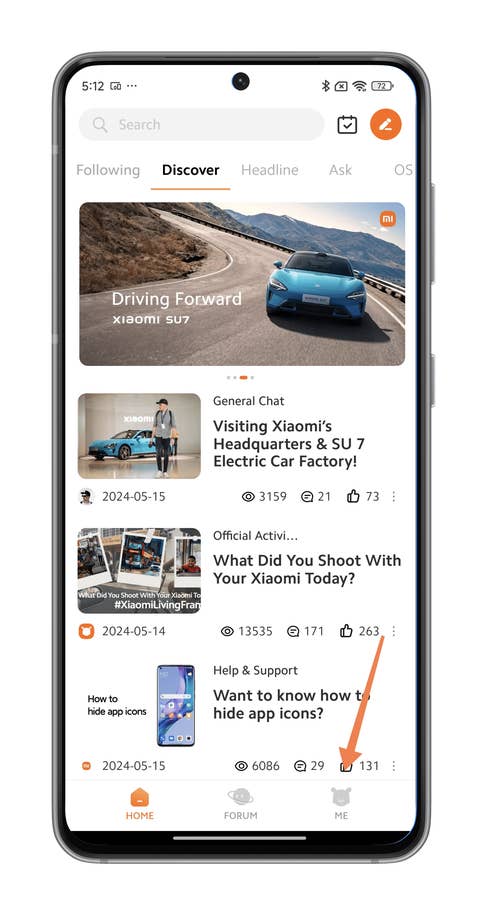
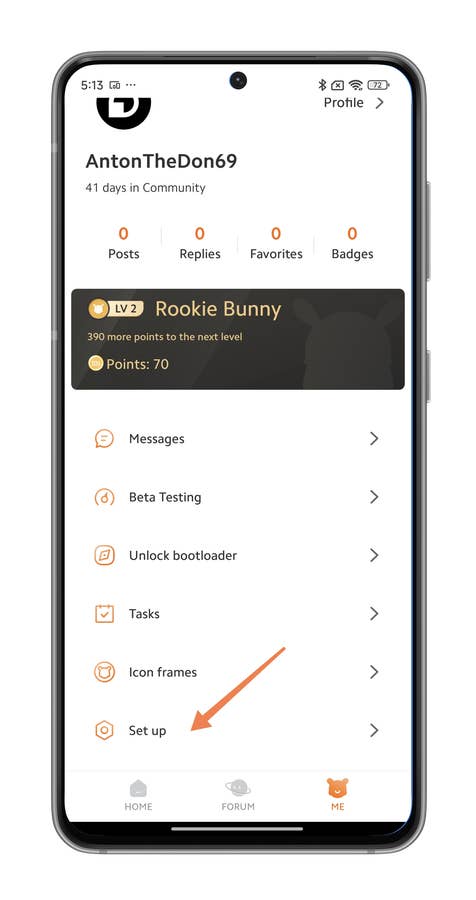
- Launch the Xiaomi Community application and create an account.
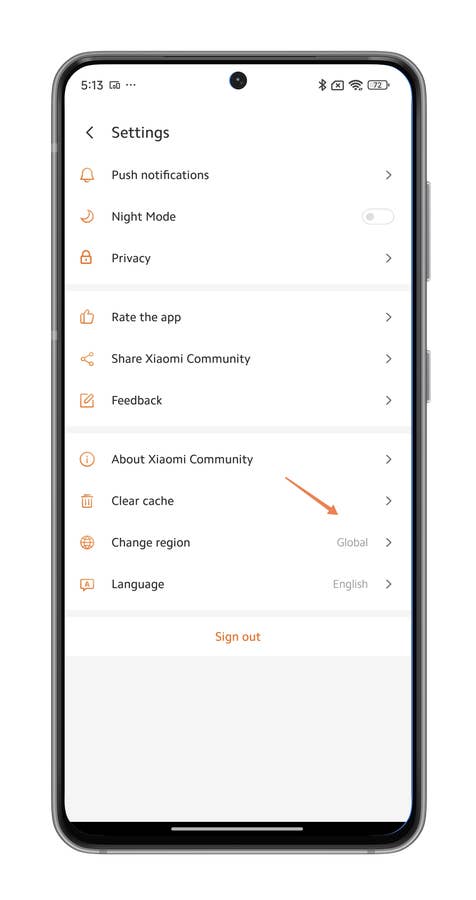
- Go to your profile and access Settings.
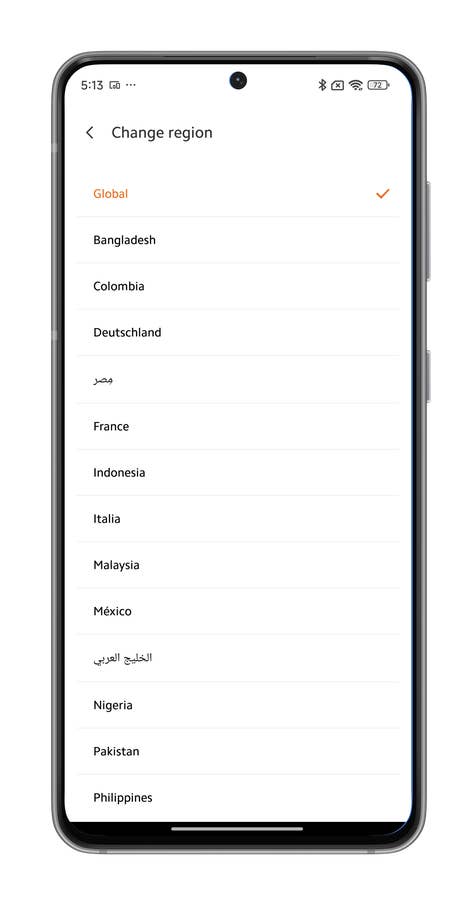
- Change your region to Global.
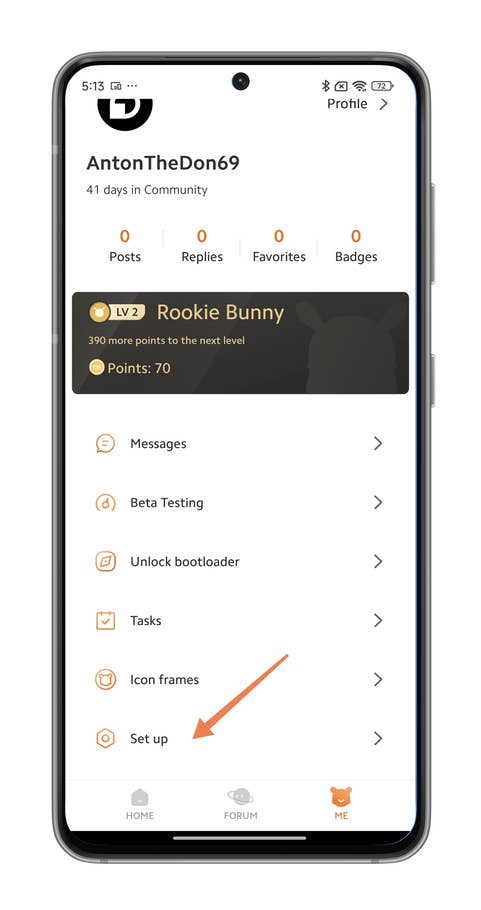
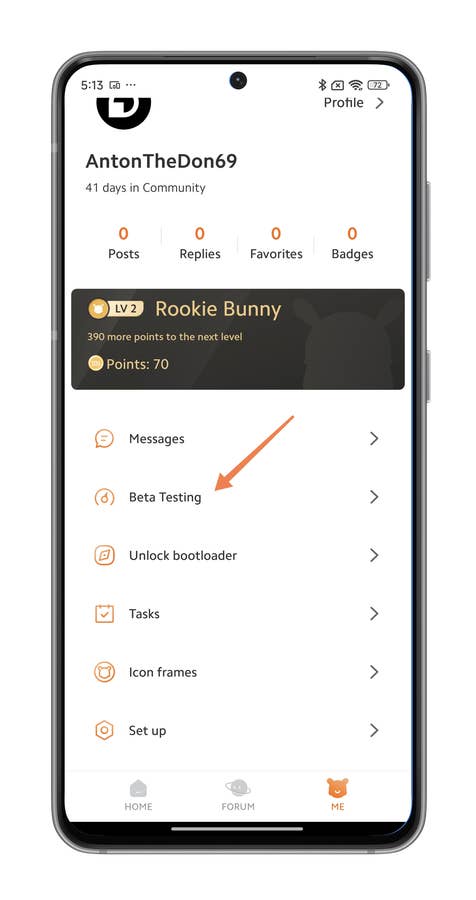
- Go back to your profile and select the “Beta testing” submenu;
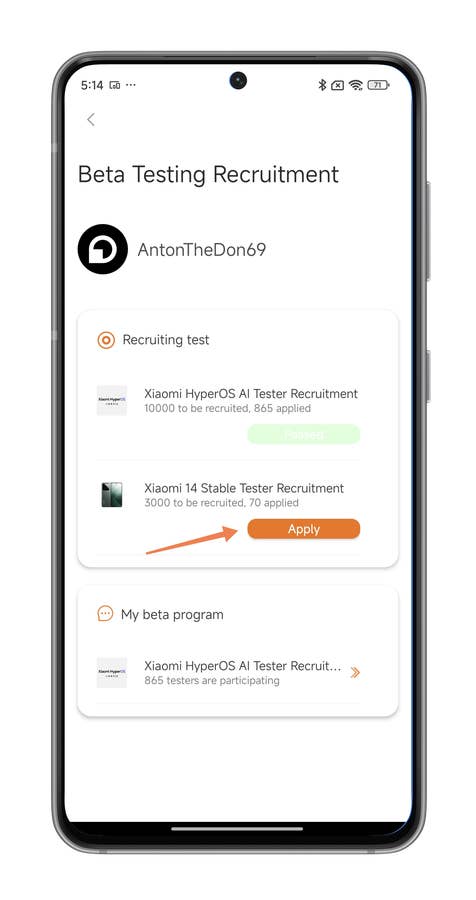
- Check if a recruitment campaign to test a new version of HyperOS is available.
- Apply and wait for your application to be validated.
- Once you’ve applied, check if the update is available in“About device“.
Hereu0027s how you receive HyperOS updates sooner on your Xiaomi smartphone.
Quelle: nextpit
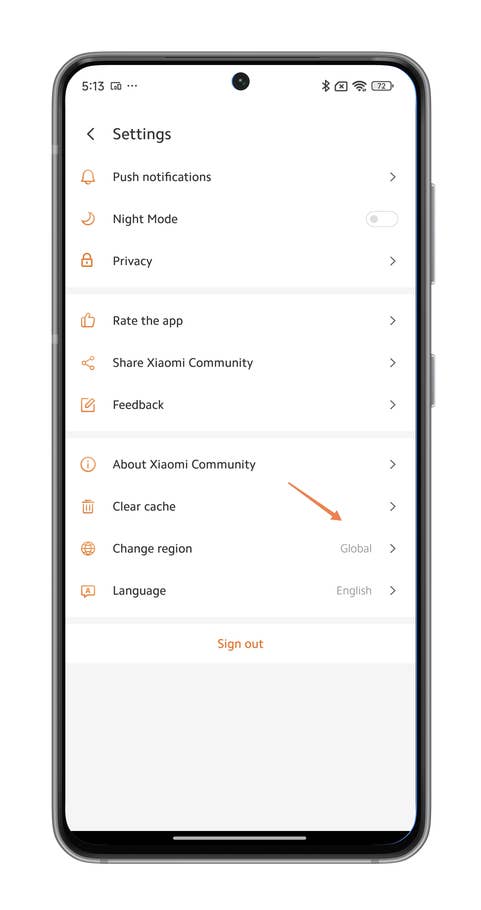
Hereu0027s how you receive HyperOS updates sooner on your Xiaomi smartphone.
Quelle: nextpit
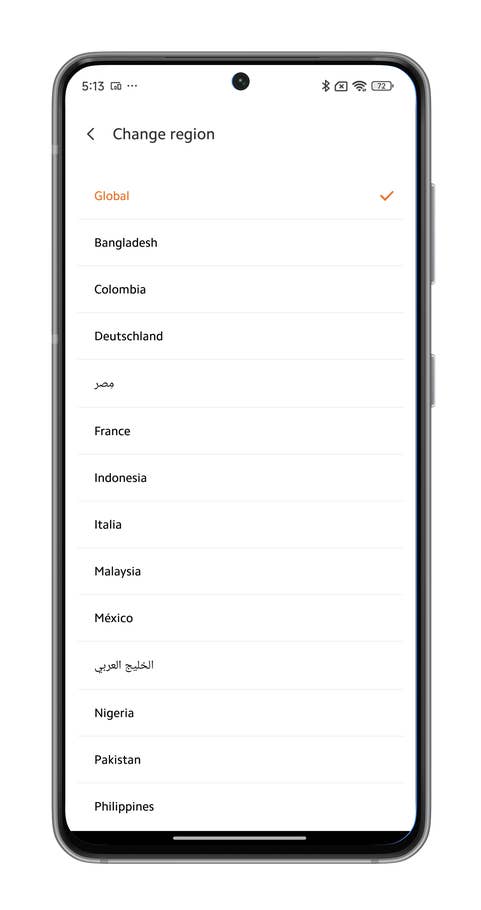
Hereu0027s how you receive HyperOS updates sooner on your Xiaomi smartphone.
Quelle: nextpit
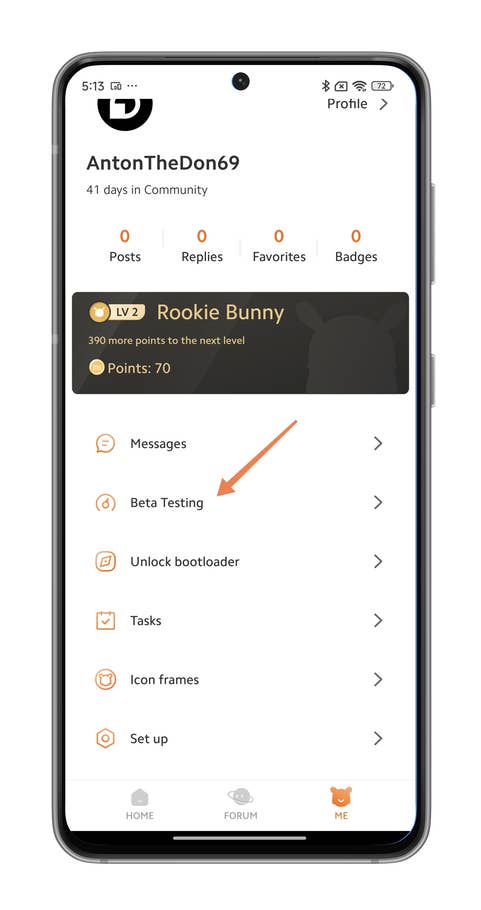
Hereu0027s how you receive HyperOS updates sooner on your Xiaomi smartphone.
Quelle: nextpit
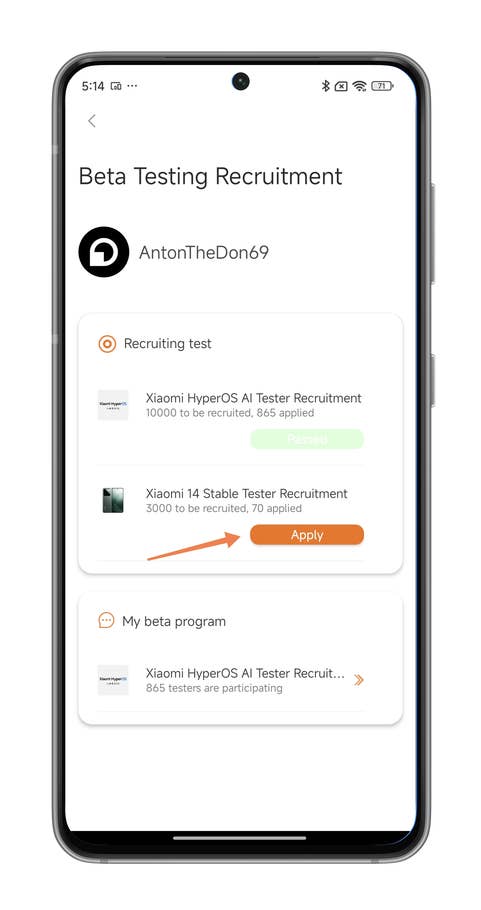
Hereu0027s how you receive HyperOS updates sooner on your Xiaomi smartphone.
Quelle: nextpit
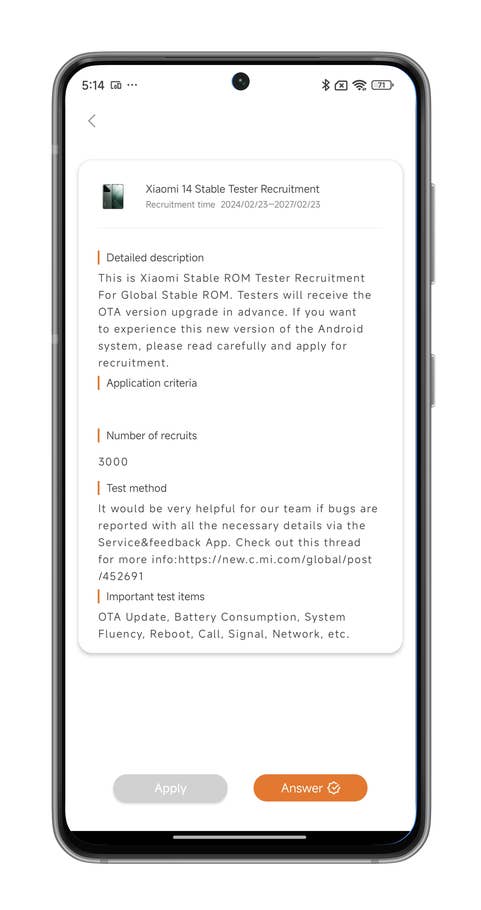
Hereu0027s how you receive HyperOS updates sooner on your Xiaomi smartphone.
Quelle: nextpit
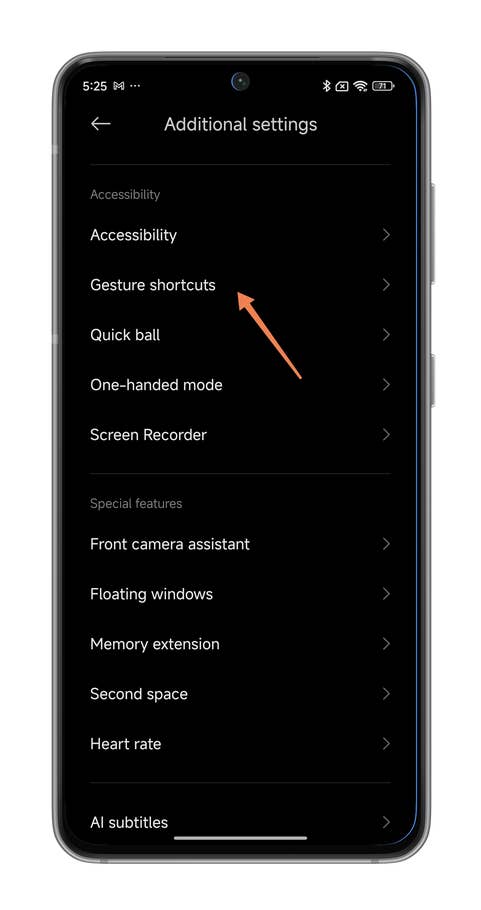
Hereu0027s how you activate the Back Tap shortcut at the back of your Xiaomi smartphone.
Quelle: nextpit
How to create HyperOS shortcuts with the Back Tap function
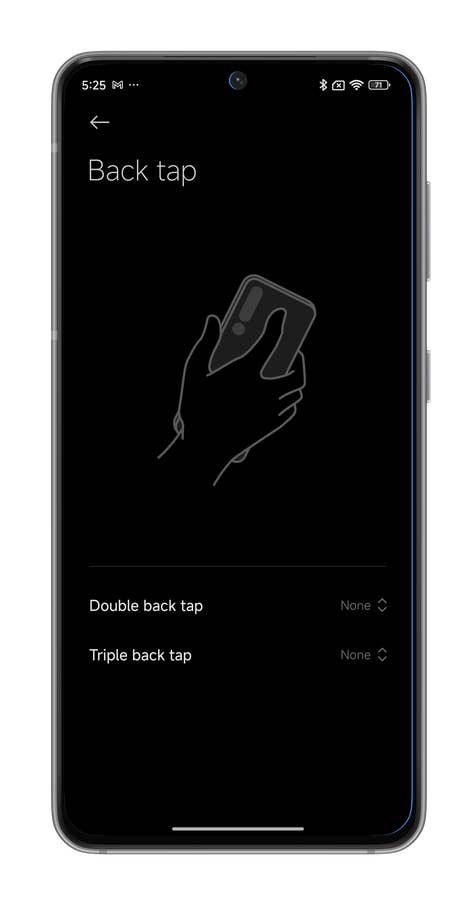
The HyperOS Back Tap function lets you use the double and triple tap gestures at the back of your Xiaomi smartphone to create shortcuts (take screenshots, etc.).
To activate the HyperOS Back Tap function on your Xiaomi smartphone:
- Go to Settings.
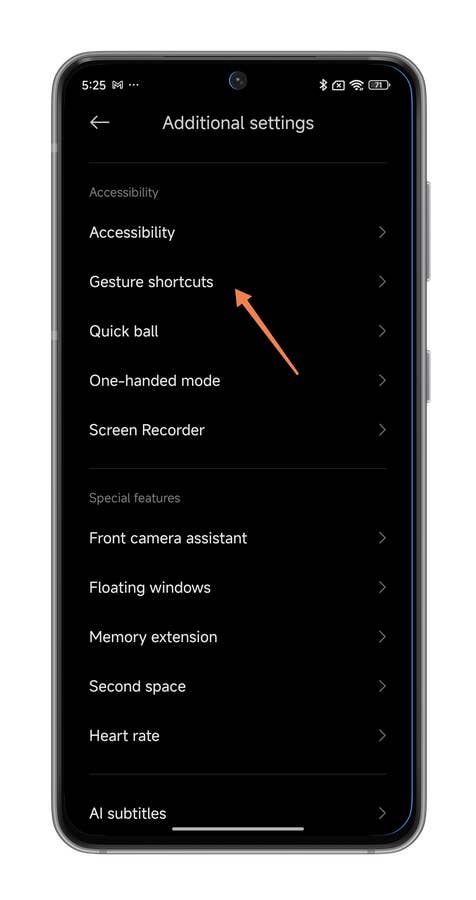
- Go to Additional settings.
- Go to Gesture shortcuts.
- Select Back tap (Xiaomi’s translations vary).
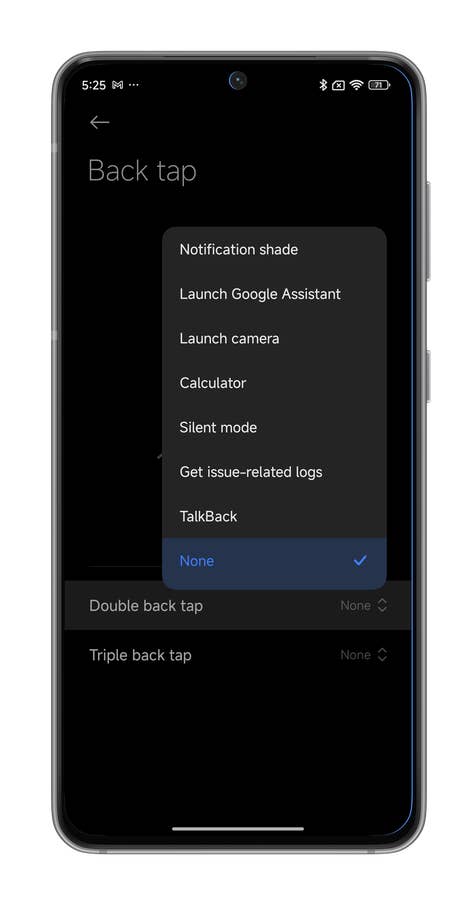
- Choose Double back tap or Triple back tap.
- Select which shortcut you wish to associate with the gesture
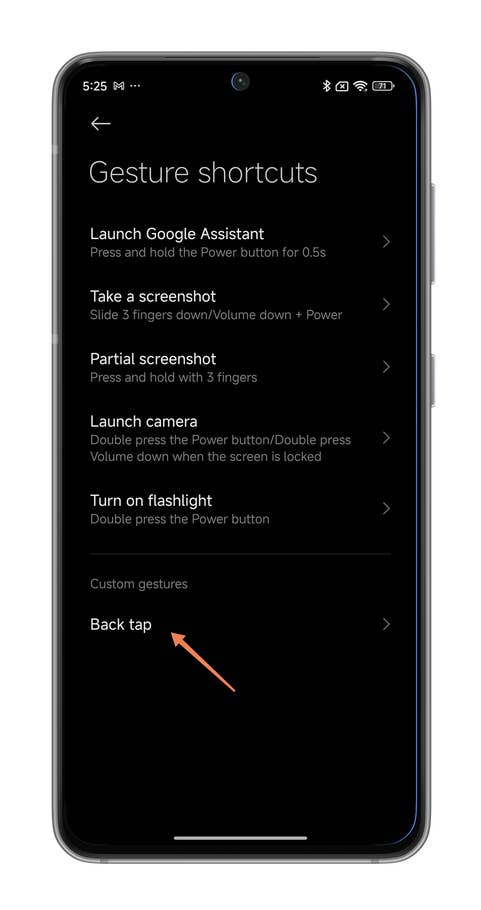
Hereu0027s how you activate the Back Tap shortcut at the back of your Xiaomi smartphone.
Quelle: nextpit
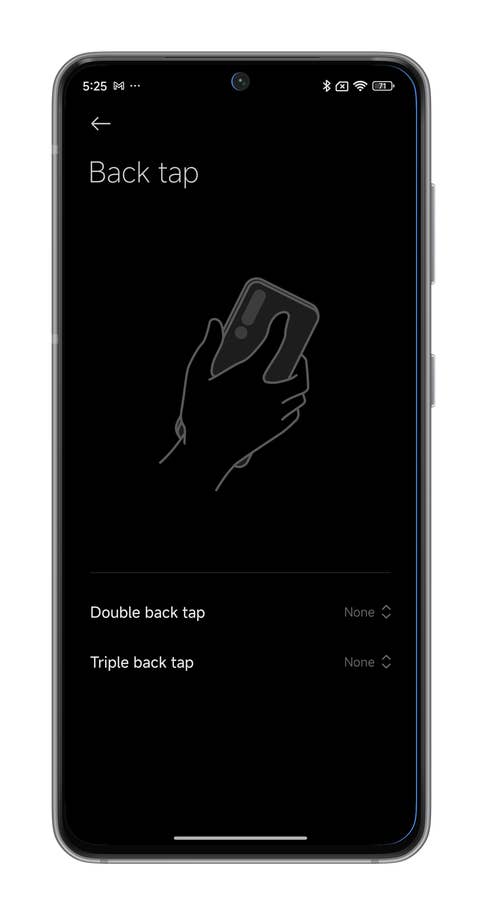
Hereu0027s how you activate the Back Tap shortcut at the back of your Xiaomi smartphone.
Quelle: nextpit
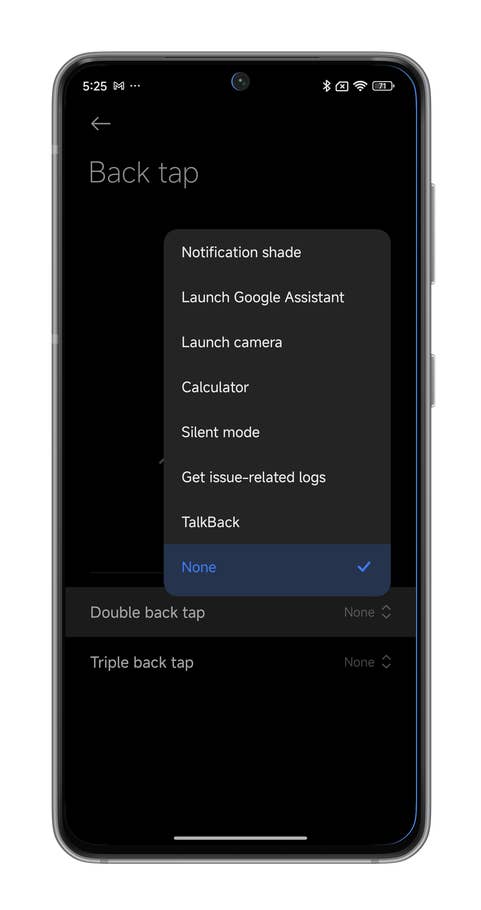
Hereu0027s how you activate the Back Tap shortcut at the back of your Xiaomi smartphone.
Quelle: nextpit
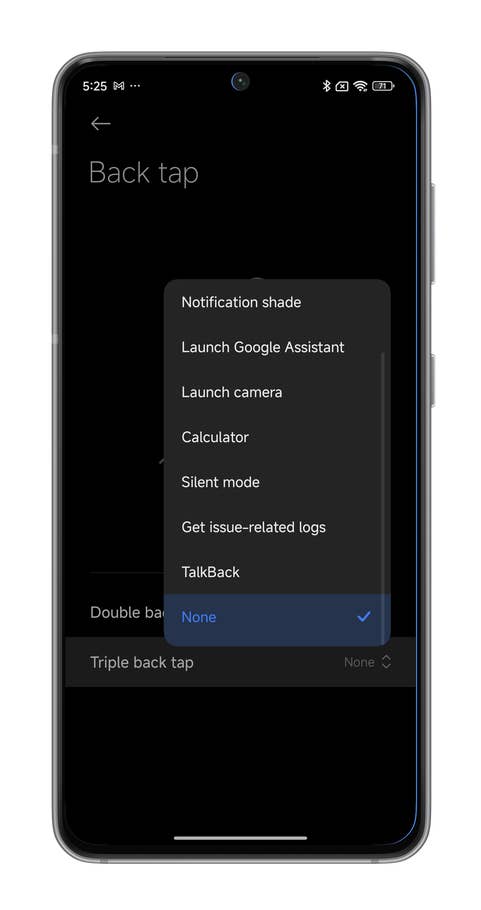
Hereu0027s how you activate the Back Tap shortcut at the back of your Xiaomi smartphone.
Quelle: nextpit
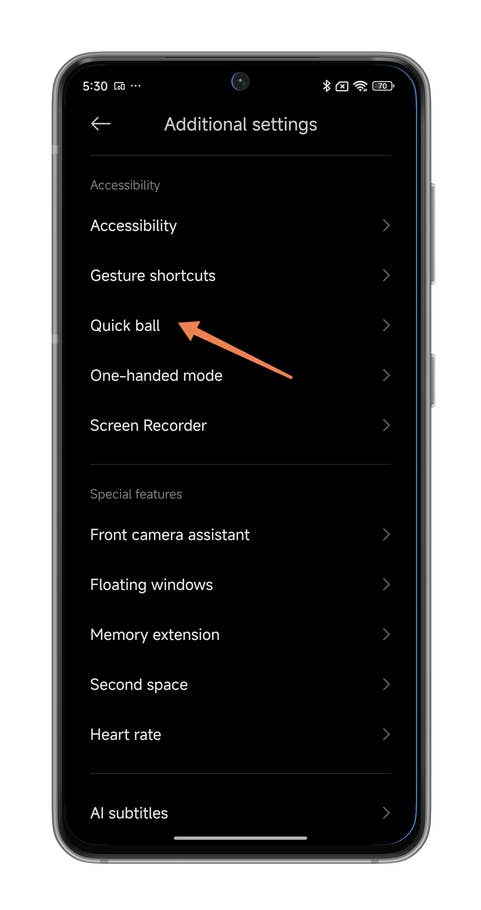
Hereu0027s how you activate the Quick Ball shortcut of your Xiaomi smartphone.
Quelle: nextpit
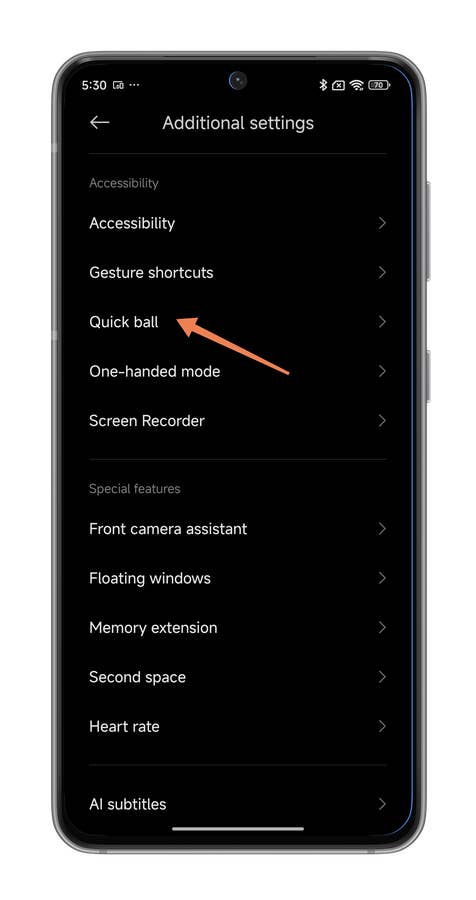
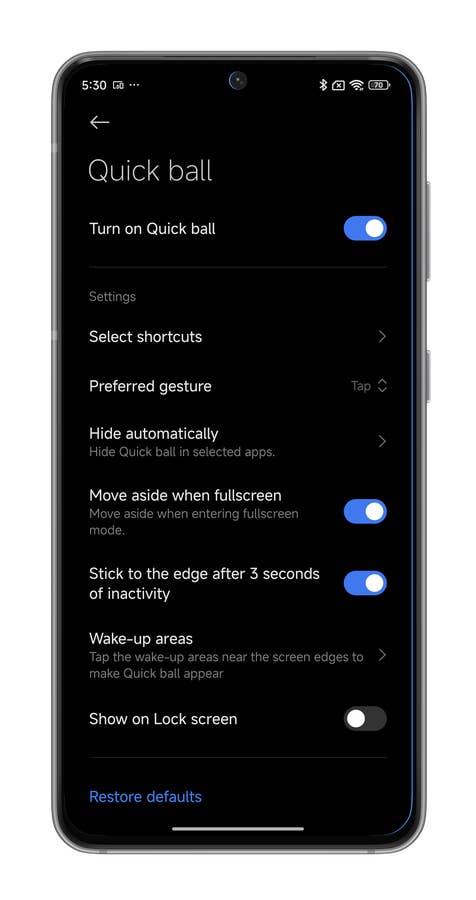
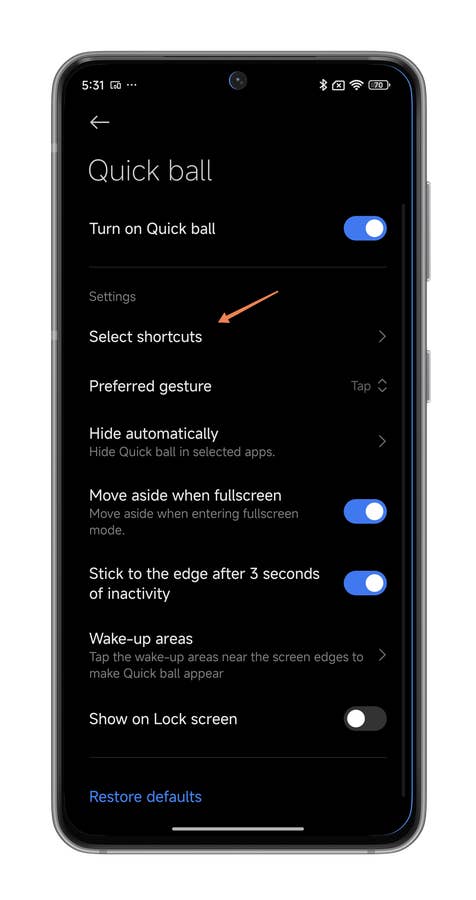
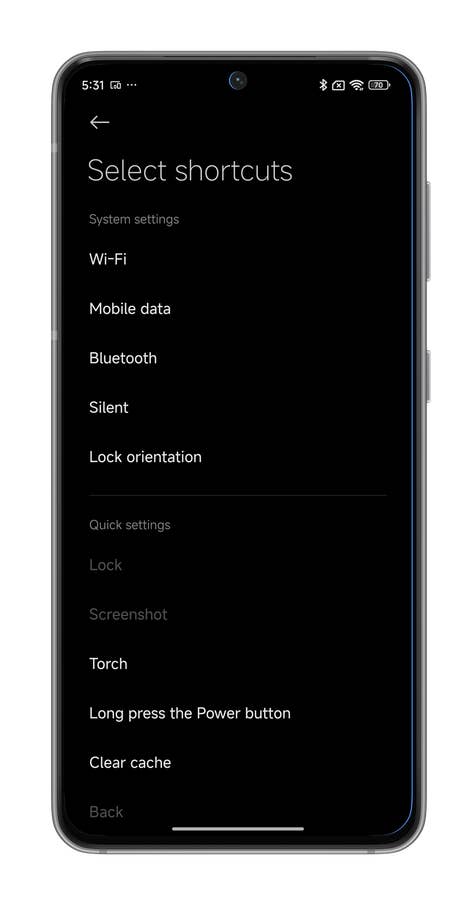
How to optimize your HyperOS shortcuts with Quick ball
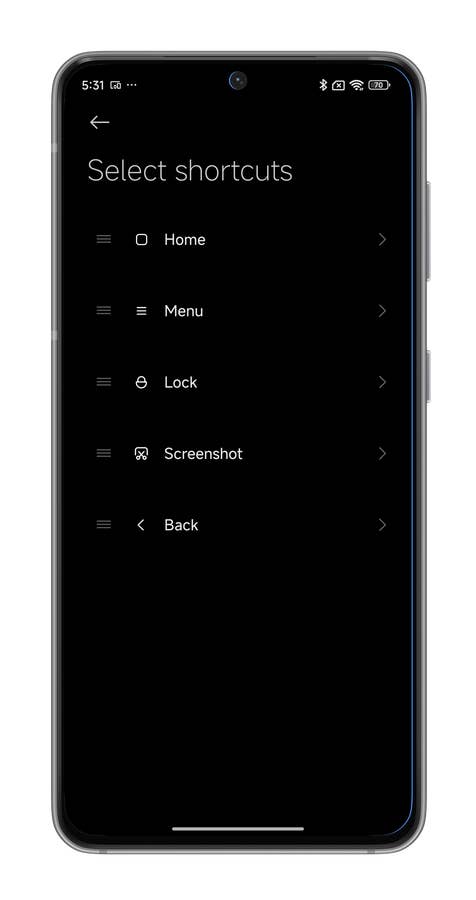
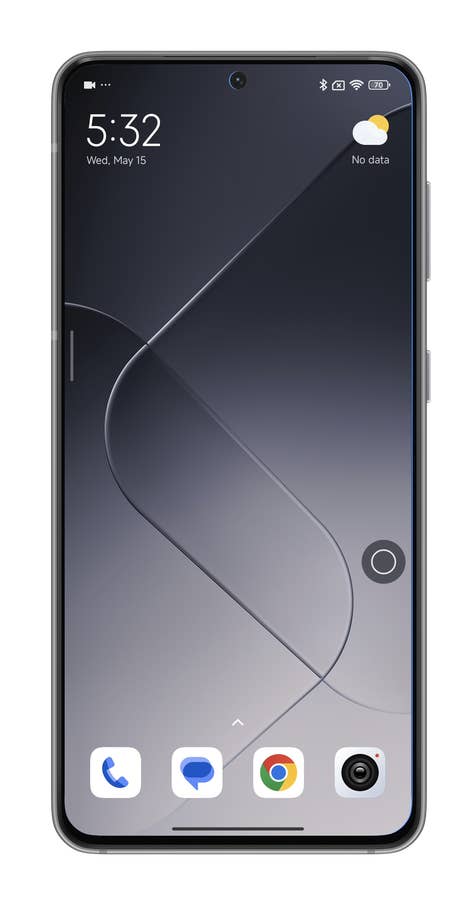
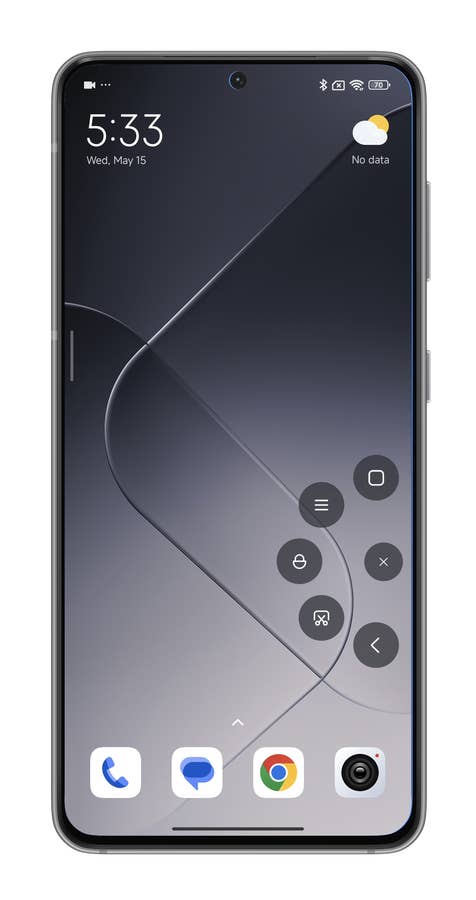
Quick Ball or Touch Assistant is a special feature that allows you to have a virtual shortcut button on your home screen. Pressing this floating button (Quick ball > ball > shortcut, got it?) gives you access to a series of 5 shortcuts. You can assign several actions to each of these 5 shortcuts, such as returning to the home screen, switching to silent mode, etc.
- Go to Settings
- Go to Additional settings, followed by Quick ball.
- Enable Quick ball via the slider button, followed by Select shortcuts.
- From your Home screen, tap the floating bubble to launch the Quick ball.
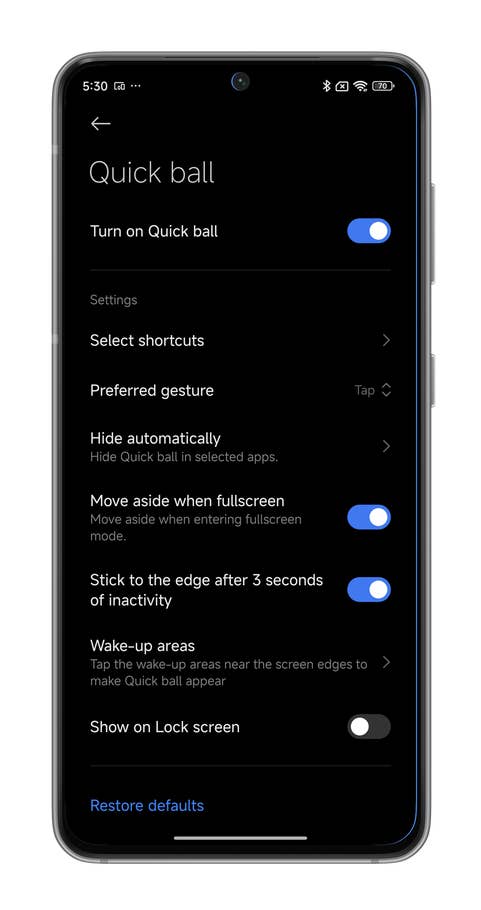
Hereu0027s how you activate the Quick Ball shortcut of your Xiaomi smartphone.
Quelle: nextpit
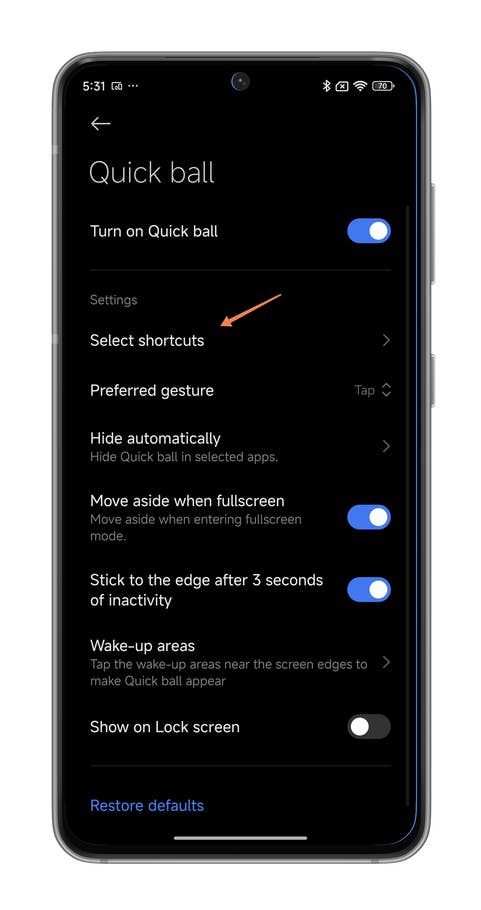
Hereu0027s how you activate the Quick Ball shortcut of your Xiaomi smartphone.
Quelle: nextpit
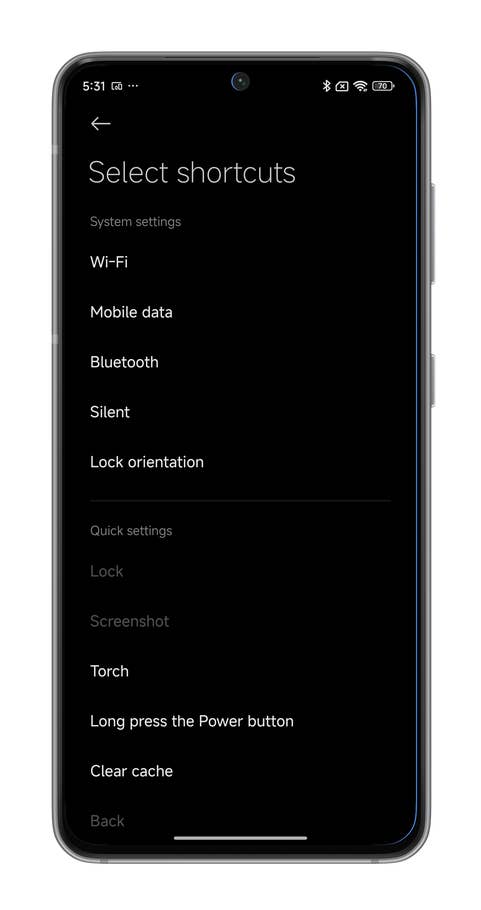
Hereu0027s how you activate the Quick Ball shortcut of your Xiaomi smartphone.
Quelle: nextpit
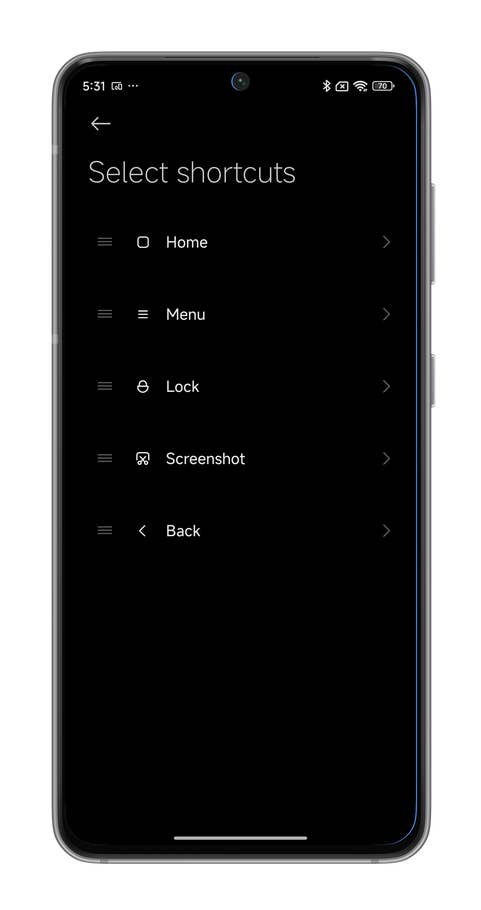
Hereu0027s how you activate the Quick Ball shortcut of your Xiaomi smartphone.
Quelle: nextpit
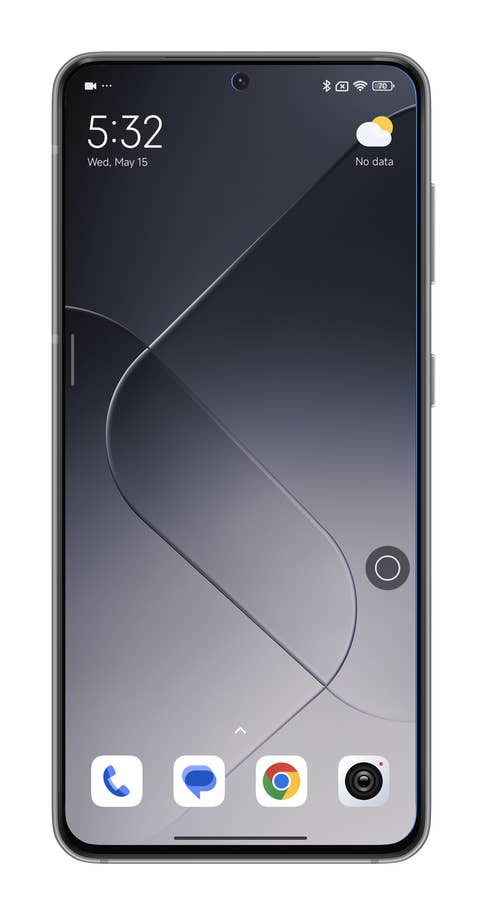
Hereu0027s how you activate the Quick Ball shortcut of your Xiaomi smartphone.
Quelle: nextpit

Hereu0027s how you activate the Quick Ball shortcut of your Xiaomi smartphone.
Quelle: nextpit
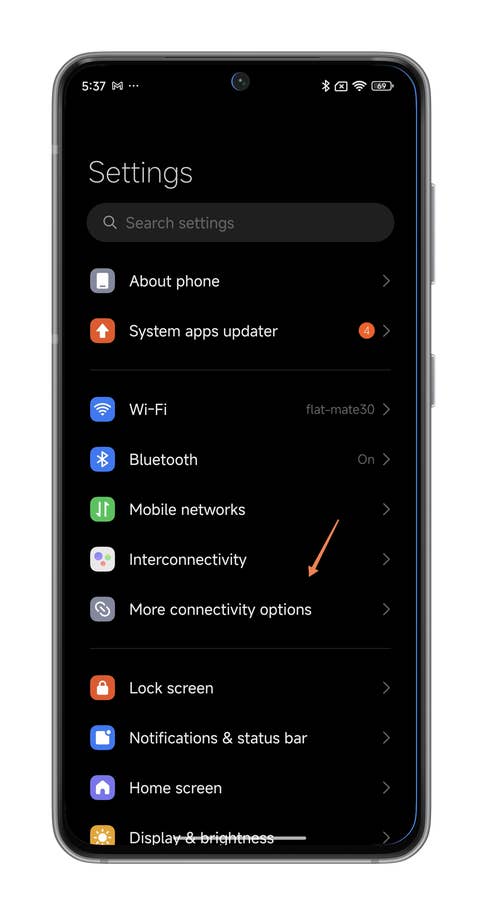
Hereu0027s how you cast your Xiaomi smartphoneu0027s screen.
Quelle: nextpit
The bubble is floating, so you can move anywhere you want on the home screen of your Xiaomi or Redmi smartphone. You can also hide it by swiping toward the edge of the screen.
How to cast your Xiaomi screen with the Universal Casting Tool
Xiaomi lets you cast any content from your smartphone screen to your TV or any other type of connected monitor, or even PC.
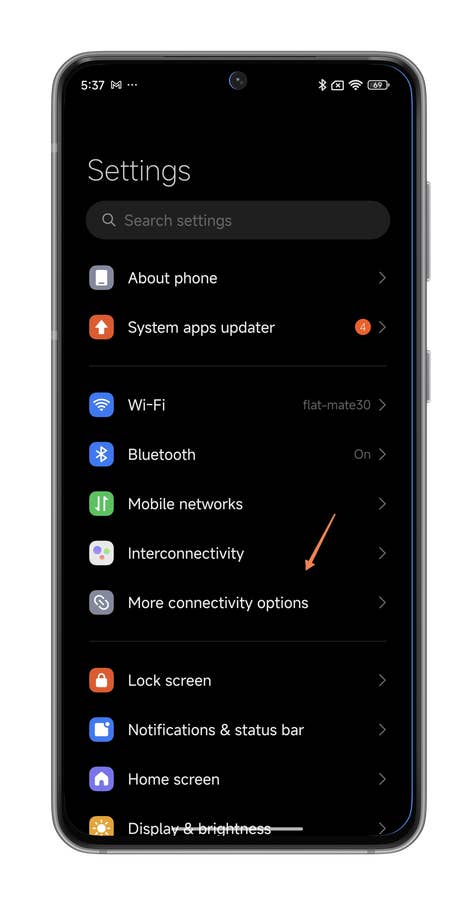
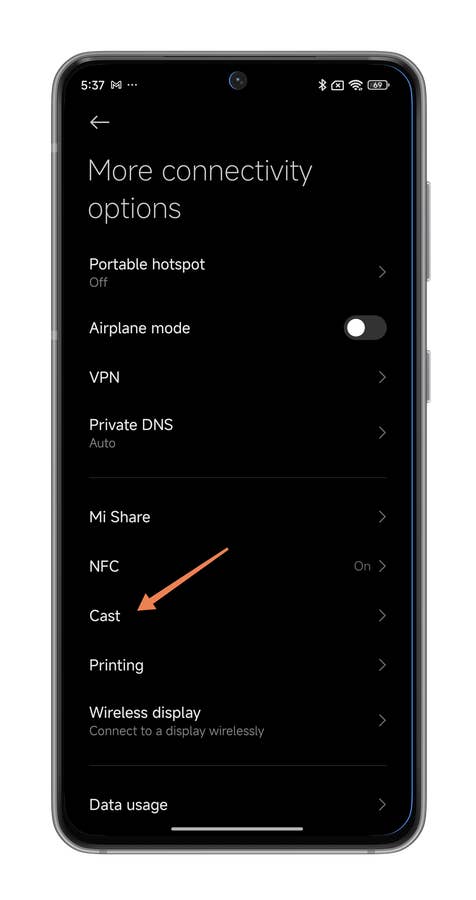
- Go to Settings followed by More connectivity options.
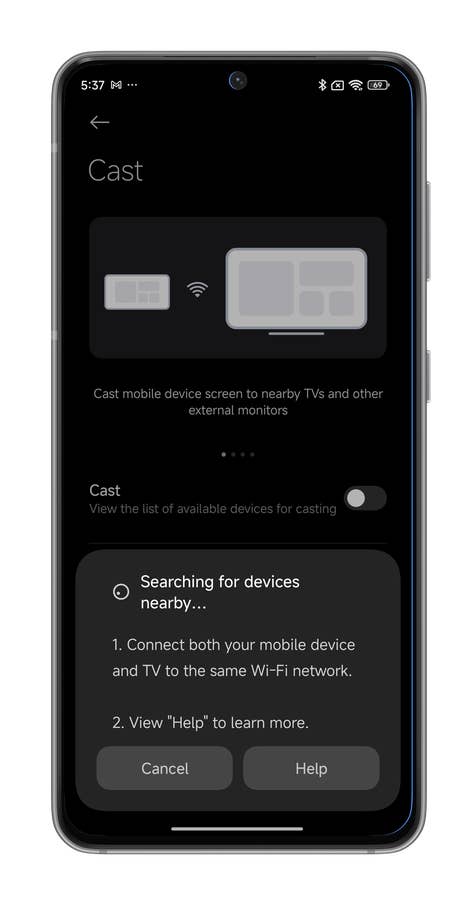
- Go to Cast and activate the Cast slider button.
- Scan devices connected to the same Wi-Fi network as your smartphone.
- Connect your smartphone to your TV or PC.
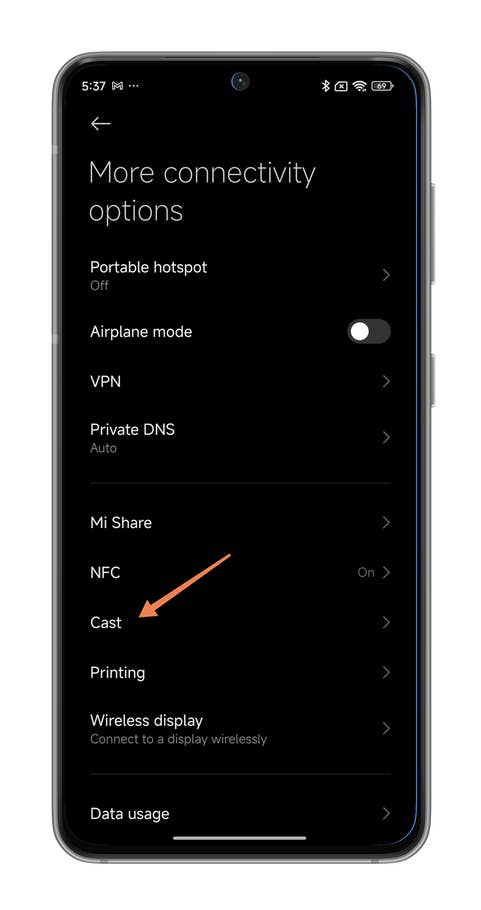
Hereu0027s how you cast your Xiaomi smartphoneu0027s screen.
Quelle: nextpit
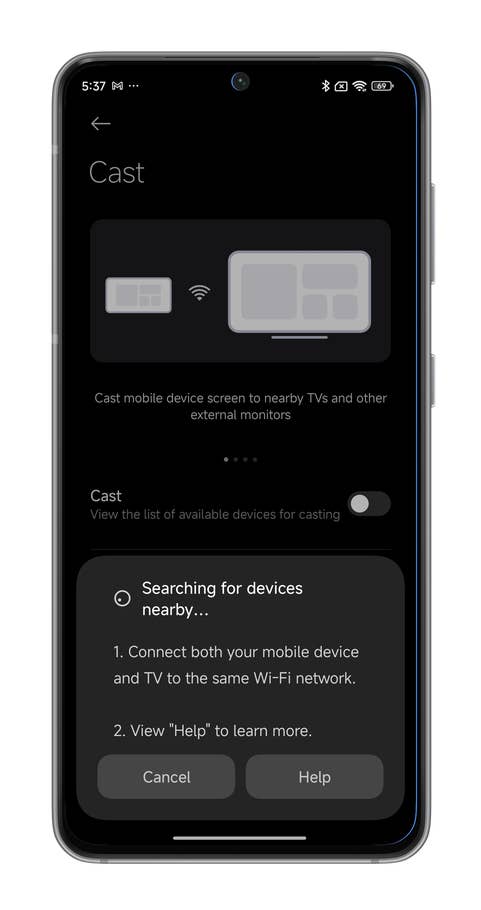
Hereu0027s how you cast your Xiaomi smartphoneu0027s screen.
Quelle: nextpit
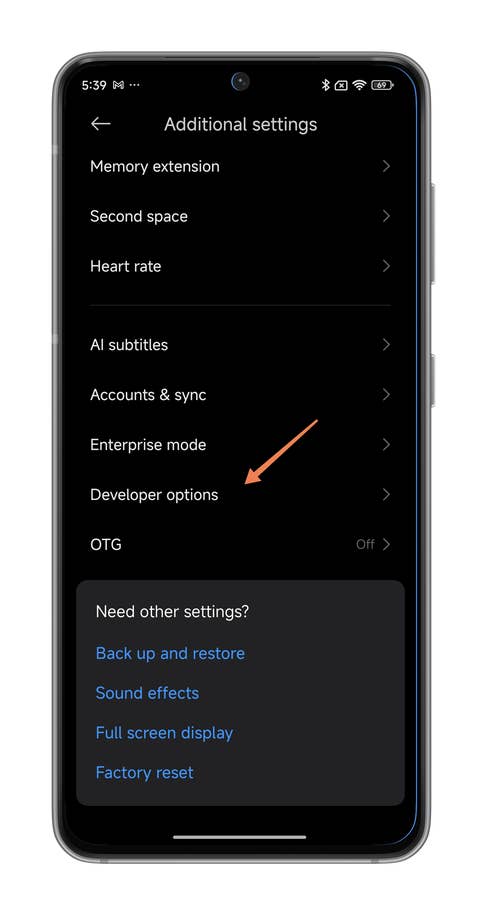
Hereu0027s how you enable the FPS counter on your Xiaomi smartphone.
Quelle: nextpit
This Universal casting tool also offers additional features such as the ability to hide elements on the screen with a simple tap, or to cast in the background, even with the screen of your Xiaomi smartphone when locked.
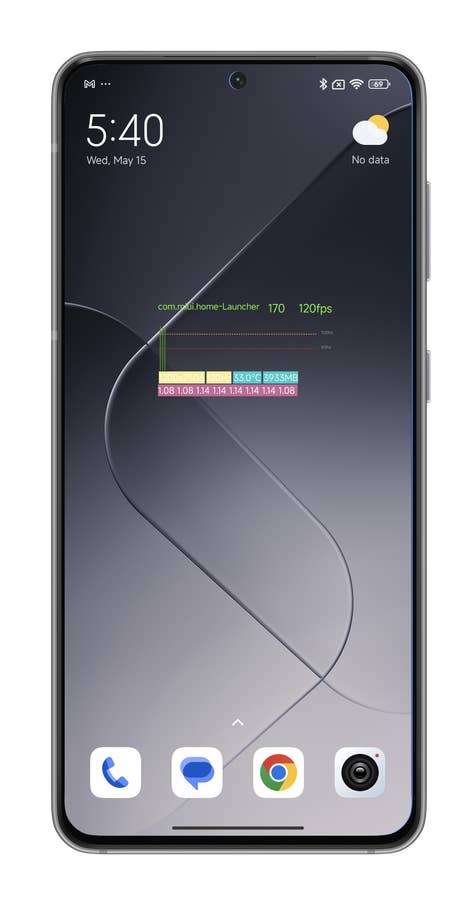
How to activate the FPS counter
Real gamers know the sacrosanct FPS is inseparable from the gaming experience. Personally, if Call of Duty Mobile drops even one tiny frame below 60 FPS, I’ll throw my phone in the garbage can and buy a new one before suing the manufacturer. No way!
- Activate Developer options (tap HyperOS version 7 times in About phone).
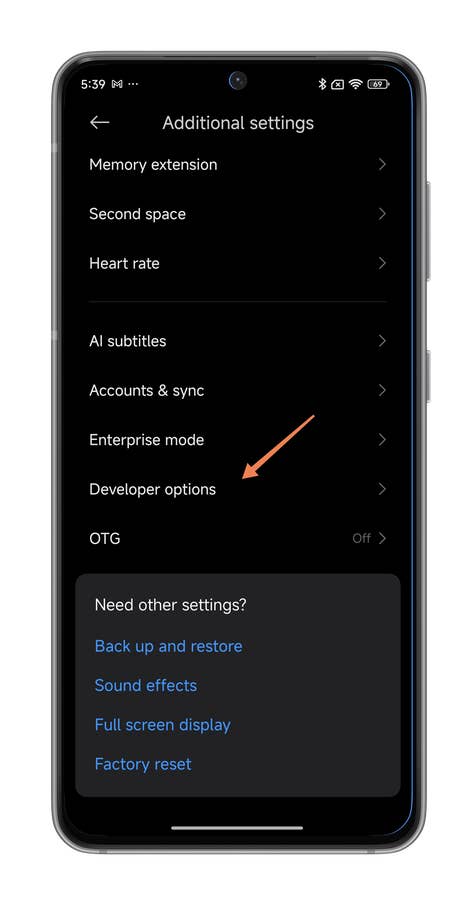
- Go to Settings then Additional settings.
- Go to Developer options.
- Scroll down to the Monitoring section.
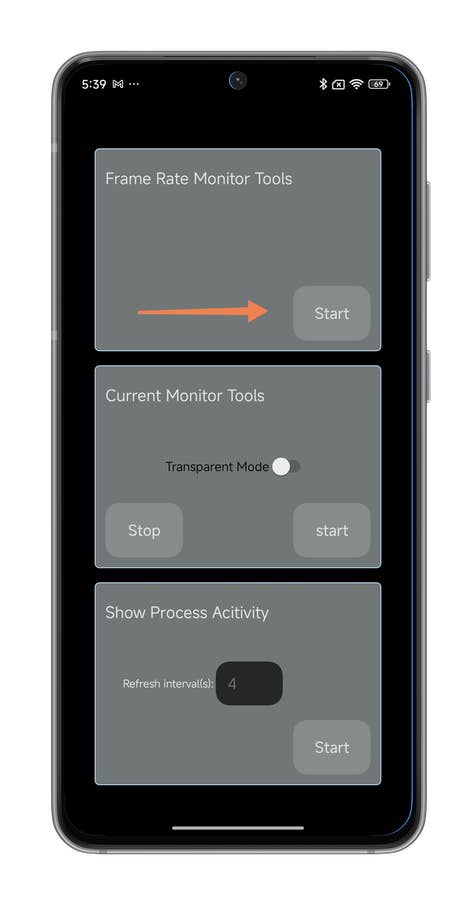
- Under Monitoring, press Power consumption.
- In Frame Rate Monitor Tools, press Start.
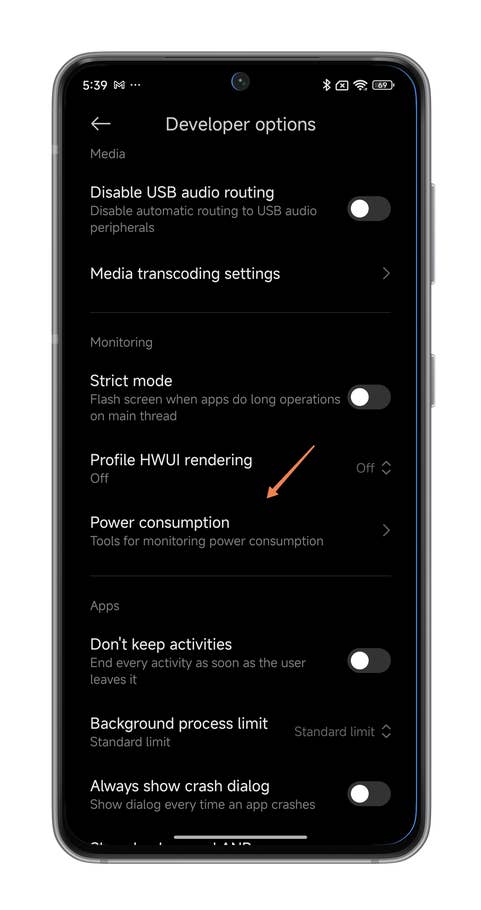
Hereu0027s how you enable the FPS counter on your Xiaomi smartphone.
Quelle: nextpit
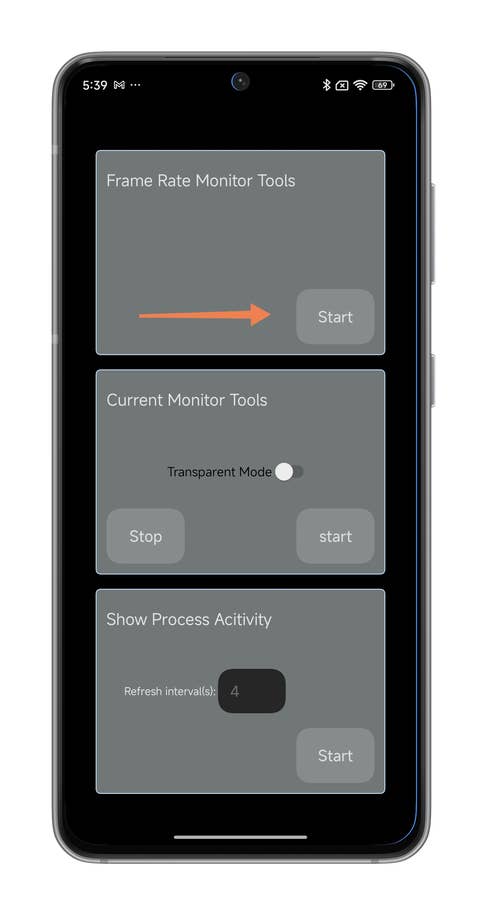
Hereu0027s how you enable the FPS counter on your Xiaomi smartphone.
Quelle: nextpit
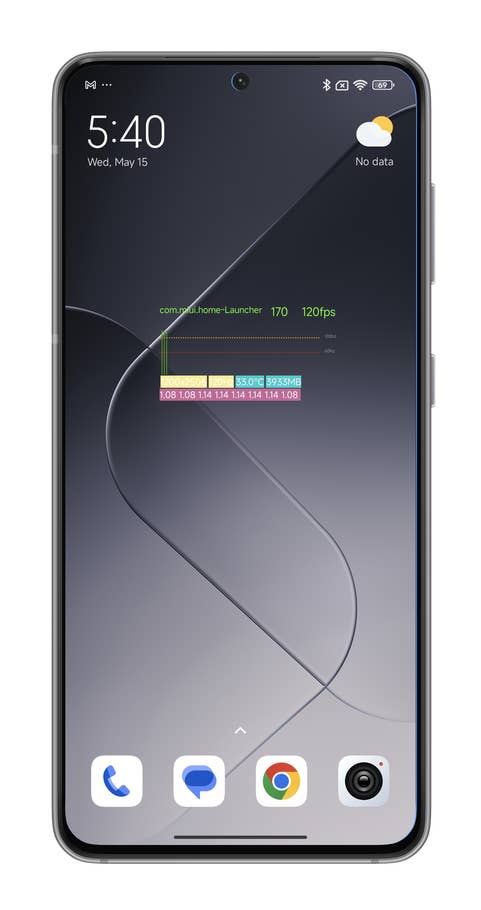
Hereu0027s how you enable the FPS counter on your Xiaomi smartphone.
Quelle: nextpit
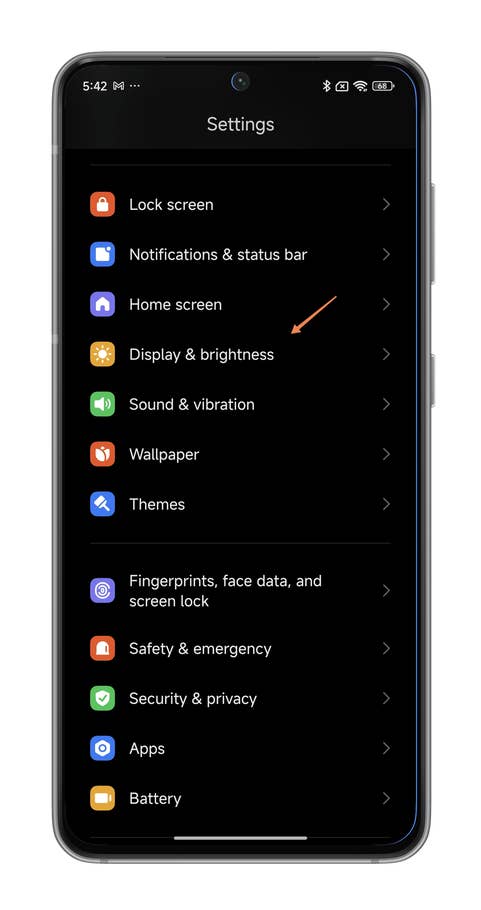
Hereu0027s how you enable the bright sunlight mode on your Xiaomi smartphone.
Quelle: nextpit
The information displayed in real-time at the top left of the screen and is superimposed on the application display. To avoid this, you can minimize the window, move it, or simply close it. Please note that this counter is different from the one offered by Google, which can also be found in the developer options.
How to activate Super Wallpapers
This feature caused quite a stir when HyperOS 12 was released, but is no longer very new in 2022. Super Wallpapers are Xiaomi’s animated wallpapers. They feature nature and astronomy themes, with spectacular views of Mars and the ilk. Whenever you unlock your Xiaomi smartphone, the wallpaper zooms in dramatically.
- Go to Settings.
- Go to Wallpaper
- Select Super Wallpaper.
Externen Inhalt erlauben
Ich bin damit einverstanden, dass externer Inhalt geladen wird. Personenbezogene Daten werden womöglich an Drittplattformen übermittelt. Nähere Informationen enthält die Datenschutzerklärung.This feature is not available on all Xiaomi smartphones by default. The manufacturer seems to reserve it for Xiaomi, Redmi, and Poco smartphones equipped with sufficiently powerful SoCs, or mid-range handsets as the bare minimum. Rest assured, it’s easy enough to cobble together your own Super Wallpaper on any Android smartphone with APKs.
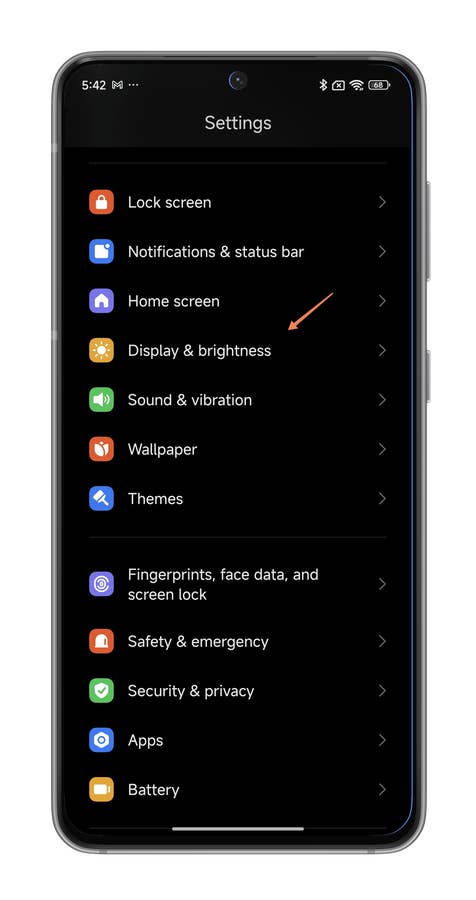
Activate sunlight mode to boost brightness
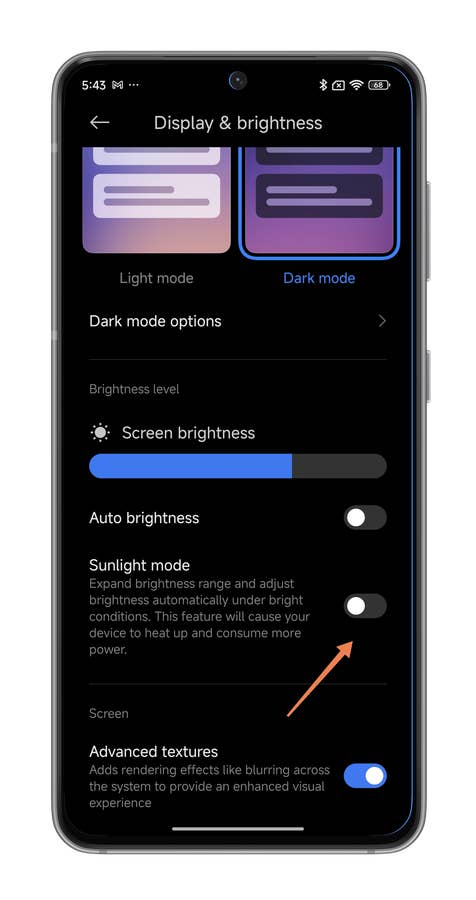
Every Android skin offers an adaptive brightness level that adapts to ambient light. Not everyone uses it though, especially if you’re used to gaming on your Xiaomi smartphone. For those who don’t use adaptive brightness but still want their screen to remain legible outdoors, HyperOS offers a “sunlight” mode.
The idea is to automatically boost brightness as soon as you leave the house. Basically, brightness only changes automatically when you go outside in bright sunlight. For the rest of the time, it remains at the level you’ve set.
- Go to Settings.
- Go to Screen followed by Brightness Level.
- Enable the Sunlight mode slider button (adaptive brightness must first be deactivated).
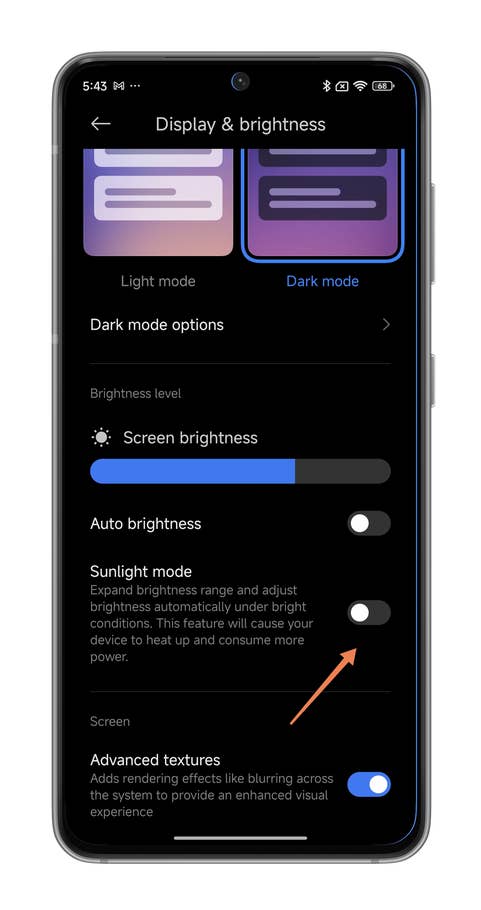
Hereu0027s how you enable the bright sunlight mode on your Xiaomi smartphone.
Quelle: nextpit
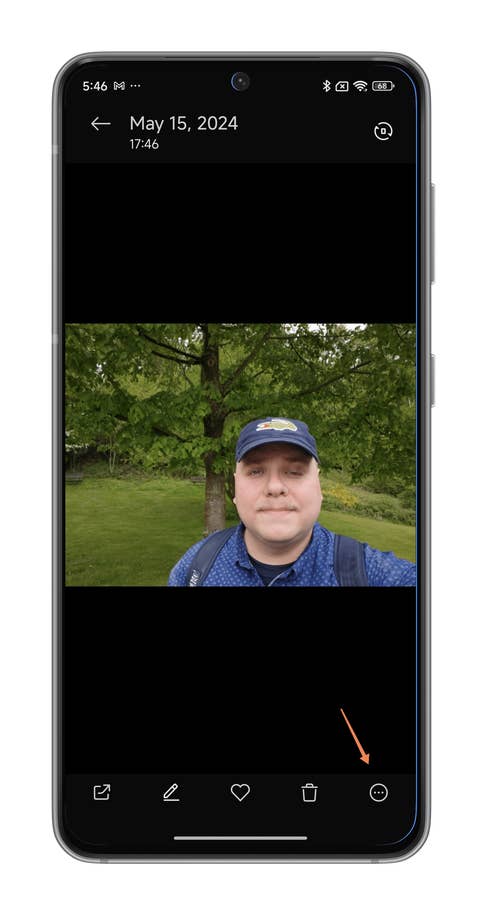
Hereu0027s how you add a watermark to your photos in your Xiaomi smartphone.
Quelle: nextpit
How to protect your photos with a watermark
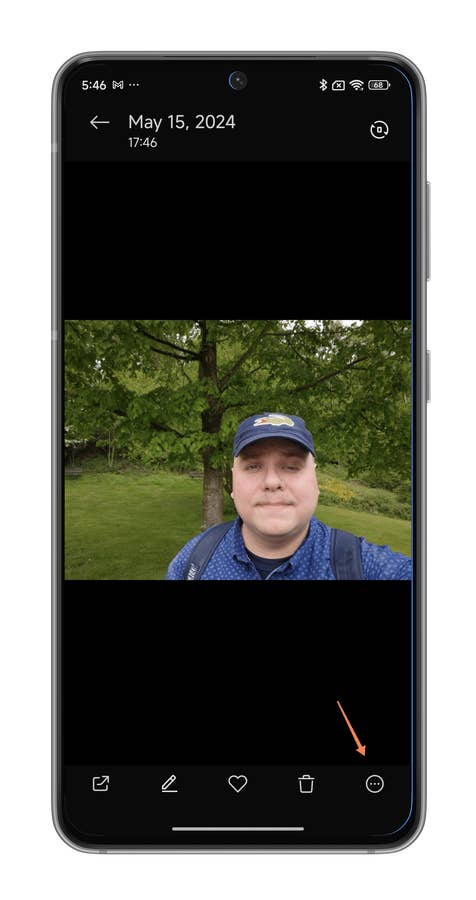
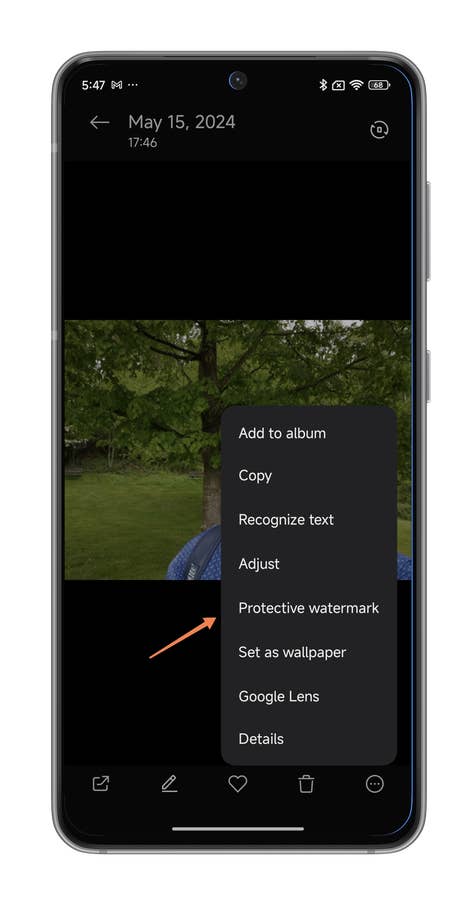
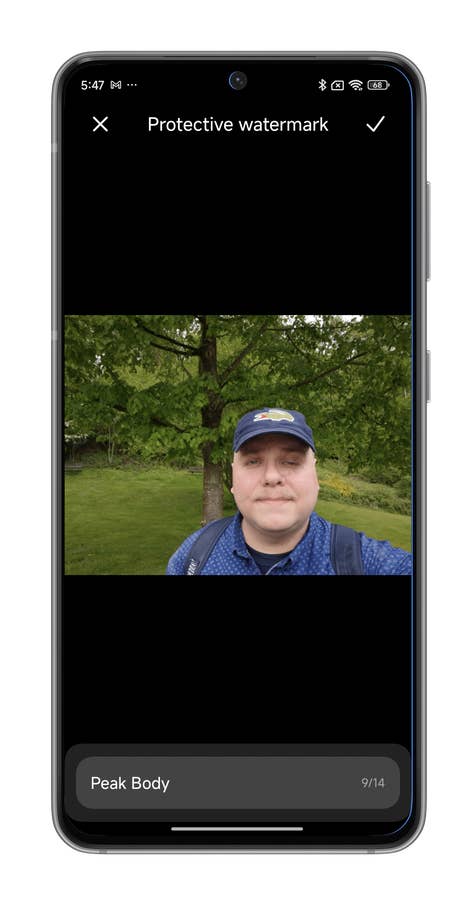
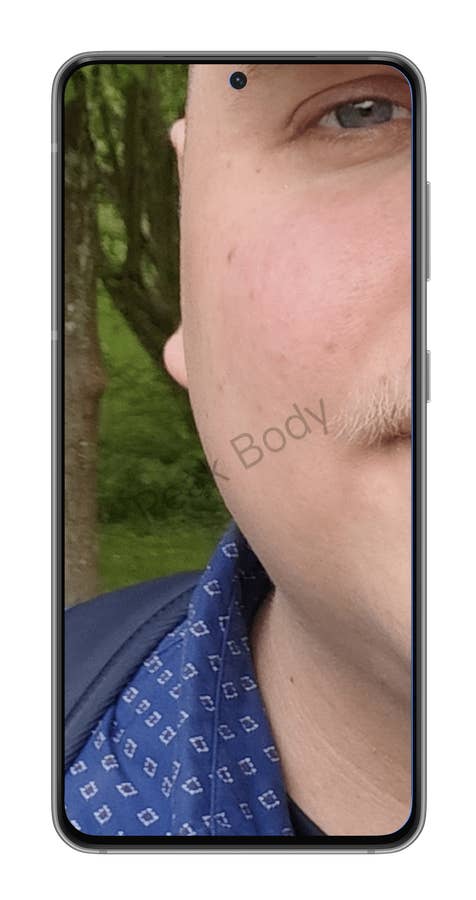
Worried about someone stealing the photos you post online? If so, a watermark is usually an effective way of protecting them. You can add it with third-party applications or directly with your Xiaomi smartphone. In fact, the function is already pre-installed as an on-board tool. In just a few steps, you can add a watermark of up to 14 characters to the images in your gallery. Here’s how you do it:
- In your gallery, press the three-dot menu while you’re viewing the photo of your choice.
- In the context menu, select Protective watermark.
- Write any message you like here (14 characters maximum).
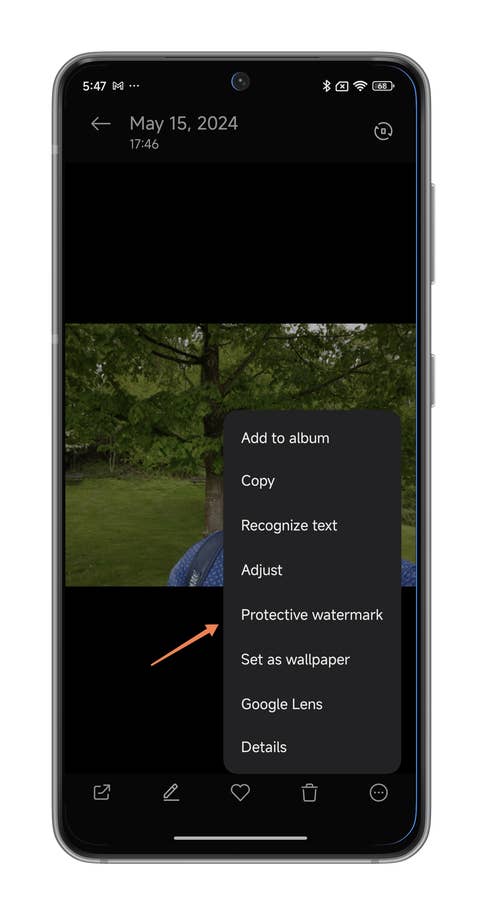
Hereu0027s how you add a watermark to your photos in your Xiaomi smartphone.
Quelle: nextpit

Hereu0027s how you add a watermark to your photos in your Xiaomi smartphone.
Quelle: nextpit
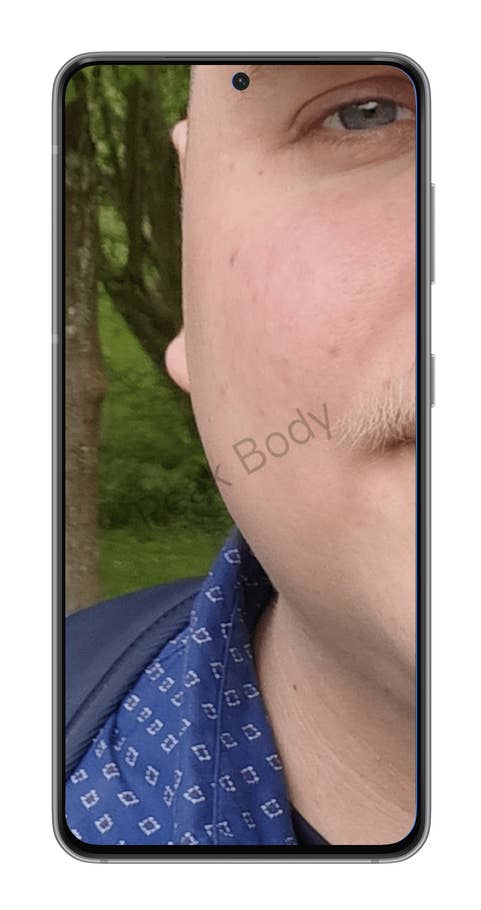
Hereu0027s how you add a watermark to your photos in your Xiaomi smartphone.
Quelle: nextpit
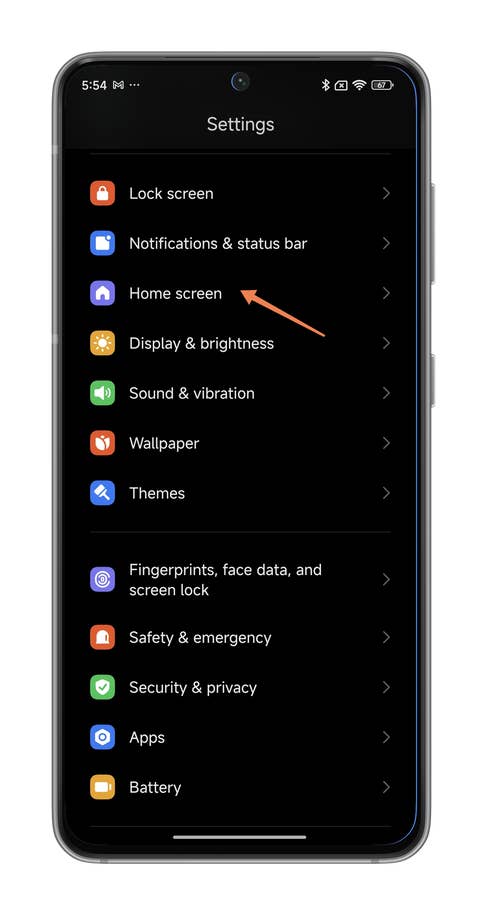
Hereu0027s how you blur the recent apps preview on your Xiaomi smartphone.
Quelle: nextpit
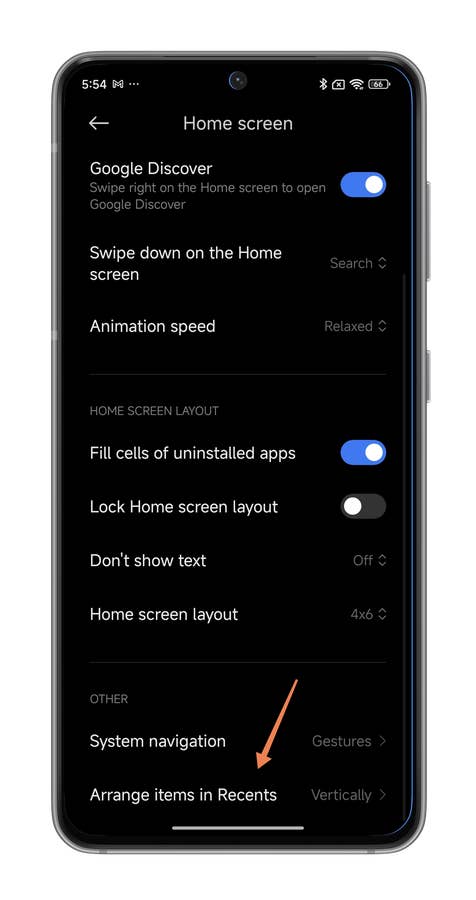
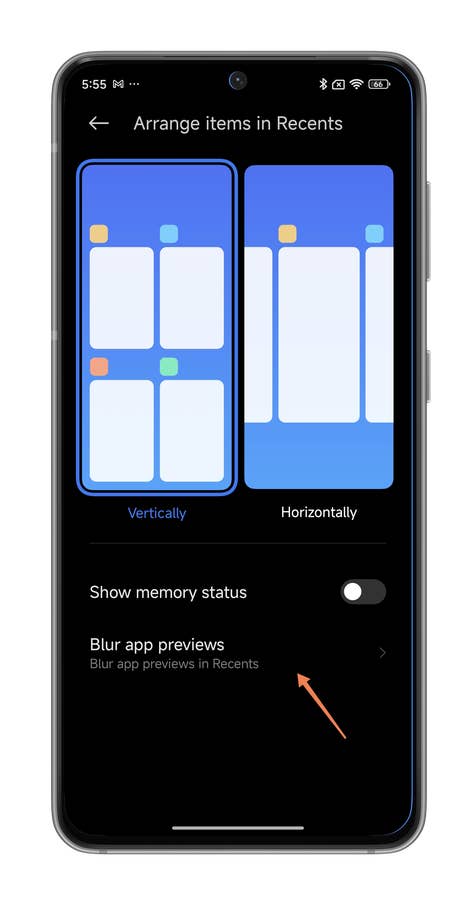
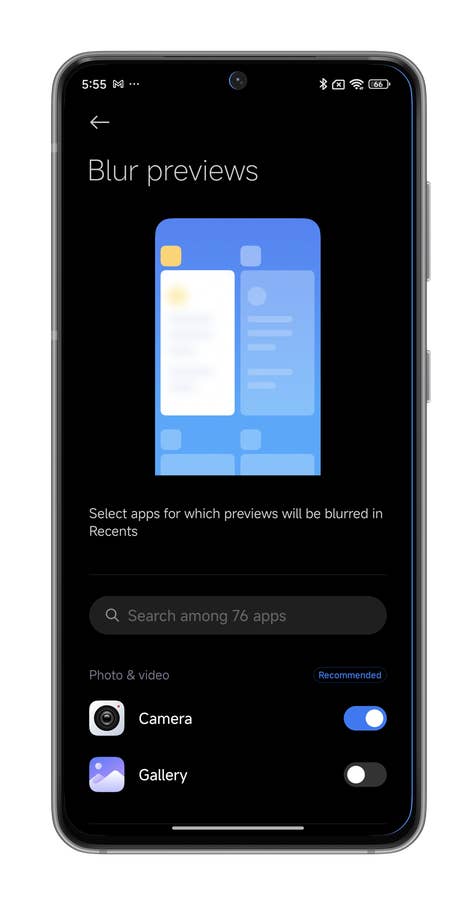
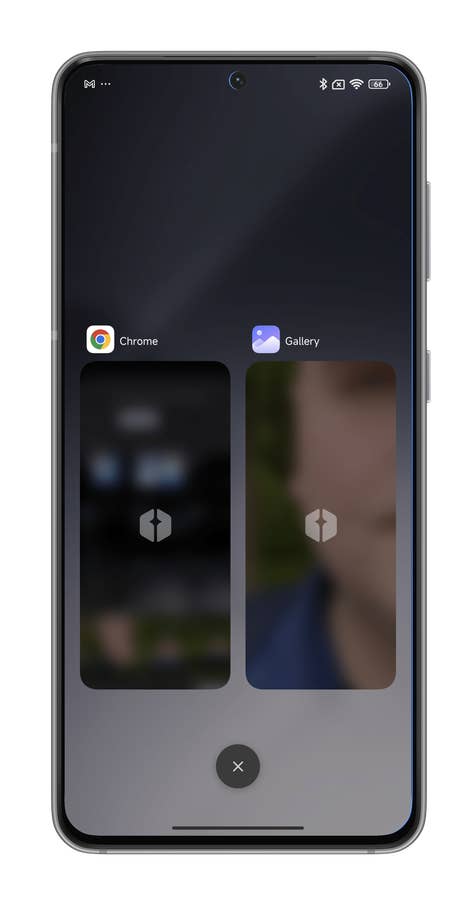
Want to prevent your curious friends from seeing too much of what’s happening on your Xiaomi smartphone? In HyperOS, you can blur the preview of your most recently opened applications to make them unrecognizable. Activate this function and no one will be able to see which folder you navigated to last. Here’s how to do it:
- Go to Settings, followed by Home Screen.
- Scroll to the bottom and select Arrange items in Recents.
- Select Blur app previews.
- Select the app(s) whose preview you wish to blur.
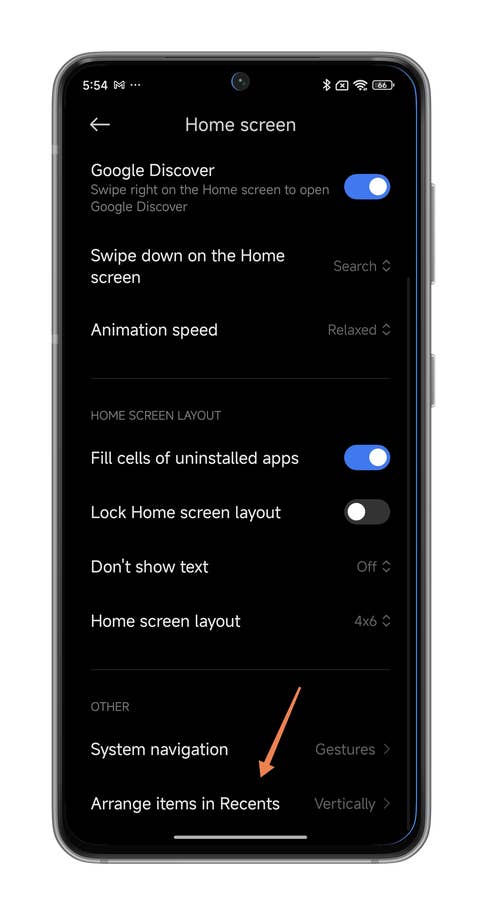
Hereu0027s how you blur the recent apps preview on your Xiaomi smartphone.
Quelle: nextpit
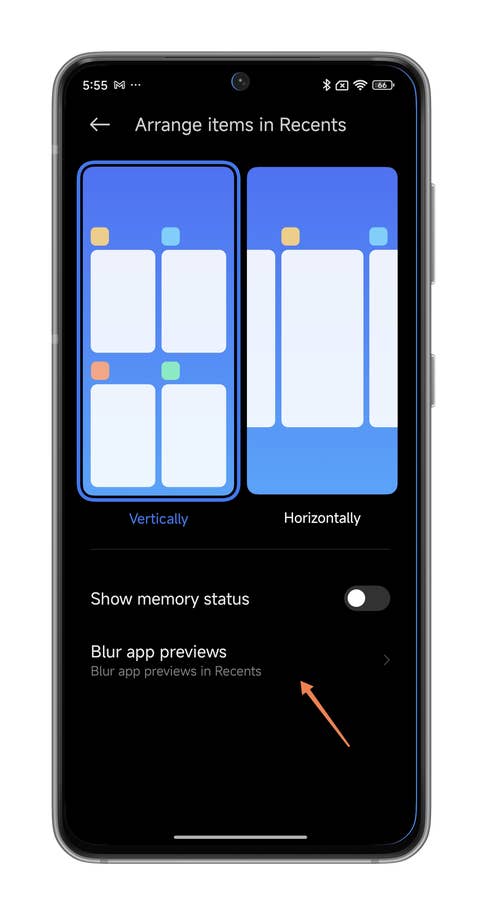
Hereu0027s how you blur the recent apps preview on your Xiaomi smartphone.
Quelle: nextpit
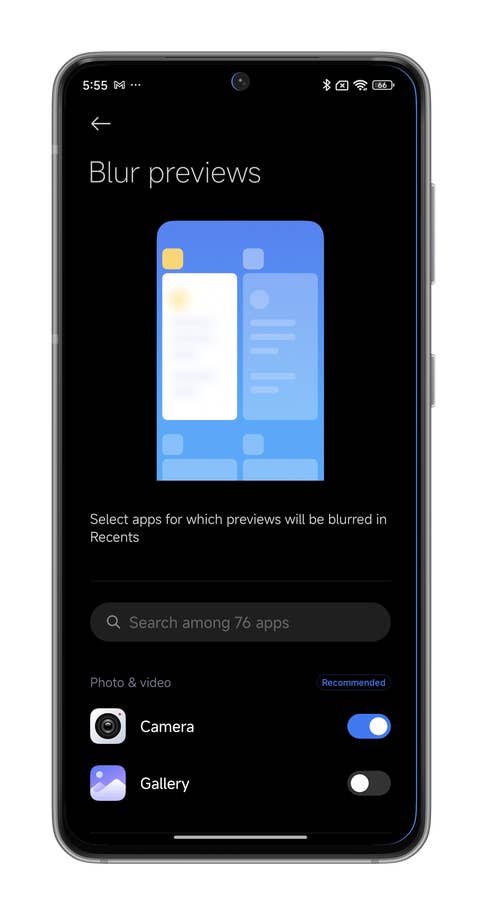
Hereu0027s how you blur the recent apps preview on your Xiaomi smartphone.
Quelle: nextpit
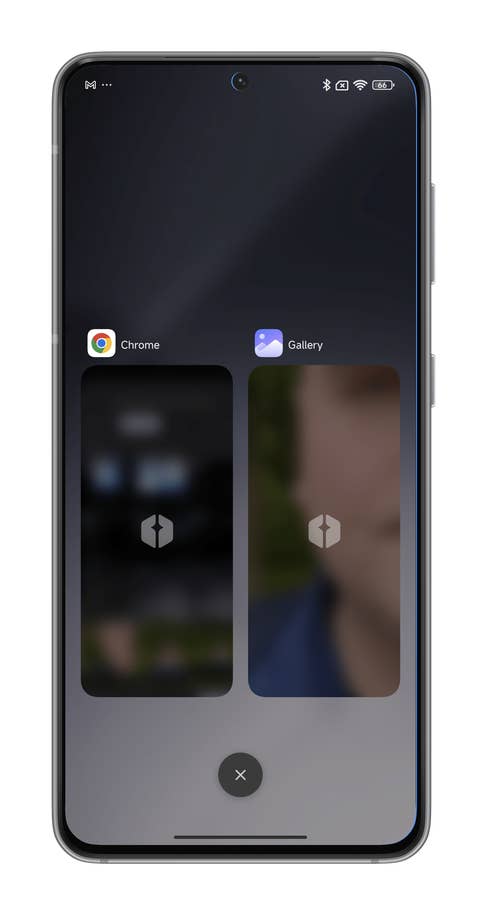
Hereu0027s how you blur the recent apps preview on your Xiaomi smartphone.
Quelle: nextpit
That’s all for our guide to the best secret features and tricks in HyperOS. Did you find this article useful? Did you discover a feature you didn’t know about? Perhaps you have a tip that isn’t listed in this guide?
If you want to dive deeper, you can check out our list of the best One UI tips for your Samsung, as well as the best iOS features for your iPhone.
























The MIUI Face Unlock feature is not available outside of China and India for legal reasons so it probably shouldn’t be on this list. Western MIUI users will also probably want to use a custom launcher because the MIUI launcher has no app drawer.
I don’t see the difference between the app drawer and the folders. Even if my launcher has app drawer, I did make folder to keep things look organized. I know the search function in app drawer is quick, but I hate a messy view of all apps. So, no difference for me with or without app drawer.
I have face unlock and I am in Vietnam
And double tap to wake up. Like the Microsoft phones.
That’s a HEAVY skin. Yuck.
I’ve been using xiaomi for over a year now, but I just found out about some of the tricks.
Nice concept…!!!