


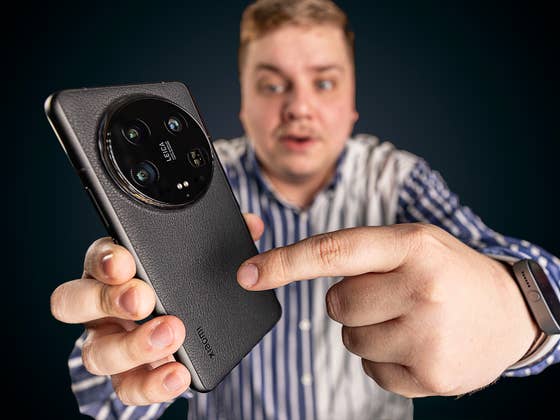
This feature is available under HyperOS, but also on the older MIUI 14 (test). Your Xiaomi smartphone can recognize two variations of this gesture. A double tap and a triple tap. And this Back Tap shortcut works even if your smartphone is locked or in standby mode.
How do you activate the Back Tap function on your Xiaomi smartphone?
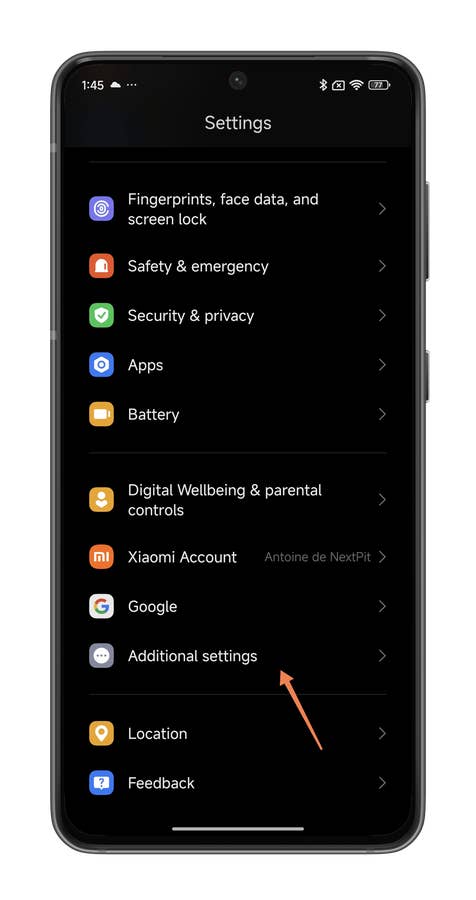
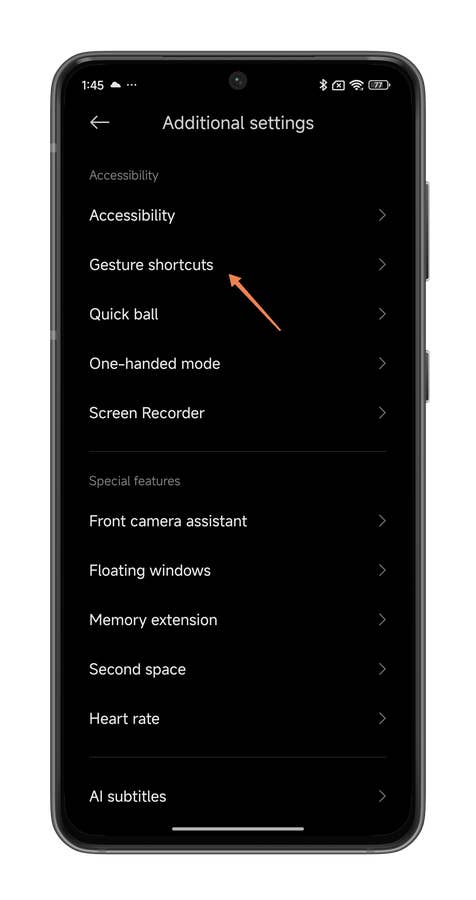
To activate the HyperOS Back Tap function on your Xiaomi smartphone:
- Go to Settings.
- Go to Additional Settings.
- Go to Gesture shortcuts.
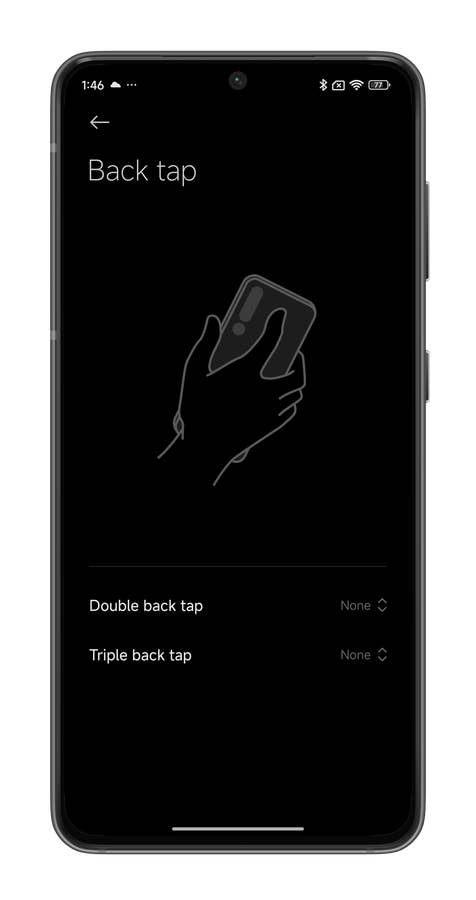
- Scroll down and press Back tap.
- Choose Press back twice or Press back three times.
- Select the shortcut you wish to associate with the gesture.

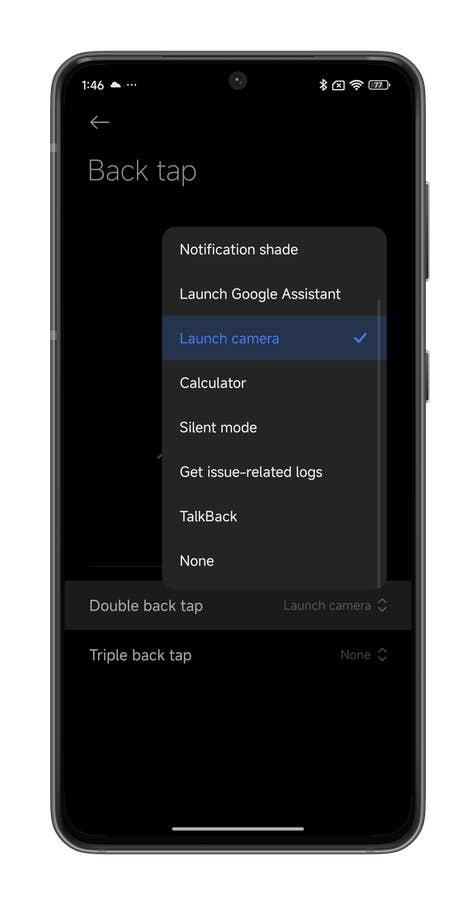
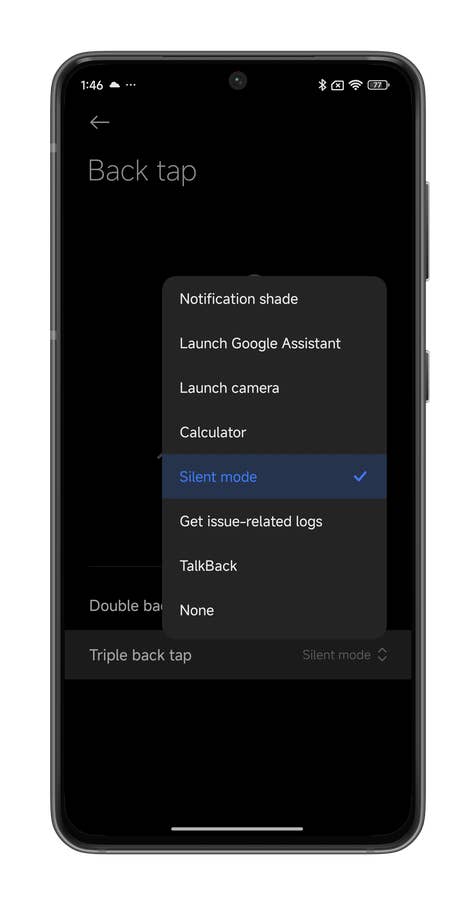
How do I use Xiaomi’s Back Tap shortcuts?
All in all, you can choose from nine shortcuts to assign to each of the two Back Tap gestures:
| Xiaomi Back Tap shortcuts | |
|---|---|
| Shortcut 1 | Take a screenshot |
| Shortcut 2 | Control Center |
| Shortcut 3 | Notification panel |
| Shortcut 4 | Launch digital assistant |
| Shortcut 5 | Launch camera |
| Shortcut 6 | Calculator |
| Shortcut 7 | Silent mode |
| Shortcut 8 | Get problem logs |
| Shortcut 9 | TalBack |
For this tutorial, I set up the Back tap shortcut on a Xiaomi 14 (test). Activation of the shortcut was fairly reliable, both with double and triple tapping. But you really had to touch the top half of the smartphone’s back. Just below the photo module, basically. When I tapped further down, I had to go over it once or twice for it to work.
I also tested it with the Xiaomi Mix Flip, which I’m currently using. In that case, you had to tap on the lower half of the back of the smartphone. And with the protective shell I had, it didn’t work. Even when I removed the cover, I had to tap insistently for the gesture to be recognized.
Personally, I find this shortcut rather useful. Activating the camera is a bit redundant since you can already do it by pressing the volume button down twice. Ditto for Google Assistant, which can already be invoked with a long press on the power button.
But in terms of accessibility, activating TalkBack mode via BackTap seems to me to be an excellent idea. As a reminder, this Android accessibility mode enables the visually impaired and blind to navigate their smartphone’s interface more easily with audio comments and tactile feedback. Being able to activate it in HyperOS with a simple Back tap gesture is therefore a very good idea from Xiaomi.
So much for this tutorial on how to activate HyperOS’s Back Tap function on your Xiaomi smartphone. Did you find this article useful? Are you already using Back Tap on your Xiaomi?
We mark partner links with this symbol. If you click on one of these links or buttons–or make a purchase through them–we may receive a small commission from the retailer. This doesn’t affect the price you pay, but it helps us keep nextpit free for everyone. Thanks for your support! Prices are based on the date of publication of this article and may be subject to change.



"Thus, in MIUI 12, we find the Back Tap feature" – This is not true. I have miui version 12.5.6.0 and there is no such feature there. Maybe It does not depend on MIUI but on smartphone model. So far, your article and especially the clickbait title is misleading.
The feature has been present in devices since MIUI 12, but I could not find the feature in my Xiaomi Redmi Note 9 Pro with MIUI 12.5.3 either.
With some quick search, I could not find a list with devices that support it, but I could get a similar experience using a third-party app. Thank you for your feedback!
Doesnt seem to work when using the bigger inner screen on my Mi Mix Fold 3. Also has additional option "control center" on Chinese ROM.