


Contents
- 1 Table of Content
- 2 How to remove ads by disabling the MSA application
- 3 How to disable personal ad recommendations
- 4 How to disable ads in Security and the web browser
- 5 How to disable ads in Music and Mi Video
- 6 How to disable ads in the Mi file manager, folders, and downloads
- 7 How to disable ads in MIUI themes
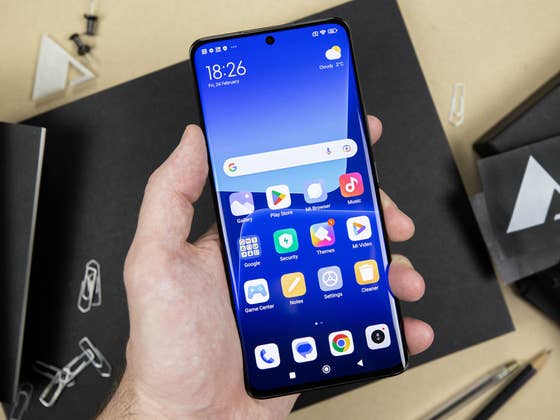
Yes, even in 2024, ads can still be found in the interface of Xiaomi, Redmi, and Poco smartphones like the Redmi Note 13 4G (review) or the Poco F5 Pro. Even though these are affordable smartphones, it’s very annoying. So this tutorial will help you to have a more or less healthy software experience with your smartphone.
All the tips presented in this guide to disabling MIUI ads were carried out on a Xiaomi 12X running MIUI 13. But these techniques also work on MIUI 14, MIUI 12, and even earlier versions of Xiaomi’s mobile OS. You should also be able to follow these steps under HyperOS.
Table of Content
- How to remove ads in MIUI by disabling the MSA application
- How to disable personal ad recommendations
- How to disable ads in Security and Web Browser
- How to disable ads in Music and Mi Video
- How to disable ads in Mi File Manager, Folders and Downloads
- How to disable ads in MIUI themes
How to remove ads by disabling the MSA application
This is the first step, and unless you use a lot of native Xiaomi apps, it should be enough to get rid of almost all ads in MIUI on your Xiaomi.
All you need to do is disable the MSA or MIUI System Ads application. This step can’t be performed offline, as you’ll need to be connected to a Wifi or cellular network.
- Go to Settings.
- Select Passwords & Security.
- Under Authorization and revocation, search for MSA and press the switch to deactivate it.
- Wait 10 seconds, then press Revoke.
- You may receive a message saying it cannot revoke authorization. Keep trying until it does.
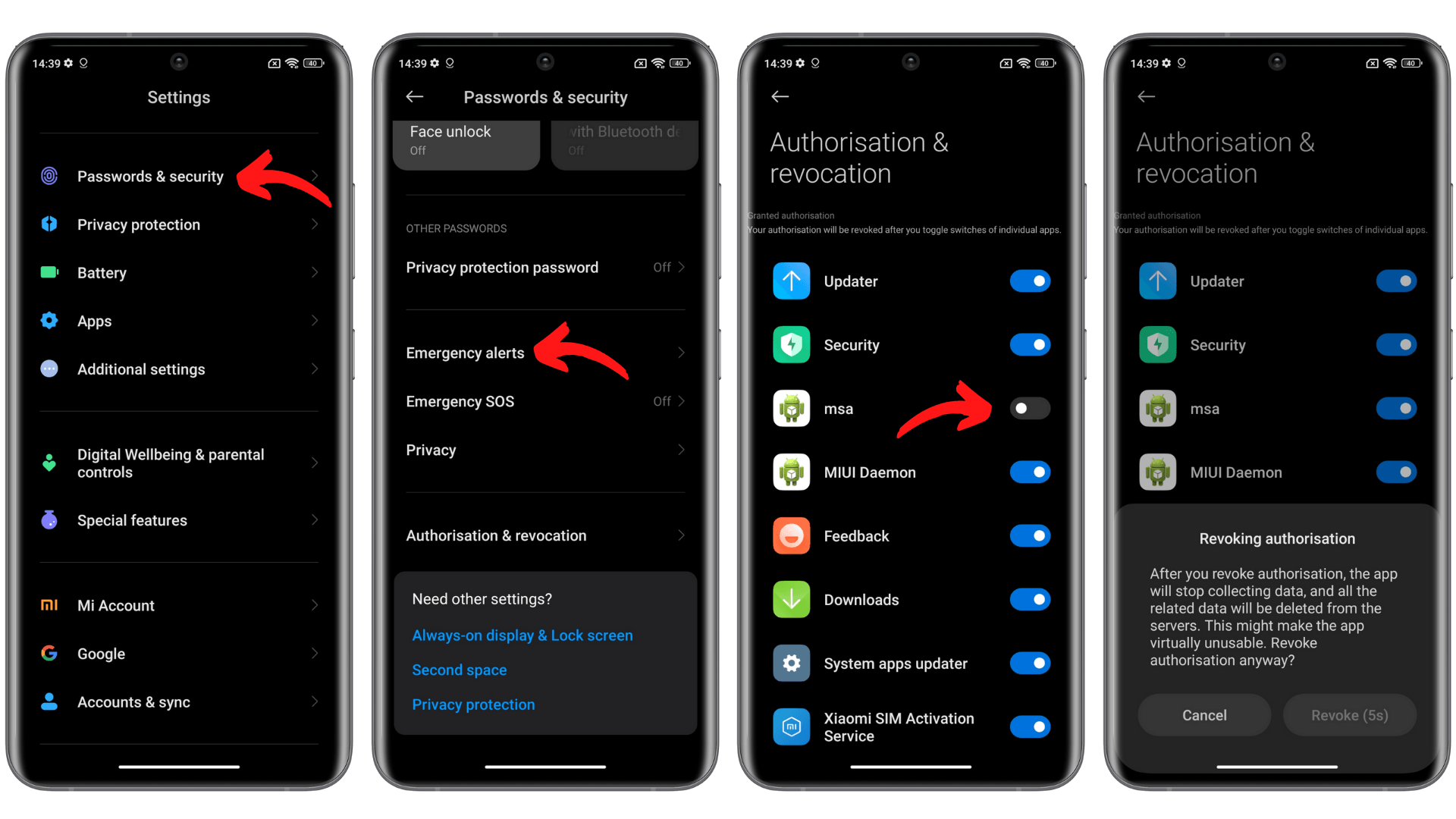
This should remove most of the ads. But these are only the “system” ads in the MIUI interface, other ads may remain in some of Xiaomi’s native apps, so you’ll have to disable them individually. Isn’t that nice?
How to disable personal ad recommendations
Now that you’ve revoked MSA authorization, you can start disabling the individual “recommendations” that MIUI will send you. To disable personal ad recommendations, which prevent Xiaomi from recording your usage habits and collecting your data, follow the steps below.
- Go to Settings.
- Select Passwords & Security.
- Under Privacy, look for Advertising services and then Personalized advertising recommendations.
- Deactivate Personalized advertising recommendations and Personalized services.

How to disable ads in Security and the web browser
We’re now tackling ads inside Xiaomi’s native apps. Disabling ads in the Mi Browser and Mi Security apps is relatively simple from here. Go to your Settings menu and follow the steps below.
Disable MIUI Mi Browser ads:
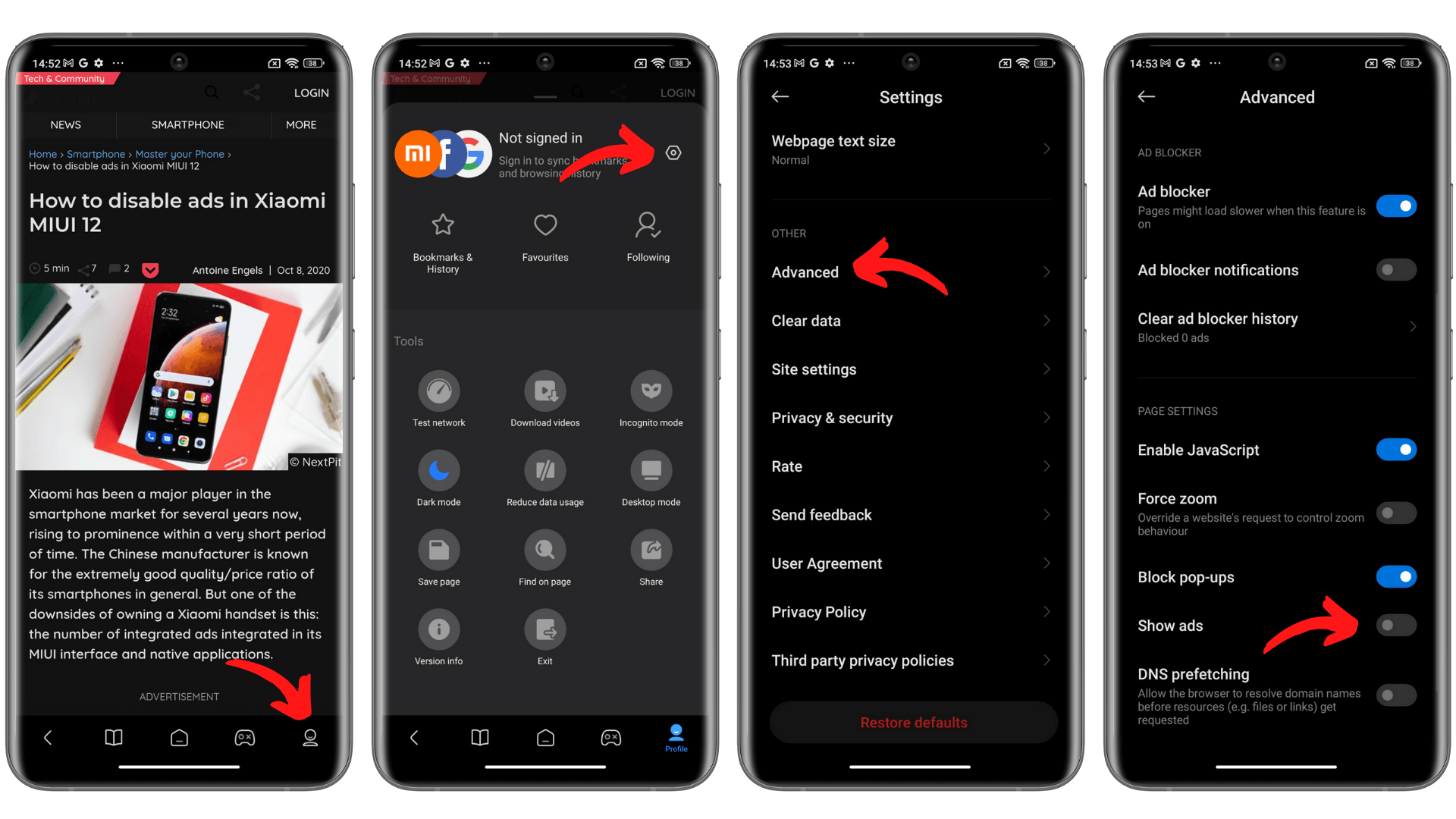
- Open Mi Browser.
- Select the Profile tab in the bottom right-hand corner.
- In the Profile tab, access Settings by pressing the “button” at the top right.
- In Advanced Settings, uncheck Add ads.
Disable ads in MIUI’s Security application
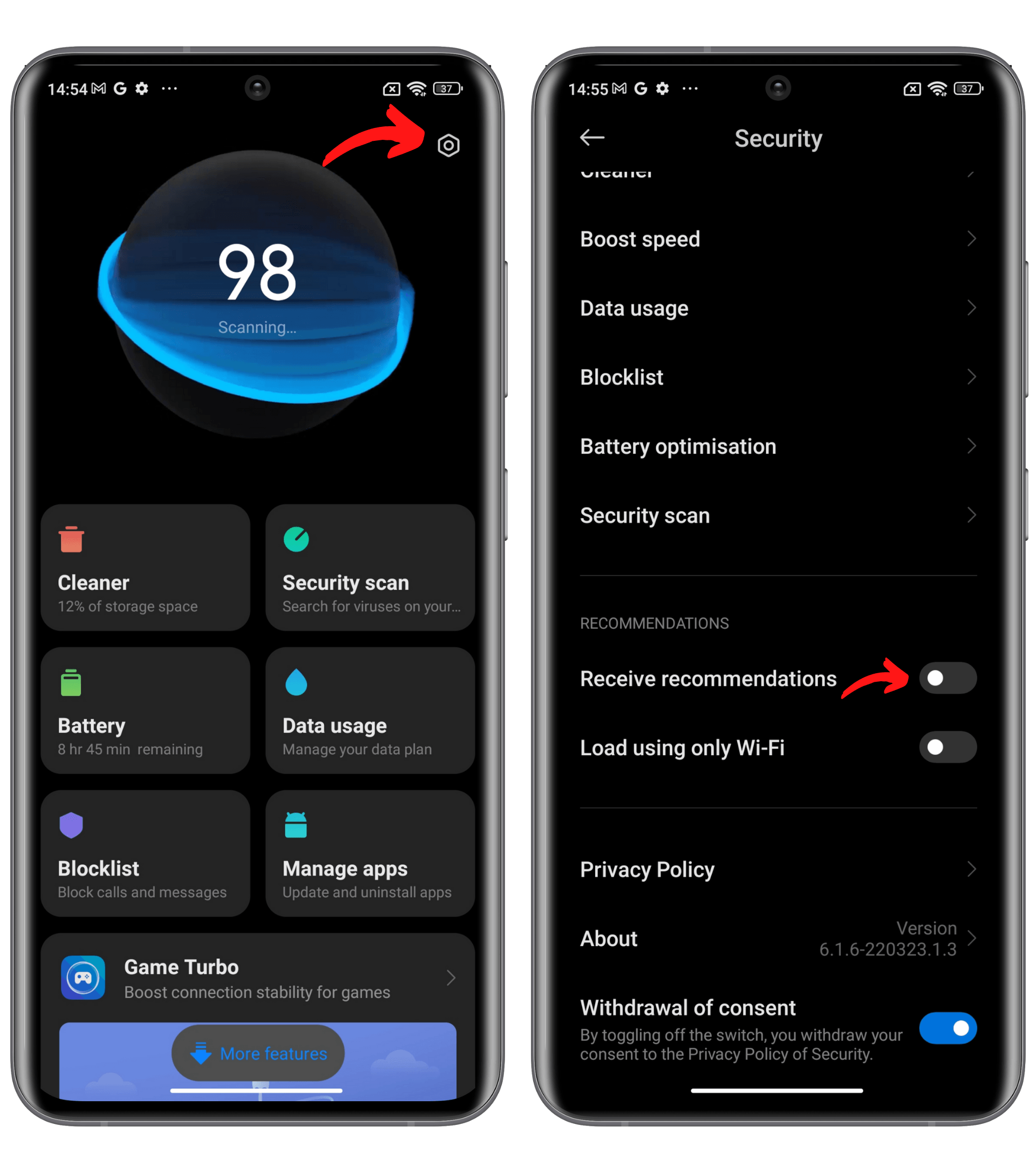
- Open the Security application and go to Settings.
- In Settings, disable the Receive recommendations option.
How to disable ads in Music and Mi Video
To disable ads in your Xiaomi Music and Mi Video apps, the process is largely the same as above, with only a few adjustments required for Mi Video.
- Open the Mi Music application and go to Settings in the top right-hand corner.
- Then go to Advanced Settings and deactivate the Receive recommendations and Show ads options.
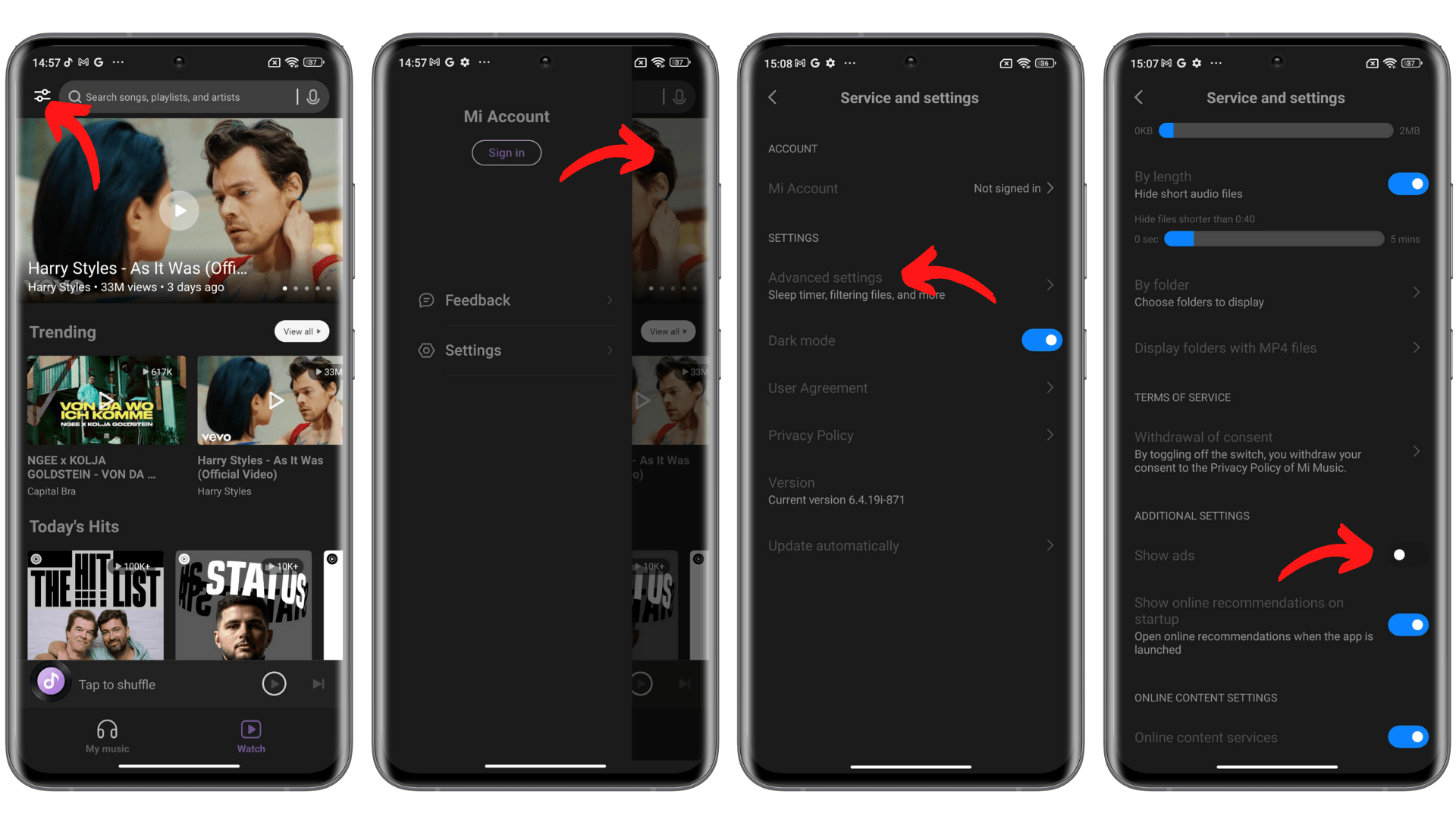
In MIUI 13, however, it’s no longer possible to disable recommendations, since to do so you have to forgo acceptance of the app’s T&Cs. Doing so will render Mi Video unusable.
How to disable ads in the Mi file manager, folders, and downloads
To disable MIUI ads in the file manager and downloads folder, you need to follow a rather similar but also counter-intuitive procedure, since Xiaomi would like you not to.
To disable ads in the Files application:
- Open the Files application, then go to Settings.
- Press About.
- Deactivate recommendations (don’t touch consent, since you’ll be taking away Files’ access to your… files).

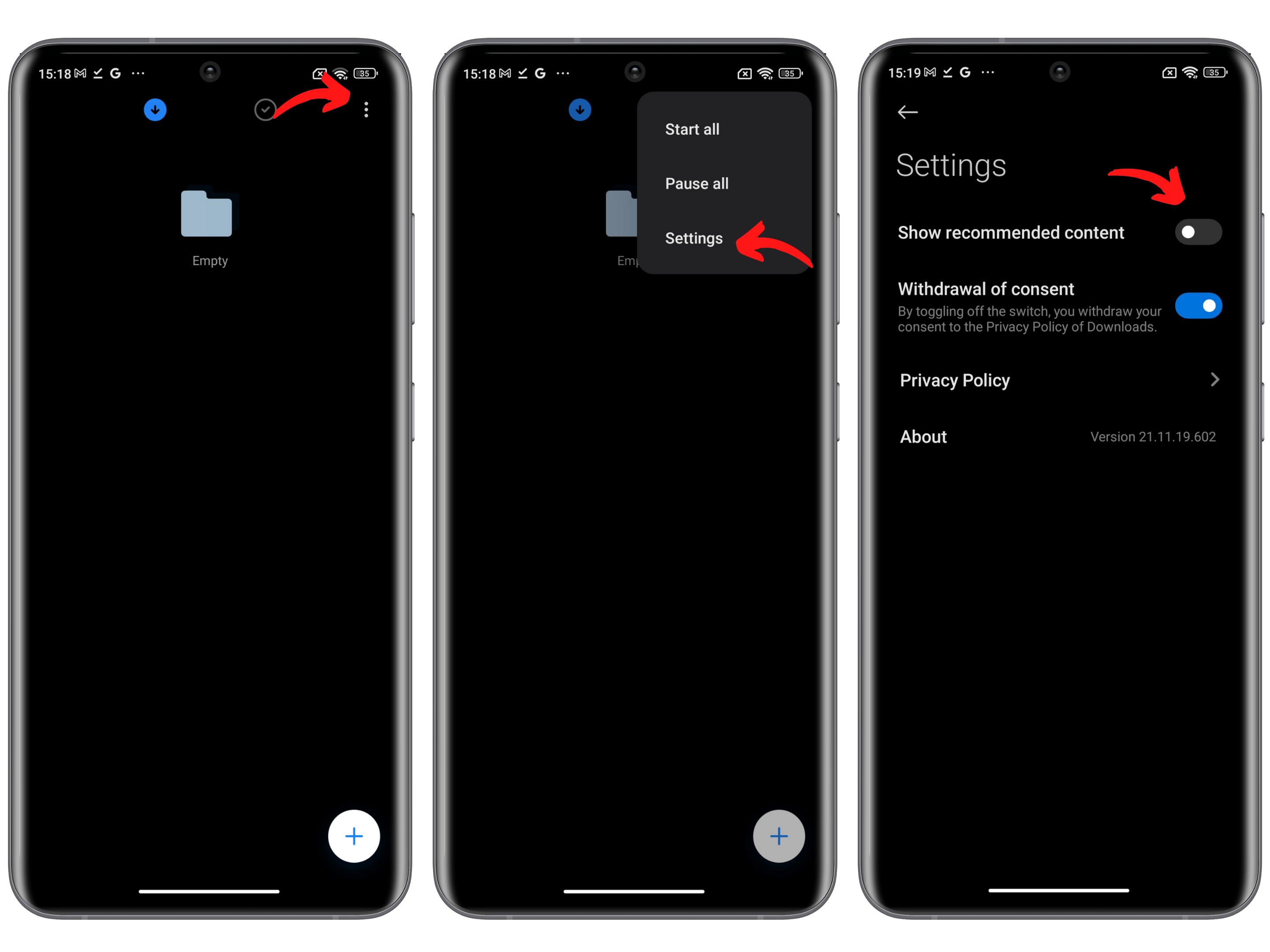
To disable ads in the downloads folder:
- Open the Downloads folder.
- Press the kebab menu (three vertical dots) at top right.
- Select Settings.
- Deactivate the Show me recommended content option.
How to disable ads in MIUI themes
The easiest way to get rid of ads in the MIUI Themes app is to go straight to the app itself and close it. Just follow the steps below.
- Open the MIUI Themes application and go to Account.
- Find Settings, then deactivate Recommendations.

Let’s be honest, it’s a chore that ruins a lot of the user experience. But once it’s done, you’ll be ad-free on MIUI 14 and later versions and can enjoy your Xiaomi smartphone without being bombarded with ads.
Did you find these tips useful? Let us know if you’ve found an easier way to disable ads in MIUI in the comments below.
Article updated on March 2024. Comments prior to the update were kept and may seem out of context.
We mark partner links with this symbol. If you click on one of these links or buttons–or make a purchase through them–we may receive a small commission from the retailer. This doesn’t affect the price you pay, but it helps us keep nextpit free for everyone. Thanks for your support! Prices are based on the date of publication of this article and may be subject to change.


That’s enough to put me off their products right there.
Very useful . Thanks
Pls write Comment guys
The article was revamp and we also added a tutorial on how to remove ads in MIUI 13. Enjoy it!
doesn’t work on version 12.5.4
HyperOS file manager has no way to block ads.