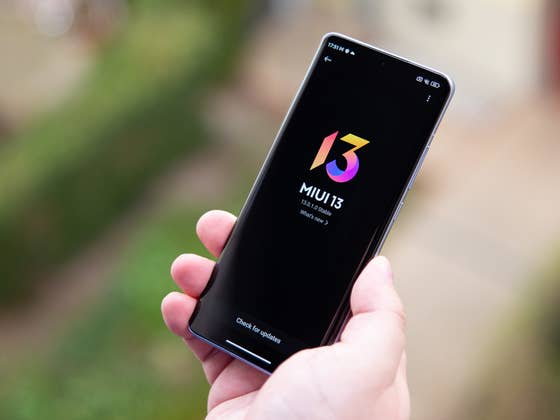
So we’re going to talk about the feature called Quick Ball or Touch Assistant, which is a special feature of MIUI that allows you to have a virtual shortcut button on your home screen. Quick Ball is available in MIUI 13 but also previous versions, up to MIUI 8.
By pressing this floating bubble (quick ball > ball > shortcut, got it?), you have access to a series of 5 shortcuts. You can assign several actions to each of these 5 shortcuts such as returning to the home screen, switching to silent mode, taking a screenshot, etc.
- Go to Settings.
- Go to Additional Settings then Quick Ball.
- Turn on Quick Ball and then choose your 5 shortcuts.
- From your home screen, tap on the floating bubble to bring up the Quick Ball/Touch Assistant.
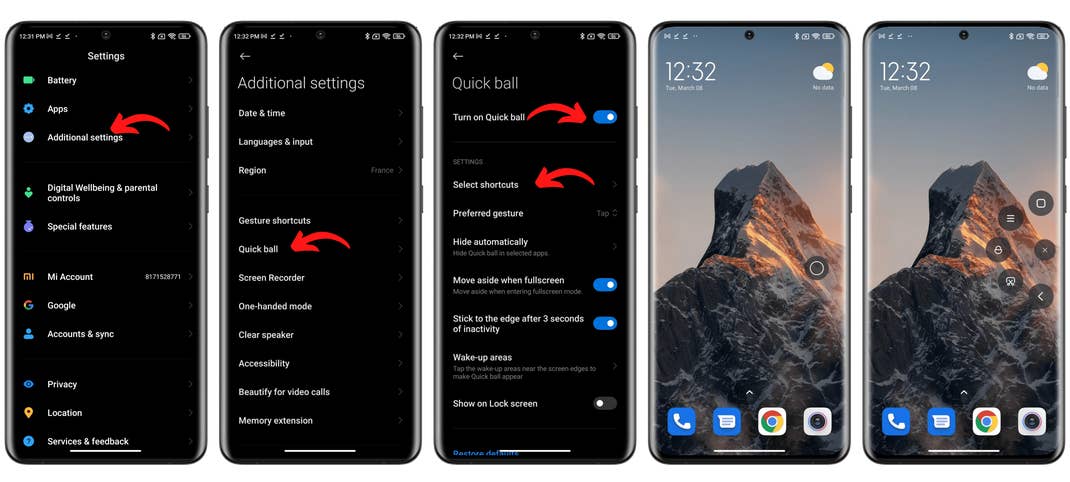
The bubble is a floating one, so you can move it around as you like on the home screen of your Xiaomi or Redmi smartphone and you can also hide it by swiping towards the edges of the screen.
In the Quick Ball settings, you can also create a list of apps over which the floating bubble will not be able to overlap (for apps you use in full screen, like YouTube or Netflix, for example). Finally, you can even make the Quick Ball accessible from the lock screen.
That’s it for this very quick tutorial on how to activate the Quick Ball menu on your Xiaomi smartphone. What do you think about this feature? Do you find contextual menus and shortcuts useful or do they annoy you?