Sorry, but there's really nothing to see here right now. Our server is in maintenance mode – and our
little bot is trying to sort the error messages with its last bit of energy.
Whether it was a data leak, a power outage in the cluster, or just a grumpy bit – we don't know yet.
But what we do know is:
The data drama escalated into a server meltdown. But don't worry: We're on it.
What now?
Everything is surely running smoothly over at our colleagues from inside
digital – why not stop by!
Or you could pass the time by visiting our social media channels – for example Instagram, YouTube or TikTok. At least there are no
server problems there – promised.
Thanks for your patience. Our bot is already rebooting at full speed. 🔧
NewsTabletGoogle Gemini: How to Install the AI Assistant
Gemini is Google’s new, advanced AI that replaces Google Assistant, offering enhanced capabilities and new functions. Although it’s not yet the default AI on most Android devices, this guide will walk you through installing Gemini and setting it as your phone’s assistant.
Also read: Best features of Google’s Gemini
Why You Should Install Gemini
Gemini stands out for its fast and intuitive assistance, using more natural language and interaction methods. Whether you’re typing, speaking, or searching for images, Gemini can handle complex tasks like summarizing lengthy documents, generating images, and translating text—features that weren’t available with the previous assistant.
In addition to the core Gemini, there’s also Gemini Live, a chatbot integrated into the app that enables continuous conversation with more natural, human-like responses.
For those seeking more advanced capabilities, there’s Gemini Advanced, a premium version of Gemini and Gemini Live. This version is powered by more sophisticated AI models.
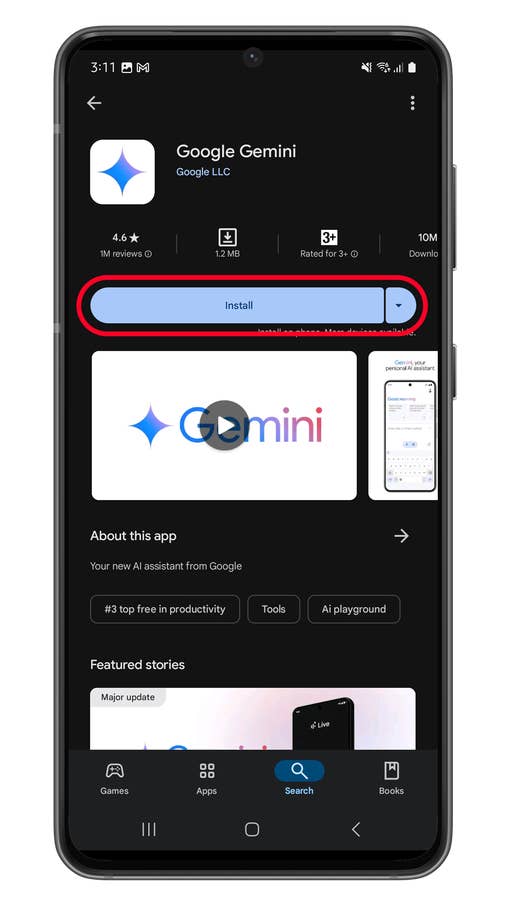
How to Download the Gemini App on Android and iPhone
Gemini is available as an app for Android. Although there isn’t a dedicated app for iPhone, Gemini is integrated into the Google app for iOS. Additionally, Google offers a web version of Gemini.
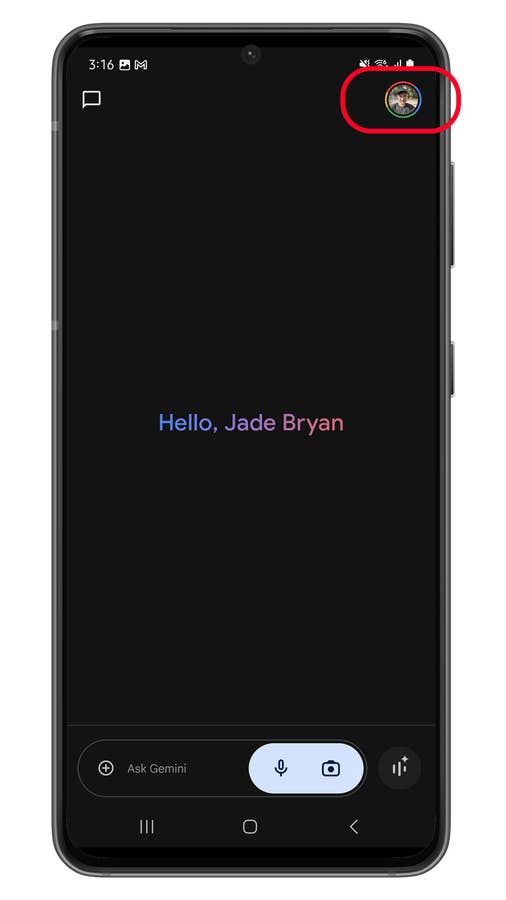
Launch Gemini then tap on your profile to open settings.
Quelle: nextpit
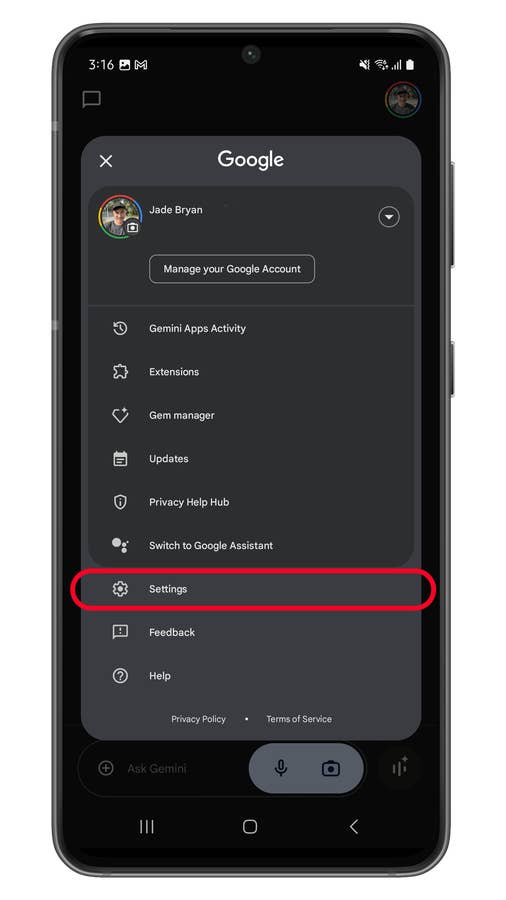
Choose Settings from the menu.
Quelle: nextpit
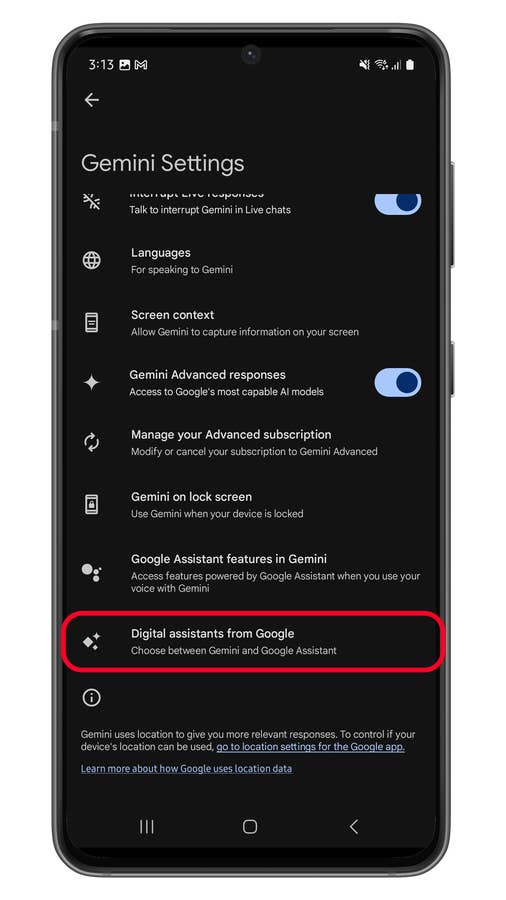
Choose the Digital assistants.
Quelle: nextpit
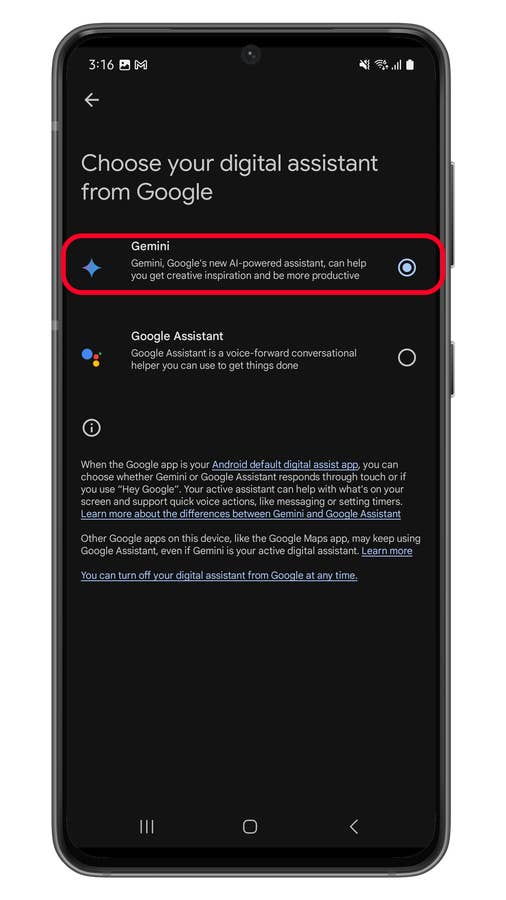
Select Gemini.
Quelle: nextpit
Setting Gemini as the Default Assistant
On Android phones and tablets, Gemini can be set as the default assistant or as an alternative to Google Assistant:
Open the Gemini app.
Tap on your profile picture to access settings.
Choose Settings from the menu.
Select Digital Assistants from the Google options.
Choose Gemini, then tap back to save your changes.
Make sure to enable Use Google Assistant Features so you can interact with Gemini just like Google Assistant, including using wake commands like “Ok Google” and “Hey Google” and shortcuts for quick access.
Do you have Gemini on your device? Which AI features do you use the most? Share your tips and tricks in the comments below!
We mark partner links with this symbol. If you click on one of these links or buttons–or make a purchase through them–we may receive a small commission from the retailer. This doesn’t affect the price you pay, but it helps us keep nextpit free for everyone. Thanks for your support!







0 comments