
Contents
- 1 What is Gemini and Which are Its Top Features?
- 1.1 1. Multimodal Gemini
- 1.2 2. Generate Images
- 1.3 3. Summarize Texts and Videos
- 1.4 4. Ask About What’s On Your Screen
- 1.5 5. Ask About PDF Files
- 1.6 6. Use Gemini with Gmail and Calendar
- 1.7 7. Analyze and Create Visualizations (tested on paid version)
- 1.8 8. Get Code for Interactive and Collaborative Visuals via Canvas
- 1.9 9. Use Gemini on the Lock Screen
- 1.10 10. Control Smart Home with Gemini
- 1.11 11. Chat and Share Your Camera with Gemini Live
- 1.12 12. Deep Research: Advanced AI Analysis
- 1.13 13. Create AI Podcasts from Documents
- 1.14 14. Gemini Control Third-Party Apps
- 1.15 15. Smarter Search in Google Maps
- 1.16 16. Customize Gemini’s Voice
- 2 Gemini Versions Compared: Free, Premium, Gemini Live
What is Gemini and Which are Its Top Features?
Google’s Gemini is the next-generation AI digital assistant, designed to replace the classic Google Assistant. Available as both an integrated feature in Android and a standalone chatbot app, Gemini is powered by Google’s large language models (LLMs), making it more intelligent and capable than its predecessor.
With its multimodal capabilities, Gemini can process text, images, and voice inputs, enabling natural and conversational interactions. It also introduces new features that were not possible with the old Google Assistant.
We’ve compiled a list of Gemini features, covering both free and paid versions. Most of these AI tools are available to try with certain usage limits, allowing you to decide whether to upgrade. Let’s dive into Gemini’s top features.
- First things first: How to install Google Gemini on your phone
1. Multimodal Gemini
One of Gemini’s biggest advantages is its multimodal capabilities. While Google Assistant supports voice, text, and image inputs, Gemini takes it further by allowing users to interact with videos, code, and even files. The smarter AI chatbot can also engage in conversational interactions and output images and videos, in addition to text.
Gemini supports various input types, making it a versatile AI assistant:
- Text
- Files or Documents
- Images
- Video
- Audio
- Code
Additionally, Gemini Advanced can process larger and multiple files, such as entire project databases or thousands of pages of documents.
2. Generate Images
One of the most useful features of Gemini is text-to-image generation, available in both basic and premium versions. The tool is powered by Google’s Imagen-4 model that produces lifelike images, higher image quality, understand more complex instructions, and offer different styles. However, there are limitations when using it with the free plan, which doesn’t include all effects and has a slower processing time.
How to Generate Images in Gemini
- Open the Gemini app on your device.
- Enter your prompt, starting with “create,” “generate,” or “draw.”
- Specify details, such as styles in realistic or animations, colors, and elements.
- Tap the send button and wait for the result.
- Refine your prompt for better results and save or share the image.
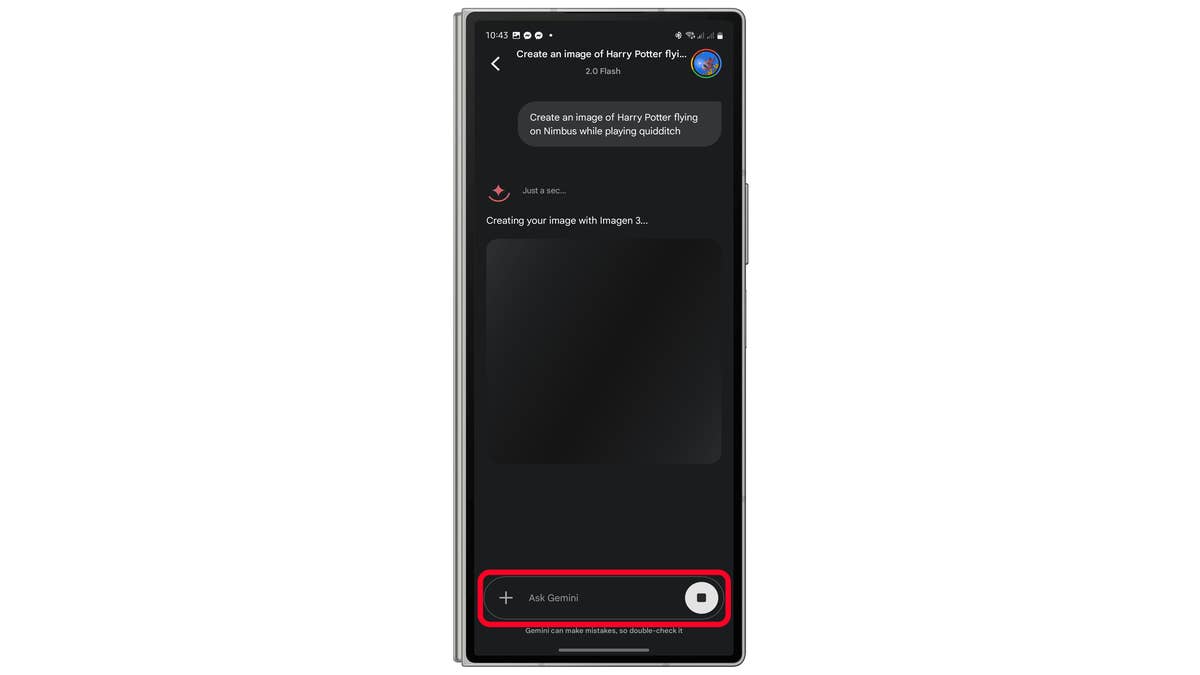

For a more detailed guide, check out our tutorial on how to create and save AI images with Gemini.
3. Summarize Texts and Videos
Gemini can summarize long texts, emails, documents, and YouTube videos. To enable this feature, you need to activate the Google Workspace and YouTube extensions within the app.
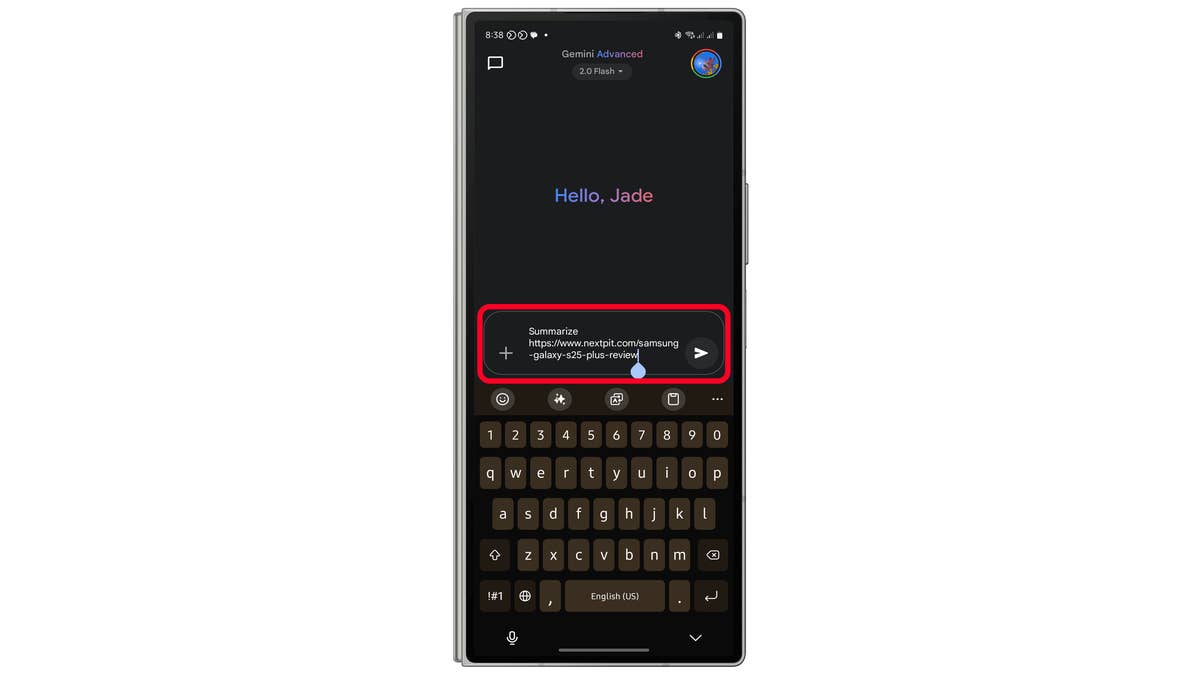
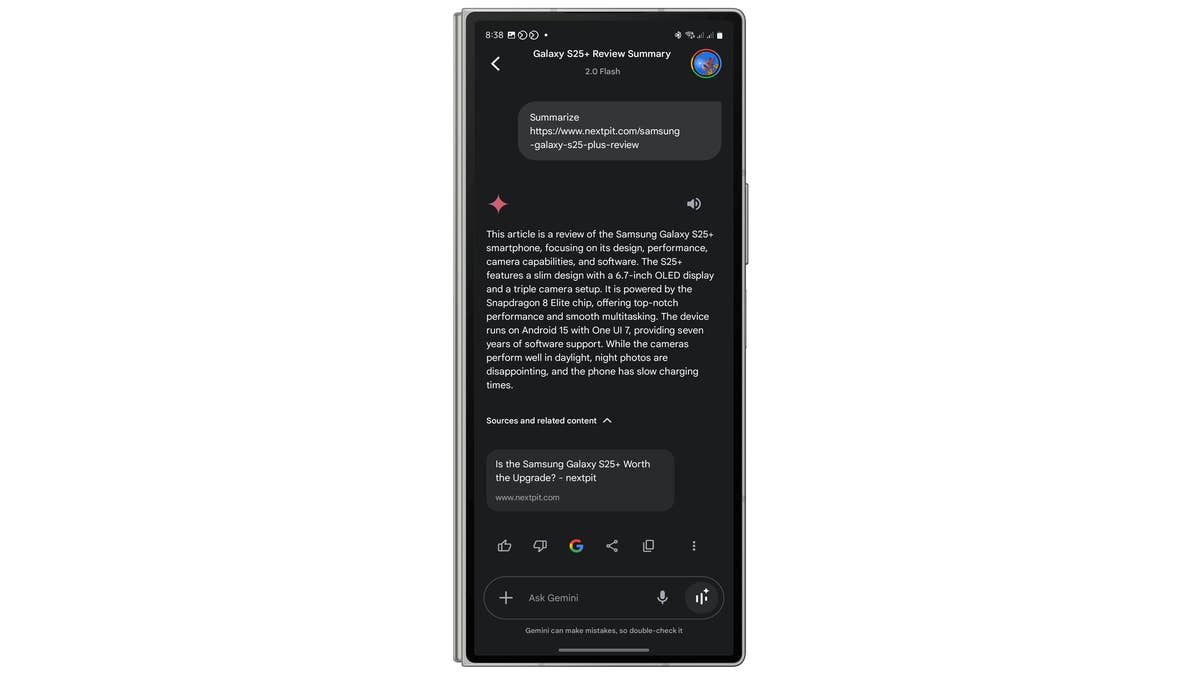
How to summarize texts in Gemini
- Open the Gemini app.
- Paste or type the text or URL into the prompt box and specify with Gemini to summarize it.
- Hit the send button and receive the summary.
How to summarize YouTube videos (with subtitles enabled)
- Open the YouTube video.
- Launch or summon Gemini.
- Type or speak, “Summarize this video.”
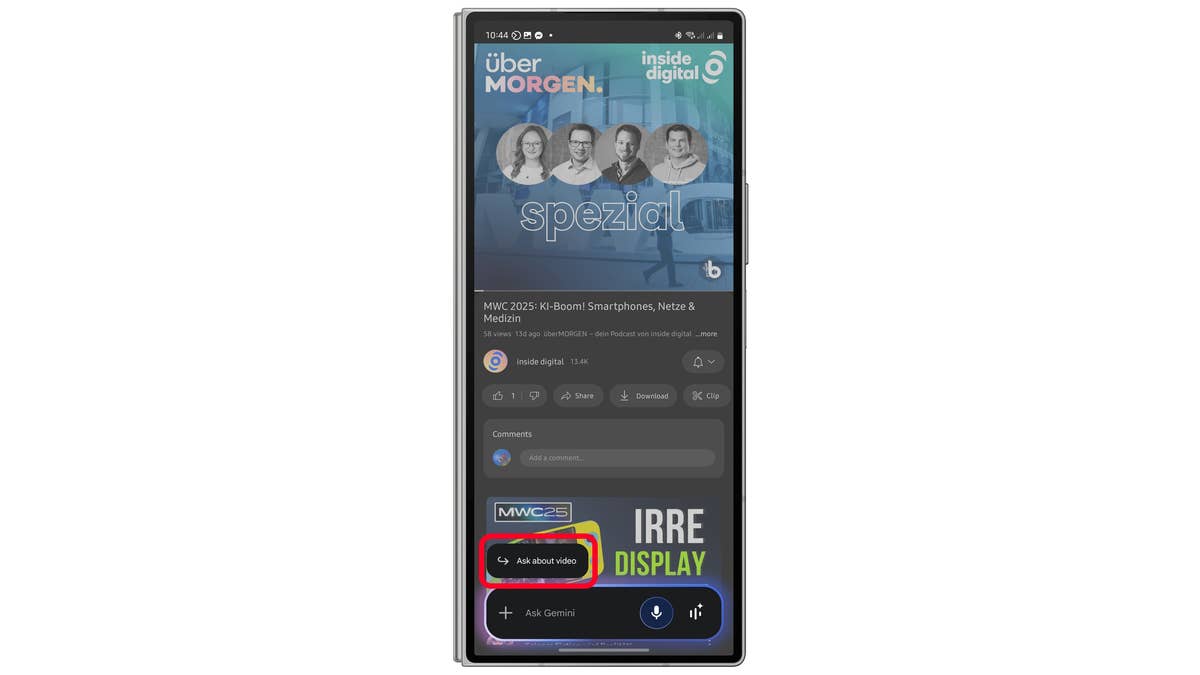
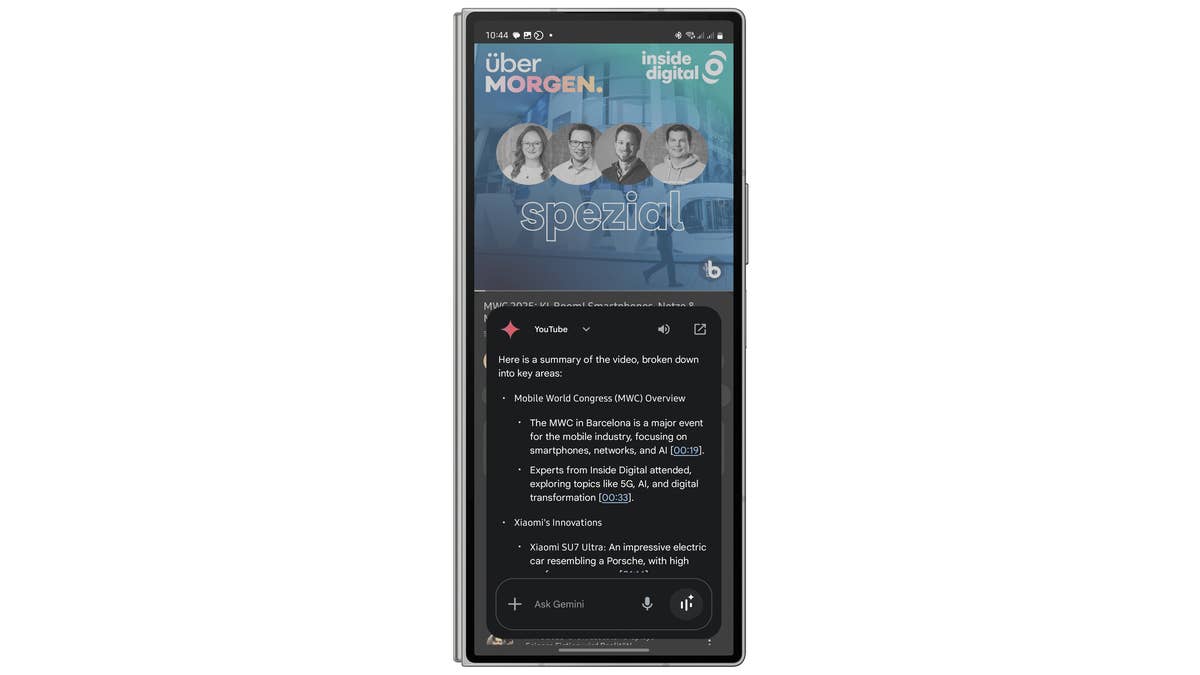
You can edit the summary or request a different format, such as bullet points or a paragraph. Additionally, Gemini allows you to export the text to Docs or Gmail. For a deeper dive, check out our tutorial on how to use Gemini to summarize YouTube videos.
4. Ask About What’s On Your Screen
One of Gemini’s most useful features is contextual awareness via “Ask About Screen.” This allows you to get explanations and insights about images and web pages—offering a Google Lens alternative with added AI capabilities.
How to Use Ask About Screen
- Open an image or web page (or take a new photo).
- Launch Gemini via gesture or shortcut.
- Tap Ask about screen (a screenshot will be taken and uploaded).
- Type or speak your query about the image or content.
- Hit send.
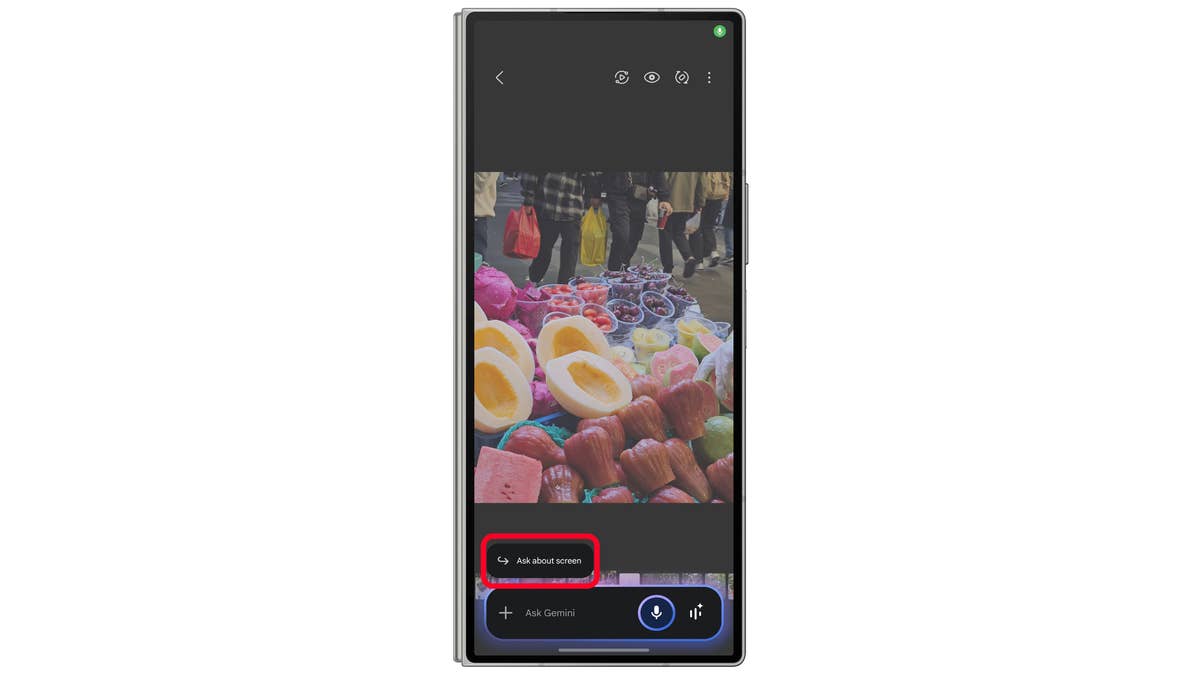
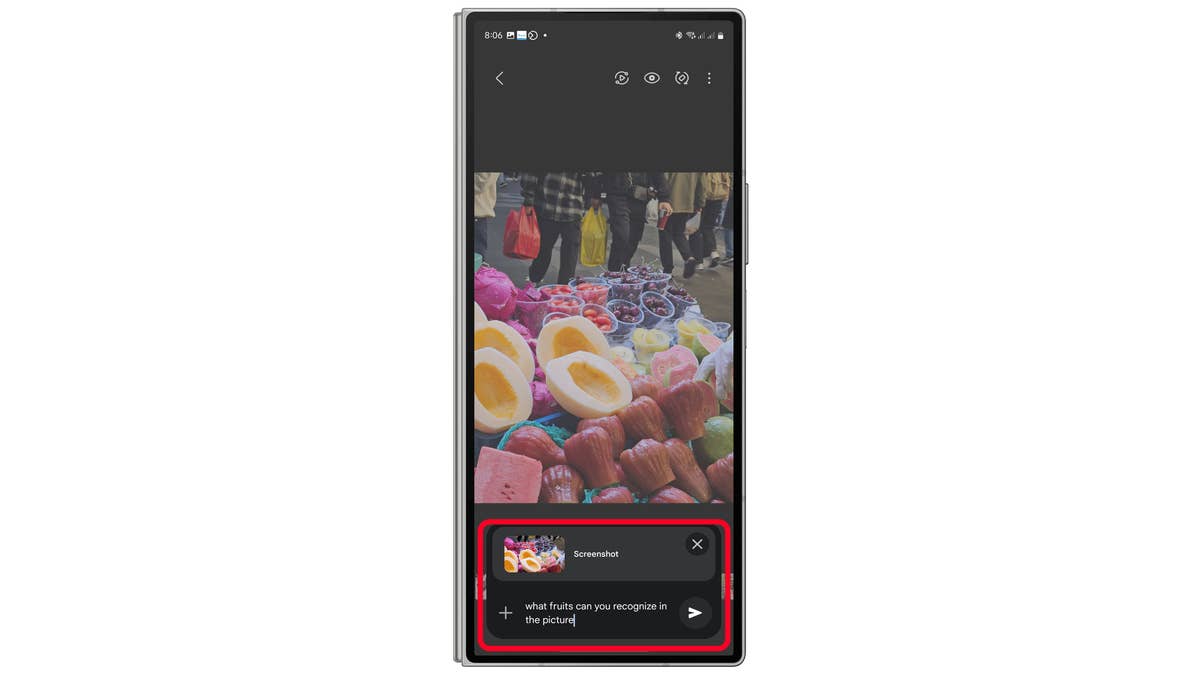
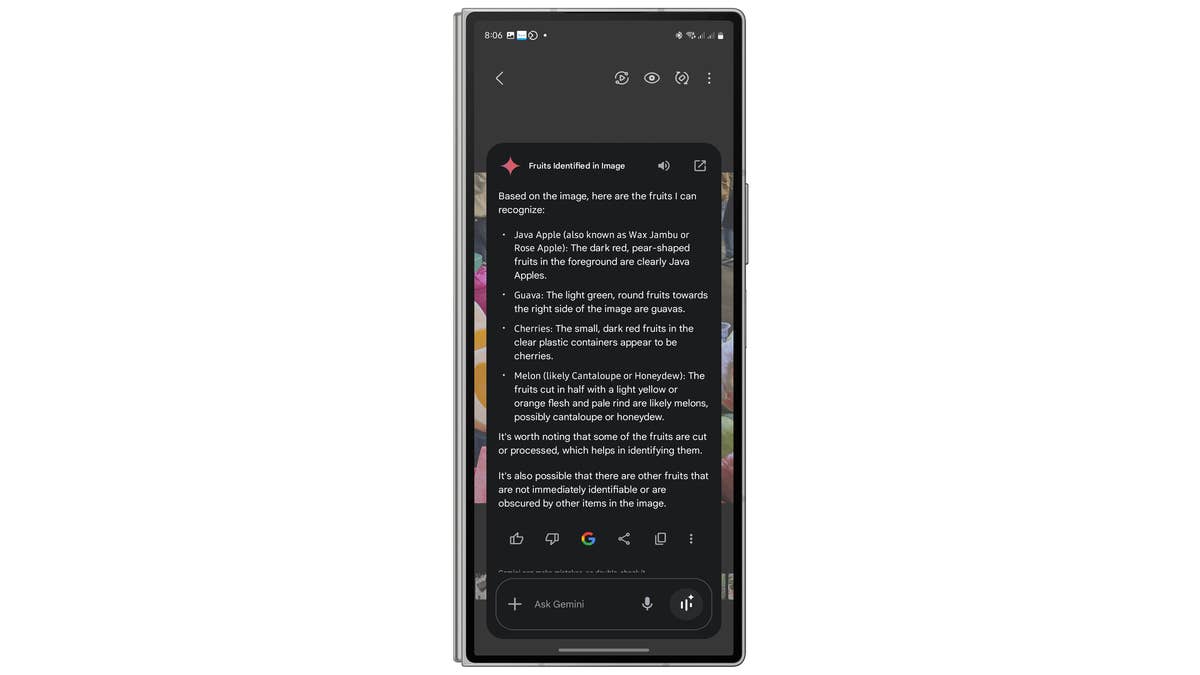
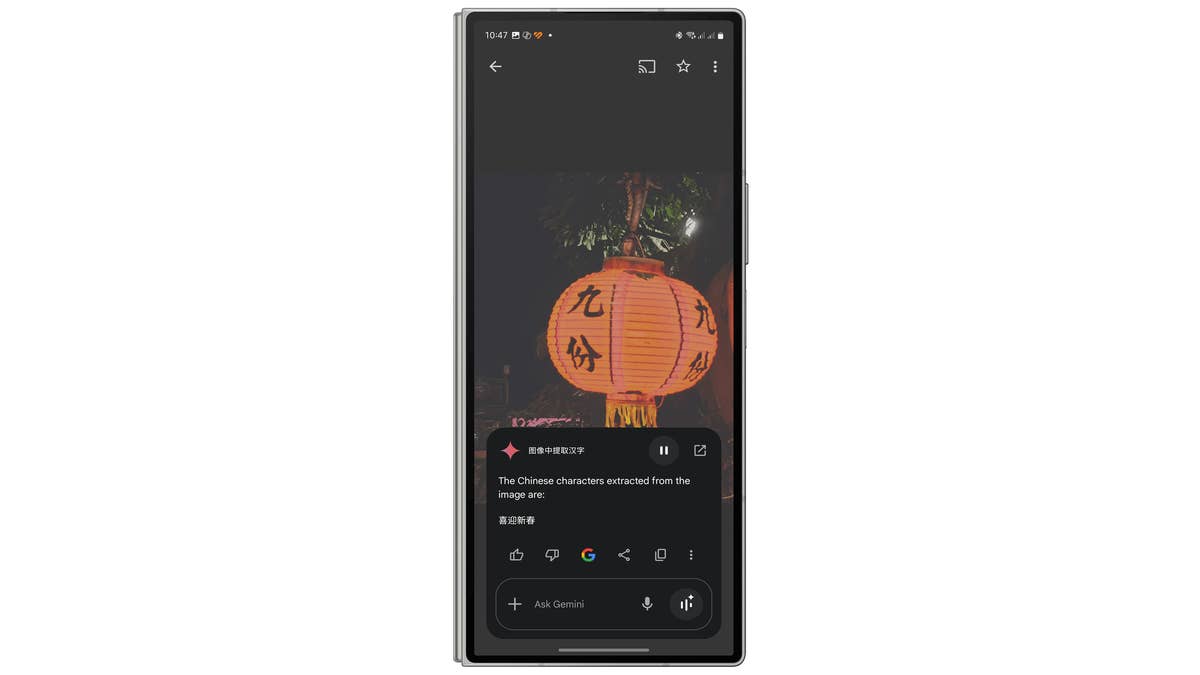
You can also upload a photo manually to the Gemini app for analysis or extract text from web pages to summarize, explain, or translate.
5. Ask About PDF Files
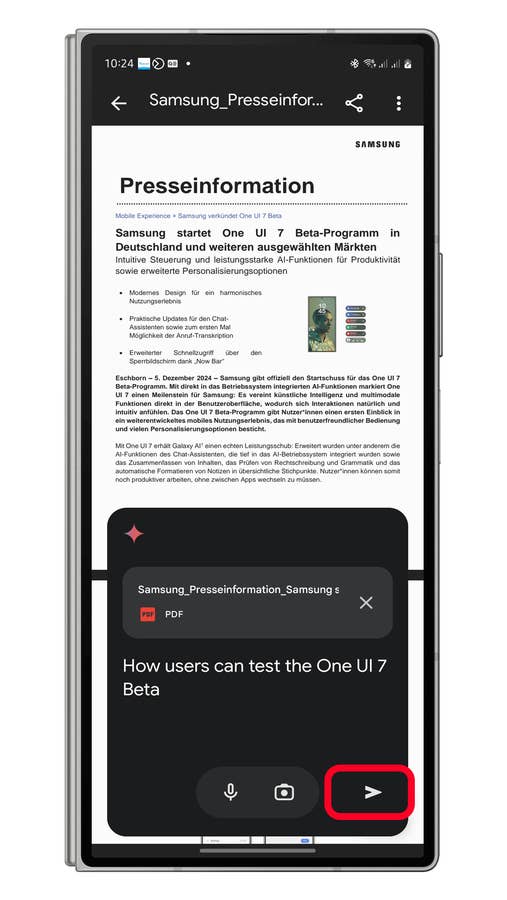
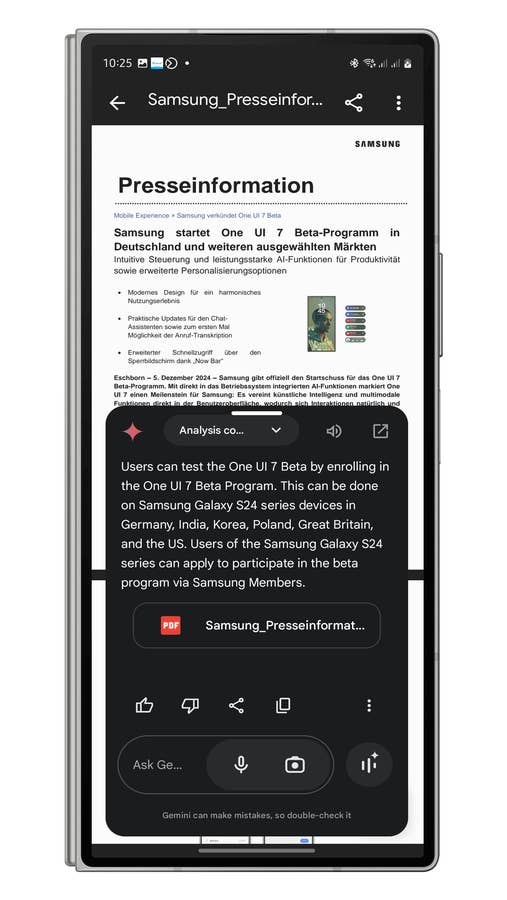
The “Ask About PDF” feature works similarly to “Ask About Screen” but focuses on PDF documents. You can summarize, extract text, or search for specific data within a file. This feature is ideal for quickly extracting key information from lengthy documents.
While this is available for the basic and premium Gemini versions, you can do more complex and bigger PDF files in Pro using a more powerful model.
How to Use Ask About PDF
- Launch the Google Files app.
- Open a PDF document.
- Launch Gemini via gesture and then tap Ask about PDF.
- Wait until the file is uploaded.
- Enter your request and then tap send.
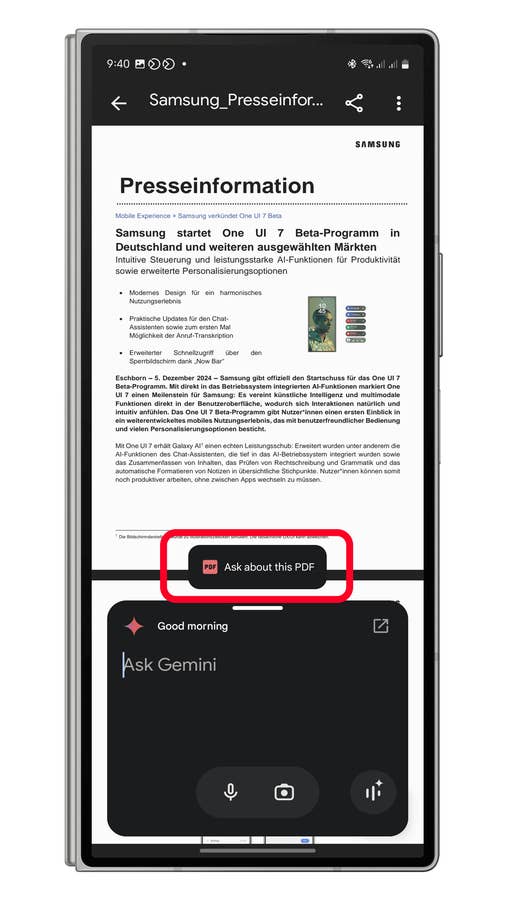
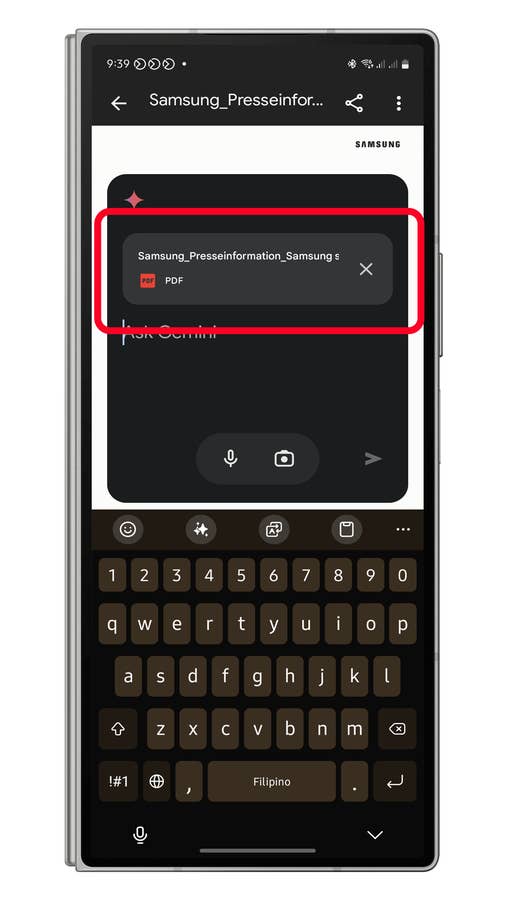
6. Use Gemini with Gmail and Calendar
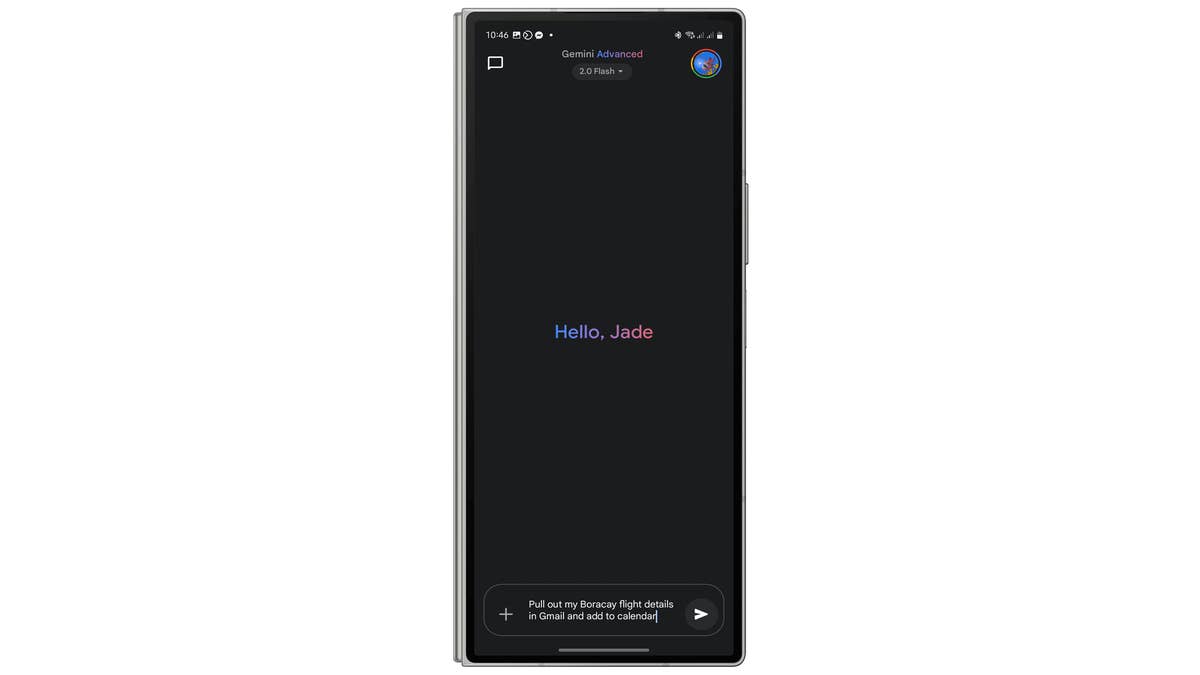
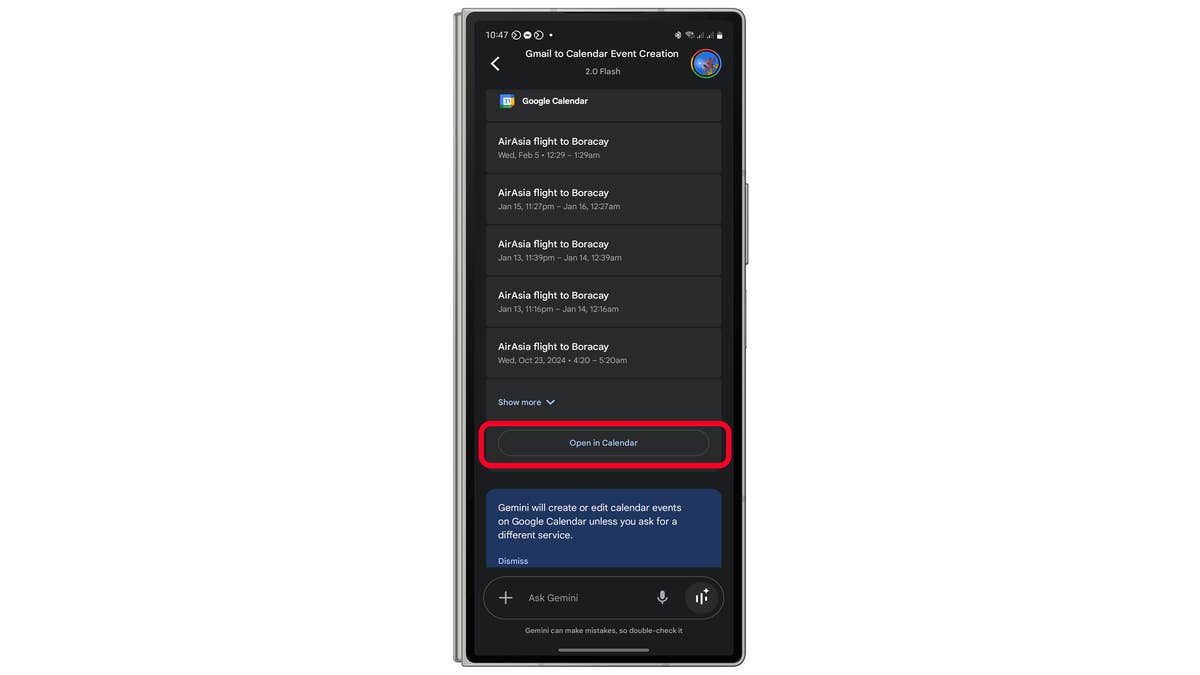
Gemini integrates seamlessly with Google apps, making task management easier. For example, it can extract flight details from Gmail and add them as events in Google Calendar.
How to Use Gemini for Calendar Events
- Ask Gemini to pull flight details or schedules from Gmail.
- Add or modify events directly in Google Calendar by tapping Continue in Calendar.
Gemini can also detect dates within emails, which are presently available on the web, allowing you to quickly add them to your calendar.
7. Analyze and Create Visualizations (tested on paid version)
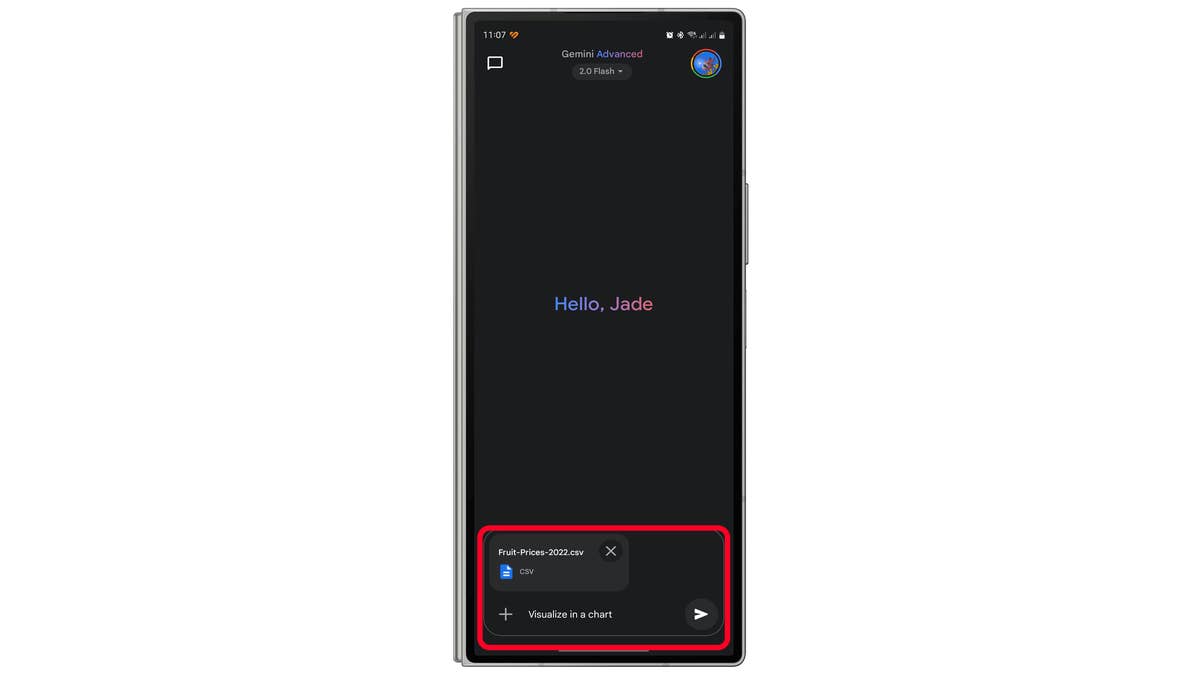
Gemini can analyze data from spreadsheets, slides, and documents and visualize them in an easy to digest presentation or provide the most interesting insights and patterns via images or interactive charts via Canvas.
How to create visual graphs and charts using Gemini
- Launch Gemini.
- Tap on the + button and select Files.
- Upload your spreadsheet (Excel, Sheets, or CSV).
- Start your prompt with “visualize” or “create charts or bar graphs from the data.”

8. Get Code for Interactive and Collaborative Visuals via Canvas
With Canvas feature in Gemini, you can create richer and interactive content like infographics, quizzes, and app in a document or a code. It’s available for both free and paid Gemini apps. Paid users get to access the latest and more capable Gemini model, which has an enhanced performance and handles larger projects.
Here’s how to use Canvas:
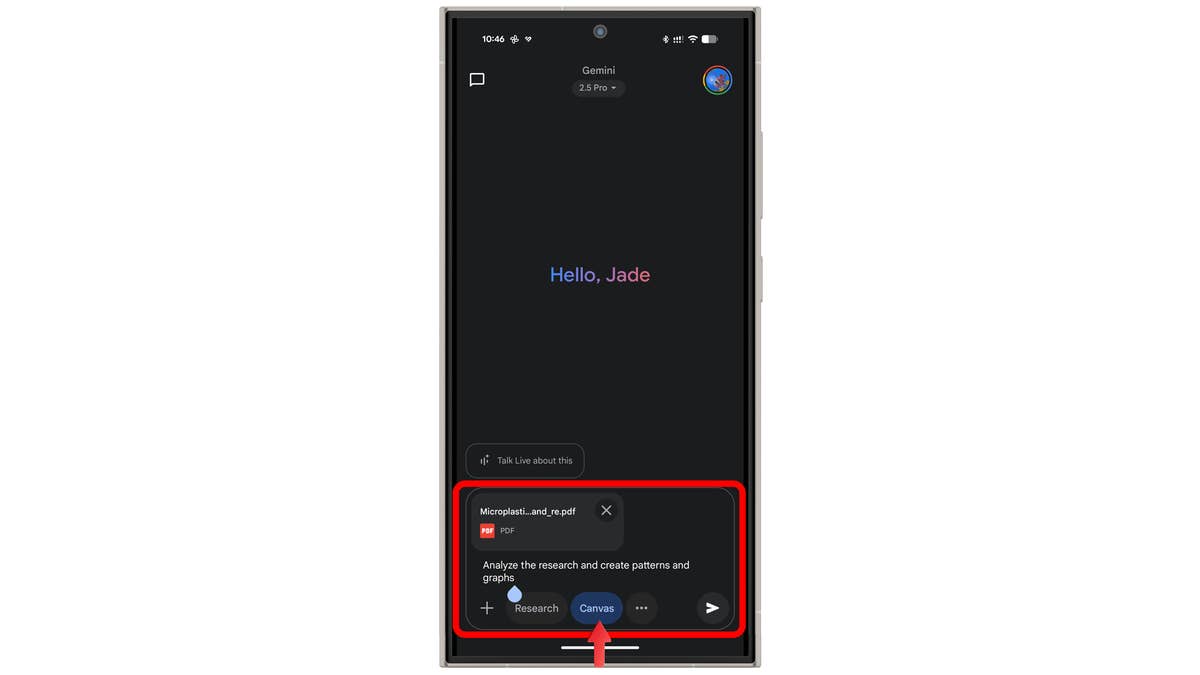
- Launch Gemini.
- Tap the “more” button (often a “+” icon) in the prompt bar and select Canvas.
- Type in your prompt to describe the document, code, or interactive content you want to generate.
- You can also upload supported files (like PDFs or images) to inform your prompt.
- Wait for the content to be generated.
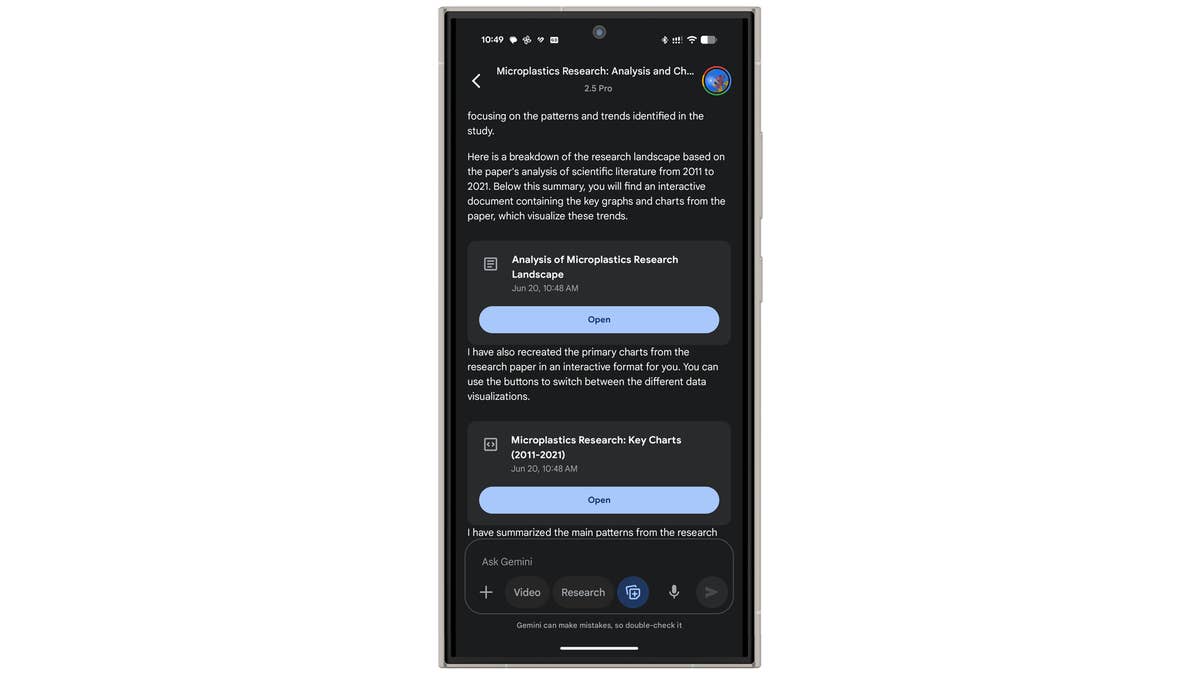
For document types, you can view or download the file. For code, you can preview it directly within Canvas on both web and mobile platforms, and there are options to share and edit the code.
9. Use Gemini on the Lock Screen
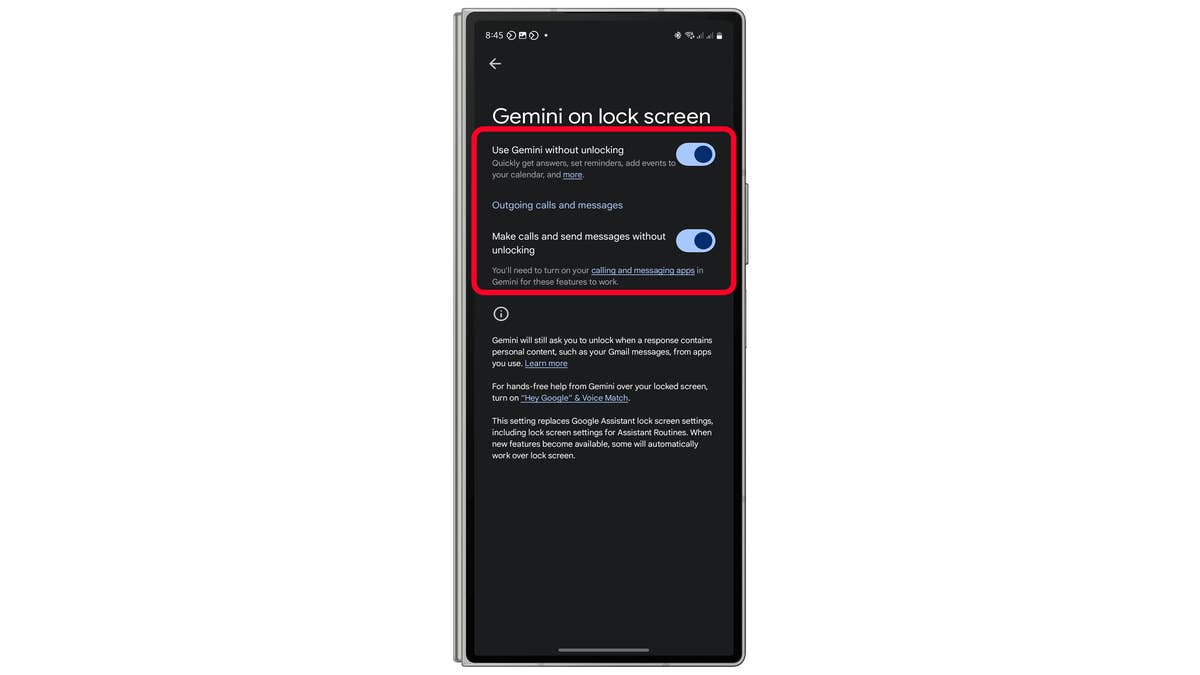
Gemini carries over Google Assistant’s lock screen capabilities like setting an alarm or calendar event, reading notifications or answering calls, allowing users to perform tasks without unlocking their device.
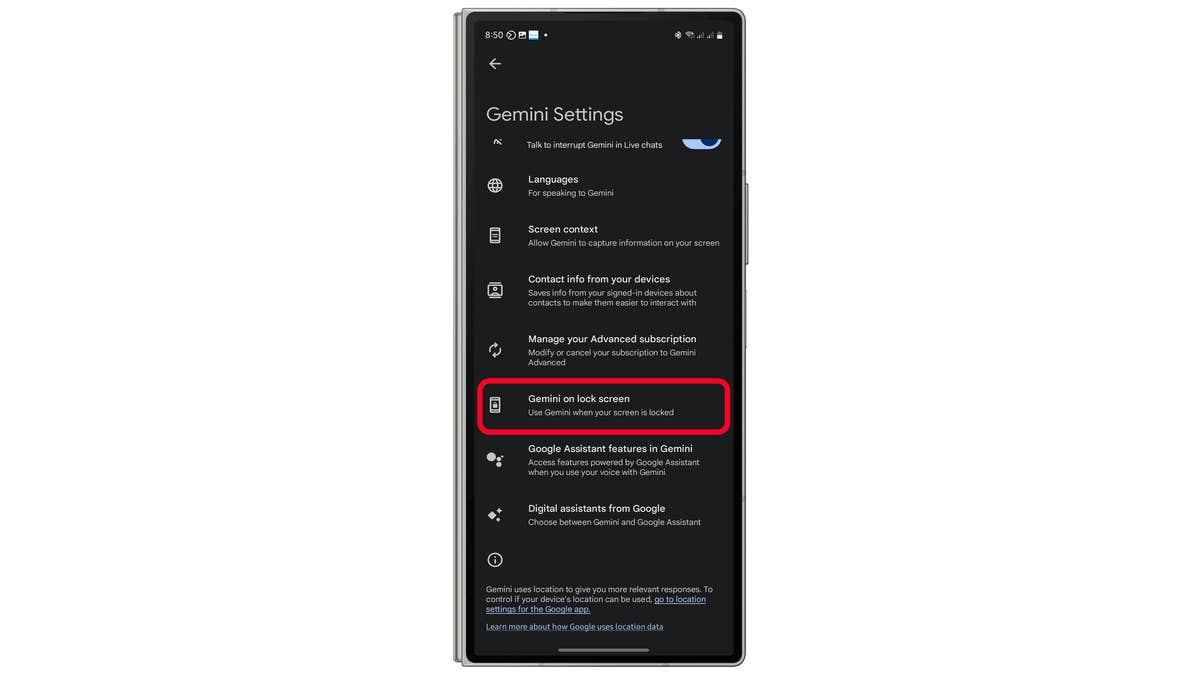
How to Enable Gemini on the Lock Screen
- Open the Gemini app.
- Tap on your profile picture.
- Go to Settings > Gemini on Lock Screen.
- Enable Use Gemini without unlocking.
- Toggle Make calls and send messages without unlocking.
10. Control Smart Home with Gemini
Like Google Assistant, Gemini can control smart home devices via the Google Home app. You can issue natural language commands, such as:
- “It’s hot in the living room, turn on the AC.”
- “Dim the bedroom lights to 50%.”
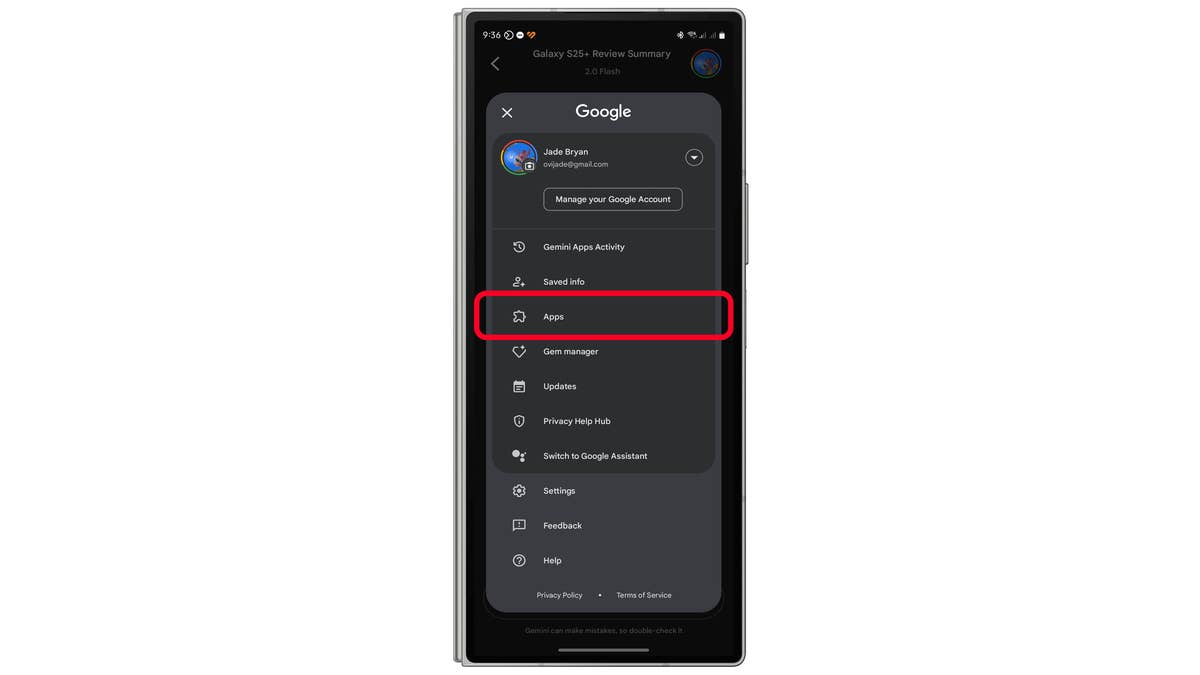
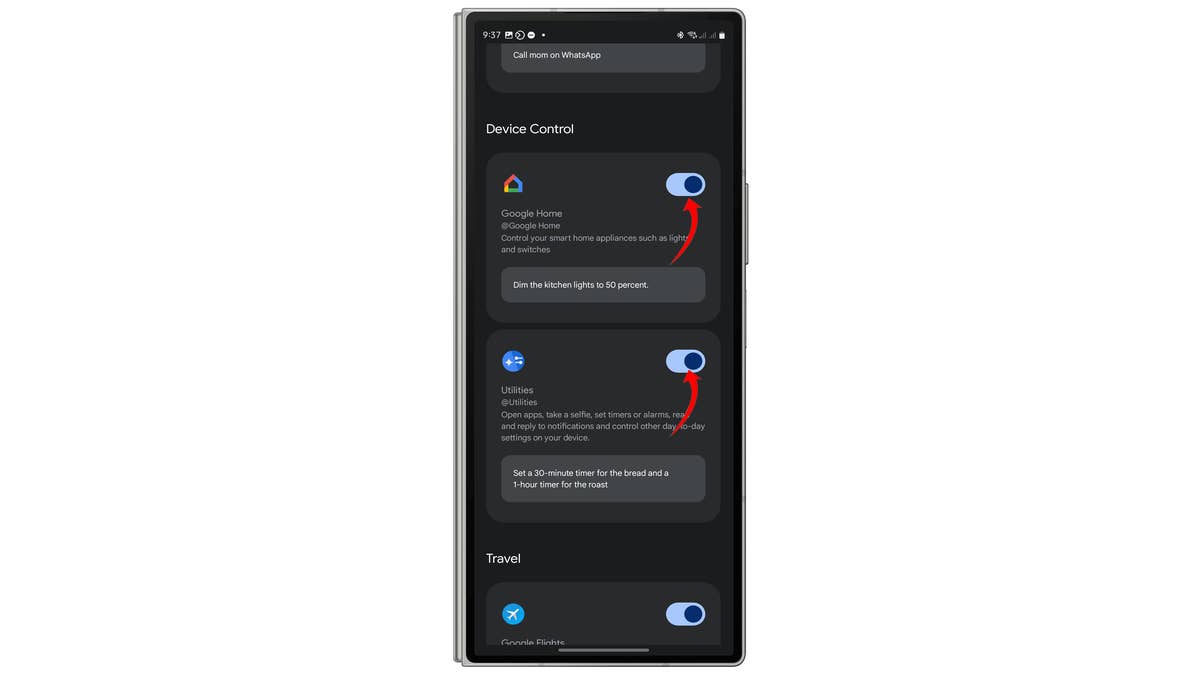
How to Enable Smart Home Control
- Open the Gemini app.
- Tap your profile picture > Apps.
- Scroll down and enable Device Control.
- Select Google Home and Utilities.
Gemini Live offers natural, continuous conversations. The free version almost the same capabilities as the the premium, though the latter unlocks deeper interactions, including conversation transcripts for later reference. Follow the guide on how to use Gemini Live.
- Launch Gemini.
- Tap on the Gemini Live button.
- Start your conversation by asking or a greeting.
Alternatively, you can expand the conversation by sharing your screen or camera view with Gemini Live. In short, this is a live view of the Ask about my screen, which you can based your queries and conversation on the visuals shown in the screen. To activate it, just simply press the camera or screen sharing button while engaging with Gemini Live.
For a more detailed look, check out our colleague Antoine Engels’ review of Gemini Live: Talking to Google’s AI is fun, weird, and a bit pointless.
12. Deep Research: Advanced AI Analysis
Deep Research is a newer model in Gemini designed to synthesize large datasets from the web and generate research reports. Users can edit plans before creation, refine reports, discuss findings, and ask follow-up questions. Deep Research is now available to all Gemini users—a useful tool for professionals and students alike.
You can use Deep Research by selecting it from the Gemini model or tapping on the Deep Research button on the web. Read the step-by-step guide below.
- Launch Gemini.
- Tap on the AI models on top.
- Select Deep Research.
- Start your prompt with “create a research report” or “make a research.”
- Once a plan is generated, you can adjust the plan or continue creating research.

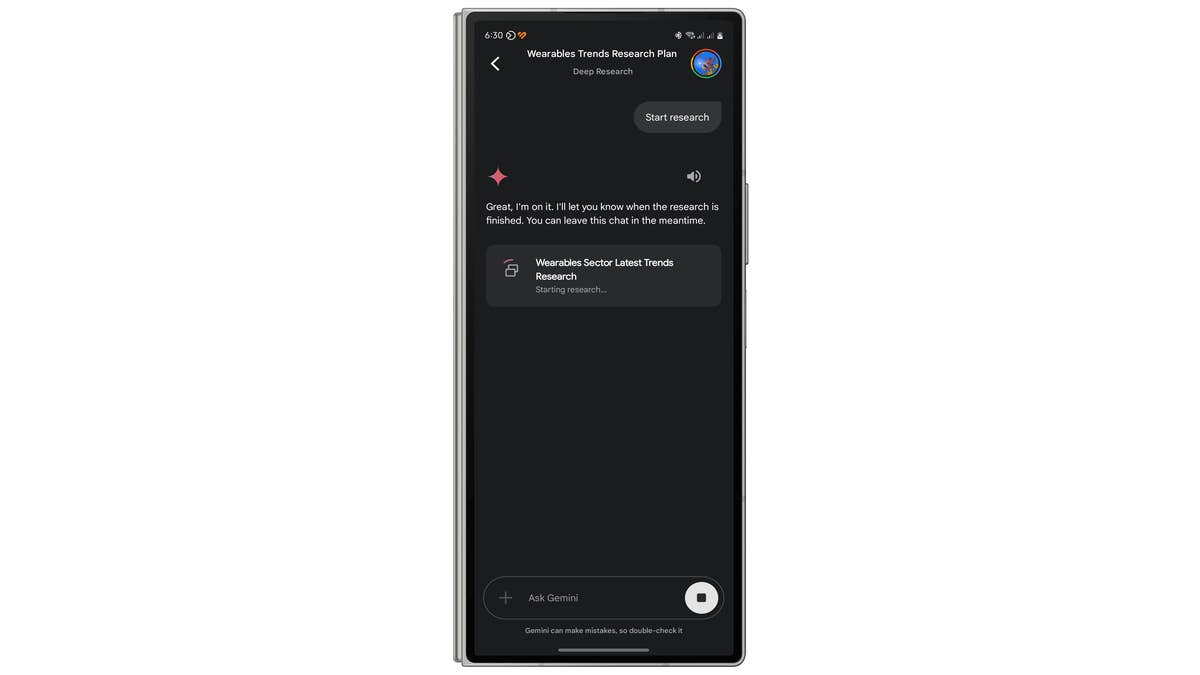
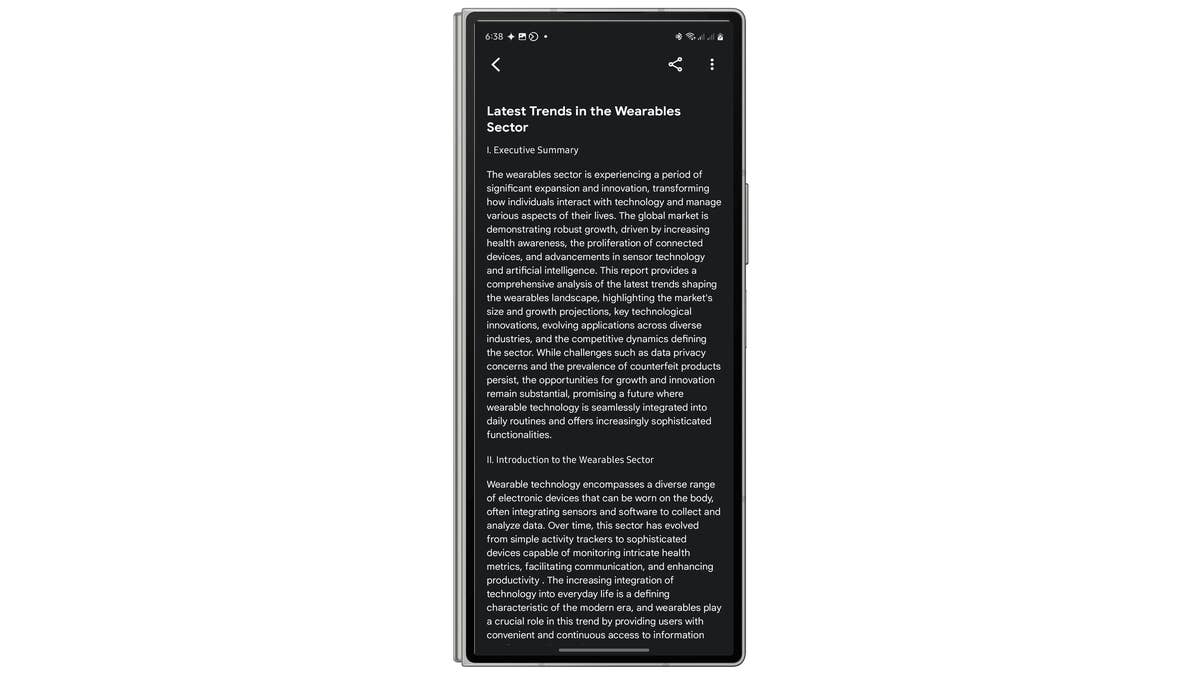
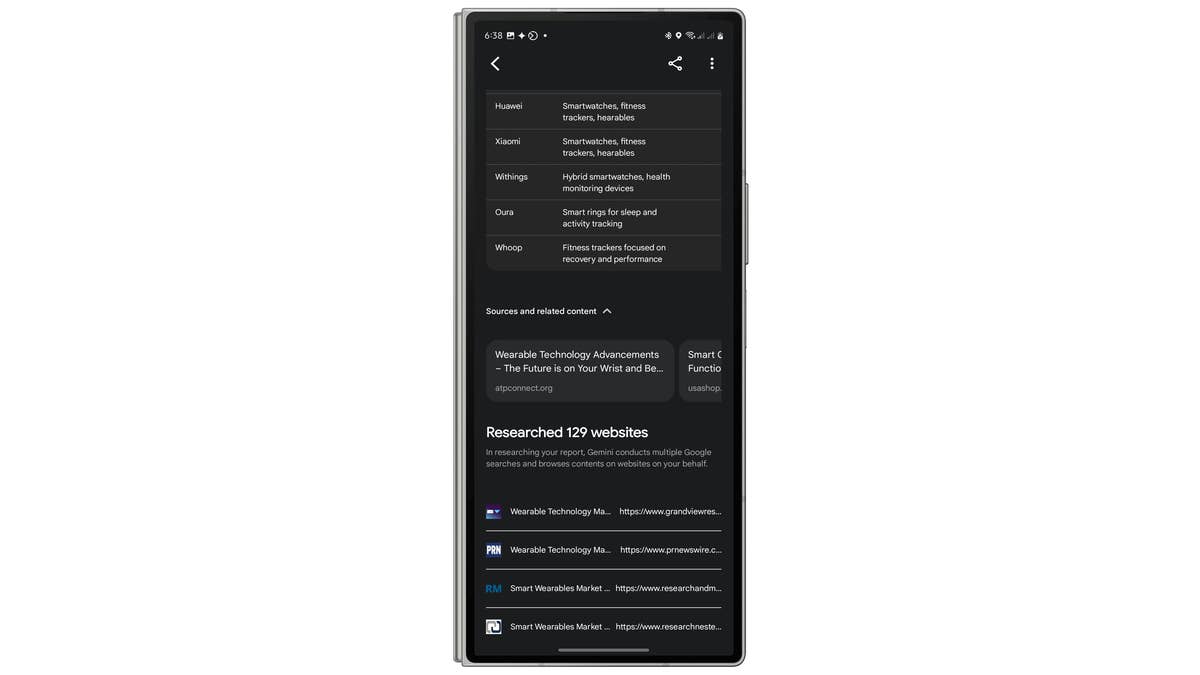
If on the web, simply select Deep Research in the prompt window.
13. Create AI Podcasts from Documents
Gemini can convert documents and PDFs into podcast-style discussions, featuring AI-generated hosts via Audio Overview.
How to Generate an Audio Overview using PDFs and files
- Create a Deep Research report.
- Open the Deep Research file and tap the three-dot menu.
- Scroll to the bottom and select Generate Audio Overview.
- Wait for the podcast to be generated.
14. Gemini Control Third-Party Apps
Gemini integrates with third-party apps like Spotify and WhatsApp, allowing users to play music, send messages, and control playback with voice commands. Simply speak or write the command to Gemini and specify the app and tasks. Presently, Gemini works with select third-party apps, but could likely see more added in the future.
15. Smarter Search in Google Maps
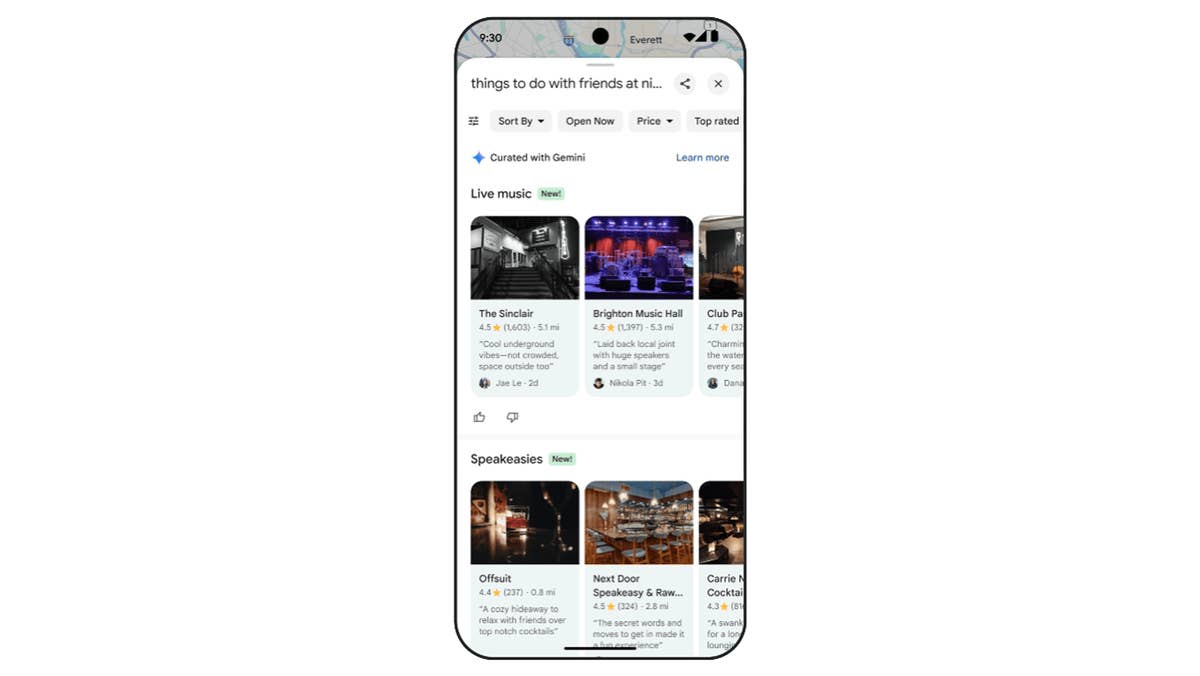
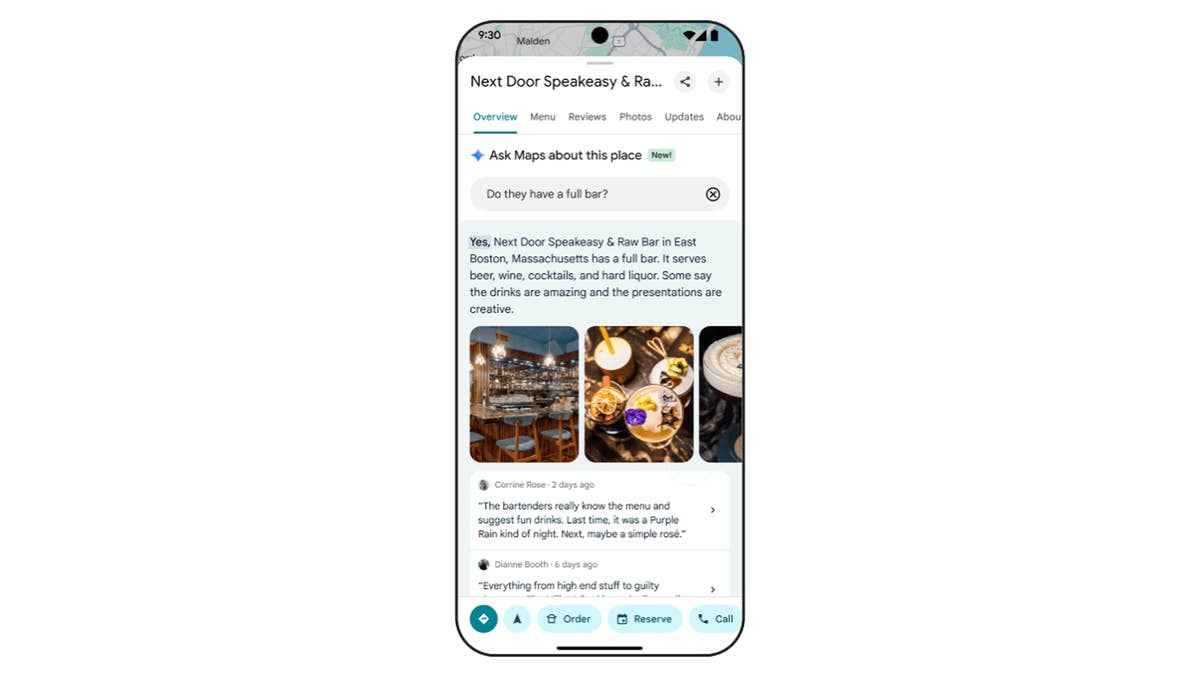
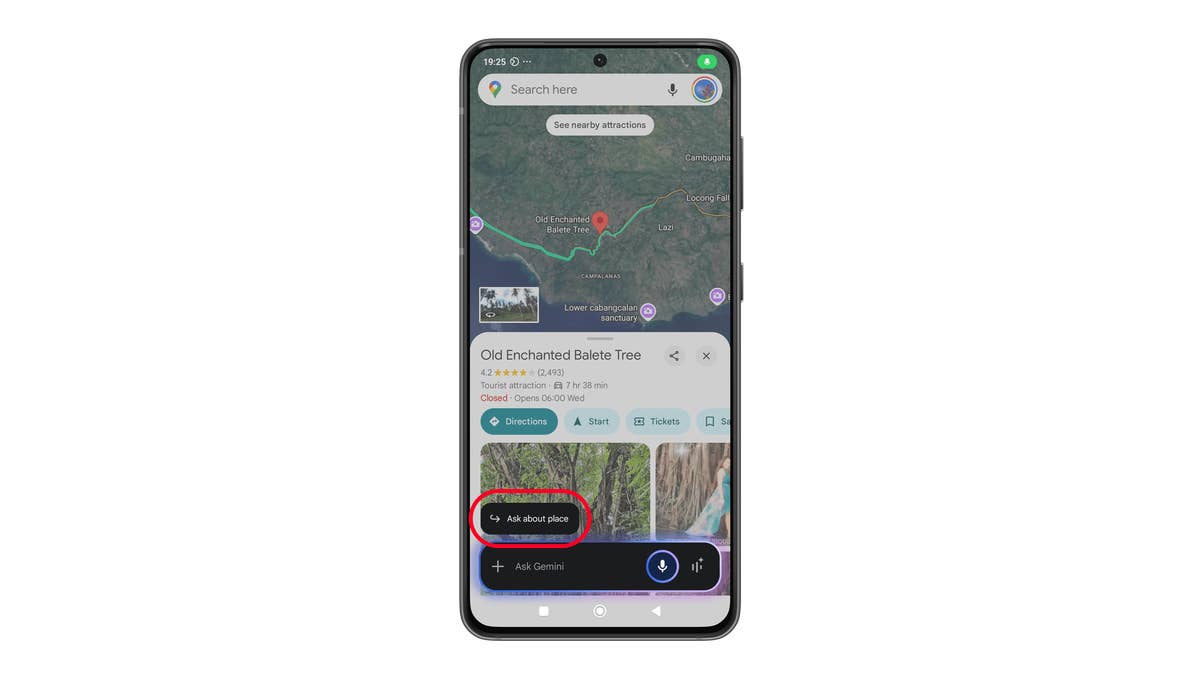
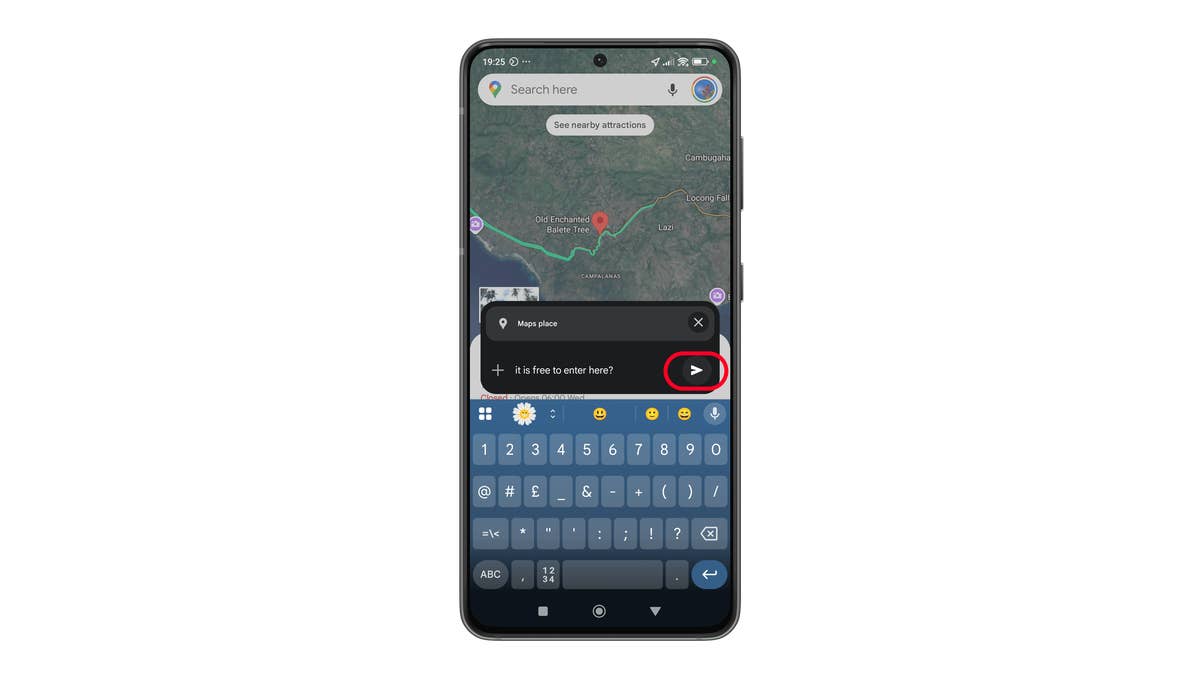
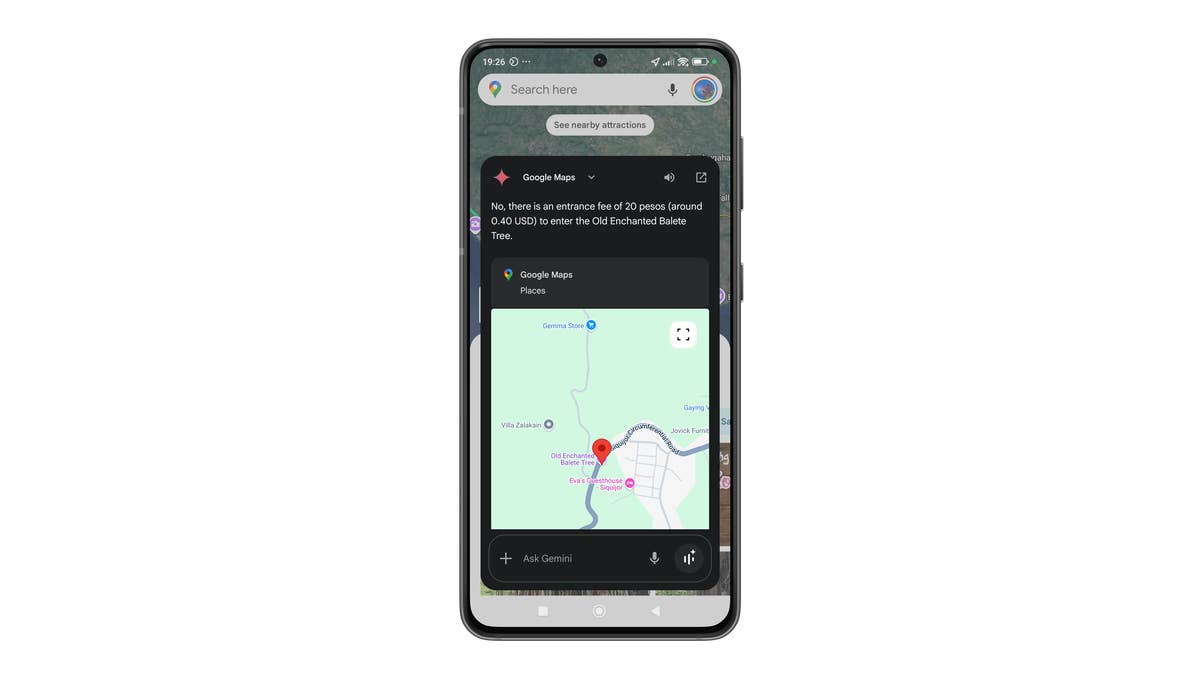
Gemini also enables smarter search capabilities within Google Maps. Beyond just looking for places or planning your routes, you can now perform contextual searches such as “top things to do at night in this city” or “top-rated Thai restaurants.” The search results will show curated suggestions of places or activities and summarized reviews. You can further ask follow-up questions about a place using the “Ask Maps about this place” feature.
This is a free Gemini feature, although it is still rolling out to various countries and regions.
16. Customize Gemini’s Voice
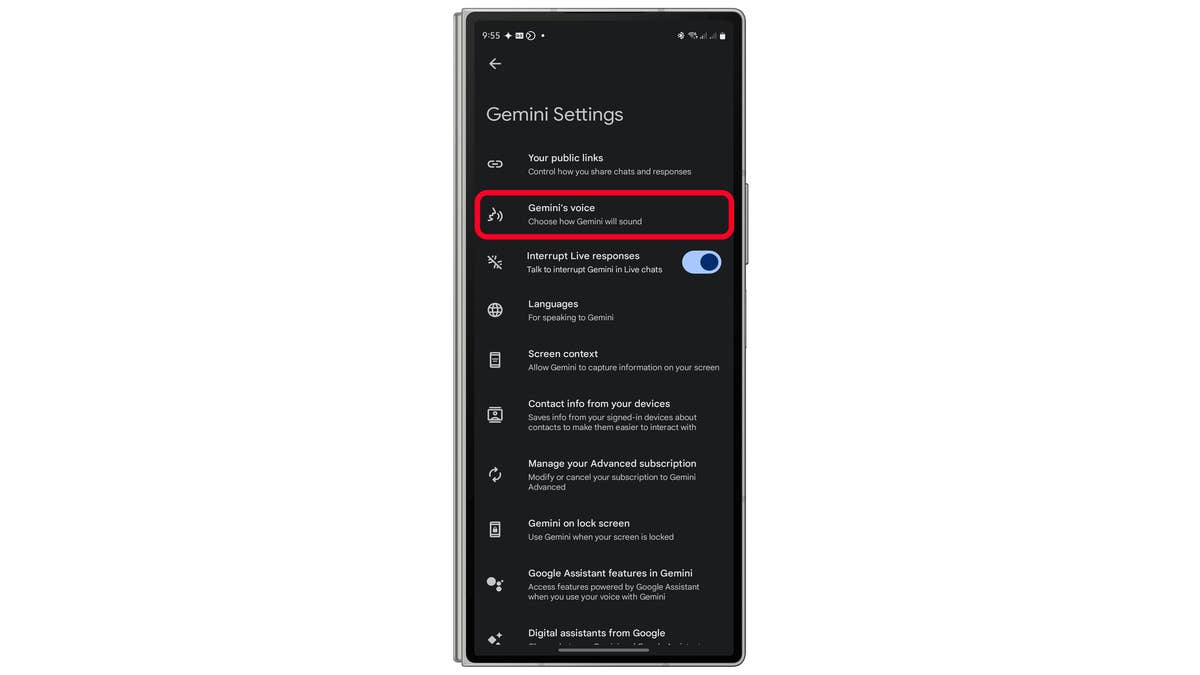
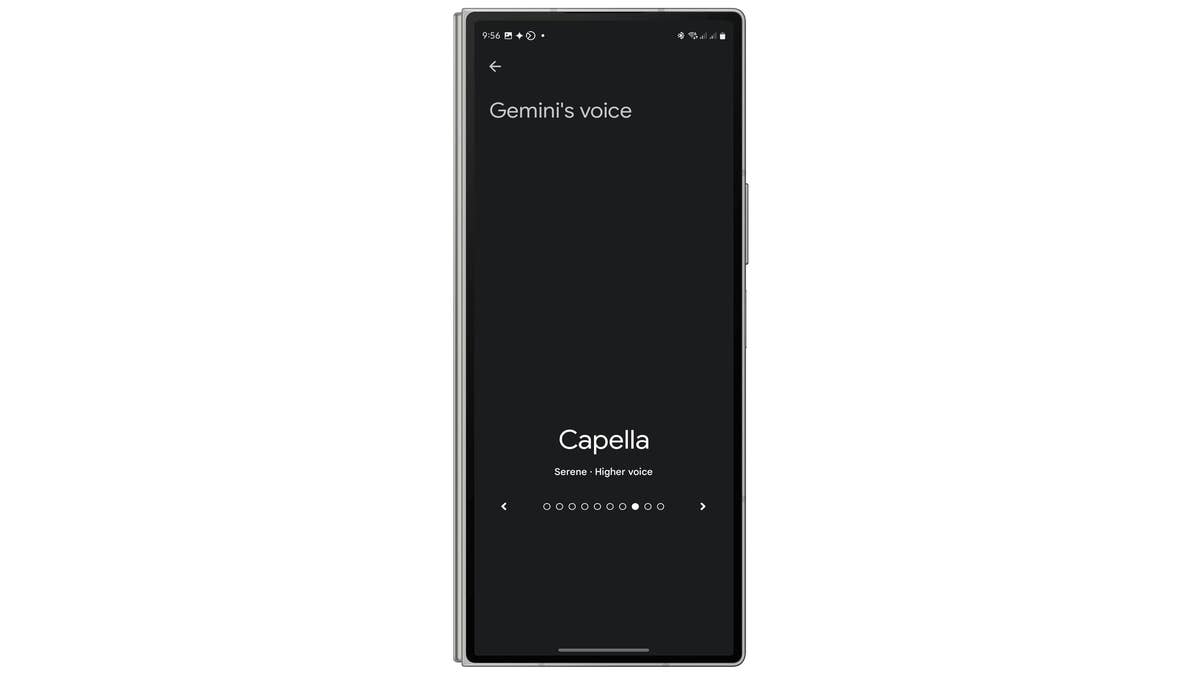
Unlike Google Assistant, Gemini lets you change the voice of the assistant. Users can choose male or female voices with different tones and accents via Settings > Gemini’s voice.

Gemini Versions Compared: Free, Premium, Gemini Live
Gemini is available in multiple versions, each offering different features based on subscription plans.
- Basic (Free) Version – This version is available on all compatible Android devices and offers core AI functions.
- Premium Version (AI Premium) – Part of the Google One AI subscription, this version provides access to more powerful AI models and advanced capabilities, including complex task management, deep research, coding assistance, logical reasoning, and seamless integration with Google apps through extensions.
- Gemini Live – A conversational chatbot built into the Gemini app available to the basic and premium versions. The premium tier of Gemini Live includes enhanced features like background conversations, making it a more intelligent and responsive assistant.
The Gemini Premium (AI Premium) plan costs $19.99/month. This subscription includes access to Gemini Ultra 1.0, 2 TB of Google One storage, and AI-powered tools in Gmail, Docs, and Sheets. Google also offers a one-month free trial for new subscribers.
Have you tried Gemini or Gemini Live on your device? Which AI feature do you find most useful? Please let us know in the comments!
This Gemini guide was updated in June 2025 with new tips for using Google’s AI more effectively in more apps.