WhatsApp's New Look: What's Behind the App's Big Change?
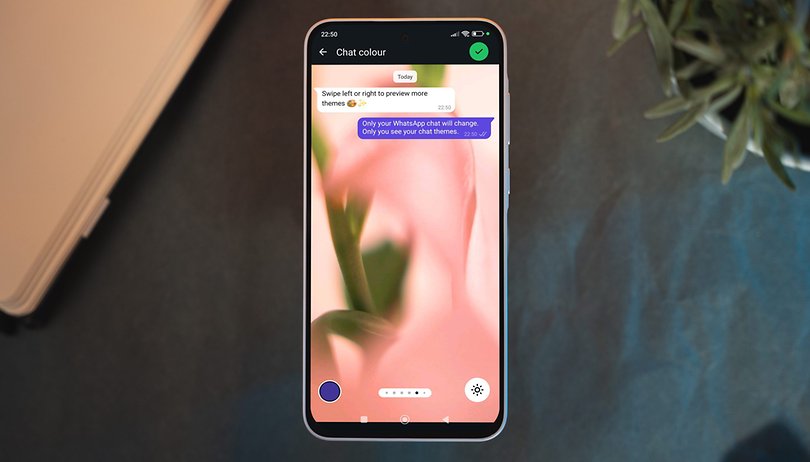

Meta has been enhancing WhatsApp lately. After testing chat themes with beta users, the company has finally rolled out the feature to the public. If you're curious about what chat themes offer and how to customize your chats, read on.
What Are WhatsApp Chat Themes?
WhatsApp’s new chat themes feature allows you to change chat background colors and styles. While similar to the existing wallpaper customization, chat themes go a step further by also modifying chat bubbles and message colors.
Notably, chat themes are only visible to you, meaning the person on the other end won’t see your customized theme. However, chat themes also extend to WhatsApp Channels.
The feature includes several preset themes, ranging from basic single-color backgrounds to special designs with unique backdrops. Some themes allow you to adjust chat bubble colors, while others offer a fixed combination. Additionally, chat themes support both light and dark modes, with dark mode offering brightness adjustments.
For even more customization, you can combine chat themes with WhatsApp’s wallpaper settings. You’ll need to select a wallpaper first—either from WhatsApp’s built-in options or your gallery—before choosing a chat color, making the possibilities nearly limitless. Alongside chat themes, Meta is also introducing new wallpapers.
How to Use WhatsApp Chat Themes
Customizing your WhatsApp chats with chat themes is simple and fun. Follow these steps:
- Open WhatsApp.
- Tap the three-dot menu and select Settings.
- Go to Chats and tap Default chat theme.
- Browse the available chat themes or styles.
- Preview the theme.
- Select the chat bubble color if you want to change it.
- If using dark mode, adjust the wallpaper brightness level.
- Tap the checkmark to confirm.
- Choose whether to keep the existing wallpaper.
- Tap Set Theme to finalize your selection.
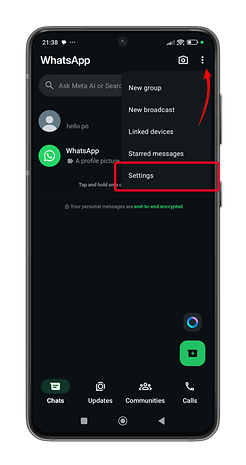
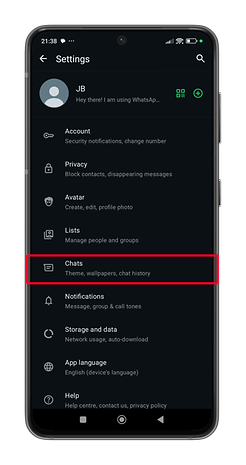
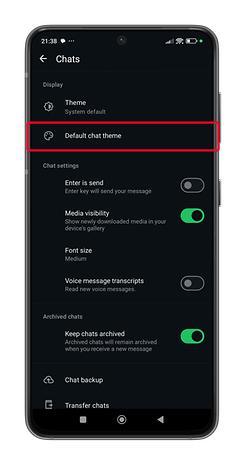
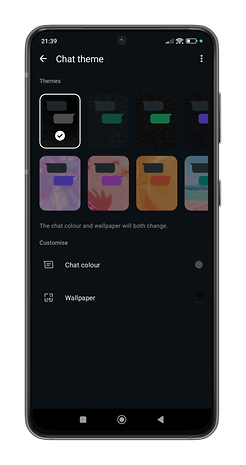
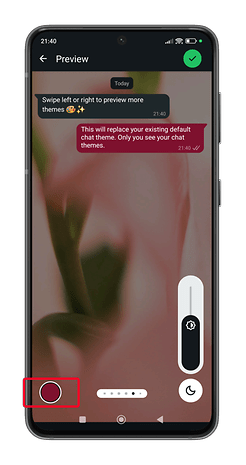
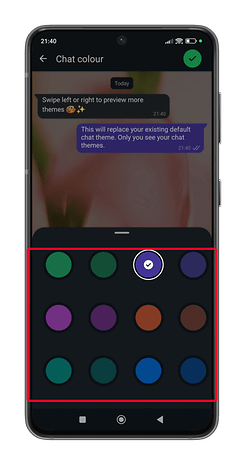
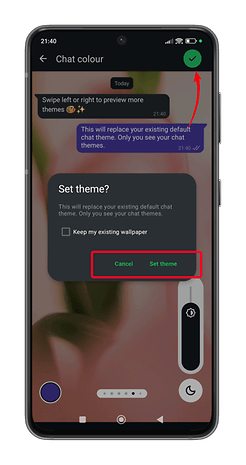
To change the chat theme again, you can go directly to a private or channel chat then tap on the menu and select Chat theme.
Using a Custom Wallpaper with Chat Themes
If you prefer a custom wallpaper, you can still personalize your chat bubbles afterward. Here’s how:
- Select Wallpaper in Chat themes.
- Choose a wallpaper.
- Tap the color icon to adjust the chat bubble color.
- Tap the checkmark to save your changes.
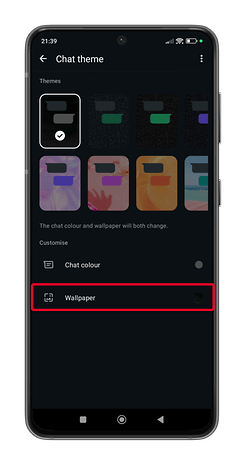
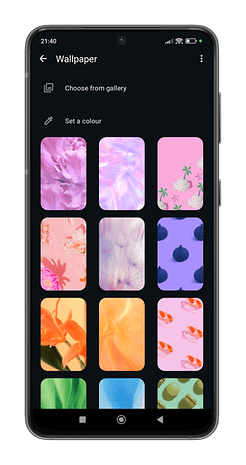
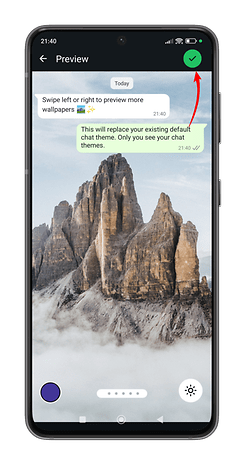
Chat themes are already available on most Android and iOS devices, though the rollout is still in progress. If you don’t see the feature yet, make sure your app is updated to the latest version.
In addition to chat themes, WhatsApp has introduced several notable features this year, including the double-tap to like gesture and the expansion of events to private chats.
How do you customize WhatsApp? Let us know your favorite ways to personalize your chats!
Source: WhatsApp