Sorry, but there's really nothing to see here right now. Our server is in maintenance mode – and our
little bot is trying to sort the error messages with its last bit of energy.
Whether it was a data leak, a power outage in the cluster, or just a grumpy bit – we don't know yet.
But what we do know is:
The data drama escalated into a server meltdown. But don't worry: We're on it.
What now?
Everything is surely running smoothly over at our colleagues from inside
digital – why not stop by!
Or you could pass the time by visiting our social media channels – for example Instagram, YouTube or TikTok. At least there are no
server problems there – promised.
Thanks for your patience. Our bot is already rebooting at full speed. 🔧
With most smartphones supporting multiple SIMs or eSIMs, you may need to use two WhatsApp accounts on the same phone. While this was previously possible using workarounds, there are now official ways to set up multiple accounts. Below, we share how to use the app’s built-in tool and WhatsApp Business as an alternative on Android and iPhone.
What You Need to Use Two WhatsApp Accounts on the Same Device
To manage two WhatsApp accounts on the same device, you need a second SIM or mobile number, regardless of the method you choose.
You can use either two physical SIM cards, two eSIMs, or a combination of both, depending on your smartphone’s capacity. Only the most recent and high-end smartphone models support eSIMs.
Method 1: Use WhatsApp Multiple Accounts Feature
The easiest way to add and use a second WhatsApp account or number on the same device is by using the multiple accounts feature which works only with Android.
Adding a Second WhatsApp Account
Once you have the second number ready, adding your second WhatsApp account or number in the same WhatsApp app is straightforward. Follow the guide below.
Open WhatsApp on your phone.
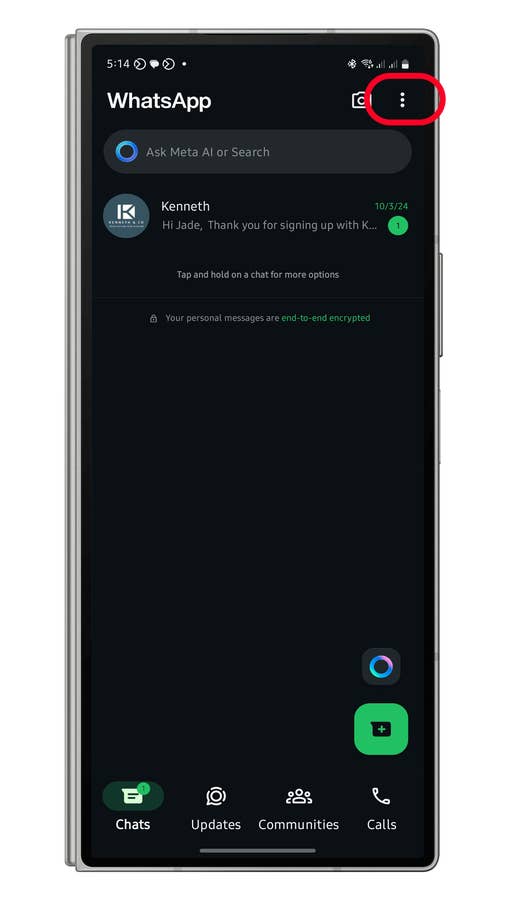
Tap the ⋮ (three-dot) icon to open the menu.
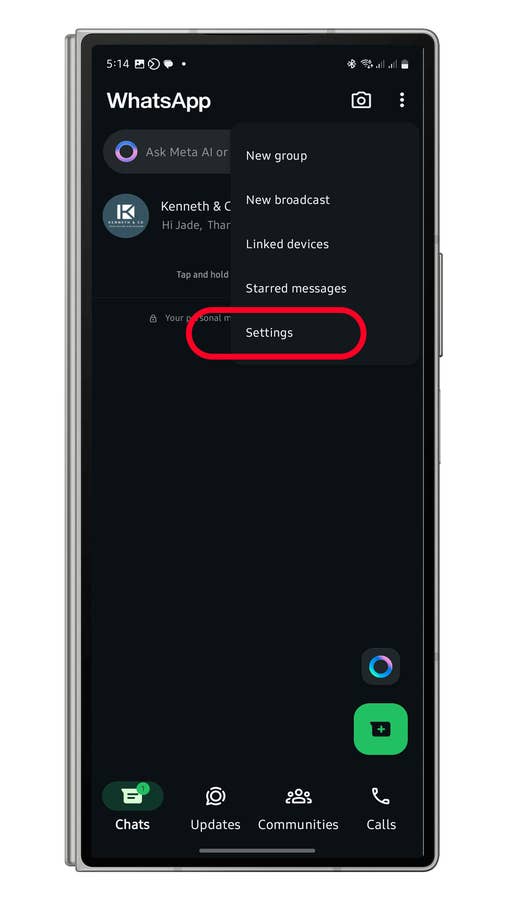
Tap Settings.
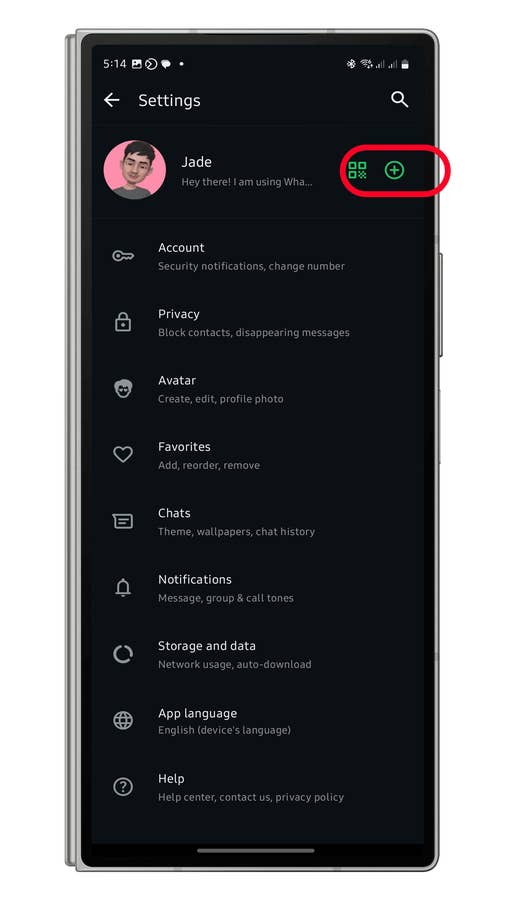
Select the plus (+) button beside your profile. It may appear differently depending on your WhatsApp version.
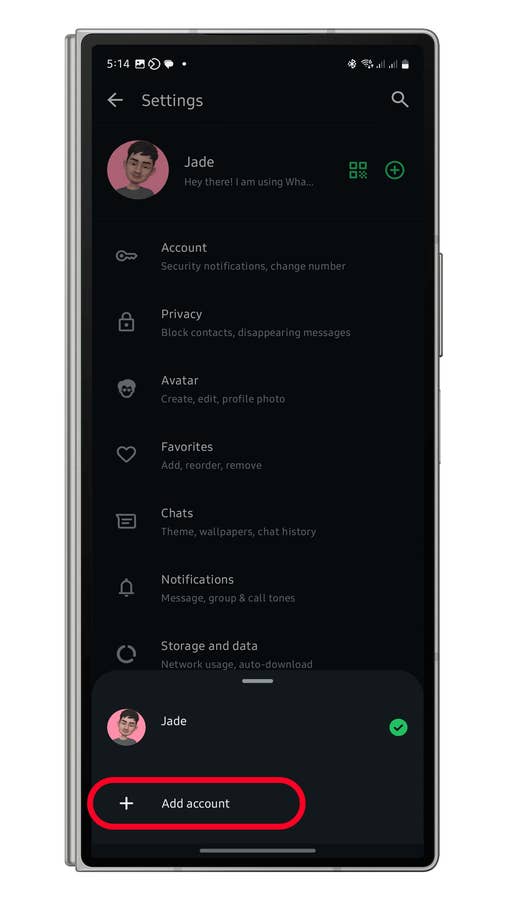
Choose Add account.
Continue the setup by entering your mobile number and verifying it.
You can also add an email for security purposes.
Finish the setup.
Tap on the three-dot menu.
Quelle: nextpit
Choose Settings.
Quelle: nextpit
Tap the + button.
Quelle: nextpit
Select Add account.
Quelle: nextpit
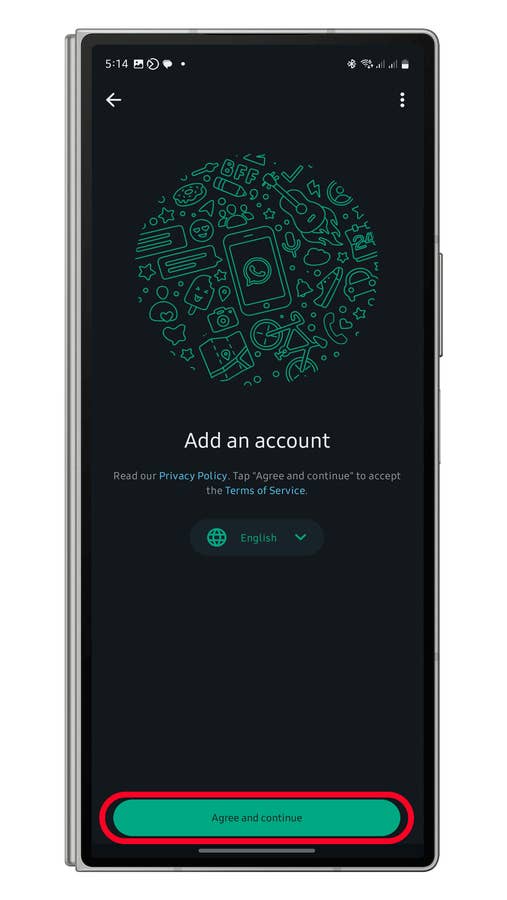
Tap Agree to continue.
Quelle: nextpit
Switching Between Multiple WhatsApp Accounts
If you have successfully added a second WhatsApp account, you can manage it on the same WhatsApp app. Switching between your new and original account is only a few taps away.
Launch WhatsApp.
Tap the three-dot icon to open the menu.
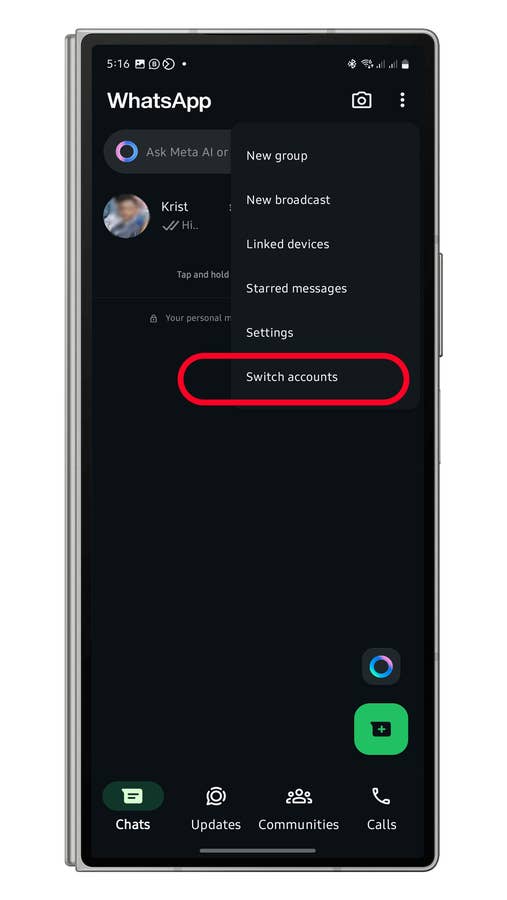
Choose Switch accounts.
Follow the same steps when switching to the other WhatsApp account.
When switching accounts, access the menu via the three-dot button.
Quelle: nextpit
Method 2: Use WhatsApp Business on Android and iPhone
Another way to use two WhatsApp accounts on the same device is by using WhatsApp Business. This works on both Android and iPhone and doesn’t require tweaks or workarounds.
Unlike with the multiple accounts on WhatsApp, you can manage WhatsApp Business separately through its app. You can even have them open side-by-side on multi-window, which is an advantage over the feature in non-business WhatsApp.
WhatsApp Business on Android
Similar to the multiple accounts feature, it also requires a second number, as using the same mobile number with WhatsApp Business will remove your number from the standard app.
Download and install WhatsApp Business from the PlayStore.
Launch WhatsApp Business.
Enter your second number and verify it.
Give permissions to the app.
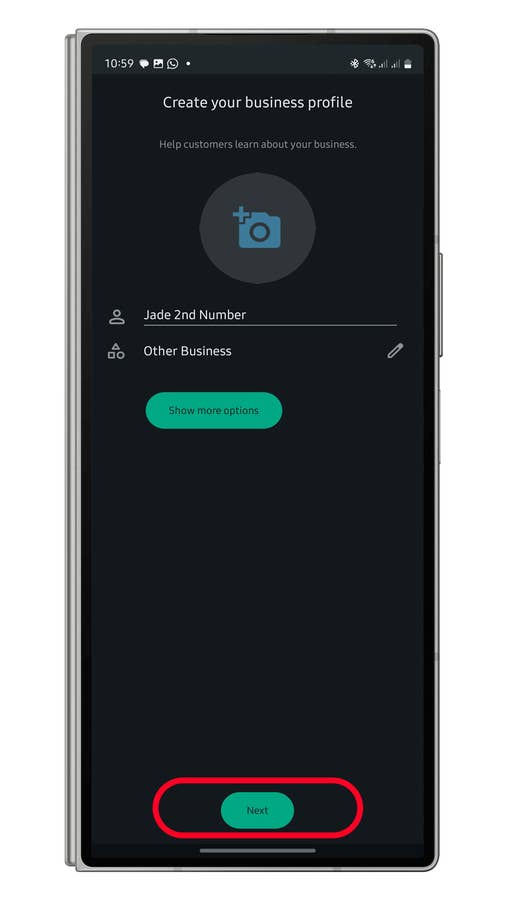
Set your profile picture, name, and business category (you can use “Other businesses”).
Tap the Next button.
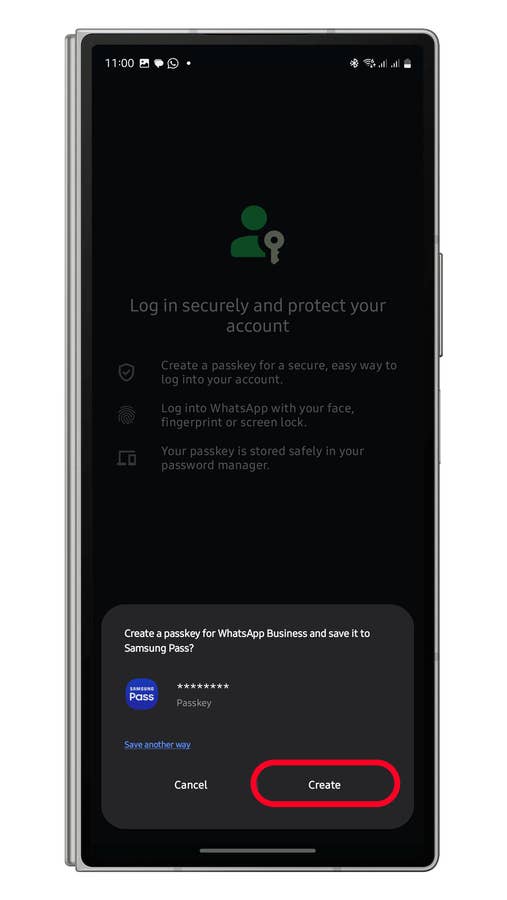
Set up a passkey if asked.
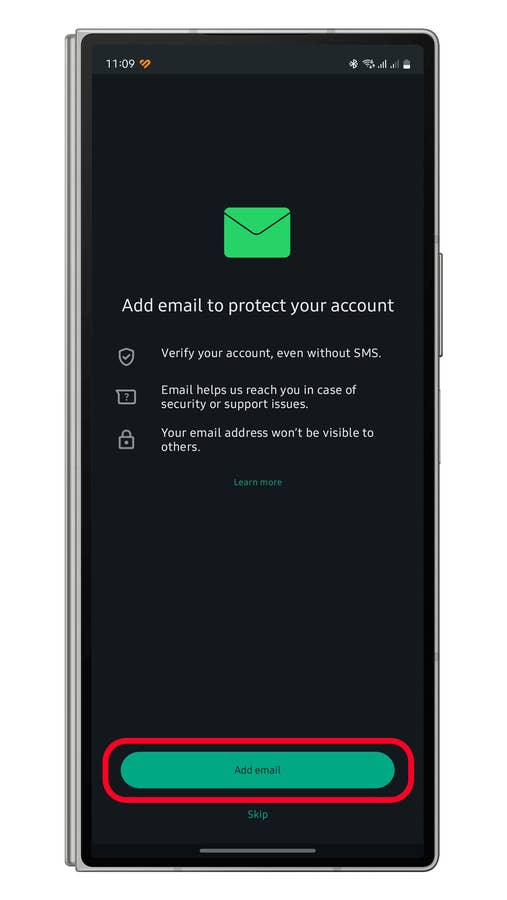
Add an email and verify it.
Skip creating a catalog.
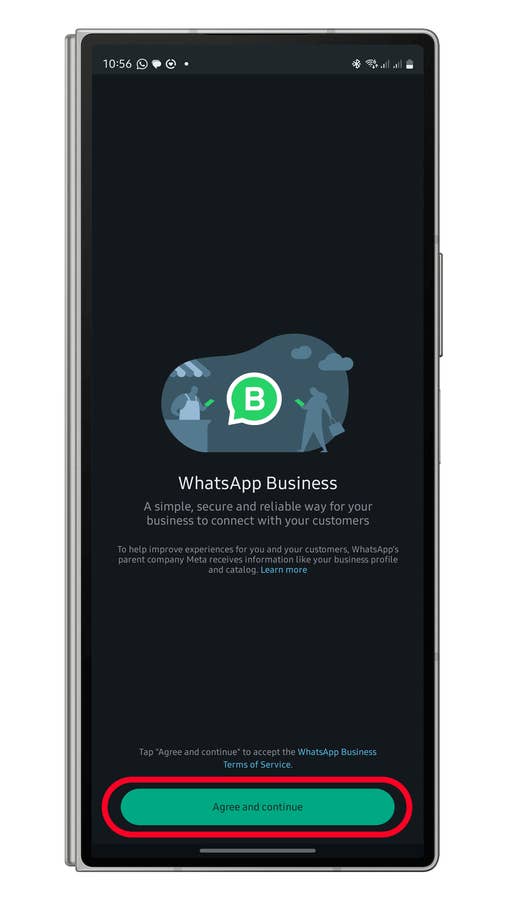
Agree to continue setting up your WhatsApp Business account.
Quelle: nextpit
Use a second mobile number when setting up WhatsApp Business.
Quelle: nextpit
Enter a name and select a category then tap Next to proceed.
Quelle: nextpit
Set a passkey with your number for quicker and more secure log in.
Quelle: nextpit
You can add an email to use it for verification and recovery of your account later.
Quelle: nextpit
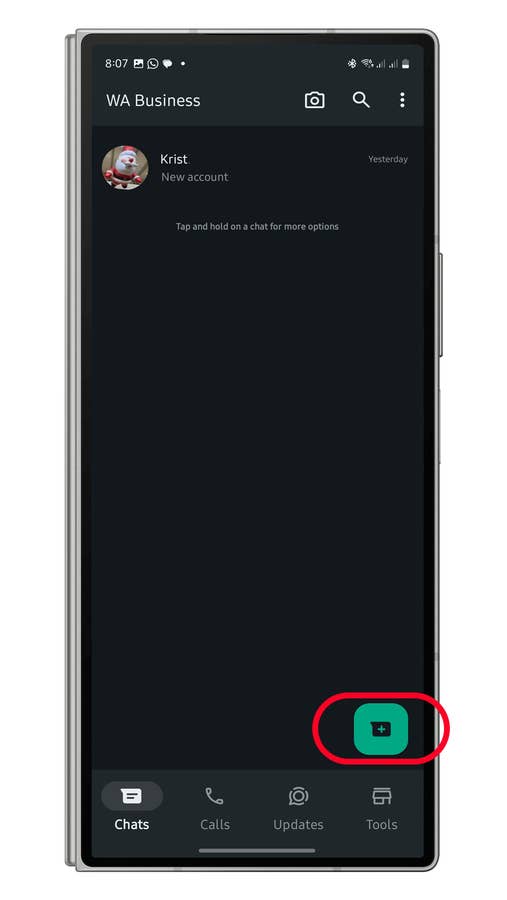
Tap the + (Plus) button to start chatting.
Quelle: nextpit
Once done, you can regularly chat with your contacts using your WhatsApp Business account. If they have your number, your WhatsApp name will appear as the contact name on their device.
To start chatting, tap on the Chats tab and select a contact from the list. Similarly, you can call your WhatsApp contacts by going to the Calls tab. You will also appear to your contacts as the contact name on their device.
WhatsApp Business on iPhone
For iOS, using WhatsApp Business to manage two accounts on the same iPhone is similar to Android. Follow the step-by-step guide below.
Install WhatsApp Business from the App Store.
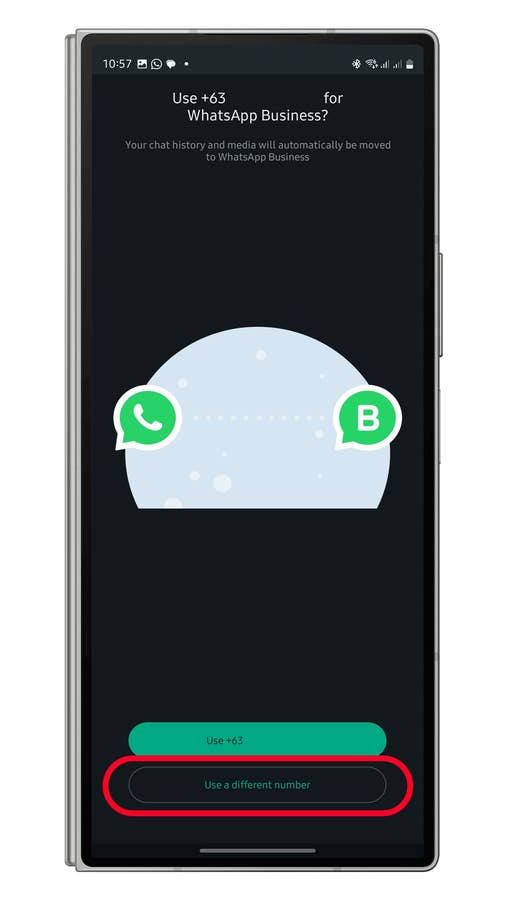
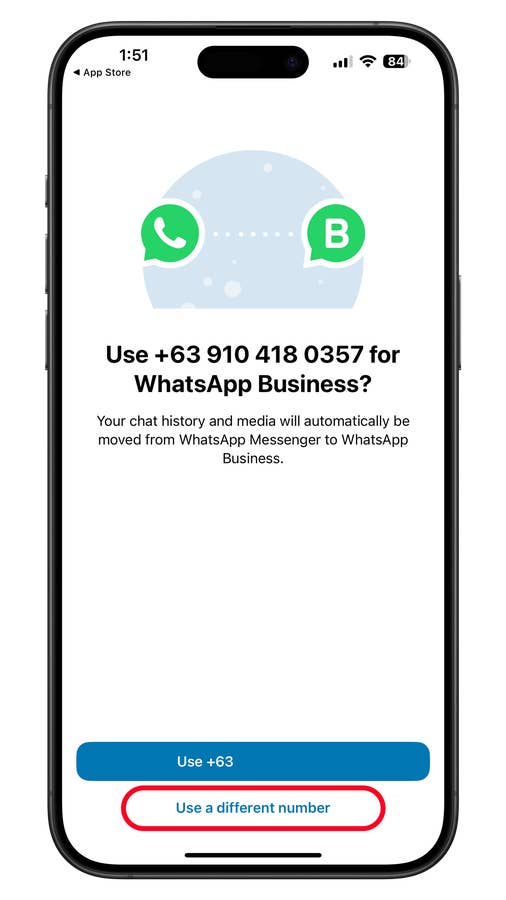
Tap Use a different mobile number, enter your number, and verify it.
Tap Continue to give the app access to your contacts.
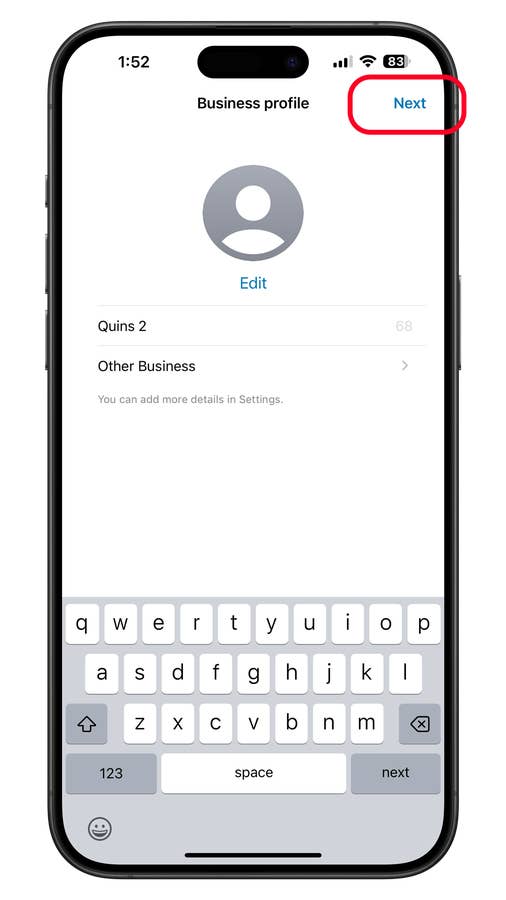
Set your profile picture, name, and business category.
Tap Next on top to proceed.
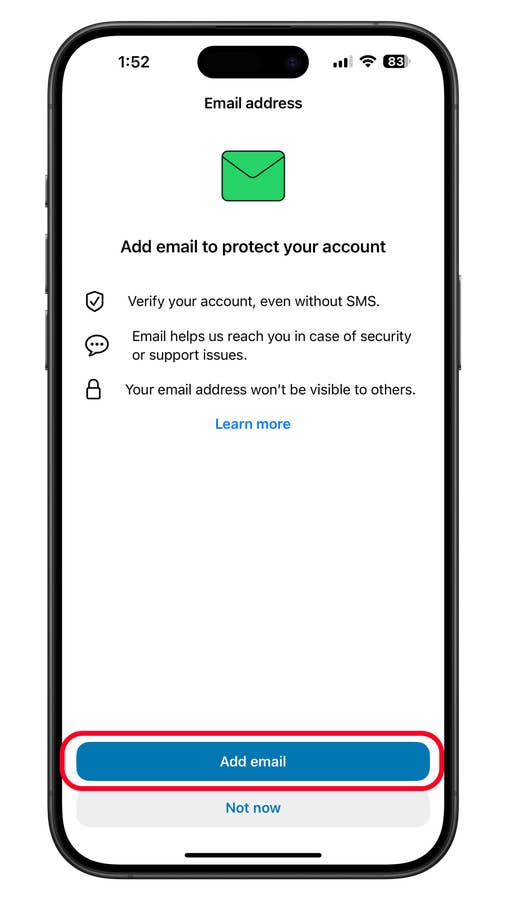
Add an email and verify it.
Tap on Use a different number
Quelle: nextpit
Enter your name and set a category and then tap Next.
Quelle: nextpit
You can also add an email for verification and recovery of your account later.
Quelle: nextpit
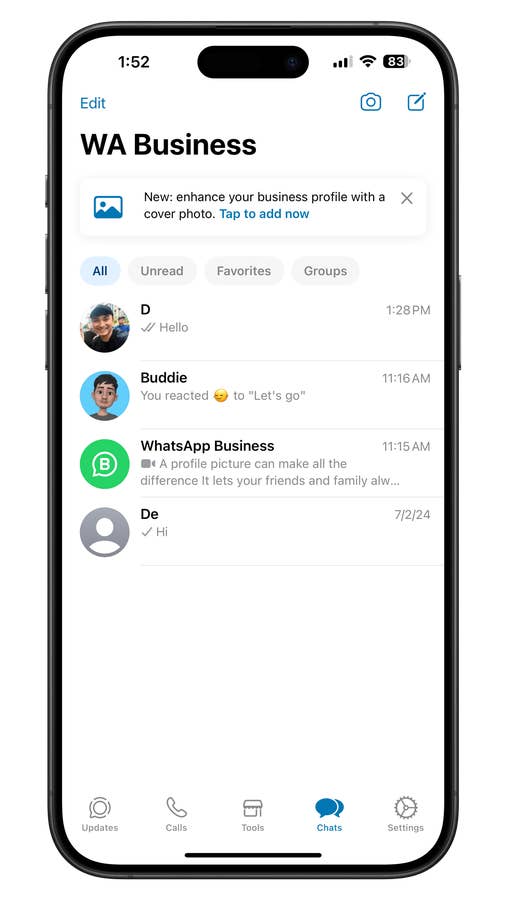
You can chat or make calls with the new WhatsApp Business account
Quelle: nextpit
Method 3: Use Android App Cloning
For most Android phones, there’s an option to use the same apps or messenger services on the same device via Android’s app cloning feature. On Samsung, this is called Dual Messenger. Xiaomi calls it Dual Apps, while OnePlus refers to it as Parallel Apps.
Unfortunately, Google Pixel and Motorola don’t have native app cloning, but you can use a third-party app like Parallel Space.
Here’s how to use two WhatsApp accounts on the same Samsung Galaxy device using Dual Apps:
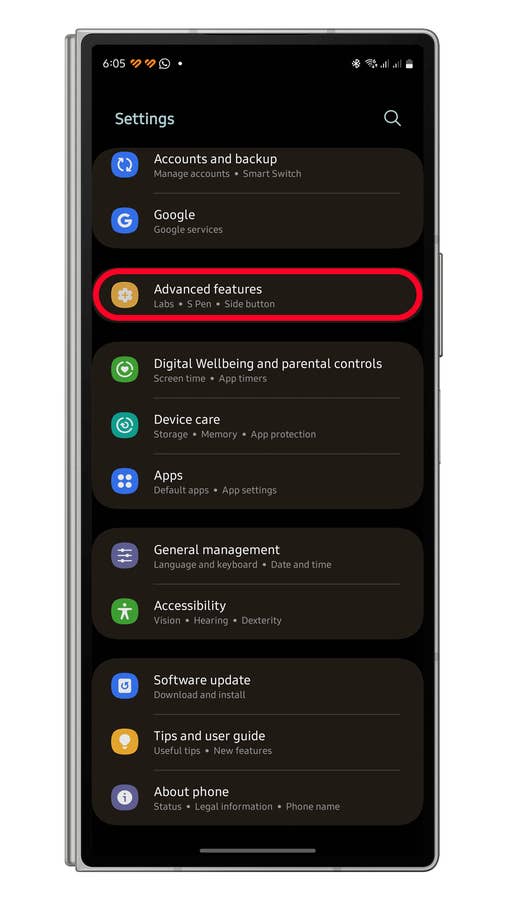
Go to Settings
Choose Advanced features.
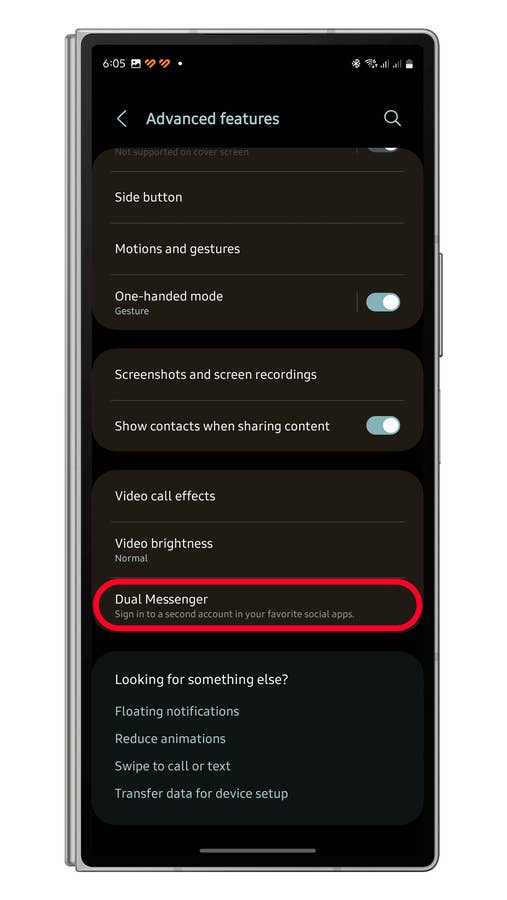
Tap on Dual Messenger.
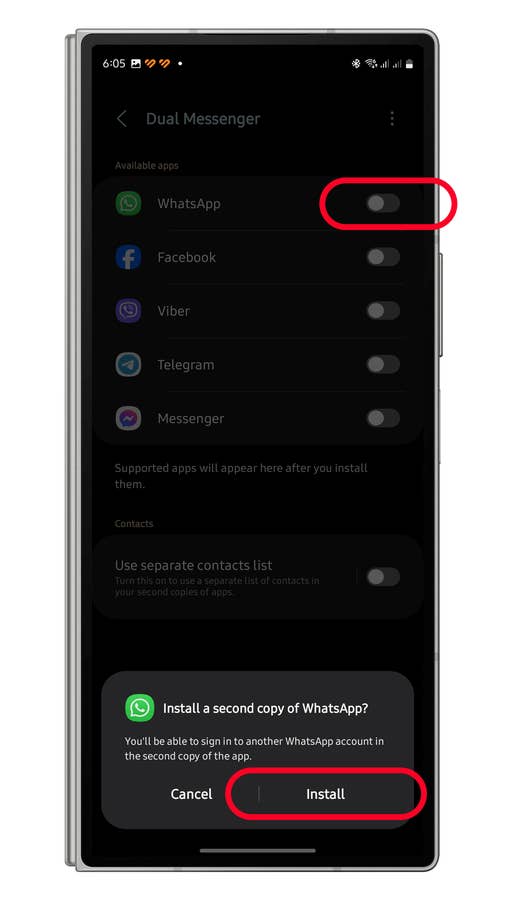
Toggle on WhatsApp.
Select Install to continue.
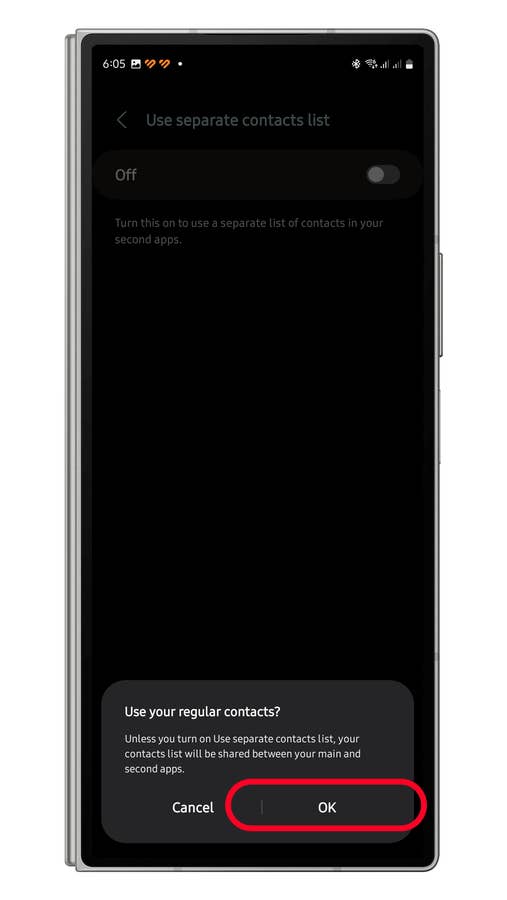
Use a separate contact list or continue using regular contacts.
Launch the cloned WhatsApp app from your app list or home screen.
Set up your WhatsApp account.
Enter Advanced features.
Quelle: nextpit
Tap on Dual Messenger.
Quelle: nextpit
Toggle on WhatsApp and then tap Install.
Quelle: nextpit
Tap Ok to continue.
Quelle: nextpit
For other Android manufacturers, the process should be similar and requires activating the app cloning feature and creating a new contact list for the second WhatsApp account.
With the two WhatsApp apps (the cloned app is indicated differently depending on the Android device), you can manage the two accounts through their respective apps.
Do you use two WhatsApp accounts on the same device? What is your reason? Share with us the method you’ve opted for!
We mark partner links with this symbol. If you click on one of these links or buttons–or make a purchase through them–we may receive a small commission from the retailer. This doesn’t affect the price you pay, but it helps us keep nextpit free for everyone. Thanks for your support!








0 comments