Sorry, but there's really nothing to see here right now. Our server is in maintenance mode – and our
little bot is trying to sort the error messages with its last bit of energy.
Whether it was a data leak, a power outage in the cluster, or just a grumpy bit – we don't know yet.
But what we do know is:
The data drama escalated into a server meltdown. But don't worry: We're on it.
What now?
Everything is surely running smoothly over at our colleagues from inside
digital – why not stop by!
Or you could pass the time by visiting our social media channels – for example Instagram, YouTube or TikTok. At least there are no
server problems there – promised.
Thanks for your patience. Our bot is already rebooting at full speed. 🔧
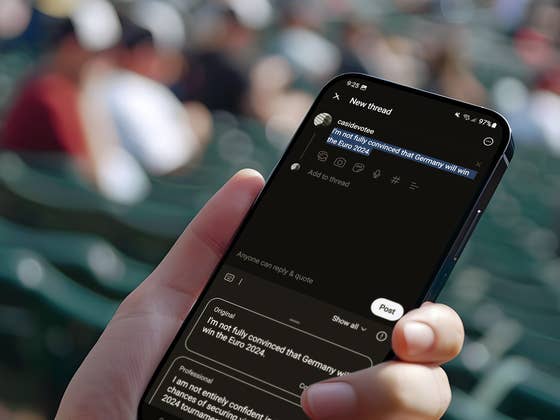
Galaxy AI is the name of Samsung’s AI platform, which features in the software of compatible Samsung smartphones. This also includes Samsung’s keyboard, which now offers new tricks thanks to AI and the chat assistant: it checks your texts for errors and corrects them, while also offering help in terms of using a suitable writing style. This is how it works.
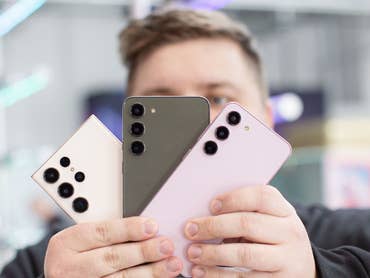
I’m currently trying it out again with the Samsung keyboard on my Galaxy S24 Ultra (review). I’m always checking out Gboard alternatives and my usual favorite, SwiftKey, just to see if there’s anything better out there. Since Samsung recently upgraded its software keyboard with Galaxy AI, i.e. functions of its own AI platform, it’s worth giving the Samsung keyboard another shot.
Selecting a different keyboard on Samsung smartphones
When you set up your new Samsung smartphone, the Samsung keyboard happens to be the default setting. But if you’re like me, you already have an alternative in mind, you first have to set the Samsung keyboard as the default. Depending on the setting, you have the option of performing this directly when you have the respective keyboard open. Of course, you can also choose to do so via the settings. Here’s how it is done:
Go to Settings.
Go to General administration.
Tap on Keyboard list and default.
Select Standard keyboard.
Select Samsung keyboard.
There are, of course, tons of good keyboards for Android smartphones available. However, if you want to use Galaxy AI and the chat assistant for your texts, you have to use Samsung’s software. It would be cool if this were also possible with competitors’ keyboards in the future.
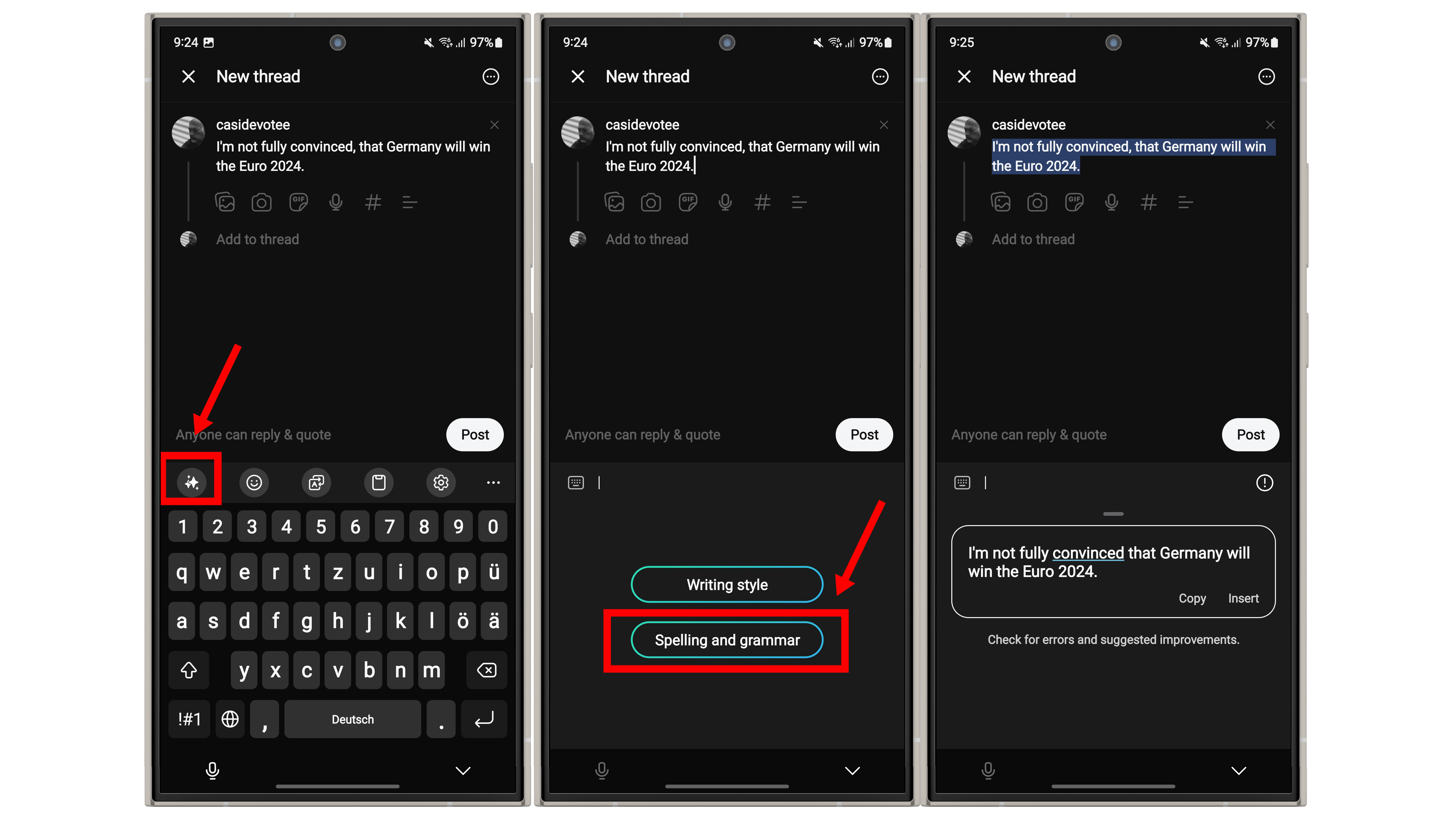
If you launch the keyboard while you’re on social media, in a chat, or anywhere else, you will see a new symbol in the toolbar directly above the numbers in the top left-hand corner. Tapping that will summon the AI features. Proceed as shown below to check the spelling and grammar of the text entered.
Tap the star icon in the top-left corner of the keyboard to access the Galaxy AI feature.
Select Spelling and grammar.
Now choose Copy or Paste to copy the corrected text.
How to change your writing style with Galaxy AI
What I found even more exciting is this: my Samsung smartphone can perform a trick that selected iPhones with Apple Intelligence are unable to until next year (at least for those living outside the USA). You can compose your thoughts and adapt it to a different writing style thanks to Galaxy AI. You write the same thought differently in a business context, when you speak to someone privately, or use social media.
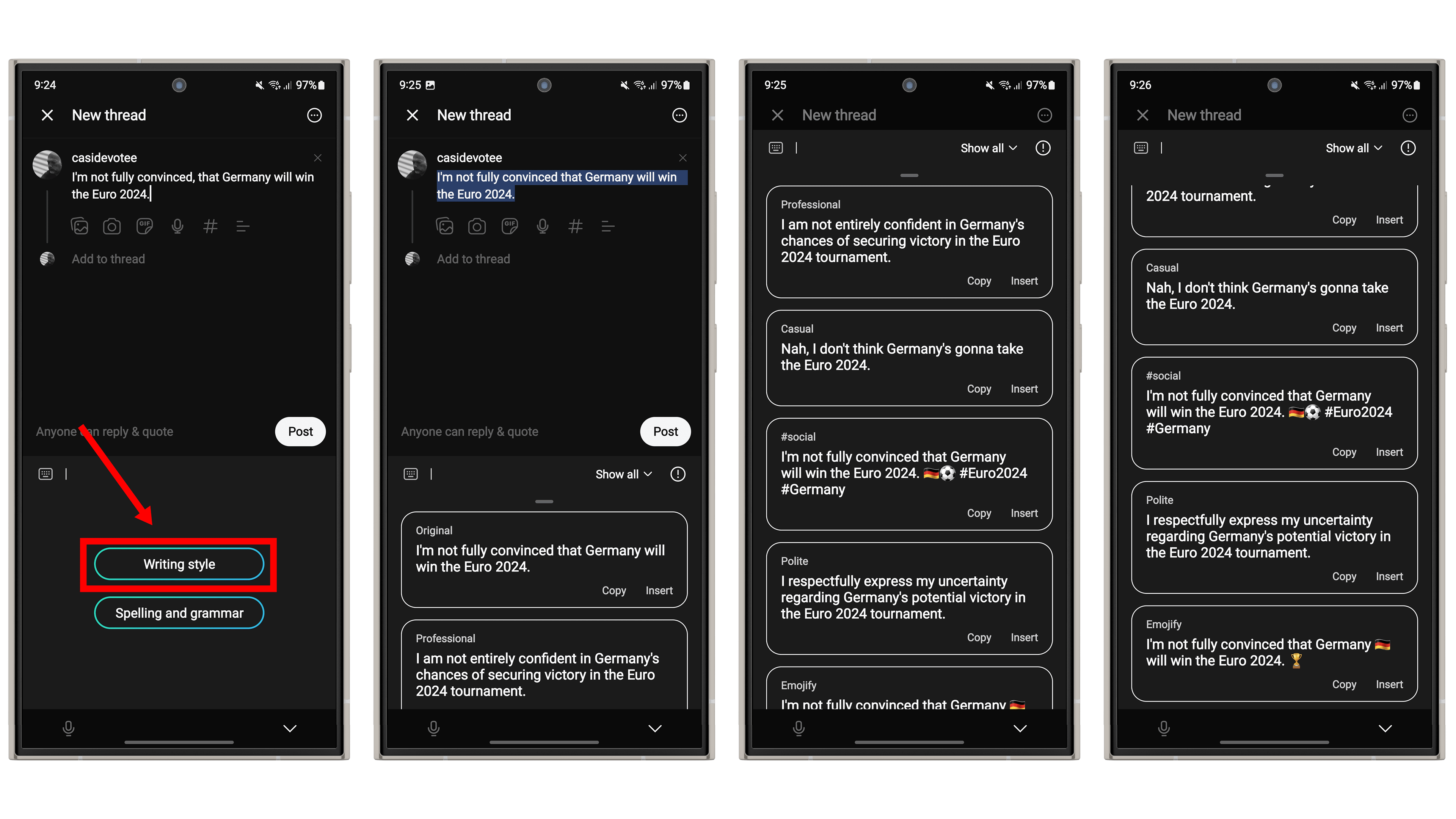
The AI lets you choose from different writing style categories and then adapts the texts in an amazingly coherent manner. Here are the step-by-step instructions:
Compose your text.
Tap the star icon in the top-left corner of the keyboard to access the Galaxy AI feature.
Select Writing style.
Decide on one of the style options “Original”, “Professional”, “Casual”, “#social”, “Polite” or “Add emojis”.
Confirm the new wording by selecting Copy or Paste.
Some messenger services, such as WhatsApp, Signal or the private messages on Instagram, already support Samsung’s chat translation. This allows you to automatically set a chat to the languages from or to which you want to translate. To make this work, proceed as follows:
Compose your text.
Tap the star icon.
Select Chat translation.
You may need to configure the source and target language.
You will now see the translation in the desired language directly below the other person’s post(s). If you want to compose it yourself, a line will be displayed where you can enter your text and the translated version will be displayed simultaneously. Fortunately, I recently received English-language spam on WhatsApp, which helped me demonstrate the function to you in the following pictures.
This function is not available everywhere where you can use the Samsung keyboard, but only in selected applications that support this feature via the chat assistant. According to Samsung, the following messengers are currently supported:
Samsung/Android Text Messages
Google Chat
Kakao Talk
Signal
WhatsApp
Line Messenger
Instagram (DM)
Tango
Here’s a question for everyone: Have you already used Galaxy AI and the chat assistant on a Samsung device? Regardless of Galaxy AI and Samsung, which software keyboard do you think is the best currently?
We mark partner links with this symbol. If you click on one of these links or buttons–or make a purchase through them–we may receive a small commission from the retailer. This doesn’t affect the price you pay, but it helps us keep nextpit free for everyone. Thanks for your support!






0 comments