Typos Be Gone: How to Use Gboard's Undo Feature
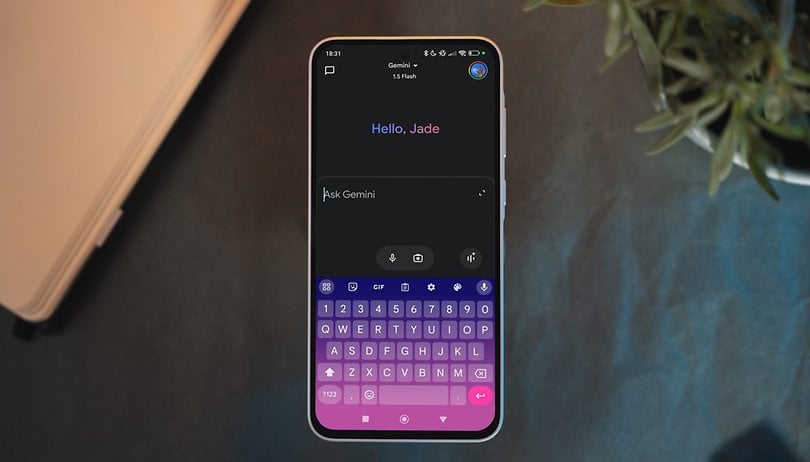

Google's Gboard has evolved from a basic keyboard app to one of the most versatile tools available on mobile devices. Over time, it has received a steady stream of enhancements, ranging from improved typing features to the integration of AI-powered tools. The latest additions are the Undo and Redo actions. Here's how to use them to correct typos in the blink of an eye.
What is Gboard’s New Undo Feature?
The Undo and Redo shortcuts are currently available in the latest Gboard beta version, but they are expected to roll out to more users soon. These features will most likely be supported on both Android and iOS app versions.
Essentially, the feature appears as a single shortcut within the Gboard tool menu. When accessed, it provides both Undo and Redo actions:
- Undo: Reverts the last action, such as restoring a word you accidentally deleted.
- Redo: Reinstates the most recent undone action.
These tools are particularly useful for those who frequently use swipe or voice typing. They allow for quick corrections without the need to retype entire words or phrases.
- Don't miss this: How to boost Samsung's keyboard with Galaxy AI features
How to Add the Undo Shortcut to the Toolbar
To make the Undo feature more accessible, it’s recommended you add the shortcut to Gboard's toolbar. Here’s how you can do so:
- Launch a messaging app or any app where you can use the Gboard keyboard.
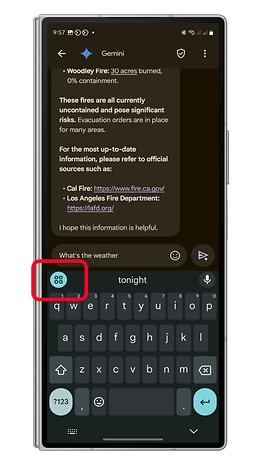
- Tap the apps button (a tiny grid icon) on the keyboard to open the menu.
- Locate the Undo shortcut, tap and hold it, and drag it to the toolbar at the top.
- Tap the back arrow to save the changes.
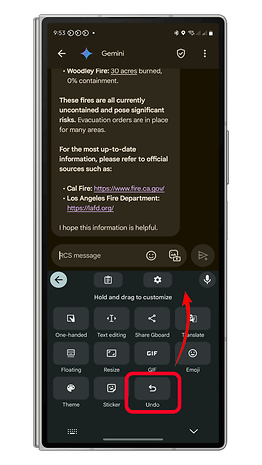
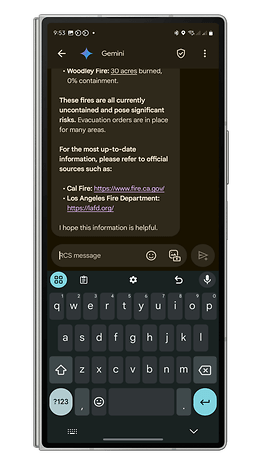
With the shortcut added, you can quickly access the undo and redo buttons while typing.
How to Use Undo and Redo When Typing on Gboard
Once the Undo shortcut is added to your toolbar, using it is a straightforward affair:
- While typing with Gboard, tap the Undo button on the toolbar.
- This will revert your last action, such as restoring a deleted word.
- Tap the Redo button to reinstate the last undone action.
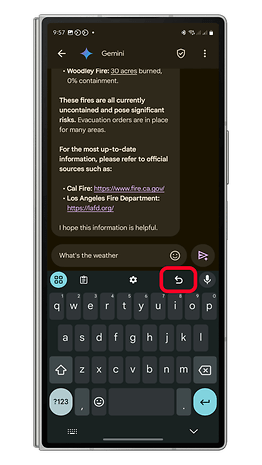
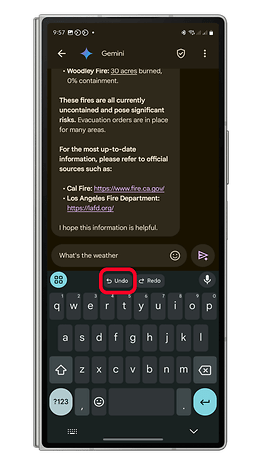
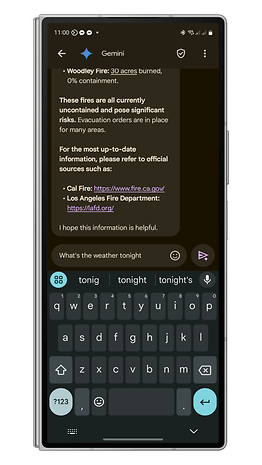
Bear in mind both buttons support multiple recent actions. For example, if you’ve deleted two words, you can tap Undo twice to restore them one by one.
Which keyboard app do you currently use on your Android device? Do you rely on swipe typing, voice typing, or traditional typing methods? Share your experience with us in the comments below—we’d love to hear from you!