Android 101: Easy Steps to Add Live Weather Widgets on Your Lock Screen
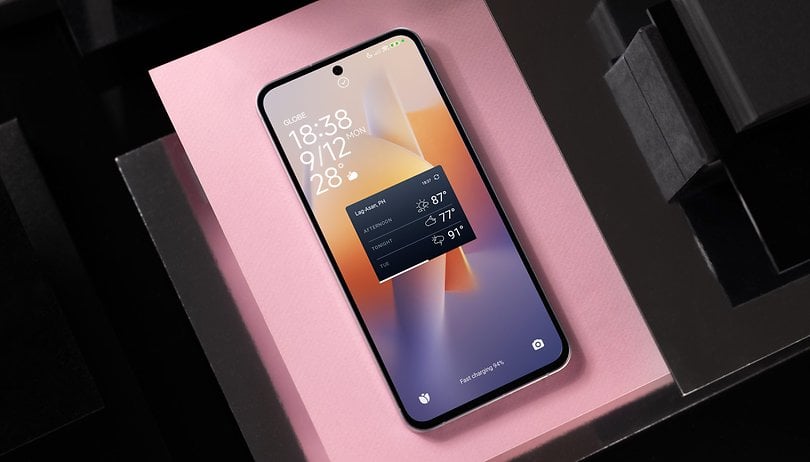

Want to display live weather updates on your Android lock screen? Android allows widgets like weather for quick access to real-time info. This guide covers Samsung Galaxy devices on One UI and third-party app options for other Android users.
In earlier Android versions, specifically Android 4.4 KitKat, users could natively add widgets to the lock screen, allowing access to essential information such as live weather updates and forecasts without unlocking the device. However, this feature was removed after only a year.
Fortunately, some manufacturers reintroduced lock screen widget support through custom interfaces, such as Samsung’s One UI. Additionally, several third-party apps offer customizable lock screen widgets. Below, we explain how to add weather widgets on Samsung devices and through third-party apps.
Adding Weather Widgets on Samsung Galaxy Devices
If you own a Samsung Galaxy smartphone or tablet running One UI 3 (based on Android 11) or later versions like One UI 7, adding weather and other widgets to the lock screen is straightforward through the built-in customization feature.
How to Add Weather Widgets on the Samsung Lock Screen:
- Long press an empty area on the lock screen to begin editing. Alternatively, go to Settings > Wallpaper & Style > Lock Screen.
- Tap the widget area to open the widget selection card.
- Scroll through the available widgets and select Weather.
- Tap the weather widget you want to add.
- Tap Done to save your changes.


Note: Samsung's One UI only supports up to three or four weather widgets on the lock screen. Customization options include rearranging, adding, and removing widgets, though advanced customization features are limited.
Additionally, tapping the clock widget on the lock screen opens the widget carousel where you can see a bigger weather card along with other widgets.
Adding Weather Widgets Using Third-Party Applications
If your device doesn’t support native lock screen widgets or you want more customization options, several third-party apps provide powerful alternatives. Both free and paid versions are available, offering advanced widget functionality.
Lock Screen OS (free)
For a free solution, Lock Screen OS is one of the most popular apps offering lock screen widgets, including weather updates. It is a verified app but contains ads as part of the free service. Additionally, enabling the app requires granting Android Accessibility Services permissions, which gives the app access to certain system features—a consideration some users may find concerning.
How to Set Up Lock Screen OS:
- Install and launch the app, following the initial setup prompts.
- Go to Settings > Accessibility > Downloaded Apps.
- Toggle on Use Lock Screen OS and tap OK to confirm.
- Enable Lock Screen in the app settings.
- Go to your lock screen, long press an empty area, and tap Customize.
- Select the desired weather widgets.
- Tap Done to save your customization.


Lockscreen Widgets (paid)
If you prefer a cleaner interface without intrusive ads, consider the paid app Lockscreen Widgets, which costs between $1 and $2. This app supports extensive customization options, including resizing, repositioning, and combining widgets for a more personalized lock screen experience.
How to Set Up Lockscreen Widgets:
- Install and launch the app, following the on-screen instructions.
- Go to Settings > Accessibility > Downloaded Apps.
- Select Lockscreen Widgets and toggle it on.
- Tap OK to confirm the permissions.
- Open the app and tap Add Widget.
- Choose the weather widget you want to display.
- Adjust the widget size and position on the lock screen.


Lockscreen Widgets supports various widget types beyond weather, offering a comprehensive lock screen customization experience.
Does your device support lock screen widgets? Which widgets do you find most useful? Share your experiences and suggestions on customizing the lock screen with us in the comments!