iOS 17 Enables Quick Reset For Forgotten iPhone Passcode

There are instances where you changed your iPhone's passcode to a new one only to forget it moments later. Subsequently, you are then required to enter your Apple ID and password to bypass and change this. Fortunately, iOS 17 is an instance of how Apple allows users to easily reset the new forgotten passcode by using the previous passcode, although this can only be done within a certain time period.
- Also read: How to boost your iPhone's passcode security
Easy way to reset your iPhone passcode
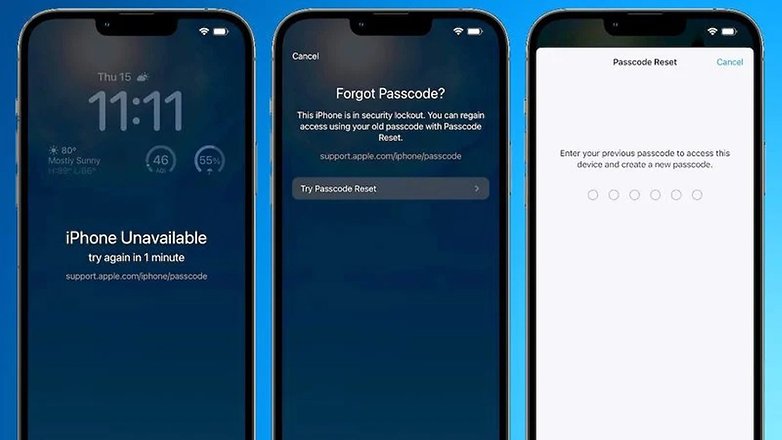
As seen in the screenshots, if a user forgot the most recent passcode, they can tap on the “Forgot Passcode?” option below on the iPhone's lock screen. Doing so will launch a pop-up screen that describes how the passcode can be reset with the old passcode alongside a shortcut button, “Try Passcode Reset”, where you will need to enter the required security key.
After entering the old passcode, you can enter a new numeric combination. However, it must be noted that on the Settings page, this feature will be available for only 72 hours after the initial change.
Do take note that it will be possible for the previous passcode to expire under similar conditions, which means it will be rendered unusable after ding so. Hence, you will need to enter your entire Apple account and password if you happen to forget your passcode again just like how it was done in iOS 16 and its previous iterations.
The new feature was first spotted by MacRumors in the beta build of iOS 17, which was released to compatible iPhone models for developers and testers more than a week ago. Apple's final version of the iOS 17 is expected to ship this September when Cupertino announces the iPhone 15 and iPhone 15 Pro. Likewise, you can check out the other confirmed features of iOS 17 here, including the list of compatible devices.
What do you think of this new iPhone security function? Will this be a useful change that you can benefit from? Let us know your answers in the comments.
Source: MacRumors






Not sure what I think. It's a convenience, but convenience tends to form insecurities.