
Contents
- 1 Using WhatsApp on Apple Watch vs. iPhone
- 2 Is Your iPhone and Apple Watch Software Up to Date?
- 3 Double-Check That WhatsApp Notifications Are On for Apple Watch
- 4 Turn On the Option to Reply to Incoming WhatsApp Messages
- 5 How Third-Party Apps Can Improve WhatsApp on Apple Watch
- 6 Last Case Scenario: Unpair and Reset Your Apple Watch
Using WhatsApp on Apple Watch vs. iPhone
There are clear differences between using WhatsApp on Apple Watch and using it on an iPhone. First and foremost, there’s no native WhatsApp app for Apple Watch—even though Android smartwatches have had a dedicated app since 2023. This is likely because Apple prefers to keep its ecosystem focused on its own messaging platforms like iMessage.
While we’ve previously covered how to use third-party apps to make WhatsApp work better on Apple Watch, this article focuses specifically on helping those who are struggling to receive WhatsApp notifications on Apple Watch through the native iPhone app. Given Apple’s extensive customization options for managing Apple Watch notifications, one of these tweaks might just solve your issue.
With WhatsApp on the iPhone, you get all the features, like seeing missed calls, watching videos, and viewing photos. But without a native app on the Apple Watch, your interaction with WhatsApp is limited. Here’s a quick breakdown of what you can and can’t do with WhatsApp on Apple Watch:
| What WhatsApp Can Do on Apple Watch | What WhatsApp Cannot Do on Apple Watch |
|---|---|
|
|
So yes, you can still receive and reply to WhatsApp messages on your Apple Watch. However, you won’t be able to receive or respond to photos or videos.
Important Notes About WhatsApp Notifications on Apple Watch
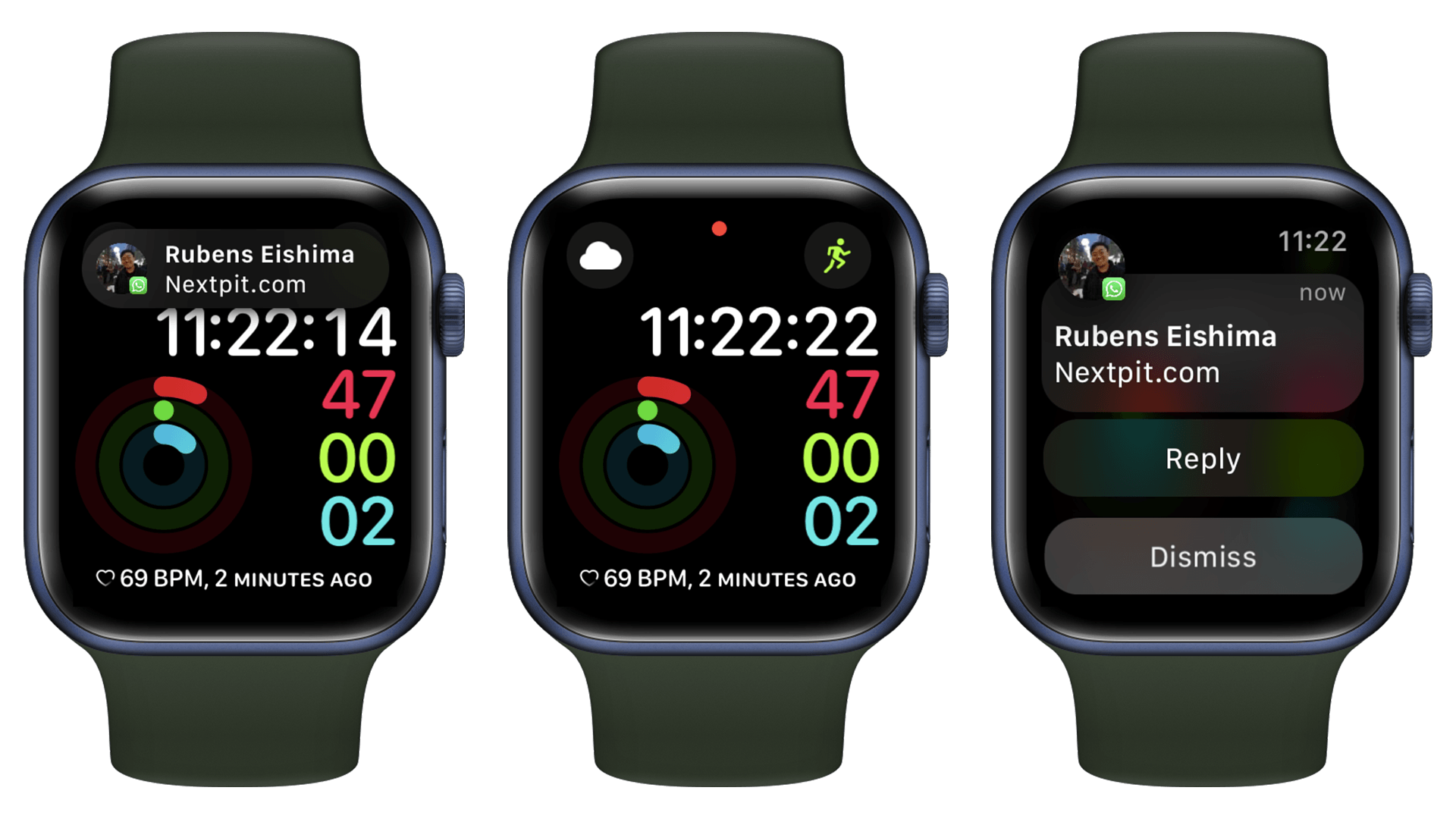
There are also some specific things you should know about how WhatsApp notifications work on Apple Watch. Before we get into the common issues and solutions, it’s important to understand them:
- If your iPhone is unlocked, notifications will go to your phone, not your Apple Watch.
- If your iPhone is locked or idle, notifications should appear on your Apple Watch (unless the watch itself is locked).
- If your devices are disconnected, notifications will go to your iPhone, not your Apple Watch.
- If your Apple Watch is locked or has Do Not Disturb (DoD) enabled, notifications will be routed to your iPhone.
It’s important to understand these details before trying to fix any WhatsApp notification issues on your Apple Watch.
Is Your iPhone and Apple Watch Software Up to Date?
Before you roll your eyes, hear me out. This is not to ask you to check if you are connected to Wi-Fi. But even the most tech-savvy people I know sometimes forget to check if either their iPhone or Apple Watch is indeed running the most current version of the system. At the time of writing, for example, iOS 18.5 is the latest software version on the iPhone. The Apple Watch, on the other hand, is watchOS 11.5.
More than that, make sure that the WhatsApp app itself is updated to the latest version. And if you are a member of the WhatsApp testing program on iOS, research the beta version to see if the connection to smartwatches may have been compromised.
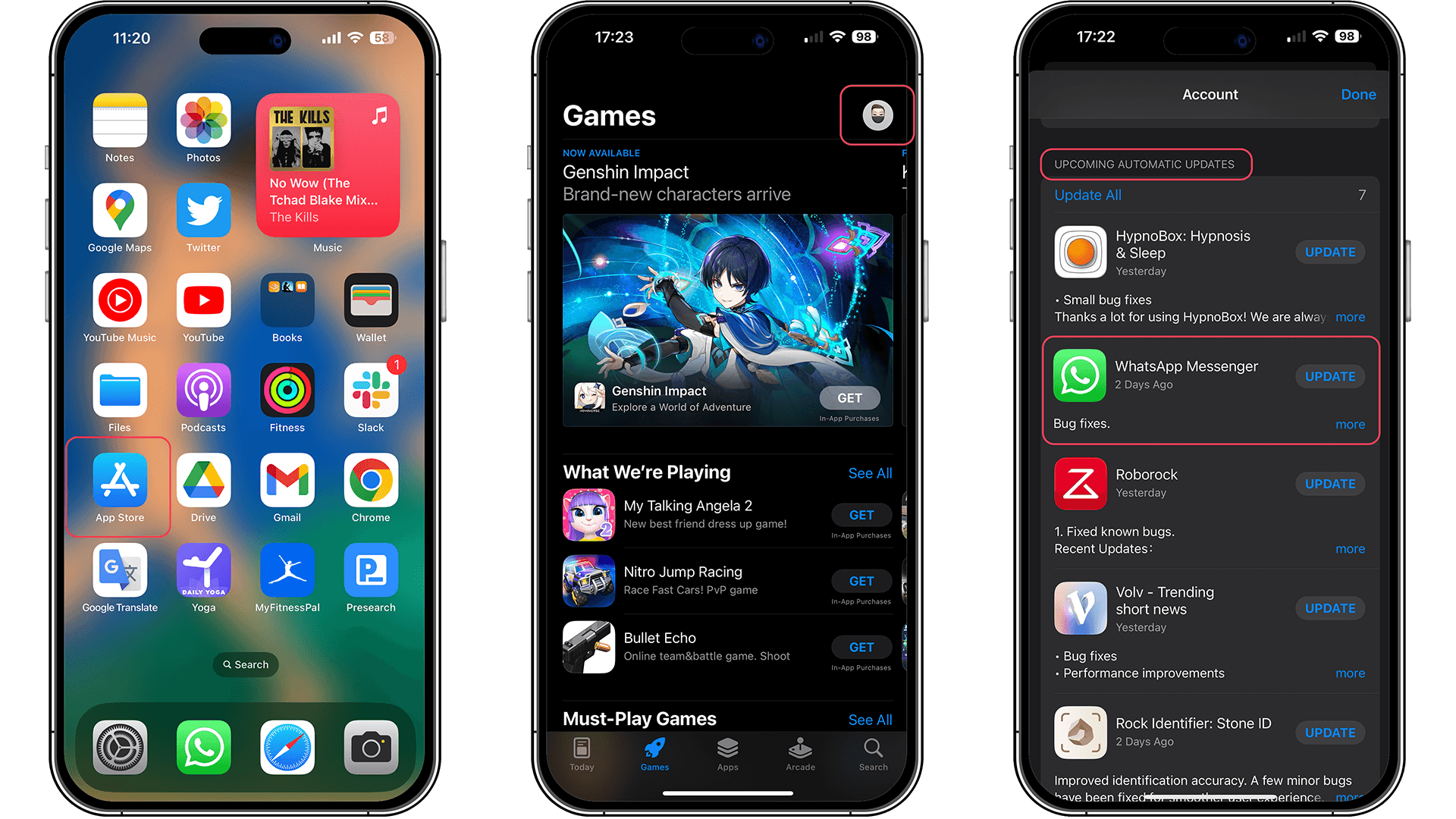
So, to rule out any issues involving outdated software, follow these steps:
- On iPhone: Go to Settings > General > Software update.
- On Apple Watch: Open Watch app > General > Software update.
- WhatsApp: Launch the app from the App Store > Click on your avatar > Check if WhatsApp is in the list of Upcoming Automatic Updates.
Double-Check That WhatsApp Notifications Are On for Apple Watch
If both devices are running the latest version of the software, it’s time to move on to the WhatsApp notification settings on Apple Watch. This suggestion actually works for any app, but here we will focus on Meta’s messenger:
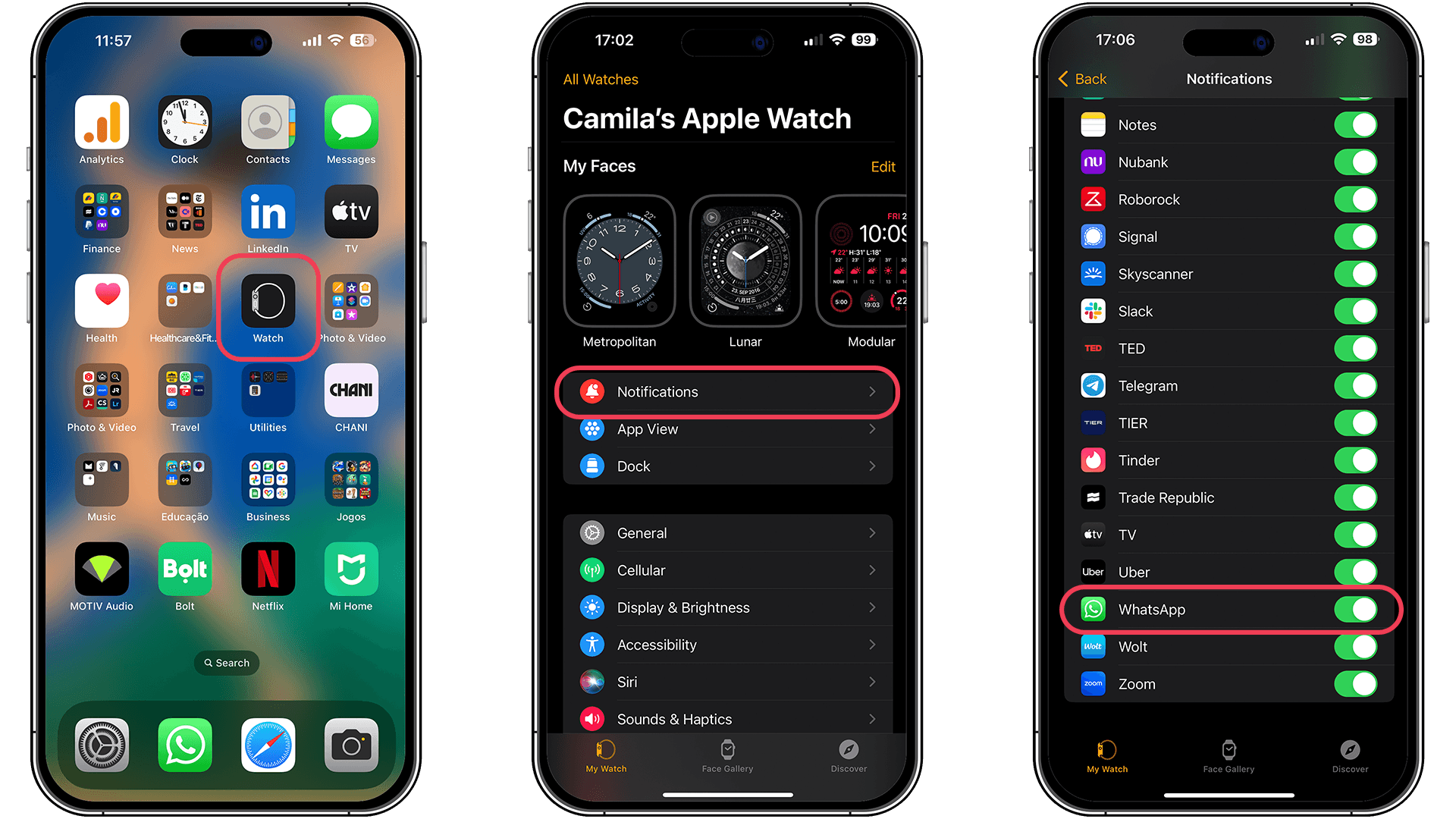
- On your iPhone, open the Apple Watch app and make sure you are in the My Watch tab.
- Then click on Notifications.
- Scroll down to the Mirror iPhone Alerts From list > make sure the notifications switch is enabled for WhatsApp.
Turn On the Option to Reply to Incoming WhatsApp Messages
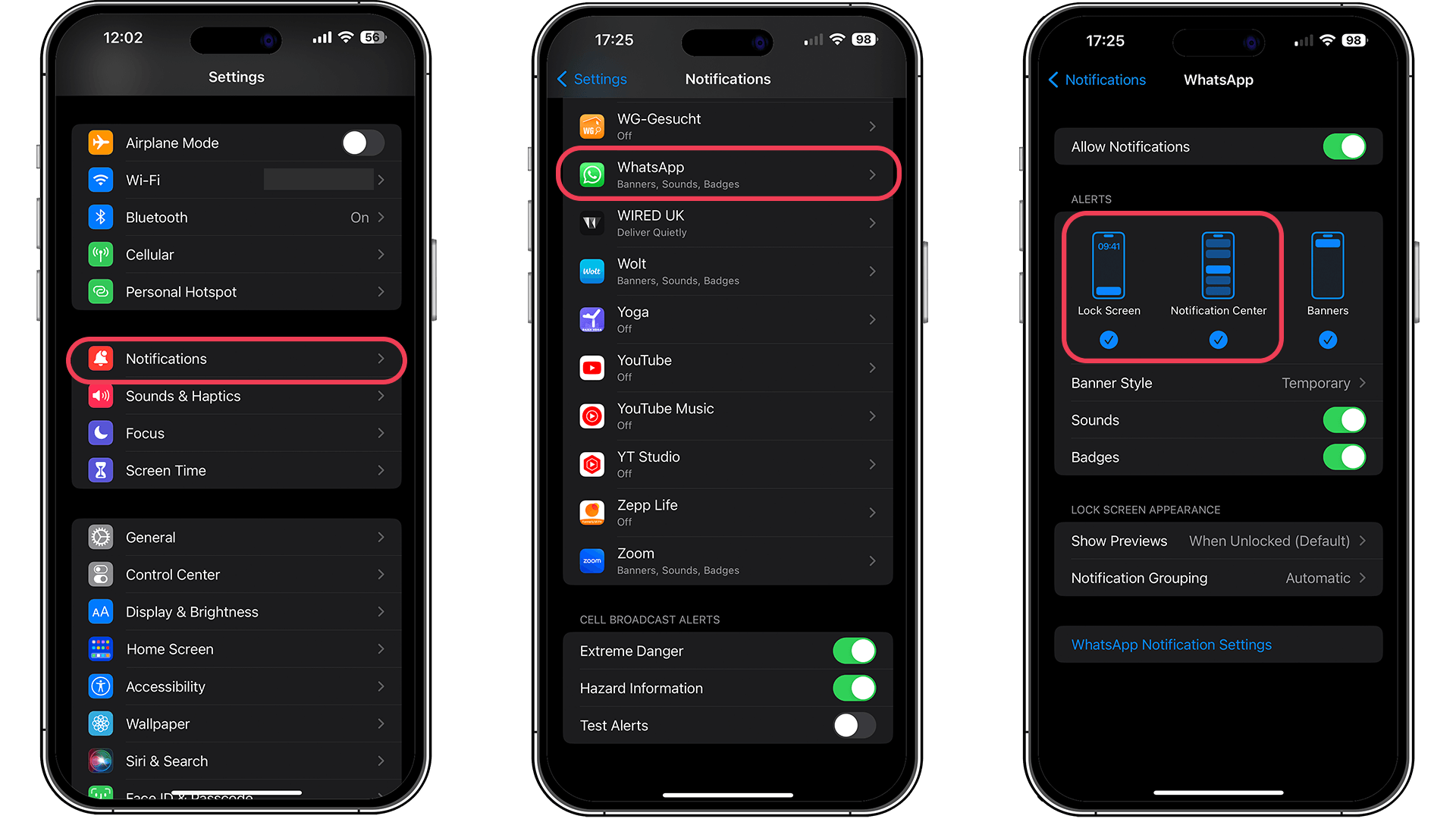
I confess that this third method is more of a security measure than a requirement. Enabling the option to reply to WhatsApp messages directly on the Apple Watch can trigger the receipt of WhatsApp messages on the watch. To do this, follow the tutorial below:
- On iPhone, click Settings > Notifications > WhatsApp Messenger.
- Make sure Enable Notifications is turned on.
- From the alert options, select Show in Notification Center and Lock Screen (sounds and badges are optional).
How Third-Party Apps Can Improve WhatsApp on Apple Watch
Now, since there’s no native WhatsApp app for Apple Watch, a third-party app might give you a more complete experience. The key difference is that these apps let you access chat histories, send new messages, and sometimes even view media. Exactly, they let you do a bunch of things the native setup just doesn’t support.
Apps like WhatChat 2 can make WhatsApp on Apple Watch much more practical and closer to the iPhone experience. Take a look at our guide on how to install the WhatChat 2 app on your Apple Watch and see if this solution works for you.
Last Case Scenario: Unpair and Reset Your Apple Watch
Finally, if none of this works, my next recommendation is a bit more drastic: reset the Apple Watch and try again. If that doesn’t work, I suggest resetting the iPhone. But before you do that, make sure to back up your data to iCloud.
Here’s a quick, easy-to-follow bullet point list for how to unpair and reset your Apple Watch:
- Open the Watch app on your iPhone.
- Tap on All Watches at the top of the screen.
- Tap the info (i) button next to your Apple Watch.
- Select Unpair Apple Watch.
- Confirm your choice and enter your Apple ID password if asked.
- Wait for the unpairing process to complete—this also creates a backup on your iPhone.
- To reset the watch manually, go to Settings > General > Reset > Erase All Content and Settings on the Apple Watch.
If none of that works, contact Apple’s Genius team, as one of your devices may be experiencing specific hardware issues.
Did these tips help you solve the problem with WhatsApp notifications on your Apple Watch? If you know of another solution we didn’t cover, share it with us in the comments!
This article was updated in July 2025 to ensure all the tips are current. We’ve also added a section on how to unpair and reset your Apple Watch in case nothing else works.