watchOS 11: Top Features and Pro Tips for Your Apple Watch
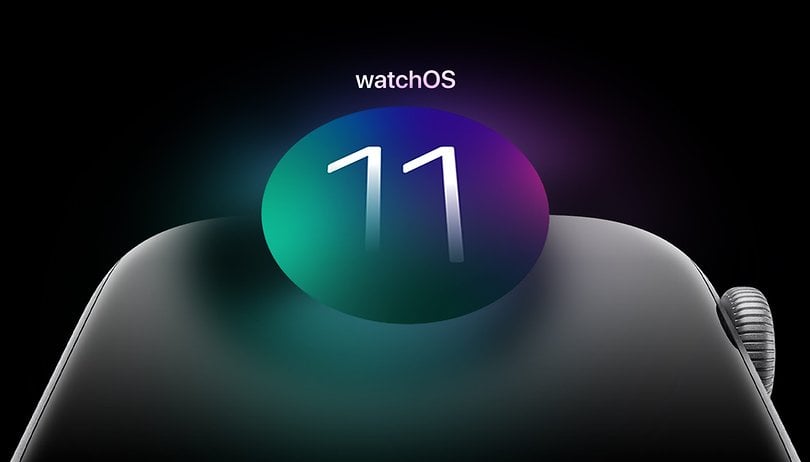

With watchOS 11, Apple introduces a suite of fresh features to its smartwatches. While some, like the groundbreaking Apnea monitoring, are transformative for health tracking, others cater to style and productivity, enhancing the overall Apple Watch experience. Here’s a rundown of the top watchOS 11 features you need to try.
Health and Fitness
Sleep Apnea Detection
One of the most notable additions in watchOS 11 is sleep apnea detection. This feature leverages the Apple Watch’s accelerometer and chipset to monitor subtle movements during sleep, identifying patterns associated with respiratory disruptions. These movements are analyzed and translated into “breathing disturbance” values, which can indicate moderate to severe sleep apnea.
To generate a detailed report, users must enable sleep tracking for at least 30 days. Reports can also be shared with doctors and healthcare providers for further analysis.
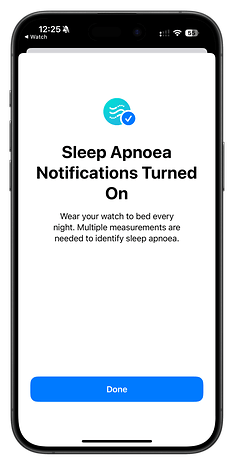
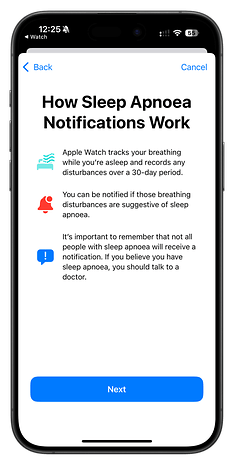
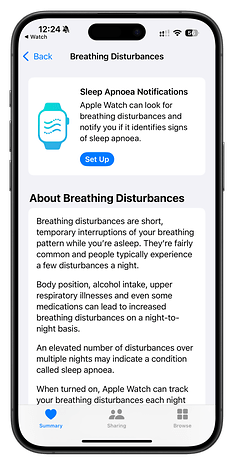
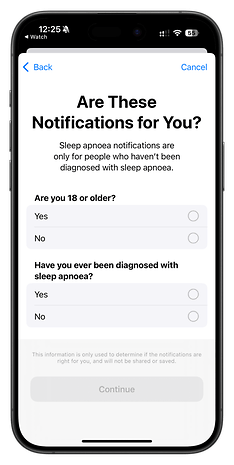
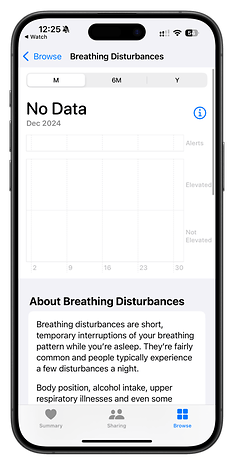
However, not all Apple Watches running watchOS 11 support this feature. Sleep apnea detection is hardware-dependent and is available only on the Apple Watch Series 9, Apple Watch Ultra 2, and Apple Watch Series 10.
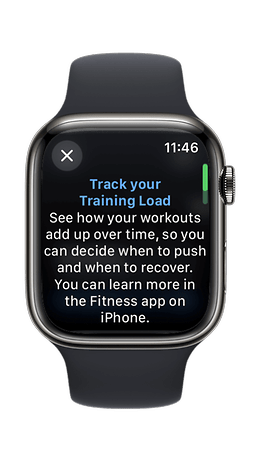
Training Load
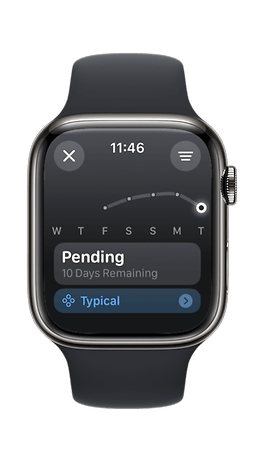
This feature will measure your workout intensity over various periods. To start using it, you'll need 28 days of data collection, which can then be compared to the last seven days to classify your training as below, steady, above, or well above average.
The system uses metrics like heart rate, GPS, and user input to estimate workout strain, while also considering age, height, and weight. Based on this analysis, you'll be able to understand how much you can push yourself during training. For many, it will also provide crucial insights into how to avoid injuries.
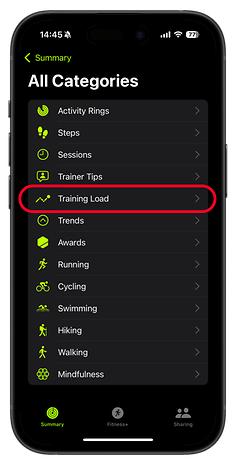
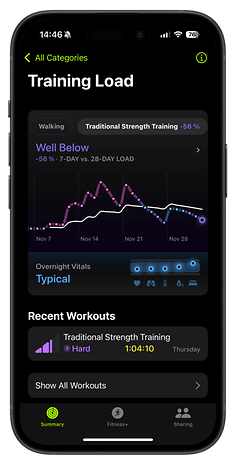
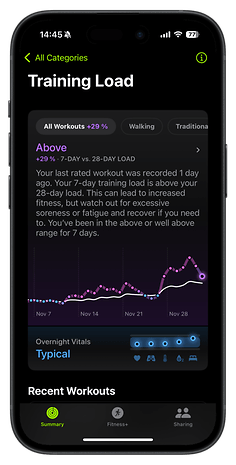
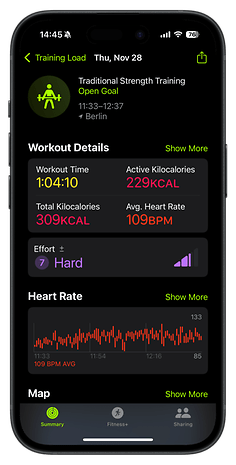
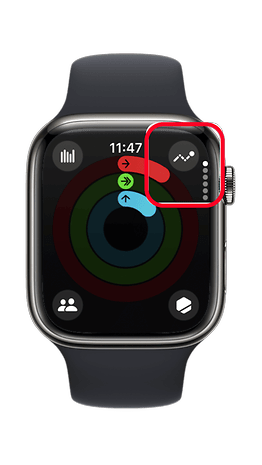
You can find the Training Load information directly in the Activity app on your Apple Watch or in the Summary tab of the Fitness app on your iPhone. However, you will need to add it as a new category in the Summary.
Effort Rating
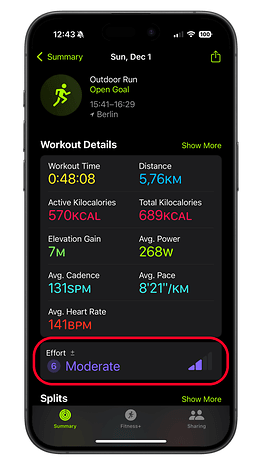
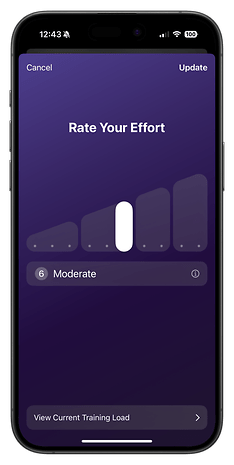
Another fitness-focused addition is Effort Rating, a new exercise metric that evaluates your performance post-workout. This metric applies to most cardio exercises, including walking, running, and rowing, and factors in pace, elevation, heart rate, and personal data to deliver a comprehensive effort score.
Users can adjust effort results manually or add data for non-cardio workouts to obtain ratings. Additionally, watchOS 11 supports importing workout metrics from third-party fitness apps, offering greater flexibility for fitness tracking.
Vitals App
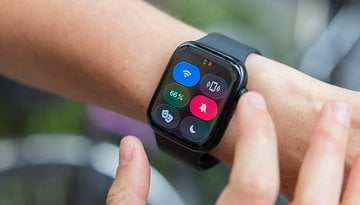
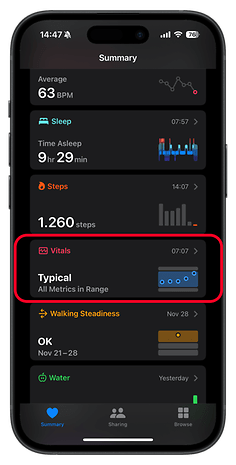
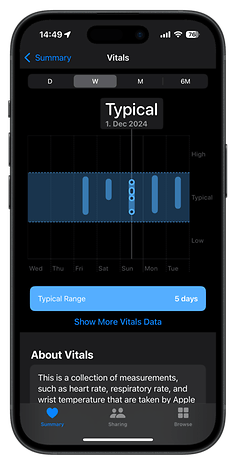
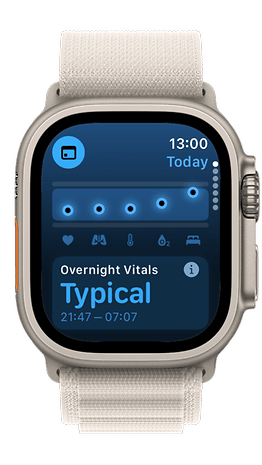
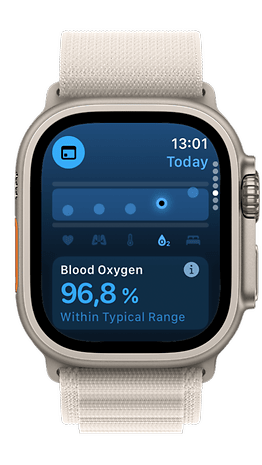
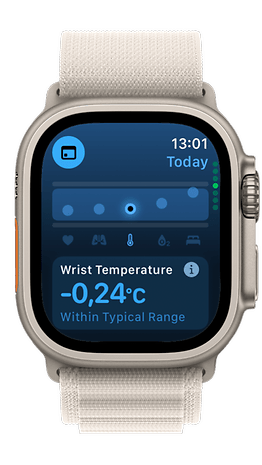
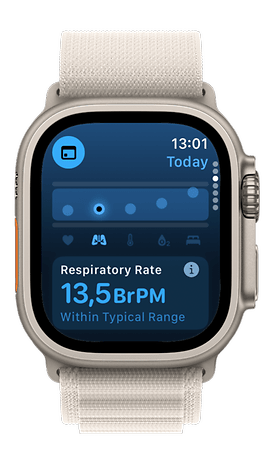
Another valuable addition is the Vitals feature. This functionality consolidates various health metrics, enabling us to monitor our overall health status and detect any changes or trends. While this feature isn't new in the wearable arena, it is a significant enhancement to Apple's Health suite.
What I appreciate the most is Apple's straightforward approach. They clearly explain how the ratings for your resting hours are derived from metrics that are not only sensible but also easy to obtain. Apple combines readings of our respiratory rate, wrist temperature, blood oxygen levels, and sleep duration to provide analyzes categorized as High, Typical, or Low. “Typical” corresponds to metrics close to our baseline, while “High” and “Low” indicate significant deviations from the recent baseline, identified as outliers.
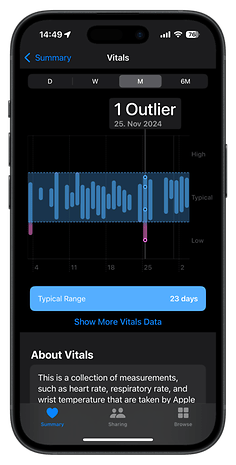
It is noteworthy that one metric that Apple has clearly addressed is alcohol consumption. This is particularly compelling for me because the amount and timing of alcohol intake can influence not only our sleep measurements but also our workout recovery times. As someone who enjoys the occasional glass of wine or beer, understanding the impact of alcohol on my daily mood and sleep quality, as well as on my performance in running or weightlifting, will be highly beneficial.
The best part about Vitals is that it is retroactive, allowing us to immediately understand what these outliers mean for us.
Cycle Tracking Enhancements
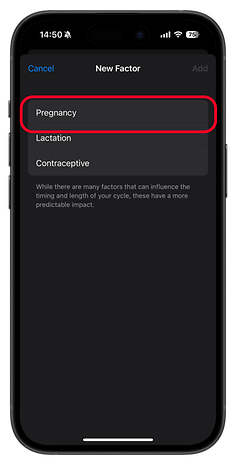
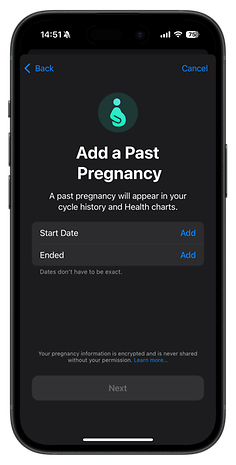
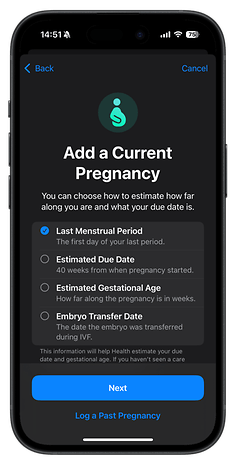
I'm a big fan of Apple's approach to cycle tracking, and the company's developers have now taken it to another level. The cycle tracking feature has been enhanced to better support pregnancy tracking, including logging symptoms and adjusting health metrics like heart rate.
- Also read: Apple vs. Samsung menstrual health features
By logging a pregnancy, users can estimate gestational age and due dates, as well as record symptoms such as morning nausea. The feature also offers a better overview of heart monitoring, which is especially relevant during pregnancy as the heart rate tends to increase slightly.
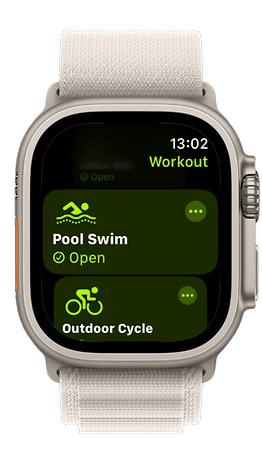
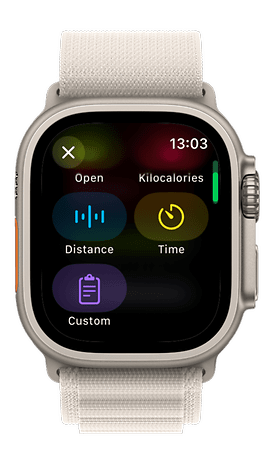
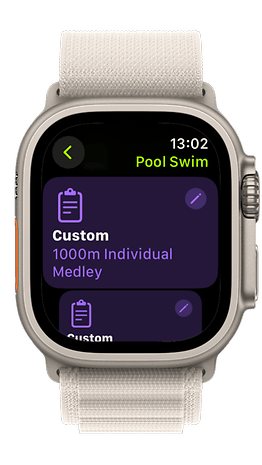
Custom Workouts for Pool Swims
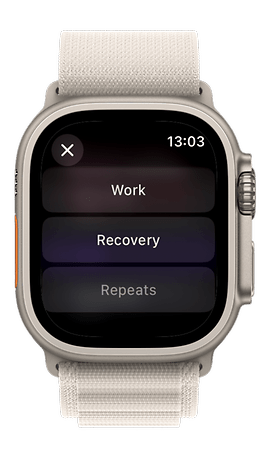
WatchOS 11 has a new interval-based customization with haptic feedback for transitions.
Suppose you want to do a workout that involves swimming 5 sets of 50 meters, followed by a 30-second rest after each set. With the new Custom Workouts, you can set up these intervals exactly as you like. You can define the duration of each swim segment (work) and each rest period (recovery).
Additionally, while you’re swimming, it might be difficult to see your watch or hear any alarms. With the haptic feedback feature, your Apple Watch will now give you a gentle tap on your wrist when it’s time to move on to the next part of your workout.
Personalization and Interface
Smart Stack Improvements
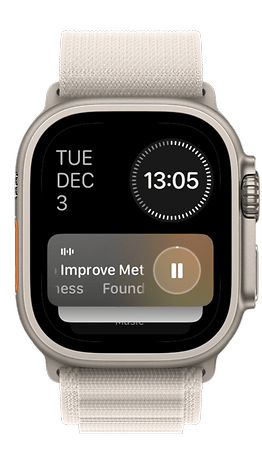
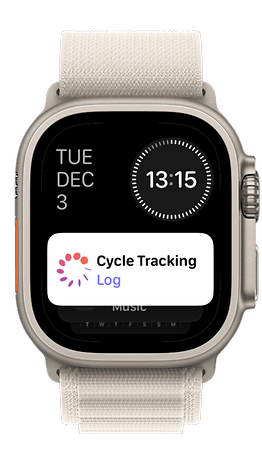
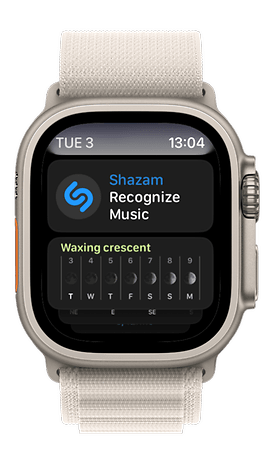
To be honest, I don't use Smart Stacks often. To be even more honest, I don't use many widgets on my iPhone either—only the basic ones that have become more interactive, like the Apple Music player. However, with the new watchOS 11, the widgets section has become more intelligent, offering suggestions based on time, location, and routines directly on the wrist.
I decided to try out some new widgets, like Shazam and Photos. For the Photos widget, you first need to mark a picture as a favorite in the Photos app gallery before it can be added to the Watch. I find this a bit puzzling, although it's nice to be able to recall memorable moments on my wrist when I'm bored and don't have access to my phone. But is this really a compelling reason to have the widget? Sure, you can quickly share these photos with someone directly from the Apple Watch, but still…
Ok, one feature I really like is that when I'm playing a song on Apple Music, the corresponding widget automatically displays on my Apple Watch screen in Always-on Display (AoD) mode.
Photos Watch Face
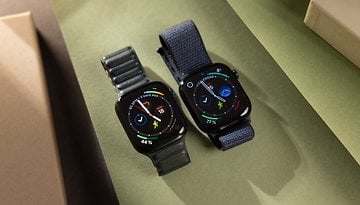
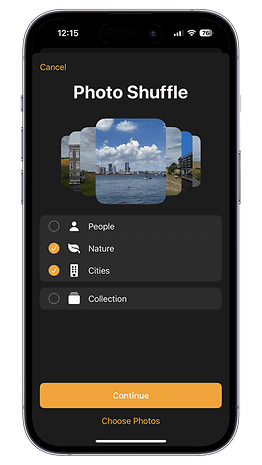
On the other hand, the Photos Watch Face is pretty neat. There’s not much to elaborate on because it's quite similar to what we've seen in iOS 16 on the iPhone. Now, a machine learning model selects the best compositions from our photos for the watch face, or you can choose them manually. I appreciate the customization options—with a bit of creativity, you can create some very cool watch faces.
Apart from displaying a single photo, you can also set to have up to 6 reshuffling pre-selected photos or choose an entire collection that dynamically changes every time you lift your wrist or access your Apple Watch. However, setting up and customizing the Photos watch face can only be done from your iPhone.
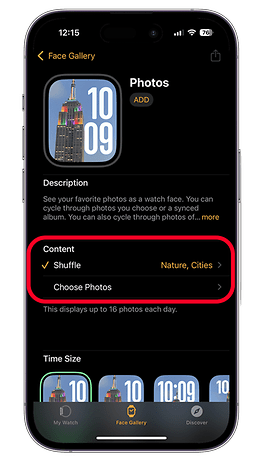
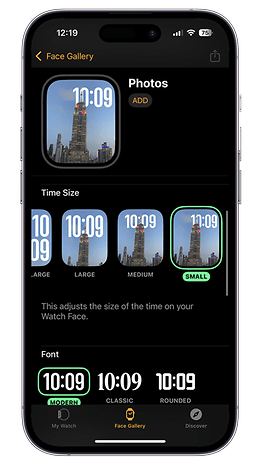
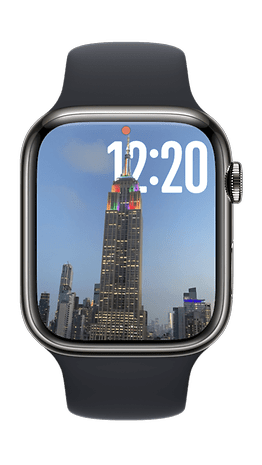
If you're not a fan of personalized customization, Apple also added two new watch face presets with watchOS 11. The first is Reflections which utilizes reflections to create appealing watch screens. Likewise, Flux offers a dynamic watch face that changes throughout the day.
Customizable Activity Rings
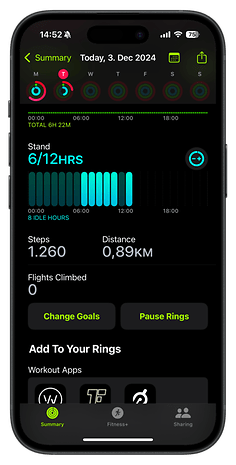
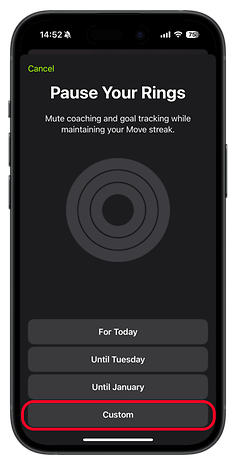
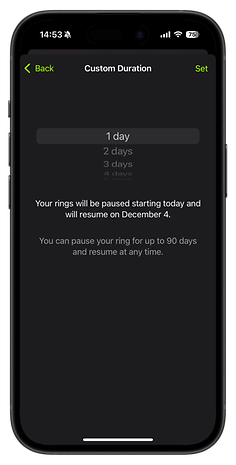
With watchOS 11, we finally have much more control over the activity rings. First, we can now pause the rings for rest days or injuries—I've been dealing with a knee injury for three weeks, and it was disheartening to see my incomplete rings each day. But that's now a thing of the past.
Moreover, daily goals can now be customized for each day of the week. We can also adjust the display of metrics and summaries for various workouts in the Fitness app on the iPhone. However, there’s one thing you still can't move: the Activity Rings.
Digital Crown Gestures
watchOS 11 introduces a couple of handy gestures to enhance the usability of the Digital Crown on the Apple Watch. Previously, accessing notifications required swiping down from the watch face. With the latest update, you can simply turn the Digital Crown downward to view recent notifications.
There’s also an improvement in Sleep Mode. Exiting Sleep Mode now requires just a single press of the Digital Crown, compared to the earlier method of holding it down for three seconds.
Safety and Connectivity
Check In Feature
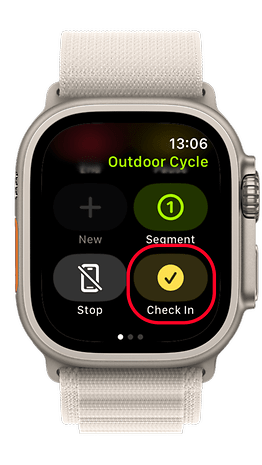
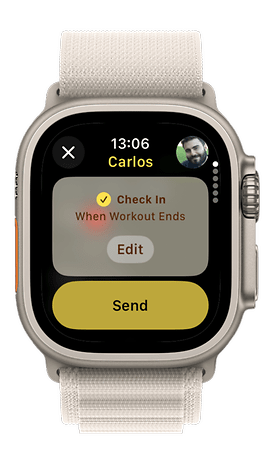
Since testing the Garmin Lily 2, I’ve been dreaming of having the Check In feature on my Apple Watch. Now, whenever I go for an outdoor workout, I can quickly share my location with close friends and family, ensuring they’re aware of my whereabouts. The Check In feature is seamlessly integrated into the Workouts app. I believe it’s a crucial safety feature, especially as a woman and a queer person who likes to jog at night, and even more so for those recovering from injuries.
The Check In operates via iMessage and is similar to the location-sharing capabilities we've been using on iOS since last year. You can find the option to check in immediately after starting your workout, located directly in the settings menu. It is important to note that it requires an active mobile line.

Translate App Integration
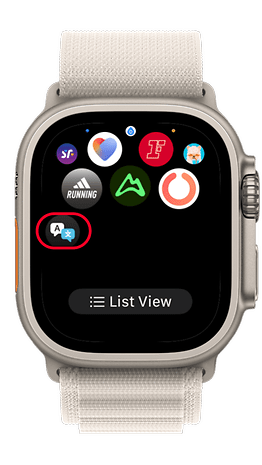
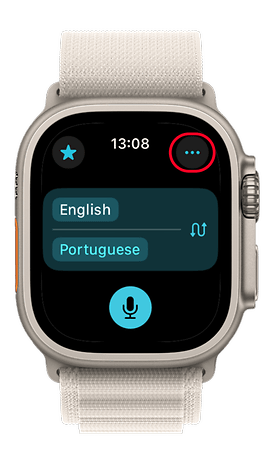
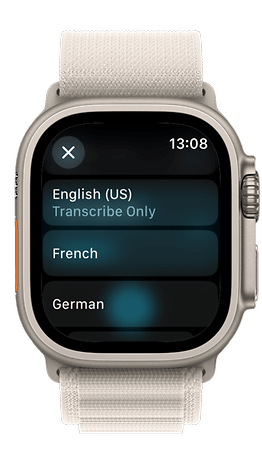
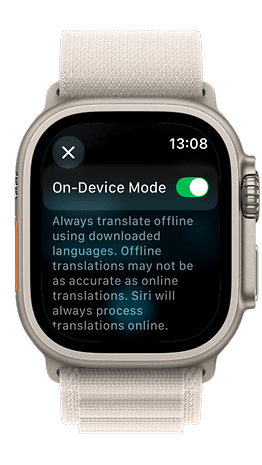
Another neat feature, especially if you live abroad or travel frequently, is the built-in translation functionality. Currently, the Apple Watch offers translations for 20 languages directly on the device. However, you'll need to download the languages in advance to use them.
Additionally, the improved Smart Stack feature intelligently suggests the Translate app based on your location, so you don’t even have to manually search for it.
Apple Maps Enhancements
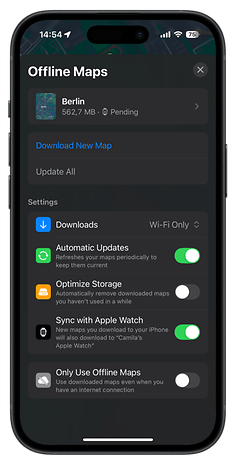
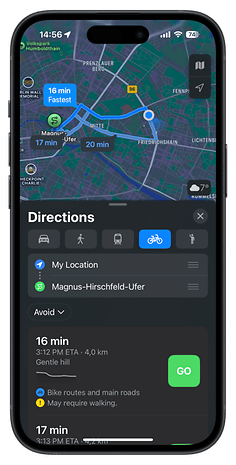
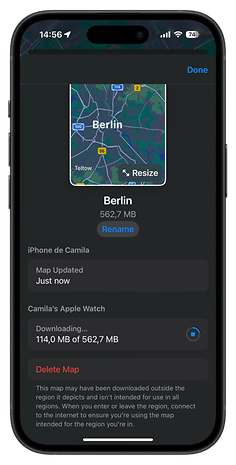
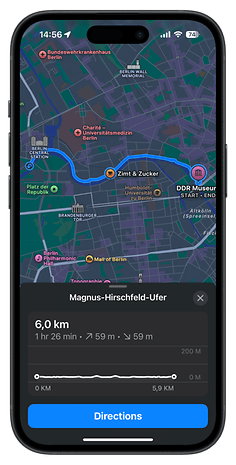
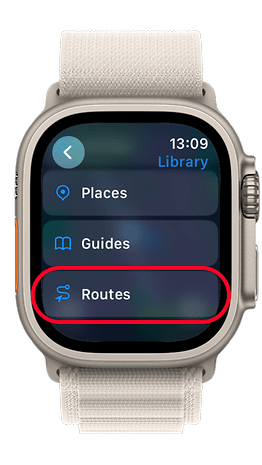
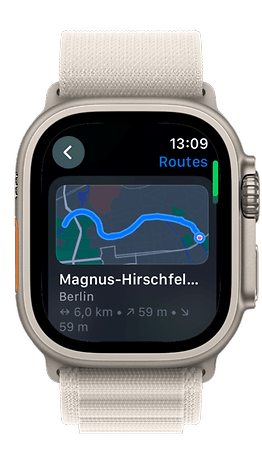
If you enjoy cycling like I do, the support for offline navigation using Apple Maps in watchOS 11 is a standout enhancement. In the U.S., there's an added benefit: you can access navigation for national parks and create custom walking routes.
Enhanced Ticketing
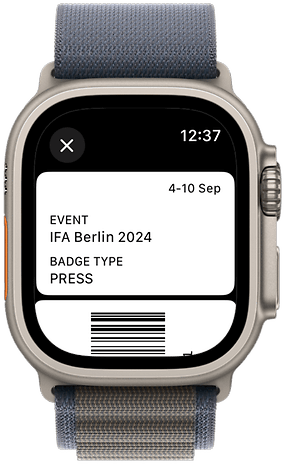
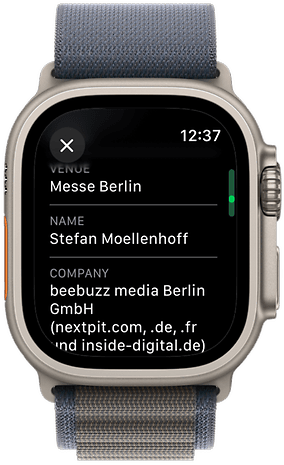
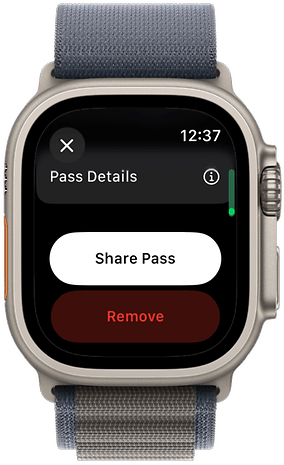
watchOS 11 is enhancing the Ticketing feature on the Apple Watch, which now includes directions to the parking lot, venues, and show times. Moreover, viewing passes and tickets also add more relevant details for better management.
Availability and Compatibility of watchOS 11
watchOS 11 is available for the Apple Watch Series 6 and later models, paired with an iPhone Xs or newer running iOS 18. According to Apple, Apple Watch Series 4, Series 5, and the first-gen SE won’t get watchOS 11 because their older hardware can’t support the latest advancements.
- Apple Watch Ultra 2
- Apple Watch Series 10
- Apple Watch Series 9
- Apple Watch SE 2
- Apple Watch Series 8
- Apple Watch Series 7
- Apple Watch Series 6
What’s your favorite new feature in watchOS 11? Share your thoughts and let us know how these updates are enhancing your Apple Watch experience in the comments below!