Never Miss a Beat: Update Your AirPods with These Easy Steps


While Apple AirPods update automatically, the process requires specific steps to initiate and complete—making it less straightforward compared to updating other devices like the Apple Watch. Recently, Apple outlined the exact criteria and steps required to update your AirPods or AirPods Max headphones. Follow this guide to ensure your devices are running the latest firmware.
- Worth a read: Which are the best AirPods for you
Apple’s Guide to Updating AirPods and AirPods Max
Apple has previously stated that AirPods software updates occur automatically, provided they are charging with the case closed and connected via Bluetooth to an iPhone, iPad, or Mac. However, Apple's earlier guidance lacked clarity, particularly regarding how long users should wait for the update to finish. Currently, the only way to confirm the update is by manually checking the firmware version in the AirPods section of the iPhone or iPad settings.
In a recently updated support page, Apple provides a more detailed, step-by-step guide for updating AirPods and AirPods Max (review). The new instructions specify the required wait times and conditions, making the update process easier and less confusing for users.
How to Update AirPods and AirPods Pro
When a software update is available, you can manually update your AirPods or AirPods Max using the steps below:
- Place Your AirPods Near Your Device: Keep your AirPods within Bluetooth range of an iPhone, iPad, or Mac.
- Ensure Wi-Fi Connection: Make sure your iPhone, iPad, or Mac is connected to Wi-Fi.
- Charge Your AirPods: Connect the AirPods case to a charger (wired connection).
- Wait for 30 Minutes: For AirPods, ensure the charging case remains closed during this time.
- Reconnect to Check Firmware: After 30 minutes, open the case to reconnect your AirPods to your device.
- Check the Firmware Version:
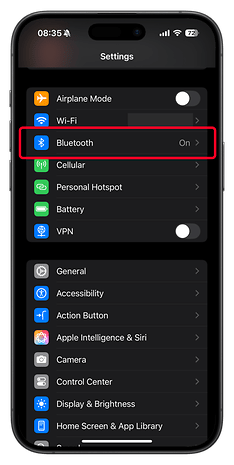
- On your iPhone or iPad, go to Settings > Bluetooth.
- Tap the "i" icon next to your AirPods.
- Choose "Version" to view the firmware version.
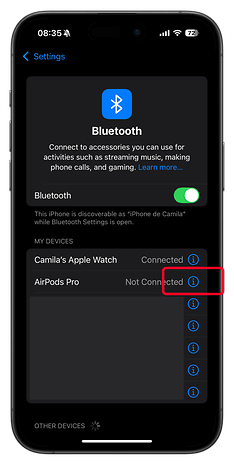
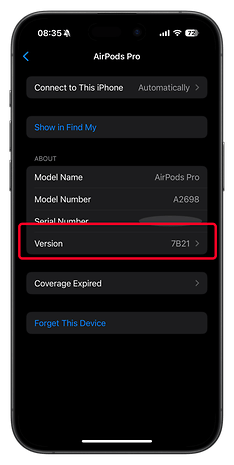
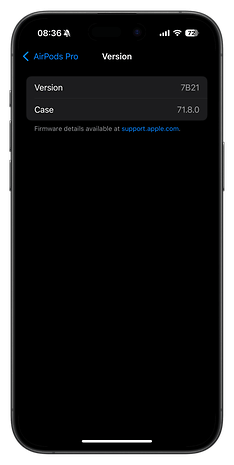
This process applies to all AirPods models, including the newer AirPods 4 (review), and older AirPods 3 and AirPods Pro 2 (review).
How to Update AirPods Max
Updating AirPods Max follows a similar process but includes a few differences, particularly because these headphones don’t require a charging case. Here's how to update them:
- Place Your AirPods Max Near Your Device: Ensure they are within Bluetooth range of an iPhone, iPad, or Mac connected to Wi-Fi.
- Connect to Power: Use the appropriate USB or Lightning cable to charge your AirPods Max.
- Wait for 30 Minutes: Keep your AirPods Max charging during this time.
- Reconnect to Check Firmware: After 30 minutes, reconnect your AirPods Max to the iPhone, iPad, or Mac.
- Check the Firmware Version:
- Go to Settings > Bluetooth on your iPhone or iPad.
- Tap the "i" icon next to your AirPods Max.
- Select "Version" to view the firmware.
Troubleshooting AirPods Updates
If your AirPods or AirPods Max fail to update, Apple recommends resetting them. For additional troubleshooting tips, including resolving disconnection issues, take a look at our detailed AirPods troubleshooting guide.
How long do you typically wait for your AirPods to update? Have you encountered any issues while installing new firmware? Please let us know in the comments—we’d love to hear your thoughts!
Source: Apple Support