Expert RAW: This app turns Samsung Galaxy phones into pro cameras
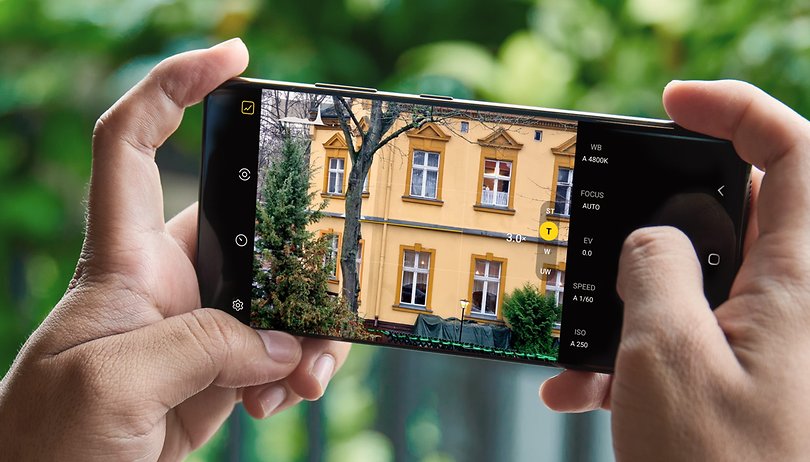
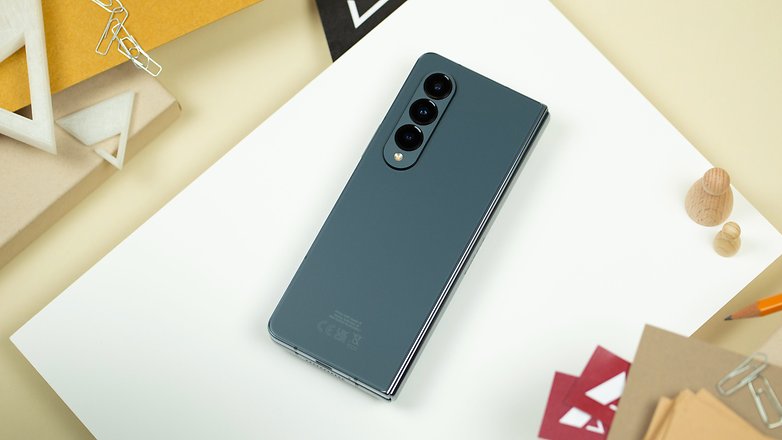
Samsung is making the Expert RAW available to older Galaxy camera phones. Announced recently, the camera app with pro controls has been extended to the Galaxy S20 Ultra, Galaxy Note 20 Ultra, and Galaxy Z Fold 2—joining the Galaxy S22, S21, and Z Fold 4. Any of these Samsung Galaxy devices can download the app from Samsung's Galaxy App store.
TL;DR
- Samsung expands Expert RAW app compatibility.
- It is now available to Galaxy S20 Ultra, Note 20 Ultra, and Z Fold 2.
- The app has hardware requirements like 2x optical zoom and at least 8GB of RAM.
Version 1.0.05.4 released by Samsung does not add new functionalities to the previous version. Instead, it's an update intended to support the remaining Galaxy shooters with compatible camera hardware. The app should be available globally, avoiding sideloading like in previous releases.
Why use the Galaxy Expert RAW app
The Expert RAW app is a standalone camera app. It was first exclusive to a few Galaxy handsets with optical zoom sensors and Bayer RAW technology. The app's advantage is that it adds more flexibility for users in tweaking the different camera controls not available from the standard camera app. While shooting, you can adjust ISO, shutter speed, white balance, and manual focus, among others.
Download Samsung's Expert RAW app from the Galaxy App store
Another major feature is the option to take DNG 16-bit of RAW images on top of the multi-blended HDR files. These formats are primarily used in post-processing by amateurs or professional photographers. Users can also use direct linking with Adobe's Lightroom program.
Which Galaxy phones are compatible with the Expert RAW app
There's a hardware requirement when running Samsung's Expert RAW app. Currently, it is available to download for devices with 2x optical zoom lens, Bayer RAW, Snapdragon 865, and later devices, and with a minimum of 8 GB RAM. You can download the Expert RAW app if you have one of these Galaxy phones:
- Samsung Galaxy Note 20
- Samsung Galaxy S20 Ultra
- Samsung Galaxy S21
- Samsung Galaxy S21+
- Samsung Galaxy S21 Ultra
- Samsung Galaxy S22
- Samsung Galaxy S22+
- Samsung Galaxy S22 Ultra
- Samsung Galaxy Z Fold 2
- Samsung Galaxy Z Fold 3
- Samsung Galaxy Z Fold 4
However, there's a catch to using the Expert RAW app on older Galaxy devices given it requires higher processing and memory requirements. Samsung notes that processing times may vary and be slower with the aforementioned models. It's unclear if there's a plan for the South Korean company to add Expert RAW compatibility with other devices such as the Galaxy Z Flip 4 or Galaxy Z Flip 3 in the future.
How to shoot with the Expert RAW app
The first thing you will notice is that the Expert RAW app allows you to choose all available focal lengths. Samsung's original camera app only allows you to select the ultra-wide and wide-angle lenses in the Pro Mode. Besides that, the camera app looks very similar to the Pro mode of the standard Samsung camera app.
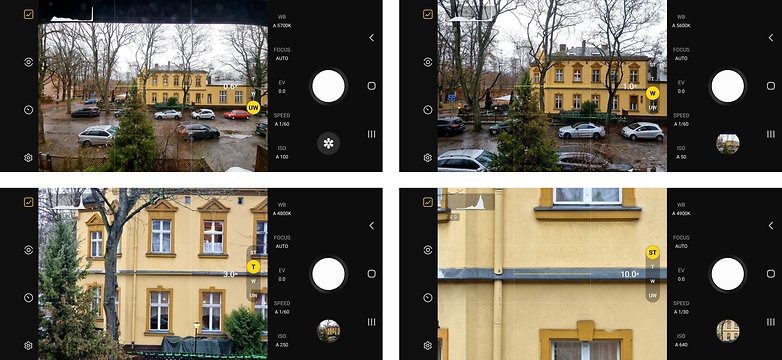
As you can see in the image below on the left, you can manually set the ISO value, shutter speed, exposure value, and focus–or leave them in the auto setting. In the upper area of the screen, there are icons for settings, self-timer, metering mode, and for displaying a histogram. The latter is helpful for estimating if your manually set exposure is correct or not.
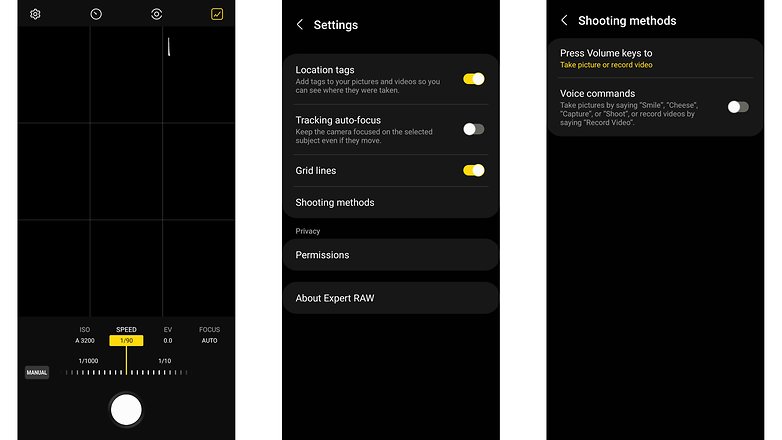
The Expert RAW app itself doesn't feature many settings–and as opposed to the standard Samsung camera app, it always shoots RAW + JPEG at the same time.
Now, why would you shoot RAW? As initially stated, relying on the auto mode in the normal camera apps delivers usually great results. But ending up with JPEG images that are the result of some heavy computational photography magic, you'll lose a lot of flexibility.
The white balance for example is baked into the picture–as is the exposure. By processing the RAW files yourself, you can not only better adjust the color and exposure settings, but you can also save quite some details, as you can see in the comparison picture below.
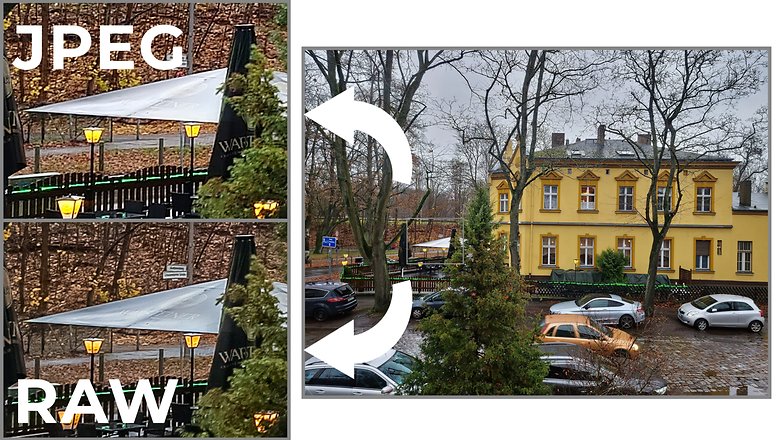
Although shooting RAW pictures may be a hassle for a new user, the difference in quality, as demonstrated in the pictures above is definitely worth it. Once you get the hold of what each setting changes, then a whole new world of photography craftsmanship will be unlocked before you, and your Samsung Galaxy phone will prove to be a good tool.
Have you used the advanced features on your phone's camera app or do you prefer taking pictures with auto settings and not having to worry about all the available options?
Source: Samsung