How to Activate and Use Secret Wi-Fi Features on Samsung

Android's Wi-Fi menu has always been straightforward to read and use. But if you're a tinkerer, Samsung has a hidden Wi-Fi menu that provides much-advanced controls and options to diagnose and optimize connectivity. If you're wondering how it works, below we show the guide on how to enable and use the secret menu on your Samsung mobile device.
Of course, you can always do the most basic functions within the main Wi-Fi menu. The purpose of the hidden Wi-Fi menu is to allow you to access more tools beyond the on/off toggle or view the list of Wi-Fi connections available. You can also utilize extensive technical data from the menu which might be helpful in diagnosing and fixing a connectivity issue.
- Also read: How to show saved Wi-Fi passwords
How to enable the hidden Wi-Fi menu on your Samsung device
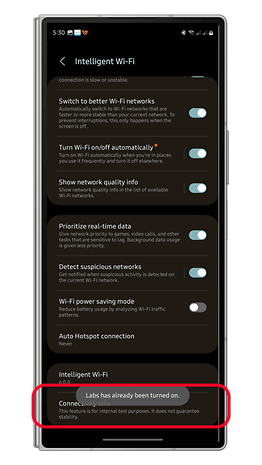
The advanced Wi-Fi menu was introduced with One UI 5 and has been part of the Labs features. Developers and regular users can access it inside from the main Wi-Fi settings, but first, you'll need to enable the developer mode.
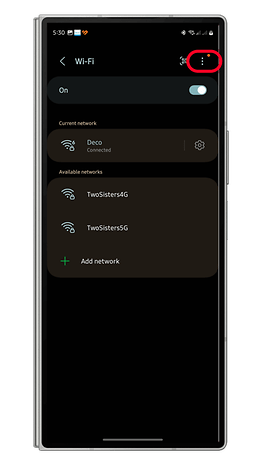
- Go to Wi-Fi connection from the Settings app or the quick panel.
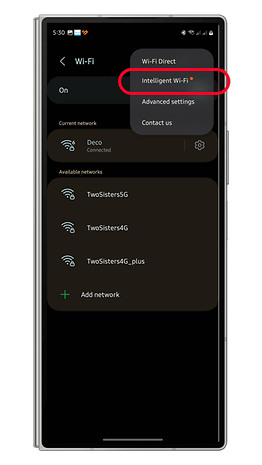
- Tap on the three dots (⋮) to open the pop-up menu.
- Choose Intelligent Wi-Fi.
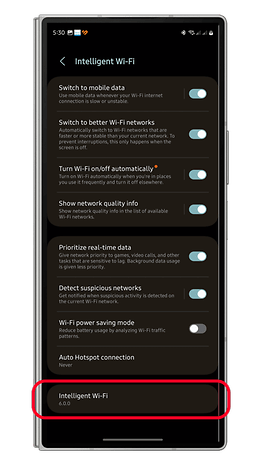
- At the bottom, tap the firmware version 5 to 10 times.
- Labs should be turned on and a Connectivity Labs options added to the menu.
What are the advanced features inside the hidden Wi-Fi menu on your Samsung device
Once the Labs option is enabled, you can enter the Connectivity Labs section without manually activating the developer mode. Here's what you can find deep in the menu and controls.
Current connection
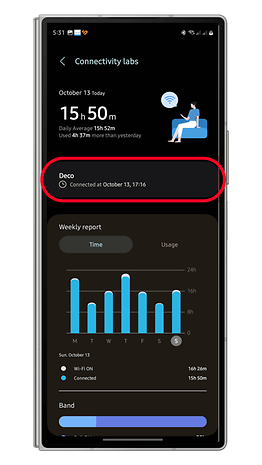
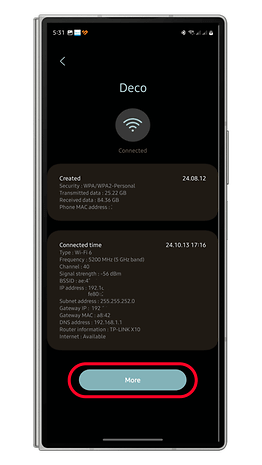
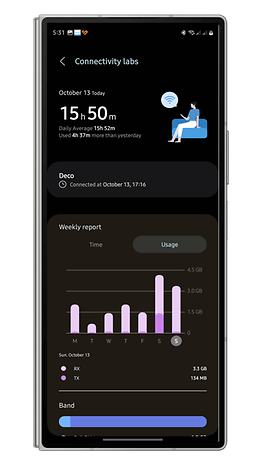
Inside Connectivity Labs shows the Wi-Fi you are currently connected to. Tapping on the Wi-Fi name shows more details about the access point and WLAN, including the security type, frequency and channel, IP and MAC addresses, and more.
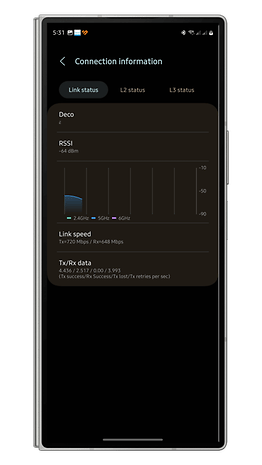
In the More section, you can see the Connection information for the Wi-Fi network you are connected to. This is shown in three tabs labeled "Link status", "L2 status", and "L3 status". From here, you can get a real-time signal indicator reading measured in dB units and the specified Tx/Rx link speed.
Time, Usage, and Wi-Fi type
Below the current connection, you will see the weekly graphical report that covers the connected time and usage distributed in daily reading.
In the Time tab, you can view the daily time for each day which is distinguished through the time Wi-Fi is on and the time connected to a Wi-Fi network. Meanwhile, the Usage tab shows you the same weekly graphical chart but with the Tx (transmitted) and Rx (received) metrics.
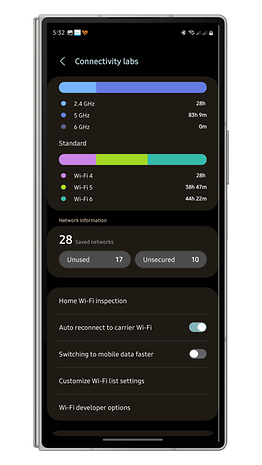
Besides the weekly chart, the Wi-Fi frequency bands of 2.4/5/6 GHz and Wi-Fi type are also detailed showing the amount of time connected.
Network information
The next section is Network information which shows the total saved Wi-Fi networks and the unused and unsecured networks. Entering from the unused or unsecured menu will have the networks listed. Tapping on a saved Wi-Fi presents the date of creation, security type, Tx/Rx data, and the MAC address.
Wi-Fi signal strength testing
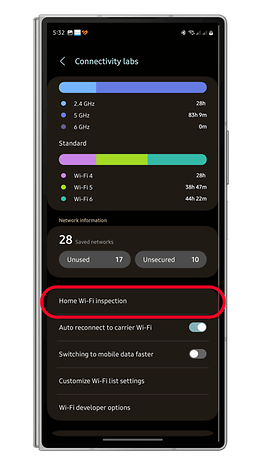
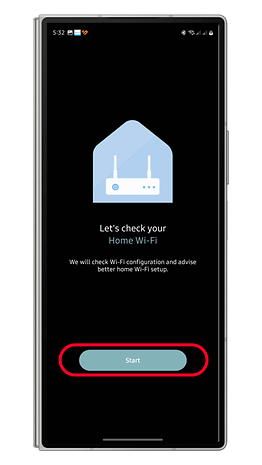
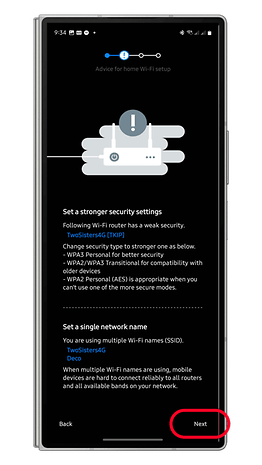
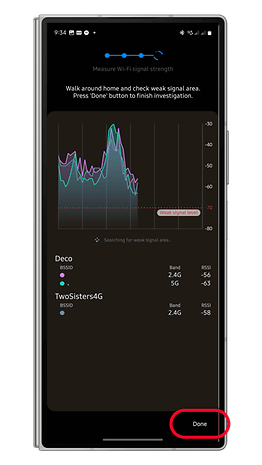
Perhaps one of the useful tools in the Connectivity Labs that many types of users can benefit is the Home Wi-Fi Inspection option. As the name suggests, you utilize it to run a test in your Wi-Fi configuration, including suggesting to switch to a stronger security key or password and running a signal test to discover the areas with the best and weakest signal.
Toggles for auto-reconnect and faster mobile data switching
There are dedicated toggles for auto reconnecting to carrier Wi-Fi, which is enabled by default, and switching to mobile data transfer. If the latter is enabled, it should automatically connect to a cellular connection faster by reducing the amount of time to scan for available Wi-Fi networks.
Reveal more Wi-Fi networks and hide/show frequency band
Just below the two toggles is the Customize Wi-Fi listing setting. This menu further offers a filter for networks with weak and strong signals. There's a slider that lets you reveal more Wi-Fis even that are those with weaker signals or allows the networks with more stable and stronger reception.
Wi-Fi tools for developers: Diagnostics and improve device's battery life
Developers and knowledgeable users can explore more tools in the Wi-Fi developer options. This pane offers connection information that is also located in the current connection as well visual strength indicator of available networks, an option to diagnose a Wi-Fi or network, and connection histories.
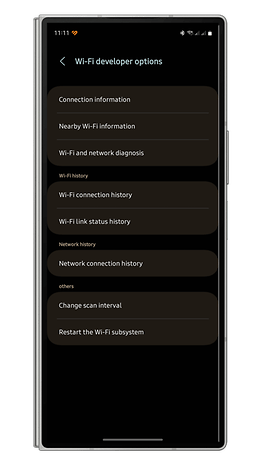
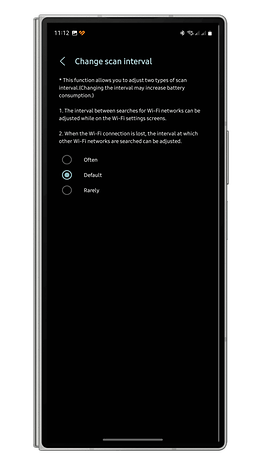
Additionally, a menu to change the Wi-Fi scan interval is also present here. This is useful if you want to improve the battery life of your device by opting for a rare scanning frequency while choosing the often interval may result in the device consuming more battery life.
Have you tried using Connectivity Labs before on your Samsung phone or tablet? What other tips do you recommend to maximize the usage of these tools? Share those in the comment section.