How to remove the Google Search bar from any Android homescreen
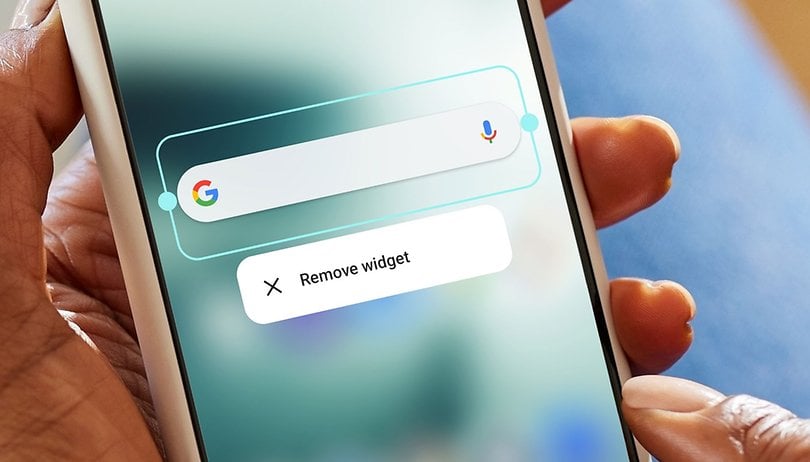

Most Android phones come with the Google Search bar placed on the home screen. While convenient, it can take up valuable space. You can maximize your home screen by removing or adjusting the widget. Here’s a quick guide on how to disable it from your Android device in just a few taps.
Why remove or disable the Google Search bar?
Many Android phones come with the Google Search bar installed on the home screen by default. However, if you rarely use it, this feature can feel more like a space-waster, preventing you from adding additional app shortcuts and widgets. Disabling the Google Search bar can create a cleaner home screen, allowing your wallpaper to shine.
Even without the Search bar, you can still perform searches quickly using gestures or shortcuts, such as Google Assistant or alternative search tools.
How to remove the Google Search bar with simple gestures
Remove the Google Search bar on Pixel and Stock Android
On Google’s phones and many stock Android devices, removing the Google Search bar from the home screen requires either a custom ROM or an app launcher, such as Nova. However, on some devices running stock Android, like Sony Xperia or HMD models, removing the search widget is directly supported.
Disable the Quick Search bar on Sony Xperia
If you have a Sony Xperia device, you can remove the Google Search bar, which is integrated with Sony's Quick Search feature, directly from the home screen settings. Here’s how:
- Unlock your Sony Xperia device.
- Long press on the empty area to open more options.
- Tap Home settings.
- Toggle off the Show quick search bar.
- Exit to save your changes.
Remove the Google Search bar on Samsung Galaxy
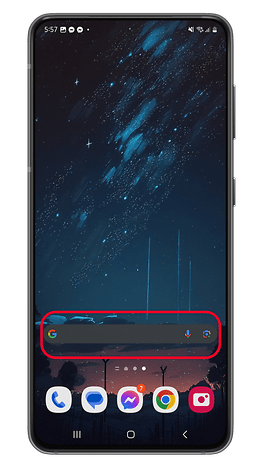
For Samsung Galaxy devices running One UI, removing the Google Search bar is straightforward:
- Unlock your Samsung Galaxy device.
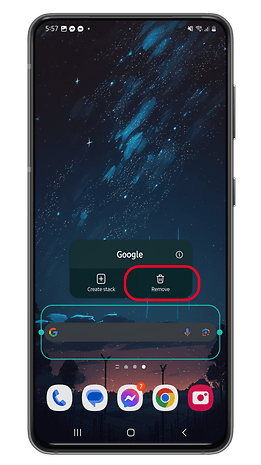
- Long press the Google Search bar widget.
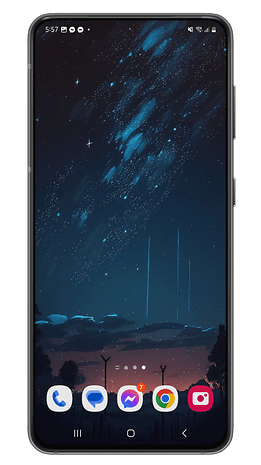
- Select Remove from the popup menu.
- You can also resize the widget.
If you want the opposite and have the search bar reinstated on the home screen, you can retrieve it by adding a widget. Follow the steps:
- Tap and hold an empty space on the home screen.
- Tap Widgets in the menu that appears.
- Click on the Google app.
- Drag and drop the Search bar from inside the folder to a suitable space on one of your home screens.
Xiaomi MIUI and HyperOS phones
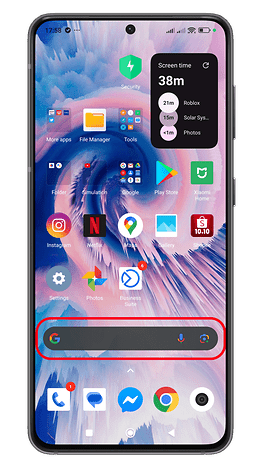
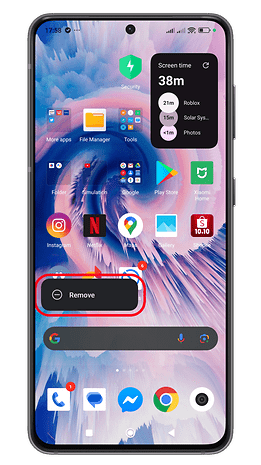
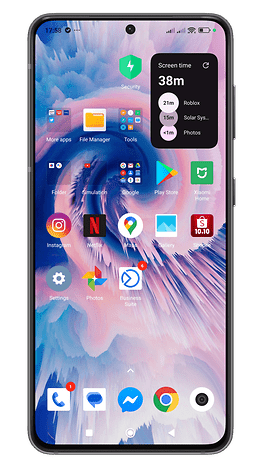
Similarly, removing the search bar on Xiaomi phones and tablets running on HyperOS and MIUI is pretty basic.
- Unlock your device and navigate to the home screen.
- Long press the Google Search bar.
- Tap on Remove.
Remove the Google search bar on OnePlus' OxygenOS and Oppo's ColorOS
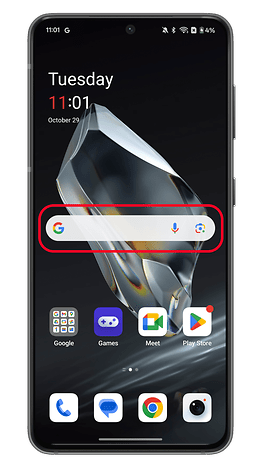
OnePlus and Oppo Android devices run on the same core skinned version of Android, meaning the process of removing the Google Search bar from their home screens should be similar.
- Unlock your OnePlus or Oppo device.
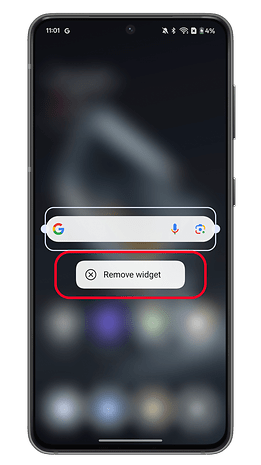
- On the home screen, long press the search bar.
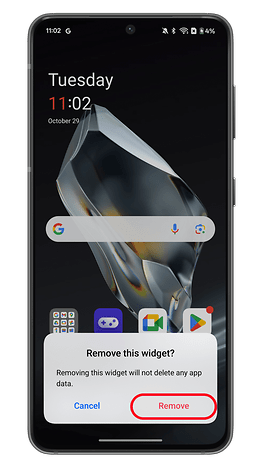
- Choose Remove widget.
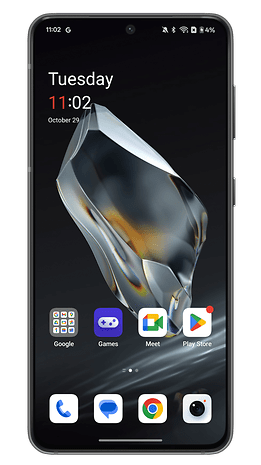
- Confirm by tapping on Remove.
Remove the Google Search bar on Motorola smartphones
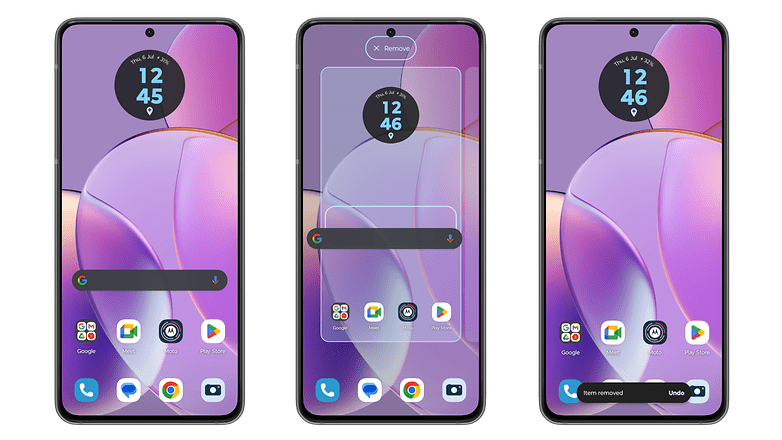
Motorola's Android devices run on My UX, a streamlined version of stock Android that allows you to customize or remove the Google Search bar from the home screen.
- Tap and hold the Google Search bar.
- Drag the widget to the Remove button.
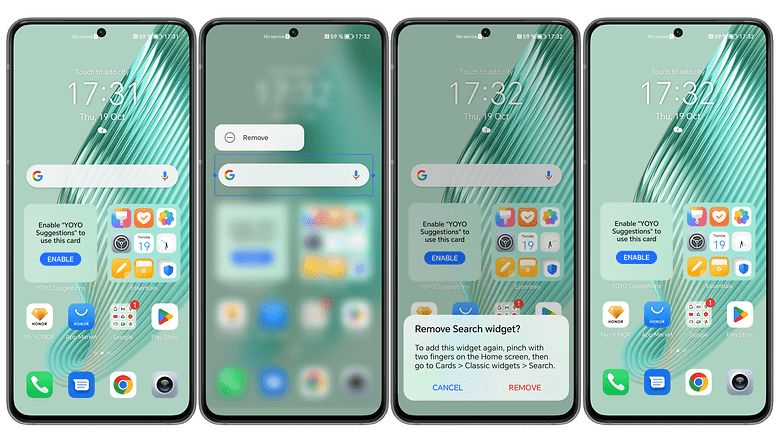
Remove the Google Search widget from Huawei and Honor phones
On EMUI or MagicUI phones, the steps are pretty much the same as the ones above:
- Long press the Google Search bar.
- Choose Remove.
- Confirm by tapping on REMOVE.
User suggestions
There's more than one way to solve a problem like Google Search, and our readers have chimed in with a few helpful techniques in the comments section. We've now included one in the main section of the article for your convenience.
Check your settings
Courtesy of Kenneth Cyr, here's a simple method that could work for many:
- Press on an empty space on your home screen.
- Several options should pop up, including Settings. Select it.
- Disable Show Google toolbar on home screen or similar.
How to remove the Google Search bar with a custom launcher
Another simple way to get rid of the Google Search bar is to simply find yourself a custom launcher, such as Nova Launcher. These can completely customize your Android device to look and work the way you want it to, and you can even get some launchers for free.
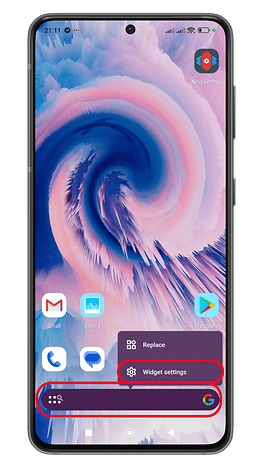
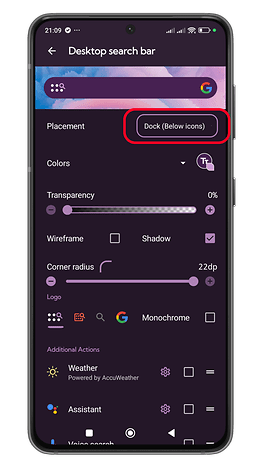
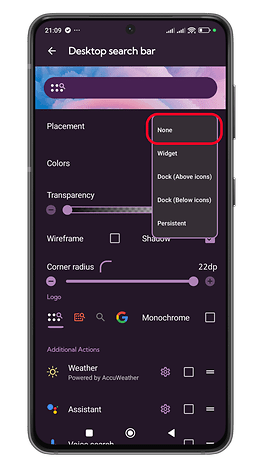
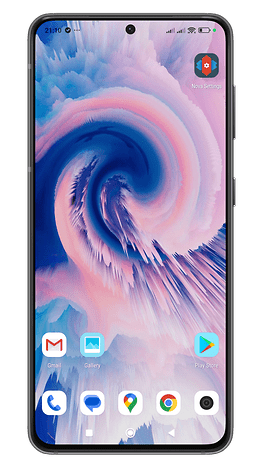
Third-party custom launchers are brilliant things, and Nova isn't the only one out there. We’ve put together a comprehensive guide to the best Android launchers available, and we’re pretty sure at least one of them will excite and delight you.
It should be noted that installing a custom launcher is the only way to get rid of the Google Search bar on Google's own Pixel phones and other brands that use a stock Android launcher.
Have you taken Google Search off your home screen? Tell us about it in the comments!





As suggested, I have disabled Google app and restarted Android 8.1 phone, but there is white rectangular strip on home screen. Please guide further.
You should have mentioned that the search bar size can be shortened . I made mine smaller to free up space for other icons. Also, it can always be moved to another screen.
I couldn't remove the google search bar from my Pie version tablet with the suggestions here.
However, the Nova Launcher was so intuitive that it pretty much pulled me through removing Google search bar and letting me put my default browser and search engine on the home page in a widget that took up half the space. I rooted a device years ago for stuff like this but I'm much more comfortable fixing minor irritants with this type of solution. Thanks for the suggestion!
I removed the Google search from my Android 8.1 BLU, BUT the box is still there. Can not seem to remove it. Any suggestions? Thanks
Same here. Please advise if you have removed d box...
Nova launcher
Just figured out that if you have an international version of a phone running Pie you do not have the stupid search bar jammed in the most inconvenient location on your screen. Sounds like the US needs to follow the EU and hit Google with a multi billion dollar fine for being tools. What I am most amazed by is that there doesn't seem to be any press coverage on this. I am coming to the Pie game very late and I am really surprised that no tech reporter has picked up on this, then again Google could just be suppressing the search results. Time to go flame some supposed tech reporters.
Alas, I've not been able to remove it on a Nokia 8.1 under Pie. I havn't got as far as installing another launcher or rooting it yet.
I just bought a CAT s41, all went well until the last update 2 nights ago, now everytime i restart its resets my font to default and changes my language to Austrian German. Damn impressed with the rest, but it is damn inconvenient to have to go after settings every time, better after i managed to translate enough German to find the fix at first.
Google search Bar in Android Pie cannot be disabled on any phone running "stock" Android, i.e. Pixel ; Nokia, Xiaomi A1/A2, Lenovo MOto etc. The same goes for the stupid date/weather widget at the top. The only solution is to install a 3rd party launcher.
I agree with every comment above: Google is turning Android into IOS, forcing all users to share the same (lousy) experience. If they continue like this they will effectively ruin Android and the freedom of choice that Android users are used to. In the end it's all about promoting Google's own components for commercial reasons without any respect for the end users. I have been using stock Android phones since the beginning but now my journey ends. I will turn to OnePlus for my next phone.
I agree and have used Nova launcher but I also have removed all shortcuts from a second or third sweep right page. The big advantage is that a photo used as wallpaper stays as you want to view it and is not spread out over multiple screens.
In other words, lady, you don't know how to remove it, LOL. On my Nokia 1 this bar came up after I tapped Widgets by mistake. It is not "Google Assistant", just a regular GooSearch bar. Now I can't remove it, and it is doesn't respond to press-hold like a regular widget. Oh, btw, disabling Google App results in an empty Search Bar - it's still there, just empty, white, blank. Obviously, there are launchers, duh. Kinda awkward route - adding one app to remove another. Why writing an article when you have nothing to say?
@Alex I rebooted my phone after disabling the Google app and the search bar was gone. Don't assume that your experience applies to everyone, sir. Oh, btw, LOL, obviously. Kinda awkward comment.
its the same for me, i disable google app and the search still appear in home screen with blank and white
I was wondering why nothing worked for me, then at the very end it says that this won't work for Pixel 2's ... yup! However, the Microsoft Launcher removes the Google Bar ... Hallelujah! On my Home Page I just want a beautiful Wallpaper, nothing else, especially that ugly Google Bar.
Love useful articles on how to do stuff ... thank you!
I've been with disabling the Google Search app altogether since realizing it's not required except for services I don't use - the ordinary Google Search as default browser box / web page is enough. Instead of launching the app just launch the browser. (I do install Startpage, the Google-based privacy search app, but don't use its widget.)
So, you've not noticed any reduction in quality or disturbances in other areas of functionality?? tbh I've not noticed much difference myself, and I installed a new launcher in addition to disabling Google (see message below, I am concerned I might unintentionally be disabling other important functionality I may not be aware of)...
Mind you, my mobile is brand new & I changed a lot of other settings to improve speed & functionality, so it's harder for me to pinpoint causative or even corollary explanations...
I'm concerned. The only method that works for my Blackview (Europe) is disabling Google. But WHAT ELSE IS ALSO CONNECTED TO THE GOOGLE APP THAT IS NOW ALSO DISABLED??! I feel like I'm likely disabling major functionality (care less about features) for a benign (yet annoying) problem, like I'm amputating my arm cuz I don't like my nail polish colour. Does it work? Yes, but I'd prefer 99p nail polish remover to Saw XXX.
Personally, I just hate constantly tapping the bar & searching accidentally cuz it's right at the top of Page1 for fex sake as an integrated fixed widget
Motorola G5 Android 7. Tried all the above. Even disabling the Google app (leaves the search bar,just stops it working).The only way I found that works is to use another launcher. I think the factory one is called "launcher3". Any other ideas would be welcome.
Yep. Disabling leaves an empty white bar. The author doesn't have any ideas of her own. Adding launcher app to remove another app... yeah, well... Off to "real" Android forums.