Quick Share: Swiftly Transfer Files or Photos Between PC and Android

Since the launch of Quick Share, users can transfer files and media seamlessly between a Windows PC and an Android device. However, it has the disadvantage of having a slower transfer speed when the two endpoint devices aren't connected to the same Wi-Fi network. This is changing with the latest update for the sharing tool.
- Also read: How to Master Quick Share on Android
Before the update, Quick Share utilizes Wi-Fi or Bluetooth connectivity when transferring files. The latter is slower and the least recommended option of the two methods. Using Wi-Fi, devices don't need to connect to the same wireless network, but this is also slower than a setup using the same network.
As discovered by Android Authority, Google has updated Quick Share on Windows and Android, enabling enhanced transfer speed when the devices are not using the same Wi-Fi.
I also tested the new Quick Share on my computer using different Wi-Fi networks and even on a cellular data connection on the handset. The speeds are comparably similar regardless of the selected network. Here's a guide on how to use Quick Share when sending or receiving from a PC to Android.
How to use Quick Share and send files from a PC to a Phone
Using Quick Share on a Windows PC requires installing the app or program on your desktop or laptop first. Follow the steps below:
- Download and install the Quick Share app on your PC.
- Launch the Quick Share app.
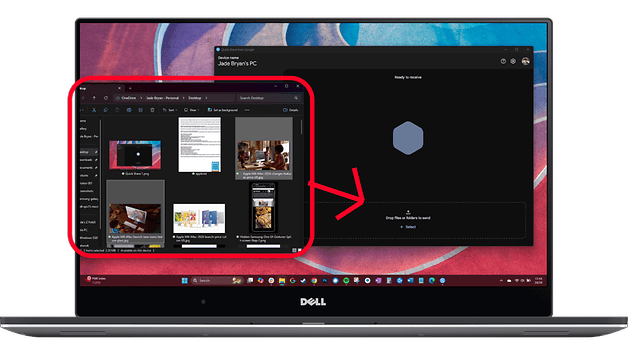
- Open the file explorer on your PC and find the files you want to transfer.
- Drag or add them to the Quick Share app window.
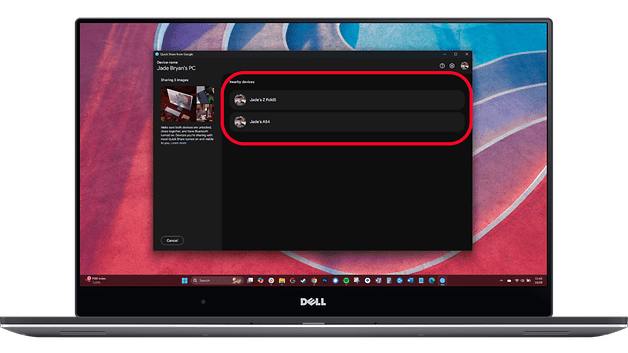
- Select the recipient device in the list.
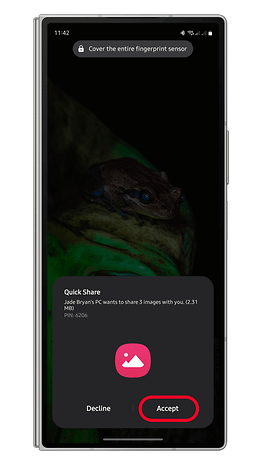
- On your Android device, tap Accept and confirm the PIN.
- Wait for the transfer to finish.
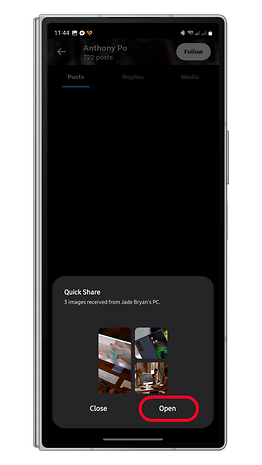
You can view the files or media (photos, videos) shared to your phone in a Quick Share album in the gallery while documents are sent to the Documents folder. Another option is to view the Recent files for quicker access.
How to use Quick Share and send files from a Phone to a PC
Sharing files from an Android device to a PC via Quick Share is also an easy process without the need to install an app. Once you're ready, read the step-by-step guide below:
- Open the gallery or file manager on your Android device.
- Navigate to the photos, videos, or documents you want to send and select multiple ones if required.
- Tap the Share button.
- Select Quick Share from the share sheet menu.
- Select from the available devices or scan nearby devices.
- If a new device is added, confirm it on the PC to continue sharing files.
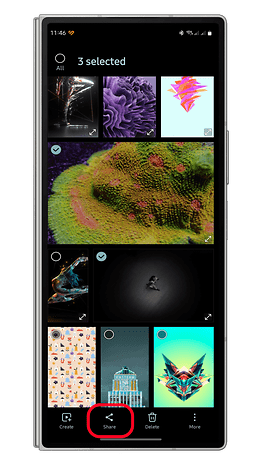
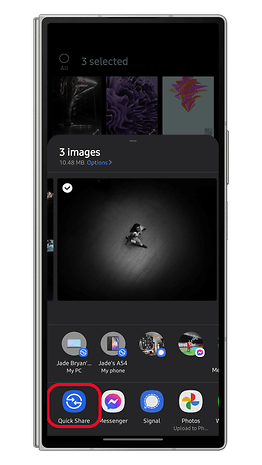
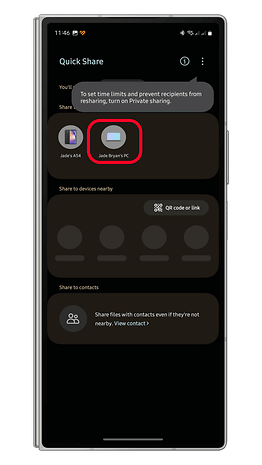
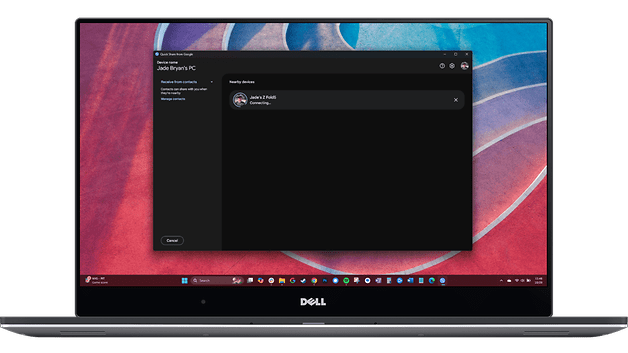
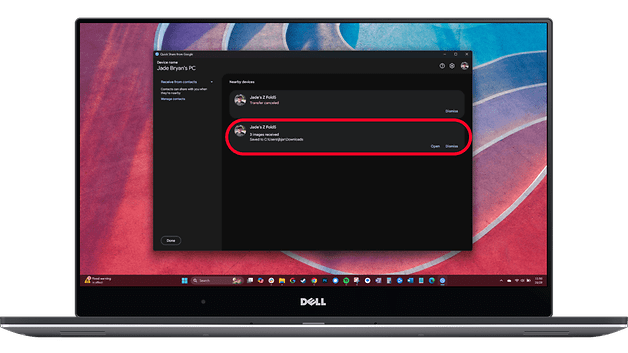
Once the transfer is finished, there's a link where you can click to open the location of the files. Alternatively, you can navigate to the Downloads folder to find the received files.
Have you tried using Quick Share on your Android phone or Windows PC? How do you compare it with other file transfer methods?
Via: Android Authority