iOS 16: Have true Always On Display on your iPhone 14 Pro (Max) at all times


The iPhone 14 Pro and iPhone 14 Pro Max are the first Apple smartphones to offer the Always On Display feature, and Apple's alternative offers different options. In this article, we show how to set up AoD on the iPhone 14 Pro series running with iOS 16.
- Check out: 10 iOS tips & tricks to try on any iPhone
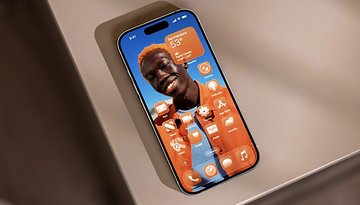
The Always On Display feature is exclusive to iPhone 14 Pro and iPhone 14 Pro Max. Basically, Apple's AoD offers two options, one that looks exactly like a normal iPhone lock screen, except that the screen is slightly darkened; and another that only shows time, notifications, and possibly, some widgets.
Apple recently included more configuration options for the Always-on-Display feature for the iPhone in the Beta 3 version of iOS 16.2. With this, it is now possible to disable the wallpaper when using the AoD. To do so, simply go to Settings > Display and Brightness > Always Om Display > Disable the Show Wallpaper option.
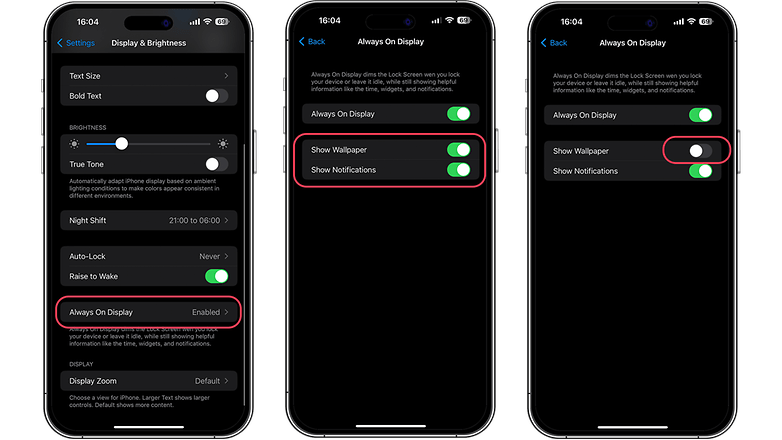
If you are not registered in the Beta program, you should know that in iOS 16's settings, you can go through Do Not Disturb mode to have a "real" minimalist Always On Display, like what we are used to on Android smartphones.
How to get a real Always On Display on your iPhone 14 Pro (Max)?
To begin, you will need to make sure you have Always On Display enabled on your iPhone 14 Pro or iPhone 14 Pro Max.
- Go to Settings and then to Display & Brightness.
- Enabled the Always On alert slider.
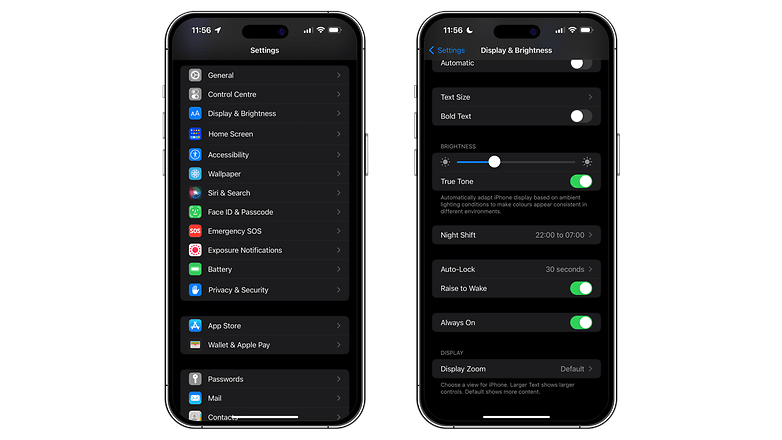
After doing so, you proceed with the following to obtain the famous "real" Always On Display (just like on an Android device) on your iPhone 14 Pro or iPhone 14 Pro Max:
- Go to Settings followed by Focus.
- Select Do Not Disturb followed by Options.
- Enable the Dim Lock Screen alert slider.
- Before or after locking your iPhone, switch to Do Not Disturb mode via Control Center.
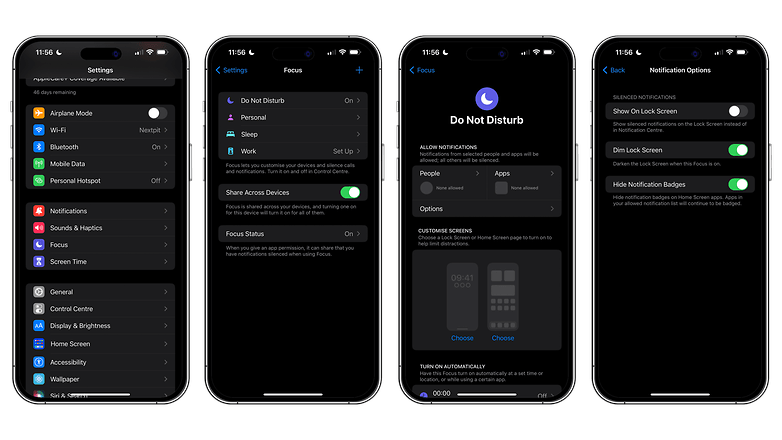
Then simply switch to Do Not Disturb mode via the iOS 16 Control Center. Swipe down from the top right of your iPhone screen and press the button just to the left of the brightness bar, as shown in the video below.
- Remember to check out: Our iPhone 14 Pro review and iPhone 14 Pro Max review
Once activated, the lock screen will be completely darkened, giving the impression that your iPhone screen is off. Only the clock, widgets (if you have placed any), and notifications (that are manually authorized) will be visible. In short, it's just like what you see on an Android smartphone.
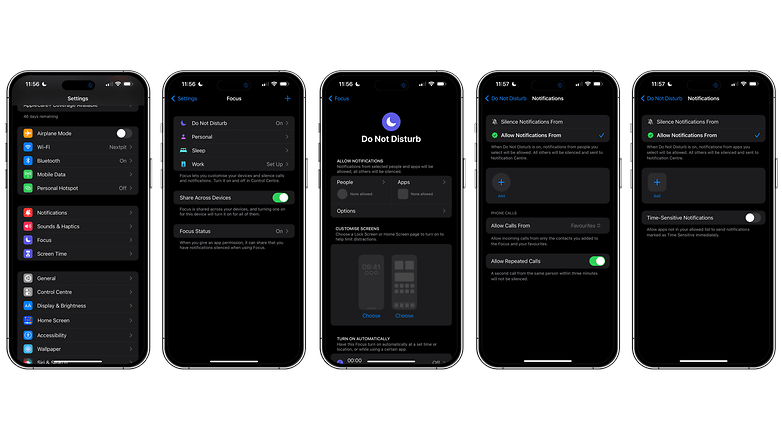
This remains a DIY solution, and it is not optimal in 100% of cases. The Do Not Disturb mode blocks incoming notifications, so you'll have to manually select apps and contacts to allow them to bypass the Do Not Disturb mode restrictions. To do this:
- Go to Settings and then to Focus.
- Select Do Not Disturb.
- Go to People and/or Apps to grant permissions and receive the respective notifications.
What do you think of this iOS 16 tip? Do you find Apple's Always On Display to be too cluttered, or do you prefer Apple's solution to what is available on Android?
This article was updated on November 17 with information about the iOS 16.2 update to the Beta 3 version.