Sorry, but there's really nothing to see here right now. Our server is in maintenance mode – and our
little bot is trying to sort the error messages with its last bit of energy.
Whether it was a data leak, a power outage in the cluster, or just a grumpy bit – we don't know yet.
But what we do know is:
The data drama escalated into a server meltdown. But don't worry: We're on it.
What now?
Everything is surely running smoothly over at our colleagues from inside
digital – why not stop by!
Or you could pass the time by visiting our social media channels – for example Instagram, YouTube or TikTok. At least there are no
server problems there – promised.
Thanks for your patience. Our bot is already rebooting at full speed. 🔧
How-tosTabletHow to customize your iPhone lock screen with iOS 16
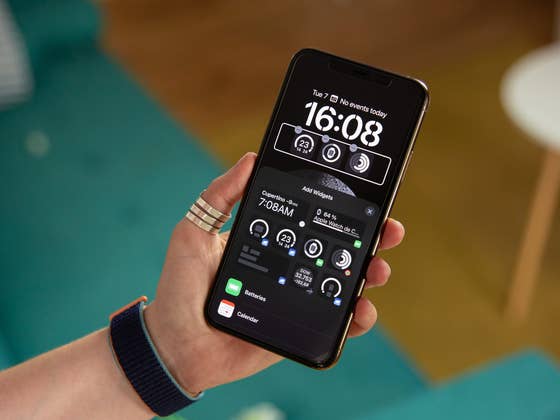
With iOS 16, you can customize your iPhone lock screen with widgets and especially apply a depth effect to your wallpaper. We share just how you can customize your iPhone’s lock screen.
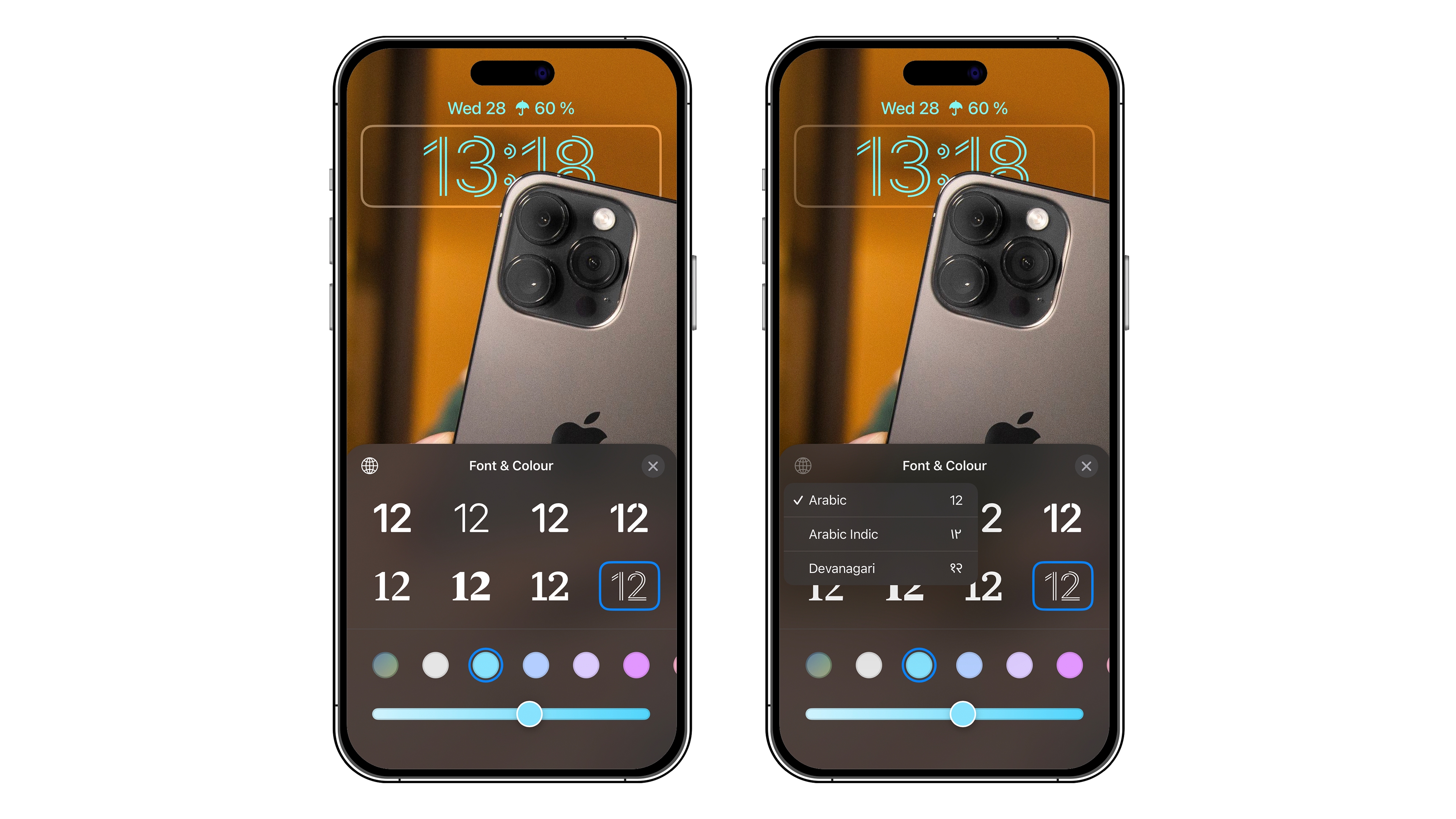
All the settings detailed in this article are meant for the iPhone running on iOS 16. For the iPhone 14 (Plus) and iPhone 14 Pro (Max), the lock screen customization options also apply to the Always On Display (AoD). Specifically, you can customize your iPhone’s screensaver on three levels: wallpaper, widgets, and depth effect.
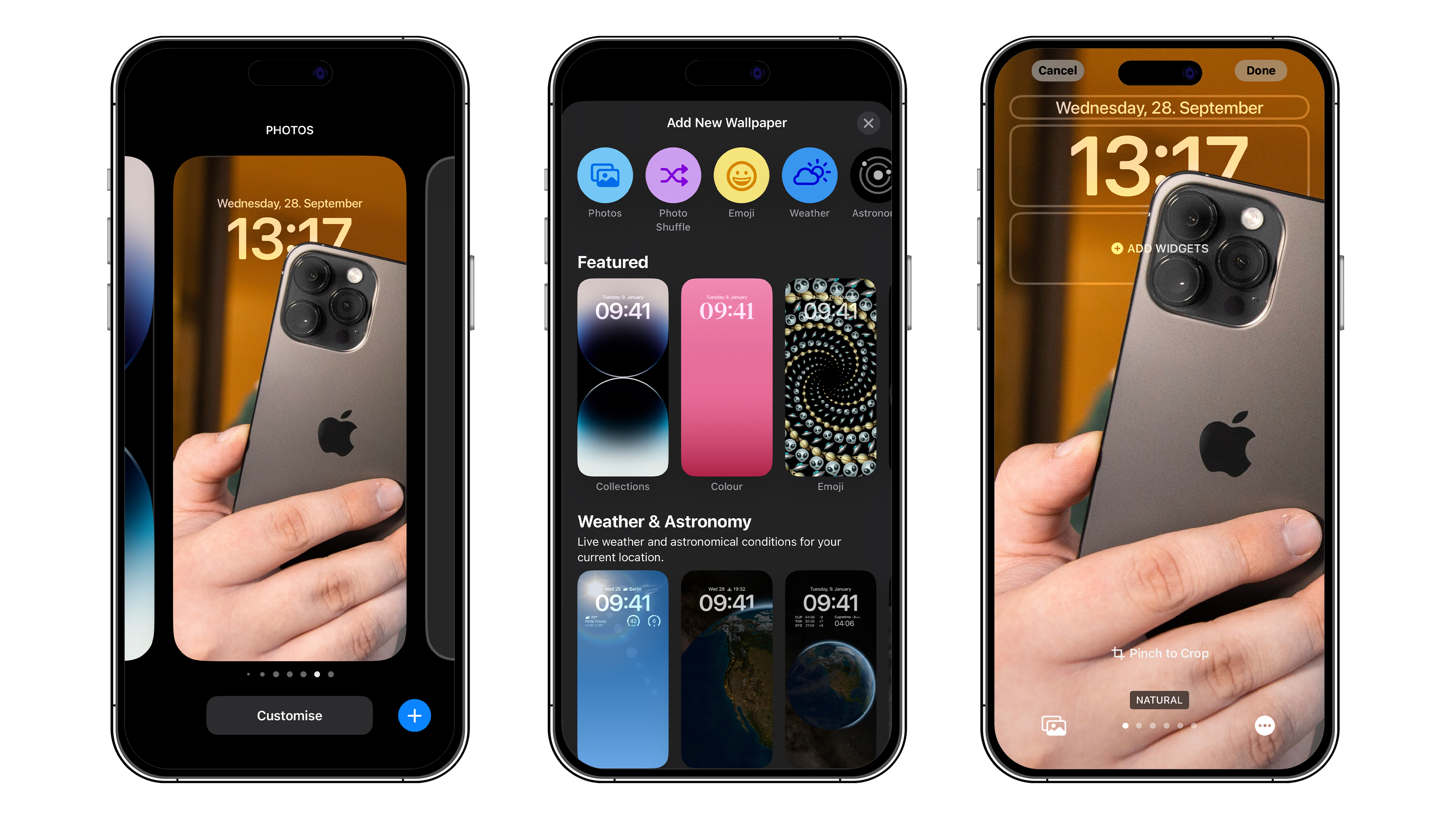
The way Apple goes about it is very similar to that of the Apple Watch. You can create several lock screens with each of them being very different according to your desires or needs. You can then very easily change the lock screen. Apple does not indicate a limit to the number of lock screens you can create. Here is how you can create a new lock screen:
On your locked iPhone, long press the screen (you’ll then need to either enter your passcode or go through Face ID).
Press the blue-colored “+” button at the bottom right.
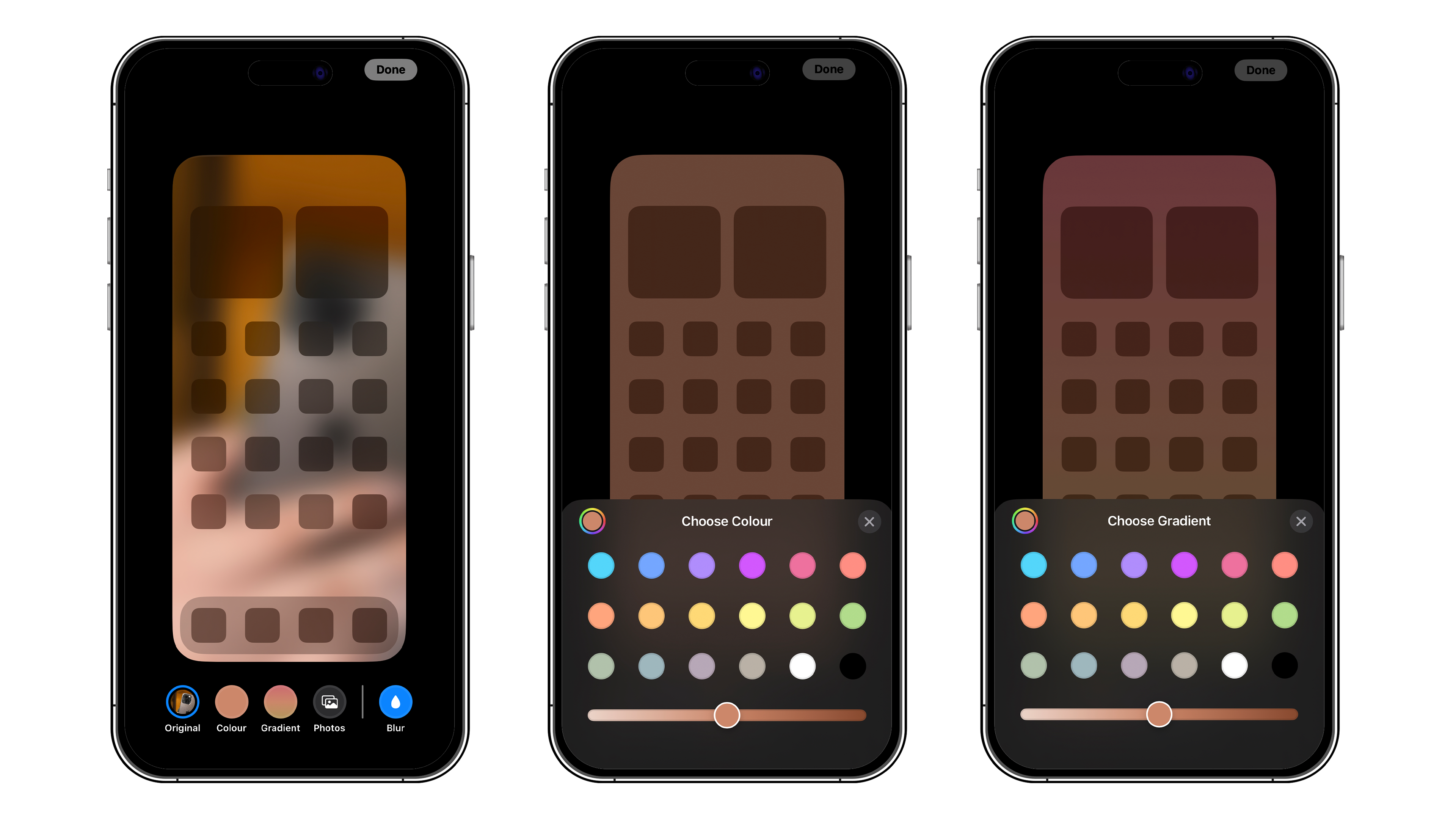
You will then have to choose between the following two options: Set as wallpaper or Customize home screen. This is simply a matter of choosing whether you want the themes of the lock screen and the home screen to be consistent or not.
If you picked the first option, your home screen wallpaper will have the same dominant colors as your lock screen. By selecting the second option, you can apply a different color or gradient, or even a photo/image from your gallery. You can also apply a filter to your wallpaper by swiping left.
Empfohlener redaktioneller Inhalt
Dieser externe Inhalt von YouTube wurde von der nextpit Redaktion ausgewählt und ergänzt den Artikel. Du hast die Wahl, ob du diesen Inhalt laden möchtest.
Externen Inhalt erlauben
Ich bin damit einverstanden, dass externer Inhalt geladen wird. Personenbezogene Daten werden womöglich an Drittplattformen übermittelt. Nähere Informationen enthält die Datenschutzerklärung.
You can then change your lock screen at any time you like: by performing a long press and selecting Personalize this time around. From this same menu, you can also change your lock screen by swiping left to scroll through your different lock screens.
Empfohlener redaktioneller Inhalt
Dieser externe Inhalt von YouTube wurde von der nextpit Redaktion ausgewählt und ergänzt den Artikel. Du hast die Wahl, ob du diesen Inhalt laden möchtest.
Externen Inhalt erlauben
Ich bin damit einverstanden, dass externer Inhalt geladen wird. Personenbezogene Daten werden womöglich an Drittplattformen übermittelt. Nähere Informationen enthält die Datenschutzerklärung.
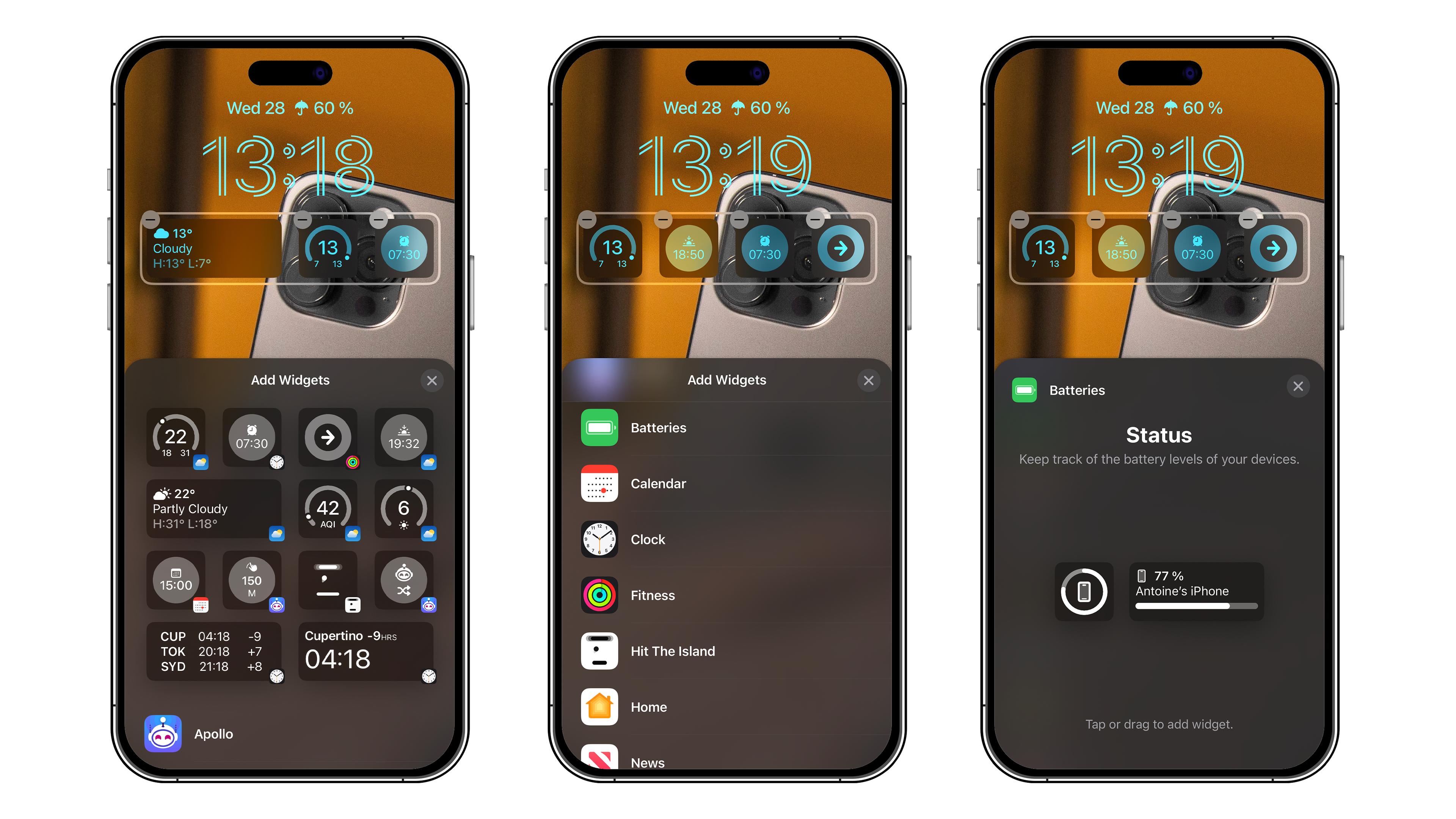
How do you add or change widgets on your iPhone lock screen?
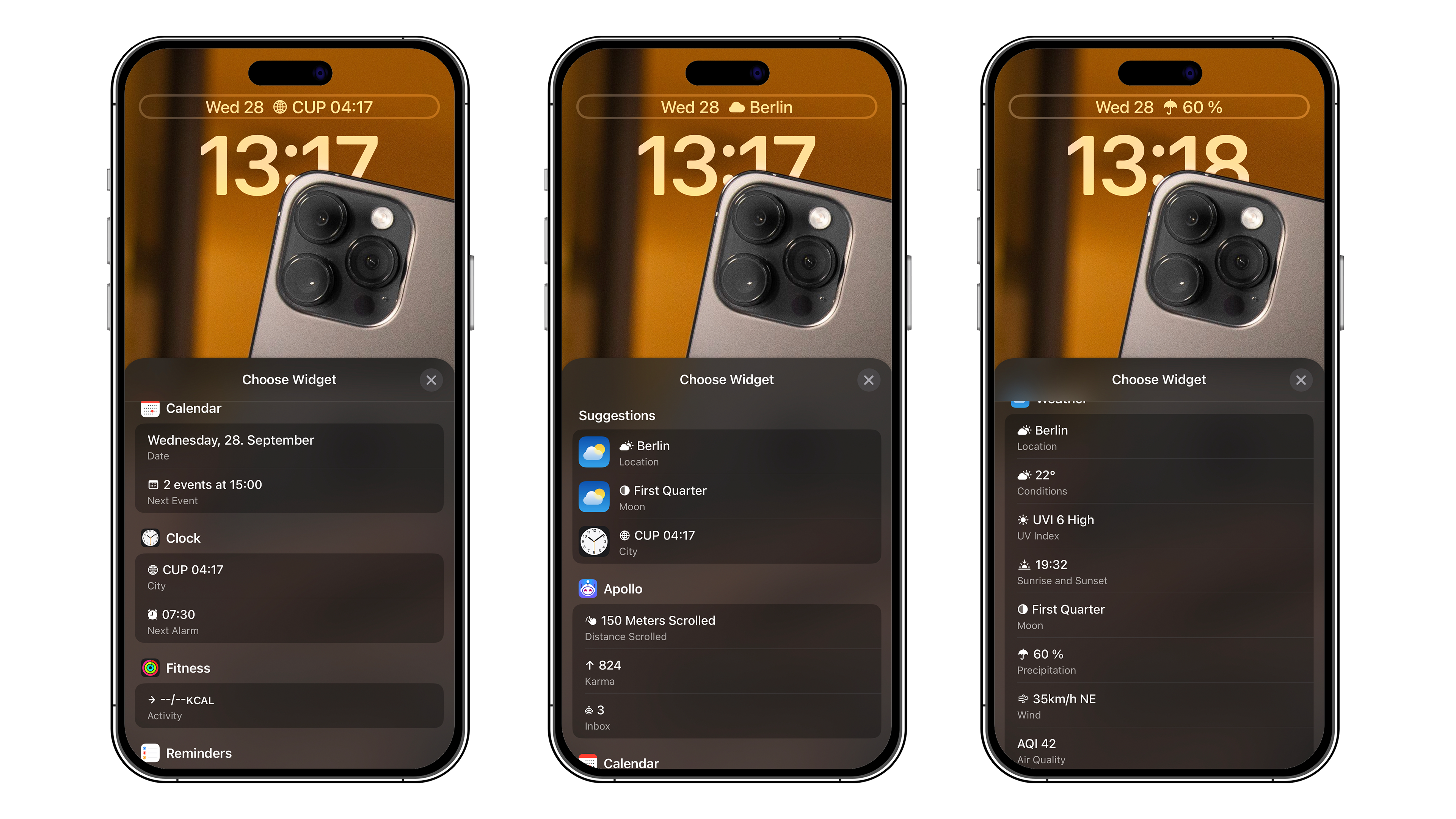
You can perform all the settings that I’m going to discuss here when creating a new lock screen, although you can do it at a later time as well. iOS 16 offers three areas at the top of your iPhone’s lock screen where you can display widgets.
Simply press and hold from the lock screen, followed by selecting Customize to bring up the options for adding/removing widgets.
At the very top, you have a small bar that allows you to display a single, very minimalist widget that is limited to time, weather, reminders, etc.
Further down, you have a slot that allows you to add between two and four widgets, depending on their size. This section offers a little bit more choice and more detailed widgets. Be careful though, if you add widgets here, you won’t be able to enable the depth effect of your wallpaper, which we’ll talk about below.
How to apply the depth effect to your lock screen wallpaper
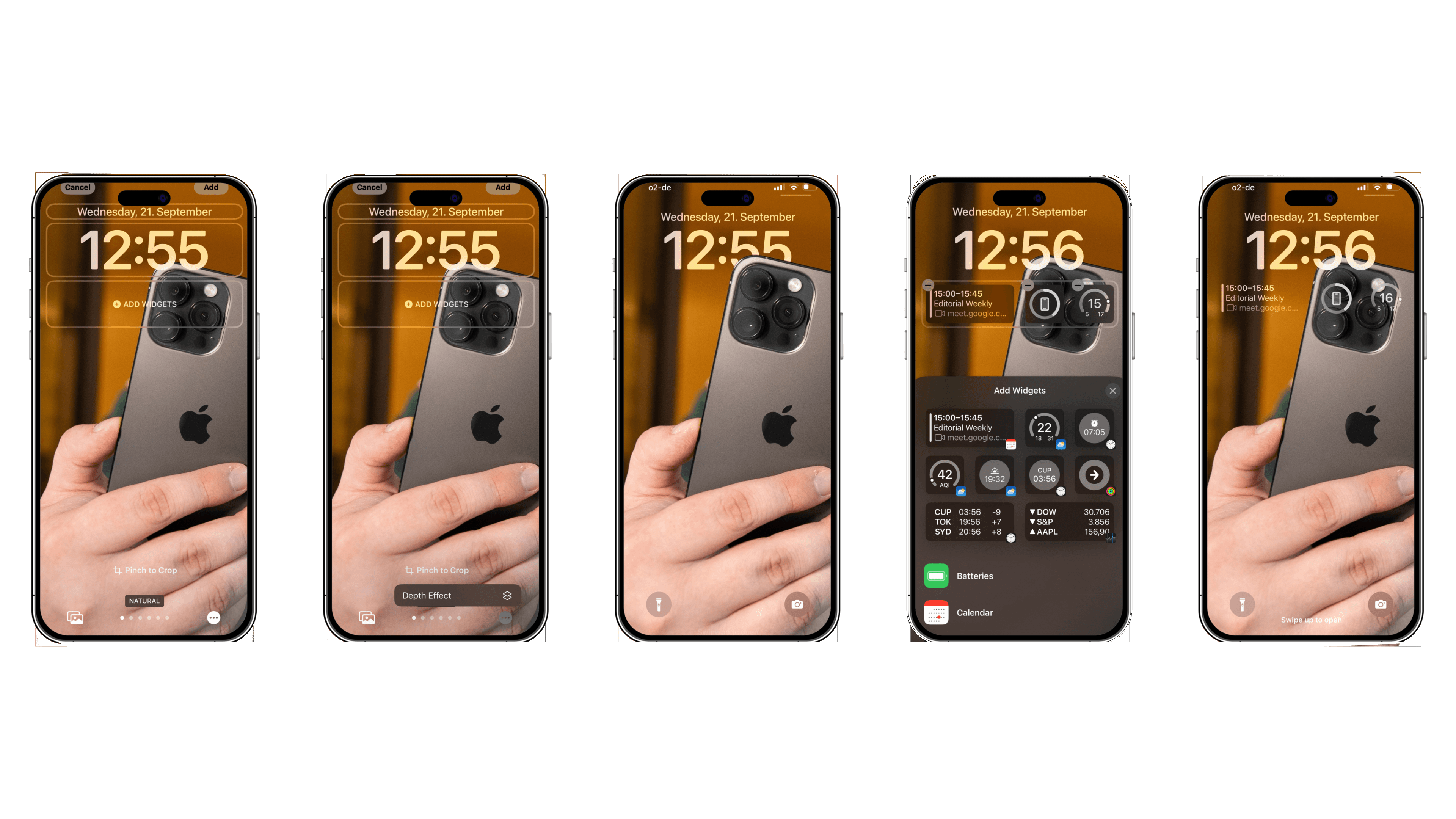
With iOS 16, you can provide depth to your lock screen wallpaper. Basically, it lets you display part of the wallpaper over the clock, making it look like the subject of the wallpaper is in a 3D scene, located in the foreground.
To apply the depth effect to your iPhone wallpaper:
Press and hold the screen.
Press the “+” button to add a wallpaper or Customize to change the existing wallpaper.
At first, chances are that the Depth Effect option will be grayed out and you won’t be able to activate it. This is because the effect is only applicable under specific conditions in which Apple does explicitly specify which are the ones. Thankfully, we have come up with the following parameters in when the depth effect doesn’t work:
Your wallpaper doesn’t have enough empty space at the top.
The clock is too obstructed by the wallpaper.
You have placed widgets on the lock screen.
Basically, your photo will need to have enough blank space at the top so that the subject doesn’t take up the entire frame. Then, when you choose your wallpaper, you need to place the image at the right so that the subject in the foreground does not cover too much of the clock. You can see this happen in real-time as you move the image on whether the depth effect works or not.
Empfohlener redaktioneller Inhalt
Dieser externe Inhalt von YouTube wurde von der nextpit Redaktion ausgewählt und ergänzt den Artikel. Du hast die Wahl, ob du diesen Inhalt laden möchtest.
Externen Inhalt erlauben
Ich bin damit einverstanden, dass externer Inhalt geladen wird. Personenbezogene Daten werden womöglich an Drittplattformen übermittelt. Nähere Informationen enthält die Datenschutzerklärung.
So, what do you think of the new customization options for the iPhone lock screen? Can we say that despite the delay, Apple got it right with the solution in iOS 16? Share your opinion in the comments below.
Schwarzer Gürtel beim Lesen von Datenblättern. OnePlus-Fanboy a.D. Durchschnittliche Lesezeit für meine Artikel: 48 Minuten. Hasst es, von sich selbst in der dritten Person zu sprechen. Wäre in einem früheren Leben gerne Gaming-Journalist gewesen. Versteht keine Ironie. Head of editorial bei nextpit Frankreich.





Very noisy UI. Looks as bad as Microsoft’s Metro UI.