How to Use Find My to Track a Lost AirTag
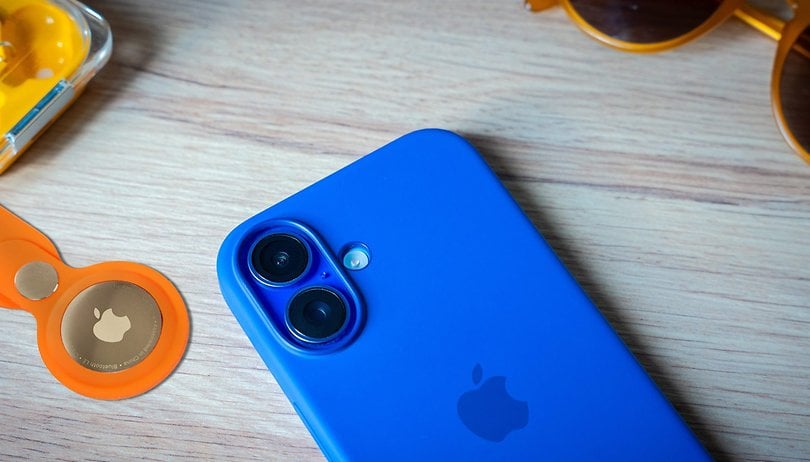

With the busy holiday season upon us, Apple’s iOS 18.2 update introduces an improved Find My network, making it easier to locate lost AirTags or compatible items by sharing their location with trusted contacts and even third parties like airlines. Here’s how to use the new Share Item Location feature.
What Is Find My’s Share Item Location Feature?
While Find My already allows AirTag (review) sharing with family and friends, the new Share Item Location feature is specifically designed for lost items. You can share a lost AirTag or Find My-enabled device with any trusted contact or third-party service, such as airlines which was added recently, enabling faster recovery.
This feature also enhances privacy and security. It only activates when an item is marked as lost, such as luggage. The sharing connection is automatically removed once the item is found.
Share Item Location is available with the iOS 18.2 update, supporting iPhones and iPads running this firmware, including the iPhone XS and later. You can also share a lost item using a Mac or through the web. Similarly, viewing and tracking a lost AirTag can be done on these Apple devices and on other channels for airlines.
How to Share a Lost AirTag Using Find My's Share Item Location
If you’ve set up an AirTag on Find My and misplaced it, follow these steps to track it using a third-party contact or airline:
- Launch the Find My app on your iPhone, iPad, or Mac.
- Navigate to the Items tab.
- Select the AirTag or compatible item you want to share.
- Tap Share Item Location from the info panel.
- Follow the on-screen prompts to create a shareable link.
- Share the link with someone who can help locate the item.
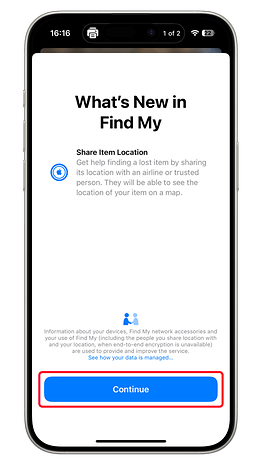
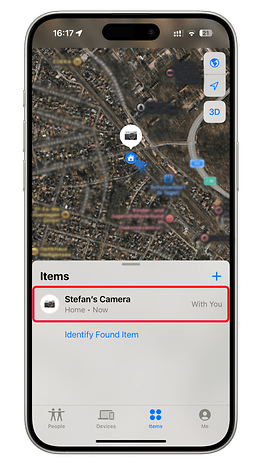
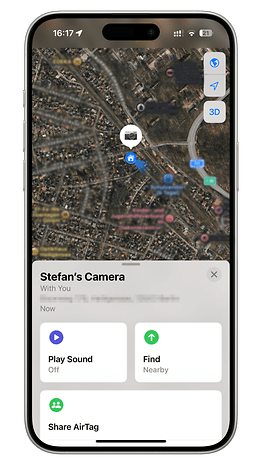
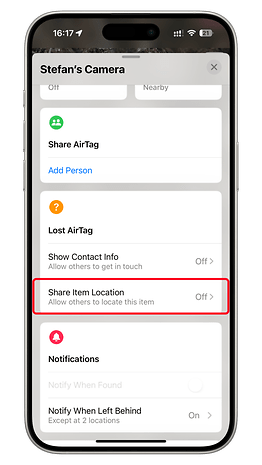
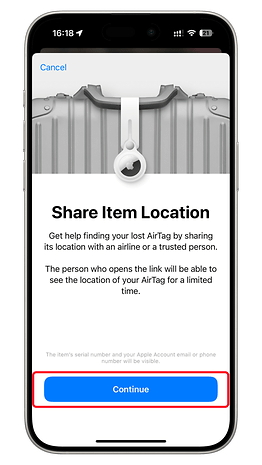
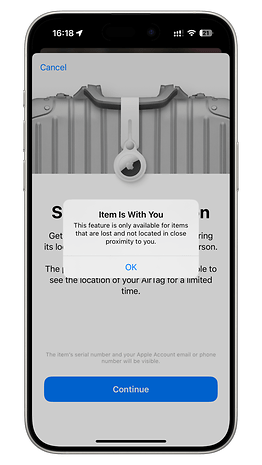
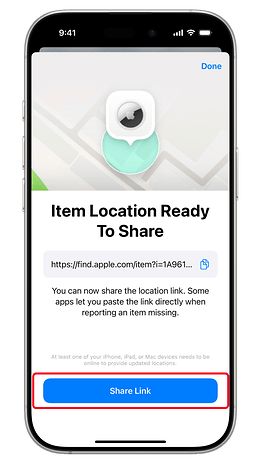
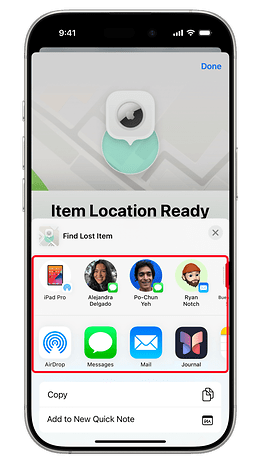
Note: Share Item Location only works for items marked as lost, not for those still within your device’s Bluetooth range. The app will notify you when the accessory is detected nearby.
How to View and Track a Lost AirTag Using Find My's Share Item Location
After sending the link to a contact or airline via Mail, AirDrop, or Messages, they can track the lost AirTag by following these steps:
- Tap or click the shared link to access a webpage on find.apple.com.
- If you have an Apple Account, sign in with your Apple credentials. Registered Apple Partners, like airline staff, can use their work email addresses.
- If prompted, enter the verification code sent to your email.
Once signed in, view the AirTag’s most recent location on an interactive map. You’ll also see details like the item owner’s phone number or email address, the item’s serial number, and more.
Do you find the new Share Item Location feature useful? How would you use an AirTag during your travels? Share your thoughts with us!