Android Nougat vs Android Marshmallow: more of the same?

The new version of Android Nougat is already available on many devices. It adds some nice improvements to the 7.0 version, but there isn’t a huge difference compared to the 6.0. We’re going to compare Android 6.0.1 Marshmallow, currently the second most used version, with Android 7.0 Nougat which is slowly starting to grow.
Goodbye to passive notifications
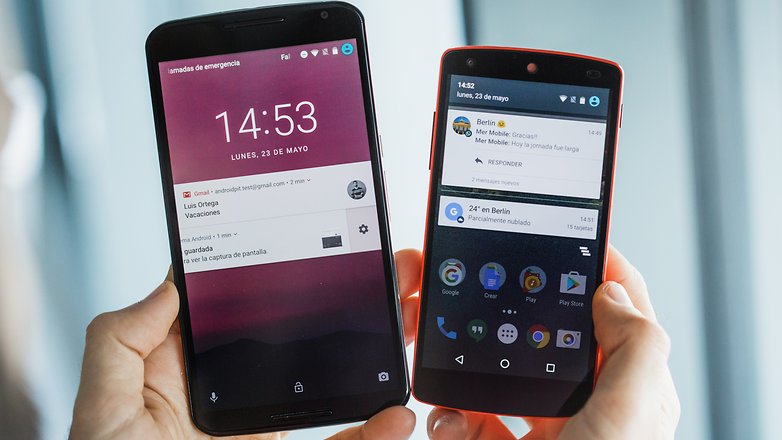
Android Nougat adds a new dimension to notifications. Until very recently, notifications did only that, they notified. With Nougat, however, they take on a bigger role. To start with, in addition to grouping notifications by app, which Marshmallow basically already did, they’re also drop-down menus.
By touching the notification arrow, we can open a drop-down list and see all of one app’s notifications without having to open the whole thing. We can choose to either respond to or share one of the notifications directly from the list. If you swipe it to either side, the notification will disappear, but if you only swipe it a little bit, a symbol appears which will let you go to that app’s notification settings.
Improved Doze Mode
Doze is Android Marshmallow’s major revolution. This feature turns off all non-vital resources when you’re not using your phone, that way you won't waste battery while it’s just waiting. This power-saving is taken to the extreme on Android Nougat because it becomes activated when you turn off the display whereas, on Marshmallow, it only turns on when the device is completely at rest.
Marshmallow already significantly improved battery life compared to Lollipop. To beat that improvement is going to be quite difficult. It's more of a step in the right direction than a radical change.
Split-screen
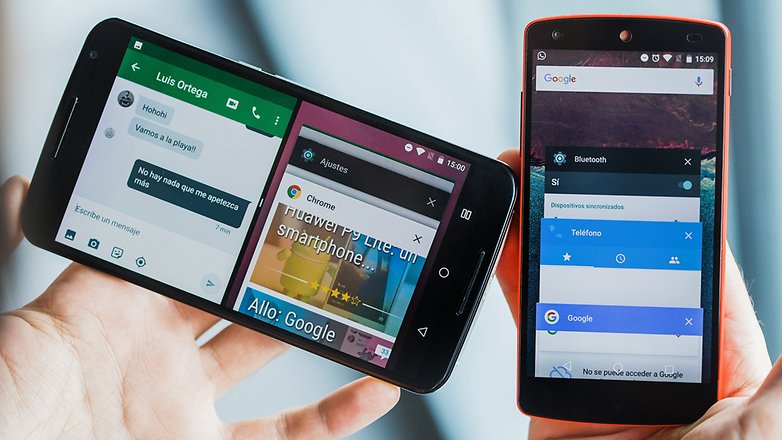
Split-screen is one of the improvements that we had hoped would come with Android 6.0 but in the end, it was lost somewhere in the development modes, and only root users brave enough to change the build.prop could reach it. Split-screen comes standard on Android Nougat, and you don’t have to conjure up any magic to make it happen.
All you need to do is go to multitask and swipe up on one of the apps. It will then stay on only the top 50% of the display. Multitask will still be open on the bottom half so you can choose another app. Of course, the apps rotate when you turn the device, but the proportions of the split and the original position stay the same. To get out of split-screen all you need to do is swipe the line which separates the apps either up or down and you’ll be left with whichever one you expanded.
Back to being able to close everything at once
On the stock version of Marshmallow, you can’t close all the apps on the multitask list in one fell swoop. To close them, you need to swipe each one to the side. Android Nougat, however, brings back the option of being able to close all open apps at one time. To do so, you’ll need to scroll to the top and click on ‘Clear all’.
Quick, quick access
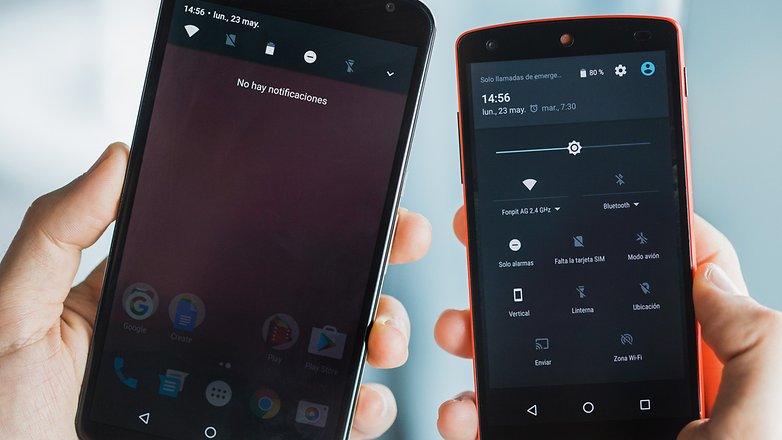
Many manufacturers like Samsung, LG or Xiaomi put this feature on their devices a long time ago. When you open the notification bar, a few quick access features also appear. On Android Nougat, when you swipe down on the status bar, the first five quick access options on your quick access menu are displayed on the upper part of the screen.
On TouchWiz, for example, you can swipe the quick access bar to search for more. On Android Nougat, we have to swipe again to make more options appear. Another change in this respect is that on Nougat, you can modify the quick access options to your liking. You can either add more or rearrange them however you'd like.
Night mode
Dark mode is beginning to be an empty promise by Android. We had hoped to see this feature to be able to change the colors of the system menus on Marshmallow, but in the end, it was nowhere to be found. Amazingly, on the first previews of Android Nougat, it was there, but it disappeared in the final version.
At least we have night mode which can get rid of the display’s blue light, so it doesn’t disrupt our sleep cycle. On earlier versions of Android, you could only get this feature by downloading an app.
Android Nougat vs. Android Marshmallow: Conclusion
As you can see, none of the key features that we’ve looked at on Android Nougat indicate a radical change. Dark theme may be the most innovative, but, in the end, due to the problems it caused with third-party apps, they decided to scrap it from Nougat.
The improvements on Lollipop were focused on the look. Marshmallow improved performance and internal operation. It doesn’t look like we’ll make a huge leap forward like we did with the last two versions, but it’s certainly going on the same improvement path as Lollipop and Marshmallow.




I still have Marshmallow 6.1 on my Alcatel. I have not received an update for Nougat - after reading this article / various comments? I will pass on Nougat and wait to see what Android OS O offers.
I'm disappointed with Nougat on the Note 5. After updating, it froze and crashed so much it was unusable. I cleared cache in the settings menu and in the recovery menu. It didn't help, so I did a factory reset. The freezing stopped but apps began to crash. Battery life became absolutely brutal. It dropped to just 10 minutes of screen on time and just sitting in standby could drain the battery in less than six hours.
I just did another factory reset. I haven't re-installed any apps yet and just updated all pre-installed apps. I've lost 40% battery over 4 hours and it has been in standby other than updating those few apps. This phone worked great under Marshmallow.
I would urge anyone with an older Samsung to hold off on upgrading for awhile, especially if your phone is currently working well. Many people are having battery issues with this update on the Note 5.
Does Nougat fix that aggravating "Screen overlay detected" bug in Marshmallow? That damned bug continues to drive me nuts. It's the main reason why I rooted my tablet with Lollipop - to make sure it didn't upgrade to Marshmallow. Google ought to be ashamed of itself for foisting such a poorly implemented feature (hence: BUG) on its users.
My experience of M on a tablet has been disappointing, with too much battery drain, some mainstream apps having trouble installing and launching, and the big deal for me - microSD support - badly managed in settings and inconsistently supported by app developers. By comparison, L on a phone has worked great from Day 1. My current theory is that every other Android version is a dog, with the next one fixing its problems and generally being more widely implemented by OEMs and supported by devs. N should be one of the alternating good ones - following G, J, and L.
I must admit, I've not really noticed a lot of improvement, in fact some things have got worse, I'd already got split screen on my galaxy S6 with marshmallow so no change there.
Under marshmallow I could get to all my regularly used settings easily when in settings with customisable shortcuts right at the top of the settings page, now I have to scroll through the whole page to find what I'm after.
So about the only thing that has improved for me is the doze feature and the blue light filter
I feel like there are enough significant features in Android Nougat v Marshmallow, even if they're not necessarily huge, they're various enhancements to Android. Replies that work directly in the notification, the UI change of notifications and quick toggles, split screen, and night mode are all features that I've come to appreciate and use day to day, including double tapping the multitask button to return to the last app. And I disagree that the dark theme would have been more innovative than any of these, even though it's an addition of something I like and wish they had kept as well.
the biggest change's that Nougat introduced happen in the background, a change in encryption, how the device boots up, how apps are compiled, graphics and VR.
although its mostly boring stuff that happens in the background it makes a really big difference to the overall security, speed and usability of android.
Stock Android features would be the point, not various manufacturer skinned versions, Joe.
Your comment that you can not close open apps in android 6 individually was incorrect. If you clicked on the icon in the lower right hand corner a screen will come up with all open apps. Simply go to the top right corner of the screen and click on close and poof, they're gone.
Did it with HTC m8 with Microsoft os 10 and with HTC M9 with Android version 6.
Joe L
neither of those htc's are stock android, as shown by the nexus 6p (?) and nexus 5