Sorry, but there's really nothing to see here right now. Our server is in maintenance mode – and our
little bot is trying to sort the error messages with its last bit of energy.
Whether it was a data leak, a power outage in the cluster, or just a grumpy bit – we don't know yet.
But what we do know is:
The data drama escalated into a server meltdown. But don't worry: We're on it.
What now?
Everything is surely running smoothly over at our colleagues from inside
digital – why not stop by!
Or you could pass the time by visiting our social media channels – for example Instagram, YouTube or TikTok. At least there are no
server problems there – promised.
Thanks for your patience. Our bot is already rebooting at full speed. 🔧
How-tosTabletSet Different Ringtones for Each SIM on Your iPhone or iPad
Apple iPhones and iPads have long supported dual-SIM or multiple SIM functionality through eSIM. However, only with iOS 17 has it become possible to assign a different ringtone for each number or line. If your Apple device has already been updated to the latest software and supports dual-SIM or eSIM, here’s a step-by-step guide on how to set a ringtone for each SIM individually
Apple has not yet rolled out the final version of iOS 17 for compatible iPhone models, or iPadOS 17 for iPad models. However, you can already test this feature by installing the beta version of iOS 17. This will require enrollment in Apple’s Beta Software Program.
How to set a ringtone on each SIM number on a dual-SIM iPhone or iPad
Whether you have dual physical SIM slots, each with active numbers, or are using two eSIMs, the process of changing and setting up a ringtone for each number is similar. However, it’s important to note that if you intend to use two separate carriers simultaneously, your iPhone or cellular iPad needs to be unlocked.
Before assigning a separate ringtone to each SIM number, you’ll have the option to rename the different SIM profiles for easier management, not only for calls but also for sorting messages. For instance, you could label the first SIM as ‘personal’ or ‘work’, and the second SIM could be designated for ‘business’ use, or given a custom label.
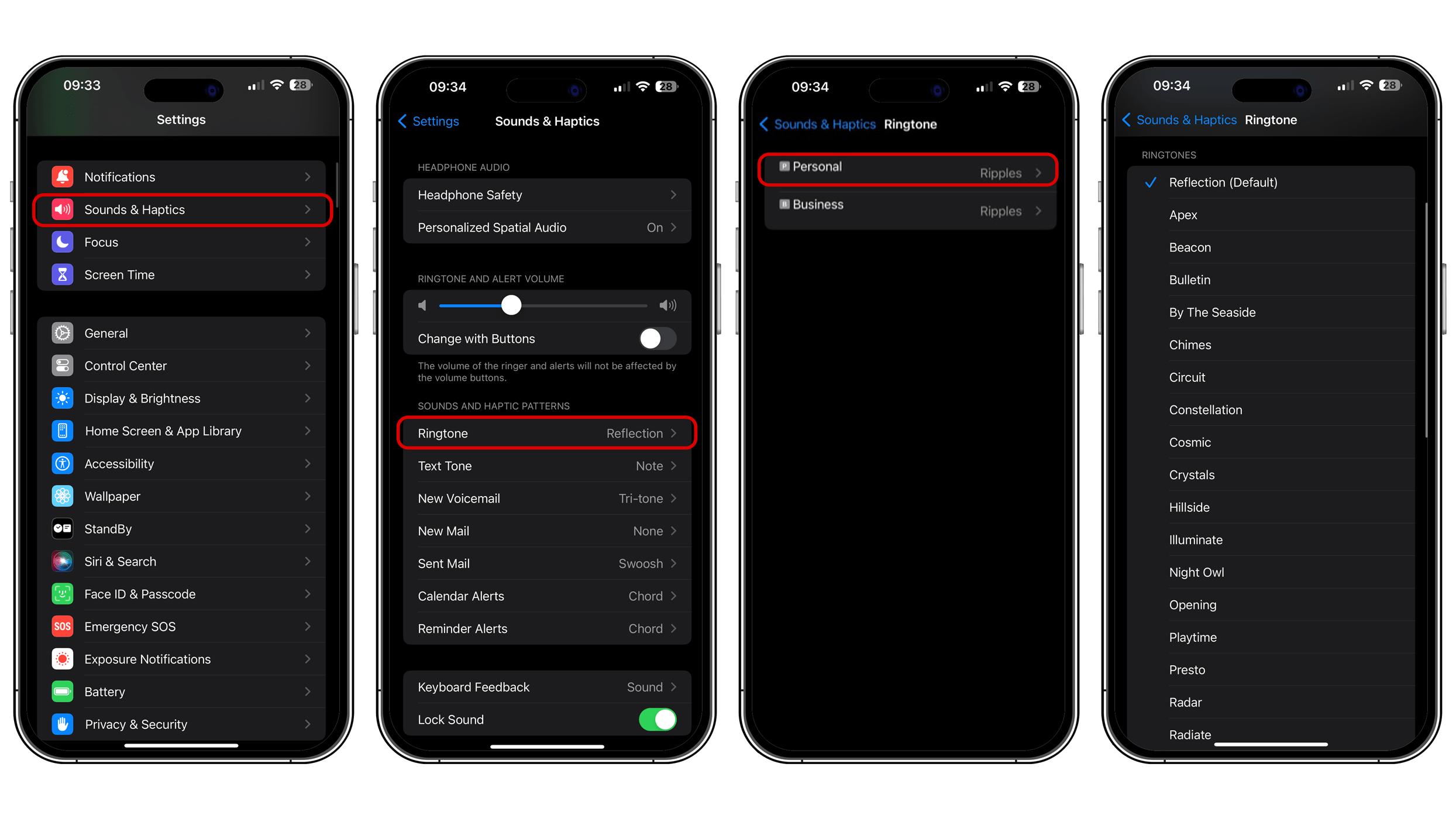
Go to Settings on your iPhone or iPad.
Select Sound and Haptics and tap Ringtone.
Choose the SIM number to set a new ringtone.
Tap the name of a ringtone from the list to set it.
Tap the Back arrow on the top left to go back and apply your changes.
The steps for changing or selecting a distinct ringtone for your other number are similar to those mentioned above. You also have the option to purchase and download new ringtones from the Tone Store, located in the same settings section.
How to set different ringtones for each contact on your iPhone or iPad
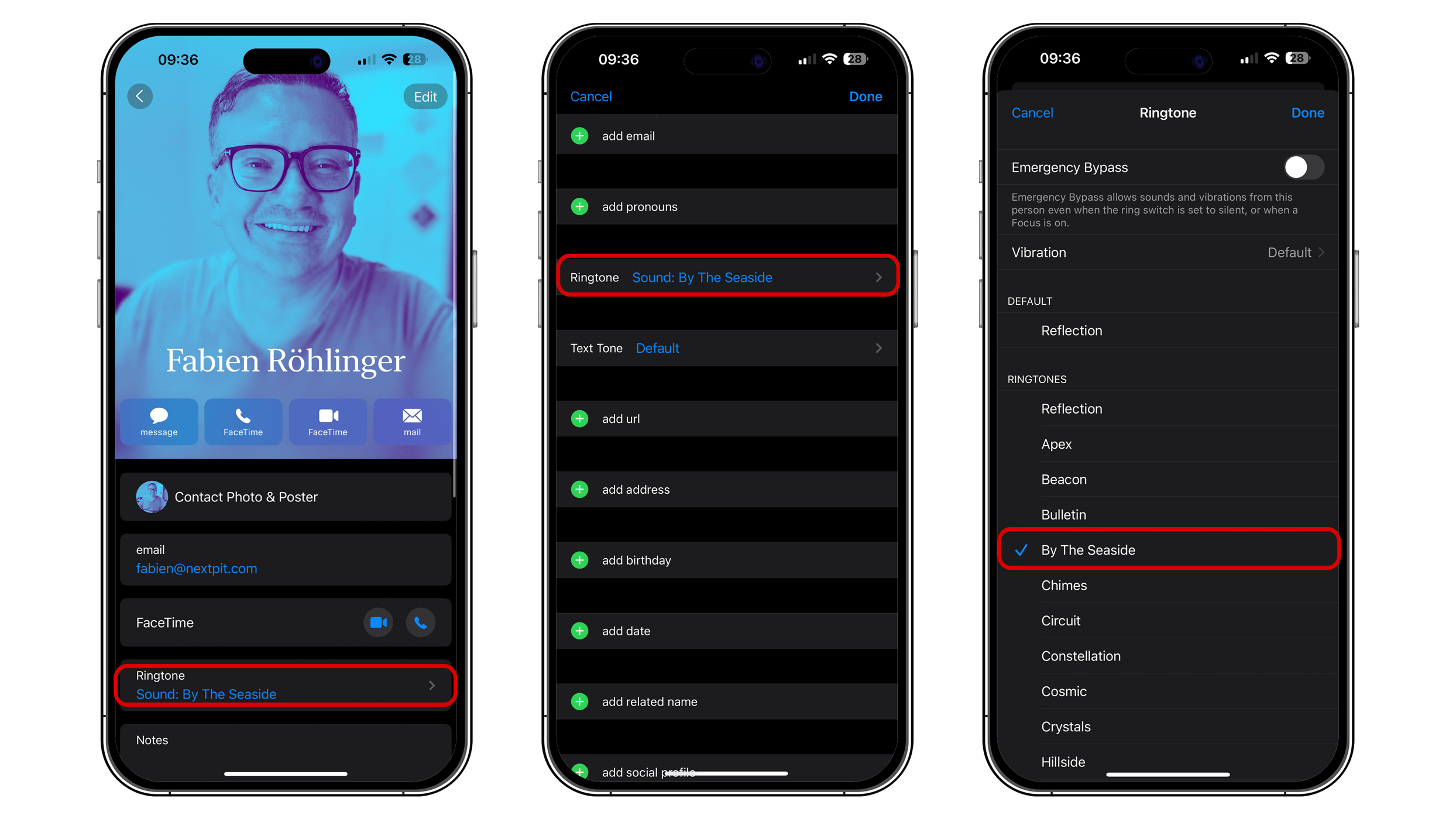
If you prefer a custom ringtone for each contact or group of contacts, the steps are slightly different from those for assigning a ringtone to an individual SIM card or number. Below is a guide on how to change a ringtone for a contact:
Follow these steps to assign the same ringtone to another contact and create a group or family with a common ringtone. Alternatively, you can assign a unique ringtone to each contact.
What can you set aside from ringtone on each SIM?
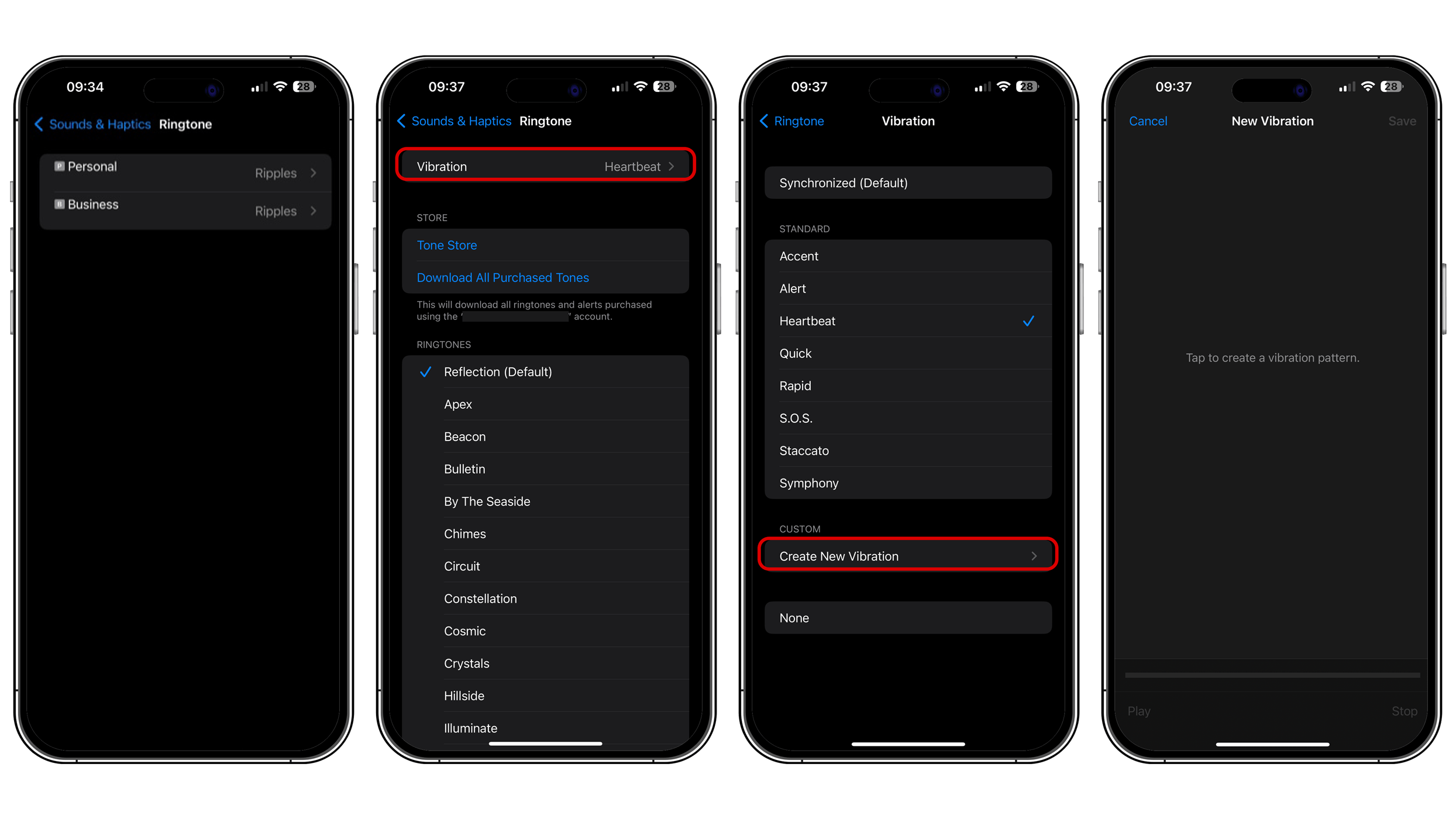
Apart from ringtones, it’s also possible to set a unique vibration type for each SIM number on dual-SIM iPhones and iPads. Customizing the vibration pattern is done in the Ringtone settings section.
However, assigning unique tones for messages or texts to individual SIMs isn’t supported; you will have a single sound for all SIM numbers. The same limitation applies to mail tones and other alerts.
Do you prefer to customize sounds, such as ringtones, on your phone? Or do you stick with the default sounds? Share your preferences in the comments.







0 comments