How to sync Google contacts with Xiaomi and MIUI


Despite Xiaomi devices with international firmware having Google services and the Play Store unlike their Chinese counterparts, there are sometimes issues with syncing contacts anyway. The problem is caused by interference from MIUI, and luckily there's a solution. Here's how to get your Google contacts to sync.
The problem with MIUI and Google Contacts
As we said above, sometimes you can have some problems with Google apps and services using smartphones imported from China. Even if you have installed all the necessary apps or have a global/international firmware version for your Xiaomi smartphone, for some reason, the contacts might not want to synchronize properly. The Play Store and all other services may be fully functional, but not the contacts.
This problem with Xiaomi smartphones is more common than you'd expect and it's caused by the custom version of Android that these smartphones use. MIUI is a skin that personalizes Android in depth, and if you love pastel colors and curated animations, you can't not fall in love with it. Sometimes the system is a bit overzealous about preserving battery life or saving RAM and tends to block processes that it considers useless. Here's how to unlock contact sync on Xiaomi's MIUI.
You can find more videos on current tech topics on our video page.
How to synchronize Google contacts on Xiaomi MIUI
The procedure is simpler you might think. First things first, you need to make sure you have the right app for syncing contacts installed on your device. Here's how to check:
- Go to the Settings
- Scroll to the bottom of the list and select Installed apps
- In the list, look for Google Contacts Sync
In case you can't find it, you can download and install it from this link. Just install it like any other APK file, and in case you need instructions, find our detailed guide to installing APKs here.
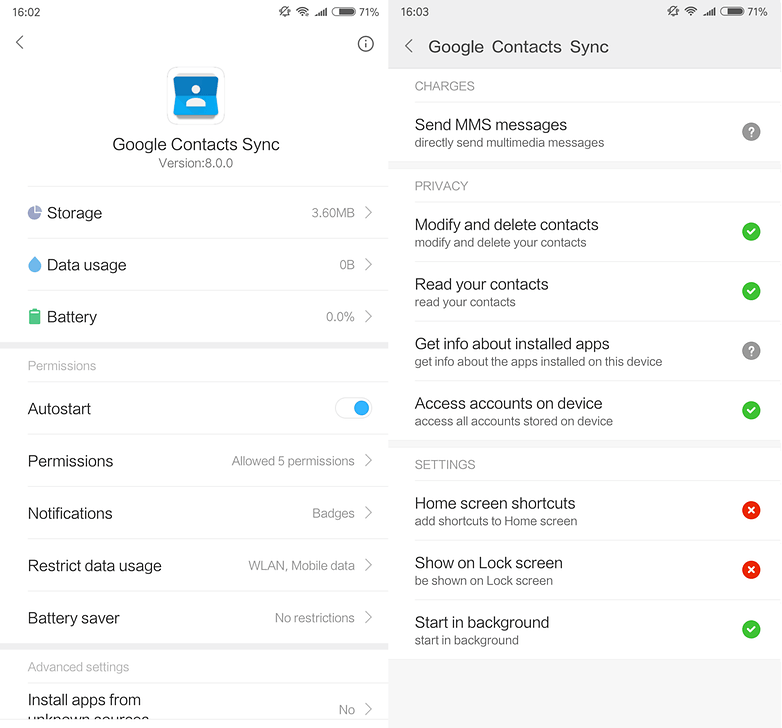
Now, here's where we fix the problem. We have to tell MIUI to let this app sync in peace:
- Follow the steps above to find the Google Contacts Sync app in the app settings and select it
- In the screen that appears, enable Autostart
- In the submenu called Permissions, enable these entries:
- Modify and delete contacts
- Read your contacts
- Access accounts on device
- Start in background
- Under Battery saver, select No restrictions
Now you just have to restart the device and check to see if everything is synchronizing properly. After you give it a couple of minutes to download your address book from Google's servers, you're done!
Did this process solve your problem? Have you had any other issues with your Xiaomi smartphone?



There's a restore option below the import and export options. After selecting the restore option it will ask to select a mail id then it'll start restoring contacts? worked for me in Xiaomi lite 11 NE
That did not work for me and now I'm stuck with a phone with no contacts. I have not been able to find the solution for this issue anywhere and it's very frustrating. I'll have no other option but to change phone (had to do a reset due to other issues). Never going back to this brand again. It's been a terrible experience and it always felt like having someone else's phone in my hands. Could not or would not do a lot of things because this silly compatibility issues or just poor design (at least for the European market). Just infuriating experience overall.
The reason there are problems with google services is because they are so invasive and don't allow for a lot of compatibility, always downloading updates, always putting new obscure services that collect data, and even stranger ways of doing this. Of course chinese brands wouldn't welcome the imperialistic big brother into their everyday tech without some sort of resistance. But let's not forget that Google doesn't need to cater to the chinese business', it wants a strong grip hold on the chinese population as a consumer market, so they dominate the OS landscape and make it not very compatible with those who "aren't with them", that way the country politically feels more pressure to accept the conglomerate, Google, which has pledged allegiance to the U.S. Military.
Don't think that everything is a free market, and that Google is your ally. They have an agenda, and we are just pawns in their game. We should focus on decentralizing technology and promoting diverse competition to ensure our future mutual safety.
OUT OF PEACE, PEACE OUT
Thanks a lot.. Worked on MIUI 10.2 China ROM after allowing permissions to the Google contacts sync app.. ??
Tks for the info., however MIUI Global 10.2 blocks the install of the google contacts sync apk
Doesn't work for me
Thanks, this solved me a problem with an unnofficial ROM
Hello, I followed your instruction but, unfortunately, it did not work. The main issue seems to be that you mentioned of installing the latest Google Contacts Sync (9), but what I got from Google Play was plain and simple Google Contacts, version 2.8.4.201036949. So, there was an incompatibility between the instruction and the app. Is there a way to address this issue? Thanks.
www.apkmirror.com/apk/google-inc/google-contacts-sync/google-contacts-sync-9-release
Thanks! Working fine!
Nice info bro
Just install the Google app and disable the default app. No reason to share the content to yet another company. And you keep the data in the primary app preparing for use on other devices and future phones.