How to speed up Chrome on Android

There's a lot to like about Chrome for Android, from the way it syncs your history and bookmarks over from the desktop to the incognito mode you can take advantage of to keep a lid on how much of your activity is being tracked. However, over time it can start to become sluggish. Here are some ways you can speed up Chrome for Android.
If you've used Chrome on Android for some time then you might have noticed the mobile browser starting to slow down, but there are steps you can take to combat it — and most of them can be applied quickly and easily. Read on for tips to make Chrome run like new again.
Clear the cache
This is a tip that works in all kinds of scenarios with all kinds of apps, and Chrome is no different: Clearing the app cache removes temporary and fragmented data that has built up and which may be slowing the browser down. It essentially gives Chrome a clean slate to work with again.
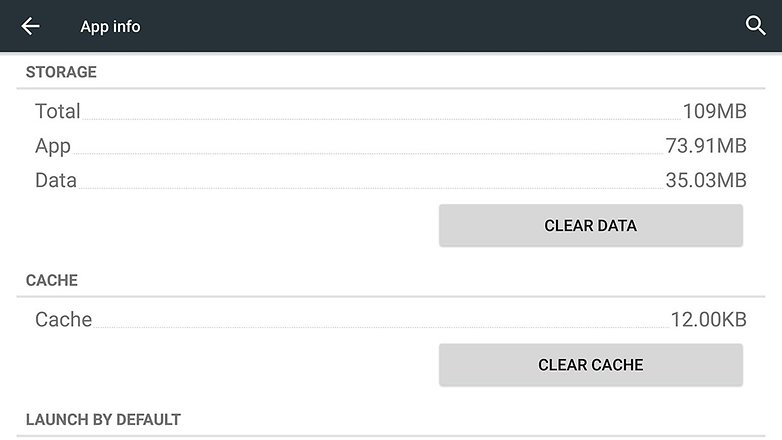
To do this, head into the Settings app on your Android device, tap Apps and find Chrome in the list. Scroll down and tap the Clear Cache button, then restart the browser and see if it's had any effect. You can also try the Clear Data option, though you may need to log into various sites again.
Give Chrome more memory
Like the desktop version of the browser, Chrome includes a number of settings flags that aren't normally available to the user but which you can access by entering "chrome://flags" into the address bar. In this case, you want to enter "chrome://flags/#max-tiles-for-interest-area".
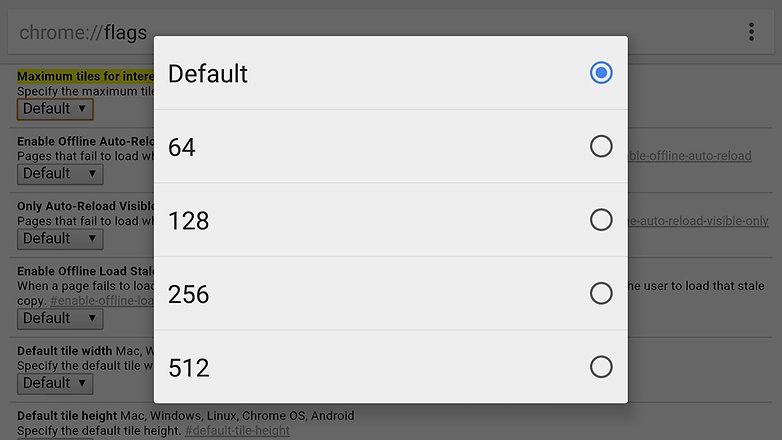
Tap the drop-down list under the highlighted heading and ramp the figure up from Default to 512. Essentially, you're giving Chrome more of your device's memory to work with, so you should see more complex sites loading faster and lag times reduced. Tap Relaunch Now to finish.
Cut down on data usage
If slow loading times are your problem, Chrome for Android includes a handy Data Saver feature that can cut down your mobile bills and speed up page loading at the same time. Head into the app menu, tap Settings and then choose Data Saver to turn on the feature.
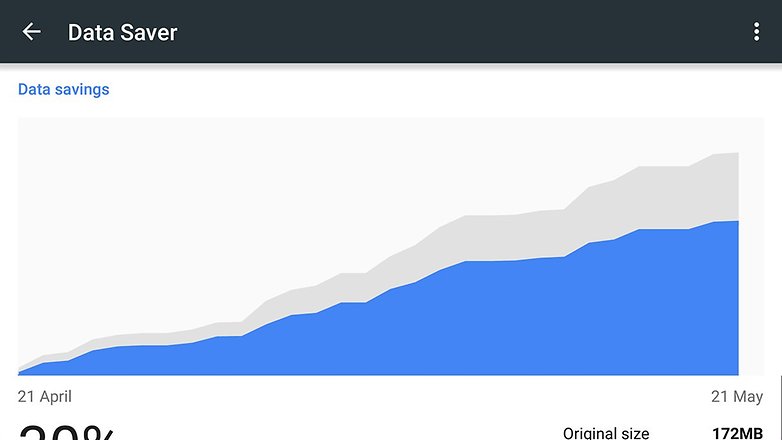
It works by sending your page requests through Google's servers first, where they're compressed and sent back down to you. Secure and sensitive sites aren't included, so there's no need to worry about Google grabbing your data, and you can see how much data you've saved.
Disable JavaScript
Head into the Settings option on Chrome's main menu and you'll come across a number of tweaks you can apply to the mobile browser. In terms of performance, disabling JavaScript can help improve page loading times and reduce the amount of strain placed on your browser.
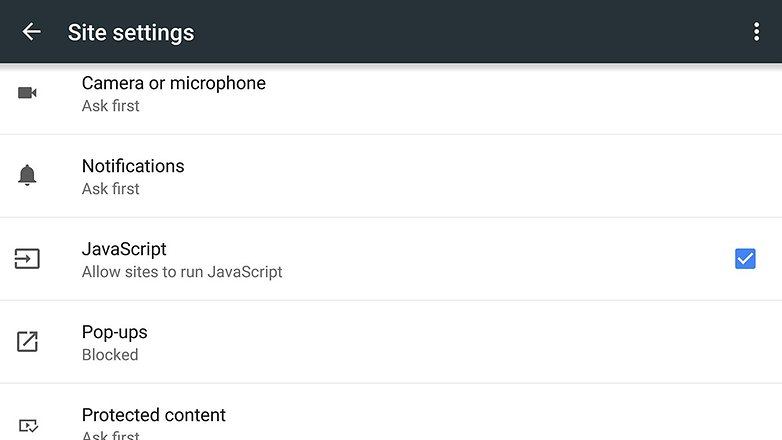
Note that this will disable certain features on certain sites, particularly where interactive elements are concerned — it's best used when you're on webpages that you just want to read. Even so, you might find it useful when trying to eke out some extra speed from Chrome on Android.



















I'm not very knowledgeable with software, but given the way mobile phones are used opening and closing apps , and probably running on the limit of memory quite often,
So on that train of thought thinking about windows and how it uses a swap file system using the hard drive for extra ram when the system needs it , I'm wondering if the same system could be used for Android ??? Or am I barking up the wrong tree. ????
how secure is modifying RAM Memory, since it seems this is experimental Option???