How to take a screenshot with the Samsung Galaxy Note 3: 3 easy methods
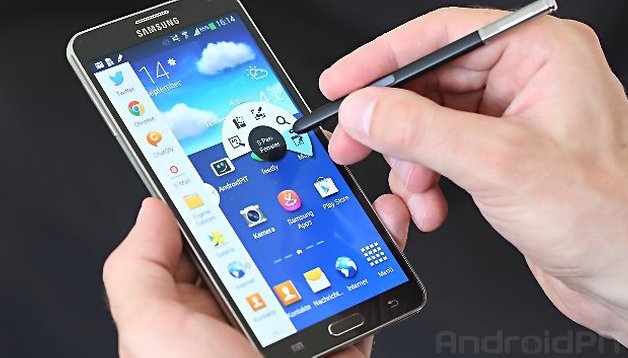

To get a Galaxy Note 3 screenshot, you have plenty of options including gestures, S Pen or hardware buttons. This means that you have a total of three way to get a screen grab on the Note 3. It's worth trying out each Galaxuy Note 3 screenshot method to see which one works best for you. Here goes.
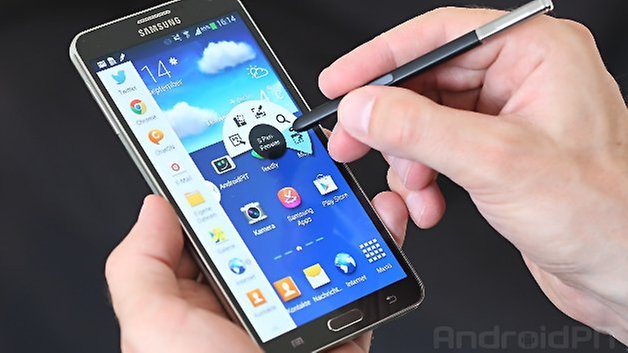
On the Samsung Galaxy Note 3, you are almost spoilt for choice when it comes to the number of ways you have to capture screenshots -- and that's before you consider the extra options that can be added by installing apps! Here are the three built in ways for capturing images.
Galaxy Note 3 screenshot with button press combo
If you know one way to take a screenshot on your Samsung Galaxy Note 3, then it's probably this one. It's the same key press that is used on a lot of other handsets -- just press and hold the power and home button at the same time. Keep the buttons pressed for a moment until you see the border of your screen light up, and the screenshot will be saved to your gallery.
Galaxy Note 3 screenshot with palm swipe
If you want to be able to take a screenshot without having to fiddle with button, the hand swipe method could be the one for you. You'll need to have the feature enabled in advanced, so use the following steps. Swipe down from the top of the screen and tap the cog icon to access Settings.
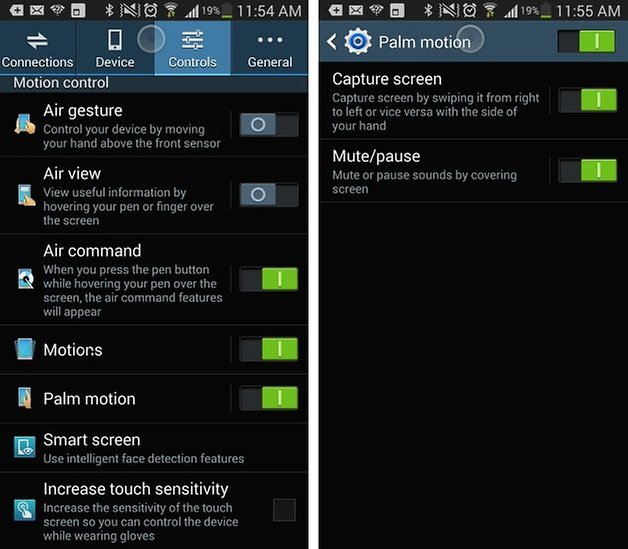
Move to the Controls section and tap Palm motion. Flick the main switch to the On position, and then do the same for the Capture screen setting. You can then take a screenshot by simply placing the edge of your hand on one side of the screen and swiping across to the other.
Galaxy Note 3 screenshot with S Pen
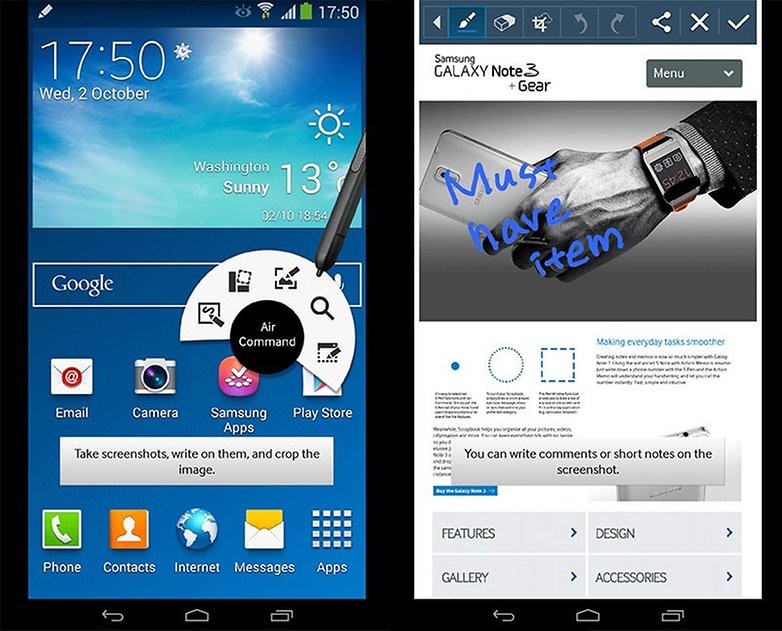
Using the S Pen is very similar to the traditional key press method of capturing a screenshot, but it is rather less fiddly. Press the S Pen button and while you have the button held down, tap somewhere on the screen. The screenshot will be automatically saved to your Gallery ready for viewing.
What is your favorite method for capturing screenshots? Which do you find quickest and easiest?








Hi, thank you for your share. For computer users, I think maybe we can use the built-in screen recorder or third-party tools like Joyoshare VidiKit to take screenshots.
Thank yooou!
None of these work on my Samsung note 3. Pressing power and home wontvwork after hours and hours of trying! I can't find the handvmotion gesture anywhere in settings and pressing the s pen and tapping on the screen won't work either. I alsovdownloaded 6 different apps and none of those work either. Please, please help :-(
Have you figured this out yet? I'm having the same problems x
Please reply x
Note 3: Screenshot via hand swipe (place the edge of your palm on the left edge of phone, then swipe right across screen) might need to be turned on: Apps>Settings>Controls>Palm motion>Screen capture.
It's not always ideal though, as it can move the screen and other effects of touching the screen.
Using the 2 button press often fails and acts as though only the Home or Power button has been pressed alone - I think this is due to some heavy-handed person or phone addict having worn out the buttons.
As for the S pen screen capture method, holding the S pen button then tapping the screen does nothing on my phone, which is a shame as this would be the best way. To screenshot with the pen I have to select Screen Write via Air Command pop up (remove pen for Air Commands, or hover pen close to screen and press the pen's button) and then press the tick to save the screen capture.
It works..bt the image directly saved to clipboard..not in gallery...so that I cant use that further..help me
on my Note3 they are stored in /SDCARD/PICTURES/SCREENSHOTS so not sure what you mean by "clipboard". As for gallery, they are at the bottom of gallery in a folder called "screenshots". This is in both 4.4.2 and 5.0
Try clicking the check mark in the upper right corner. This should save the screen capture.
Nice article. But where is the screenshot image file stored?
/SDCARD/PICTURES/SCREENSHOTS
Once you click the check mark in the upper right corner the screen capture will be saved in the gallery.
its just a big phone with a pen. Nothing more
Oh little boy. Those days when you wish you had either a phone or a tablet with you? Yeah - bring both - bring your note. Doesn't matter which OS you're using, the functionality of the pen is an added benefit to the device as well which nobody can match.
Firstly, do not patronise me, secondly, what is the point of the stylus other than scribbling on the screen. i have never actually seen anyone with a note use the stylus. There are plenty of large screen devices that do everything the Note does all without it
I use the pen to scribble notes (faster than typing and more accurate than using my finger). I take photos of items and scribble on them. I could use a tablet but I find tablets too cumbersome to take photos whereas I can use the note one handed. Granted this is mainly for work things not leisure (I don't use the stylus for leisure).
After using the stylus for a while you get used to it and CAN use the hand writing recognition - the stylus is very precise. For me this is much better than typing on the screen keyboard. Sure there are other devices out there and these may suit you better and of course it is a big phone with a pen, just the same as an LG Vista is a big phone without a pen. But the quality of the stylus and accuracy is what I use (otherwise I would have gotten a different phone).
You're right, and I won't be a dick like that other guy. It's just a big phone with a pen. I have only used the pen twice just to see what it could do but I'm still glad its there if I ever want to draw, photoshop, take notes or anything. This phone was still the best of the phablets on the market at the time, and I'll be flashing custom roms to speed up its performance as it gets outdated. It has removable battery so I carry a spare full one in my wallet, and it has an SD storage slot if you ever want more memory. The note 5 doesn't have either of those things though so I'll probably jump ship to LG or whoever ends up matching the note 5s specs. A like-new secondhand note 4 is imo the best value for money phone you could get right now. Essay over (:
Not if it doesn't work how its meant to!! x
LOL at the iPhone fanboy envy. Just because your friends don't use their Note fully it doesn't mean all the functions aren't useful, they're probably just not tech-savvy and aren't using other features too - like LED customising (oops, iPhone has no LED), downloading images from the Web (oops, Safari has removed even that on the X), and Bluetooth connection (oops, iPhone has fake non-functional Bluetooth).
You don't know all the uses of the S pen, yet are saying it has no use - and you wonder why you're patronised.
I personally use it for precisely editing photos and using the air command cut out tool - but you don't even know what that is, obs.
You have wasted your money on an iPhone. Grow up, accept it, and buy a Samsung Galaxy. Or don't, I don't care.
I have a note 3 and I use the stylus daily, I draw amazing things, I screencap with it and scribble on my shots, I use Photoshop with it. I came here to find out how ELSE to screen cap seeing as in 2 years, I never needed to screen cap my keyboard. If it doesn't suit your needs, there is a simple solution beyond talking it down. Don't buy one. Don't use one. You're welcome.