Galaxy Note 4 Android update: latest news
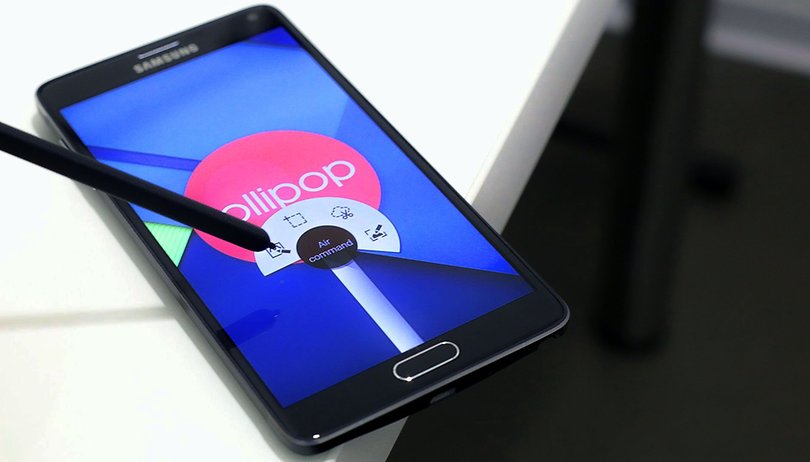

After initially being shipped out with Android Kitkat, the Samsung Galaxy Note 4 received a steady stream of updates from Android Lollipop, to what seems like its final version, Android Marshmallow in mid 2016. The Android Marshmallow brought with it a breath of fresh air, with tweaks to Samsung's Touchwiz, the Doze feature and an updated S-Pen menu. With Android Nougat rolling out on more and more Samsung devices, we now await confirmation from Samsung if the Note 4 will receive the latest android version or not.
- Galaxy Note 4 tips and tricks
- How to reset the Galaxy Note 4 for better performance
- Buy now: Galaxy Note 4 from AT&T | Sprint | T-Mobile | Verizon | eBay
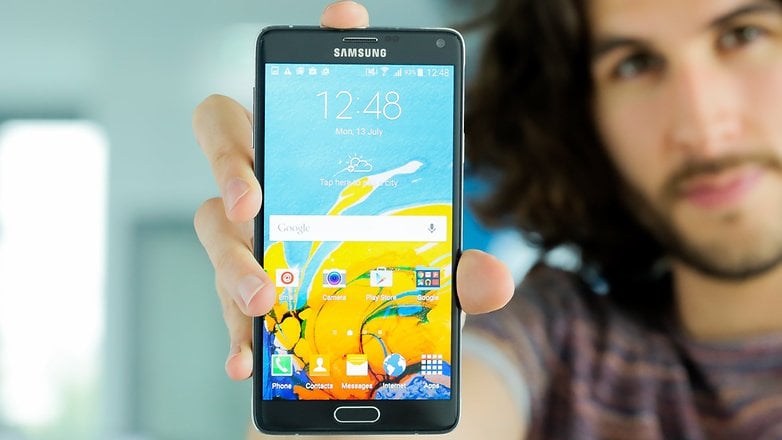
Samsung Galaxy Note 4 Android update history
| Android Kitkat | Android Lollipop | Android 6.0.1 Marshmallow | Android Nougat | |
| Samsung Galaxy Note 4 | Yes | Yes | Yes | No |
Samsung Galaxy Note 4 Android 7.0 Nougat update
There has been no official confirmation from Samsung if the Galaxy Note 4 will receive the Android Nougat update. It was noticeably absent on the device update list that Samsung Turkey shared in February 2017, which confirmed the Galaxy Note 5's Nougat update. It is more than likely that the Galaxy Note 4 has reached its EOL - End of Life, and will not receive any future Android updates and remain on Android 6.0.1.
Samsung Galaxy Note 4 Android Marshmallow update
A list leaked in November 2015, revealing that the Samsung Galaxy Note 4 was set to receive the Android 6.0 Marshmallow update by February 2016. The updates did roll out, starting in Hungary followed by the US carrier Sprint at the end of March 2016. In contrast, the European roll-out was slower, as it seemed to skip Android 6.0 and immediately updated to Android 6.0.1. The update weighed 1.3 GB, which shouldn't be surprising as it's a substantial change.
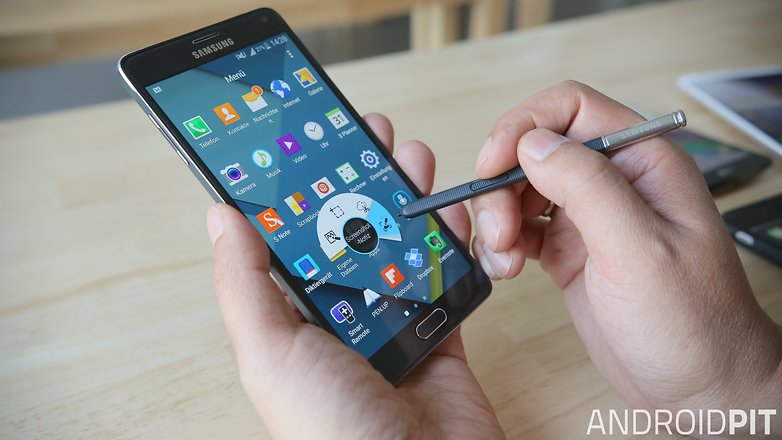
Along with the usual Marshmallow features such Doze, the Galaxy Note 4 also received a new version of TouchWiz. The changes were however minimal. The only noticeable update that arrived was for the S-Pen, for which the menu was updated stylistically to that of the Samsung Galaxy Note 5.
How to install the latest update manually
First things first: flashing firmware to your device comes with risks, especially if you're using a carrier-branded device. Proceed with caution.
If you are impatient for a new version or wish to downgrade to an older version of Lollipop, you might be interested in learning how to manually install a certain Android version on your Galaxy Note 4.
To do this, you will need to download the factory image of the Android version you want. Many of these can be found over at the XDA Developers forum or at SamMobile.com. Make sure to get the correct image for your device by checking your device model number.
Once you've acquired the correct image, check out our How to get Android Lollipop on your Galaxy Note 4 guide.







Note 4 is a still a powerful device that Sammy should still consider.I dont know why samsung mistreats its clients this way,I heard that they wont support it anymore or else we go to custom roms
My dear note 4 users! Lets request samsung to send ota for Nougat updates
Please, dont make the same.mistake like I did. I INSTALLED F... Marshmallow and in the last 2 days i checked all kind of pages to go back to lollipop. For example, in battery doctor when I was optimizing I had 38-40 items with lollipop. With marshmallow i have 120 !!!! It will drain youre battery like Sahara drains the water. I have a samsung galaxy note4
As of today, T-Mobile USA still has it in Manufacturer Development.
The Marshmallow update has fried my text and mms capabilities. Is there any way I can go back to Lollipop? I have an intl version G Note 4, using NET 10. I've updated the APN settings, but still mms texting is screwed up.
I don't know if I could reasonably hate this update anymore than I do. It's confusing and in some places impossible to navigate. The new s pen menu doesn't function at all and a large part of my work is being able to screen cap and note emails. A lot of my data is missing and to top it all off my password isn't working half the time to unlock my phone. I'll be very upset if I have to abandon my Samsung phone for an apple but I will if it means my business doesn't suffer anymore.
Wow - Samsung please stop destroying my phone. Contact info is all scrambled or missing. Ring tones and notifications are reset and I can't find the option to set them back. Maybe I don't like what you like and would really like to leave my phone the way I had it. I am not sure if Samsung did the force download or if that was Verizon, but I should have clicked no everyday forever. New features good - changing my personal settings and making my apps load a black useless screen - BAD
I have had the same issues and found the solution. It is best to hard reset (Volume up+home+power) wipe and factory reset. Then start the setup process (passing the Google Account section). Now your ready for Smart Switch. Should download even if your knox has been modified.
Why I can't update my note 4... when I press the update key not any respond also... whats going on... can someone tell me?.??
See if it works on wifi
Try already also can't... press also not works
Reboot phone see if it works , if it's att version it might be them.
The marshmallow update will roll out march/april. But since my phone was dying quicker then usual i got a new battery and now it's back to normal.
i had same problem..like battery issue..with new battery it solved?
when again update note4
THIS UPDATE SCARES THE LIVING SHHH OUT OF ME.
HOW CAN A COMPANY BE THIS F'NG STUPID. It's clear you spend 2 days with the upgrade and you see issues.
Did they even test their phone???
I am NOT going to get this upgrade. It's going to remind me every 24 hours. Great. Might Factory reset now and turn off updates.
How does a company release ass like this???
And how are you guys getting new phones? Do y'all have insurance?? Did you have to pay a restocking fee???
I am using unlocked Note 4 At&t(N910A) on T-Mobile network. (bought from private seller).It has 5.0.1 version.I checked software update under setting. but it just says check aft 24 hrs or so and says software is up to date. I also tried to change date and try to check software update but no luck
I also noticed following points
1) No wifi calling option
2) No Video call
3) call forwarding option alwasy get "Sim or Network error"
Not sure is it limitation of At&t note 4 phone Or issue with my specific phone.
Any input will be great on this.
Your lucky don't upgrade software til 6.0 comes out I had what you had and went to 5.1.1 now my phone is sluggish and lags at times , and also when battery gets to 20% just shuts off.
Thanks for reply. Are following points are known limitation of Note 4 AT&T?
1) No wifi calling option
2) No Video call
3) Call forwarding option always get "Sim or Network error" ( i tried to change sim card ,factory reset but no luck)
Note: I m using under T-Mobile network.
In T-Mobile version phone, I can see all these options.
You just needed a new battery, and maybe a new charger, I had to get both mine died at 30% battery left