Become a multitasking god with this Galaxy Z Fold 4 feature
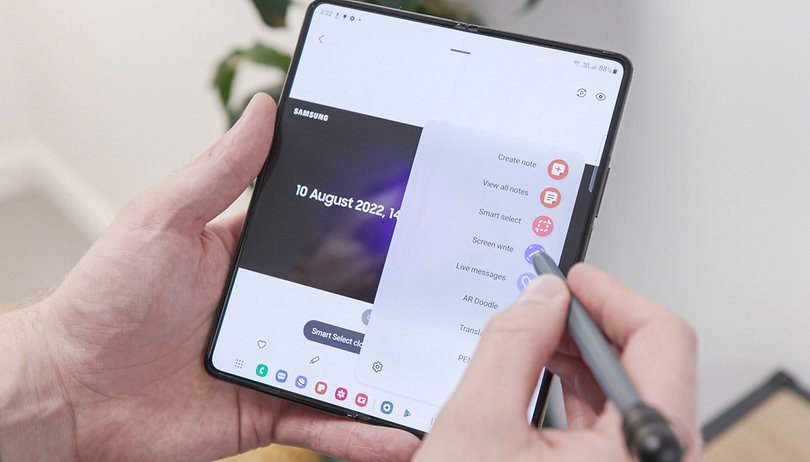

The Samsung Galaxy Z Fold 4 offers an interesting feature called Taskbar which allows you to display a Taskbar at the bottom of the screen that holds plenty of shortcuts. In this tutorial, I'll explain how you can optimize your user experience with the handy Taskbar.
The Galaxy Z Fold 4 may be running on One UI 4.1, the Samsung skin that we are familiar with, but it also has an Android 12L feature that is called Taskbar. This feature allows, among other things, to access 8 applications quickly without having to close one app or another, and to juggle with the various multitasking shortcuts that have been implemented by Samsung.
- While waiting for our full review, you can read our Galaxy Z Fold 4 hands-on
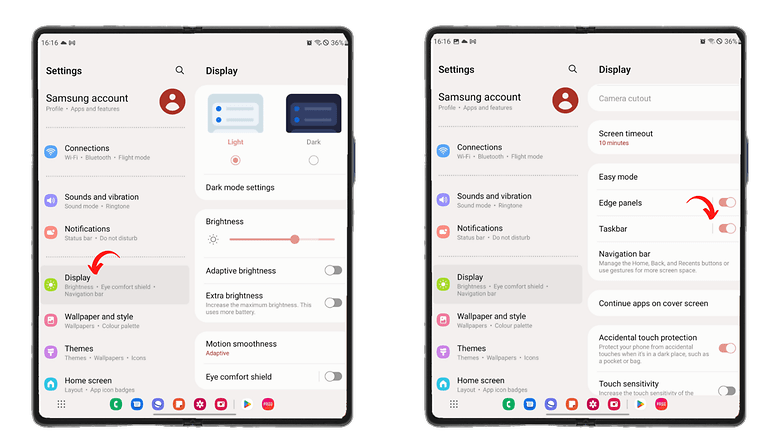
The Taskbar is enabled by default and is displayed at the bottom of your screen when you launch an application, but you can also manually enable/disable it:
- Go to Settings.
- Go to Screen.
- Enable the Taskbar slider.
Why is the Galaxy Z Fold 4 Taskbar so useful?
The first benefit of Samsung's Taskbar is that it makes navigating between multiple applications a breeze. You can show and hide it dynamically, all with a simple long press at the bottom of the screen. Best of all, you no longer have to close an app or go through the recent apps carousel to switch from one app to another.
You have six fixed slots to be able to quickly access the following apps: phone, messages, Samsung internet, Samsung notes, Gallery, and camera. These half dozen slots are unfortunately not interchangeable or changeable. In addition, there are two more slots, which are specially reserved for recently opened applications.
- Read our Galaxy Z Flip 4 review
The other great thing about Samsung's Taskbar is that it allows you to organize the home screen of your Galaxy Z Fold 4 in a more intuitive manner. Using simple drag-and-drop gestures, you can display two apps in split screen format or switch an app to windowed mode. Once again, you can do all this without ever leaving the app open in the foreground.
I know I'm raving like mad about the details of an Android skin. However, this is a really well thought out system by Samsung. We keep hearing about organic and invisible technology. With the Taskbar, Samsung offers a small game changer in terms of productivity, immersion, and intuitiveness.
What about you: what do you think of this Taskbar on the Samsung Galaxy Z Fold 4? Did you know that it will also be implemented on older foldable smartphones from the manufacturer?