Multitask Like a Pro With the Galaxy Fold 5 New Copy & Paste
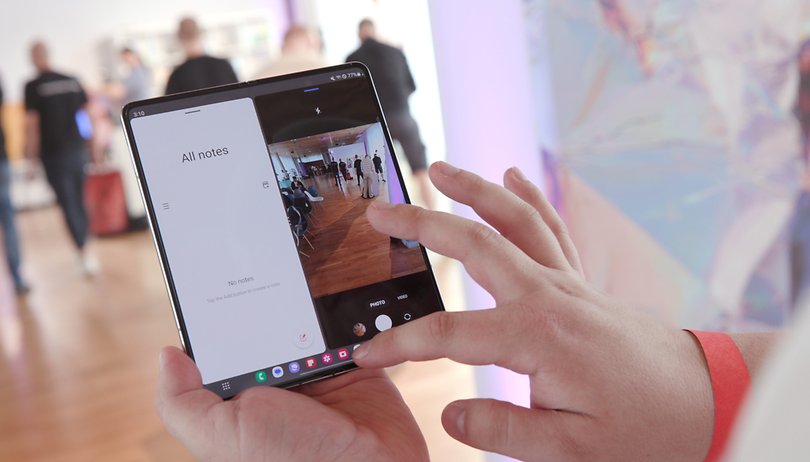

Despite bringing a modest list of new specifications over its predecessors, the Galaxy Z Fold 5 is still one of the most versatile smartphones in the market today. Samsung especially highlights its multitasking and productivity features, which got a new addition with the 2023 model: Multitouch copy-and-paste using a drag-and-drop gesture. Let's learn how to use it.
The new drag-and-drop option was one of the few productivity new features listed by Samsung during our nextpit's hands-on in the Galaxy Z Fold 5 launch. As of publishing time, it is still unknown if the feature will be extended to the previous foldable phones, but we don't know of any limitations that would stop the Fold 4 or 3 from getting this option as well.
How to use the Fold 5's enhanced two-handed drag-and-drop
On compatible apps, such as Gallery, Notes, Gmail, and more, you can basically select a file—usually an image—with one finger in one app, while you use another finger to open another application to drop the file for editing, for example. Check a simplified step-by-step below:
- Open the source app.
- Long press a file—e.g. a photo on the Gallery app.
- With another finger, open another app from the taskbar or the app list.
- Drag the file selected in step 2 to the desired point in the destination app
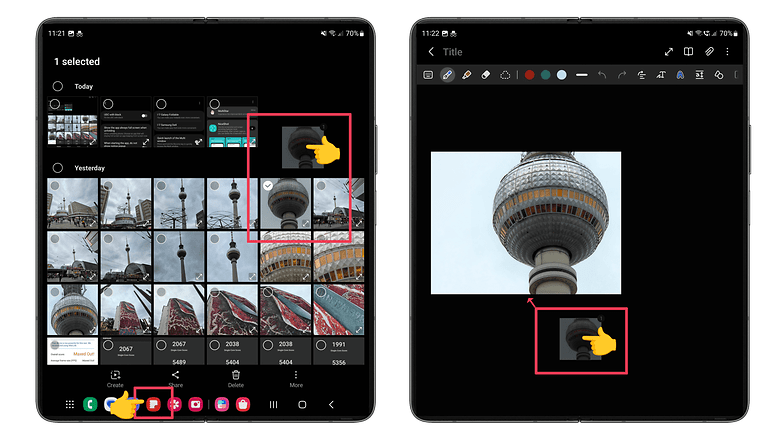
Admittedly, it is far from a must-have or revolutionary feature, but it can be helpful while taking down notes and using an old picture hidden in a hard-to-reach folder that is already opened in the Gallery, for example.
What about you, do you remember a (very specific) scenario this feature could have been useful? Share your productivity tips in the comments below.