What to do if you forget your pattern lock on the Galaxy S3 or S4

Everyone forgets their Galaxy S4, but the same process works on many other Samsung devices too.

Try, try, try again
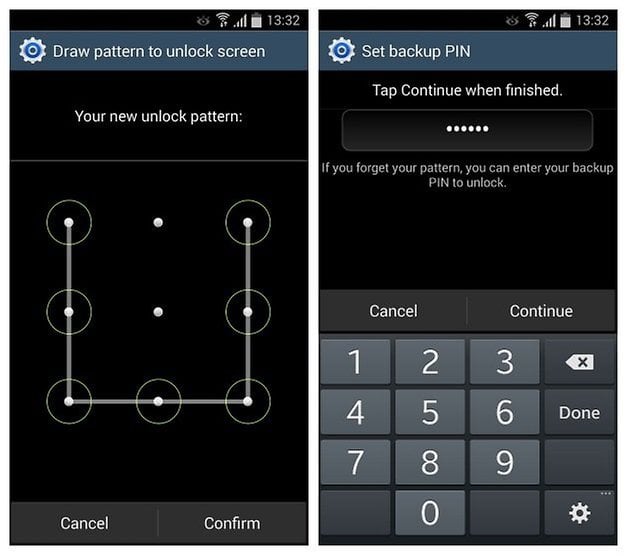
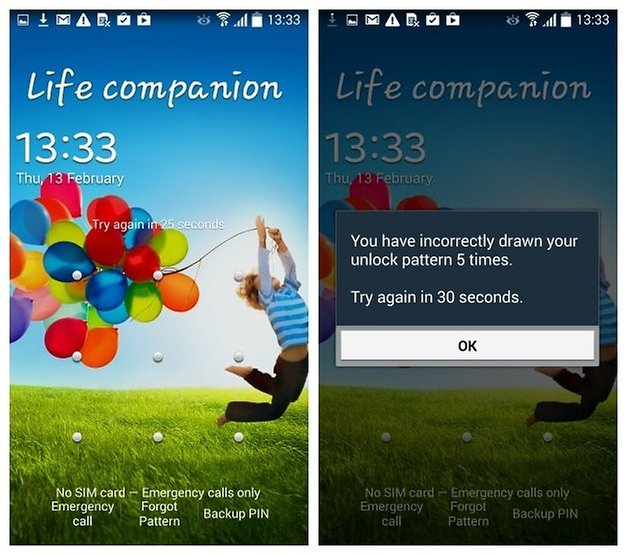
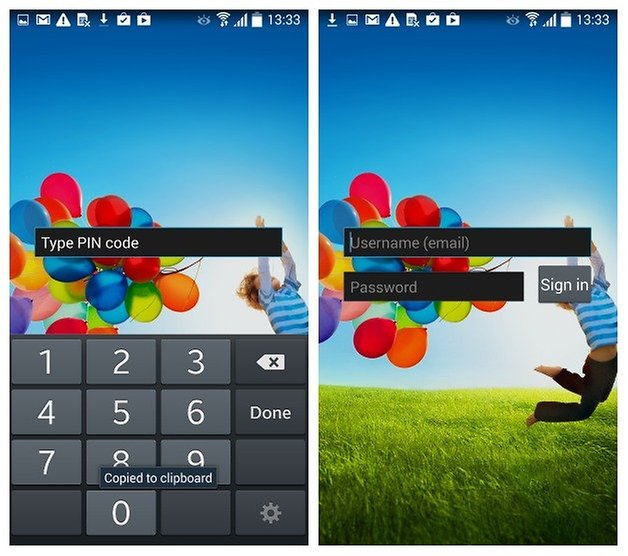
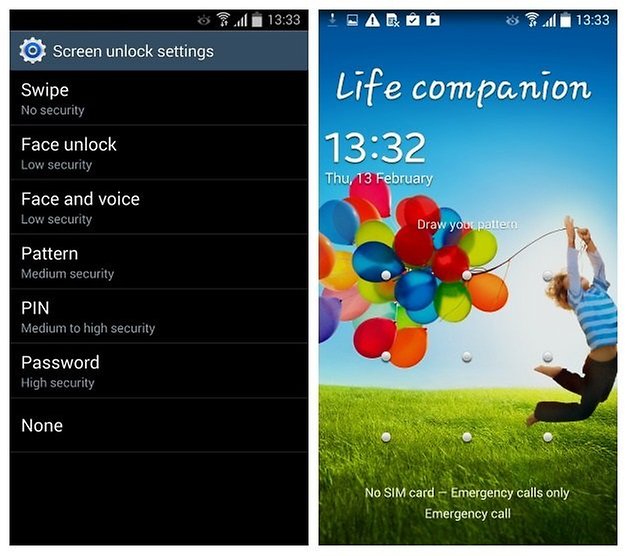
Perhaps not surprisingly, once you use up your attempts to unlock your device it doesn't self-destruct or automatically wipe its contents. It simply prompts you to unlock it another way – with a backup PIN you would have already set up or with the Google account information on the device. Once you've used up your pattern attempts, you'll see a popup window telling you to wait to retry along with the bypass prompts at the bottom, so either use your PIN or enter your account details and sign in. Your Galaxy will unlock and you'll be taken to your lock screen options page!
Note: The bypass prompts only appear for a pattern lock. If you are using a password or PIN you just have to wait thirty seconds and retry. Thanks to @Philipp Junghannß for pointing this out!
Have you ever locked yourself out of your smartphone? How long did it take you to remember your password?









I too have this problem. I have not forgotten my pattern, just several hurried attempts sent me to the PIN screen, where I am stuck. Please explain how to move/select between your 5th and 6th screens (PIN or Google Sign In) OR to get back to an additional pattern attempt. I have the PIN displayed but need to access the Google sign in screen.
change the title. only works when using pattern. when I have a PIN set, than then I just get the 30 sec. block on the 5th fail...
Correct as always @Philipp! Edited and credited, thanks.
but maybe you can introduce the stock recov wiping option as the final attempt, but also set a warning for the reactivation lock...
Not 'everyone' forgets their unlock/password. It's never happened to me in 59 years.
Good article though, thanks.
Maybe I should just tell you mine and then call you when I forget it!
Okay! Wait, do you use Google Wallet :)
What phone did you own 59 years ago? :-p
I dont think that this was phone related rather than being general and stating that (s)he never forgot his/her passwird/pin WTF-ever in his/her 59year life...
Yet. Watch this space.