App-y Holidays: How to Gift Apps on iPhone and Android

With almost everyone owning a smartphone, digital gifting has become easier than ever. With the holidays upon us, you might be thinking about gifting an app, e-book, or game to a family member or friend. Read on to learn how to give apps as presents on iPhone and Android devices.
Gifting apps depend on the recipient's device. iPhone users can send apps directly through the App Store, while Android users have options like Google Play gift cards, Family Library sharing, or a Google Play Pass subscription.
How to Gift an App to an iPhone User
If you have an iPhone, sending an app to another iPhone or iPad user is simple. The recipient must have an Apple or iCloud account to redeem the App Store app or game. Follow the guide on how to gift an app for iPhone users on the App Store.
Steps to Gift an App from an iPhone:
- Open the App Store app on your iPhone.
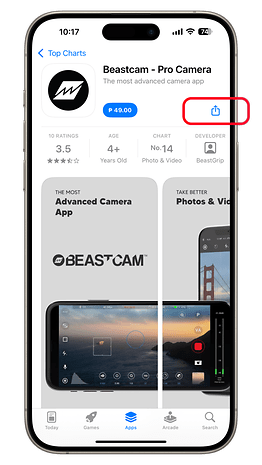
- Search for the app you want to gift.
- Tap the Share button and select Gift App.
- Enter the recipient's email address where the redeemable link will be sent.
- Tap Next, select a theme, and confirm your gift.
- Tap Buy, enter your credentials, and complete the purchase.
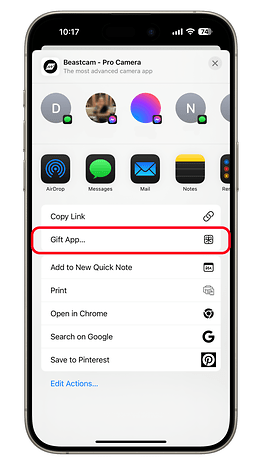
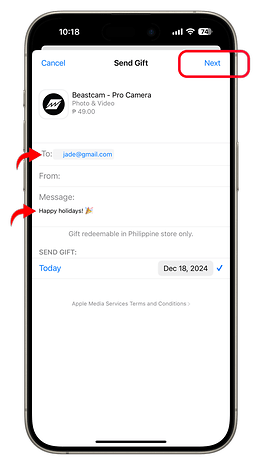
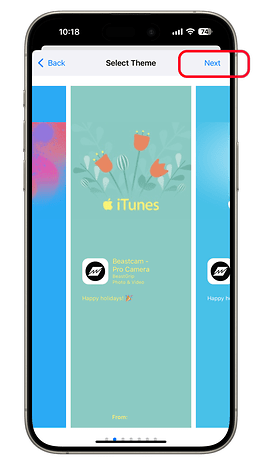
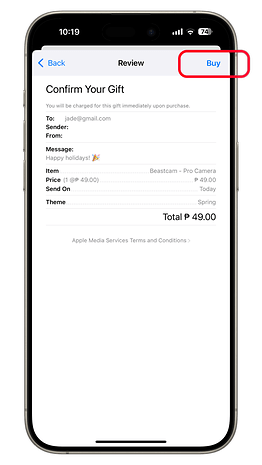
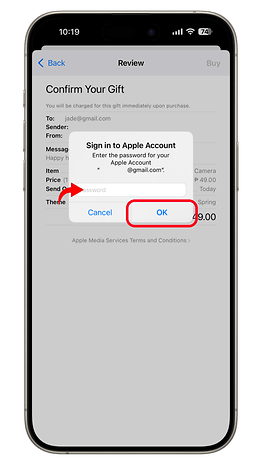
How to Redeem a Gifted App on iPhone:
- Open the email containing the gifted app link.
- Tap Redeem.
- Sign in with your Apple ID if prompted.
- Download the app to your iPhone or iPad.
How to Gift Apps to an Android User
Unlike iPhones, Android devices don’t support direct app gifting. However, you can still send digital or physical Google Play gift cards, set up Family Library sharing, or purchase a Google Play Pass subscription. Learn the different ways how to share apps with Android users below.
Option 1: Using Google Play Gift Cards
The recipient can redeem the Google Play Gift card before purchasing from the Play Store or when checking out an app or content.
How to Buy a Google Play Gift Card:
- Purchase a digital or physical Google Play gift card.
- Send the gift card online or in person.
How to Redeem a Google Play Gift Card:
- Open the Google Play Store app.
- Tap your profile icon in the top-right corner.
- Select Payments & Subscriptions
- Choose Redeem Code.
- Enter the code and tap Redeem.
- Alternatively, you can scan the QR code on the card.
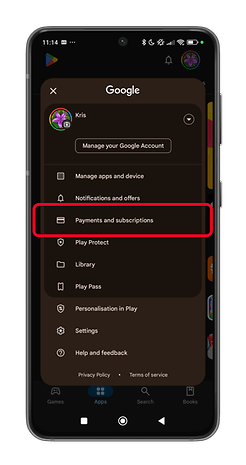
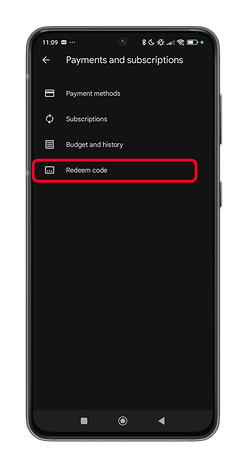
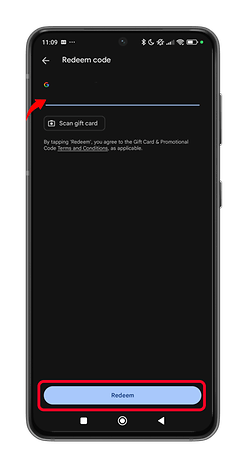
The redeemed amount can be used to purchase apps, games, and in-app content.
Option 2: Using Family Library Sharing
Family Library lets you share purchased apps and games with family members, though shared purchases will require verification from the library manager.
How to Set Up a Family Library on Google Play:
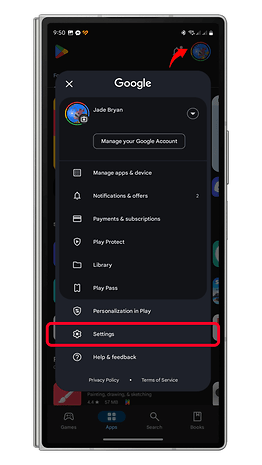
- Open the Google Play Store app.
- Tap your profile icon in the top-right corner.
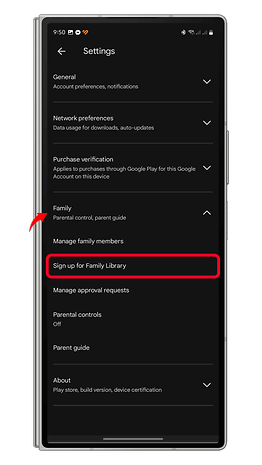
- Go to Settings and expand the Family menu.
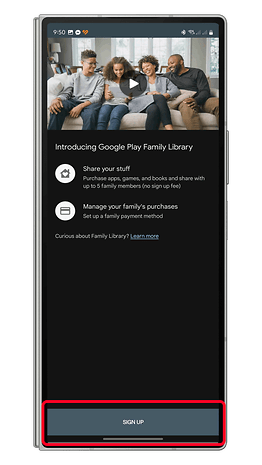
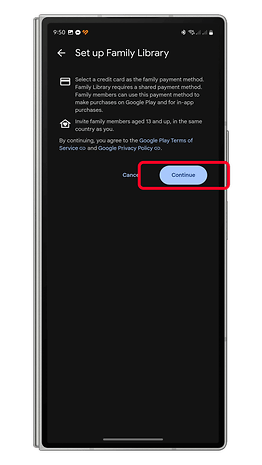
- Tap Sign Up for Family Library and follow the prompts.
- Add family members to your group.
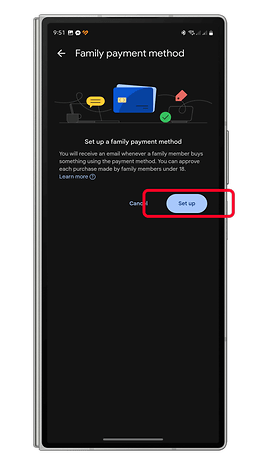
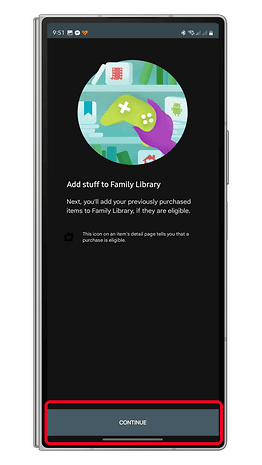
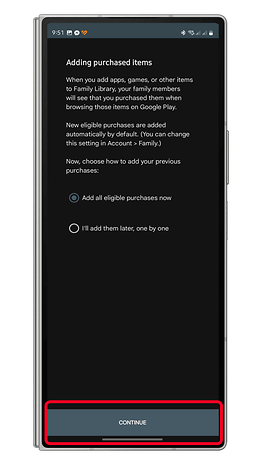
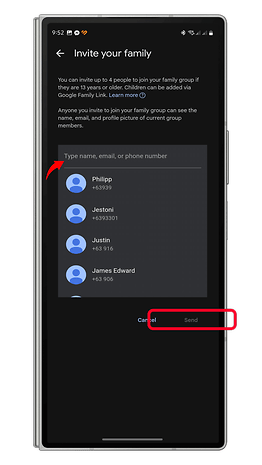
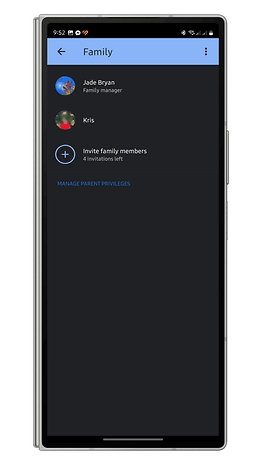
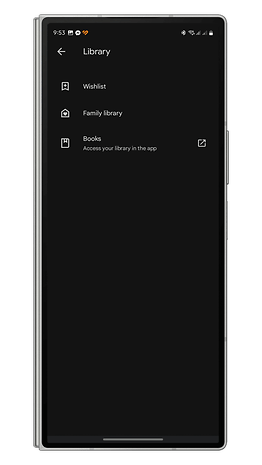
After setup, you can purchase apps and share them with family members through the library. Members can also request specific apps to be added.
Option 3: Using Google Play Pass
Google Play Pass offers unlimited access to hundreds of apps and games through a monthly or yearly subscription. You can share this subscription with your family members.
The members should activate the Play Pass on their device in the Google Play Store app and they can start playing games by going to the Play Pass section.
Note: Games accessed through Play Pass are only available while the subscription is active. You won’t own the games after the subscription ends.
Have you ever gifted an app to someone? How did you do it? Share your experience and suggestions in the comments below!