Contents
- 1 What is the Link Devices Feature on WhatsApp?
- 2 How to Use Your WhatsApp Profile on Two Phones
- 3 How to Link Devices on the Same WhatsApp via Phone Number?
- 4 How to Manage or Remove Linked Devices on WhatsApp?
- 5 Are WhatsApp Messages Always Encrypted on All Devices?
- 6 Which Devices Can You Add with link devices on WhatsApp?
What is the Link Devices Feature on WhatsApp?
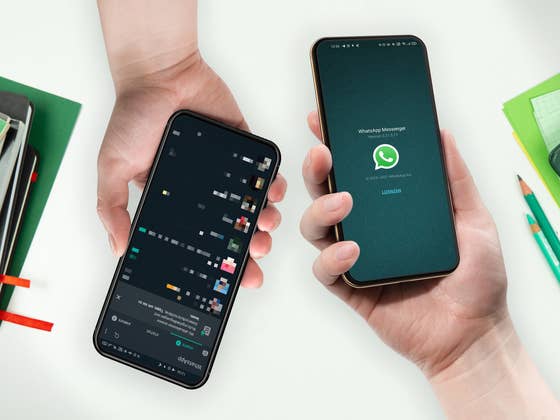
The link devices is a feature that allows you to use your WhatsApp account or mobile number on multiple devices. This works by linking your other devices to your primary device at a time. Essentially, this feature can come in handy if your primary smartphone runs out of battery or you inadvertently close WhatsApp.
Keep in mind this is different from the Multiple accounts feature, where you can use two different WhatsApp numbers on the same device. For those looking to use two WhatsApp accounts on a single phone, we’ve created a dedicated guide to help you set it up.
Once linked, you will be able to see your chats, calls, and other activities updated on all linked devices. Your sessions will not expire whether your primary smartphone closes WhatsApp or is disconnected from the app, but note that you’re required to log in to your phone every 14 days to continue using WhatsApp on your secondary devices.
How to Use Your WhatsApp Profile on Two Phones
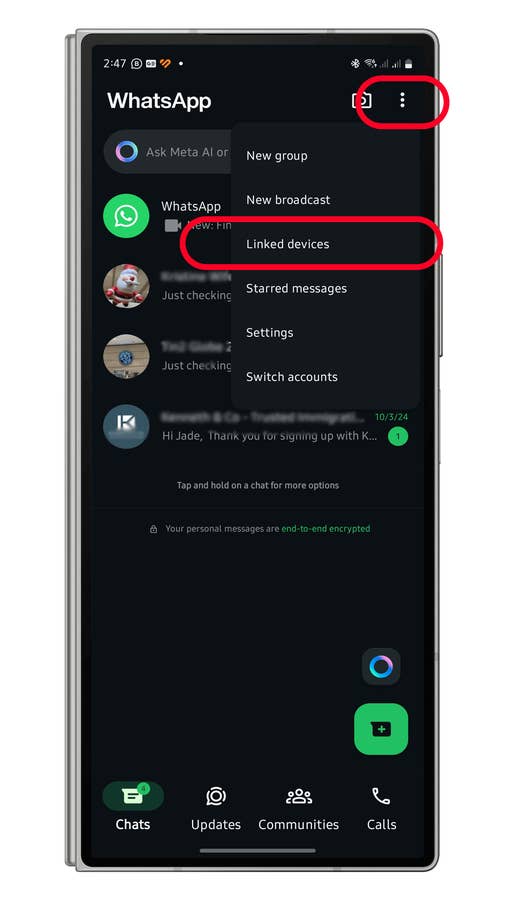
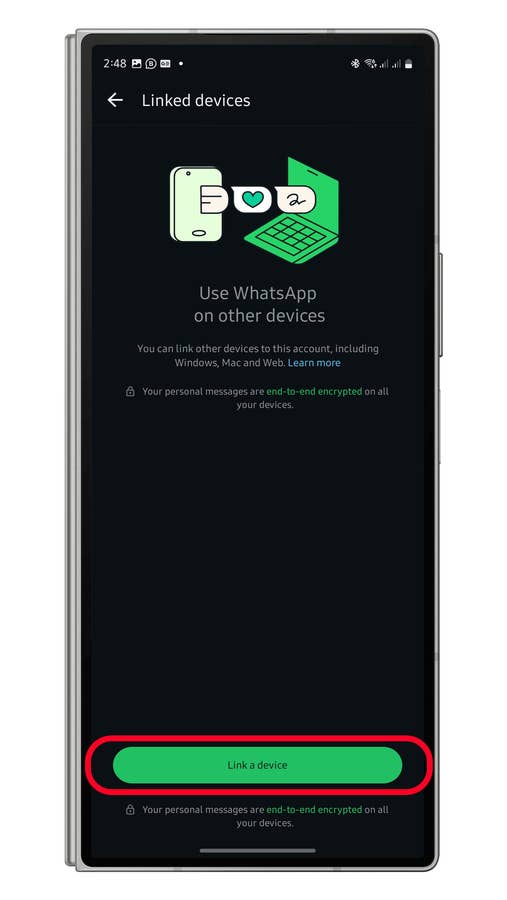
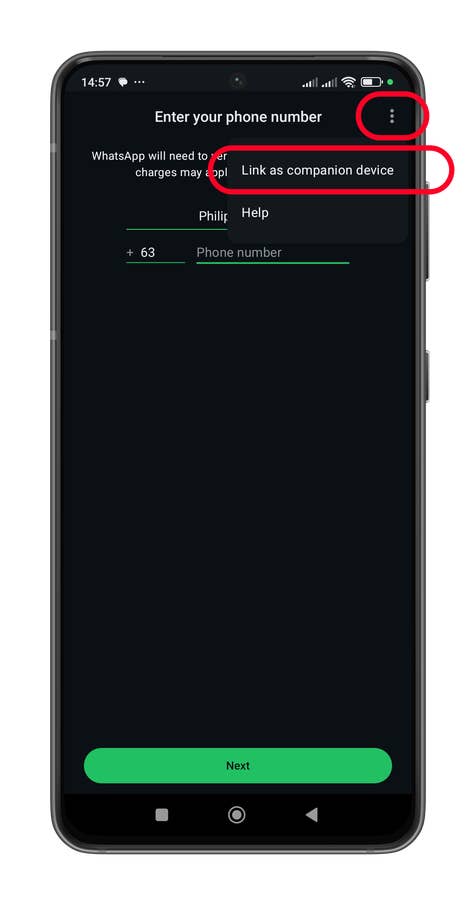
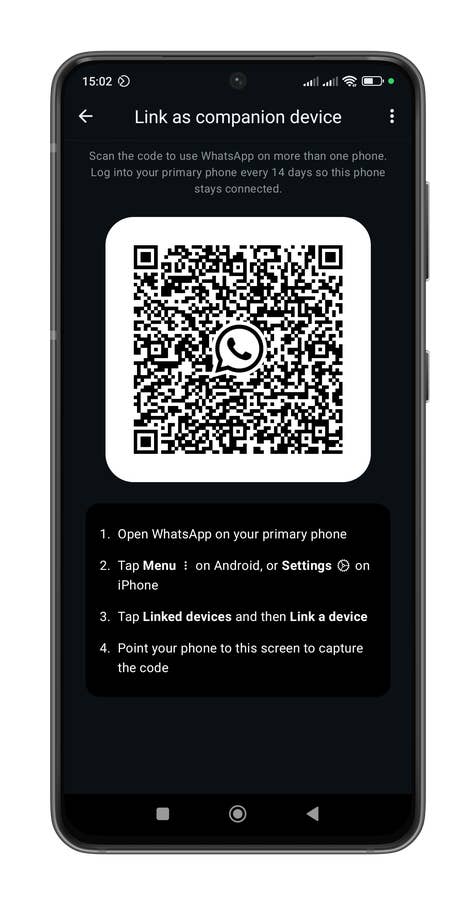
Linking up your WhatsApp on another device is rather straightforward. It requires to be done using your primary phone and then activating it on the other device. Follow the steps on how to use the multi-device function:
- On your primary phone, tap on the three-dot (⋮) button.
- Select Linked devices.
- Tap the Link a device button.
- On your secondary device, launch WhatsApp.
- Tap on the three-dot (⋮) button.
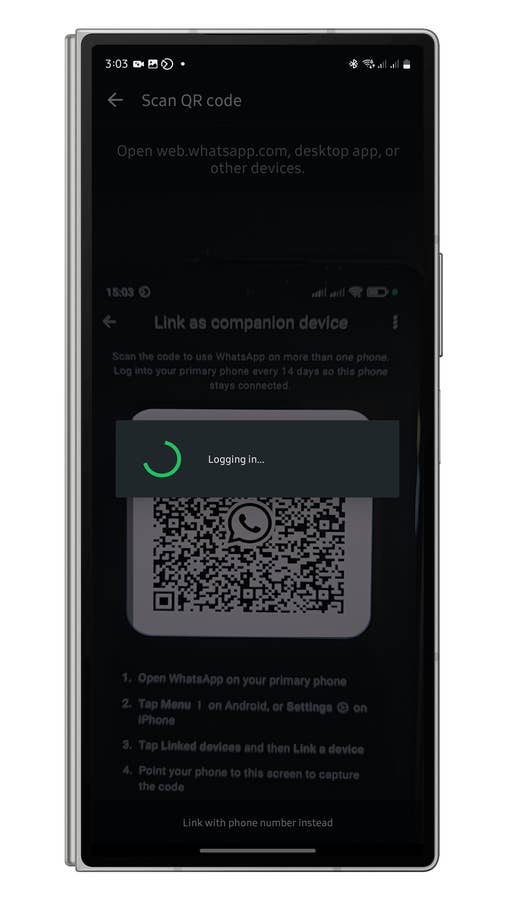
- Select Link as a companion device.
- Using your primary phone, scan the QR code on the secondary device.
How to Link Devices on the Same WhatsApp via Phone Number?
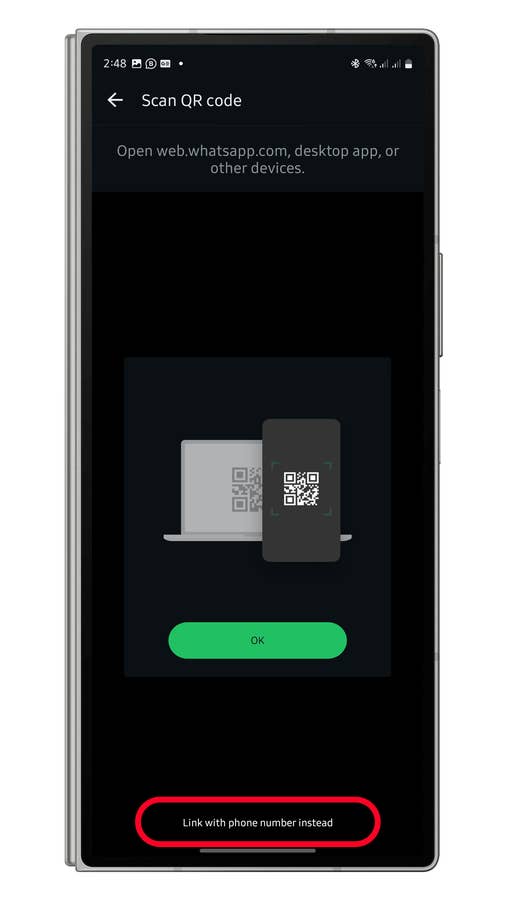
You can also use to link via phone number, but this works with the Web WhatsApp, desktop app, and other mediums. Read on to find out.
- On your primary phone, tap the three-dot menu to open Settings.
- Select Linked devices.
- Tap the three-dot menu and then choose Link with phone number.
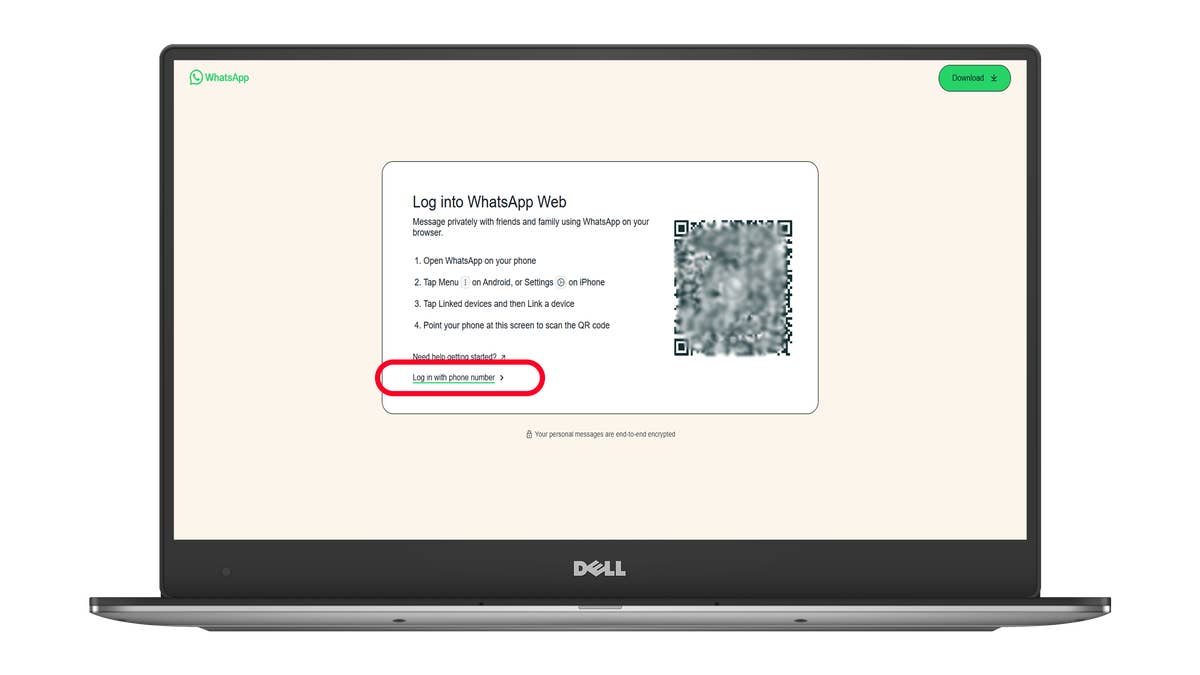
- On your computer’s browser, go to web.whatsapp.com.
- Choose Login with phone number.
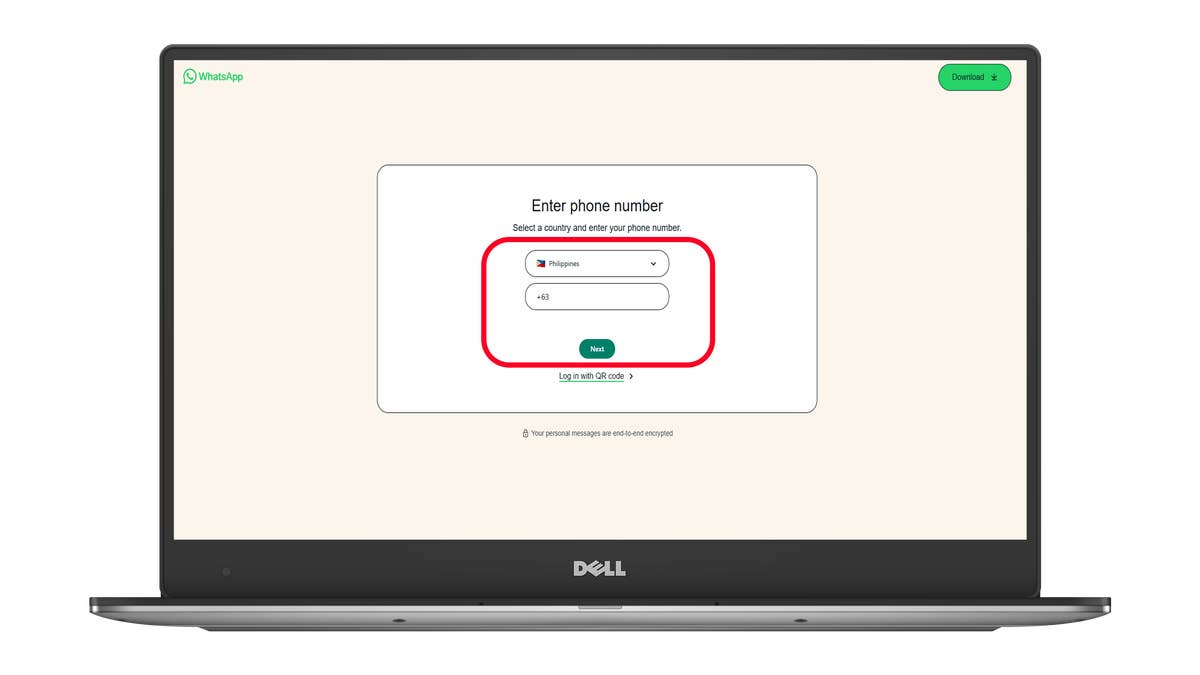
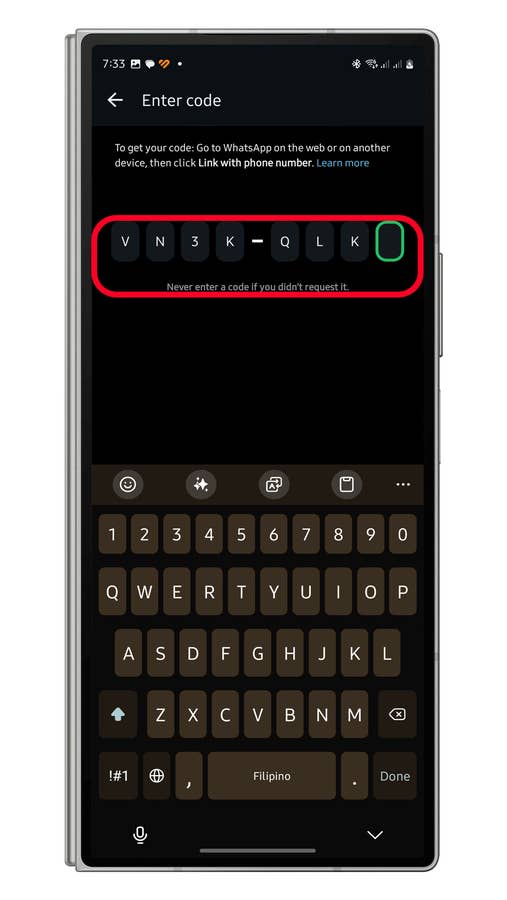
- Select the mobile country code, enter your number, and then tap Next.
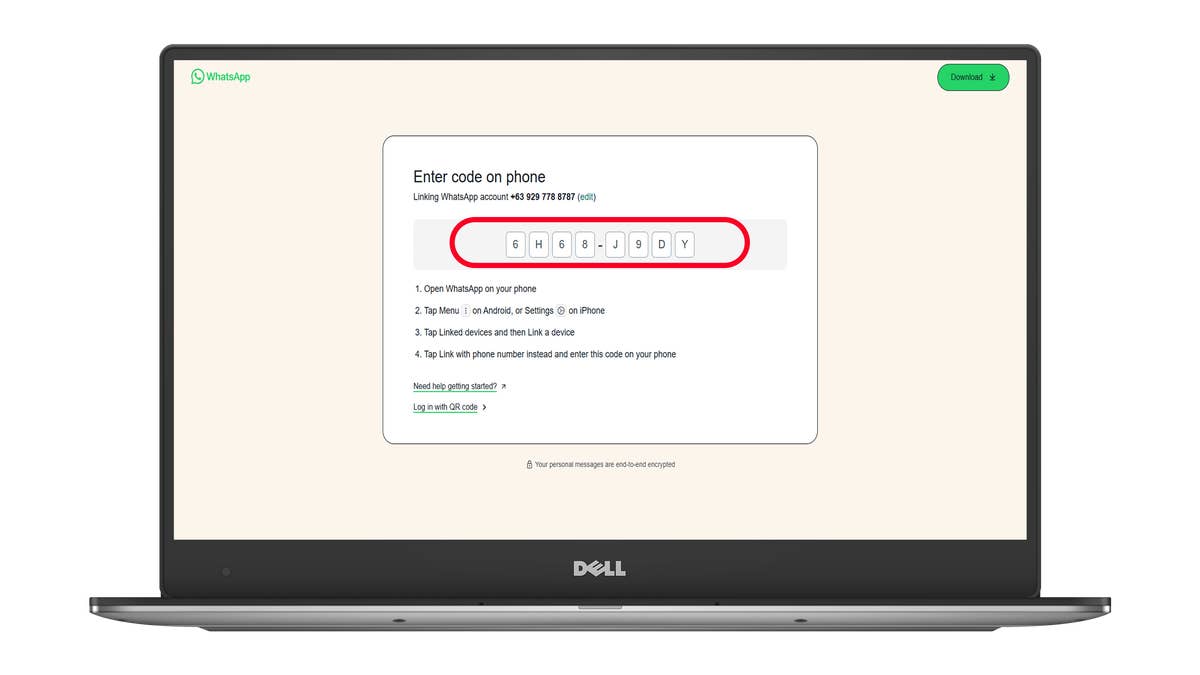
- Enter the code generated from your laptop on your primary phone.
How to Manage or Remove Linked Devices on WhatsApp?
Even if you have logged out from your primary phone, you can continue using WhatsApp on your other devices. However, you will need to log on again every 14 days to continue using WhatsApp on other linked devices. To remove a linked secondary device, just follow the steps below.
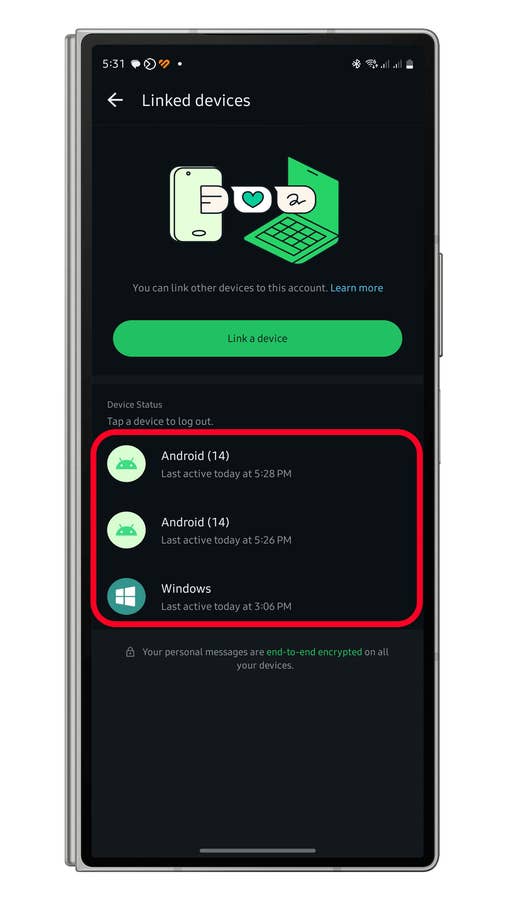
- On your primary phone, go to Settings, then tap Linked devices.
- Go to Settings, followed by Linked devices.
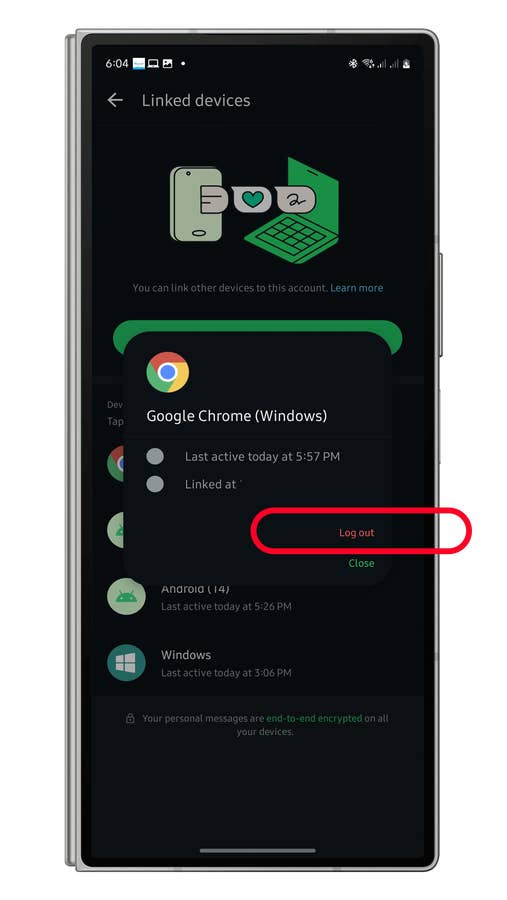
- Tap on the device you want to remove.
- Tap Log out.
- Scan the QR code displayed on the screen of your PC or tablet.
Are WhatsApp Messages Always Encrypted on All Devices?
In its official support page, WhatsApp ensured that “your personal messages, media, and calls are end-to-end encrypted.”
How is it possible? Each of the companion devices that are connected to your account will now have its own identification key. This allows you to encrypt and decrypt messages locally, without having to rely on the smartphone to which the account is linked.
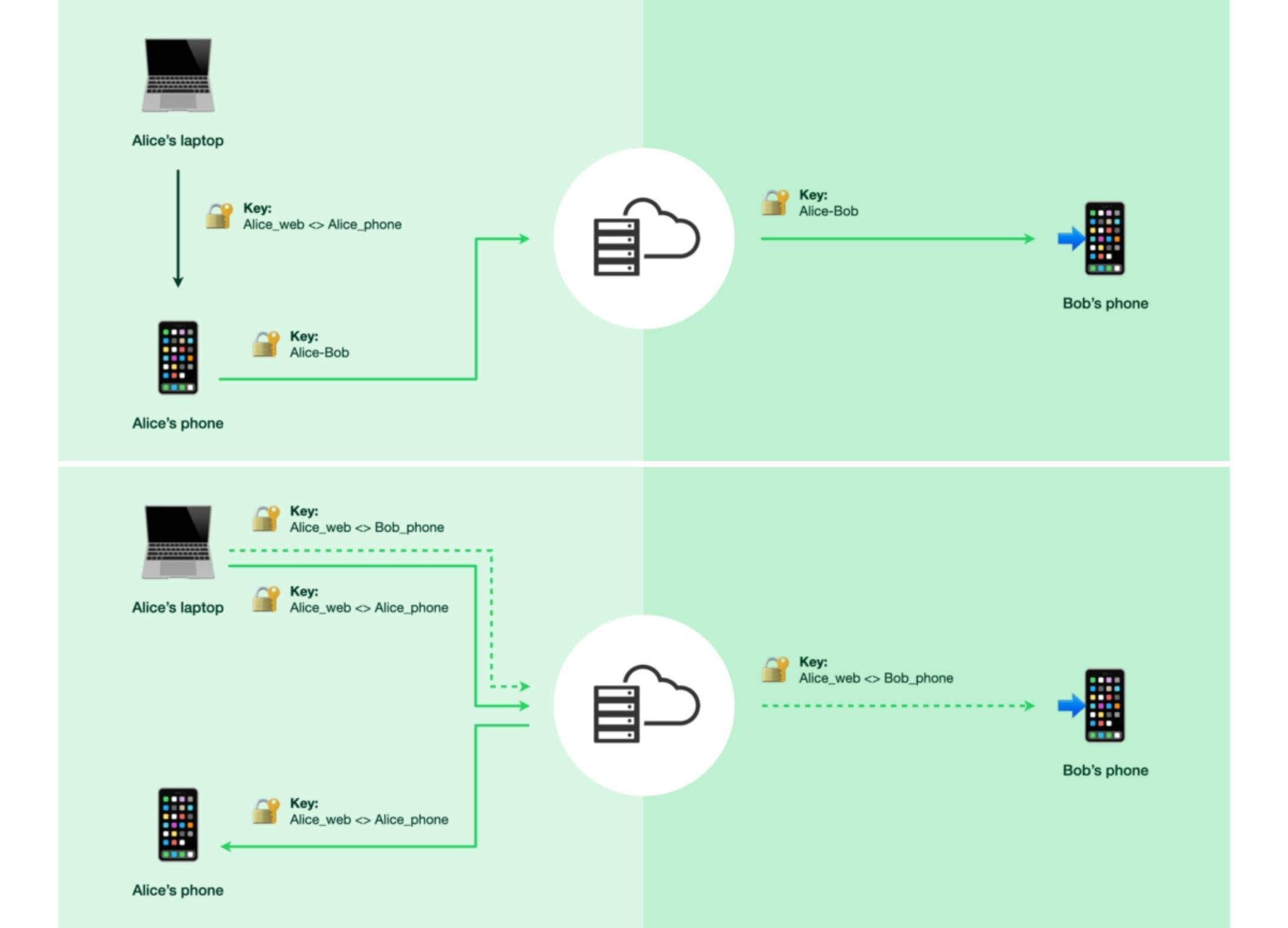
The same will apply to voice and video calls, which can then work without communicating with the user’s smartphone. WhatsApp will ensure that messages remain synchronized between devices, allowing you to browse through chat history from one device to another, even if the smartphone no longer serves as a relay point.
Again, another safeguard is requiring you to log in every 14 days on your primary phone. Failure to do so will close the active sessions on the linked devices. This is to ensure that the user account always has access to their primary smartphone.
Which Devices Can You Add with link devices on WhatsApp?
You can link up to four additional devices to your WhatsApp account, allowing you to use the same account on up to five devices simultaneously. This includes another Android phone, iPhone, tablet, or computer (via the WhatsApp desktop app or web on Mac and Windows).
The feature extends to wearables like Wear OS smartwatches, Ray-Ban Meta Smart Glasses (review), and select VR headsets, such as Meta’s Quest Pro and Quest 3S.
Have you tried setting up a similar WhatsApp on multiple devices before? What do you think of this feature? Please let us know in the comments.