Contents
- 1 HyperIsland and Live Updates
- 2 Dynamic Lock Screen
- 3 Double Tap to Lock
- 4 Home Screen Widgets
- 5 More App Space and Bigger Folders
- 6 Home Screen Search Bar
- 7 Smarter Gallery
- 8 Make Photos Brighter
- 9 Share Photos with iPhone via Tap Share
- 10 Track Lost or Stolen Xiaomi on iPhone
- 11 Improve Battery Life
- 12 5G Battery Saver
- 13 Hide Apps
- 14 Disable Ads
HyperOS 3.0 is rolling out to more Xiaomi and Poco devices. It is a major update based on Android 16 that brings plenty of changes and meaningful features. In this guide, we list the top additions and enhanced tools to improve your Xiaomi phone.
HyperIsland and Live Updates
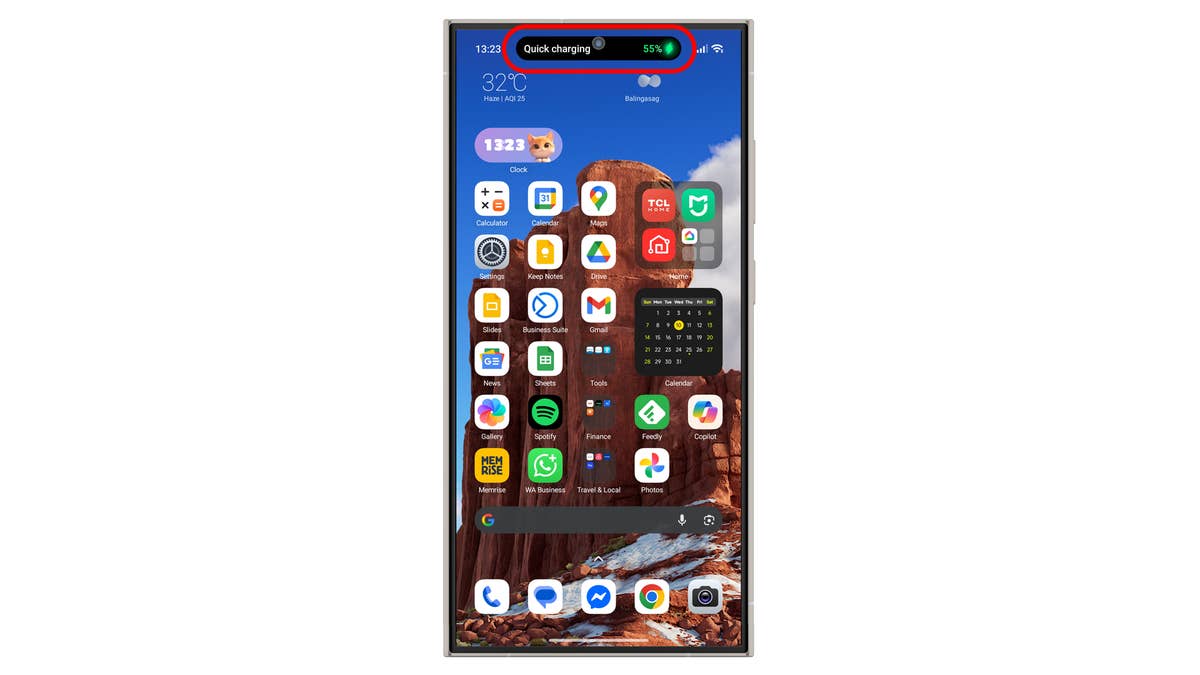
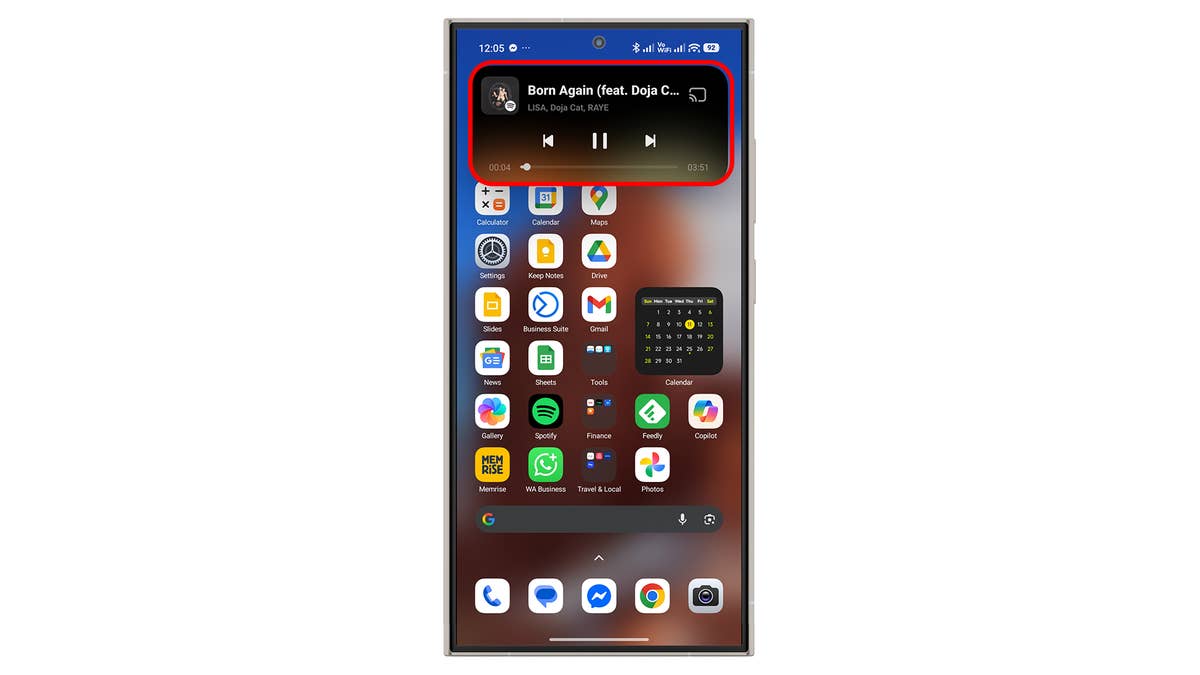
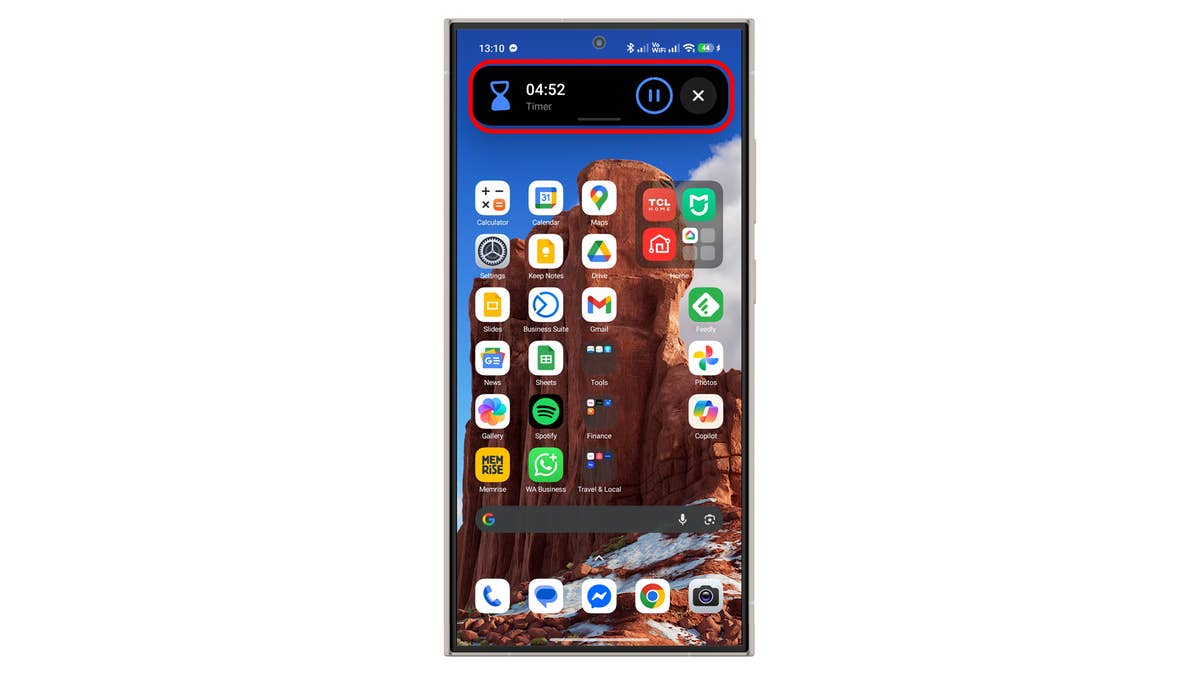
Xiaomi HyperIsland is one of the big new features in HyperOS 3.0. It mirrors Apple’s Dynamic Island, adding an interactive pill-shaped island around the front camera that can expand.
It is enabled by default once you update to the latest HyperOS. It shows notifications and live updates in select apps such as delivery services, ride-hailing, and tools like timer, stopwatch, flashlight, and music control. Most of this dynamic widget is expandable, opening more controls in a larger window layout.
Dynamic Lock Screen
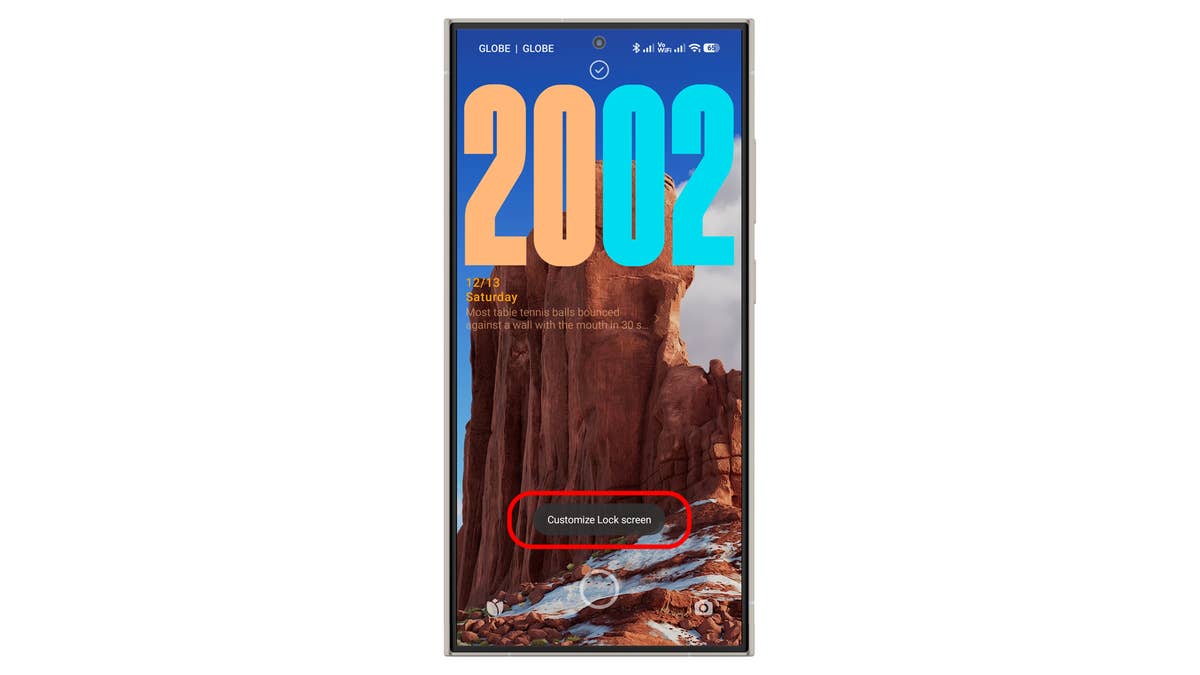
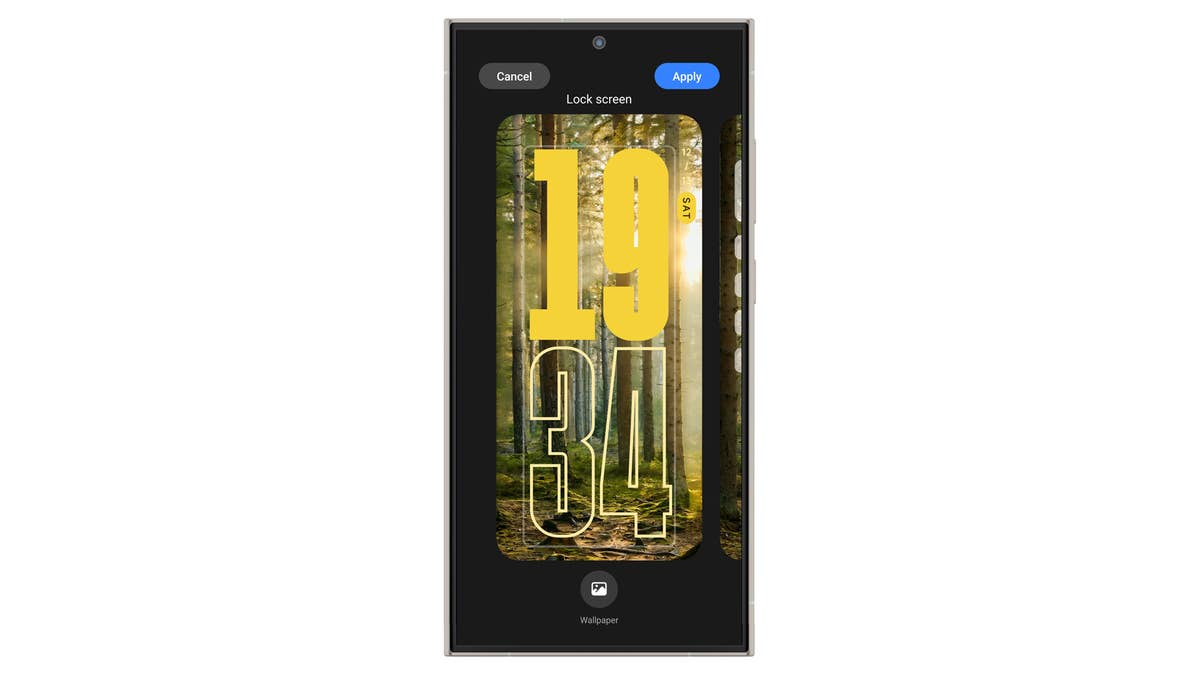
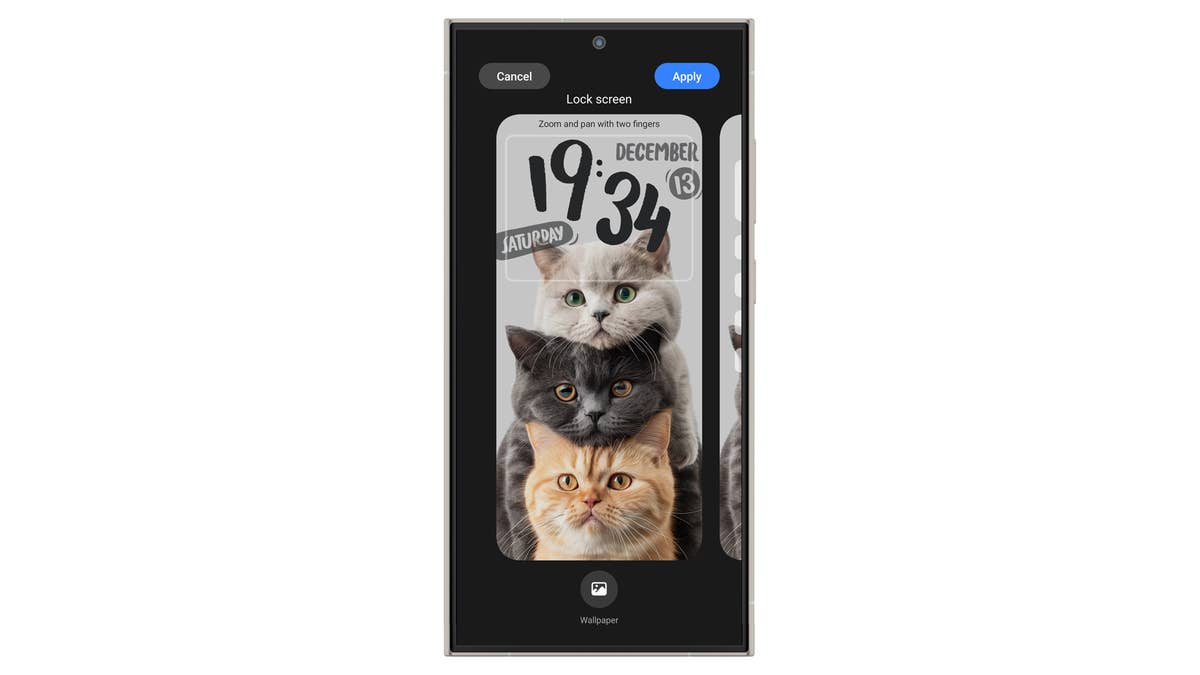
The lock screen gets a major makeover in the third generation of HyperOS, offering the biggest customization improvements in years, inspired by Apple’s iOS.
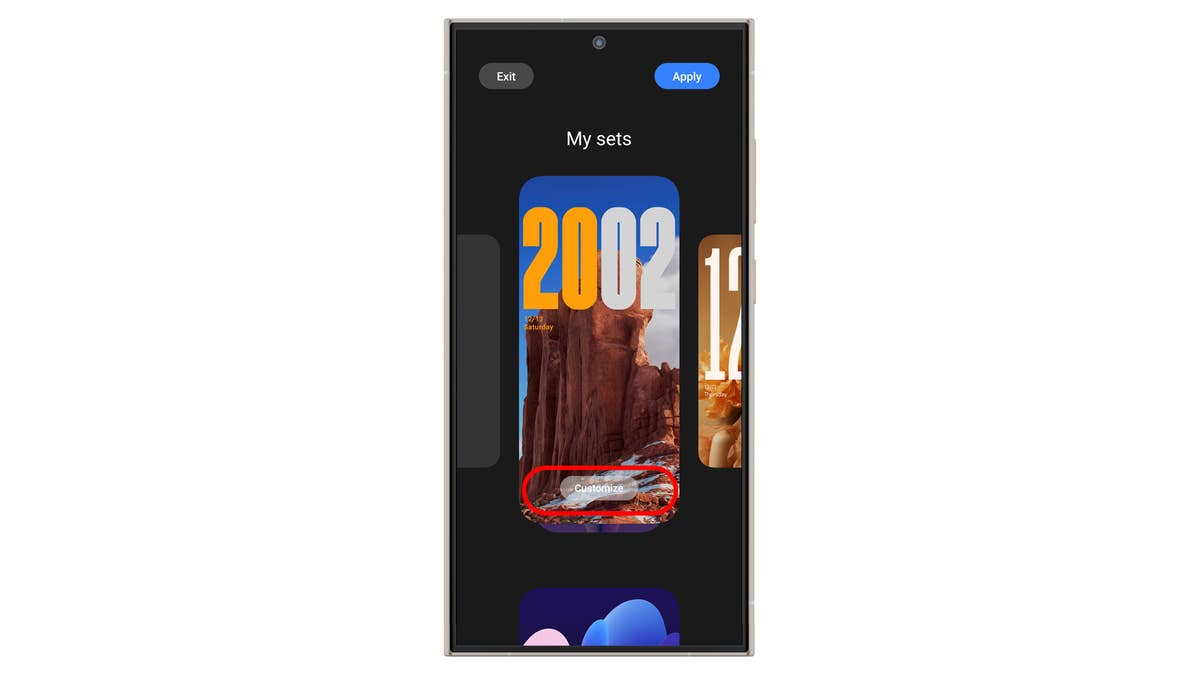
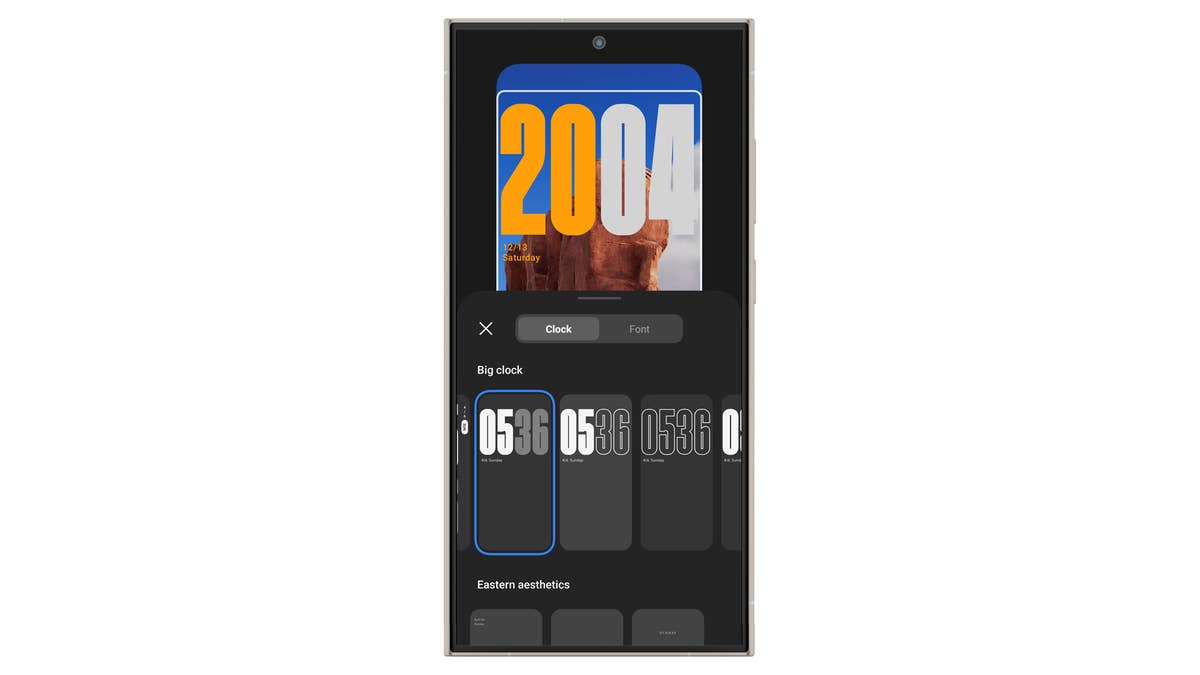
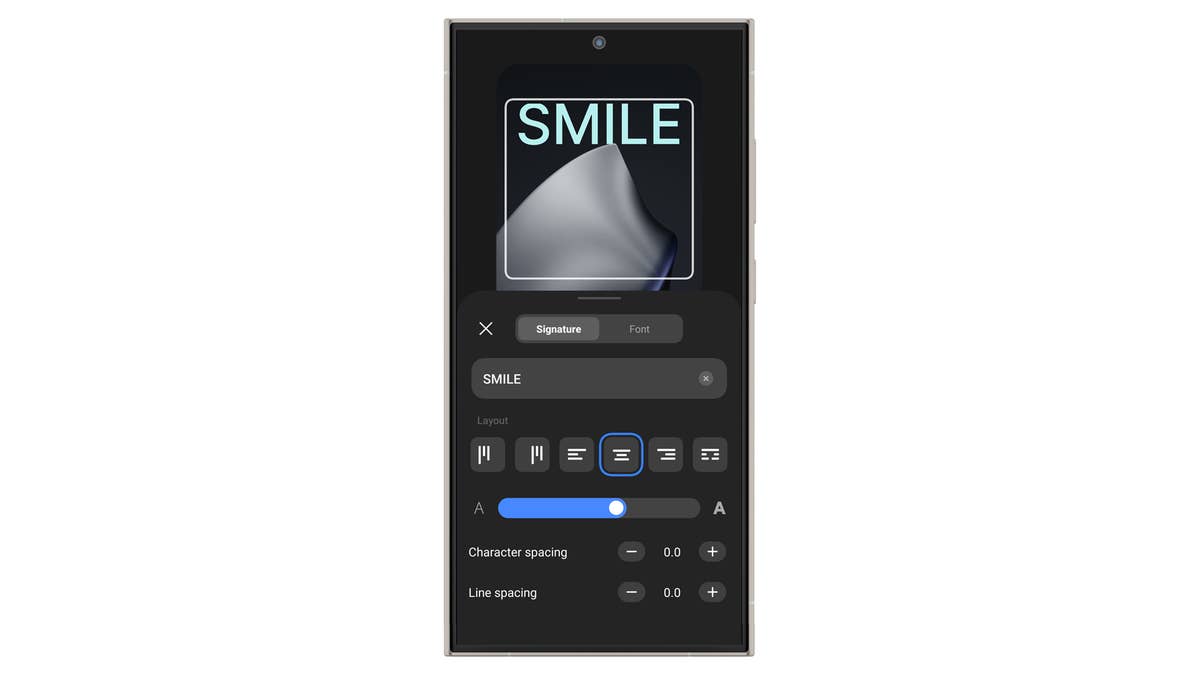
It now supports depth effects across a wider range of lock screen styles for a cinematic look. You can customize these styles, including the clock, text, and other elements. With My Sets, you get an all-in-one dashboard for your personalized lock screen.
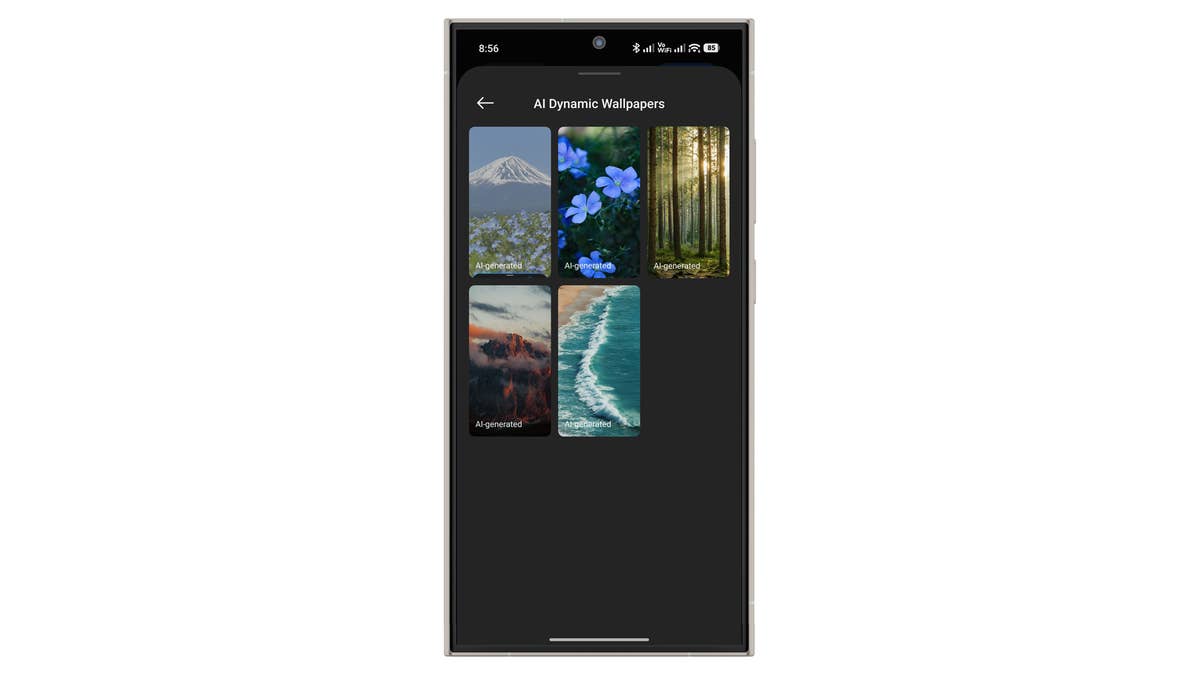
HyperOS 3.0 also introduces AI-powered 3D wallpapers, which create motion effects from static photos. There are pre-set AI live video wallpapers that add transitions extending to the home screen.
How to customize your lock screen:
- Wake your lock screen, long-press on the empty area.
- Tap Customize lock screen.
- Select a new lock style or tap on your current lock screen.
- Choose Customize.
- Tap on the Clock widget to edit or replace it.
- Pick from the different styles of clocks and fonts.
- Once done, tap Apply to save changes.
Double Tap to Lock
Part of the lock screen improvements is the return of double-tap to lock the device. It was present before but removed in HyperOS 2.0.
With a double-tap, you can lock the device by simply tapping the home screen twice with your finger.
Home Screen Widgets
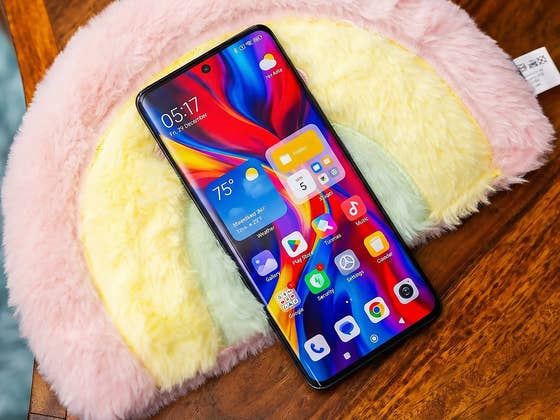
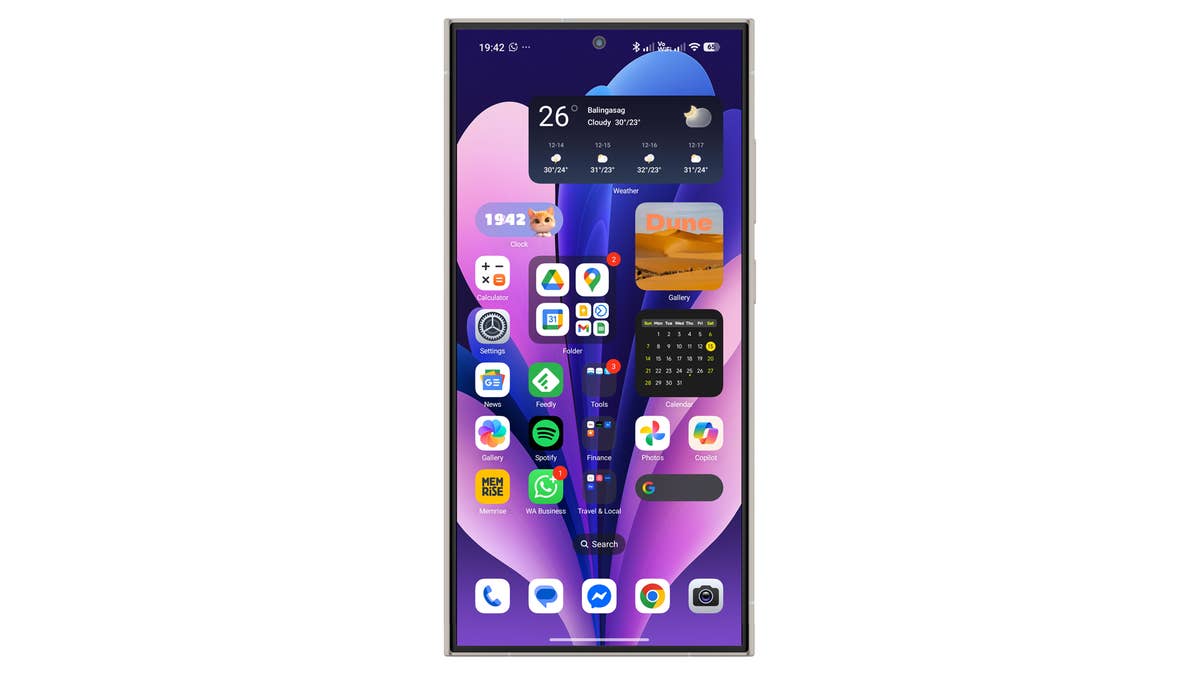
The home screen in HyperOS 3.0 gets an iOS-style refresh, introducing cleaner app icons and widgets. Weather widgets now come in square or wide shapes, while home screen pets take a pill shape and become more dynamic.
More App Space and Bigger Folders
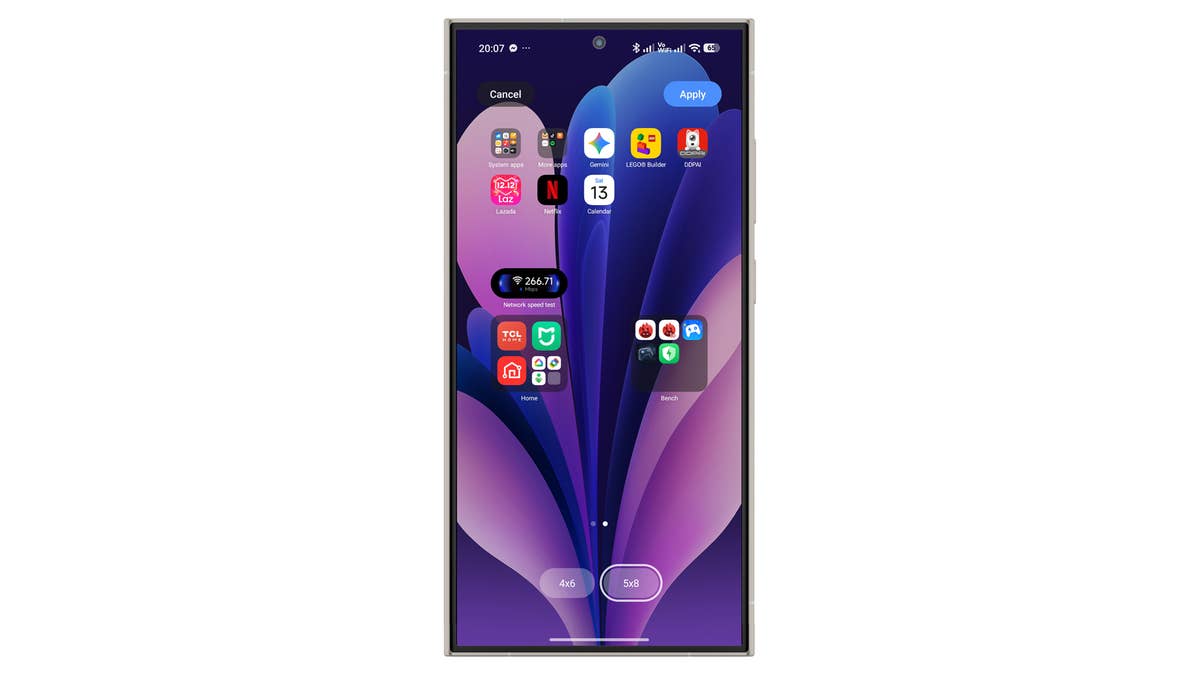
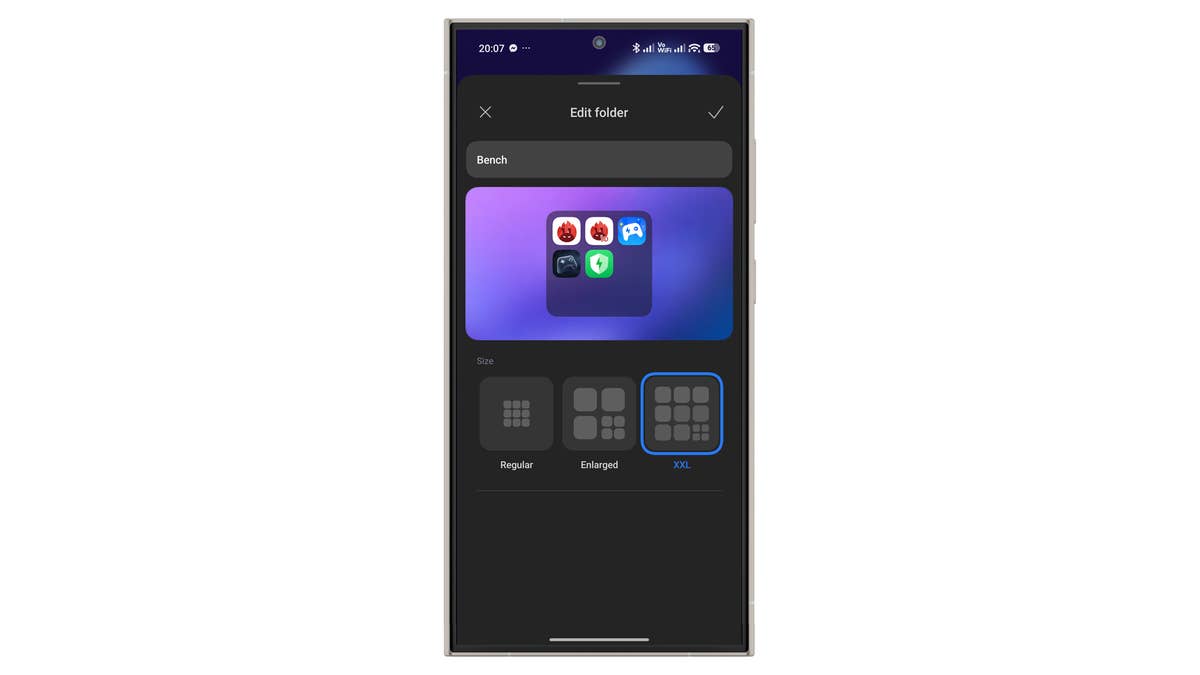
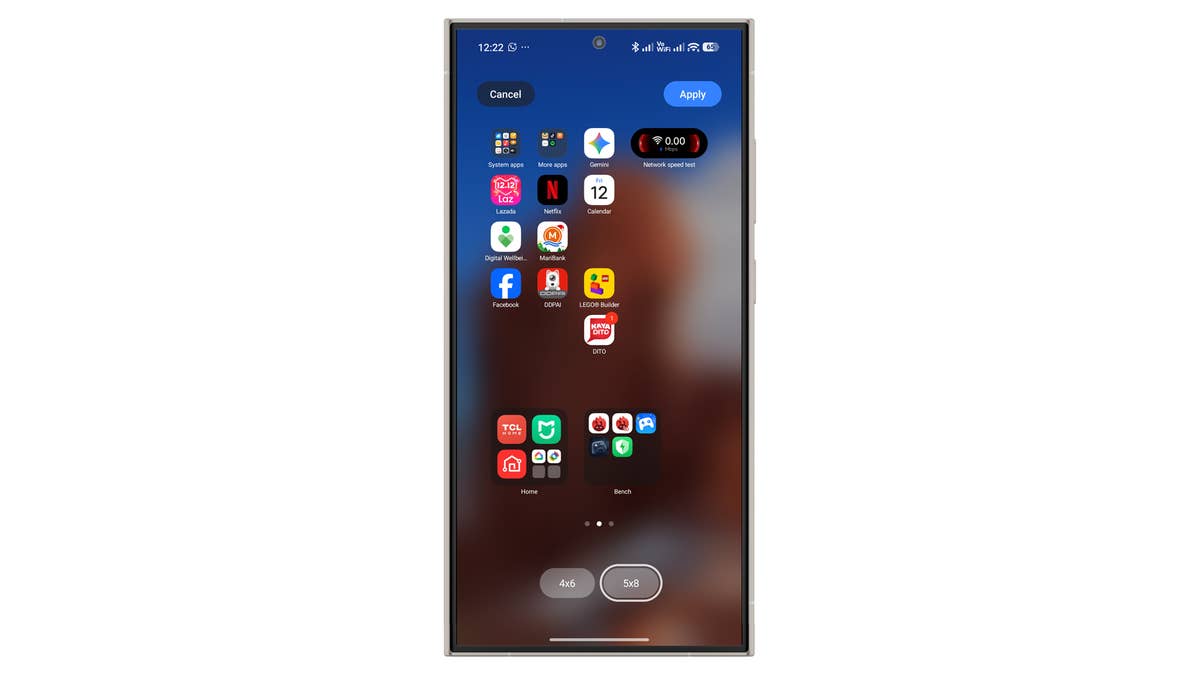
You can fit more apps on the home screen thanks to a new 5×8 layout. This means more space for apps and widgets. Folders now come in XXL, Large, and Regular sizes, all supporting direct app launching without opening the folder.
Home Screen Search Bar
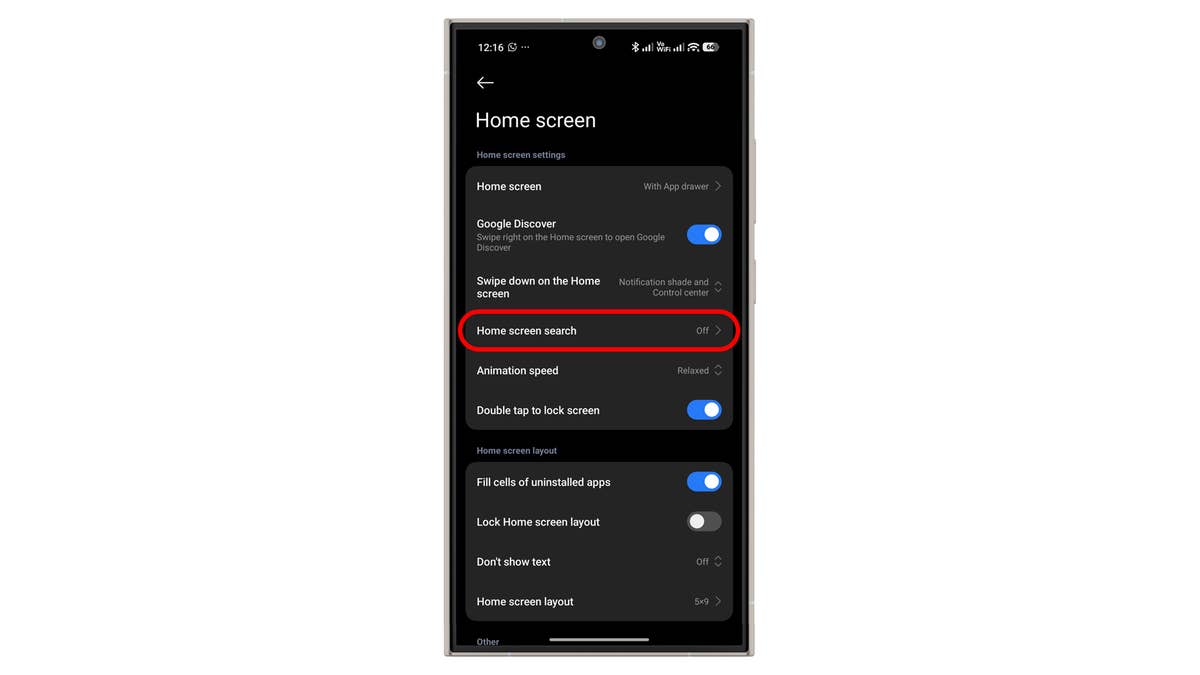
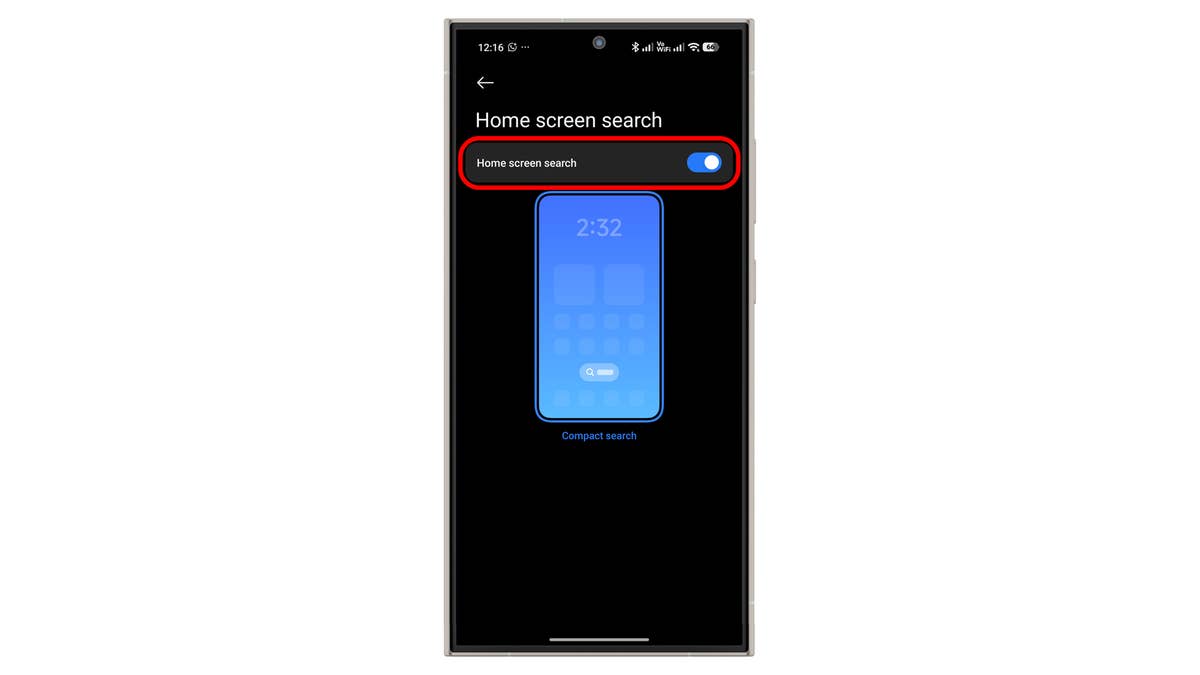
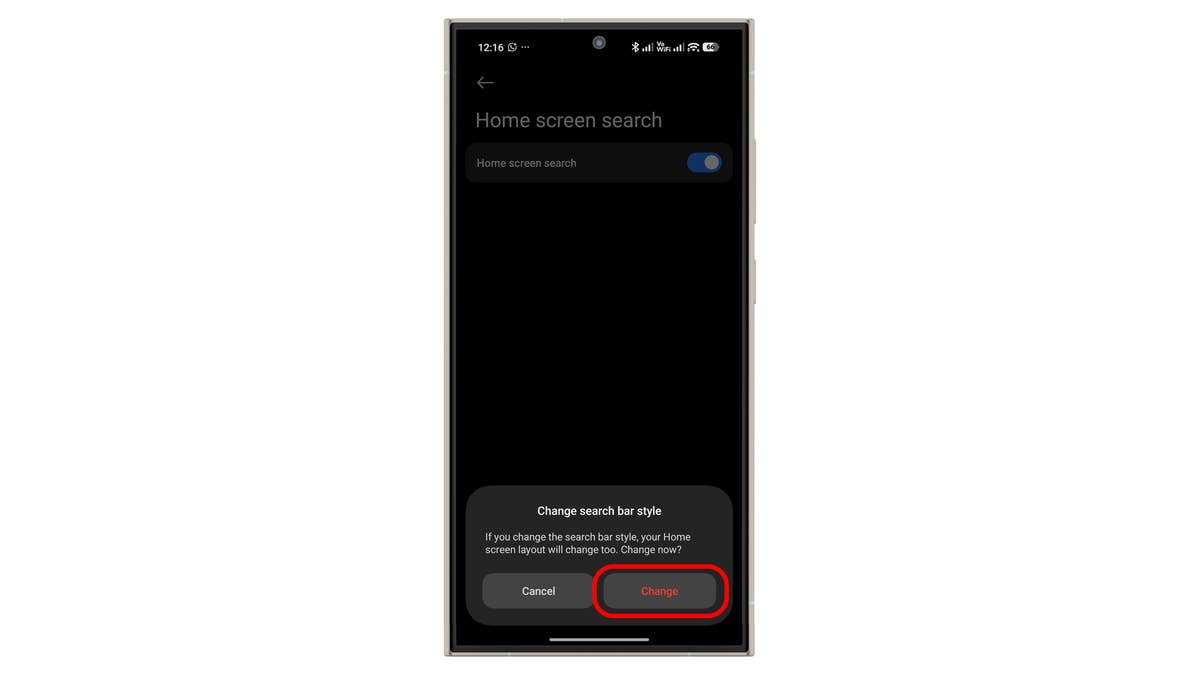
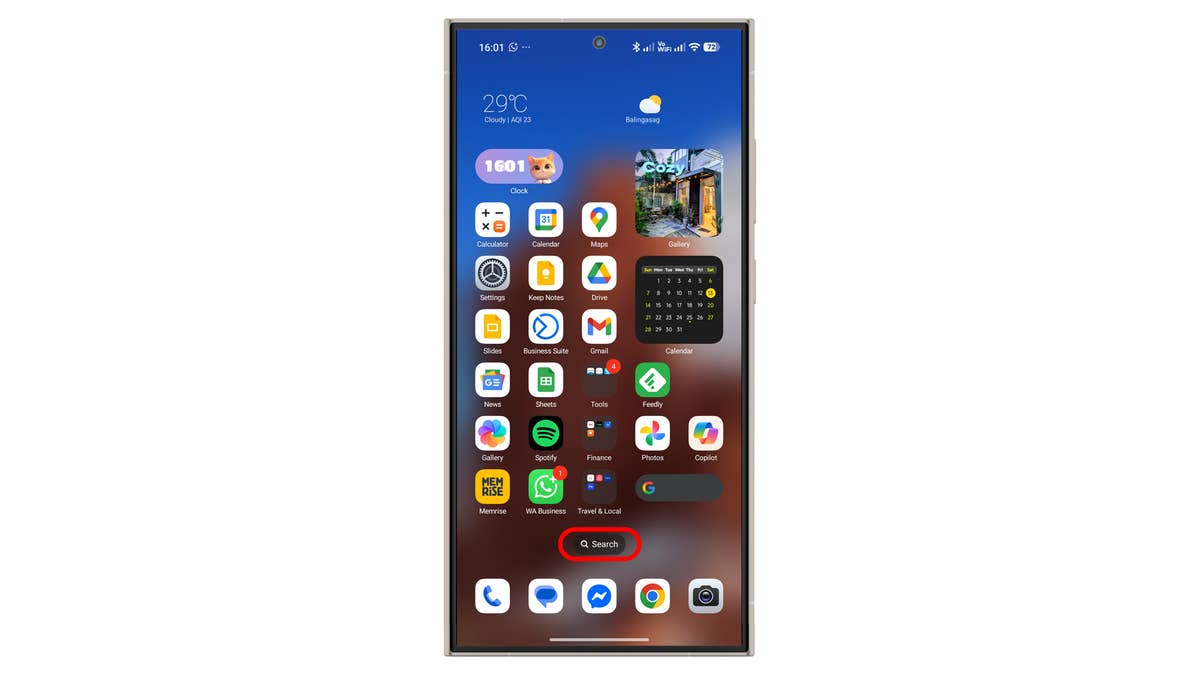
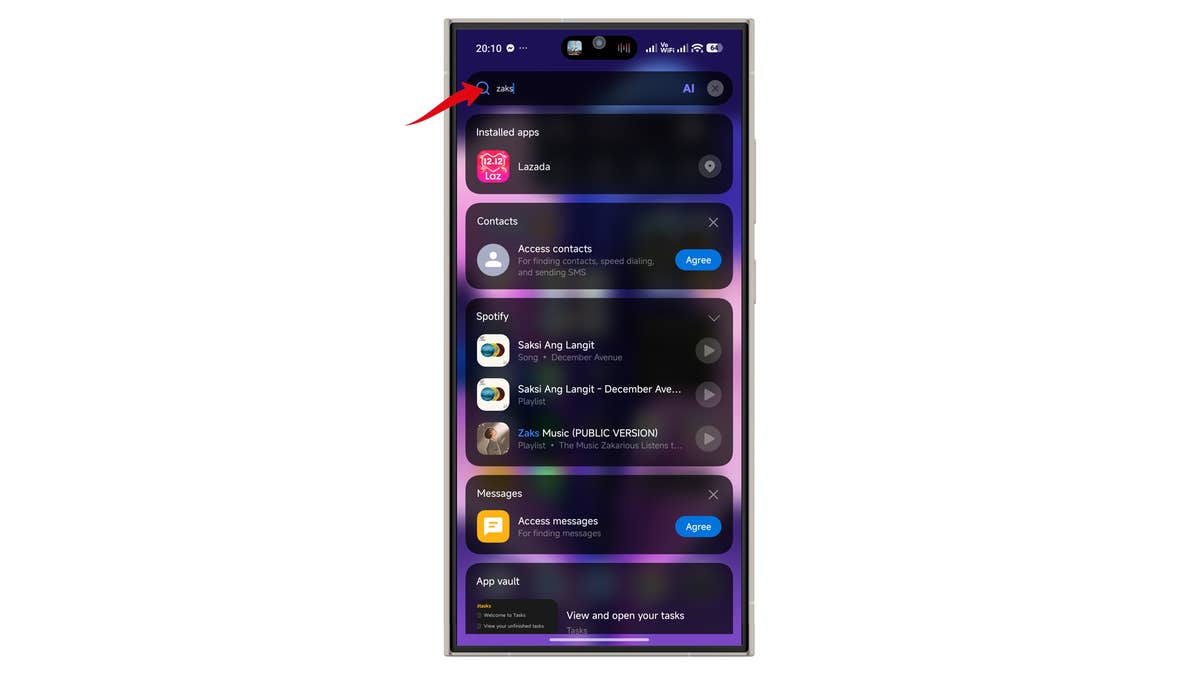
A handy new feature for those with many apps installed is the home screen search bar. Once activated, it replaces the default sticky Google Search widget, though you can still add Google Search anywhere you like.
The home screen search functions as a universal search for apps, contacts, media, and files. It also includes a shortcut to get AI answers when you type questions.
Smarter Gallery
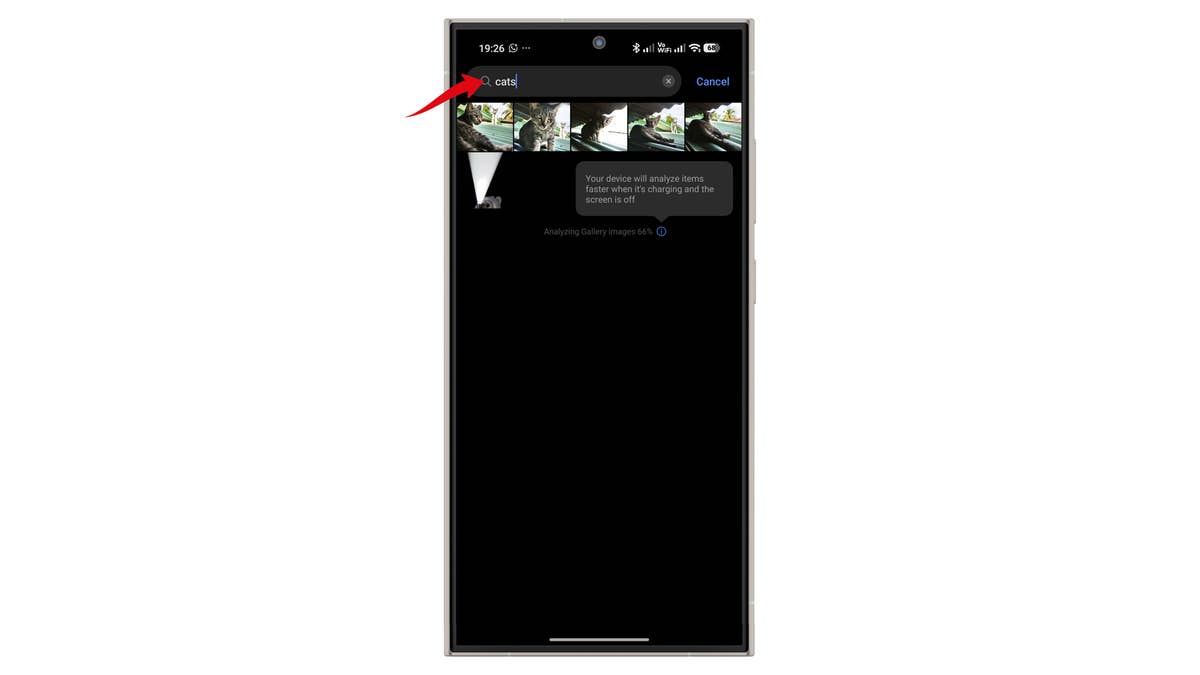
At the app level, the Gallery gets an updated interface. Beyond the visual changes, its search function is now smarter, using AI to analyze images for object and text recognition. This is similar to advanced photo apps like Google Photos.
The new Gallery search function will not be available immediately. You need to open the Gallery and keep the device charging and locked. Depending on the number of photos and videos, analyzing the gallery can take hours or even days, though this runs in the background.
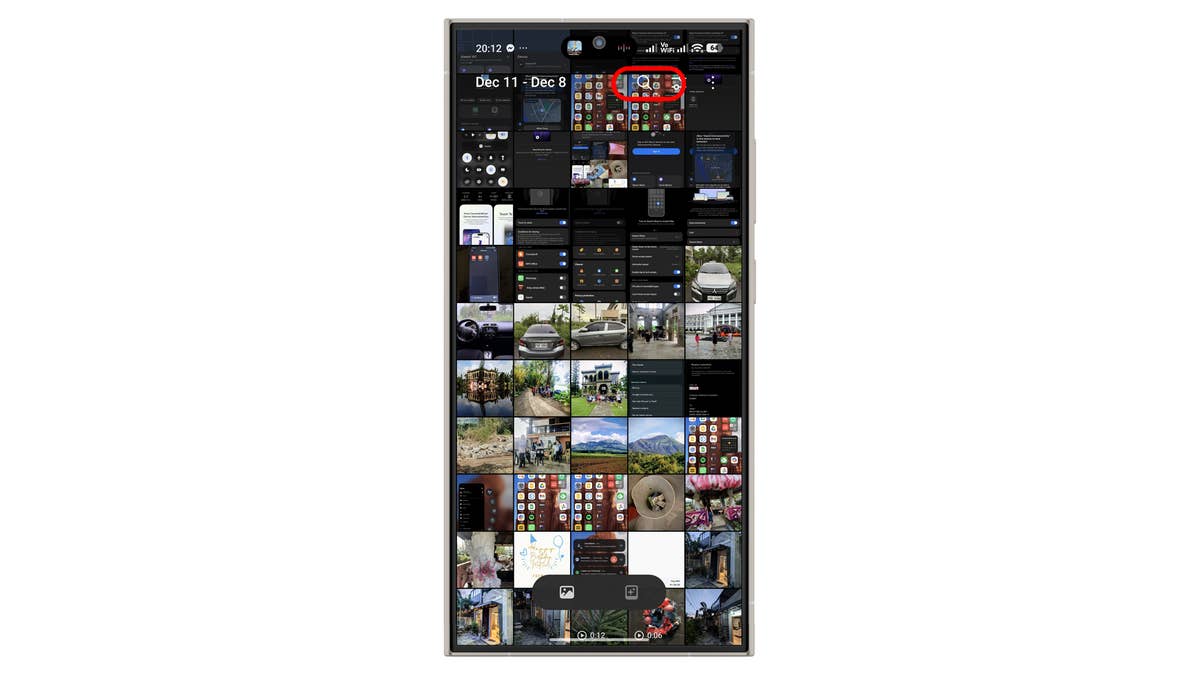
Step-by-step guide to use the new search:
- Open the Gallery app.
- Tap the Search bar icon.
- Enter the keywords you want to search.
Make Photos Brighter
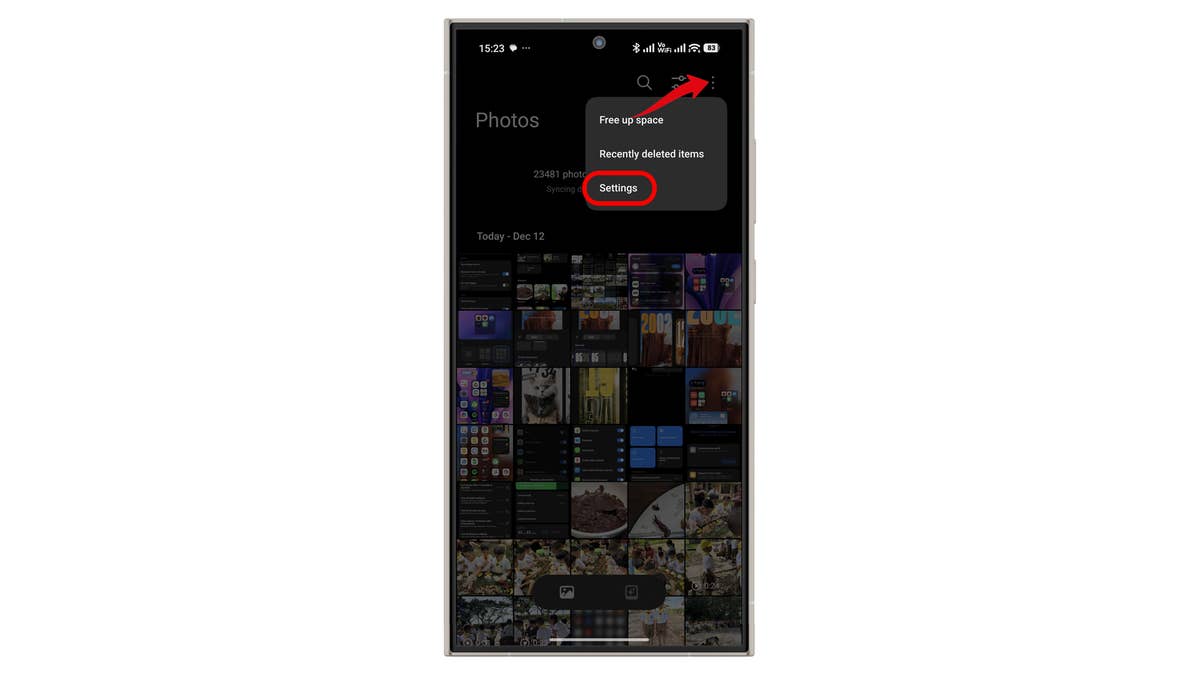
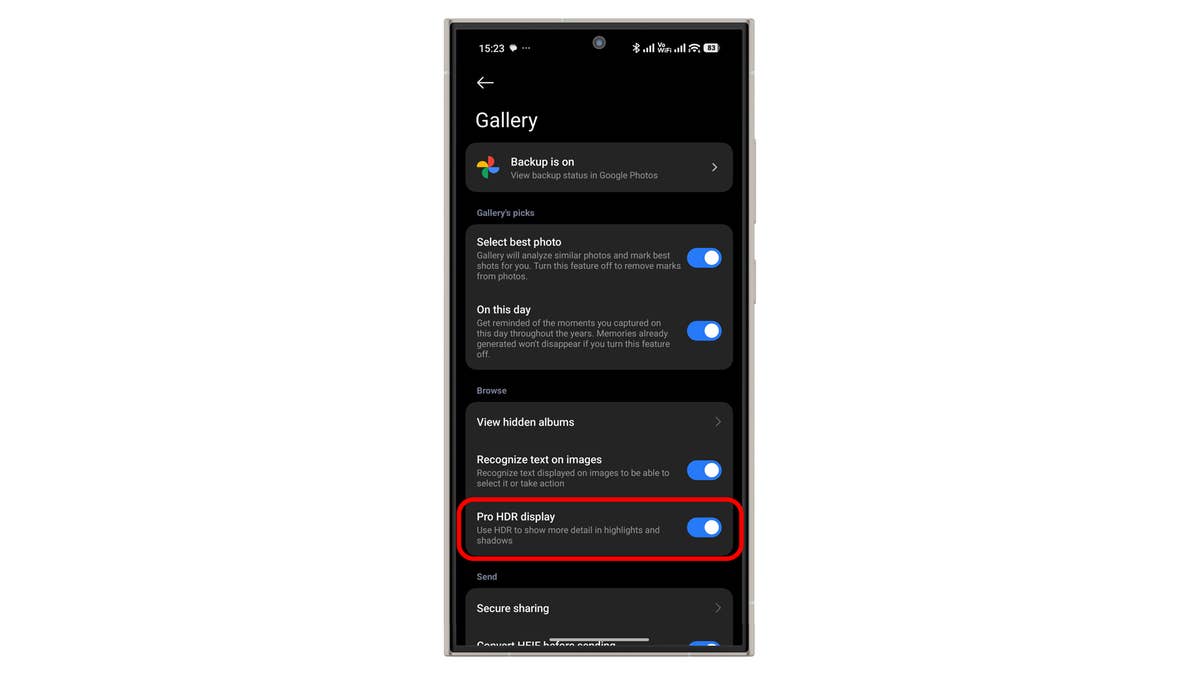
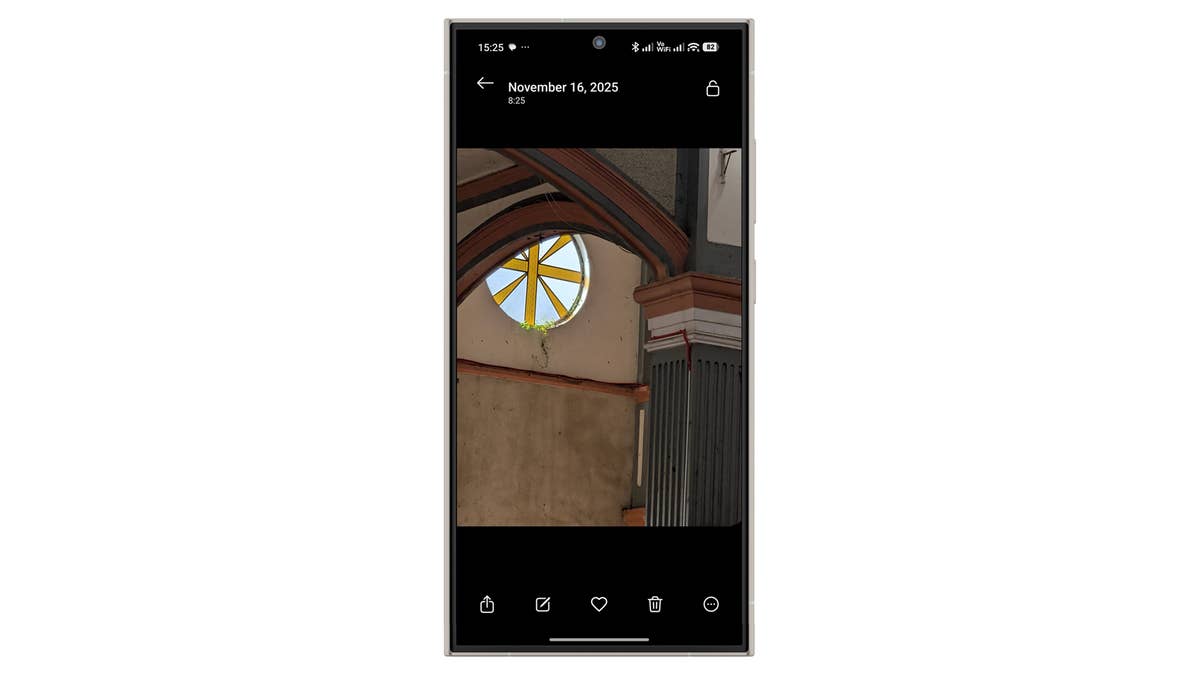
Pro HDR is a feature available on select Xiaomi devices. It enhances highlights and contrast in images when viewing them in the Gallery for improved visual quality. The feature is retained in the latest HyperOS but remains disabled by default. Follow these steps to turn it on from the Gallery app:
- Open the Gallery app.
- Tap the vertical three-dot menu.
- Tap Settings.
- Enable Pro HDR.
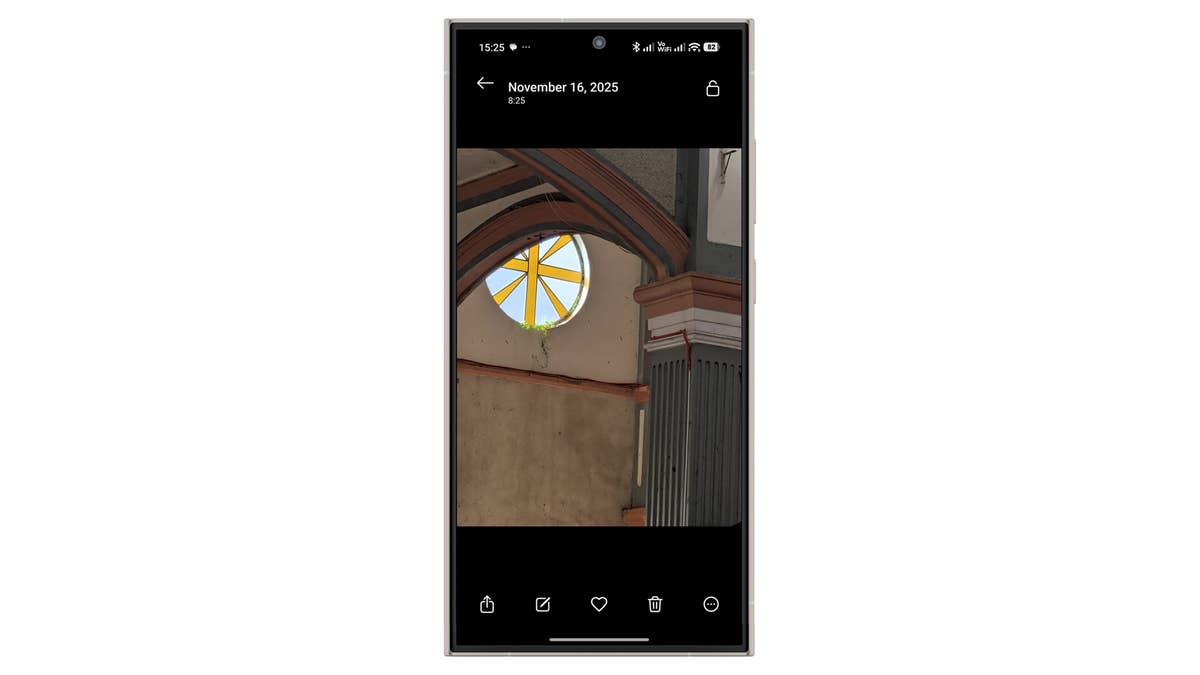
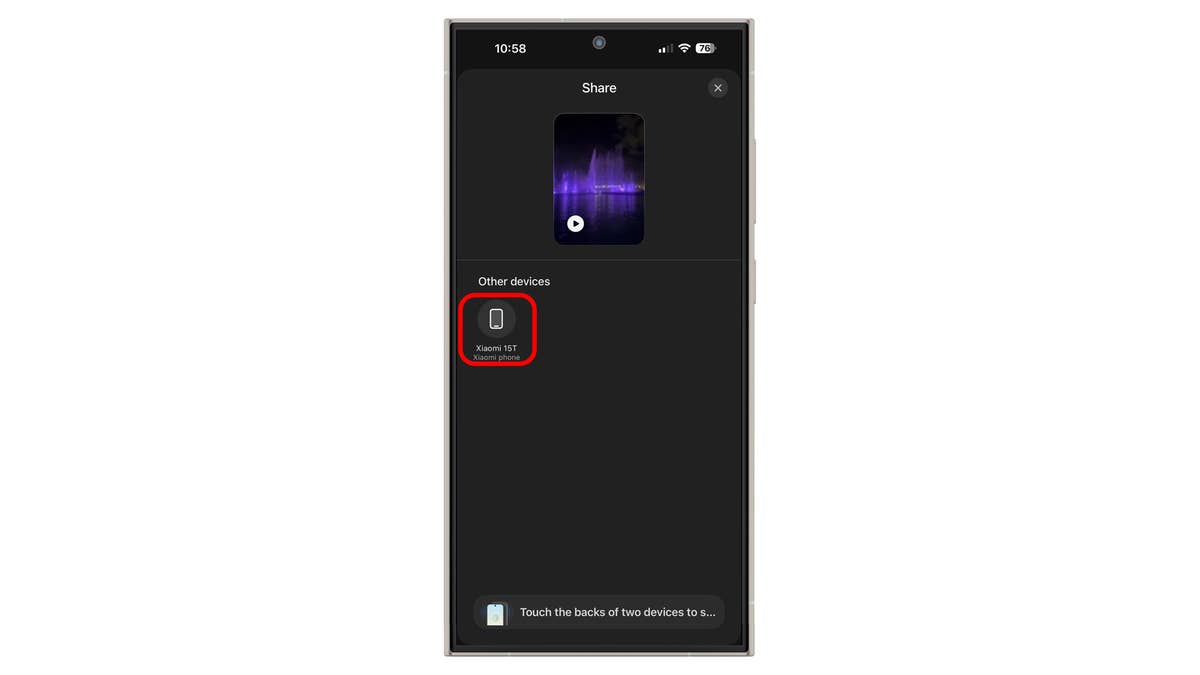
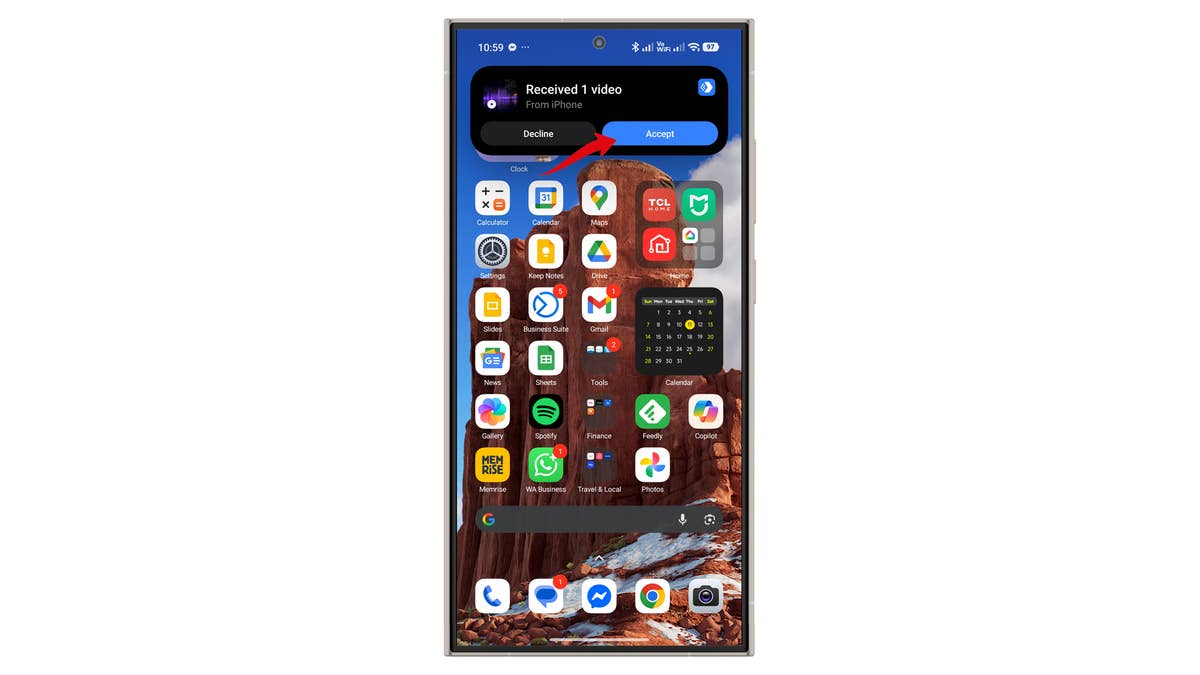
HyperOS 3.0 enhances cross-device sharing, specifically with iPhone and iPad. The new tap-to-share lets you transfer photos and videos with a quick tap between phones.
While straightforward, the setup can be tedious.
Guide to transferring media from iPhone to Xiaomi:
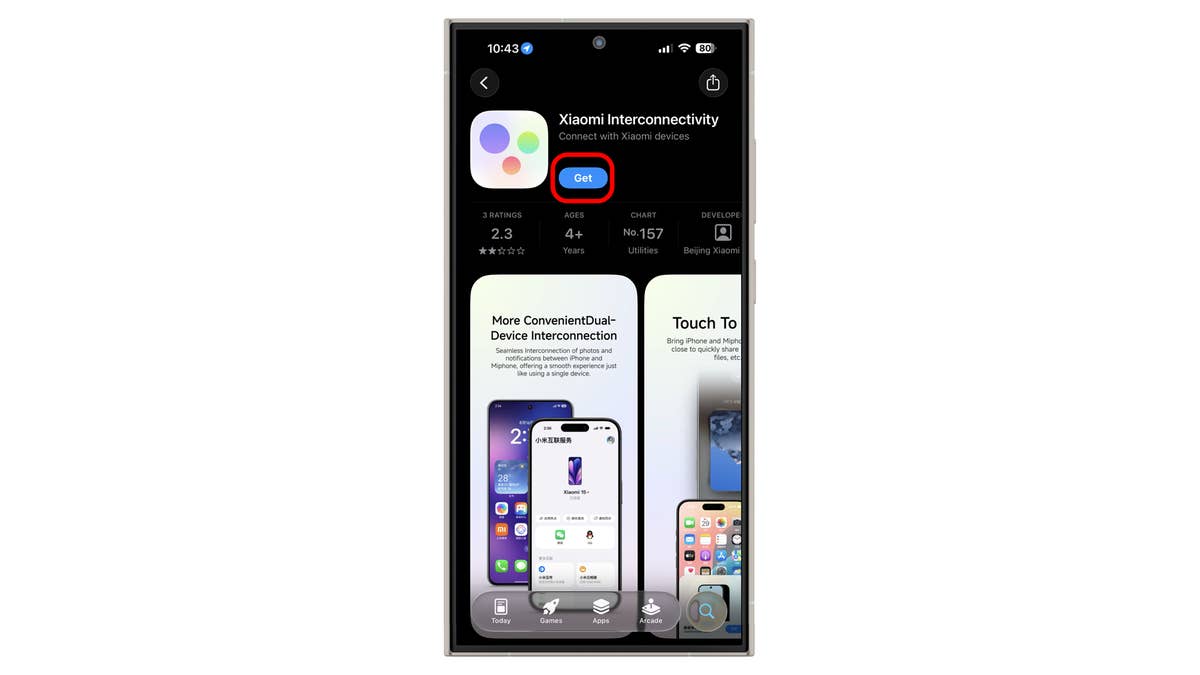
- Download the Xiaomi Interconnectivity app on the iPhone.
- Turn on Bluetooth, NFC, and connect both devices to the same Wi-Fi.
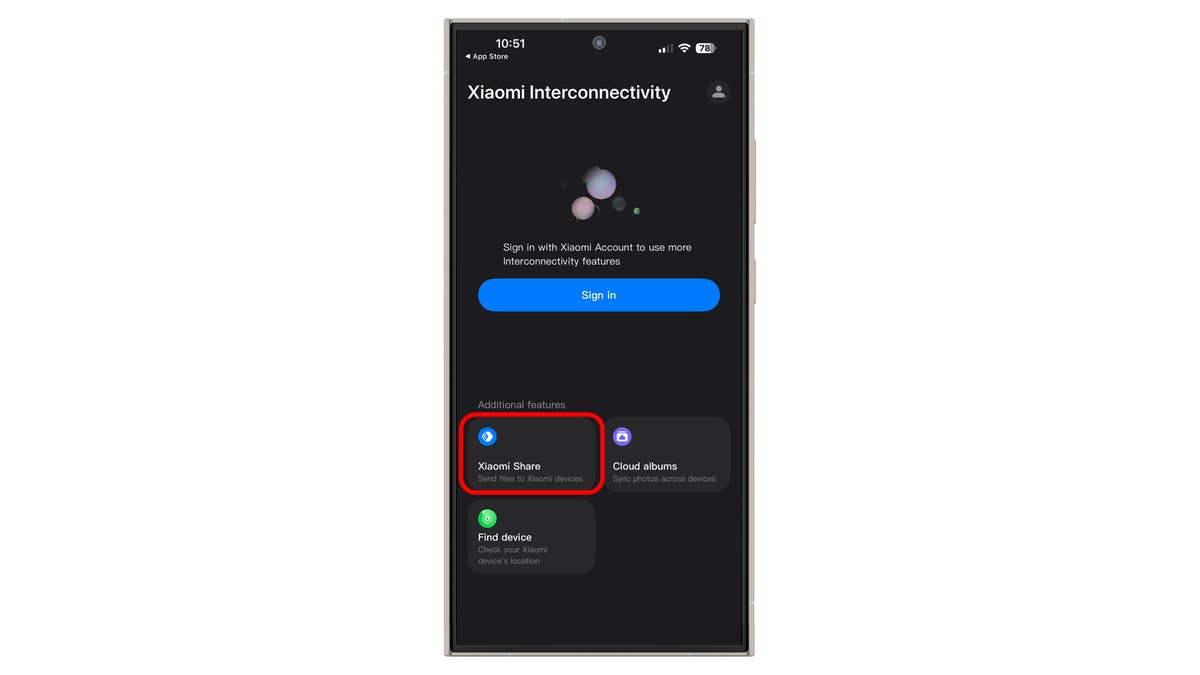
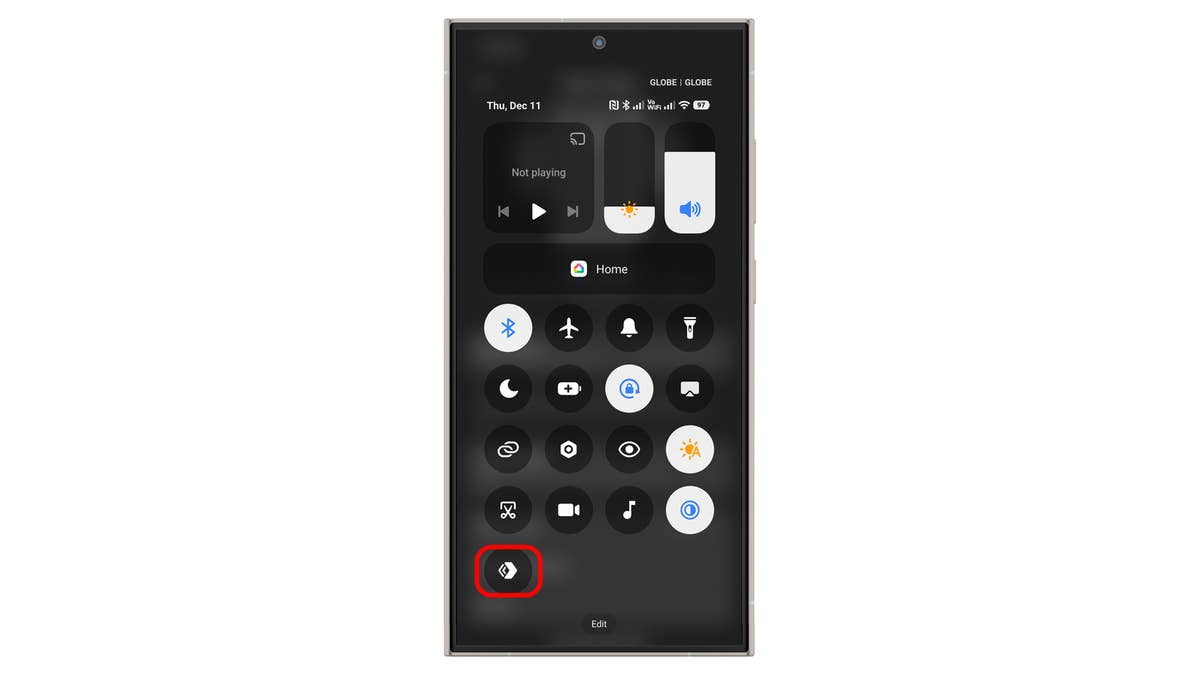
- On Xiaomi, enable Xiaomi Share.
- Select the photos and videos to share and tap Send.
- Pair by tapping both phones, then select the Xiaomi device.
- Accept on the Xiaomi device.
This works the other way around, with Xiaomi as the source. On iPhone, AirDrop must be enabled and set to Everyone. File and document sharing is also supported through the file manager.
Track Lost or Stolen Xiaomi on iPhone
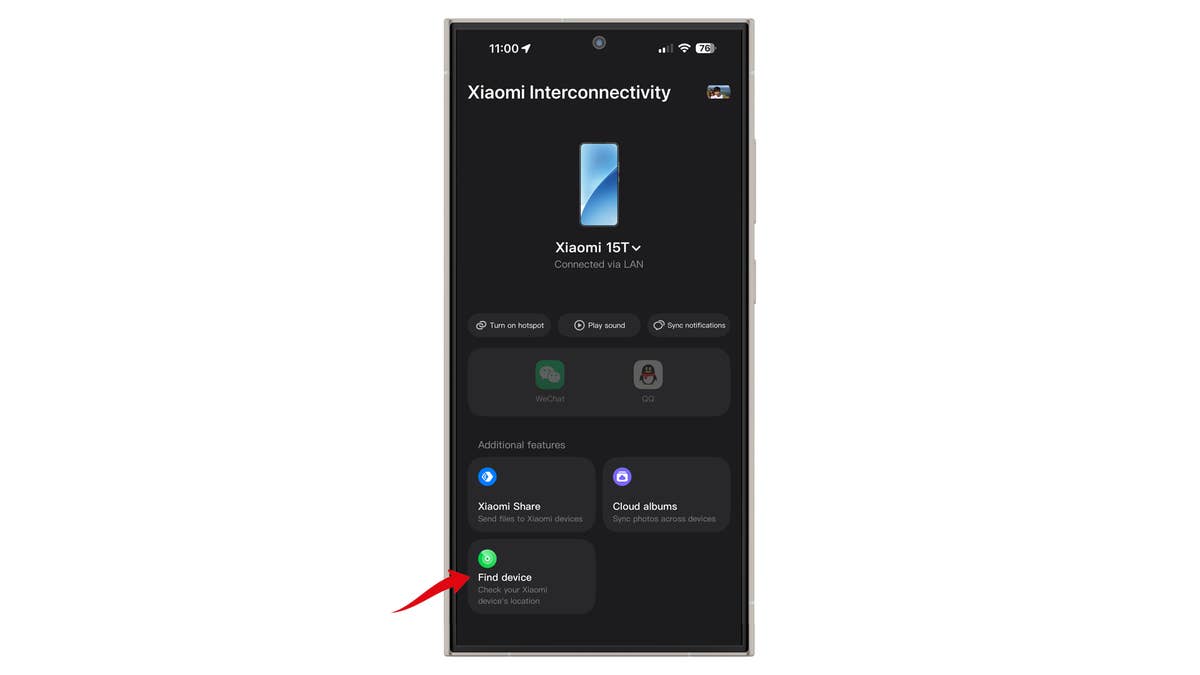
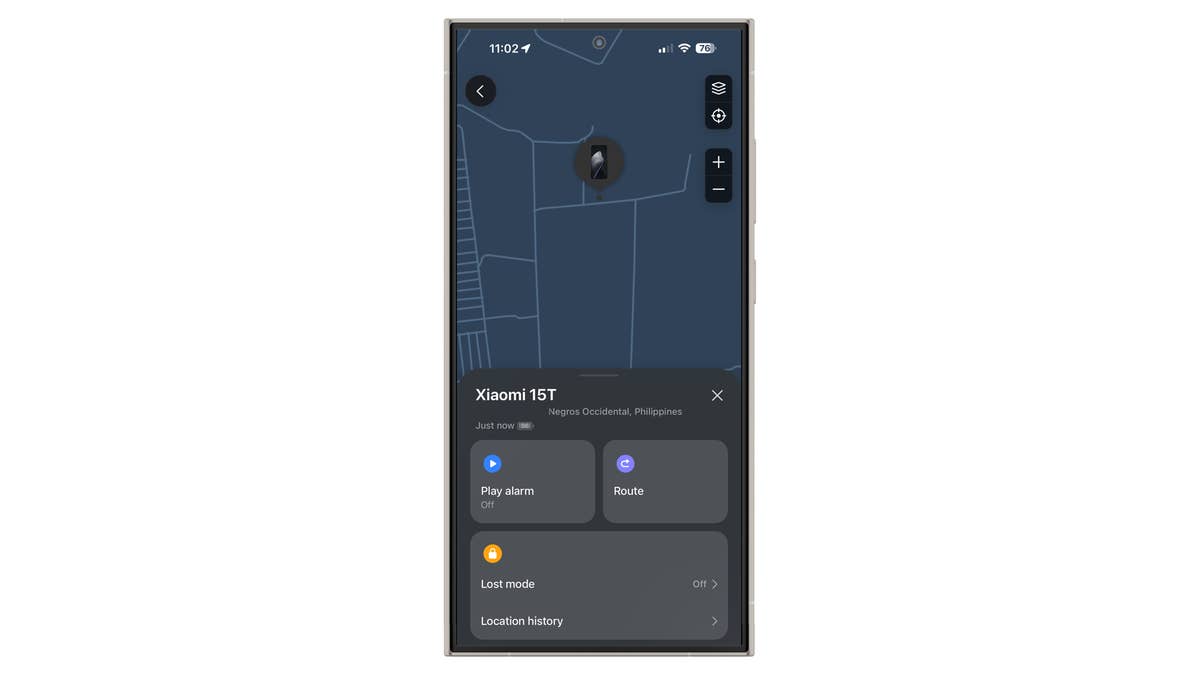
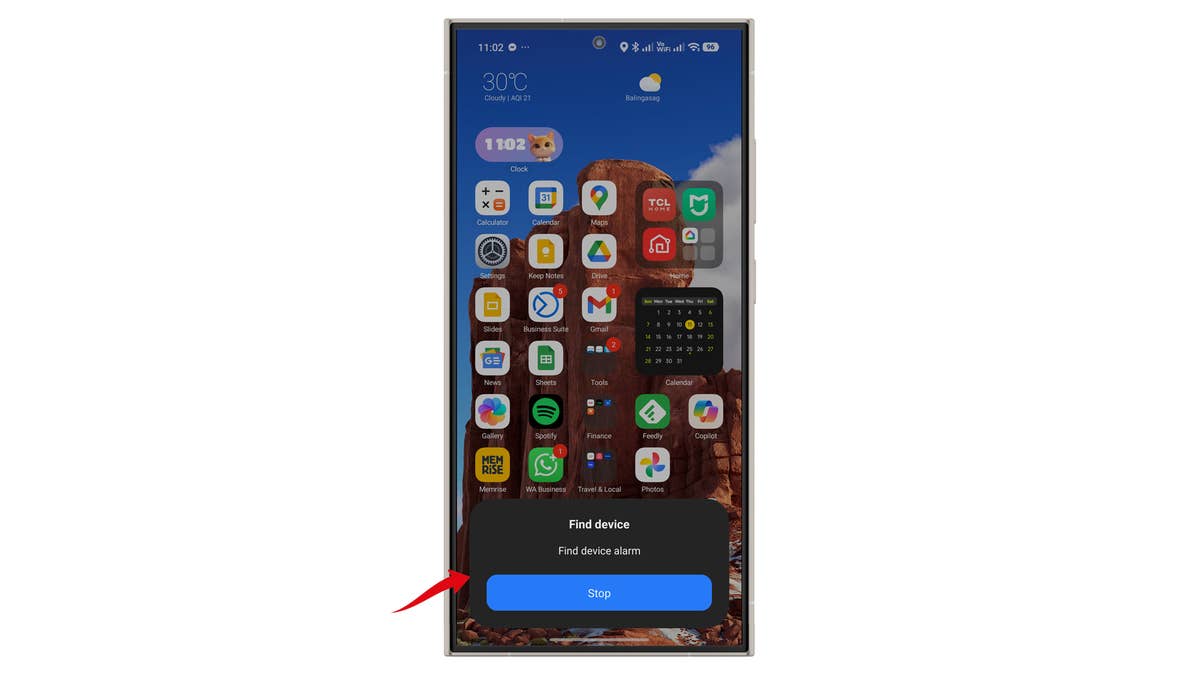
Another cross-device feature is location tracking of a Xiaomi device on an iPhone. It is useful if you own multiple Xiaomi devices or want to monitor one given to a child. More importantly, you can use this feature to track a stolen or lost Xiaomi phone.
Like media sharing, it requires the Xiaomi Interconnectivity app with your Xiaomi account logged in on your iPhone. You can pinpoint the device’s location, make it ring if it is nearby, or view the tracking history.
Improve Battery Life
HyperOS 3.0 improves battery efficiency for longer life and better health in phones and tablets. Most of this works automatically, relying on AI optimizations. Xiaomi also added granular controls and deeper optimizations.
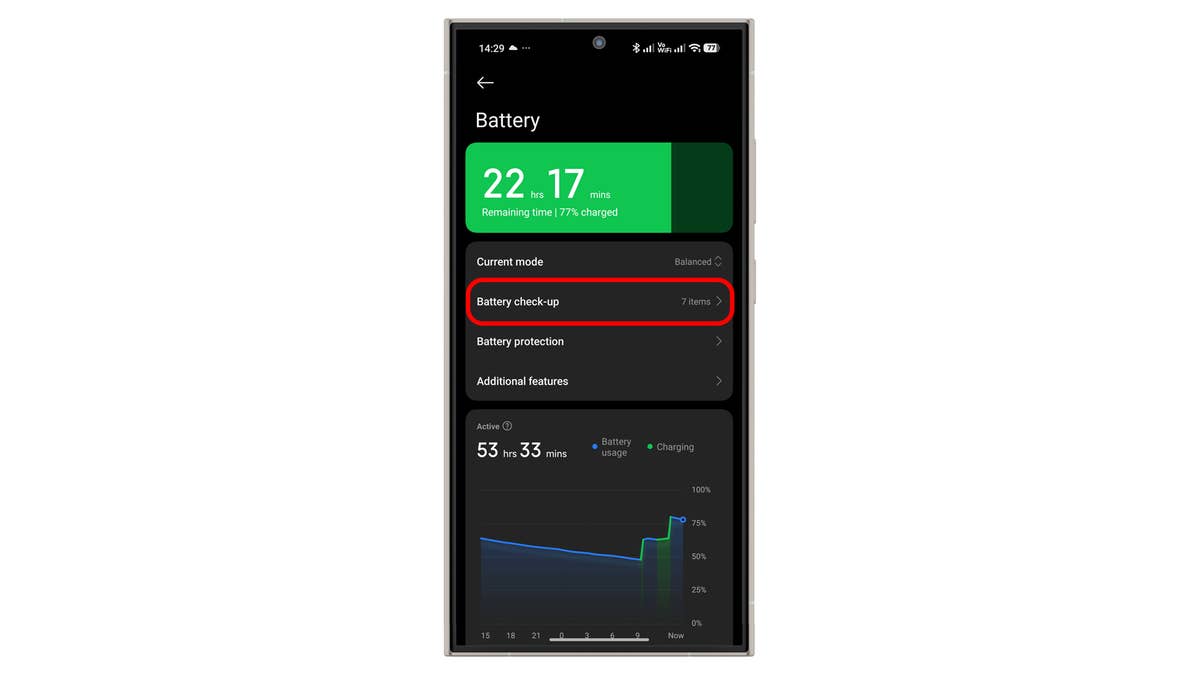
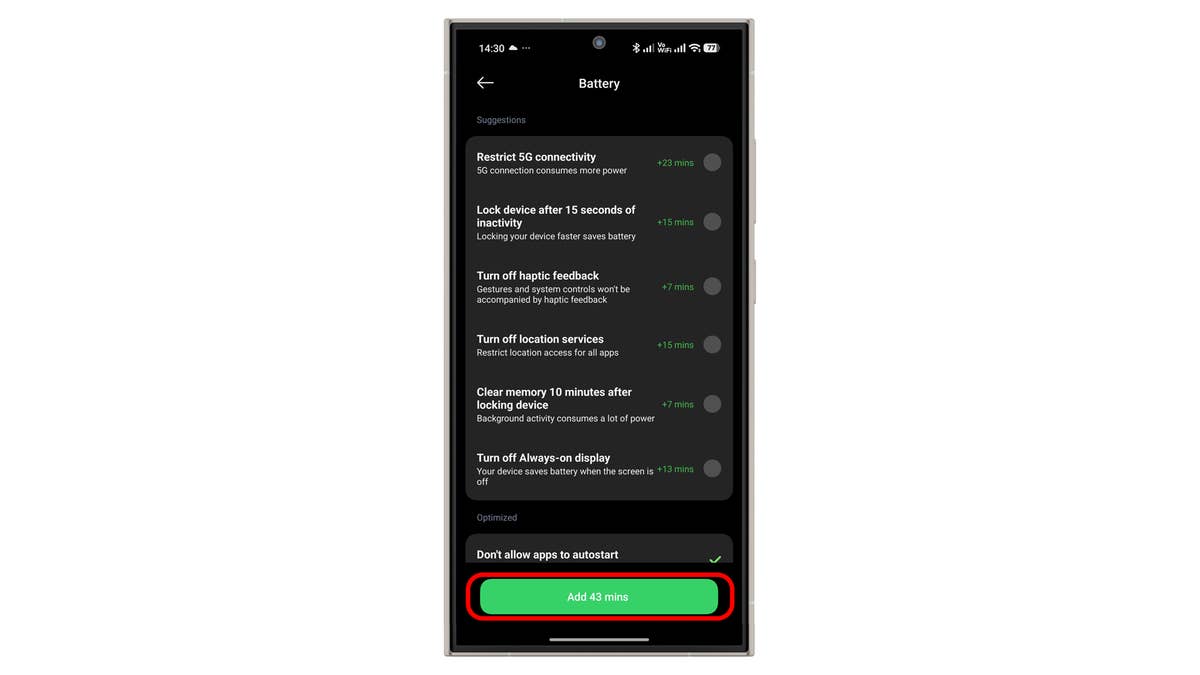
Meanwhile, Battery check-up now provides smarter metrics and suggestions on which settings to tweak and which apps consume the most power.
Steps in improving the battery life of your Xiaomi phone:
- Go to Settings.
- Tap Battery.
- Select Battery check-up.
- Tap Extend battery life.
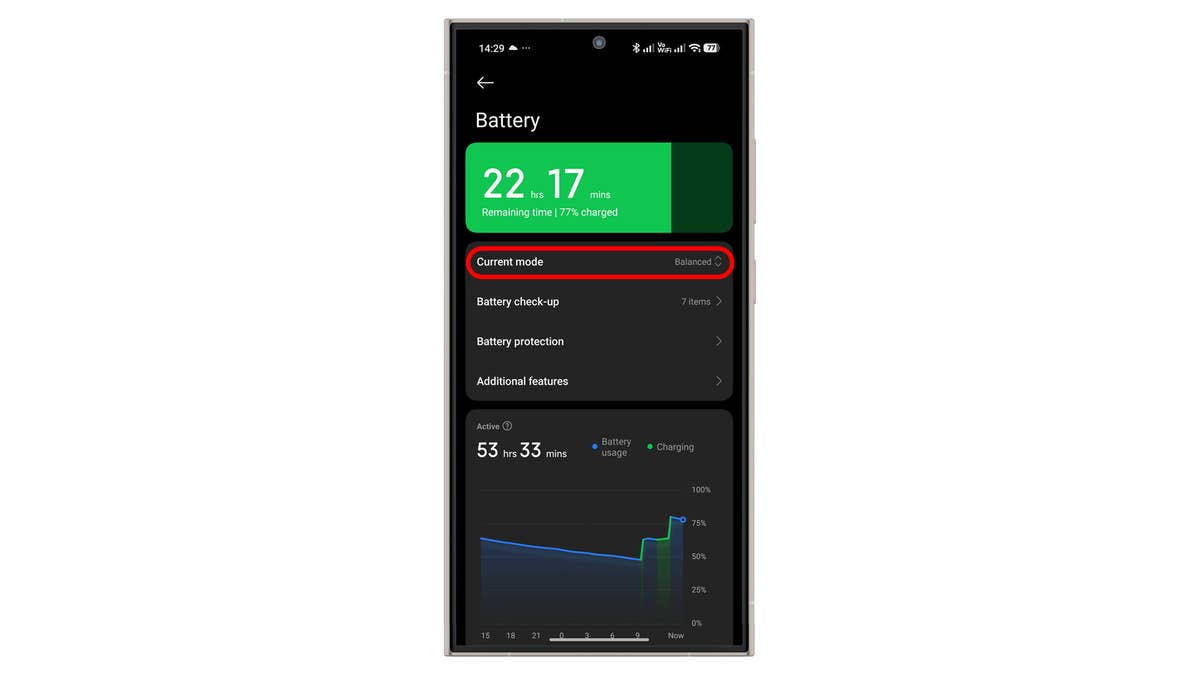
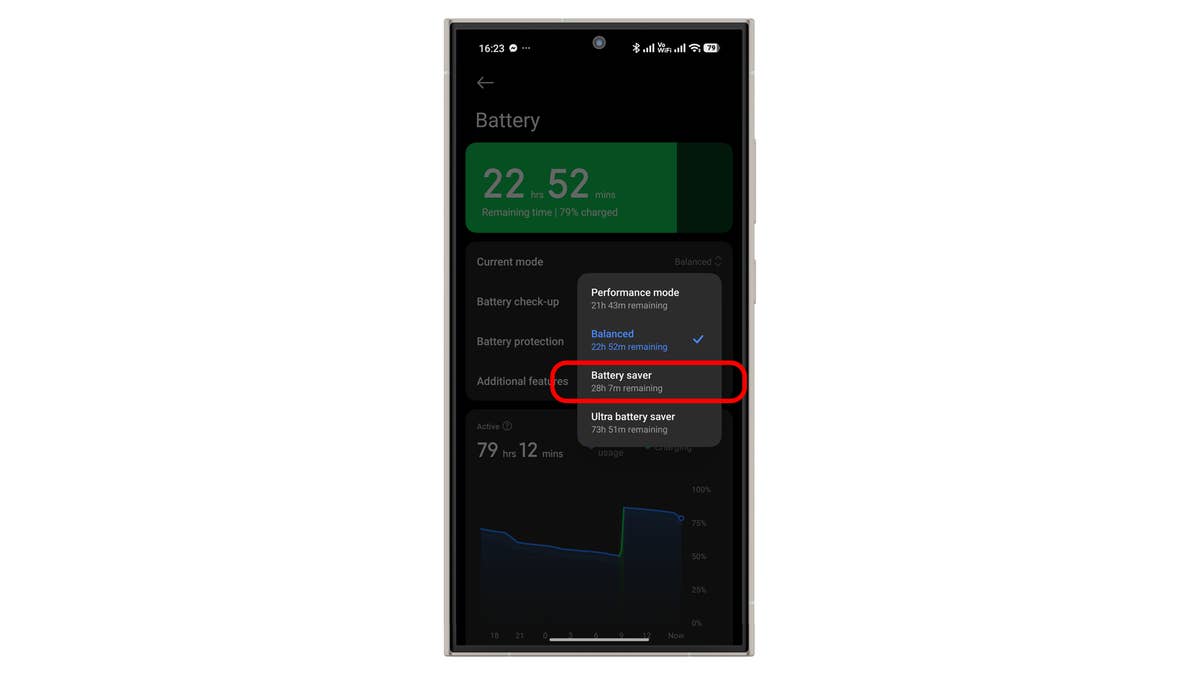
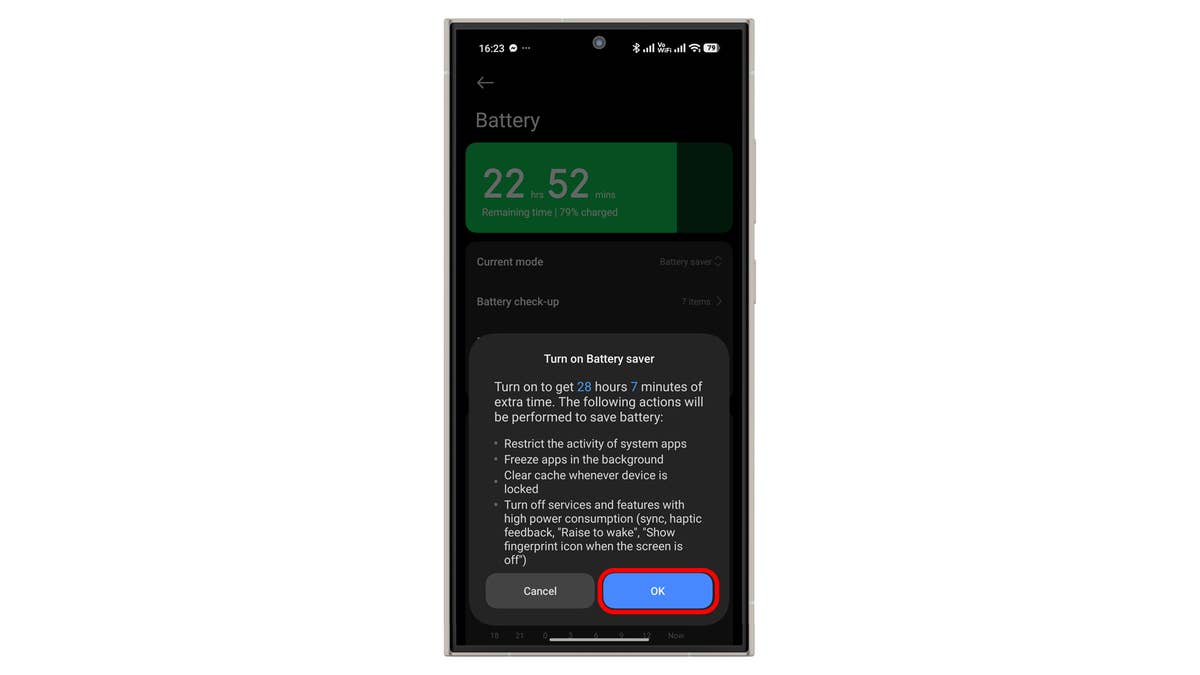
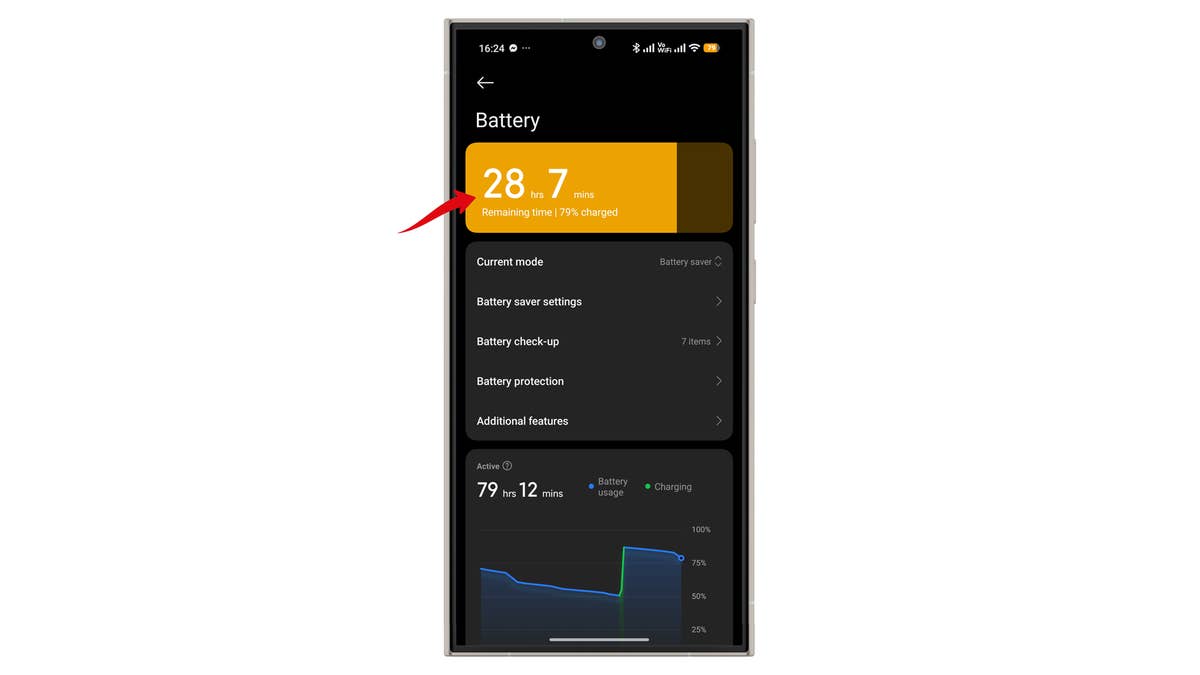
Battery optimization modes have also changed. The default is now Balanced. You can switch to Battery Saver or Ultra Battery Saver for longer runtime. Ultra mode can triple battery life but disables many functions. Battery Saver is ideal for reducing charging frequency without sacrificing performance.
Steps for battery optimizations:
- Go to Settings.
- Tap Battery.
- Select Battery saver.
- Press back to save changes.
5G Battery Saver
This feature was introduced earlier but remains little known. Found under Additional features in HyperOS 3.0, it reduces 5G usage when not needed to conserve battery.
How to enable 5G Battery Saver:
- Go to Settings.
- Tap Battery.
- Select Additional features.
- Toggle 5G Battery saver.
Hide Apps
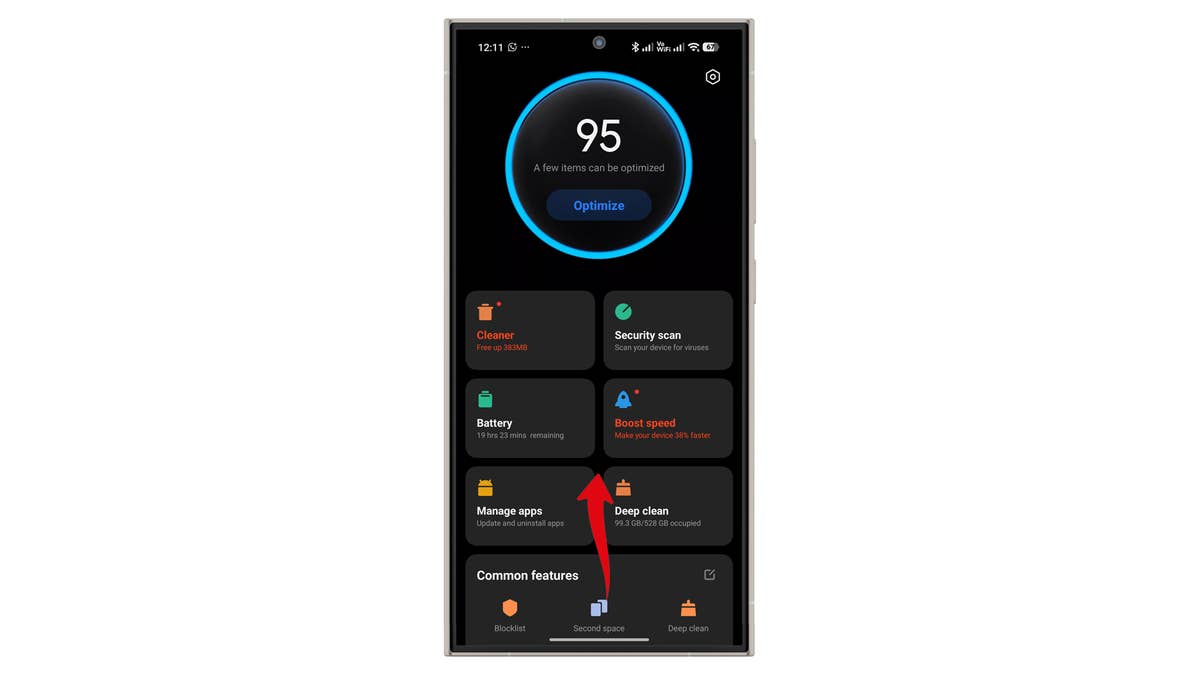
Debuted in HyperOS 2.0, Hide Apps has minor changes in version 3.0. From the home screen, access it through the Security app, then swipe up to open the toolbox section.
Select which apps to hide by toggling them individually. You can also manage security settings. In HyperOS 3.0, you can pinch outward with two fingers to open hidden apps faster.


Disable Ads
Alongside better privacy controls, Xiaomi makes it easier to disable ads in first-party apps. You can do this in Security, Themes, and other apps individually or through system settings.
For the Security app:
- Open Security.
- Tap the gear icon.
- Toggle off Receive recommendations.
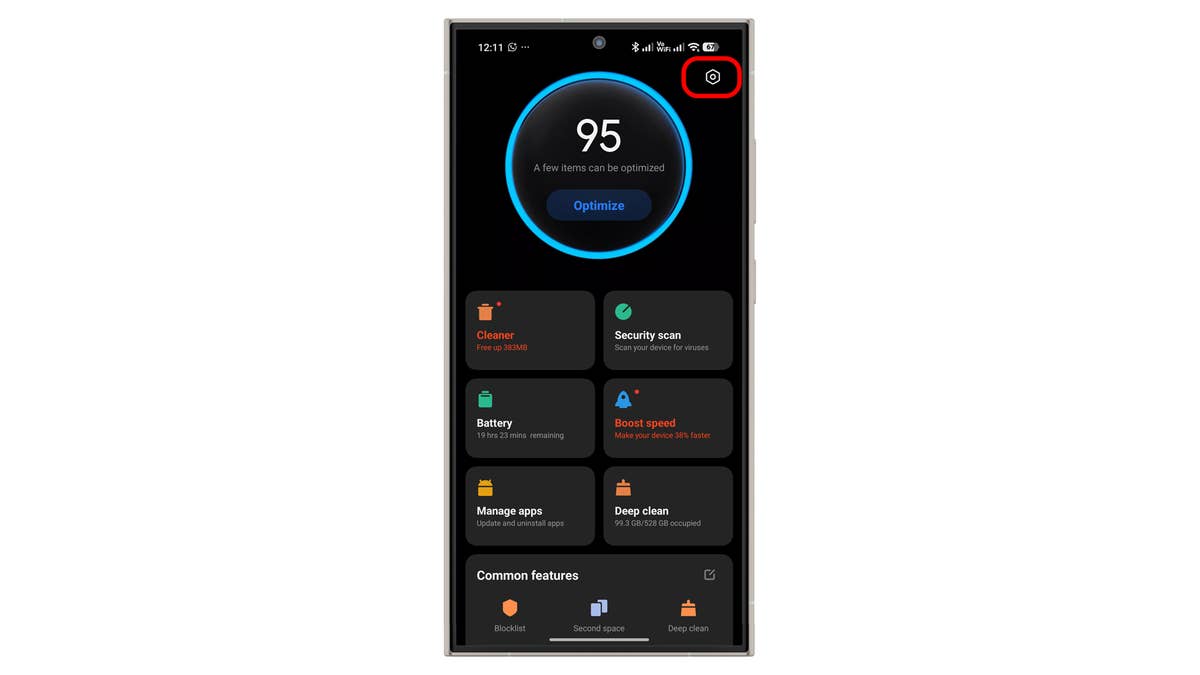
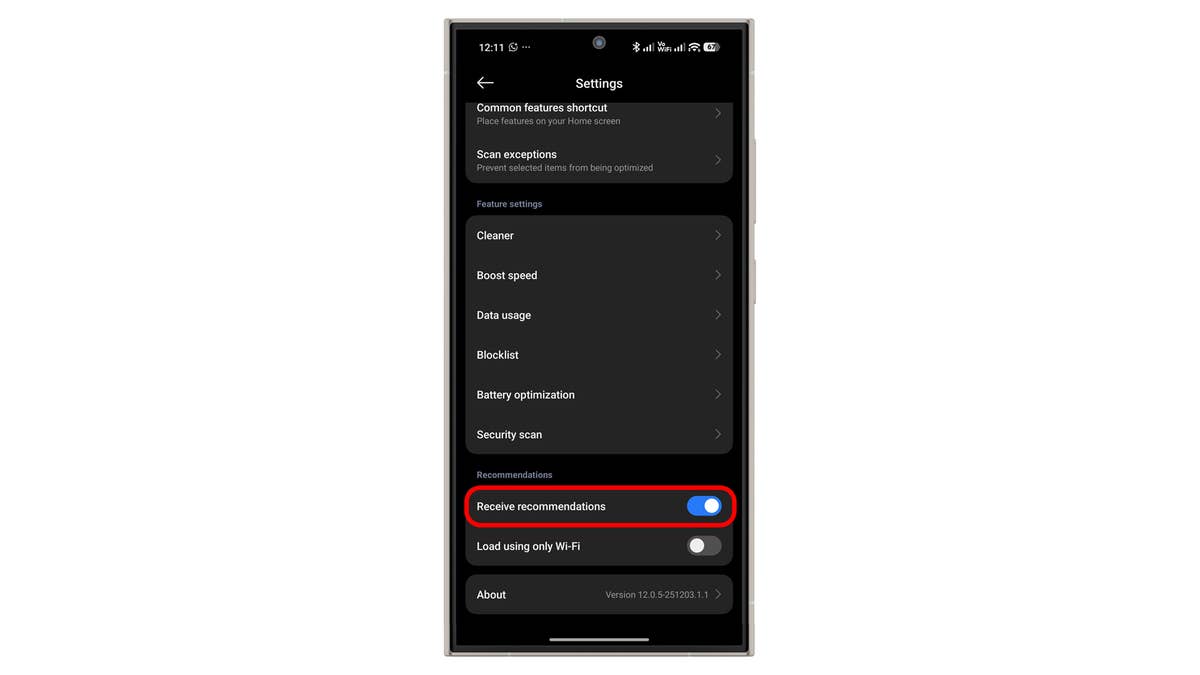
For Themes and Browser, disable recommendations in their settings.
System-level steps:
- Open Settings.
- Go to Fingerprints, face data, and screen lock.
- Tap Authorization & revocation.
- Toggle off msa/System daemon, wait 10 seconds, and confirm.
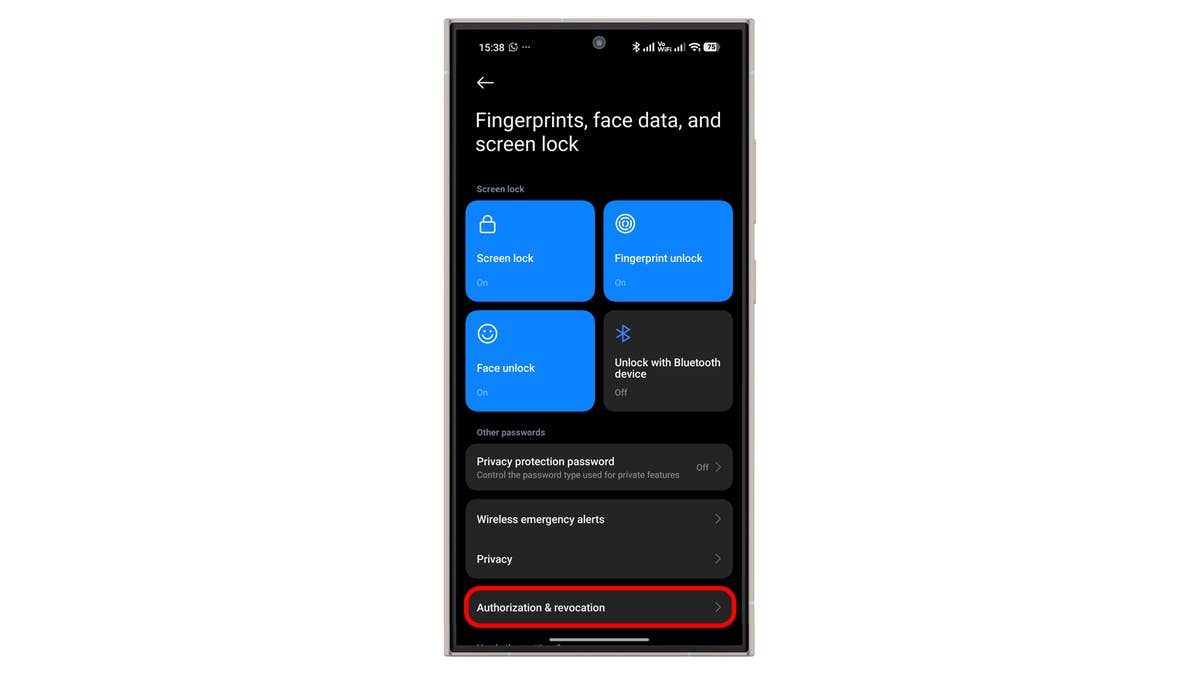
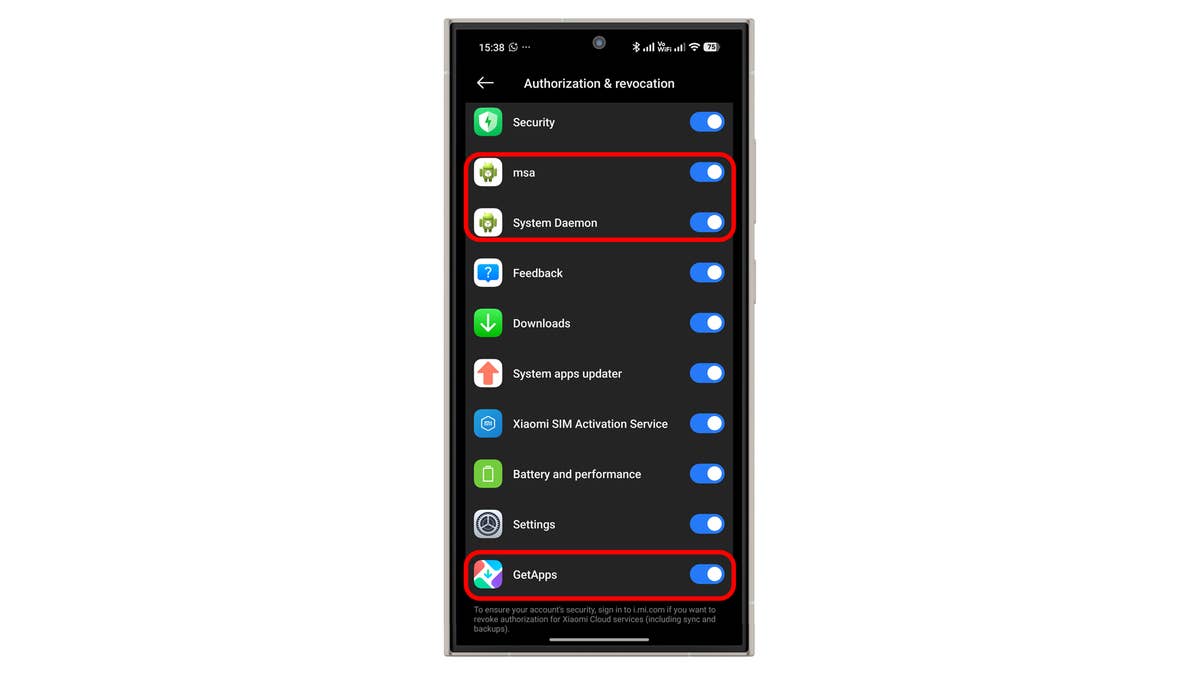
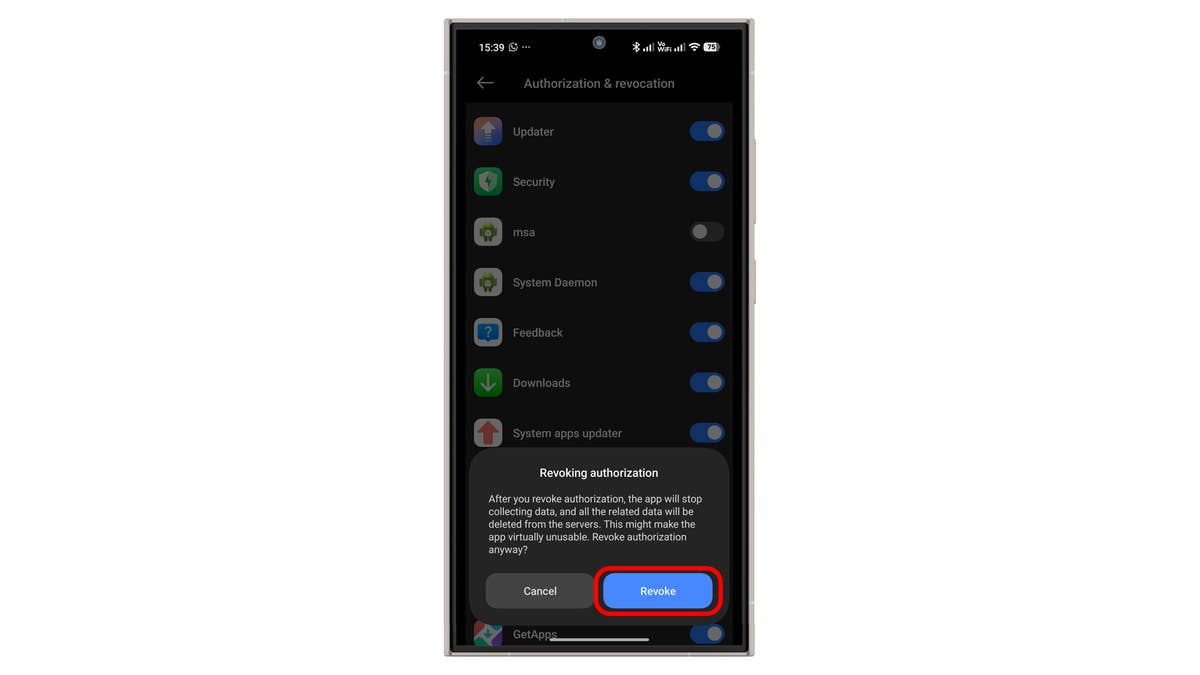
You can also disable ads in GetApps and other extensions.
HyperOS 3.0 is already rolling out to select Xiaomi smartphones and tablets, and is scheduled for eligible Poco devices.
Which of these new tricks have you tried, and which are your favorites? Share your tips in the comments.
We mark partner links with this symbol. If you click on one of these links or buttons–or make a purchase through them–we may receive a small commission from the retailer. This doesn’t affect the price you pay, but it helps us keep nextpit free for everyone. Thanks for your support! Prices are based on the date of publication of this article and may be subject to change.