

For the past few months, Pixel 10 owners have been able to easily send files from their smartphone to their iPhone, iPad, and Mac via AirDrop. This feature makes it much easier to share files with friends and colleagues. Contrary to previous expectations, Apple has not yet integrated any obstacles into its operating systems to stop this process. There may be signs of further cooperation between the devices of the two tech giants.
Google’s Promise: Video Calls Are Also Possible with FaceTime
Anyone visiting the official Google Store has stumbled across an interesting note on the page for the upcoming Pixel 10a for a few days now. In the “Switching to Google Pixel” section, the company promises a “wide selection for video calls”. It currently states: “Video calls are also possible with FaceTime.”

The reaction to this promise can vary. After AirDrop, has Google possibly also discovered a way to perform FaceTime calls without the Apple app? Or does the statement merely refer to the option of joining FaceTime calls via a web link, which has already been available for some time? It could therefore be seen as a marketing ploy. After all, an Apple device with the FaceTime app is currently required to create such links.
However, Google’s wording is notable. In the overview of its Pixel smartphones in its own store, the company also wrote about FaceTime capability: “Or join a friend’s FaceTime call in your browser.” That’s much closer to today’s reality than the statement on the Pixel 10a above.

Hopefully, we’ll find out more on February 18, when Google’s Pixel 10a officially launches. By then, the company may have another surprise in store for anyone considering switching from the iPhone.
FaceTime Calls from non-Apple Devices
As mentioned, Apple users have been able to let friends without an iPhone, iPad, or Mac join FaceTime calls for some time now — including Android device users. This is made possible by creating a link, which currently still requires an Apple device. This is how it works on an iPhone:
- Launch the FaceTime app and tap on “New call” at the bottom.
- In the next step, tap on the green symbol with the two chain links above the keyboard to create a FaceTime link.
- You can then share the created link with your contacts in any way you like.
- After sharing, the link will appear in the FaceTime overview.
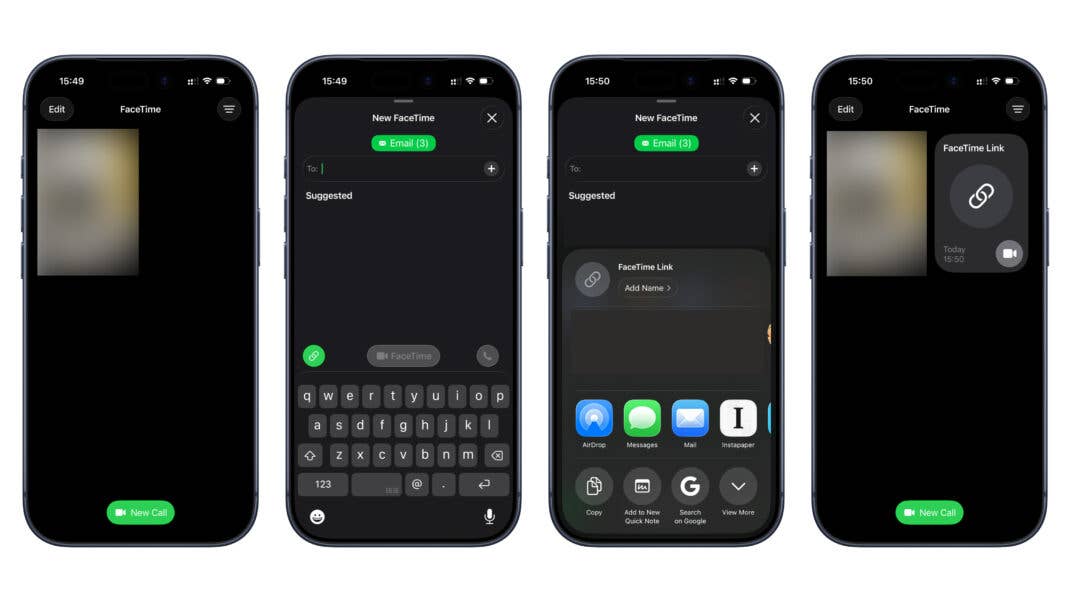
Behind this link, you will then find the option to join the call yourself, share the link again, or delete it. If a friend opens the link on a Google smartphone and joins the call, for instance, you will receive a notification and must actively approve the participant. All these FaceTime functions are already available today — regardless of whether you have a Pixel smartphone, Samsung tablet, or Windows PC.