


Contents
- 1 Jump to:
- 2 Google Play – Error DF-BPA-09 ‘Error Processing Purchase’
- 3 Google Play – Error DF-BPA-30
- 4 Google Play – Error DF-DLA-15
- 5 Google Play – Error rh01
- 6 Google Play – Error rpc:s-5:aec-0
- 7 Google Play – Error retrieving information from server
- 8 Google Play – Error BM-GVHD-06
- 9 Google Play – Error rpc:aec:0]
- 10 Google Play – Error RPC:S-3
- 11 Google Play – Error authentication required
- 12 Google Play – Package File Invalid
- 13 Google Play – Error 8
- 14 Google Play – Error 18
- 15 Google Play – Error 20
- 16 Google Play – Error -24
- 17 Google Play – Error 100
- 18 Google Play – Error 101
- 19 Google Play – Error 103
- 20 Google Play – Error 110
- 21 Google Play – Error 194
- 22 Google Play Error – 403
- 23 Google Play Error – 406
- 24 Google Play – Error 413
- 25 Google Play – Error 481
- 26 Google Play – Error 491
- 27 Google Play – Error 492
- 28 Google Play – Error 495
- 29 Google Play Store – Error 497
- 30 Google Play – Error 498
- 31 Google Play – Error 501
- 32 Google Play – Error 504
- 33 Google Play – Error 505
- 34 Google Play – Error 506
- 35 Google Play – Error 905
- 36 Google Play – Error 906
- 37 Google Play – Error 907
- 38 Google Play – Error 910
- 39 Google Play – Error 911
- 40 Google Play – Error 919
- 41 Google Play – Error 920
- 42 Google Play – Error 921
- 43 Google Play Error – 923
- 44 Google Play – Error 924
- 45 Google Play – Error 927
- 46 Google Play – Error 940
- 47 Google Play – Error 941
- 48 Google Play Error – 944
- 49 Google Play – Error 961
- 50 Google Play – 963
- 51 Google Play – Error 971
- 52 Google Play – Error 975
- 53 Google Play – Error RH-01
The solutions for the errors described below are based on the experiences of the NextPit editors, as well as readers and moderators from the forum. If you encounter any other problems with the Google Play Store, feel free to share your experiences in the comments and forum.
Note: you’ll see that many of these solutions have steps in common, e.g. clearing cache and data of Google services. If you don’t see your code in this list, it may still be worth troubleshooting using one of these solutions anyway.
Jump to:
Google Play – Error DF-BPA-09 ‘Error Processing Purchase’
Problem
Google Play Error Processing Purchase DF-BPA-09 happens quite often when trying to download an app. This problem won’t go away if you simply try downloading again, so you’ll need to go into the settings.
Solution
The problem is not due to individual users but comes from Google Play itself, so we’re hoping it will be fixed in the near future. In the meantime, here is what you can do:
- Go into the Settings app on your device.
- Tap on Apps or Apps & notifications (the name varies depending on your device).
- Select the All or See all apps option.
- Scroll down until you see Google Services Framework.
- Tap Storage & cache.
- Finally, choose Clear storage and then OK.
If this doesn’t work, go on to the Google Play site on your PC and install the app that is giving you issues on your smartphone or tablet from there. When you go back to your device, the installation should work.
- How to disable auto-install of Google Play apps
- How to buy a paid app in the Google Play Store
- How to install apps without using the Google Play Store
Google Play – Error DF-BPA-30
Problem
The cause of this error comes from Google servers themselves. First, we should tell you that waiting is a good idea, but other solutions work for some users.
Solution
- Open the Google Play Store on the web (use a PC, for example).
- Then choose an application to install on your Android, which should logically send you the infamous error [DF-BPA-30].
- Get back on your smartphone and try the download, which should now be operational again.
Otherwise, you can try to delete the data or clear the cache of Google Play Services.
- Download and install the latest Google Play Services
- Google Play services: what is it and what is it for?
Google Play – Error DF-DLA-15
Problem
Downloading an update or an application may fail with this error.
Solution
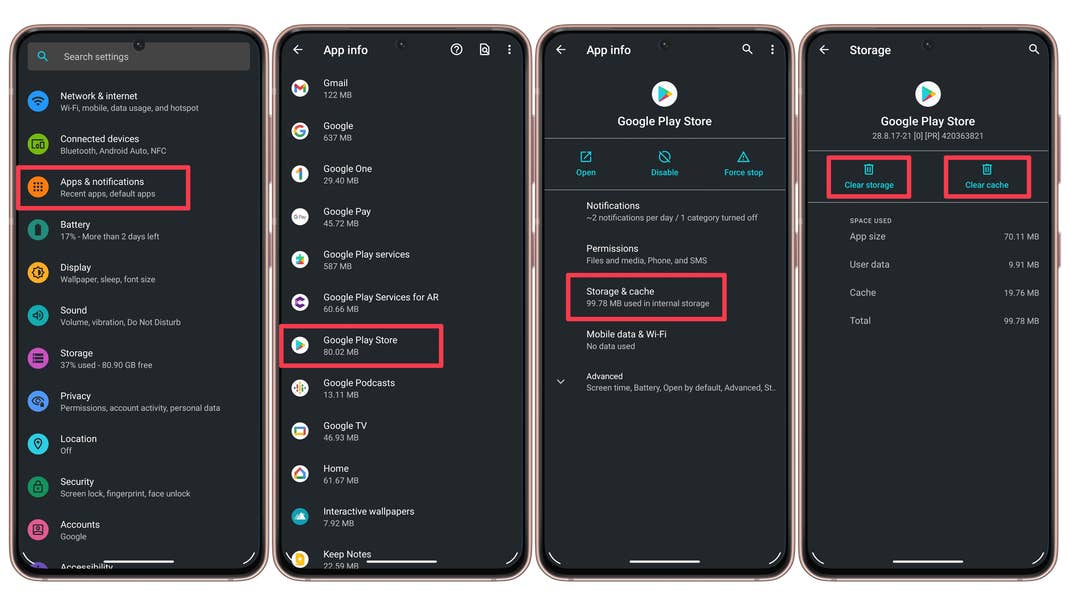
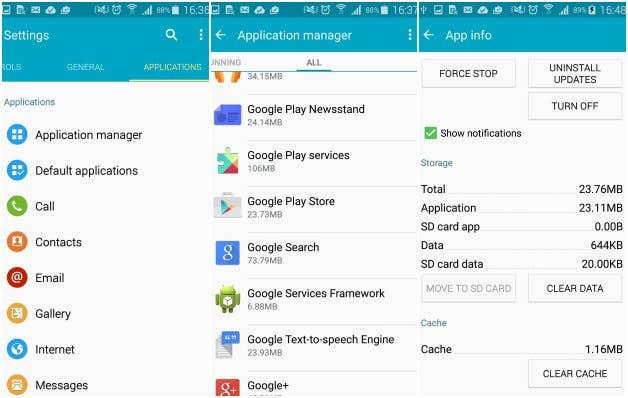
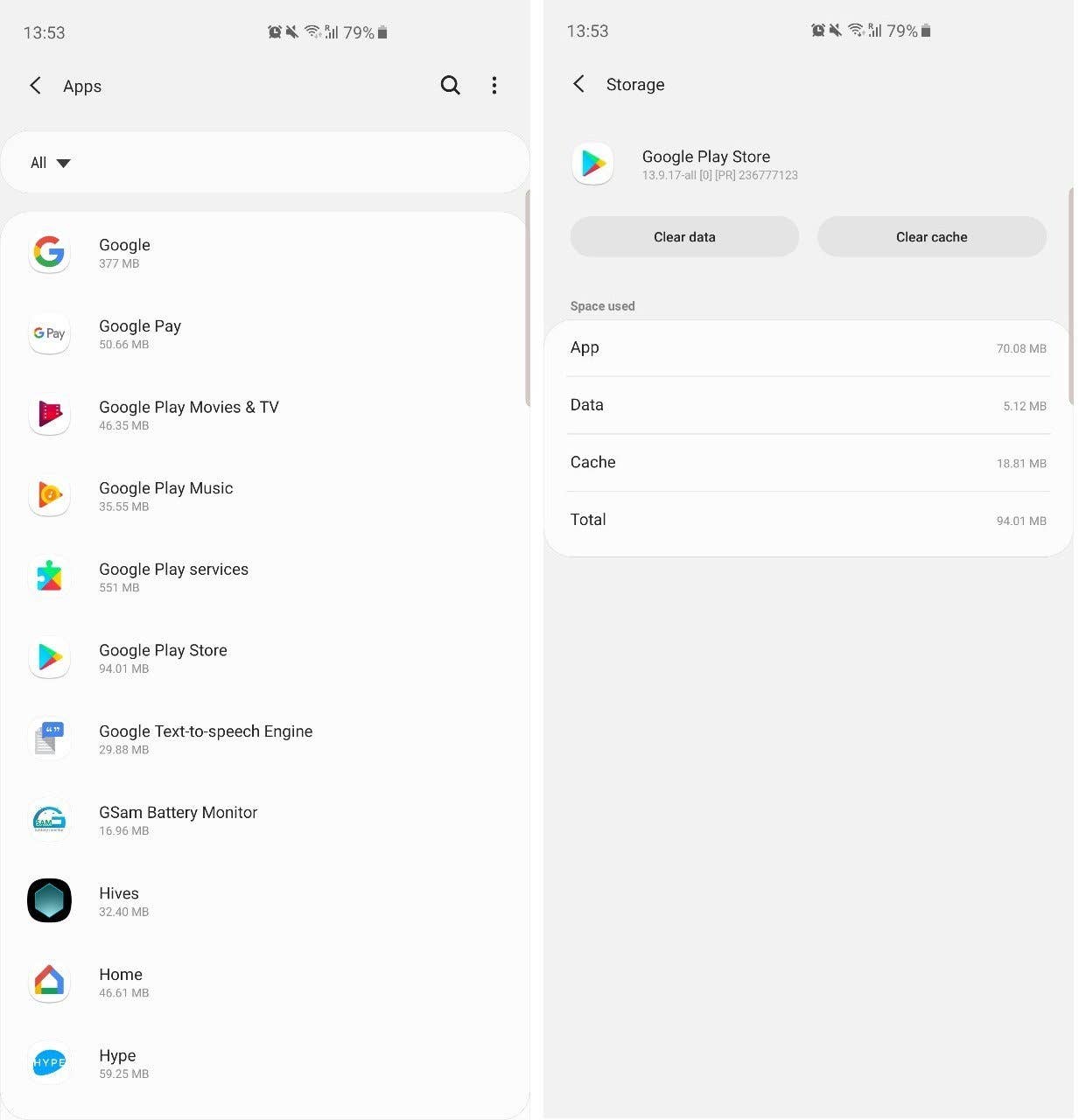
The first thing to do is to clear the cache and data of the Play Store app. To do this:
- Open the Settings app on your phone.
- Tap on Apps or Apps & notifications.
- Select the All or See all apps option.
- Scroll down until you see Google Play Store.
- Tap Storage & cache.
- Finally, choose Clear storage and then OK.
- Repeat the steps with the Clear data option.
This should fix the problem, but if it persists, you have to go to your account settings and delete your phone’s Google account. Once you’ve done that you just need to re-add it.
Google Play – Error rh01
Problem
Error retrieving information from the server.
First solution
Go to Settings > Apps > All > Google Play Store and select both Clear data and Clear cache. Do the same for Google Play Services .
Second solution
Remove and re-add your Google account, restart your device and then re-add your account.
Google Play – Error rpc:s-5:aec-0
Problem
Error retrieving information from the server.
Solution
Go to Settings > Apps > All > Google Play Store > Storage & cache and select Clear cache and Uninstall updates. Do the same for Download Manager and Google Play Services.
Google Play – Error retrieving information from server
Problem
This error message often appears when updating or downloading an app. Google’s servers are unable to retrieve information from your Google account. You can delete and re-register, but wait a few hours to see if the problem persists first. Sometimes it’ll just take care of itself.
Solution
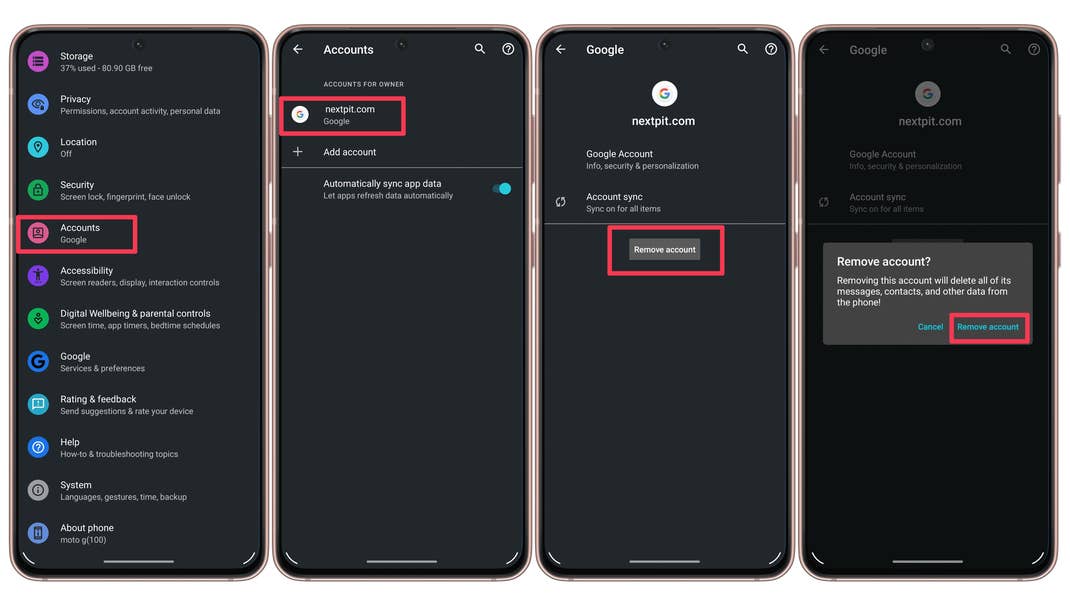
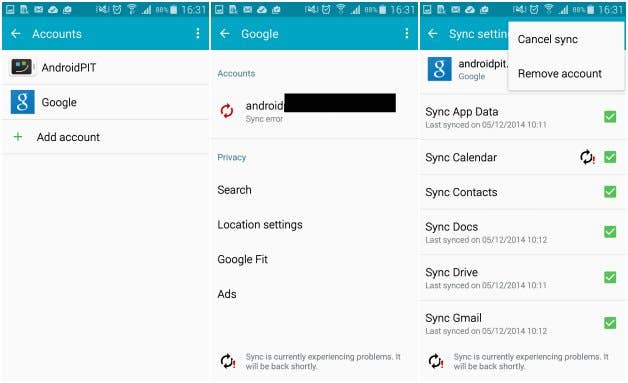
- Go to the Settings > Accounts > [your account] > Remove account.
- Once this is done, you must reboot your device, then re-synchronize the account, adding it back to the phone.
- Finally, open Settings > Applications > All > Google Play Store > Storage & cache. Inside, you must click on the options Clear Data and Force Stop.
Google Play – Error BM-GVHD-06
Problem
This error appears when you want to use a Google Play card. The problem seems to exist in several countries.
Solution
First, try restarting your device and try using the card again. If the problem persists, go to Settings > Applications > All > Google Play Store > Force Stop > Uninstall updates. The Play Store will then return to its original version and the problem should be gone.
Google Play – Error rpc:aec:0]
Problem
You can’t download an app.
Solution
Remove your Google account. Remove all synced accounts. Go to Settings > Apps > All > Google Play Store > Storage & cache and select Clear data. Restart your device and try again.
Google Play – Error RPC:S-3
Problem
Can’t download an app.
Solution
Remove Google account and re-add it, or try an alternate account.
Google Play – Error authentication required
Problem
Strangely, this problem is quite common on Android devices. But rest assured, we have three possible solutions to deal with it. One of these tips should hopefully resolve your problem.
Solutions
- Enter the Accounts options in the Settings app of your phone. Then remove your Google account and add it again. If everything works fine after, then it was a simple error that’s sometimes displayed after an update.
- Settings > Apps > All > Google Play Store > Storage & cache and select Clear data and then Clear storage. Restart your device and try again.
- Maybe the problem is not really in your authentication, but the Play Store itself. In this case, you only have to go to application settings (Settings > Applications), search for the Google Play Store and click Uninstall updates. You might need to disable the Play Store to get this started. That way you get the initial Play Store version that you had when you first purchased the phone. After that, you just have to update it and then re-register your account.
Google Play – Package File Invalid
Problem
Play Store error.
First solution
Go to Settings > Apps > All and select the app that’s causing the problem, then select Storage & cache > Clear cache and Clear storage. Try again with the Google Play Store.
Second solution
Install the app through Google Play Store website.
Third solution
Disable Wi-Fi and download or update the app using mobile network data.
Fourth solution
Go to Settings > Apps > All > Google Play Store > Storage & cache and select Clear data and then Clear storage. Do the same for Google Services Framework.
Fifth solution
Remove your Google account, restart your device, re-add your Google account and try again.
Google Play – Error 8
Problem
This error occurs when you want to download an application and the download stops.
Solution
Make sure you have Google Play Services installed. If the problem persists, go to the application list, and enter Google Play Services and disable the application. It will then ask if you want to restore the factory settings and you just have to confirm. If this does not solve the problem, you should contact Google support.
Google Play – Error 18
Problem
Error 18 has been around since late 2015 and happens when you want to reinstall an application that you already had in the past. There is no quick fix to this problem, but some tricks can help.
Solution
After going on several forums, it seems that some users were able to resolve error 18 by disconnecting and reconnecting the SD or microSD memory card. However, it does not appear that it’s working for all users. If the problem persists, you can try to contact Google’s online support. The final and drastic solution is a factory reset.
Google Play – Error 20
Problem
This problem occurs when installing or updating an Android app.
Solution
To resolve this error, you must have a rooted device, since you will need to access a file named ‘smd2tmp1’ found in / mnt / secure / asec /. If your phone is rooted, you can delete this folder, which should permanently resolve the problem.
If you don’t want to root your device, there is another solution. Delete the file / data / data of the application that’s causing you problems. Use file explorer to access the folder. To do this, I suggest you check out our best file managers for Android article.
- Also check out How to root Android: the complete guide
Google Play – Error -24
Problem
Unknown.
Solution
You need a root manager to solve this one. If you have one, navigate to Data/data. In that folder, locate the package name of the app causing trouble (this can be found by looking at the URL of the app on the Play Store website). Delete the entire folder. Try reinstalling the app.
Google Play – Error 100
Problem
When you try to install or update an app from the Play Store, it sends an error message stating, “App can’t be installed due to an Error 100 – No Connection.”
Solution
- First, navigate to Settings > Date and Time. Check if the date and time are correct. If not, then turn off the Automatic Date and Time feature and set the correct date and time. Also, check if you have set the correct Time Zone too. If not, switch to Manual Mode and look for the time zone of your region. Restart your device. If this doesn’t work, proceed to the next step.
- Head to Settings > Apps > All > Google Play Store > Storage & cache > Clear cache. If the problem persists, try downloading the app from the Play Store website.
- Delete your Google Play Store data in Settings > Apps > All > Google Play Store > Storage & cache > Clear data. Delete data from Google Services Framework as well (note: this will assign a new Google ID to your device, as if you had factory reset it, meaning your Google apps may temporarily act up afterward).
- Delete your Google account on the device, reboot your phone and re-add your Google account in Settings > Accounts > Add Account > Google Account.
Google Play – Error 101
Problem
Can’t download the app as there are too many currently installed.
Solution
Uninstall old and unused apps.
Google Play – Error 103
Problem
This is a mysterious problem, which occurs when Google Play thinks an application is compatible with a device, but it actually isn’t. It can then cause the 103 error to occur and recur on all your other devices, including those that are compatible.
Solution
Generally, there isn’t anything you need to do on your side, since this error will solve itself after a few hours. The cause of the problem? An application signature concern. If you have developer knowledge, you can try to resolve it by signing the application again with the JDK tool 1.6+ release. If the error persists for more than 48 hours, contact Google Support.
Google Play – Error 110
Problem
The application cannot be installed.
Solution
Head to Settings > Applications > All > Google Play Store> Storage & cache > Clear cache. If the problem persists, try downloading the app from the Play Store website.
Google Play – Error 194
Problem
This error happens when you try to download games or apps from the Google Play Store.
Solution
One fix for this issue is to clear the cache data for Google Play Services and the Google Play Store.
- Open the Settings app on your phone.
- Tap on Apps or Apps & notifications.
- Select the All or See all apps option.
- Scroll down until you see Google Play Store.
- Tap Force stop.
- Choose Storage & cache.
- Finally, choose Clear storage and then OK.
- Repeat the steps with the Clear data option.
Now repeat the process above, but replace Google Play Store with Google Play Services at step four and then attempt your download again.
If that doesn’t work, don’t worry – the issue has now been resolved and a fix is being rolled out in the next version of the Play Store app. Just make sure you have the latest Google Play Store APK and you shouldn’t experience this error again.
Google Play Error – 403
Problem
The download is impossible and the request is ‘forbidden’. This usually happens when two Google accounts are used to buy applications on one device.
First solution
Go to the Google Play Store with the correct Google account. Uninstall the application in question. Try to get the app from Google Play again and tap the purchase button.
Second solution
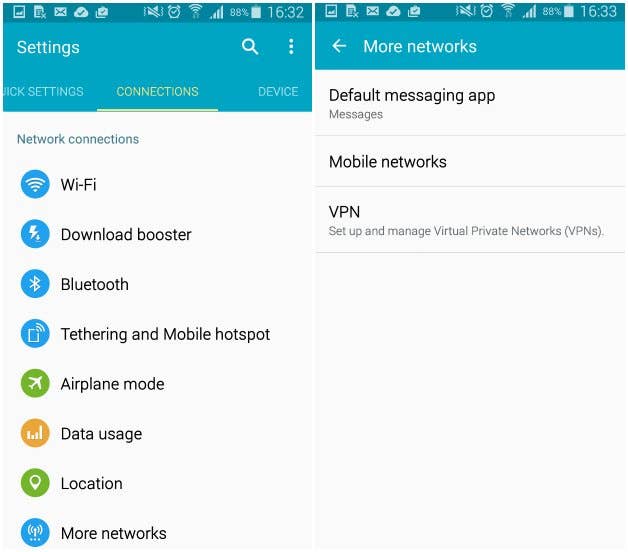
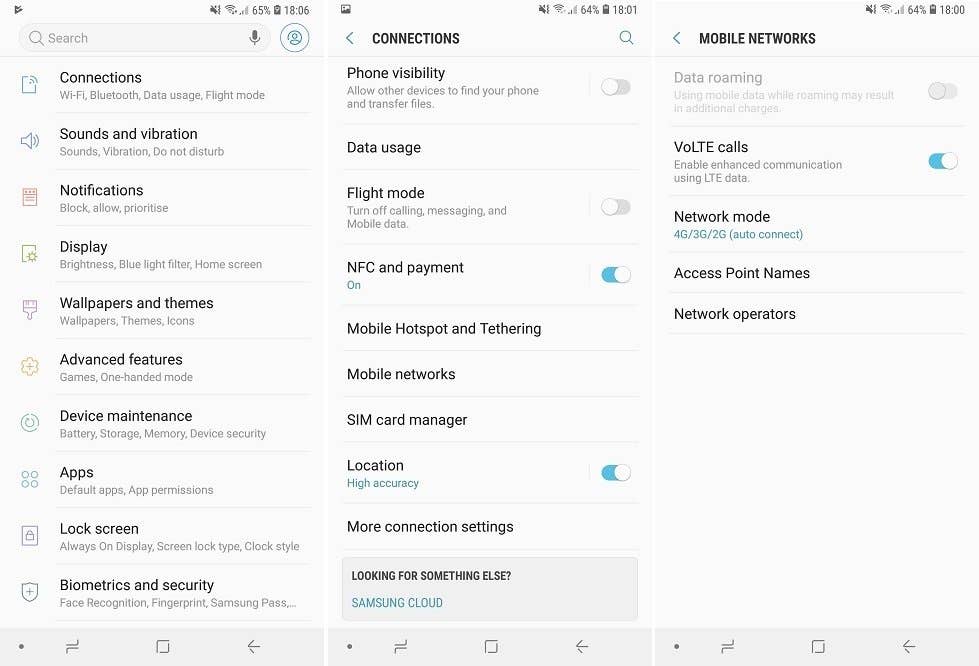
Clear the proxy you have possibly set up, by going to Settings, then choose Wireless and Networks (or More networks/Network & internet/Connections) and then Mobile Network. Select APN, which stands for Access Point Name, and hit the Clear Proxy option. You can always reinstate the proxy afterward.
Third solution
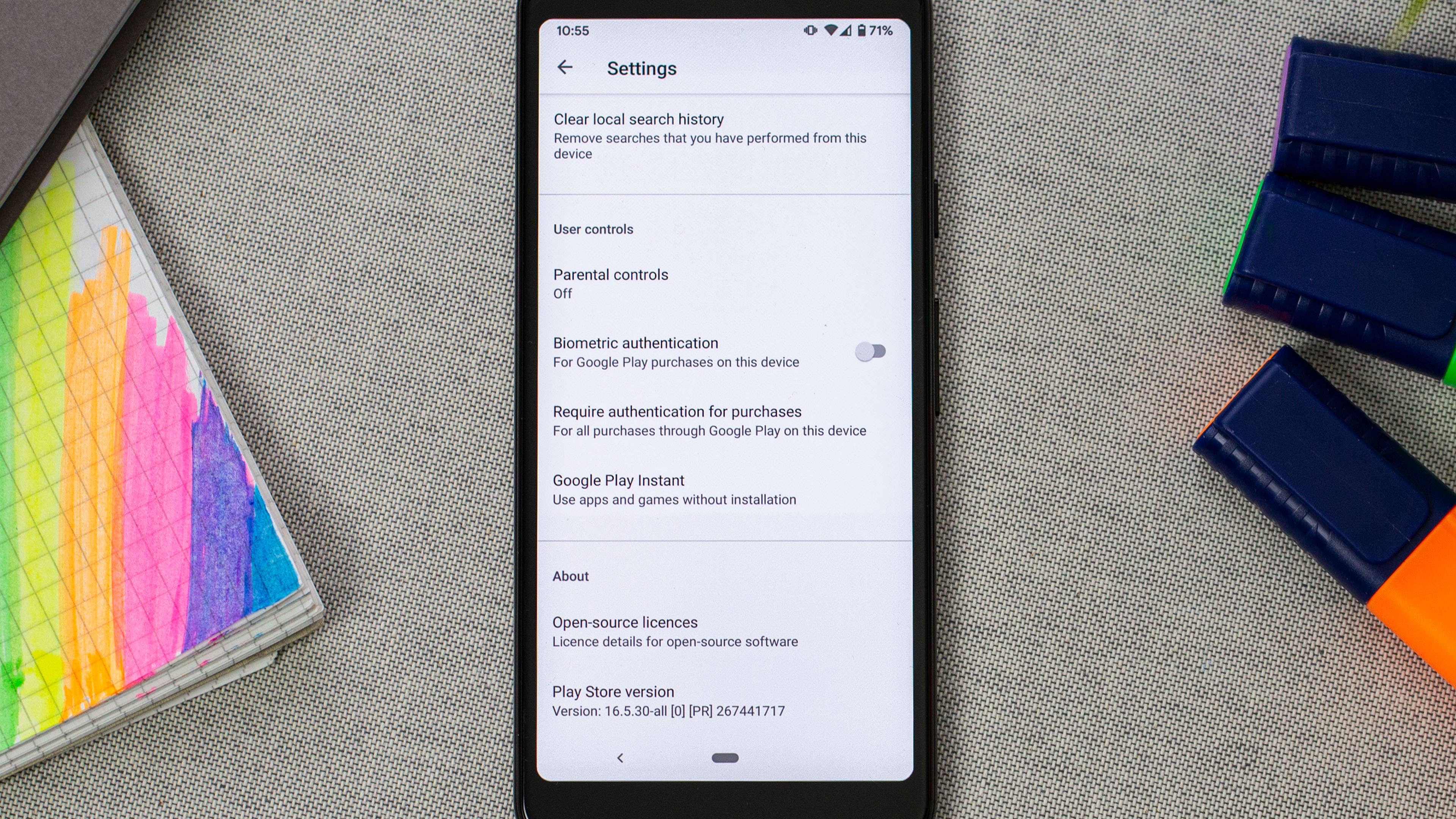
Another solution would be to erase your entire search history, which you can do in the Play Store itself:
- Tap on your account profile.
- Select Settings.
- Expand the General menu and tap on Account and device preferences.
- Scroll down the list and tap on Clear device search history.
Fourth solution
Try creating a new Google account and using it for the Play Store instead. Go to the Google Play Store, tap on your profile picture, expand the accounts list by tapping on the V arrow button, then select Add another account. Type your new account credentials then reinstall the app.
Google Play Error – 406
Problem
Apps cannot be downloaded. This particular error can occur if you’ve reset the Google account you used to register on your phone, if you’ve restored your device to its factory settings, or if you’ve registered a new account on your phone.
Solution
A classic clearing of the cache will hopefully do the trick. Go to Settings > Applications > All > Google Play Store> Storage & cache > Clear cache.
Otherwise, try again on a different network connection.
Google Play – Error 413
Problem
Downloading applications or updates is impossible. If you use a proxy, remember that it may cause problems with the operation of the Google Play Store.
Solution
In Settings > Applications > All > Google Play Services > Force stop > Storage & cache > Clear storage. Do the same with the Google Play Store app and clear the cache from your internet browser.
Google Play – Error 481
Problem
There is an error with your Google Play Store account.
Solution
Remove your account and log in with an alternate one.
Google Play – Error 491
Problem
Downloads and updates are impossible.
Solution
Remove your Google account by going to the Settings for your device, then Accounts and Google. Hit Remove account. Reboot your Android and add the account once again. Next, in the Settings > Applications > All > Google Play Services > Force stop > Storage & cache > Clear cache.
Google Play – Error 492
Problem
It’s impossible to install an application because of the Dalvik cache.
Solution
Under Settings, find Apps, choose to See all apps, scroll down to Google Play Services. Here, tap on Force stop, select Storage & cache, then tap on Clear data and confirm the procedure. Do the same on the Google Play Store app.
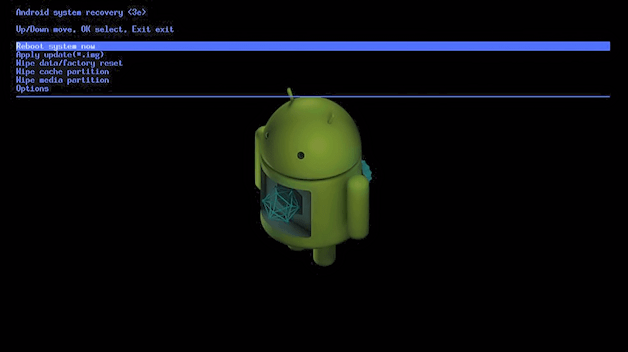
Note: If the problem is not solved, try deleting the Dalvik cache. To do this, enter the custom recovery mode (only if you have root). Another solution is to complete a data wipe/factory reset. This option applies to all users and can be done in recovery mode. Beware, it will wipe your data so make sure you have backed up everything you wish to keep.
Google Play – Error 495
Problem
Problem downloading or updating apps from Play Store.
Solution
Delete your Google Play Store data in Settings > Applications > All > Google Play Services > Force stop > Storage & cache > Clear data. Delete data from Google Play Services as well (note: this will assign a new Google ID to your device, as if you had factory reset it, meaning your Google apps may temporarily act up afterward).
Delete your Google account on the device, reboot your phone and re-add your Google account in Settings > Accounts > Add Account > Google Account.
Google Play Store – Error 497
Problem
Difficulty updating installed apps
First solution
Clear out your Play Store data. Go to Settings > Applications > All > Google Play Services > Force stop > Storage & cache > Clear cache, and then Clear data.
Second solution
Disable your SD card, if you have one. Go to Settings > Storage > Unmount SD card.
Third solution
If your phone is rooted, you can delete the app’s APK and reinstall it. To do so, open up Root Explorer, or a similar application, and navigate to System / app > Mount R / W > Delete application. Or you can play it safe and rename the offending APK to do something like [application_name].apk.backup, so you can revert it if anything goes wrong.
Google Play – Error 498
Problem
Interruption of downloads from the Google Play Store.
Solution
The problem is that the cache of your device is full. Delete unneeded applications and files. Restart your smartphone in recovery mode by pressing the volume down, power, and home buttons (for Samsung devices), or volume down and power (for most other devices).
This mode provides a few more options. Select Wipe cache partition by navigating between options with the volume rocker. Confirm using the power button.
Google Play – Error 501
Problem
If you can’t open the Google Play Store or perform downloads, then surely you have the 501 error.
Solution
To fix it, you must go to Settings > Applications > All, then open these two applications: Google Play Services and Google Play Store – then you have to tap on Storage & cache and then Clear cache. Once you have done this, go into Accounts and delete your Google Account. Then restart your phone, input and synchronize your Google account again, then let your phone sit for five minutes without touching it. After these five minutes are over, the 501 error should not bother you anymore.
Google Play – Error 504
Problem
App could not be downloaded due to an error.
First solution
The usual, please: go to Settings > Applications > All > Google Play Store > Force stop > Storage & cache > Clear cache and Clear data. Also Clear cache and Clear data for Google Play Services.
Second solution
Try removing your Google account, rebooting the phone, and synchronizing the account back.
Google Play – Error 505
Problem
Two or more apps with duplicate permissions.
Solution
You need to find out what app has the same permissions as the one you’re trying to install and uninstall the problem app.
Google Play – Error 506
Problem
The code seems to be related to problems allocating space in the phone’s storage.
Solution
- Remove unnecessary files and apps from the device.
- Check in the Settings app, inside the Storage menu if there are problems with the internal or external storage (microSD card).
- Clear the Google Play data and cache: Settings > Applications > All > Google Play Store > Force stop > Storage & cache > Clear cache and Clear data.
Google Play – Error 905
Problem
You have problems downloading apps or installing new updates correctly.
Solution
- Open the Settings app on your phone.
- Tap on Apps or Apps & notifications.
- Select the All or See all apps option.
- Scroll down until you see Google Play Store.
- Tap Force stop.
- Choose Storage & cache.
- Finally, choose Clear storage and then OK.
- Repeat the steps with the Clear data option.
Google Play – Error 906
Problem
This problem mainly occurs on the HTC One M8 and M9. This often occurs when downloading or updating an app. Errors 907 and 963 are similar and resolved in the same way.
Solution
With problems downloading and installing the application, you must clear the cache and data of the Play Store app. If that does not work, uninstall the updates. If it still does not work, turn off your SD card by going to Settings > Memory / Storage). Return to the Play Store and try to install the app. If the problem persists, you probably have your app on an external card to transfer it to the internal memory. Then you can send it to the SD card once the application is installed.
Google Play – Error 907
This problem is identical to Error 906.
Google Play – Error 910
Problem
The Google Play Store “Can’t install app”.
Possible solutions
- Go to Settings > Applications > All > Google Play Services > Force stop > Storage & cache > Clear cache and Clear data.
- Remove the Google Account, then restart the phone and synchronize the account back.
- Check in the Storage option on the Settings app if there is a problem with the external storage (microSD card).
Google Play – Error 911
Problem
You can’t download an app.
First solution
Go to Settings > Applications > All > Google Play Services > Force stop > Storage & cache > Clear cache and Clear data.
Second solution
If you’re on a Wi-Fi connection requiring a web page login, ensure you are still logged in.
Third solution
Try another Wi-Fi network.
Fourth solution
Switch from Wi-Fi to mobile network data services. Only do this if you are comfortable using up data on your mobile plan.
Google Play – Error 919
Problem
Downloading the app works but it does not open once downloaded.
Solution
There is simply no more space on your Android. Eliminate all unnecessary data, such as music, videos, or large applications.
Google Play – Error 920
Problem
You can’t download an app.
First solution
Turn your Wi-Fi off and back on again, and then try to download or update the app in question.
Second solution
Delete your Google account, restart your device and add your account back again in the app Settings. You could also try using an alternative account.
Third solution
Go to Settings > Applications > All > Google Play Store > Force stop > Storage & cache > Clear cache and Clear data. Restart your device, open Google Play Store, and try to download the app again.
Google Play – Error 921
Problem
You can’t download an app.
Solution
Try deleting the cache of the Google Play Store application. If this doesn’t work, delete all the Play Store application data, but please be advised that this will consequently delete all the settings that you’ve already made. As a last resort, remove your Google account, restart the device and enter it again.
Google Play Error – 923
Problem
The download is impossible: error while syncing your Google account or insufficient cache memory.
Solution
Remove your Google account and delete any useless applications that are taking up space. Next, reboot your device in recovery mode. Select Wipe cache partition and start your device as usual. Don’t worry, your personal data won’t be deleted. Set up your Google account once again.
Google Play – Error 924
Problem
Usually occurs when trying to download larger applications. The app downloads, but the error message is displayed, saying the installation was unsuccessful due to an error.
Solution
Head to Settings > Applications > All > Google Play Store > Force stop > Storage & cache > Clear cache and Clear data.. Once you’ve done this, try downloading the problem app again.
Google Play – Error 927
Problem
The download is impossible because an update of the Play Store is in progress.
Solution
Wait a few minutes until the Google Play Store is completely upgraded. If the problem persists, go to Settings, then Apps, choose to See all apps, and locate the Google Play Services. Tap on Storage & cache, and then Clear data and then Force stop. Do the same with the Google Play Store application.
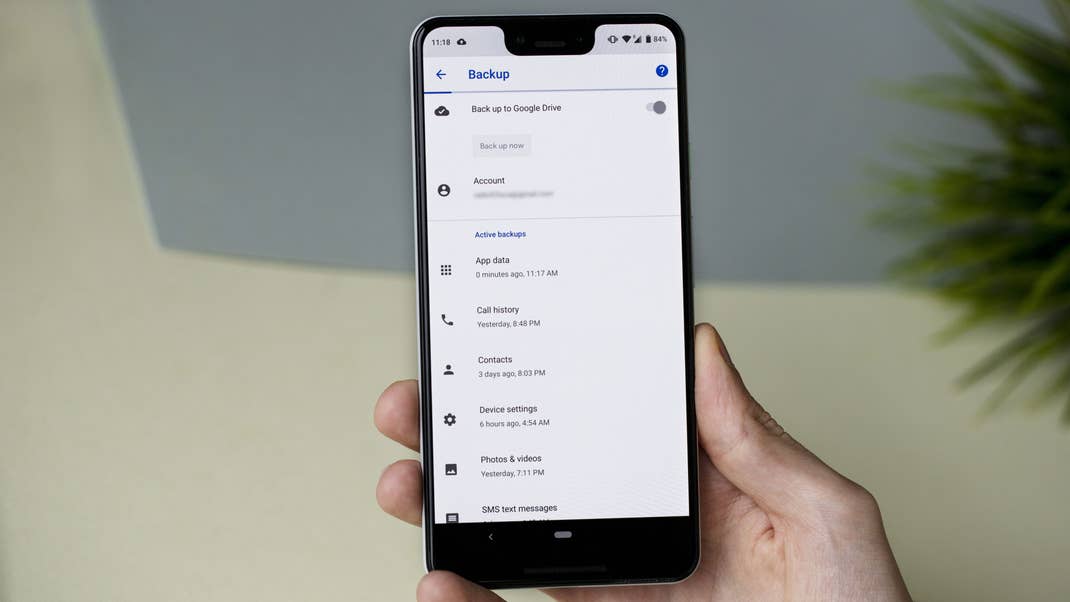
You have probably guessed by now that there is a standard way to alleviate some of these errors, so if you’re experiencing a different problem to those mentioned above, you could try following the same steps. Always be careful when wiping your data or doing a factory/data reset, because this will get rid of your saved pics, files, contacts, and so on, so make sure you back up all your data beforehand.
Google Play – Error 940
Problem
The application cannot be downloaded.
Solution
It could be as simple as restarting your device. If this doesn’t work follow these steps:
- Go to Settings > Applications > All > Google Play Store > Force stop > Storage & cache > Clear cache and Clear data.
- Go to Settings > Applications > All > Downloads / Download manager > Force stop > Storage & cache > Clear cache and Clear data.
- Do the same for Google Play services. Some users report needing to clear the data also for the Chrome browser.
Google Play – Error 941
Problem
Interruption during an update.
Solution
Go to Settings > Applications > All > Google Play Store > Force stop > Storage & cache > Clear cache and Clear data. Try the update again.
Google Play Error – 944
Problem
This error pops up when you’re trying to update apps and seems to occur when the Google Play Store is down, or there is some sort of server error.
Solution
Try updating the app later. It appears to be a temporary problem on Google’s end, so will just have to wait it out.
Google Play – Error 961
Problem
Problems when installing Android apps from the Play Store.
Solution
First, get a refund from the Play Store, which you can do within 15 minutes of purchasing. To do this, select the repayment option in the Play Store. Next, go into the Settings > Applications > All > Google Play Store > Force stop > Storage & cache > Clear cache and Clear data.
Google Play – 963
Problem
Occurs predominantly on HTC One M8 and M9 devices when trying to download or update an app through the Play Store.
First solution
Head to Settings > Applications > All > Google Play Store > Force stop > Storage & cache > Clear cache and Clear data.
Second solution
Settings > Applications > All > Google Play Store > Uninstall updates; go back to the previous screen, then Google Play Services > Force stop > Storage & cache > Clear data..
Third solution
Disable your SD memory card. Go to Settings > Storage > Unmount SD card > OK. Head back to the Play Store and try downloading or updating the app again. If it works, head back to Settings > Storage > Mount SD card.
Fourth solution
Move the app to your device’s internal memory. Go to Settings > Applications > All > (app causing the problem) > Move to internal memory. Head back to the Play Store, try downloading or updating the app again, and if it works, move it back to the SD card.
Google Play – Error 971
Problem
Error 971 commonly appears on Wiko phones running Android 5.0.2. It prevents you from installing an app after downloading it.
Solution
Wiko recently fixed this problem with its V30 update. If you’re seeing this error on your Wiko phone, try to manually update using the instructions on the official Wiko site.
Google Play – Error 975
The good news is that this error is rare. The bad news is that there are no solutions at the moment. In the meantime, you should contact Google support.
Google Play – Error RH-01
Problem
Error RH-01 is a server error that can prevent you from updating or downloading apps from the Play Store.
First Solution
- Go to Settings > Date & Time. If the automatic date and time + Time Zone are incorrect, you will need to manually set it.
- Uncheck Automatic Date & Time and set the correct date/time+time zone.
- Now try downloading an app or game in the Google Play Store.
Second Solution
- Open the Settings app on your phone.
- Tap on Apps or Apps & notifications.
- Select the All or See all apps option.
- Scroll down until you see Google Play Store.
- Tap Force stop.
- Choose Storage & cache.
- Finally, choose Clear storage and then OK.
- Repeat the steps with the Clear data option.
Follow the same steps for Google Play services and try again to download an app in the Play Store.
Third Solution
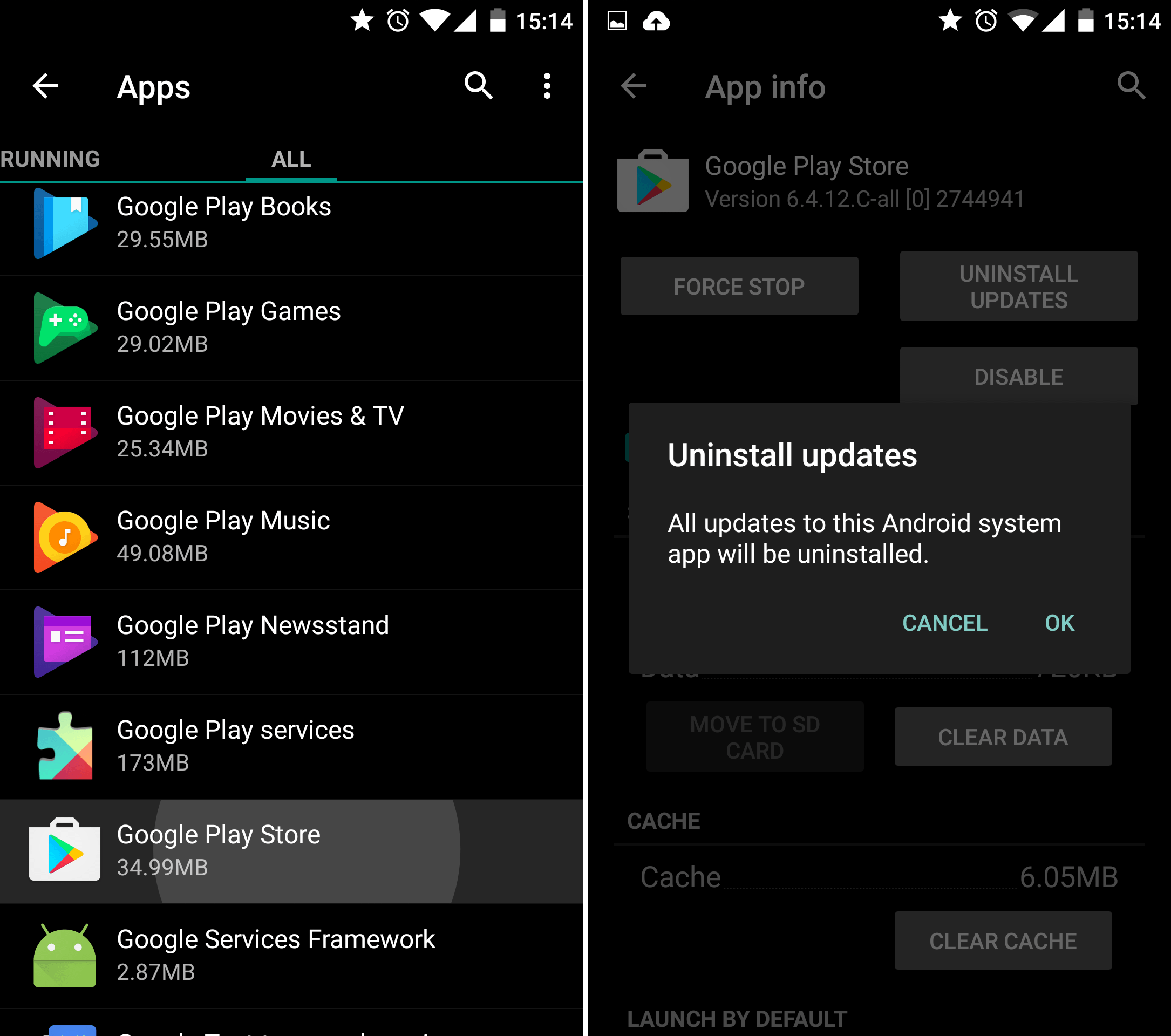
This is a common method to temporarily fix buggy Google Play updates by reverting the Play Store app to its factory/original version.
- Go to Settings > Apps > All.
- Scroll down and select Google Play Store.
- Tap Force stop > Uninstall updates.
Have you ever come across any other Play Store problems? Let us know in the comments below.
Guide updated in January 2022 with more error codes and updated instructions. Existing comments on this page were not removed and may refer to previous versions of this article.

Followed the steps for a 504 error and now I’m getting the RH-01 error. Followed those steps and it still didn’t work. I even rebooted the phone and switched between WiFi and Mobile Data networks but I still get the RH-01 I swear Google is becoming more like Microsoft everyday. Once I finally got past the RH-01 error the 504 still persists with the same Google Inc application refusing to install. These steps didn’t fix anything. Looks like I’m just going to have to factory reset my phone 🙁
Could someone help? Whenever I try to download Instagram, it would say "Instagram" cannot be downloaded. "Error -24"
What about error code: 971? I was updating a big app when this error occurred while the updating was about to complete.
Yea I was asking the same question.
REFRAIN FROM GOOGLE ENTIRELY! GOOGLE IS KNOWN TO COLLECT EVERY OUNCE OF DATA! Google is the BIGGEST privacy nightmare.
Brilliant article loie, this is extremely helpful and informative. A lot of time and attention has gone into writing this article therefore I wanted to appreciate this, thank you.
Jay
Real Media Now Ltd
All but my error code is included here, ERROR 100 and it’s annoying. Not sure what is causing it or what to do to get it stopped. If anyone knows please share! I’ve already cleared the Play Store cache and deleted data, now what? Please don’t say factory reset… I don’t have time for that right now.
ERROR 190
rror 190 certainly related to storage permission.(i think)
1.a. For newer androids version check that in settings,grant it if not.
1.b. For older rooted versions """move play store and play services to system apps"""
After following 1.a or/and 1.b
2. Clear cache and data of
Play store
Play services
Services framework
Download manager
Package installer
3. Remove your google account from settings
4. Reboot
5. Add account again( also try syncing)
6. Check play store and play services are latest version/updated.
7. If not,update them by downloading respective apks.
("MMUUSSTT" be compatible with your device…i.e. Correct dpi or ppi/chip architecture etc to know more about this try to find FAQ on respective website)
8. Again follow steps after every change you make…2, 3, 4
I’m not sure if I’m in the right place? Quite often I’ll be on my Android doing whatever and a box will pop up saying "Amazon App has stopped. Please close". I’m not even using that app! I know my ex hacked my phone and has access to ALL my accounts! Could this have something to do with it?
Good information..Thank you for sharing
Very useful article i have fixed my play store by clearing cache from mobile settings. Huawei P10 plus.
Thank you so much
thanks for this interesting article
Download the Lucky Patcher APK Version 8.6.3 for free for all devices by 2020 at: http://www.luckypatcherofficial.com
Most common error of play store is downloading issue even having good internet but it just pending download you can solve it by using this method.
Go to apps and find play services and clear its data or cache
then go to apps and find play store from settings and do same as above.
now restart your phone and now find the app from the play store and now download the app.
Great information, thanks. Bookmarked it. One enver knows
I have already clear cache and clear storage of playstore .. reset the unit still cannot install from playstore.. is this a software or hardware issue?
Already clear cache and storage of google playstore .. reset the unit still cannot install apps from playstore … is this a hardware or software issue … please help
What does code 1001003 mean
Every time I restart my phone I got this error – The application ( package name) was not recognized by google play.
How I know which application is causing this error?