


Contents
- 1 Android 13: Release date and availability
- 2 Android 13: Name!
- 3 Android 13: How to install the new version on your phone
- 4 Android 13: New features
- 4.1 Photo picker function
- 4.2 New permissions for app notifications and media access
- 4.3 Transfer by tapping
- 4.4 New Quick Settings and QR code reader shortcut
- 4.5 User, Settings, and Power shortcuts on the quick settings are now at the bottom
- 4.6 Quick tap can now turn on/off the flashlight
- 4.7 More options for tuning vibrations & haptics
- 4.8 Phone user’s avatar personalization
- 4.9 Display size and font size now use a single menu
- 4.10 Clipboard notifications at the bottom of the screen
- 4.11 Other features on Android 13
- 5 Android 13: Visual changes
- 6 Android 13: Expected devices to get the update
Jump to:
- Android 13: Release date and availability
- Android 13: Name!
- How to install Android 13 on eligible devices
- Android 13: New features
- Which devices will receive the next Android version
Android 13: Release date and availability
- Current status: Android 13 is official.
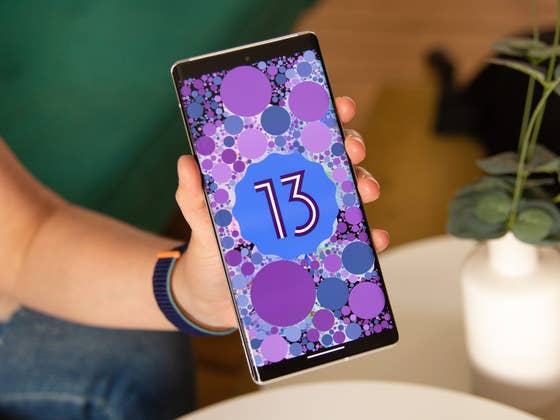
As promised, Google announced the final version of Android 13 earlier this year. On August 15, the update package started shipping first for Pixel devices. As always, the update will be available first for Google’s Pixel devices and will later arrive to other manufacturers such as Samsung, OnePlus, Motorola, Xiaomi, and others.
Android 13: Name!
Even though Google dropped using the Android codename in the official marketing campaign after Android 10, since the beginning of Android 13 development the new version was known internally as Tiramisu. However, this is not the official name of the new version, which remains just Android 13.
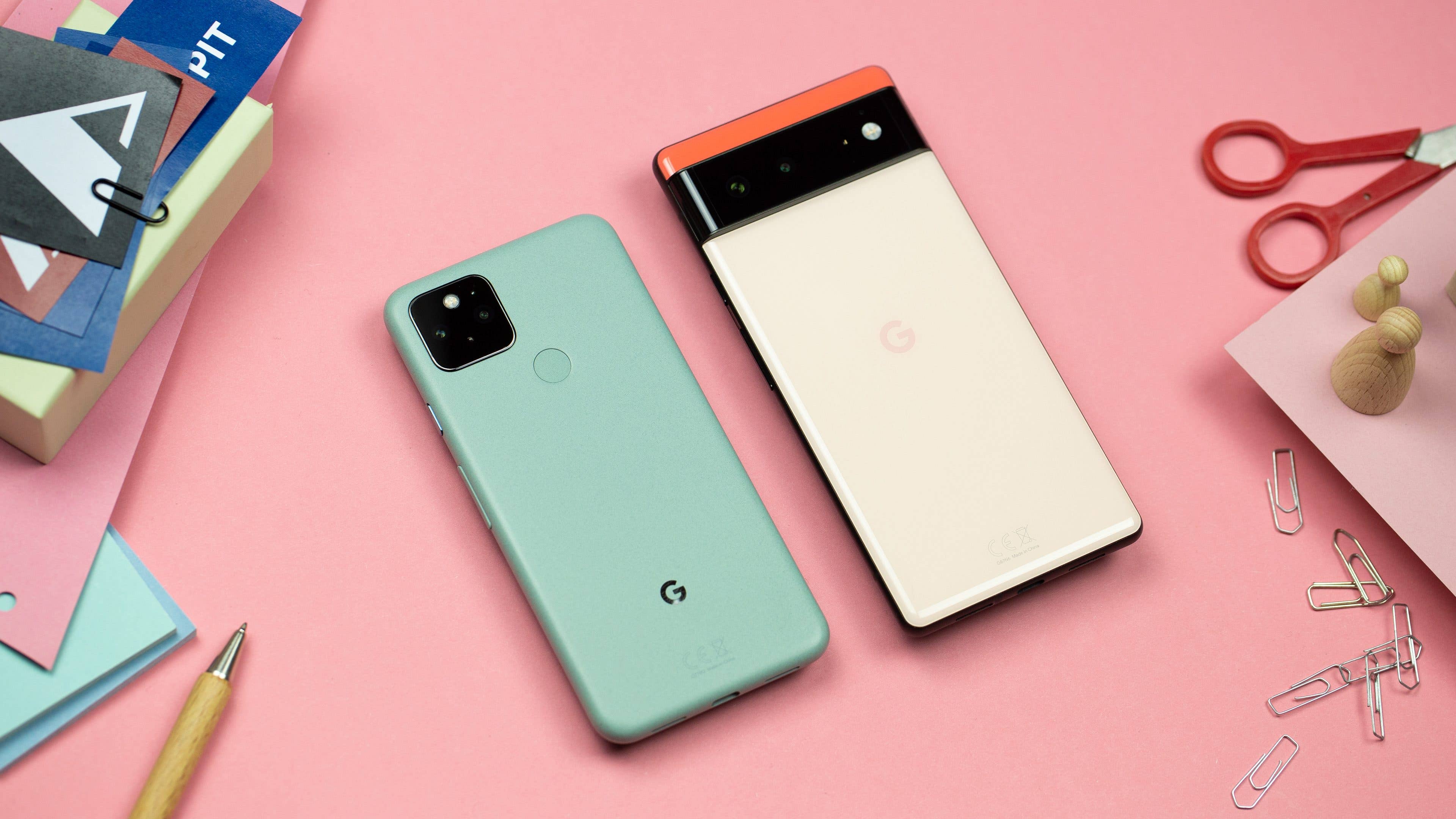
- Which Google phone is right for you? Pixel 6a vs. Pixel 6 vs. Pixel 6 Pro compared
Android 13: How to install the new version on your phone
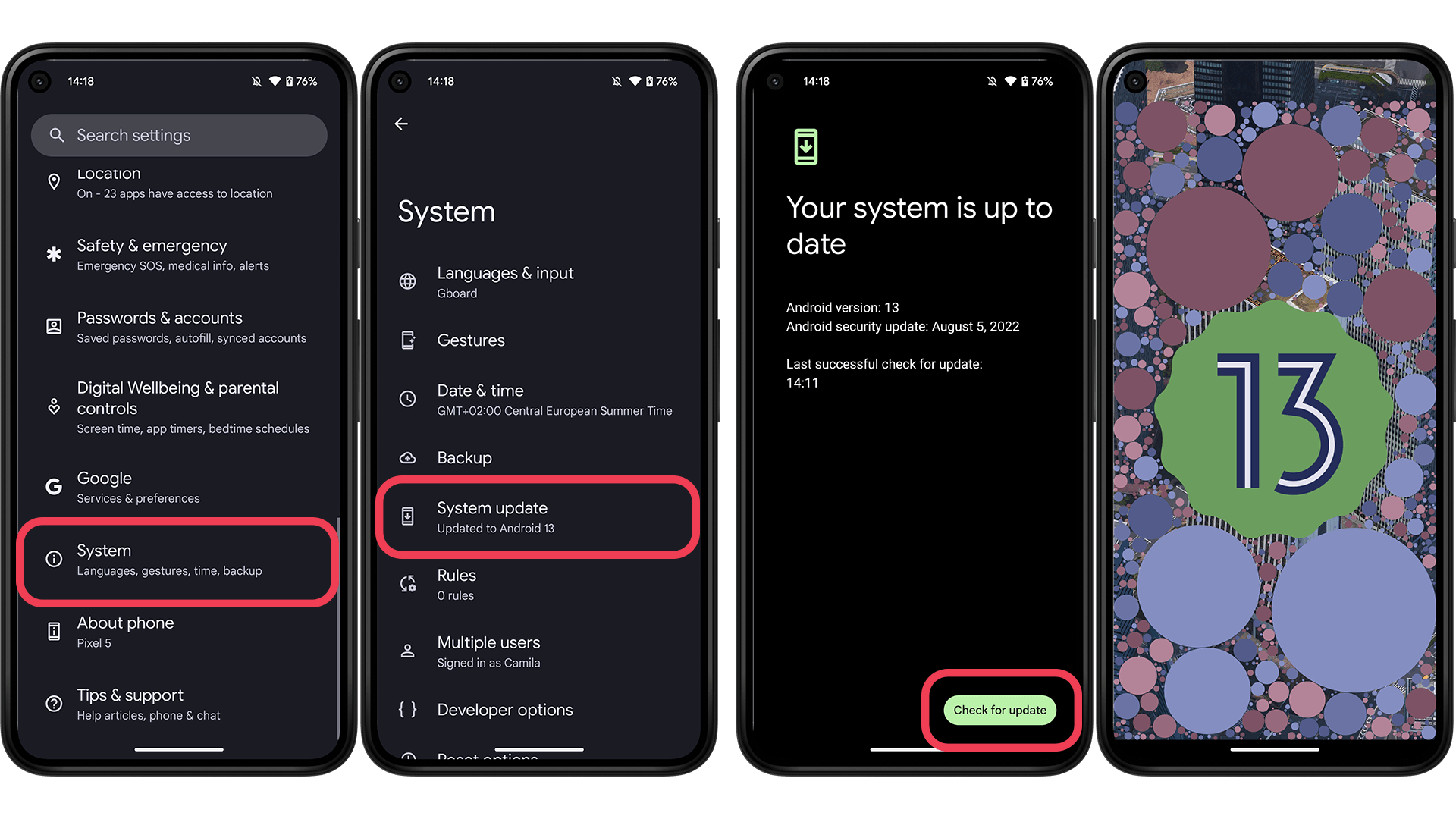
As of August 15, the Android 13 is officially available only for Google Pixel smartphones—from the Pixel 4 up to the Pixel 6 series. To install the Android 13 on compatible Google Pixel phones follow these steps:
- On your Pixel phone: open the Settings app.
- Select the System option.
- Open System update.
- Tap on Check for update.
- Click on Download and install.
The installation process takes some minutes, requiring a download with around 2 GB, some background preparation, and an optimization phase. We recommend keeping the phone charging during the process, which requires the device to restart.
Android 13: New features
Photo picker function
Users have now the option of not allowing apps to access the entire image gallery. The system gives you the option to select certain photos and videos that will be visible to apps. This way, Android ensures much better privacy protection. This also changes results in new permissions being required for the most common apps to at least access the selected photos.
New permissions for app notifications and media access
To fight notification spam, users already have some control over how and when apps can send alerts on their Android phone. Now Android 13 offers a better solution, with system permission for notifications the apps you download will now need your explicit permission to send notifications.
Transfer by tapping
Android 13 offers now the option to initiate a file transfer between devices using NFC, just like the old and good Android Beam. Although Nearby Share offers a similar solution to the same task, Tap-to-Transfer uses the ever more popular NFC antennas (or potentially UWB), to transfer photos, videos, and other documents between phones.
New Quick Settings and QR code reader shortcut
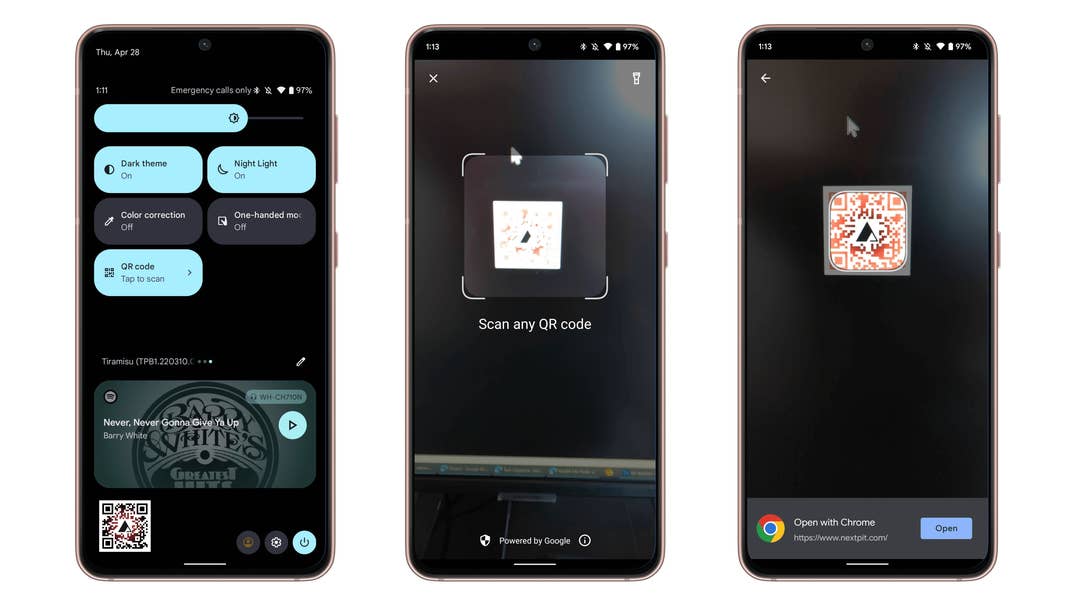
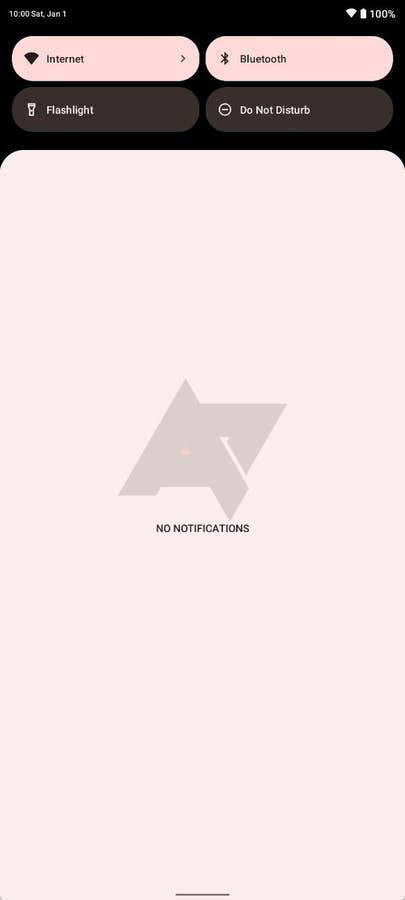
The Quick Settings menu in the notification shade now offers three new shortcuts: “Color correction”, “One-handed mode”, and “QR code”. This last one opens up the camera and allows to quickly scan codes even from the lock screen.
User, Settings, and Power shortcuts on the quick settings are now at the bottom
In the screenshot above (to the left), you can also notice that the shortcuts for the User account, Settings, and Power menus were moved to the bottom of the screen, instead of hanging below the last notification.
Quick tap can now turn on/off the flashlight
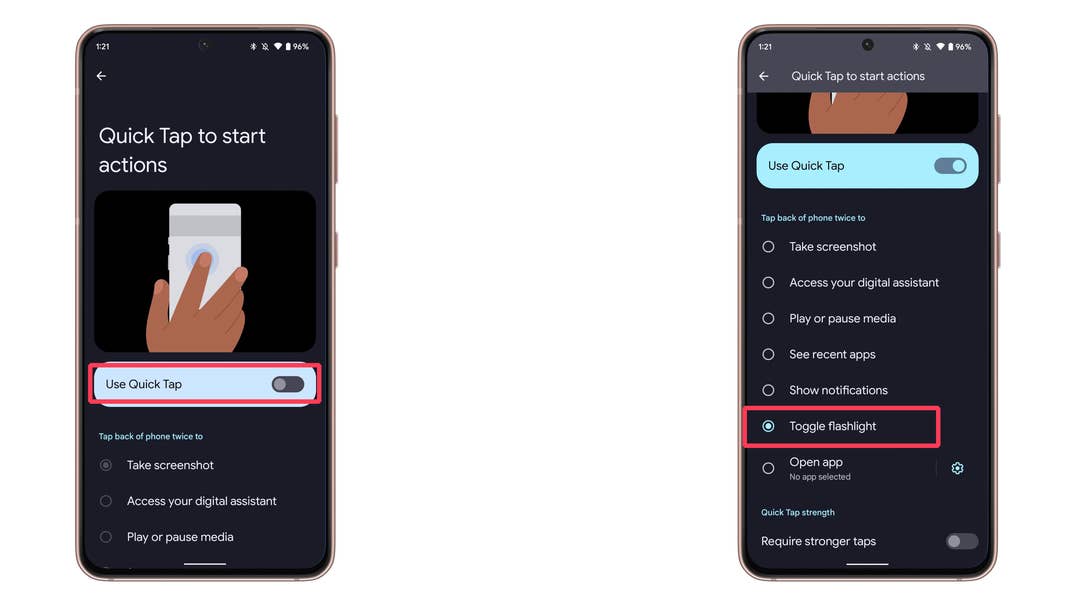
Popular among NextPit’s readers, the quick tap feature found in recent Pixel phones now includes one extra feature on Android 13: the option to toggle the flashlight on and off by tapping on the back of the phone.
More options for tuning vibrations & haptics
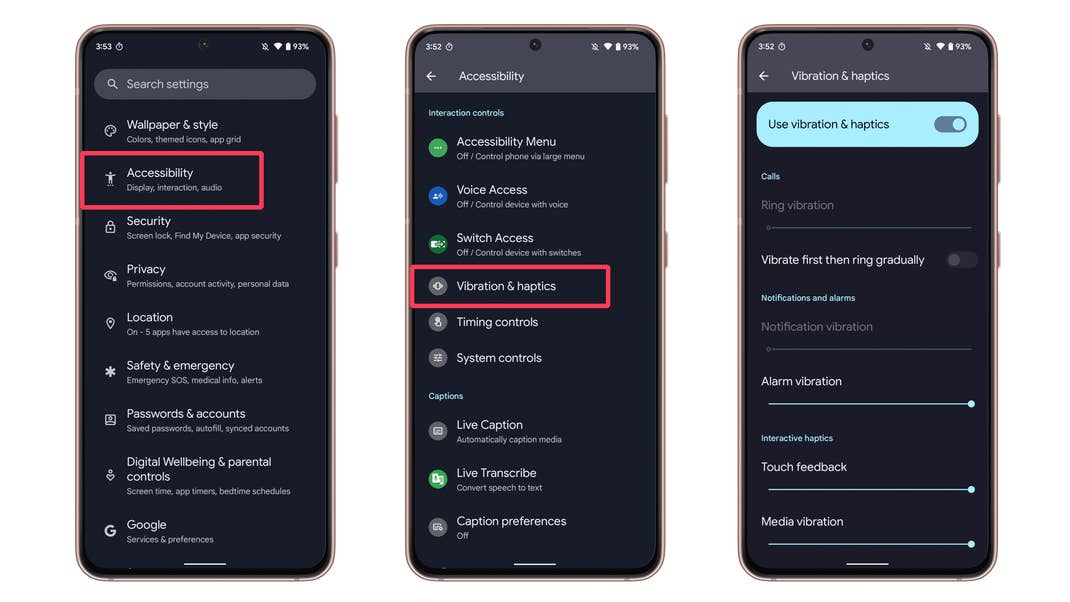
Android 13 added two new options for setting how and when the phone vibrates. The settings can be found in the Vibration & haptics menu, which now displays options for Alarm vibration and Media vibration.
Phone user’s avatar personalization
For the few people that rely on the multiple users feature on Android—which unfortunately is disabled by many brands—, Android 13 adds an option to change the profile picture. That way, each user can have their own image, not having to use the generic silhouette differentiated only by color.

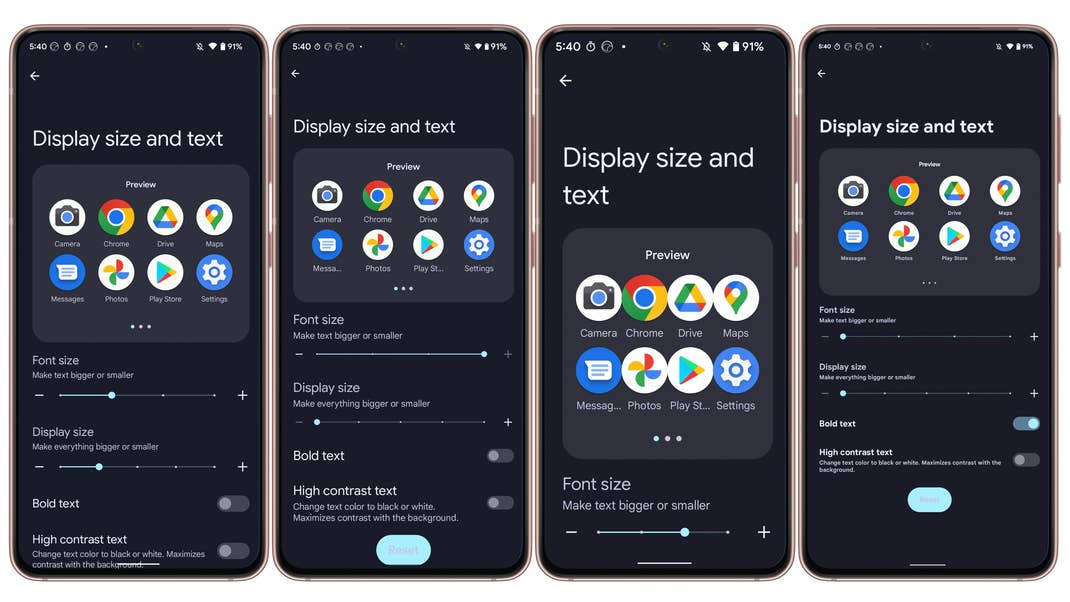
Previously, if you wanted to change the display size and text size, you would need to navigate and change settings in two different menus. With Android 13 both options now occupy the same menu under the Display options in the Settings app: Display size and text.
Clipboard notifications at the bottom of the screen
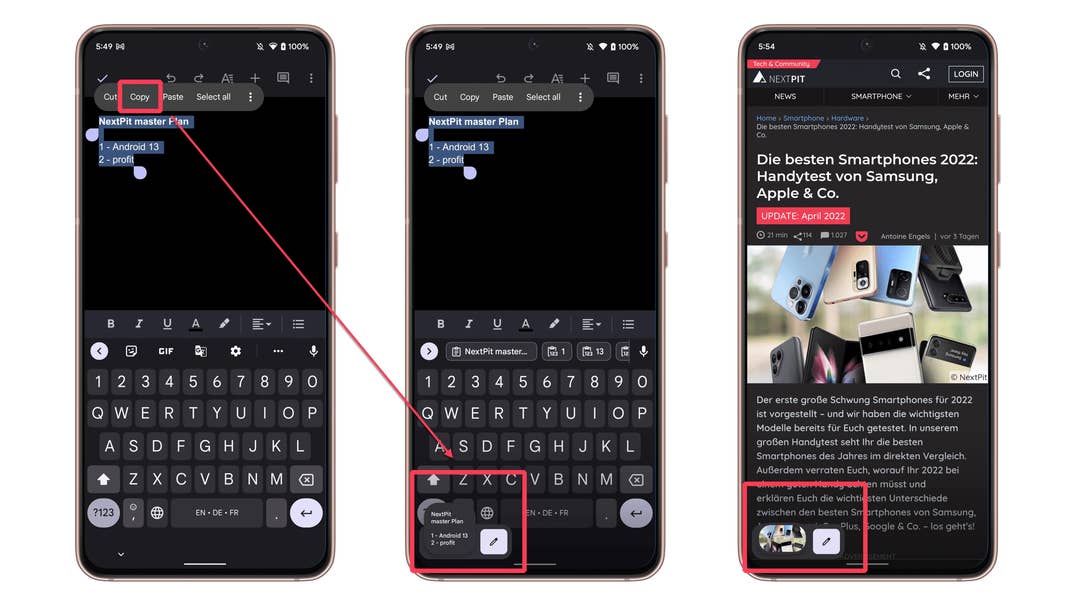
With Android 13, when you copy a text or image to the clipboard, the system will display a snippet in the bottom part of the screen. The feature works just like the screenshot confirmation on Android 12, offering to quickly edit the copied object.
And in order to prevent any unwanted access to your clipboard, if you copy sensitive data like your email address, phone number or login credentials on your device, Android will automatically clear your clipboard history after a period of time.
Other features on Android 13
Besides those, Android 13 offers a few other smaller changes:
- Improved UWB support, with more features available for device makers.
- Support for Bluetooth LE Audio, and the Low Complexity Communications Codec (LC3).
- Audio output selector for Material You, offering the option to choose between speakers, phones, and setting the volume.
Android 13: Visual changes
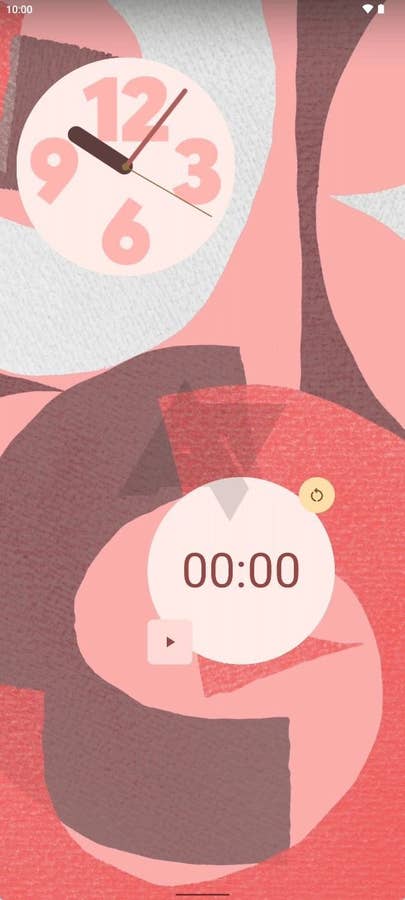
More colors for Material You
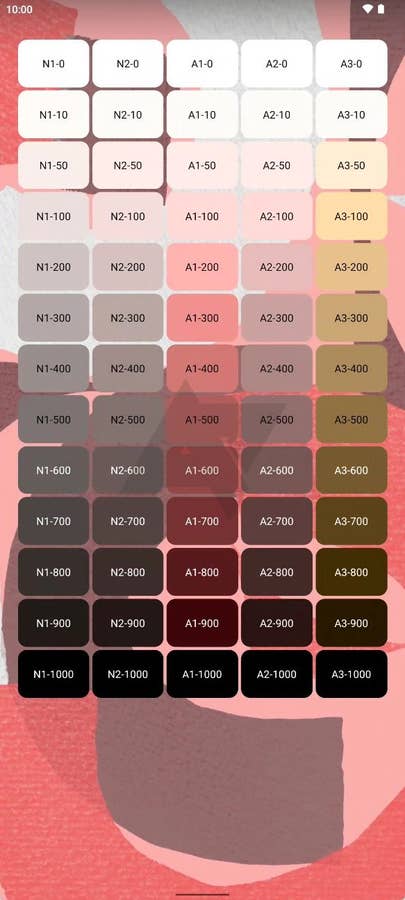
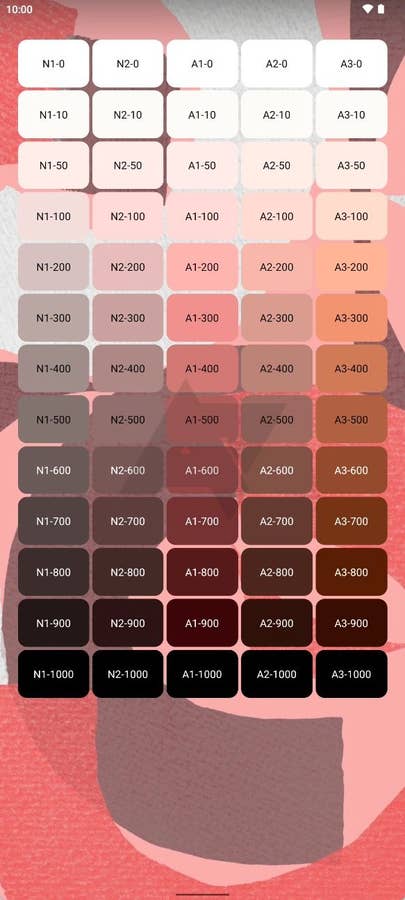
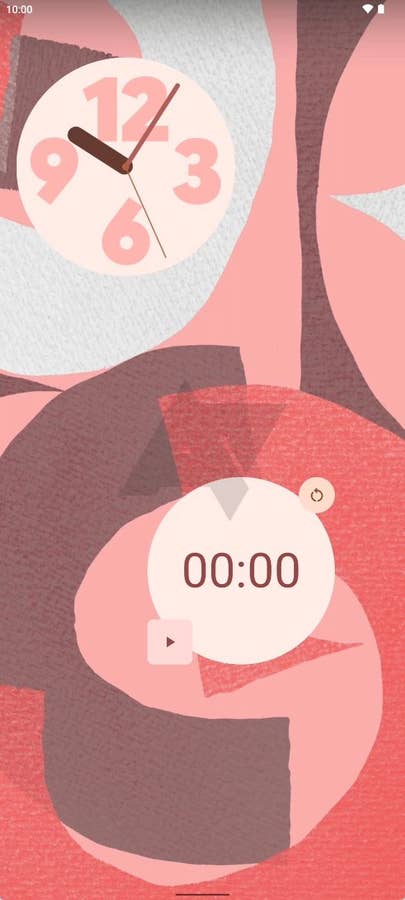
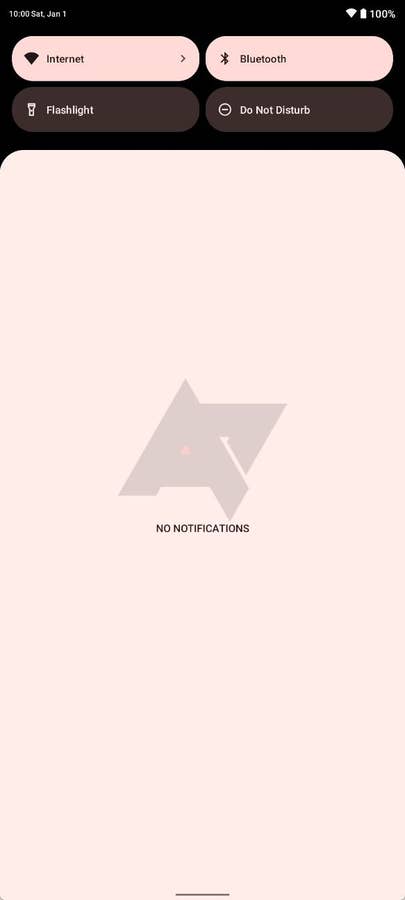
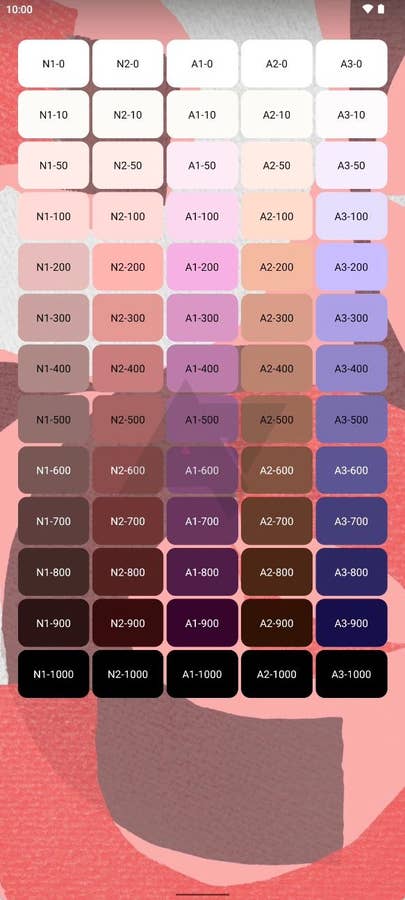
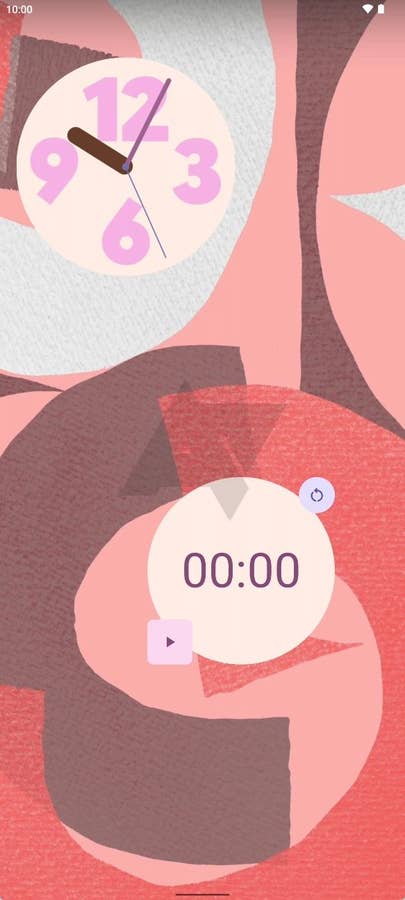
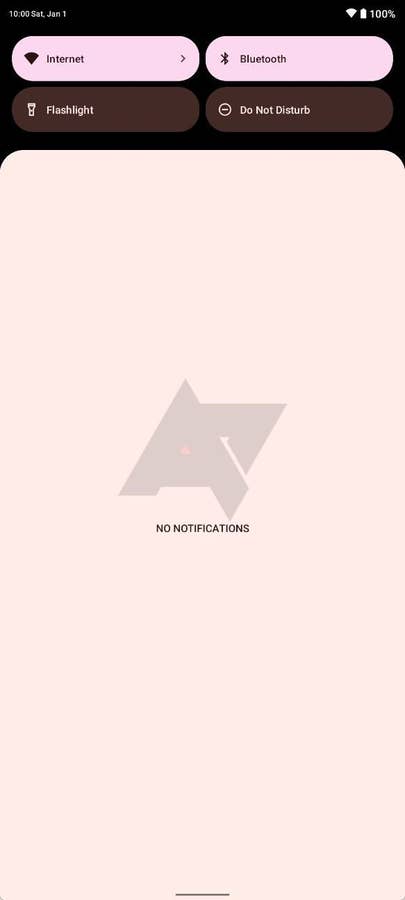
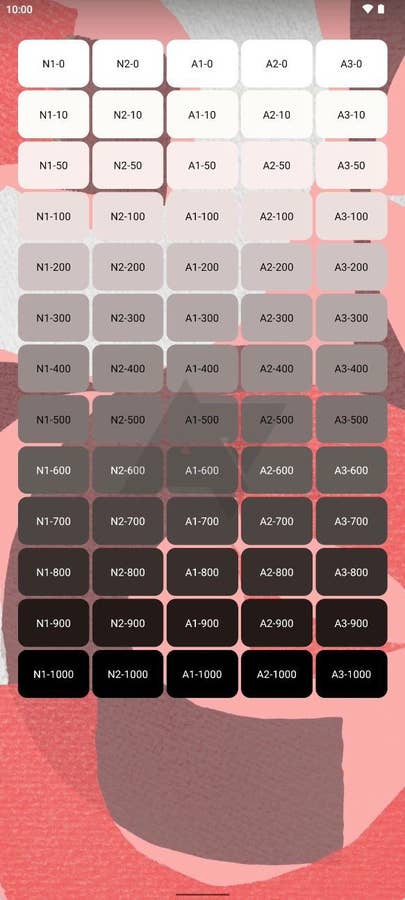
After the attention drawn to Material You—Android 12 new design language—Google took the visual concept even further with Android 13. The new system offer seven more customization options, with a wider selection of colors (with 16 options based on the wallpaper in use, and 16 basic colors). Now, you can customize non-Google apps to match your phone’s wallpaper theme and colors.
- Still without Android 12? Learn how to bring the visual design to older Android phones

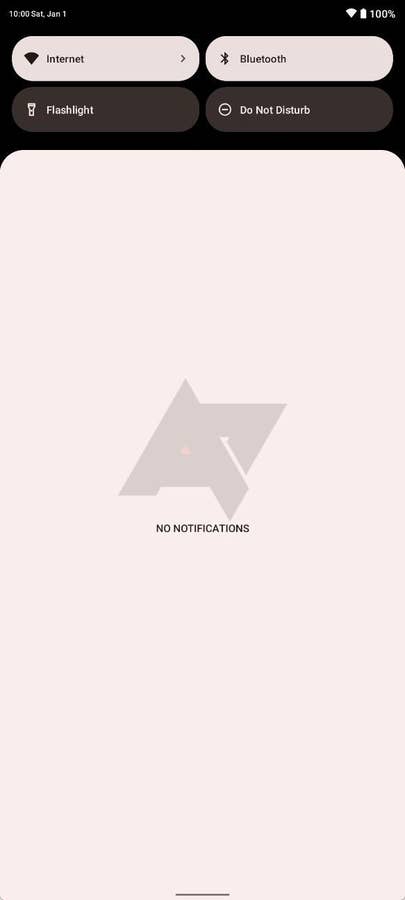
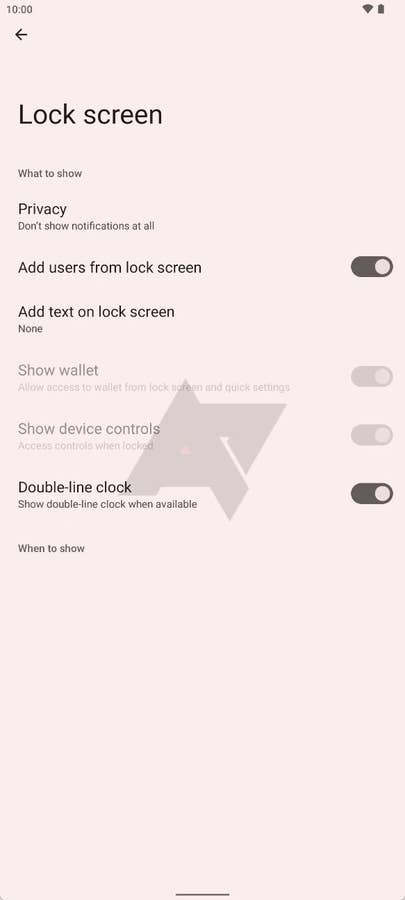
Change lock screen clock layouts
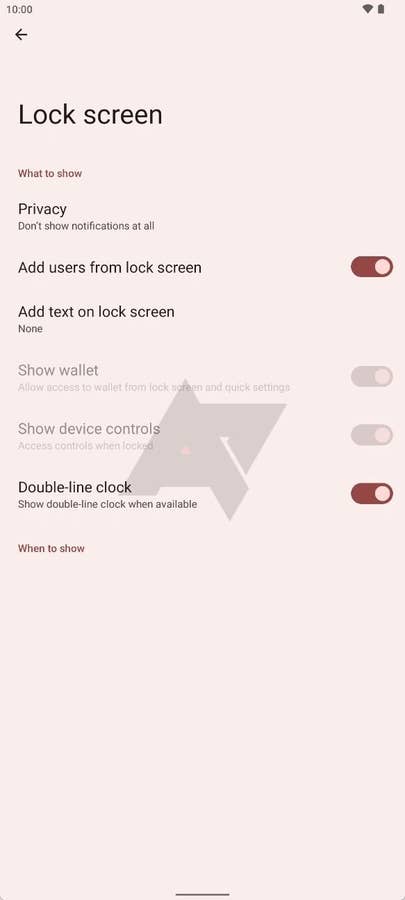
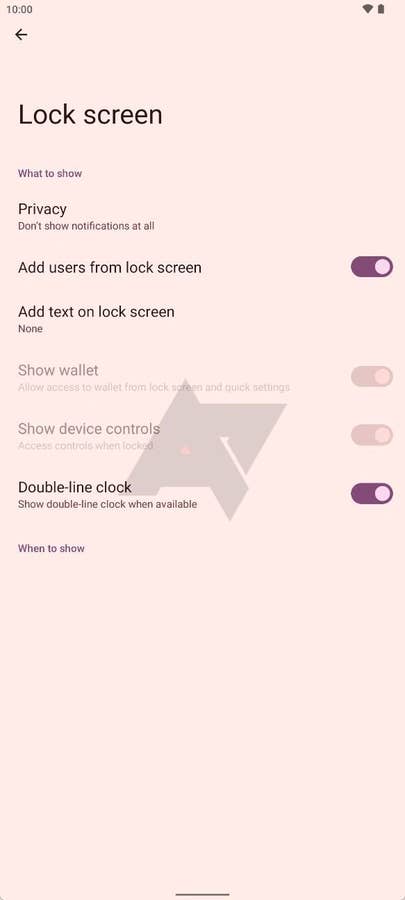
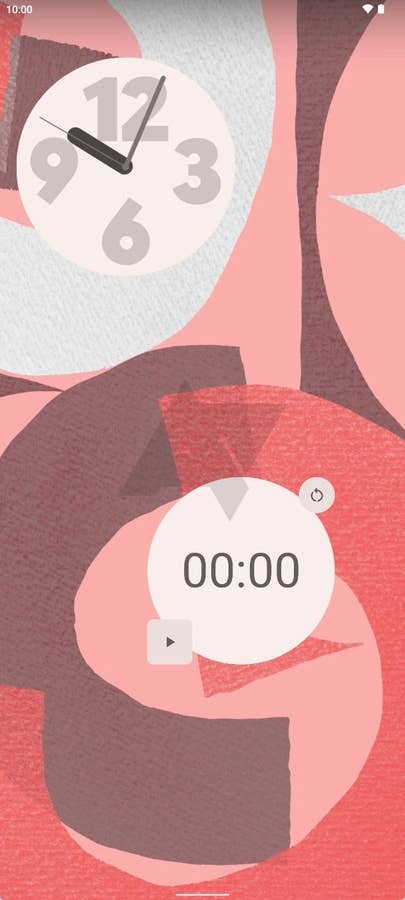
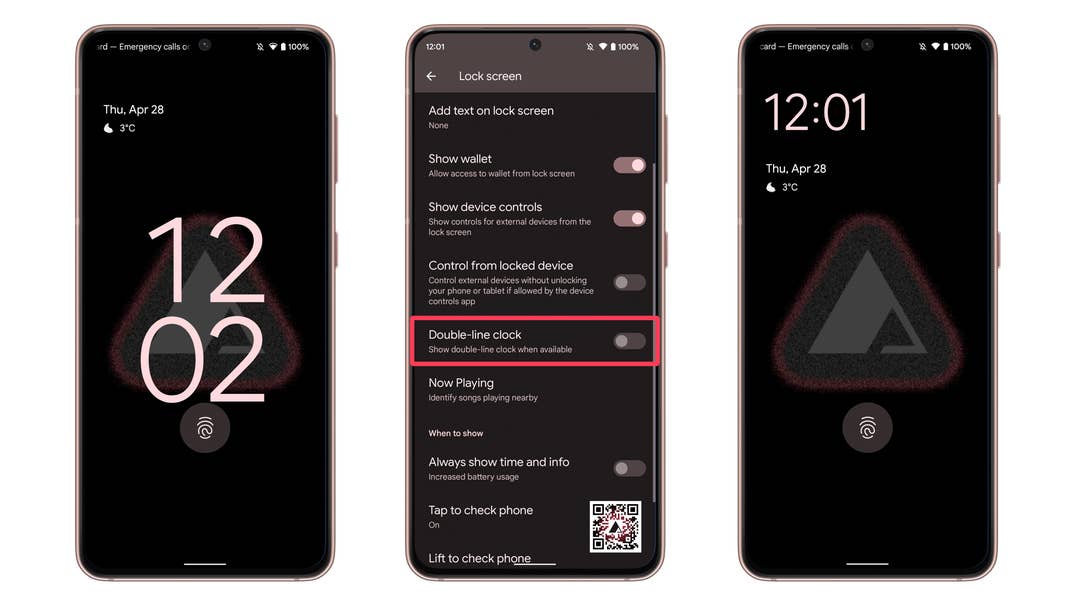
If you saw enough Pixel 6 pictures with the lock screen, you may have noticed that basically all of them had the same plain layout, with the time centered on the screen with a 2×2 layout (hours on top, minutes below). Android 13 changes that with a new Double-line clock option in the Lock screen menu, which places the clock in the top left corner of the (lock) screen.
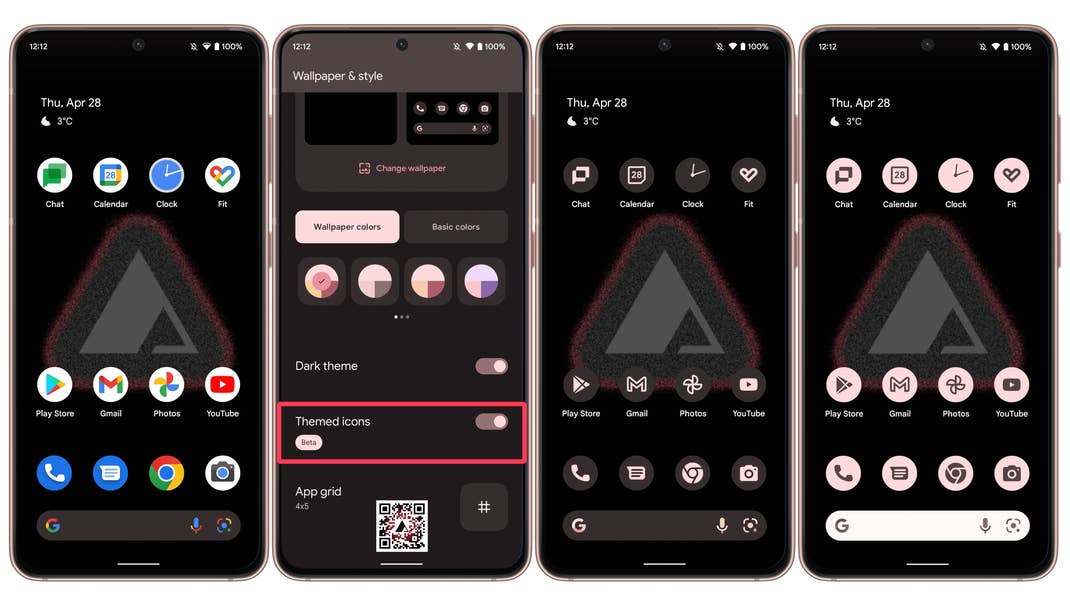
Dark and light app icons
The update brings another visual change. Now developers are able to adapt the app icons to the phone’s theme. This results in dark and light app icons.
Google Calendar now displays the day in the app icon
In the screenshot above you can see another change in Android 13, the Google Calendar app now dynamically displays the current day, instead of simply showing “31”. The update mirrors the same dynamic icon already used by the Clock app.
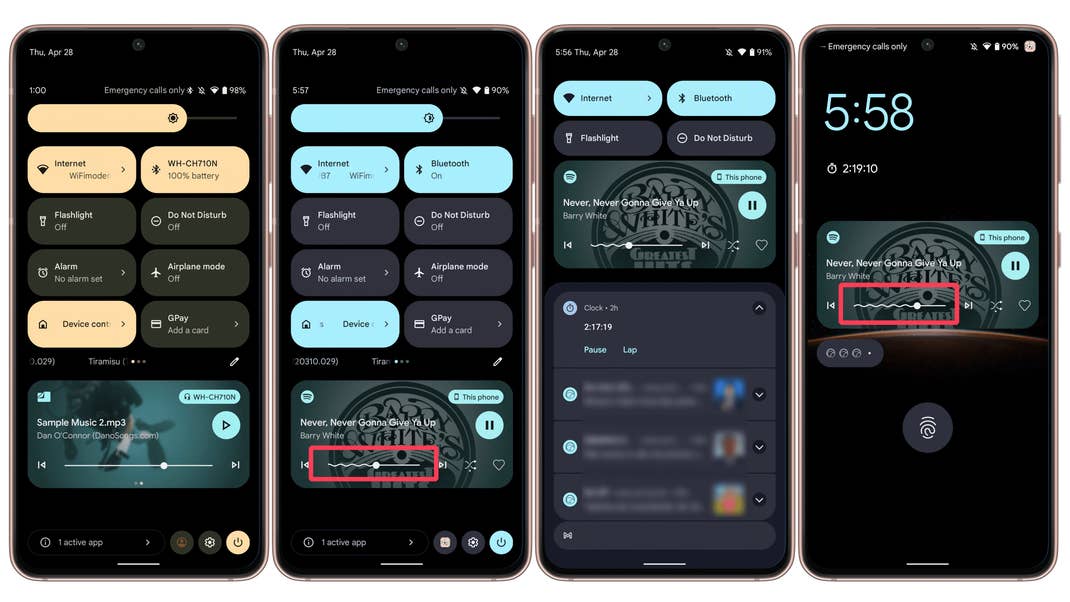
Now playing notification gets a redesign and squiggle progress bar
A small but charming change in Android 13 arrived in the now playing notification displayed in the notification shade and lock screen. More than highlighting the media’s artwork, the progress bar now squiggles to display what has already been played.
Android 13: Expected devices to get the update
As it usually happens with each new Android release, Google’s Pixel line is the first to get the new version. The update availability for other brands and models will wildly vary, so we recommend checking our guide on each manufacturer’s update policy. Now, to find out if your device is eligible to receive Android 13, click on the following link:
This article was last updated on August 2022.
We mark partner links with this symbol. If you click on one of these links or buttons–or make a purchase through them–we may receive a small commission from the retailer. This doesn’t affect the price you pay, but it helps us keep nextpit free for everyone. Thanks for your support! Prices are based on the date of publication of this article and may be subject to change.


I’d like clarification on what is actually in the AOSP release versus the GAPPed release. Yes, most users would never see the difference but learning the difference would be beneficial to the kinds of readers you attract.
Dont buy Android, android is like your trashcan
Wow I happen to like my Android trashcan.
sorry