
If you don’t subscribe to YouTube Premium or YouTube Music, it is theoretically impossible to play a YouTube video in the background on your Android smartphone. As soon as you exit the application or lock your phone, the playback will automatically pause. There are some tricks out there that include third-party applications, but in general, you just have to leave your smartphone screen on.
- Discover more: Hidden MIUI features for your Xiaomi smartphone
With Xiaomi‘s Video Toolbox menu, hidden in MIUI‘s special features, you can listen to videos on your smartphone even with the screen off. In your face, Google!
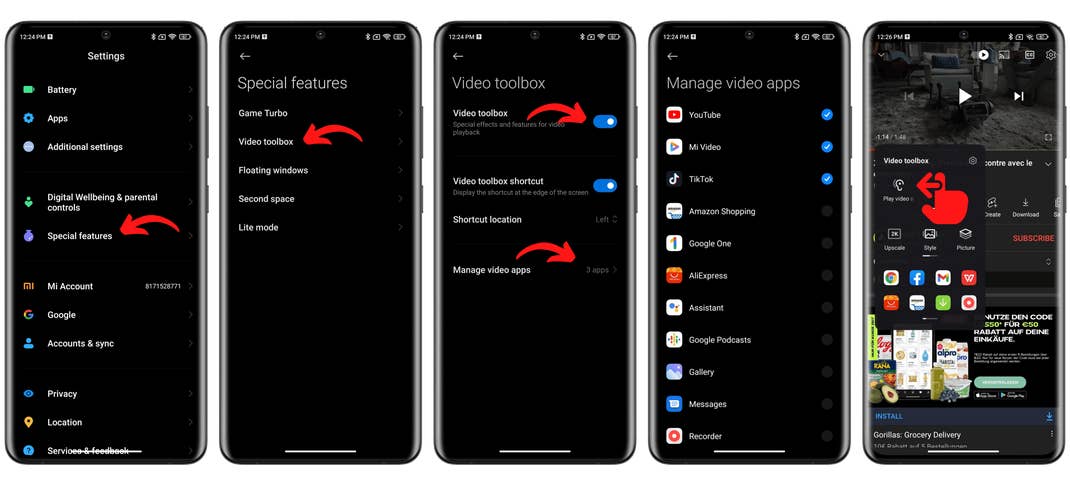
- Go to Settings > Special features.
- Go to Video toolbox and activate the feature.
- In the Video Toolbox menu tap Manage video apps and activate the switch for YouTube.
- Open YouTube, start your video, press the translucent bar on the left or right of the screen (depending on your choice).
- In the Video Toolbox menu, swipe once to the left on the first line.
- Press the Play video sound with the screen off.
Note that this feature does not work with all applications. And you will still have to go through the ads inserted in Youtube videos. This solution from Xiaomi is certainly incomplete, but it has the merit of being fully native. No need for dubious third-party applications or tinkering in the settings.
- Check out this tutorial to enable Back Tap on your Xiaomi
If you’re interested in a more comprehensive guide to watching YouTube in the background on any Android smartphone, I’d be happy to look into it and try to find solutions, even non-native ones.
That’s it for this tutorial to listen to YouTube on your Xiaomi smartphone with the screen turned off. What do you think of this tip, did you find it useful? Do you have a better solution not to give in to the YouTube Premium “blackmail”? Tell us in the comments.
We mark partner links with this symbol. If you click on one of these links or buttons–or make a purchase through them–we may receive a small commission from the retailer. This doesn’t affect the price you pay, but it helps us keep nextpit free for everyone. Thanks for your support! Prices are based on the date of publication of this article and may be subject to change.