Sorry, but there's really nothing to see here right now. Our server is in maintenance mode – and our
little bot is trying to sort the error messages with its last bit of energy.
Whether it was a data leak, a power outage in the cluster, or just a grumpy bit – we don't know yet.
But what we do know is:
The data drama escalated into a server meltdown. But don't worry: We're on it.
What now?
Everything is surely running smoothly over at our colleagues from inside
digital – why not stop by!
Or you could pass the time by visiting our social media channels – for example Instagram, YouTube or TikTok. At least there are no
server problems there – promised.
Thanks for your patience. Our bot is already rebooting at full speed. 🔧
NewsTabletSamsung Adds Built-in Google Cast Support for Its Galaxy Phones
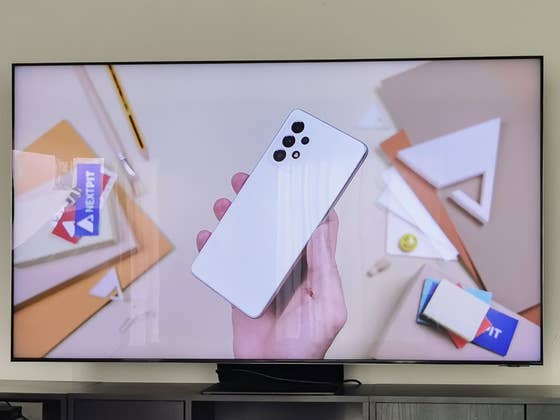
Samsung Galaxy smartphones and tablets have long feature screencasting or wireless mirroring but through its proprietary Smart View tool. This limitation makes its devices only work with a few TV lines with Miracast, including Samsung smart TVs. It turns out that the Koreans may expand the compatibility of its built-in screen mirroring even supporting more televisions with Google Cast.
Also read: How to connect your iPhone or Android to the TV
The feature has been spotted in a hidden labs section of Samsung’s Smart View by Android Police. Although not yet publicly released, this is available for developers, but regular users can also activate this through a few steps.
However, it requires that the Galaxy phone is running on the latest One UI 5.1 skinned version of Android 13 OS. Furthermore, It’s unclear if other models will support this apart from the Galaxy S23 series, Galaxy Z Fold 4, and Galaxy Z Flip 4. But if you’re interested, you can follow the guide on how to enable Google Cast on your Samsung device below.
Open quick settings from the dropdown menu.
Look and choose Screen View.
Tap the vertical three dots for more settings and select About Smart View.
Tap the Smart View option 10x times to activate its developer mode.
Enter #00rtsp00 when prompted to type in a password.
Toggle on the Google Cast.
Once you’ve enabled Google Cast from the developer’s settings of Smart View, you can then try mirroring to a Chromecast or Google TV by simply going to the Smart View from your quick settings. Smart TVs with Google Cast should automatically appear from the menu, or you can manually connect to big screens.
It was not confirmed if this will be available by default on the upcoming Samsung One UI 5.1.1 or One UI 6.0 which is based on Android 14 OS. But given it’s already included in the software build, it might not take long for the company to fully release the feature.
How do you connect your phone or tablet to your TV? Do you prefer wireless over wired? Tell us your thoughts on this.
We mark partner links with this symbol. If you click on one of these links or buttons–or make a purchase through them–we may receive a small commission from the retailer. This doesn’t affect the price you pay, but it helps us keep nextpit free for everyone. Thanks for your support!





0 comments