

Initially, the new Limit Maximum Volume tool was first added in the iOS 18.2 beta last month, which eventually carried over to the stable iOS 18.2 release.
What Is the New Limit Maximum Volume Feature?
The Limit Maximum Volume tool allows users to reduce the maximum loudness of the iPhone’s speaker. It lets you adjust the maximum volume from 100 percent down to a minimum of 20 percent, with 90 percent being the highest allowable limit when the feature is enabled.
This functionality helps protect users’ hearing by preventing the volume from reaching dangerously high levels and reducing sudden loudness spikes. This is particularly beneficial for young users and children, whose hearing may be more sensitive. Additionally, it serves as a useful tool for keeping the volume in check, minimizing disruptions when media like songs or videos play unexpectedly at high volumes.
It’s important to note that this feature only affects the audio output for media playback, such as music and videos. According to the tool’s description in the settings menu, it does not influence calls’ volume, system sounds, or notifications such as ringtones and alarms. Similarly, it doesn’t affect audio output when using connected headphones or external speakers.
How to Use the Limit Maximum Volume Feature on Your iPhone
If you’ve updated your iPhone to iOS 18.2, you’ll find this feature in the Sound & Haptics settings. Follow these steps to adjust your iPhone’s maximum speaker volume:
- Open the Settings app on your iPhone.
- Scroll down and tap Sounds & Haptics.
- Under the Built-In Speaker section, toggle on the Limit Maximum Volume switch.
- Adjust the slider to set your desired maximum volume limit. You can choose anywhere from 20% to 90% of the standard maximum volume.
- Tap Back to save changes.
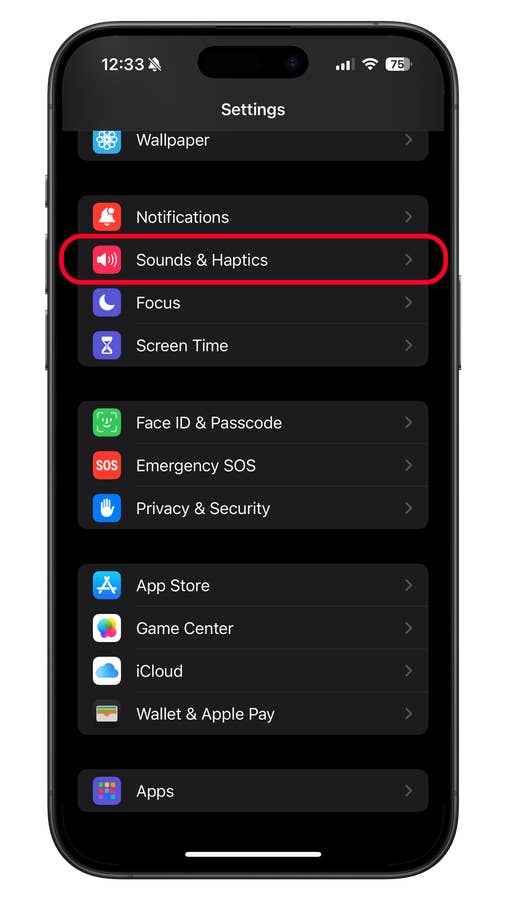
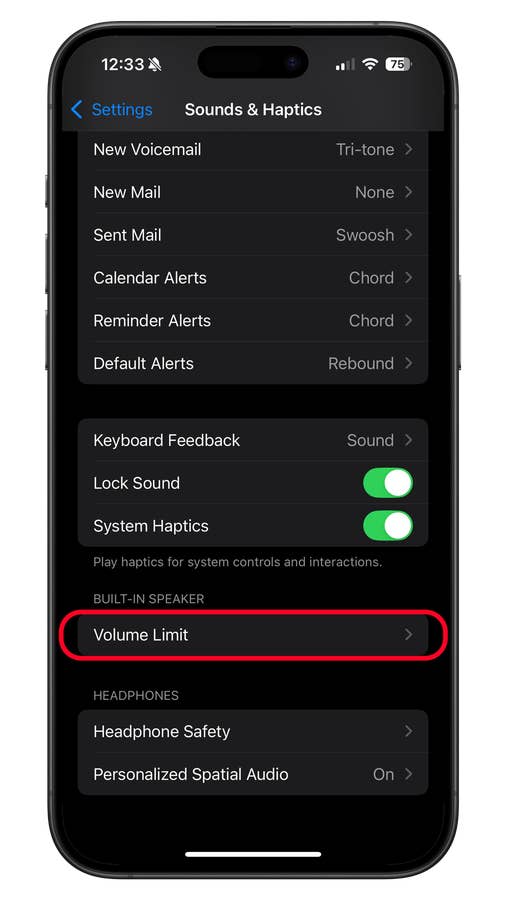
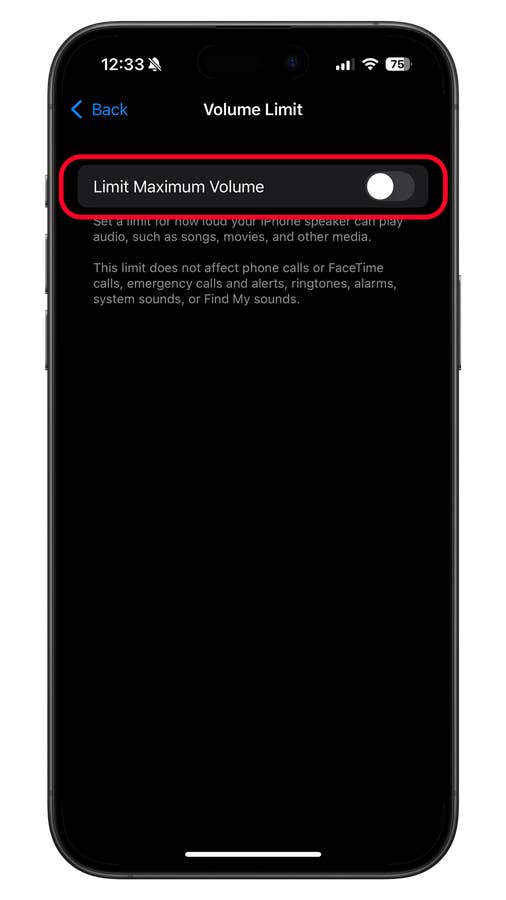
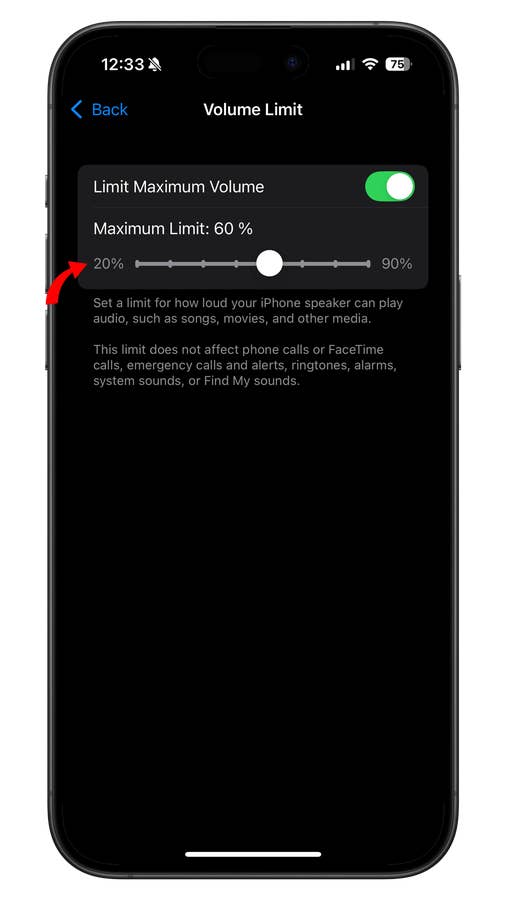
Since this feature was introduced in iOS 18.2, it is available on all iPhone models running this version of the operating system, starting from the iPhone XS up to the latest iPhone 16 (review).
Which new features in iOS 18.2 are your favorites? Let’s discuss your answers in the comments below!