Sorry, but there's really nothing to see here right now. Our server is in maintenance mode – and our
little bot is trying to sort the error messages with its last bit of energy.
Whether it was a data leak, a power outage in the cluster, or just a grumpy bit – we don't know yet.
But what we do know is:
The data drama escalated into a server meltdown. But don't worry: We're on it.
What now?
Everything is surely running smoothly over at our colleagues from inside
digital – why not stop by!
Or you could pass the time by visiting our social media channels – for example Instagram, YouTube or TikTok. At least there are no
server problems there – promised.
Thanks for your patience. Our bot is already rebooting at full speed. 🔧
How-tosTabletHow to Hide or Change the Silent Bell Icon on the iPhone 15 Pro
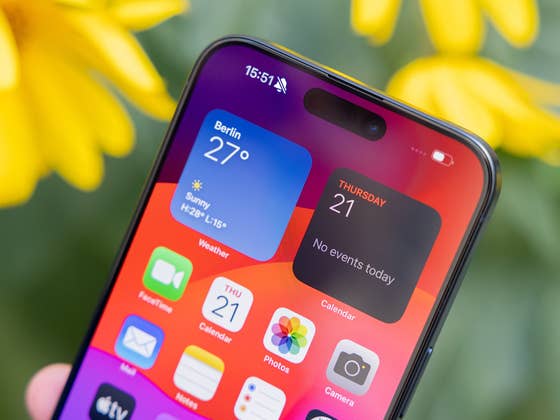
Apple’s iPhone 15 Pro comes with an all-new Action Button that replaces the ring/mute switch from the older iPhones. Along with it is a silent bell indicator that appears every time you push the button regardless of the task it does. Fret not, there’s a way to hide this indicator or completely replace it with a custom icon and nextpit shows you how.
The Action Button is an exclusive iPhone 15 Pro (review) feature, at least for this year’s premium models. Its default function is to mute or unmute the iPhone similar to the previous toggle, but it can also be used to customize and assign a different action.
While the button brings flexibility and many uses, its issue is that the silent bell icon persists to appear every time you press or activate the button regardless of which action you’re doing with the button. Luckily, Apple has brought an option to disable the mentioned indicator.
How to hide or show the silent bell indicator on Apple iPhone 15 Pro (Max)
Since the Action Button is available on the Apple iPhone 15 Pro and iPhone 15 Pro Max, the indicator and settings do not appear on the standard iPhone 15 and iPhone 15 Plus (review). To stop the icon from appearing, here’s a quick step-by-step guide on how to access the toggle from the settings.
If you prefer the silent bell indicator back on the status bar every time you use the Action Button, you can head on the same settings inside the Sounds & Haptics to toggle it on.
How to set a different icon on the status bar via Focus mode
In addition to hiding the silent bell indicator, it’s also possible to use a different icon that goes together with the time on your status bar. By doing this, it gives your iPhone a slight personalization.
This is easily done by creating and activating a custom Focus mode. More importantly, it works on any iPhone or iPad tablets running on iOS 15 (iPadOS 15) or newer versions such as iOS 17.
Go to Settings and pick Focus.
Tap the plus (+) icon on top to create a new focus.
Select a name for this focus.
Pick from the icons and set a color.
You don’t need to particularly set any trigger using this focus.
Save your focus profile.
Once you activate your created focus profile, the chosen icon you picked during setup will appear on the status bar. The icon will disappear if the focus mode is not active.
On your iPhone 15 Pro, do you find the new silent bell icon useful? What other iPhone 15 tips and tricks would you like to see? Feel free to hit us up with your suggestions in the comments.
We mark partner links with this symbol. If you click on one of these links or buttons–or make a purchase through them–we may receive a small commission from the retailer. This doesn’t affect the price you pay, but it helps us keep nextpit free for everyone. Thanks for your support!