


Contents
Jump to:
- How to calibrate the compass using Google Maps
- How to check your smartphone’s compass and sensors with Google Maps
- Using a 3rd party app
Calibrate the compass with Google Maps
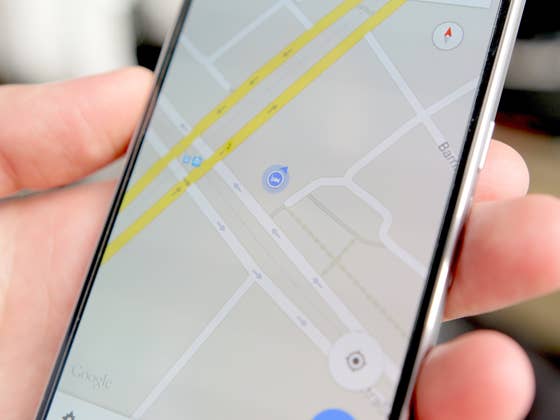
Calibrating your phone’s compass is actually easy. Assuming you have Google Maps (who doesn’t?), open the app and follow these simple steps:
- Tap the blue dot on Google Maps that indicates your location
- Follow the instructions according to the diagram shown.
- Presto! A new calibrated compass. The blue dot should now be facing the right direction.

Do you find Google’s diagram hard to follow? We’ve put together a video showing the motions:
How to calibrate the compass without Google Maps
This method involves using one of Android’s secret dial codes to access the sensor information. Depending on your manufacturer however, it might not work, or require root. Nonetheless, if you don’t want to use Google Maps or a 3rd party app, this is worth a shot.

- On your phone dial on the telephone keypad *#0*# This brings up a “secret” service menu as shown above.
- You will see a list of tiles, tap one named “sensor”
- Now in real time you can see all the sensors on your phone, the compass is the circle at the bottom with a line through it pointing to north.
- If the compass on the phone is calibrated correctly the line going through the circle should be colored blue with a number 3 next to it.
- If you have a green line going through it and a number 2 this means it is not properly calibrated on one axis, so you need to do the figure 8 dance as described in the above method (preferably outside not near any magnetic fields).
- The check that the line going through the circle is now blue with number 3 next to it.
Third party apps
You can also install an app from the Play Store to tell you the status of your compass and other sensors, which will then help you know when to calibrate them. GPS Essentials, for example, does just this.
INSTALL (com.mictale.gpsessentials)
If you’re still having trouble with your GPS, compass or navigation app, try our tips to improve GPS signal. Got any questions? Let us know in the comments!

great tip! now I know what to do next time
Calibrate my boat’s compass every year, it never occurred to me to calibrate my phones compass. I will do it now, good tips.
It is recommended that you calibrate your devices compass at least weekly, though I would suggest that if you are reliant on the compass that you calibrate it every time you leave a building or vehicle. (or any strong magnetic interference).
I use the GPS app – GPS status which has great features and calibration tools.
Remember that the compass in your device may not be the best, or will at least be affected by magnetic anomalies and interference so try and calibrate it in a open space.
Peace ??
Article’s a little confusing, in that the compass works on a magnetometer and doesn’t need GPS or data radios activated to work with offline maps – though GPS can add latitude, longitude to functionality. I have a cute one (Marine Compass, PierroX) with a plug in that overlays direction through the camera view. I’ve always used 8 to calibrate, but knowing directionality from home it’s easy to do a reality check before a trip that needs it.
lots of nice compass apps available, some also include extra info like sensor accuracy and status etc
figure of eight works most of the time for calibration when it doesn’t.. giving the device a couple of short sharp taps on my palm does.
Thanks for the tip! We’ll try that out next time to see if it works on some of our phones in the office.
This isn’t useful for recalibrating. How do you deliberately calibrate the compass? This is just repeating the instructions the app gives! I did that then, I need to recalibrate NOW.
Maybe by factory resetting the phone? I did that a few days ago to clear up the mess on my phone but I did not notice that it did reset the compass until I opened Google Maps and noticed that the blue arrow was pointing perfectly towards the direction of the the road because, few months before resetting it was pointing to the wrong direction… And this reset also applies to 3rd party compass apps; they finally showed the correct magnitude
More rehashed articles, they all seem to be this lately.
don’t see any problem with this. any new Android user shouldn’t have to dig through years of articles for something that still applies today
Good advice you g
The article doesn’t even mention how to find out if your mobile has a built in compass. ?