Contents
Table of contents:
- What is the Google Pixel’s Clean Scanner?
- Where can I find the Google Scan app?
- How do you scan a document?
- How do you remove a stain?
Google clean scanner: Remove stains from a document using AI
Last week, Google unveiled its fourth and final Feature Drop for the year. This update introduces numerous new features, primarily enhancing the Google Pixel 8 Pro experience.
Highlights include Video Boost, Night Sight, and innovative AI functions powered by Gemini AI in the Nano version, among others. We’re excited to delve into these features. However, our Google Pixel 8 Pro (review) is yet to receive this latest feature drop.
- Want another Google tip? How Google Magnifier works
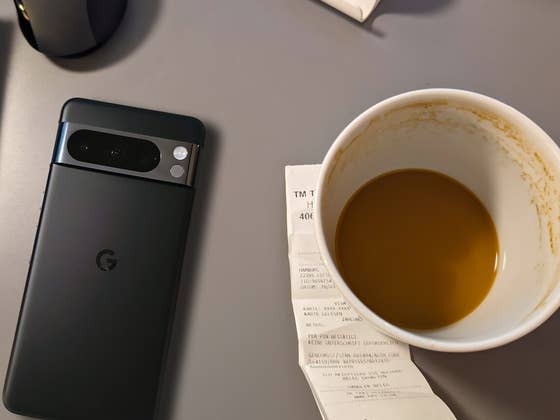
Today, we’re focusing on a feature initially slated for the December Feature Drop, which seems more a product of the Google Camera update: the document scan. This function lets you remove wrinkles or stains using AI. Here’s our handy guide to it.
Where can you find the Google Scan app?
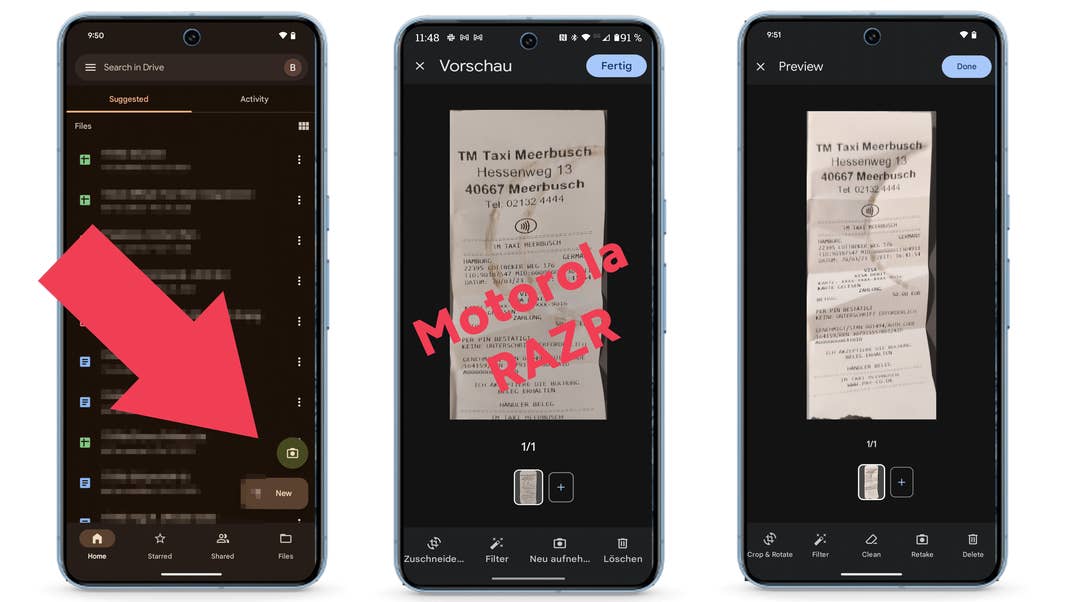
The Google Document Scan app is not located in the Camera app, as you might expect, but in your Google Drive app. This also works with non-Pixel phones, as I once documented here with my Motorola Razr Plus (review). However, after pressing the camera icon (bottom right), the “clean” button is not located at the bottom center.
How do you scan a document?
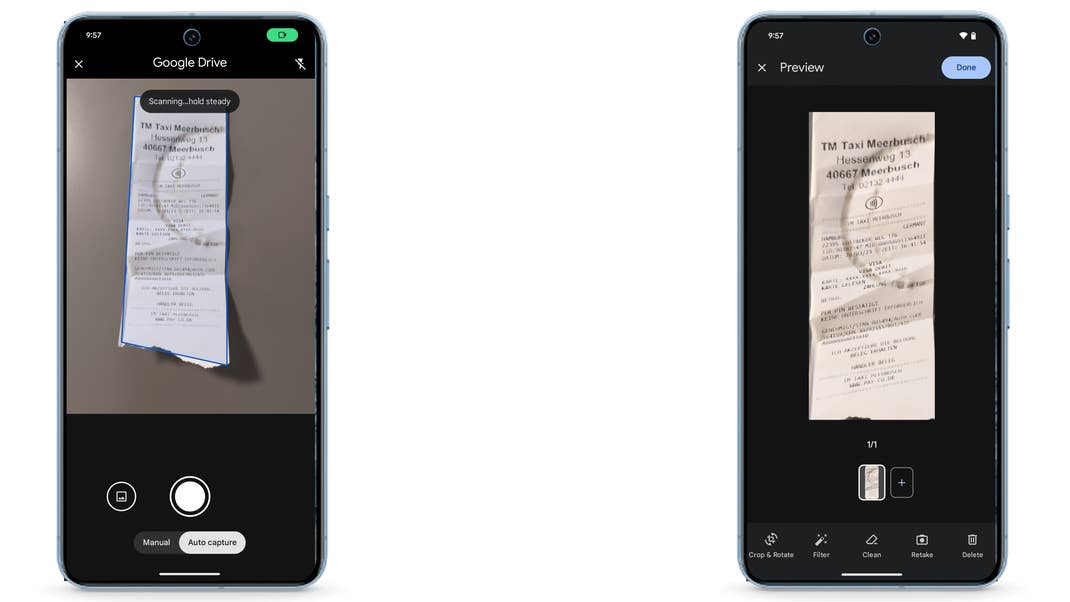
To scan a document, such as an invoice, you can use either manual or automatic selection. In automatic mode, the scan is created automatically after recognition—in manual mode, the app waits for your input.
How do you remove a stain?
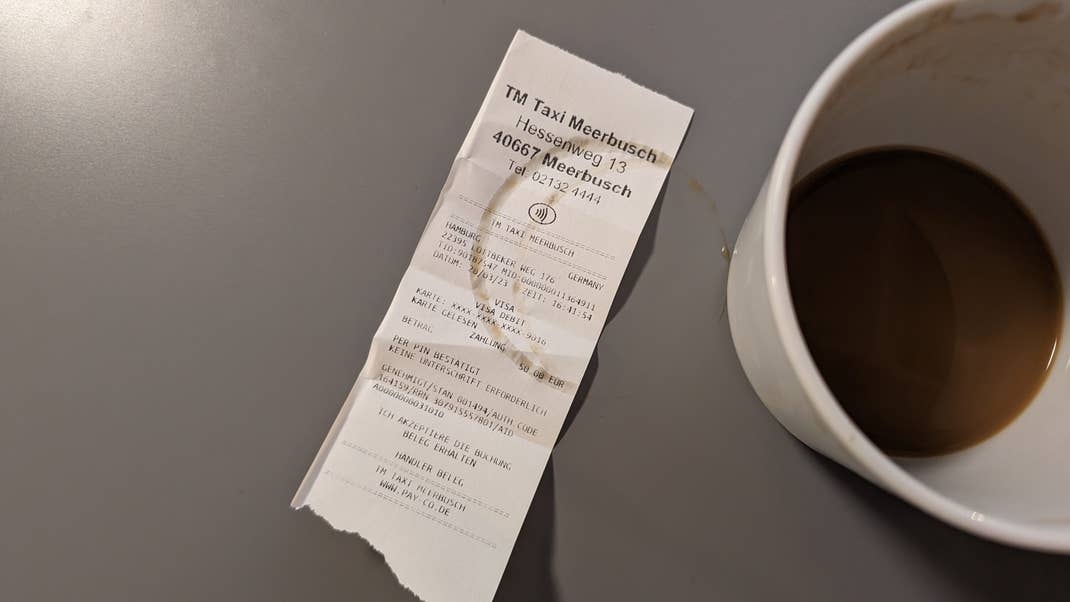
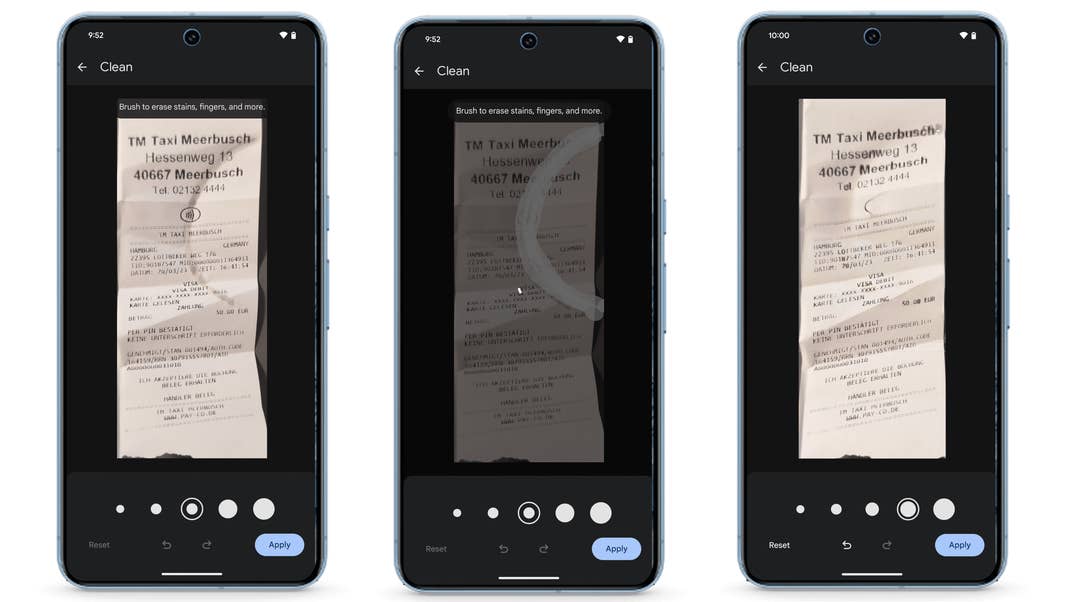
Now you have the option of removing unsightly creases or, as in our case, the imprint of the coffee cup from the cab receipt. To complete this, go to “clean” at the bottom, then select the brush thickness you want to use to remove the stain or crease.
Then run your index finger over the area to be removed, and the AI will remove the stain from the document. When you are satisfied with the result, save the new document.
That’s it! If you have any questions or tips of your own that you’d like us to report on, please let us know in the comments.