Sorry, but there's really nothing to see here right now. Our server is in maintenance mode – and our
little bot is trying to sort the error messages with its last bit of energy.
Whether it was a data leak, a power outage in the cluster, or just a grumpy bit – we don't know yet.
But what we do know is:
The data drama escalated into a server meltdown. But don't worry: We're on it.
What now?
Everything is surely running smoothly over at our colleagues from inside
digital – why not stop by!
Or you could pass the time by visiting our social media channels – for example Instagram, YouTube or TikTok. At least there are no
server problems there – promised.
Thanks for your patience. Our bot is already rebooting at full speed. 🔧
How-tosTabletTip for Samsung Galaxy users: This setting can keep your data safe
If you use a Samsung phone, you should change a hidden setting. It allows you to unlock the phone via the Internet if you forget the PIN. Yesterday, I updated our instructions on how to do this, and I’d like to give you this quick tip to keep you away from potential disaster. Let’s take a look!
Whenever I’ve dealt with Samsung’s “Find My Mobile” system in my career as a tech journalist, I’ve been ambivalent. It’s super easy to use, and the features are really handy in case of loss or forgetting your phone’s PIN – but: most of the features are disabled in the factory settings.
If you use a Samsung phone, you should take the time to briefly go into the settings of your device. You are basically activating an insurance that will save your data in the worst case. With a strong password and activated two-factor authentication, the unlock option via the browser is not insecure at all.
You should change this Find My Mobile setting right now on your Galaxy
Again from the beginning: As you can read in detail in our guide about forgetting the PIN on Samsung phones, Samsung offers a few handy online tools. On the website “Find My Mobile” (external link) you can log in with your Samsung account and then access the following features:
Let the cell phone ring
Lock cell phone
Track cell phone location
Delete mobile data
Create backup
Receive calls and SMS
Unlock phone
Extend battery life
Manage parental controls
Many of these settings are locked at the factory. Samsung provides more security with this, but they are somehow quite unusable. If you lose your phone or forget the PIN, you can no longer activate the features. So it’s better to do it right now.
It only takes 2 minutes: Activate important Samsung features
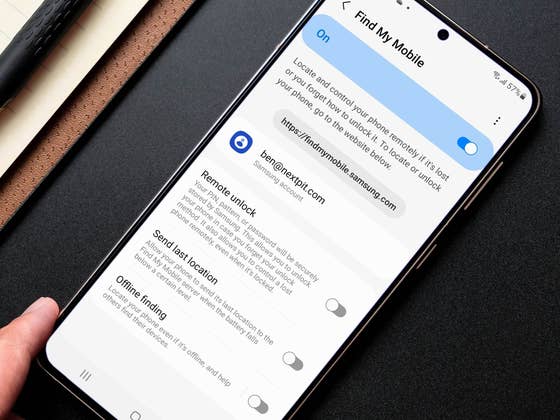
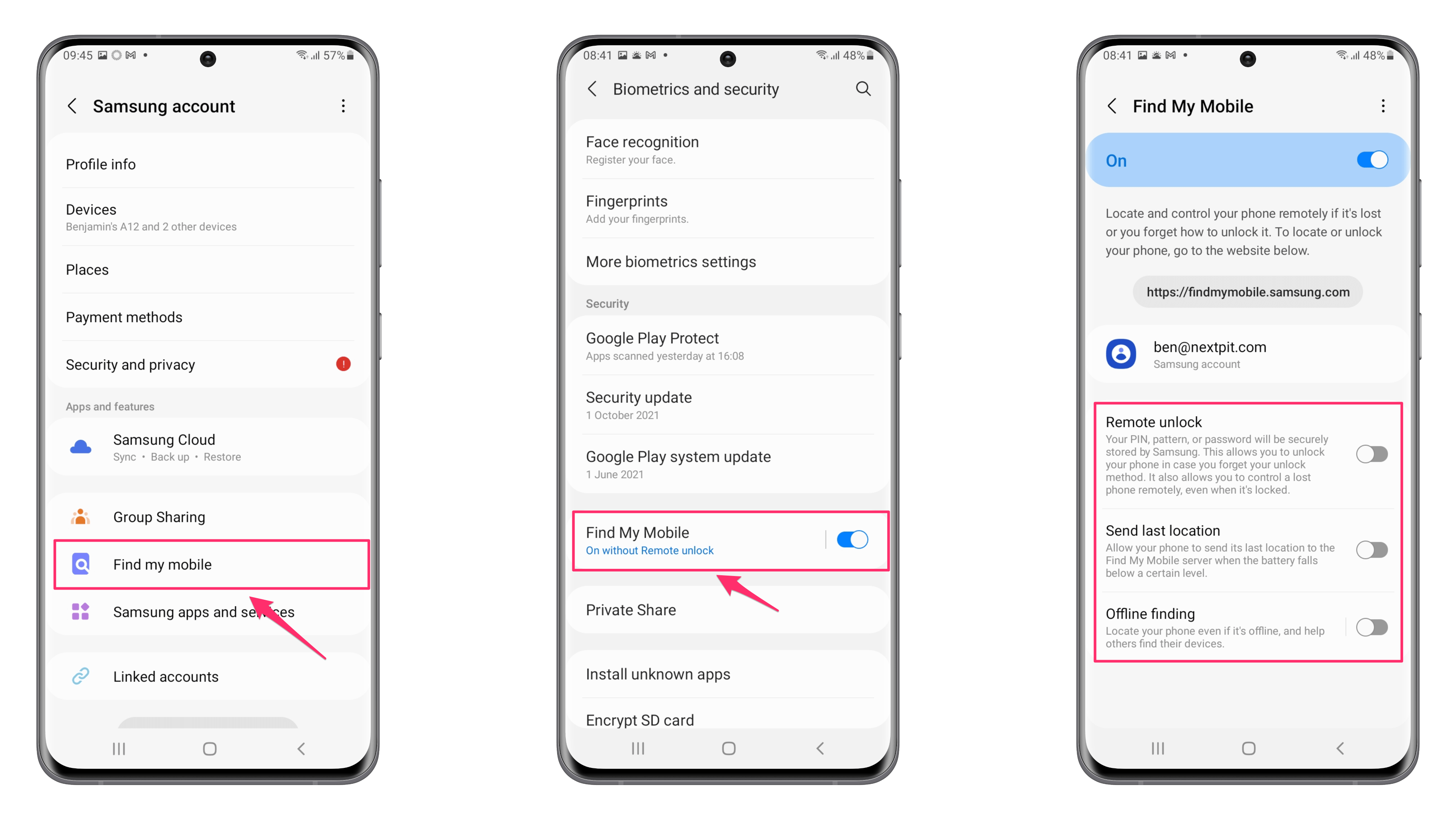
To activate it, go to the settings of your Samsung phone. There you go to Biometrics and Security and select Find My Mobile. In this menu, you can enable Remote Unlock, the transmission of the last known location, and even a tracking feature when the phone is turned off.
That’s it – this little smartphone measure will keep your data safe in case anything terrible happens. Because if you lose your PIN, the only other way is to completely reset your phone losing all the data in the meantime.
Did you already know this setting or is it new to you? Have you tried my little life hack? And what other quick tips do you share with friends and family when they set their devices? Let me know in the comments!
We mark partner links with this symbol. If you click on one of these links or buttons–or make a purchase through them–we may receive a small commission from the retailer. This doesn’t affect the price you pay, but it helps us keep nextpit free for everyone. Thanks for your support!







0 comments