


Contents
- 1 Check how far you are from the router
- 2 Check if your phone case is blocking signal
- 3 Make sure your router is in the perfect spot
- 4 Optimize your router
- 5 Use the 5 GHz band for Wi-Fi connections
- 6 Learn which Wi-Fi access point is the best
- 7 Buy a new Router or Network Extender
- 8 Update your radio or firmware
Jump to:
- How far is the router?
- Check if your phone case is blocking signal
- Put your router in the perfect spot
- Optimize your router
- Learn which Wi-Fi access point is the best
- Switch the Wi-Fi frequency band
- Buy a new Router or Network Extender
- Update your radio or firmware
Check how far you are from the router
Without even installing an app, it is always a good idea to check how close (or far) you are from your router. In case the speed issues occur only when you are some distance away from the router, it is always a good idea to sit a bit closer. If that is not possible, you may be required to physically move the router to a better location.
If the issues remain even after you are relatively close to the router, it is always advisable to restart it once.
Check if your phone case is blocking signal
Using a case with your phone? If yes, you might want to check if one of the causes for poor Wi-Fi (and cellular) connectivity is tied to the case. It is a known fact that many phone cases actually make your Wi-Fi signal worse, especially if they contain metal.
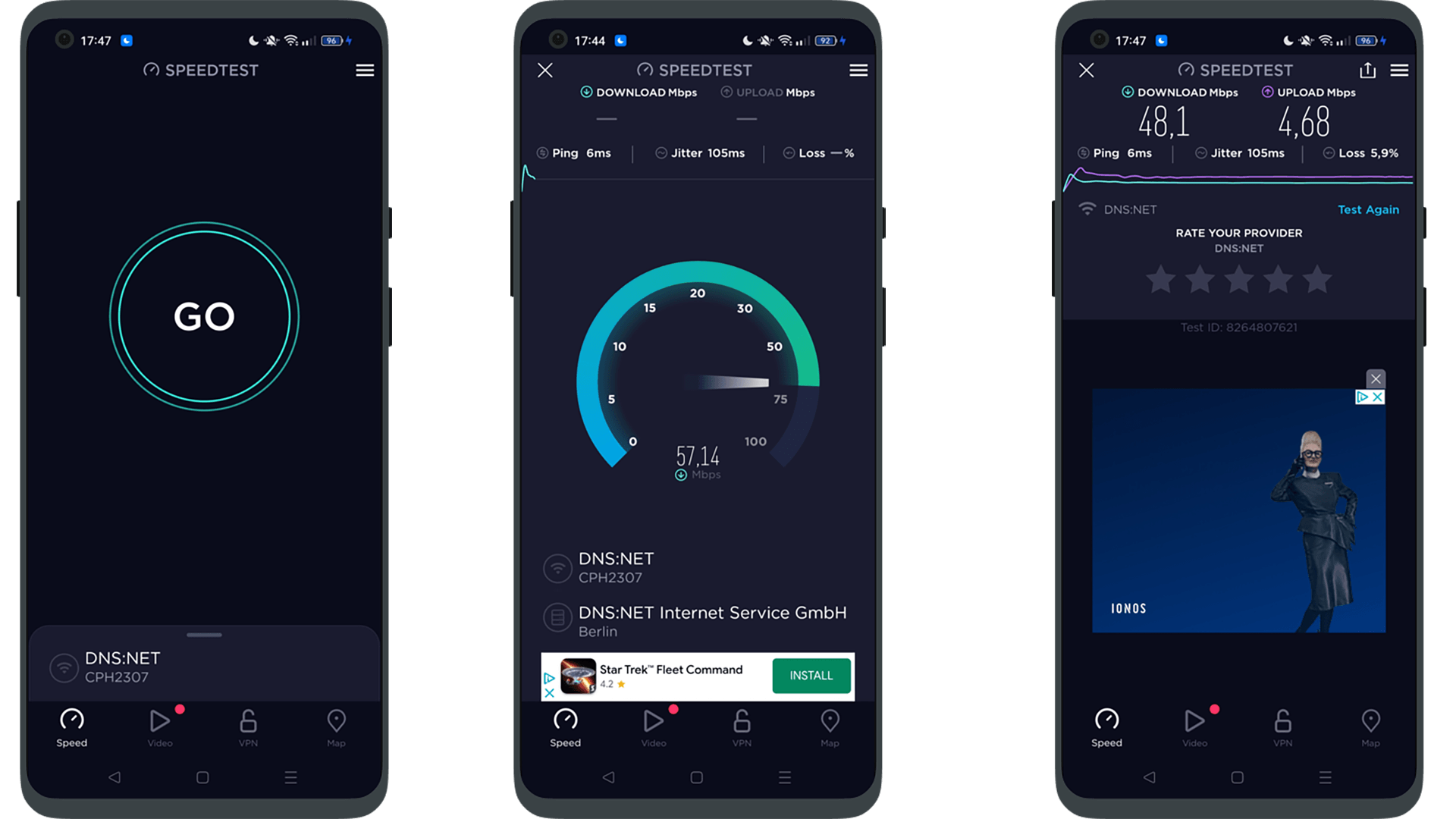
To see if your case is affecting your Wi-Fi signal, do an Ookla speed test with the case off, then, in the same location, put the case back on and perform the test again. The numbers you should be looking at are the Ping, the Jitter, and Loss which should be as low as possible.
If you see a difference when using your case you may want to look at alternatives. You can also perform the same test using Ookla’s official speed test app. However, the app asks for a wild number of permissions, so we recommend uninstalling it as soon as you have concluded your test.
- Download Speedtest by Ookla from the Google Play Store
- Download Speedtest by Ookla from the Apple App Store
Make sure your router is in the perfect spot
Another trick that can greatly improve the Wi-Fi connection at home is the optimization of the router’s location. Often, it is placed right next to the phone or cable outlet, but this is rarely the best for your connection.
Some simple positioning hacks to improve your Wi-Fi:
- Keep as few obstacles between your devices and your Wi-Fi antenna. Ideally, you would want it to be within line of sight.
- Place the router in a higher place, placing it near the floor drastically reduces the range (and speed).
- Try to avoid closing your Wi-Fi router in metal boxes. Metals like aluminum reflect wireless signals.
- Avoid placing your router next to fish tanks and other large bodies of water.
- If your router has an antenna, try aiming it towards the location that has the weakest signal.
- Close or open windows depending on your needs since glass can reflect Wi-Fi signals.
- Open doors between and remove other barriers.
If these hacks are not enough, there are several apps that help you optimize the position of your router. However, most of the instructions are too technical to be carried out by a layman.
The best recourse, therefore, is to get in touch with your ISP, who will have all the necessary tools to position your router at the best possible location inside your home. Ideally, this should be done by the ISP on the day of installation.
In case you have a large home spread across multiple floors, it is also recommended that you take a look at Wi-Fi Mesh routers.
Optimize your router
By visiting the settings page of your router, you can easily make changes to your network. Now, if you feel uncomfortable with the number of settings, then I would recommend that you do some research first. Since every router page is different unfortunately we cannot make an all-inclusive guide here but referring to the manual or your provider should do the trick.
The first thing that you can do is to change your priorities. You can either make specific devices have priority over others (like your phone over the TV) or even assign different bandwidths and restrictions depending on applications. The abilities here will largely rely on how good your router is.
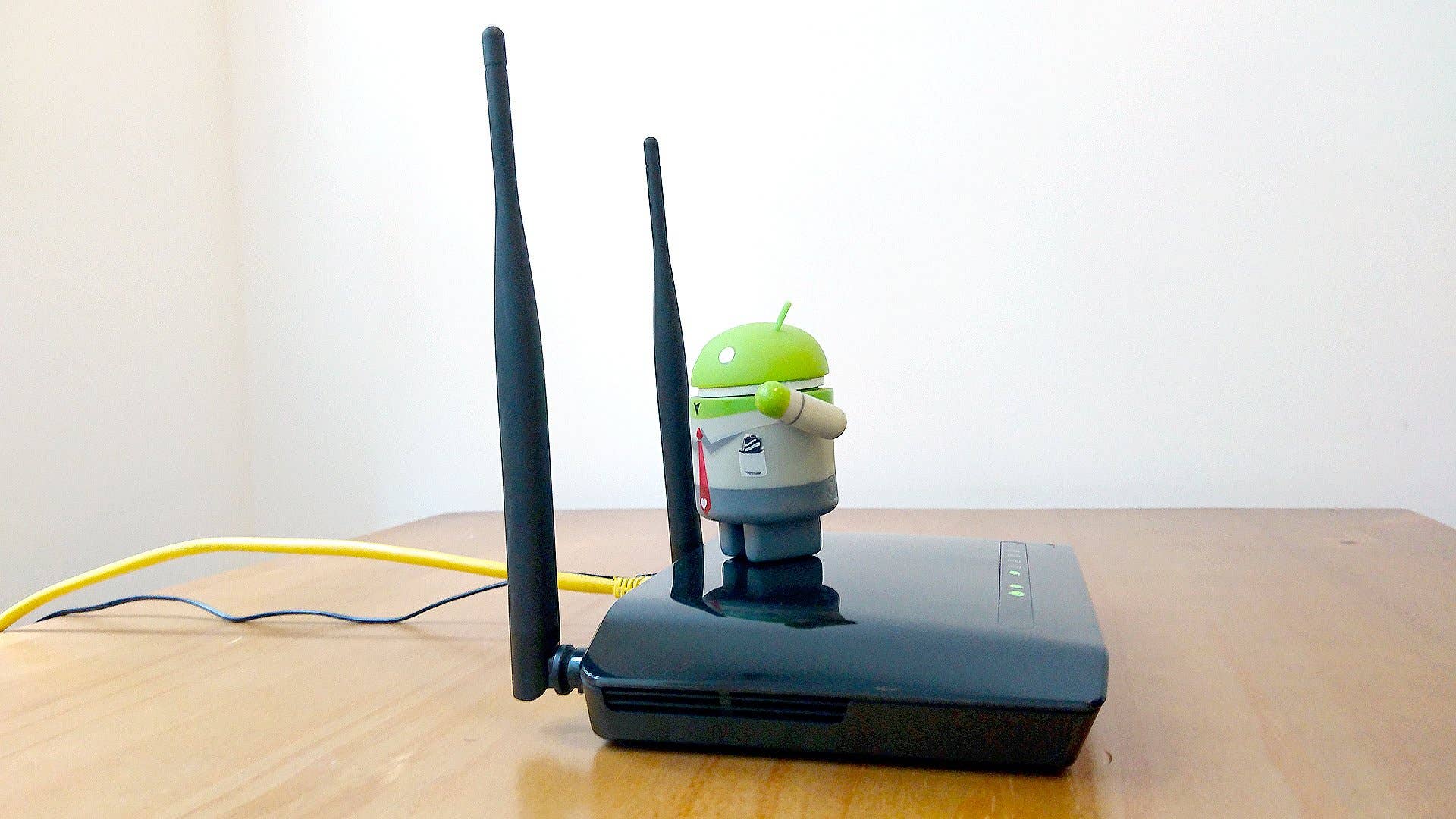
A second thing that will help with slow Wi-Fi speeds is removing other devices. Sometimes a neighbor may still accidentally connect to your Wi-Fi or a device that you do not use as often is taking a portion of the bandwidth. I recommend that you take a look through the connected devices and try to declutter.
Lastly, it is important to keep the router firmware updated since manufacturers constantly fix bugs and optimize their routers. This may not directly help with Wi-Fi speeds, but it is a good practice for security reasons.
Use the 5 GHz band for Wi-Fi connections
Most Android smartphones (and routers) today support the 5GHz frequency band. While setting up your router, chances are high your ISP technician created two separate Wi-Fi networks to choose from. Most routers name the 5 GHz networks by suffixing the term “5G” at the end of the network name (also known as the SSID).
If you think you are on a slow 2.4Ghz network, it is always a good idea to switch to the 5 GHz band where there’s much more free space on the spectrum. There are 23 channels of 20 MHz each on the 5 GHz frequency, which is much more than the 14 channels offered on 2.4 GHz. Because the channels don’t overlap, you’re likely to get a better signal on your Wi-Fi when connected to a 5Ghz network.
Note that a 5Ghz network has a much lower range compared to 2.4Ghz. You may see a significant drop in speeds if you are connected to a 5Ghz network, but you are physically far away from the router. In such cases, it is better to switch to the “slower” 2.4 GHz band.
Learn which Wi-Fi access point is the best
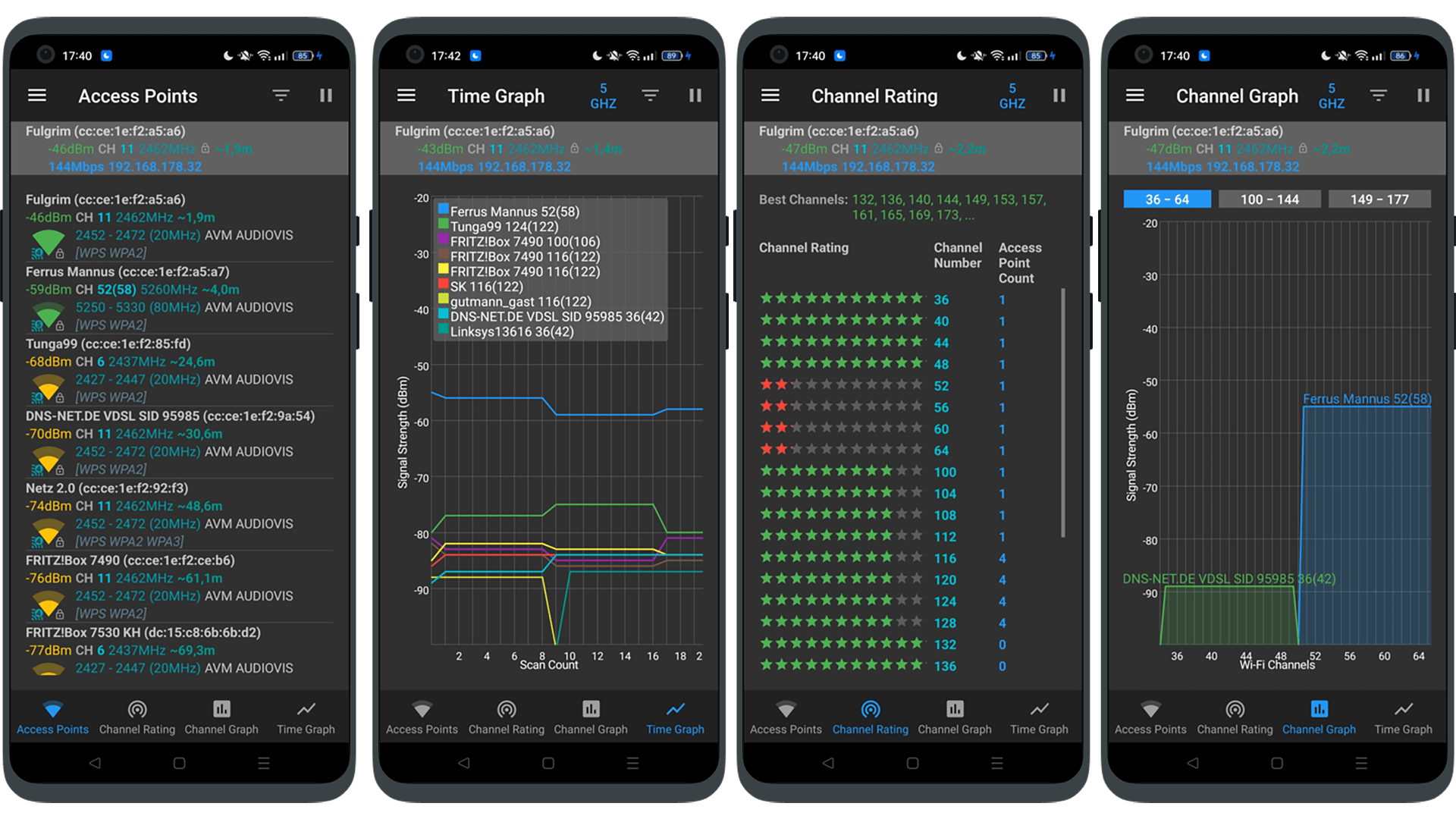
Short of turning the router off and on again, which should always be your first option when suffering from a poor Wi-Fi connection, another way is using the Wi-Fi analyzer app. Firstly, it provides the best channel to use for your particular network. Without going into detail, it allows you to optimize the network and means you don’t have to be a technical whizz-kid to do so.
Secondly, it assesses which network in the area has the most stable connection, which often isn’t the one to which your phone connects by default. Lastly, it provides easy access to network information such as your IP address, network gateway, DNS, etc. It’s not essential, but useful for power users.
- Download the Wi-Fi Analyzer app from the Google Play Store
If you are using an iPhone, an alternative app to do this called Network Analyzer.
- You can download Network Analyzer from the iOS App Store
Buy a new Router or Network Extender
Today most mobile devices support Wi-Fi 6 (802.11ax) which has been around for quite some time now (since 2019). If your router is older than three years it probably does not support Wi-Fi 6 or the even faster Wi-Fi 6E (which was released in 2020).
Upgrading to a newer standard will allow you to get more stable connections, better signal, and more bandwidth out of your Wi-Fi, but beware, your bottleneck is still probably your ISP, so don’t expect to get faster internet than what you do via a wired connection. Another good reason to change your router is that some ISPs charge you a monthly fee for using their (usually) sub-standard routers. But before you make this investment make sure that your new router is compatible with your ISP.
For now, Wi-Fi 6E routers are relatively new and can be quite an expense. Opting for a Wi-Fi 6 one will cover you for many years to come. For larger houses, you should also look towards a mesh router system or, if on a budget, a Wi-Fi extender. Here are some recommendations.
Update your radio or firmware
If you’re receiving OTA updates from your carrier or manufacturer, then this probably doesn’t apply to you, but if you are running custom ROMs, you may find yourself occasionally needing to manually update the radio on your Android. As an example, here’s how to update the bootloader and radio on the Nexus 5. You should also make sure you’re on the latest version of Android to ensure the best performance. To check this, go to Settings > About > Software updates.
Are we missing any tricks? What do you do to boost your Wi-Fi signal?
This article was last updated in March 2022. Older comments have been retained.
We mark partner links with this symbol. If you click on one of these links or buttons–or make a purchase through them–we may receive a small commission from the retailer. This doesn’t affect the price you pay, but it helps us keep nextpit free for everyone. Thanks for your support! Prices are based on the date of publication of this article and may be subject to change.


im not sure if any of these will help me. I red the one could make your battery hot and idk if thats going to hure my phone. my problem is my samsung galaxy core prime will not pick up my schools wifi signal no matter where i am. i just got it and already hate samsung and everything about it and will be looking for an iphone if it keeos happening cuz everyone with iohones connects just fine
Um, I’m curious how to utilize a metal bowl or tin can. The pic doesn’t look like it’s set up as a receiver. Or maybe just having the bowl close works?? Is there a certain way to place the bowl and phone or do they have to touch. Because there’s no mention of attachment of wires or tin foil etc. Please respond cause I’m curious if it works. This phone frustrstes me with its weak grip on the signal. I don’t care if I look like I’m alien crazed. Ya baby! :0
which app can help me to boost android hotspot wifi signals? http://www.chat4enjoy.com
The MacGyver tip takes away all seriousness of the article.
Hilarious!
But it works.
Strongly Agreed
None
Change your Wi-Fi frequency band to 5 GHz – I do not see this option in an Android Sony z3 or z5- Or at least I can’t seem to find it on the Wifi menu choices. No advanced menu? Please help as we do LIVE broadcast for our church in a week area and we need better singles from mobile. Thanks
there are numerous ways to improve your WiFi signal, but the final result depends heavily on your environment.
some tips that may work:
1. try amplifier — it can be expensive as specialized directional antenna, or cheap as a soda can.
2. change channel settings — the 2.4Ghz WiFi(802.11 b/g/n) only has 3 non-overlapping channels, set your channel to one of 1/6/11 will help reduce the chance of overlapping channels.
3. regularly scan your environment — in scan result, you will see how many networks are around you, and the signal strength, channels they running etc. Then you can avoid running a similar network, and find a relatively *clean* environment
these tips sounds a bit *geeky*, but there are a lot of tools available to ease the processing. For example, WiFi Manager , an Android App, is able to do the scanning, and show result in an intuitive graphic way
According to my research, 5 gig doesn’t have as good a range as 2.8 (apparently), so this can be a factor in which you choose.
Just a warning about all the "speed test" apps in the Play Store: most are incredibly inconsistent. My ISP uses Ookla on its PC interface, and the Ookla Android app seems to generate the same results – other apps are measuring who knows what, but it ain’t that.
For advanced users, a great way is to install a new firmware, such as DD-WRT. This greatly improves the performance of the router, including signal strength.
My problem is that I get crappy reception no matter where I go with my Z5. Every one else’s phone, laptops, tablets, etc work fine but mine is always struggling or even saying not connected to the internet when everything else works fine. Does anyone know how to address this?
Use a broadband modem / router with an extender (especially if your dwelling is multi-level, your Wi-Fi is on 2nd Floor and your extender is on the 1st Floor). Set your smartphone and or tablet up to switch from Wi-Fi 2 extender (depending on what Floor you are on). An extender is great for boosting the Wi-Fi signal to your smart TV (or other smart device).
This is just an amazing technique and it really works. Thanks for sharing this blog.
Umm I tried to download MCPE 1.13 beta apk (I cant wait to see foxes)
And my internet connection is fine on my ASUS Windows 10 laptop, but on my S5 it is very struggling. he file has 90 MB and I can’t download it.
Can’t find any "Wi-Fi band" or Avoid poor internet connections in my Wifi settings (Android 6.0).
Best speed test is dslreports.com
Removing phone case (if you have one) in most phones can increase WiFi strength by 50% just remove it and wait for a minute and see
mine is android 6 and its model is sm-G610F but i cant find any of these setting. i try it step by step………
I tried some apps and did not work because those app only shows full signal of wifi connection but speed not getting higher.
Anyone have trusted and secured tool for this?