Sorry, but there's really nothing to see here right now. Our server is in maintenance mode – and our
little bot is trying to sort the error messages with its last bit of energy.
Whether it was a data leak, a power outage in the cluster, or just a grumpy bit – we don't know yet.
But what we do know is:
The data drama escalated into a server meltdown. But don't worry: We're on it.
What now?
Everything is surely running smoothly over at our colleagues from inside
digital – why not stop by!
Or you could pass the time by visiting our social media channels – for example Instagram, YouTube or TikTok. At least there are no
server problems there – promised.
Thanks for your patience. Our bot is already rebooting at full speed. 🔧
How-tosTabletHow to unlock the Nexus 6 bootloader: the easy way
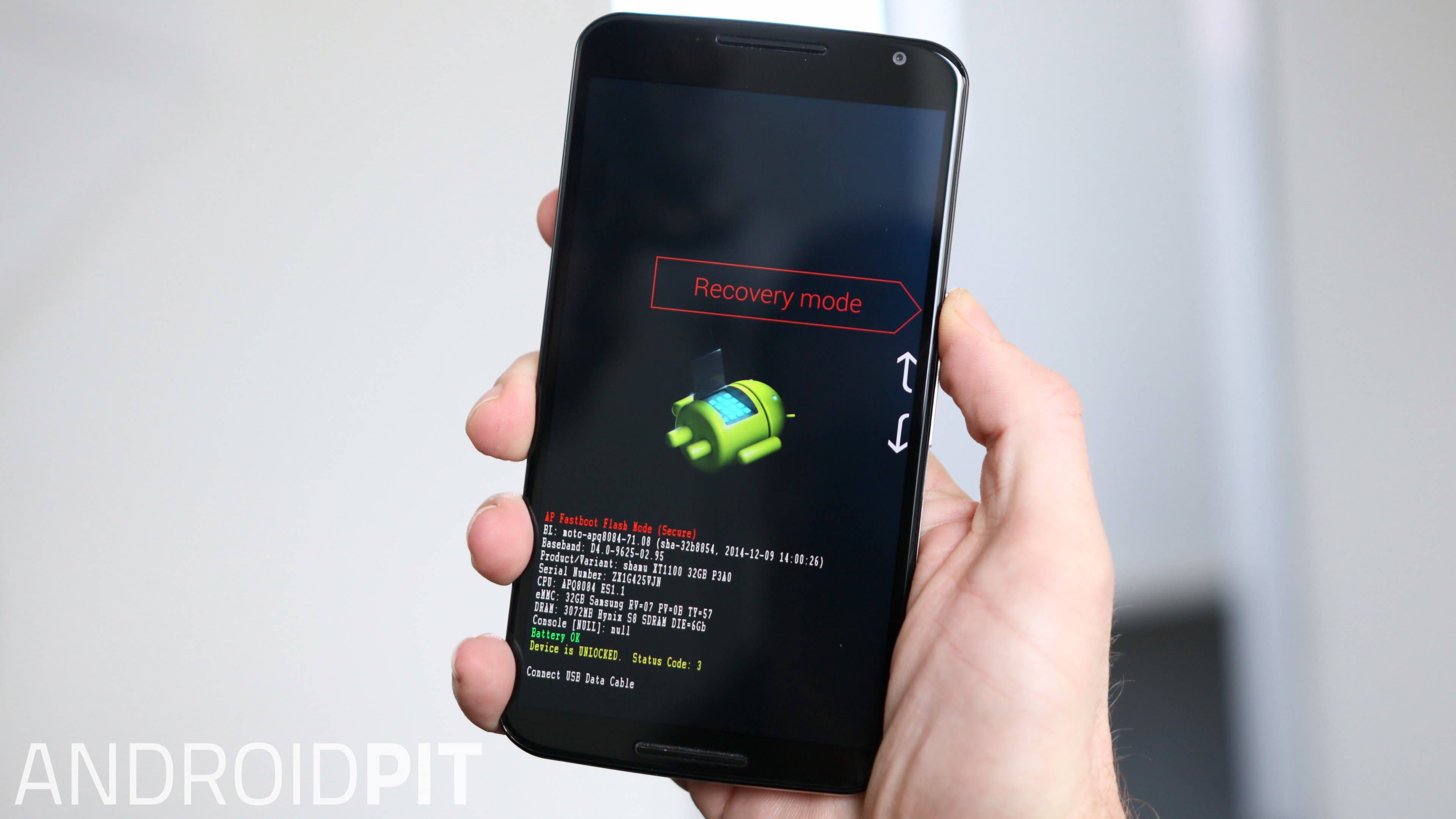
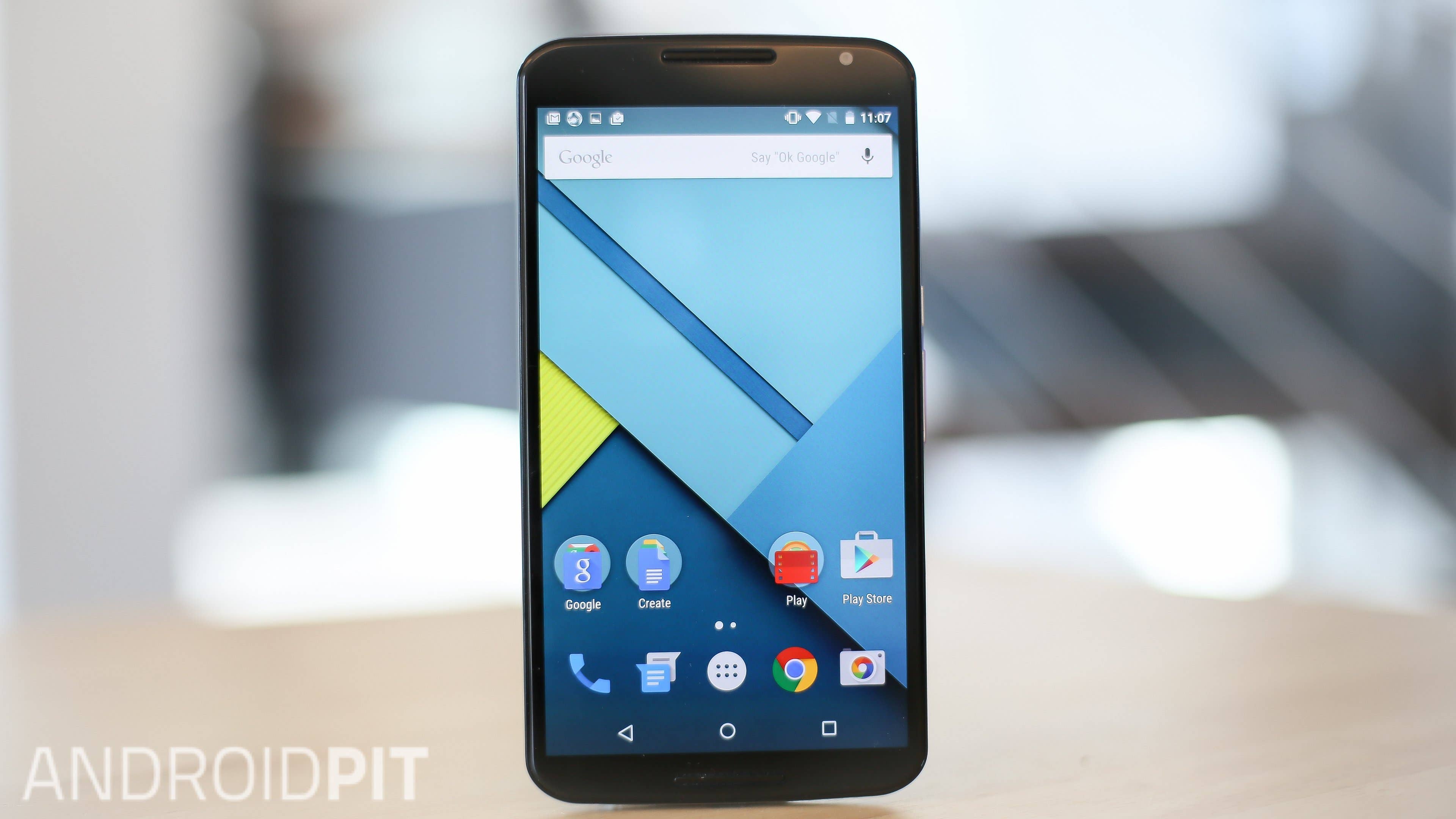
There are many reasons why people love Nexus devices, but chief among them is how perfect for customization and modding they are. If you want to delve into these features, get faster updates or flash a different version of Android, the first thing you need to do is unlock the bootloader. Here is the easiest way to unlock the Nexus 6 bootloader.
Nexus 6 tips and tricks
How to make your Nexus 6 screen bigger
Unlocking the Nexus 6 bootloader will delete all of the data from your Android device, so make sure you have a full backup before proceeding. Also be aware that an unlocked bootloader will make your phone less secure if you lose it because you can bypass any security you might have set up. This might not be a problem for you, it’s just a warning.
To unlock the Nexus 6 bootloader, you’ll need Platform Tools. This is part of the Android SDK. You can download the full Android SDK if you like, or just the bit you need for this tutorial: ADB Platform Tools. You will also need to install the correct Nexus drivers for Windows. Use the ADB Driver Installer tool below to do this.
You’ll want to install the Nexus 6 Windows drivers before proceeding. Go into your device settings and down to About phone. Tap on the build number seven times until it tells you that you are now a developer. Now, go to Settings > Developer options and make sure USB debugging is enabled. Connect your Nexus 6 to your PC via the USB port.
Next, extract the ADB Driver folder on your computer, and run the driver installer file inside. The Nexus 6 should show up as one of the devices in the device list.
If it doesn’t, you may need to adjust your USB charging options (which will be in your Nexus 6 notification shade when you pull it down) to PTP. Hit Refresh in the ADB Driver Installer Window and the Nexus 6 should now be there. Hit Install and the latest drivers will be installed
8. On your Nexus 6, you should see a screen asking if you want to unlock the bootloader. Use the volume rocker to scroll and the Power button to highlight yes.
9. Once the phone has finished doing its thing, enter the following command: fastboot reboot.
10. Press enter. Your Nexus 6 will now reboot with an unlocked bootloader. Once it has restarted you can restore your backed-up apps and data.
That’s all there is to it, folks. Let us know if you have any problems in the comments below.
I get the following: ++++++++++++++++++++++++++++++++++++++++++++ (bootloader) Unlocking bootloader…
(bootloader) Not supported command in current status! FAILED (remote failure) ++++++++++++++++++++++++++++++++++++++++++++ Any ideas?
Log in to Reply
I meet the same question with Winston Lee ! Please help me, thank you!
Log in to Reply
goddamnit, not working, it gives me the help menu
Log in to Reply
Hello, I have a Nexus 6. I never enabled usb debugging before and now i can’t boot into my android OS because of a failed update. I get the no command dead guy window. Here’s what i did so far : 1) Accessed Recovery and wiped cache. 2) Did wipe data/factory settings, it wipes the data but when i reboot i still get the no command window. 3) So now i’m trying to unlock my bootloader in order to install a factory image i downloaded from google servers. But the "fastboot oem unlock" command doesn’t work. It says : "Check OEM unlock in developer options" and then FAILS. Please help !
Log in to Reply
@anime-zeidane You can follow these steps.
If your device is on, turn it off. Press & hold the Volume down button. While holding Volume down, press & hold the Power button until the phone turns on. You’ll see the word "Start" with an arrow around it. Press the Volume down button until you highlight "Recovery mode." Press the Power button to start recovery mode. You’ll see an image of an Android robot with a red exclamation mark (you may also see "No command"). Press & hold the Power button. While holding Power, press the Volume up button once. Then release the Power button. Press the Volume down button until you highlight "Wipe data/factory reset." Then press the Power button. Press the Volume down button until you highlight "Yes" (or "Yes – delete all user data"). Then press the Power button to select it. After the reset is complete, press the Power button to select "Reboot system now."
Log in to Reply
did this… is taking forever, i think it froze on "Formatting/data"
Log in to Reply
command prompt just says "waiting for any device"
Log in to Reply
When I type in the first command (oem unlock), it says: <<Check ‘Allow OEM Unlock’ in Developer Options. FAILED (remote failure)>> What should I do now? EDIT: ok, I found the issue, nevermind 🙂
Log in to Reply
When it does this, as mine did, I held the power button and pressed volume up. Now I’m on the Erasing screen with the multicolored circle. Wait a little while, then victory!!
Log in to Reply
amigos no pude desbloquear el gestor de arranque " fallido remoto" hayuda plis
Log in to Reply
what was the issue i got the same
Log in to Reply
JEEESSUS AUTHOR YOU ARE PUTTING PEOPLES PHONES AT RISK! You missed a CRITICAL step! how are you going to write a tutorial that puts everyones beautiful wonderful phones at risk and miss a step which shoots them towards certain failure!?!? BEFORE YOU BOOT INTO YOUR BOOTLOADER AND RUN FASTBOOT YOU HAVE TO GO INTO THE DEVELOPER OPTIONS MENU, SELECT "ENABLE USB DEBUGGING" **AND** THERE IS ANOTHER BOX THAT SAYS "ALLOW OEM UNLOCKING". WITHOUT THIS BOX SELECTED WITHIN YOUR SETTINGS MENU, YOUR BOOTLOADER WILL GIVE YOU ERROR IF YOU TRY TO OEM UNLOCK! Sheeeeesh dude, irresponsible!
Log in to Reply
You must select "allow OEM unlocking" within the developer options menu before attempting the fastboot oem unlock command!
Log in to Reply
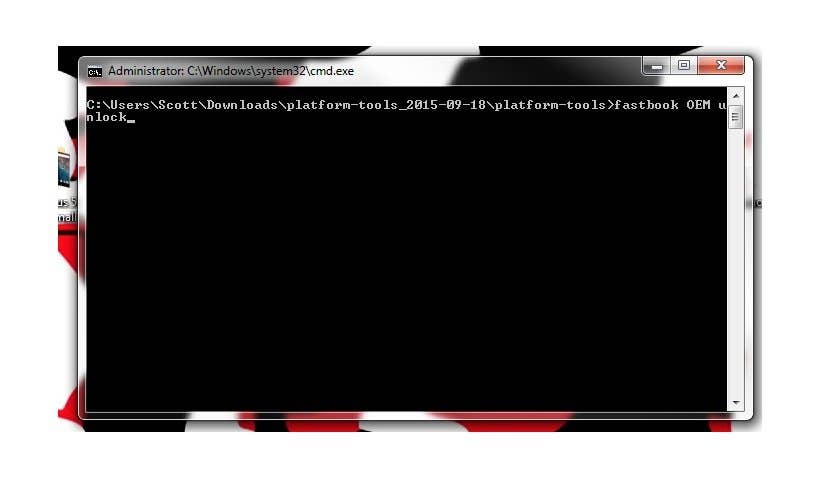
Not ‘fastboot OEM unlock’, but ‘fastboot oem unlock’








I get the following:
++++++++++++++++++++++++++++++++++++++++++++
(bootloader) Unlocking bootloader…
(bootloader) Not supported command in current status!
FAILED (remote failure)
++++++++++++++++++++++++++++++++++++++++++++
Any ideas?
I meet the same question with Winston Lee ! Please help me, thank you!
goddamnit, not working, it gives me the help menu
Hello,
I have a Nexus 6. I never enabled usb debugging before and now i can’t boot into my android OS because of a failed update. I get the no command dead guy window. Here’s what i did so far :
1) Accessed Recovery and wiped cache.
2) Did wipe data/factory settings, it wipes the data but when i reboot i still get the no command window.
3) So now i’m trying to unlock my bootloader in order to install a factory image i downloaded from google servers. But the "fastboot oem unlock" command doesn’t work. It says : "Check OEM unlock in developer options" and then FAILS.
Please help !
@anime-zeidane
You can follow these steps.
If your device is on, turn it off.
Press & hold the Volume down button. While holding Volume down, press & hold the Power button until the phone turns on. You’ll see the word "Start" with an arrow around it.
Press the Volume down button until you highlight "Recovery mode."
Press the Power button to start recovery mode. You’ll see an image of an Android robot with a red exclamation mark (you may also see "No command").
Press & hold the Power button. While holding Power, press the Volume up button once. Then release the Power button.
Press the Volume down button until you highlight "Wipe data/factory reset." Then press the Power button.
Press the Volume down button until you highlight "Yes" (or "Yes – delete all user data"). Then press the Power button to select it.
After the reset is complete, press the Power button to select "Reboot system now."
did this… is taking forever, i think it froze on "Formatting/data"
command prompt just says "waiting for any device"
When I type in the first command (oem unlock), it says: <<Check ‘Allow OEM Unlock’ in Developer Options. FAILED (remote failure)>> What should I do now?
EDIT: ok, I found the issue, nevermind 🙂
When it does this, as mine did, I held the power button and pressed volume up. Now I’m on the Erasing screen with the multicolored circle. Wait a little while, then victory!!
amigos no pude desbloquear el gestor de arranque " fallido remoto" hayuda plis
what was the issue i got the same
JEEESSUS AUTHOR YOU ARE PUTTING PEOPLES PHONES AT RISK! You missed a CRITICAL step! how are you going to write a tutorial that puts everyones beautiful wonderful phones at risk and miss a step which shoots them towards certain failure!?!? BEFORE YOU BOOT INTO YOUR BOOTLOADER AND RUN FASTBOOT YOU HAVE TO GO INTO THE DEVELOPER OPTIONS MENU, SELECT "ENABLE USB DEBUGGING" **AND** THERE IS ANOTHER BOX THAT SAYS "ALLOW OEM UNLOCKING". WITHOUT THIS BOX SELECTED WITHIN YOUR SETTINGS MENU, YOUR BOOTLOADER WILL GIVE YOU ERROR IF YOU TRY TO OEM UNLOCK! Sheeeeesh dude, irresponsible!
You must select "allow OEM unlocking" within the developer options menu before attempting the fastboot oem unlock command!
Not ‘fastboot OEM unlock’, but ‘fastboot oem unlock’